Accessing ADSelfService Plus
You can access ADSelfService Plus from anywhere to reset your password, unlock your account, or perform other self-service actions. Whether you're working from the office, at home, or on the go, you can access the portal using any of the following methods:
- Web browser: Access the ADSelfService Plus user portal from any supported web browser.
- Computer logon screen: Access ADSelfService Plus directly from your computer's logon screen using the Reset Password / Unlock Account button.
- Mobile Device: Access ADSelfService Plus using the iOS application, Android application, or a mobile web browser.
Web browser
- Open a web browser such as Google Chrome or Microsoft Edge.
- After you receive an email with an access URL from your admin, paste this access URL into the address field and press Enter.
Note: If you don't have the access URL for ADSelfService Plus, contact your administrator.
- On the page that opens, enter the Username and Password of your user account. In place of your username, you can enter a unique ID, such as your employee ID, email address, or mobile number, if your administrator has configured one.
Note: If your administrator has enabled single sign-on, you'll be logged in to the user portal automatically using your Windows credentials. Otherwise, you'll be redirected to a page where you'll need to verify your identity.
- Select a directory from the drop-down menu, if provided. If your administrator has chosen to hide the directory field, you won’t be able to see it. You can proceed with the next step.
- Click Login.
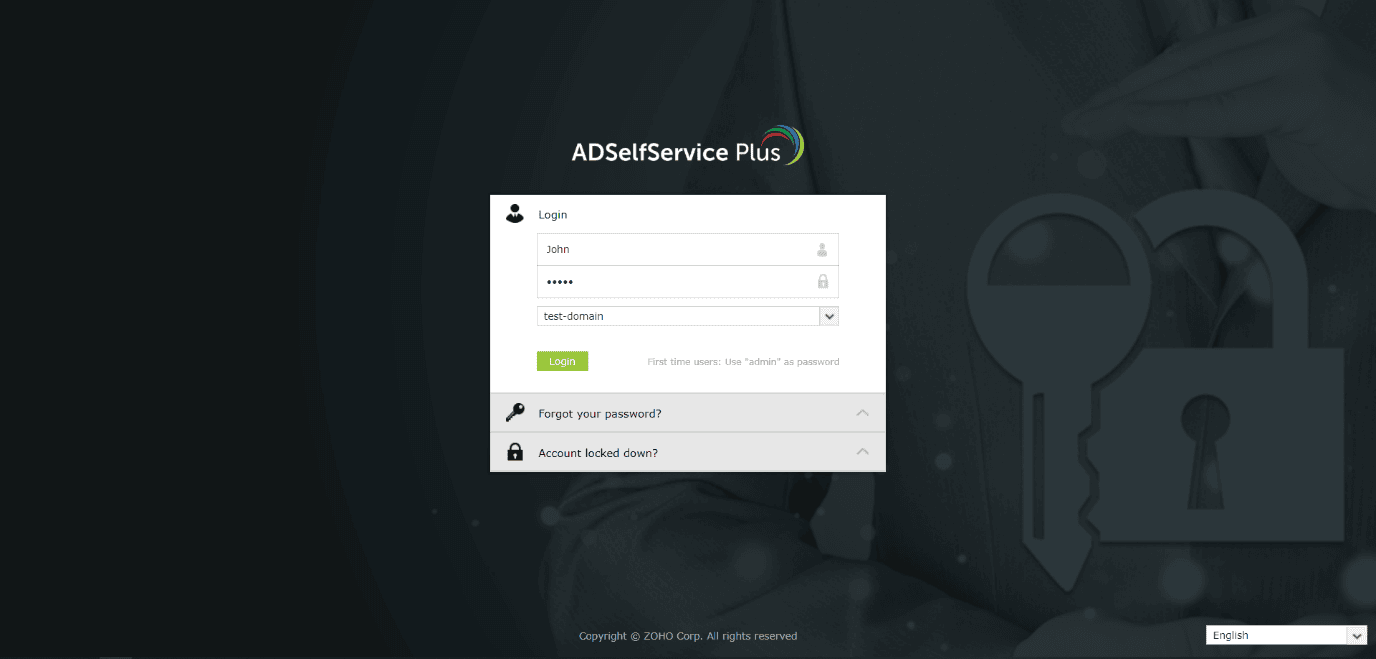
Fig 1: The ADSelfService Plus self-service portal login page in a web browser.
Computer logon screen
Access ADSelfService Plus directly from your Windows, macOS, or Linux logon screen by clicking the Reset Password / Unlock Account button.
Windows
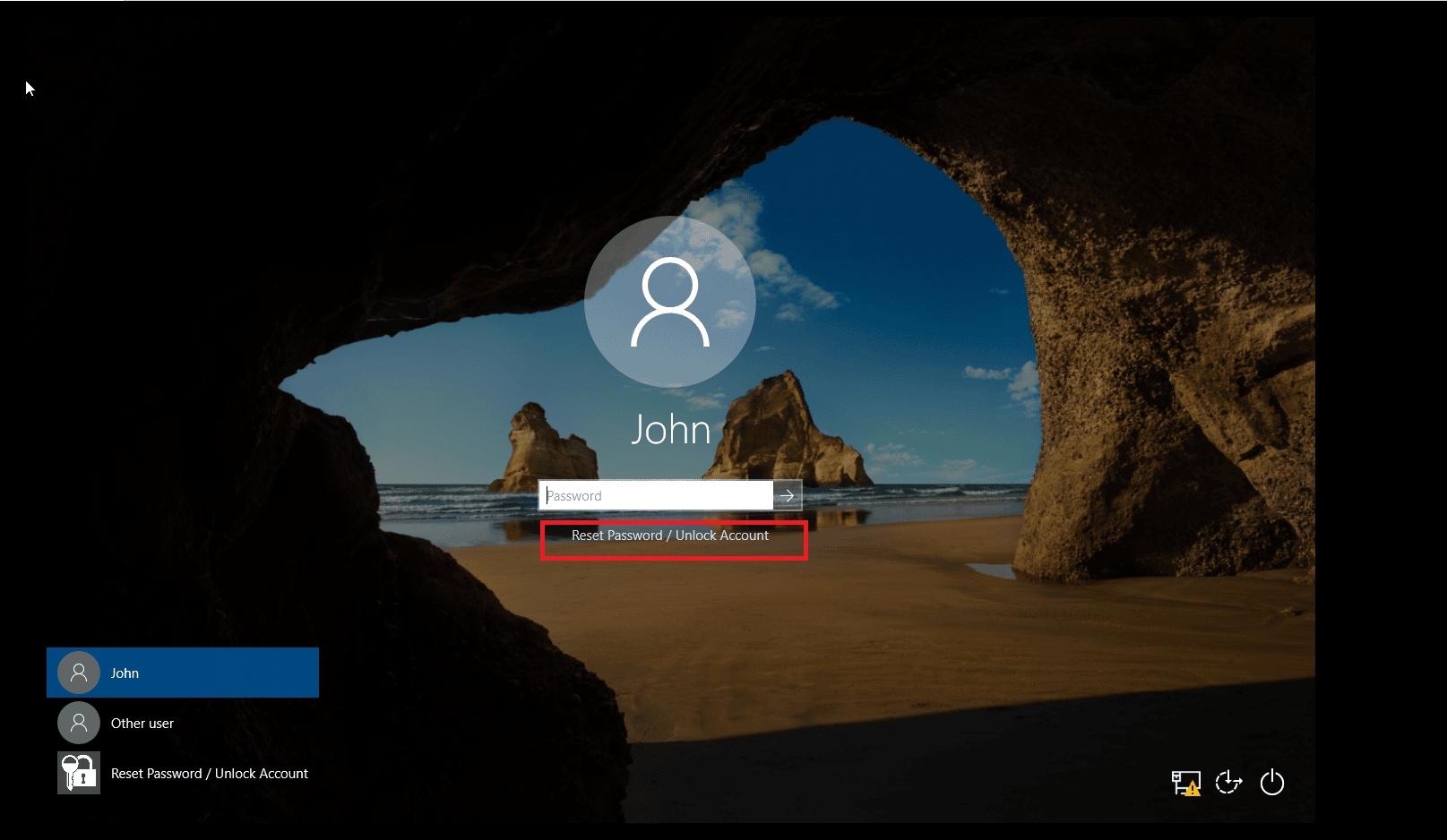
Fig 2: Resetting a password or unlocking an account from the Windows logon screen.
macOS
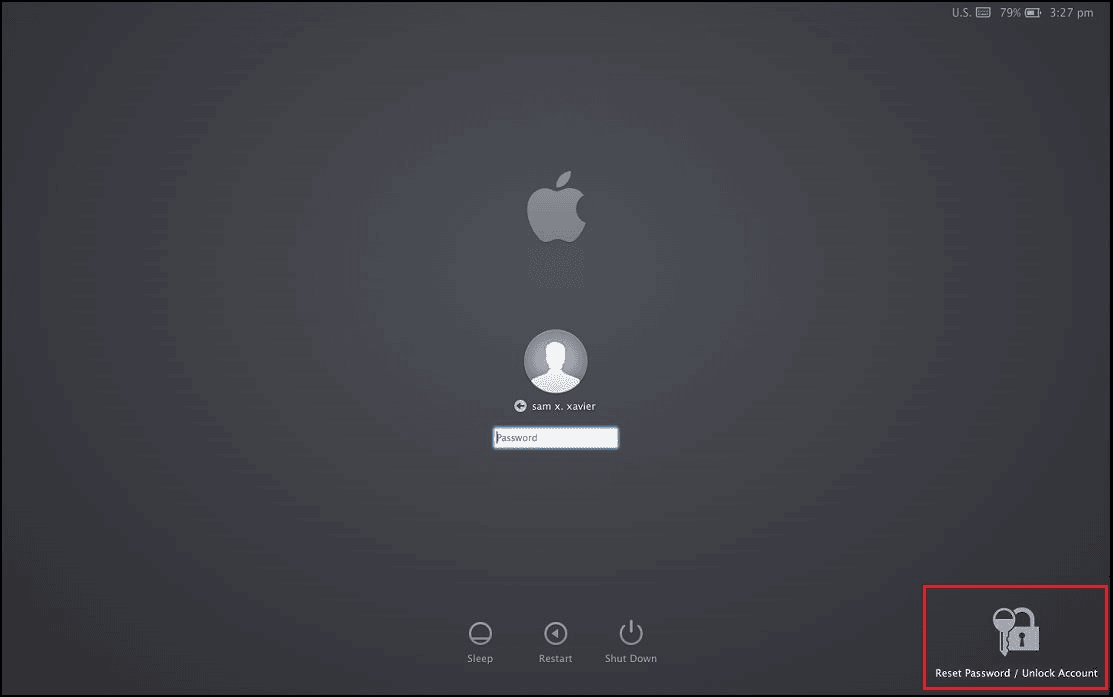
Fig 3: Resetting a password or unlocking an account from the macOS logon screen.
Linux
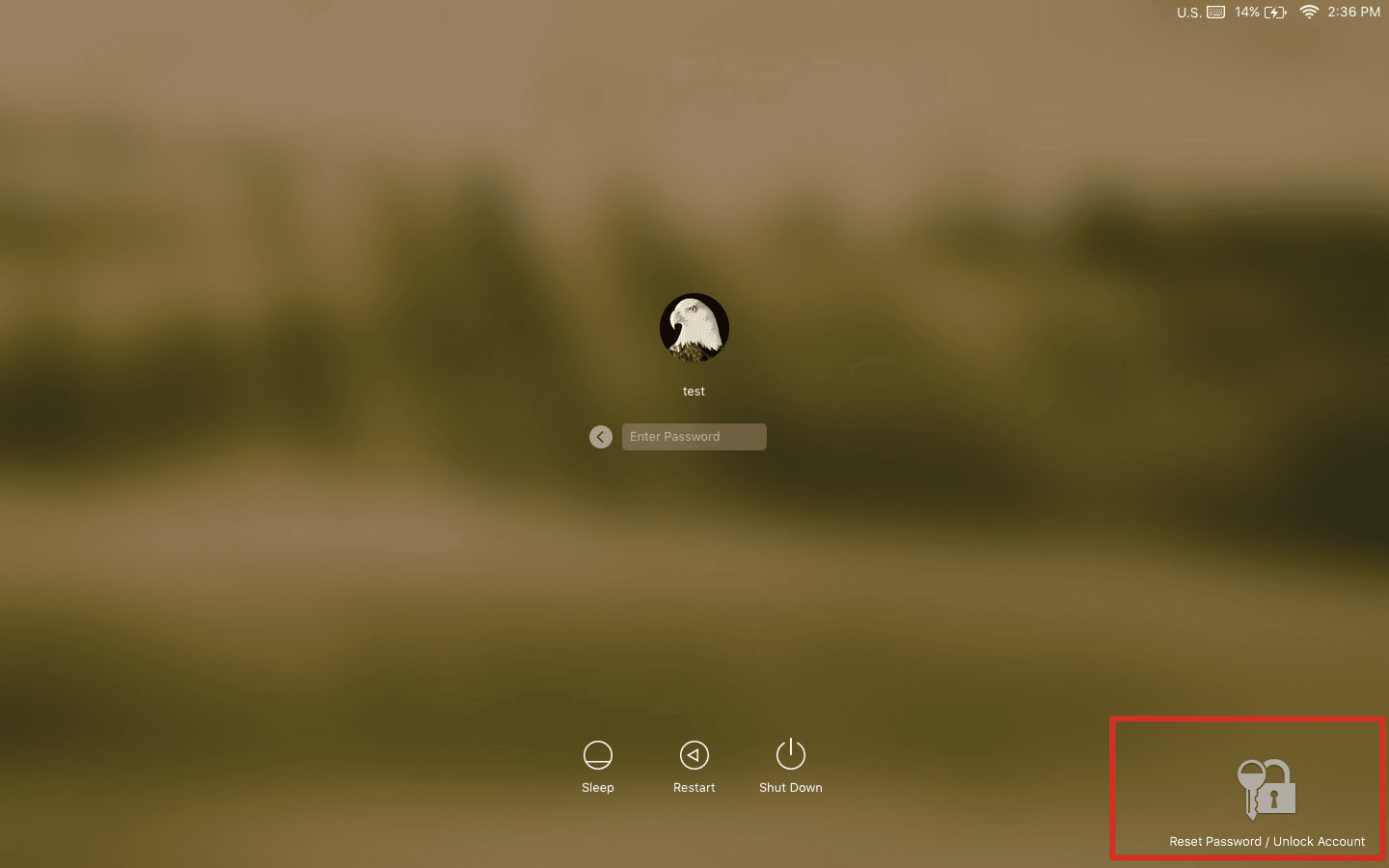
Fig 4: Resetting a password or unlocking an account from the Linux logon screen.
Mobile device
The ADSelfService Plus apps for iOS and Android let you reset your password and unlock your account directly from your phone.
Configuring the mobile app
You can connect the mobile app to your ADSelfService Plus server in two ways:
Manual configuration
Get the ADSelfService Plus server details from your administrator, then:
- In the mobile app, tap Server Settings.
- Enter the Server Name or IP Address of the machine where ADSelfService Plus is deployed, then enter the Port Number.
- In the Protocol field, select the appropriate protocol and tap Save.
Configuration via a QR code
To configure the app automatically:
- In the mobile app, tap Server Settings.
- Tap the Scan QR Code button in the bottom-right corner of the screen.
- On the ADSelfService Plus user portal page (or the reset password/account unlock page), select Mobile Access.
- Scan the QR code that's displayed.
- Your server details are then filled in automatically in the mobile app.
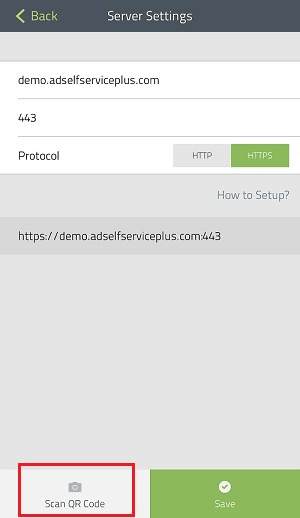
Fig 5: The Server Settings screen in the mobile app, with the Scan QR Code button highlighted.
Accessing the portal from a mobile device
iOS application
- Go to the Apple App Store and search for ADSelfService Plus.
- Install the app on your iOS device.
- Tap Login and enter your user account credentials.
Note: You can also download the app by scanning the QR code below.
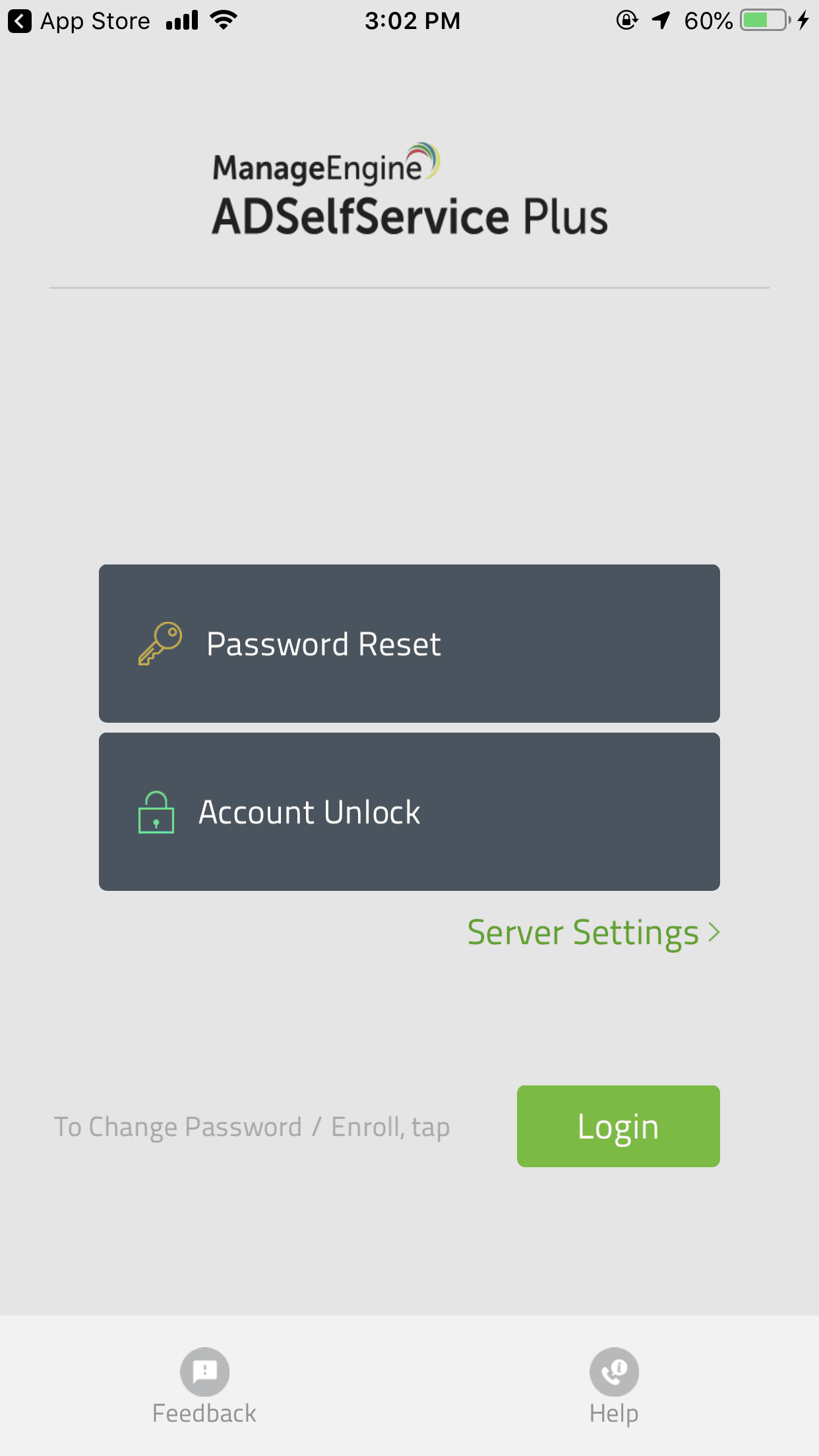
Fig 6: The ADSelfService Plus iOS app home screen.
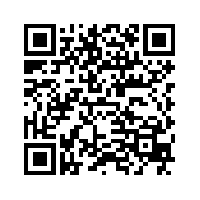
Fig 7: QR code for downloading the ADSelfService Plus iOS app from the Apple App Store.
Android application
- Go to the Google Play Store and search for ADSelfService Plus.
- Install the app on your Android device.
- Tap Login and enter your user account credentials.
- You can also download the app by scanning the QR code below.
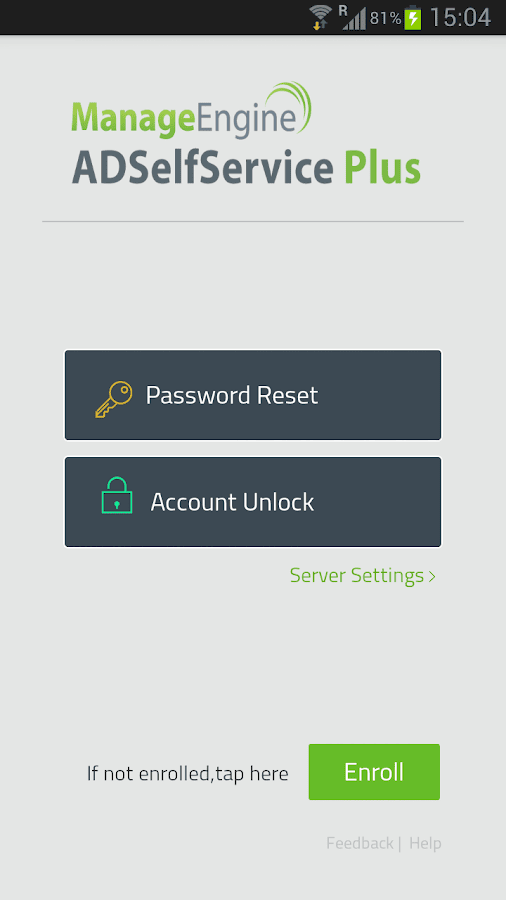
Fig 8: The ADSelfService Plus Android app home screen.
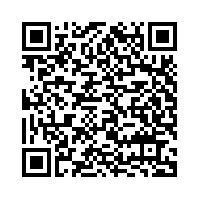
Fig 9: QR code for downloading the ADSelfService Plus Android app from the Google Play Store.
Mobile web browser
You can also reach the self-service portal straight from the browser on your mobile device.
- Open a web browser on your mobile device.
- Enter the access URL for the ADSelfService Plus portal, then sign in with your user account credentials.