Link enterprise application accounts
ADSelfService Plus allows you to link your user account with supported enterprise application accounts. Once linked, you can use ADSelfService Plus to manage passwords across connected applications and synchronize password changes, if configured by your administrator.
How do I link enterprise application accounts?
- Log in to the ADSelfService Plus User Portal and navigate to the Applications tab.
- Hover over the application that you want to link and click Link Account.
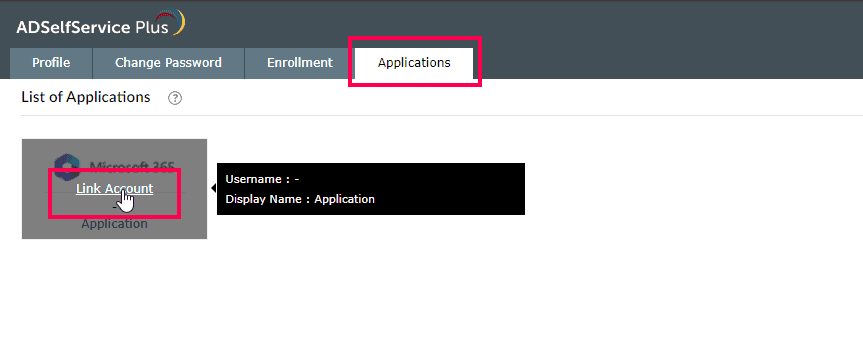
Fig 1: Linking an account from the Applications tab in the user portal.
- Enter the credentials for the selected application.
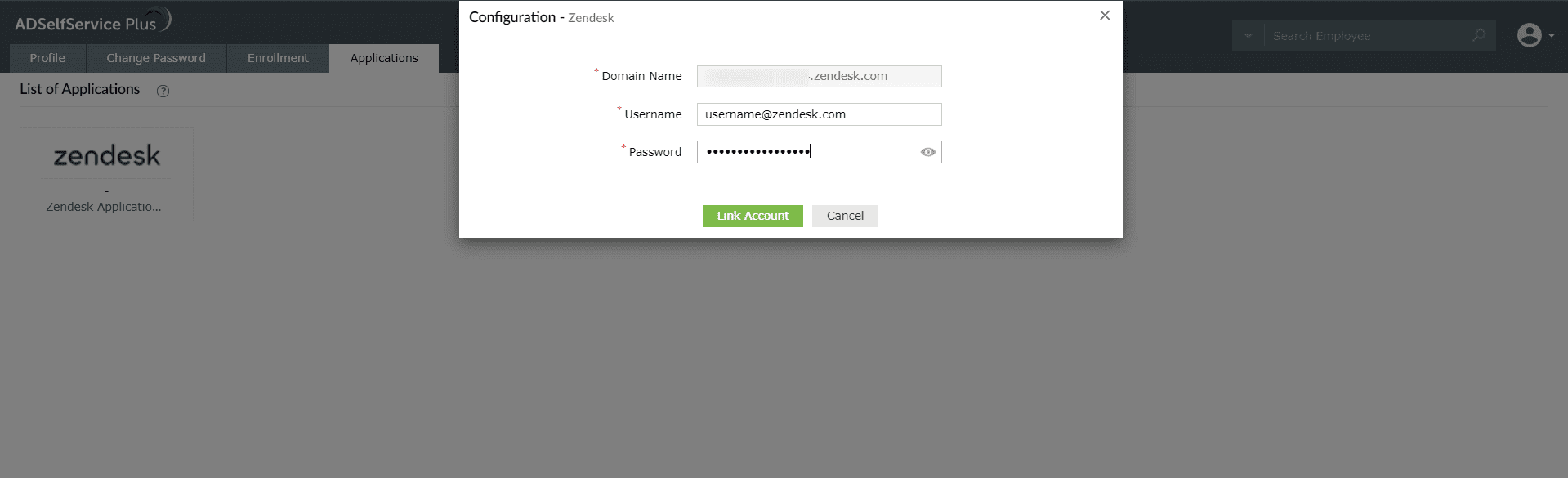
Fig 2: Entering your credentials to link the selected application.
- Click Link Account and complete the account linking process.
Your administrator may have already linked your user account with enterprise application accounts automatically.
Linking Salesforce and Google Workspace accounts requires a one-time password (OTP). Click here to learn more.
Linking Microsoft Dynamics CRM and Microsoft 365/Azure accounts requires OAuth-based authentication and redirects you to the application. Click here to learn more.
How do I unlink enterprise application accounts?
- Log in to the ADSelfService Plus User Portal and navigate to the Applications tab.
- Hover over the linked application that you want to remove.
- Click Unlink Account.
Link Salesforce and Google Workspace accounts
- In the Applications tab, select Salesforce or Google Workspace.
- Enter the username associated with the account in the User Name field.
- Click Generate OTP.
Tip If your email address is david.blake@example.com, your username is david.blake.
- Enter the OTP sent to the registered email address.
- Click Link Account.
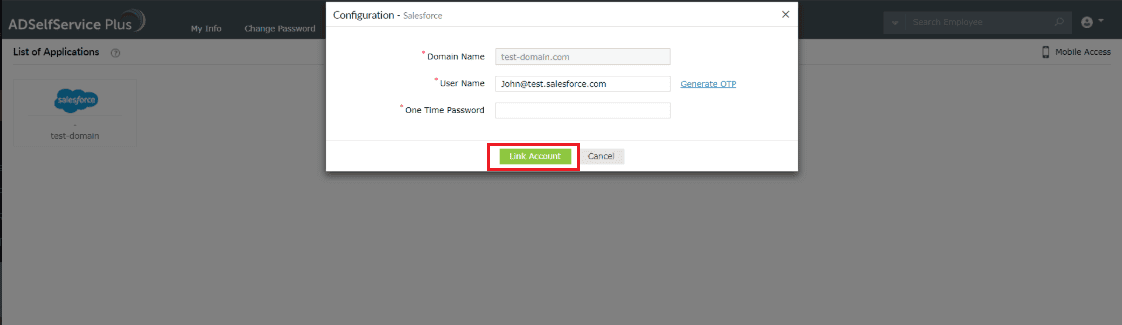
Fig 3: Linking a Salesforce or Google Workspace account using a one-time password.
Link Microsoft Dynamics CRM and Microsoft 365/Azure Accounts
- In the Applications tab, select Microsoft Dynamics CRM or Microsoft 365/Azure.
- Enter the username associated with the account in the User Name field.
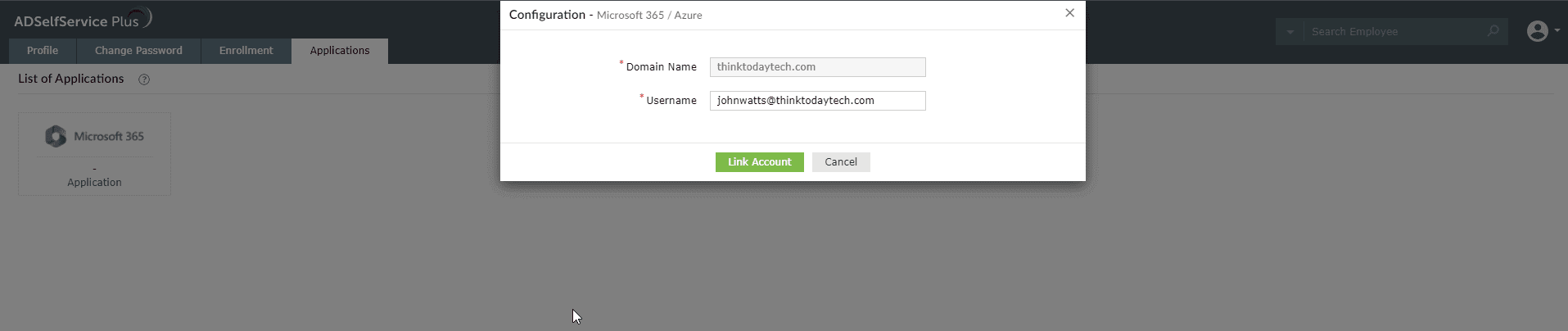
Fig 4: Linking a Microsoft Dynamics CRM or Microsoft 365/Azure account.
- Click Link Account.
Tip
If the user account being linked is within the same domain, you can use either the account name or the UPN as your username. For example, if your domain name is thinktodaytech.com, you can enter either johnwatts or johnwatts@thinktodaytech.com as your username.
If the Azure account being linked belongs to a different domain—for instance, if your domain name is thinktodaytech.com but the user account is johnwatts@exampledomain.com—then your UPN will be your username, which in this case is johnwatts@exampledomain.com.
- You will be redirected to the selected application.
- Sign in using the account specified in the User Name field.
- After successful authentication, the accounts are linked and you are redirected back to ADSelfService Plus.