Remote Desktop User Confirmation
Remote Access Plus is completely HIPAA compliant, which means you can make the end user the deciding authority to grant access while establishing a remote control session. You can even prompt a request message explaining the necessity of the remote connection, where the user can choose to accept or reject the initiated session.
The following steps will help you configure Remote Access Plus to prompt the user before sharing their desktop.
- From Remote Access Plus web console, navigate to Tools tab -> Remote Control -> User Confirmation.
- Enable the User Confirmation option.
- You can also prompt the confirmation message even on locked and logged-off computers.
- Specify the Time out value in seconds (default: 30 seconds). The remote control session will be established if the user accepts within this time, or it will terminate automatically if there is no response.
- Specify the Prompt Message that the user will see when you attempt to initiate Remote Control.
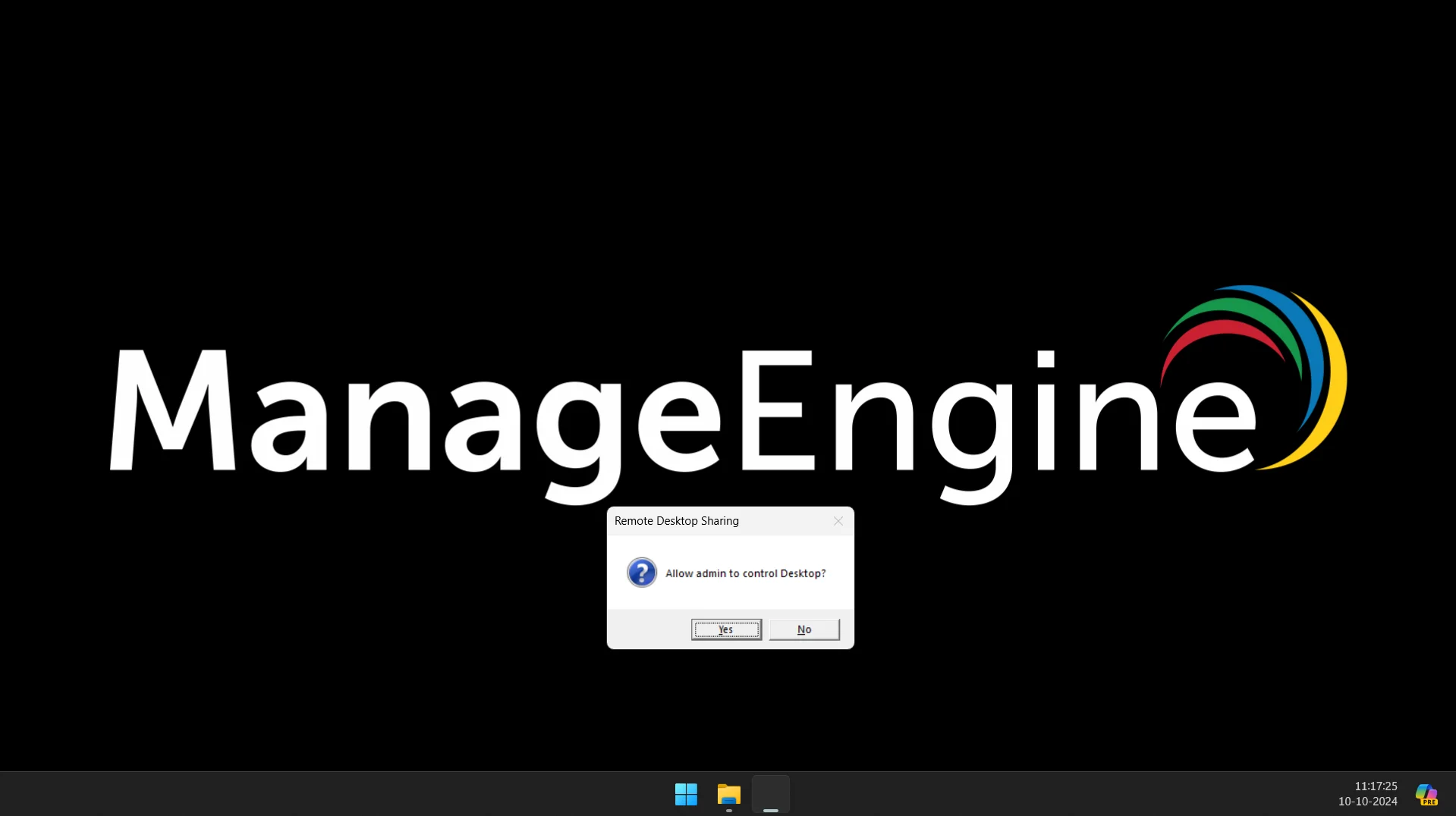
- The user confirmation prompt will appear on the user's endpoint as shown in the image below:
Excluding computers and groups from user confirmation
If there are certain computers or groups for which you do not want to send a user confirmation message, you can exclude them and initiate remote sessions without requiring end-user approval.
To exclude computers from user confirmation
- Navigate to the Tools tab and click Remote Control.
- Switch to the User Confirmation tab.
- Under Exclude devices from user confirmation, select the Computers tab.
- Click Add computers.
- Select the computers you want to exclude from prior consent and save.
To exclude groups from user confirmation
- Navigate to the Tools tab and click Remote Control.
- Switch to the User Confirmation tab.
- Select the Groups tab under Exclude devices from user confirmation.
- Click Add groups.
- Choose the groups you want to exclude from prior consent and save.
Exclude server machines from user confirmation

Enable the Exclude server machines option to automatically bypass user confirmation for all machines running a server operating system.
When this option is enabled, technicians can initiate remote sessions on server machines without displaying a user confirmation prompt, regardless of individual computer or group exclusion settings.
This option is useful for environments where server systems are unattended or do not require end-user approval.
- User confirmation must be enabled for exclusions to take effect.
- Group-level exclusions take precedence over individual computer exclusions.
- Changes apply only to newly initiated remote sessions.
If you have enabled the Make User Confirmation Permanent option, the exclusion settings configured under User Confirmation will not take effect. Users will be prompted before every Remote Control session. The confirmation prompt behavior will also follow the configured settings for Show Confirmation in Locked Screen and Show Confirmation in Logoff State. To revert the Make User Confirmation Permanent setting, please contact Remote Access Plus support at remoteaccessplus-support@manageengine.com.