Checking licenses in Microsoft365 and Adobe
To check Licenses in Adobe
- Click the particular Adobe vendor from the list of available vendors.
- Licenses tab is available next to Overview in the top right corner.
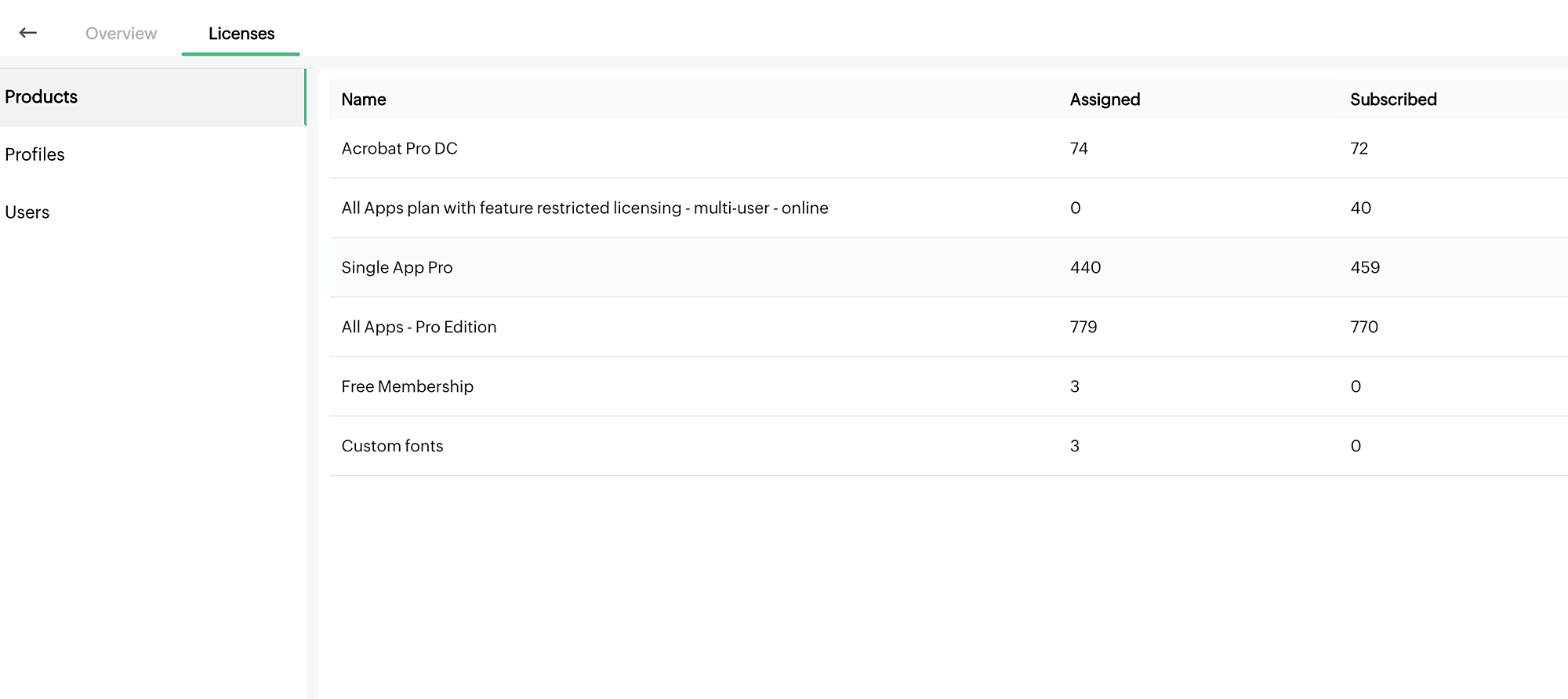
- A list of Products is available with details like Name, Assigned, and Subscribed.
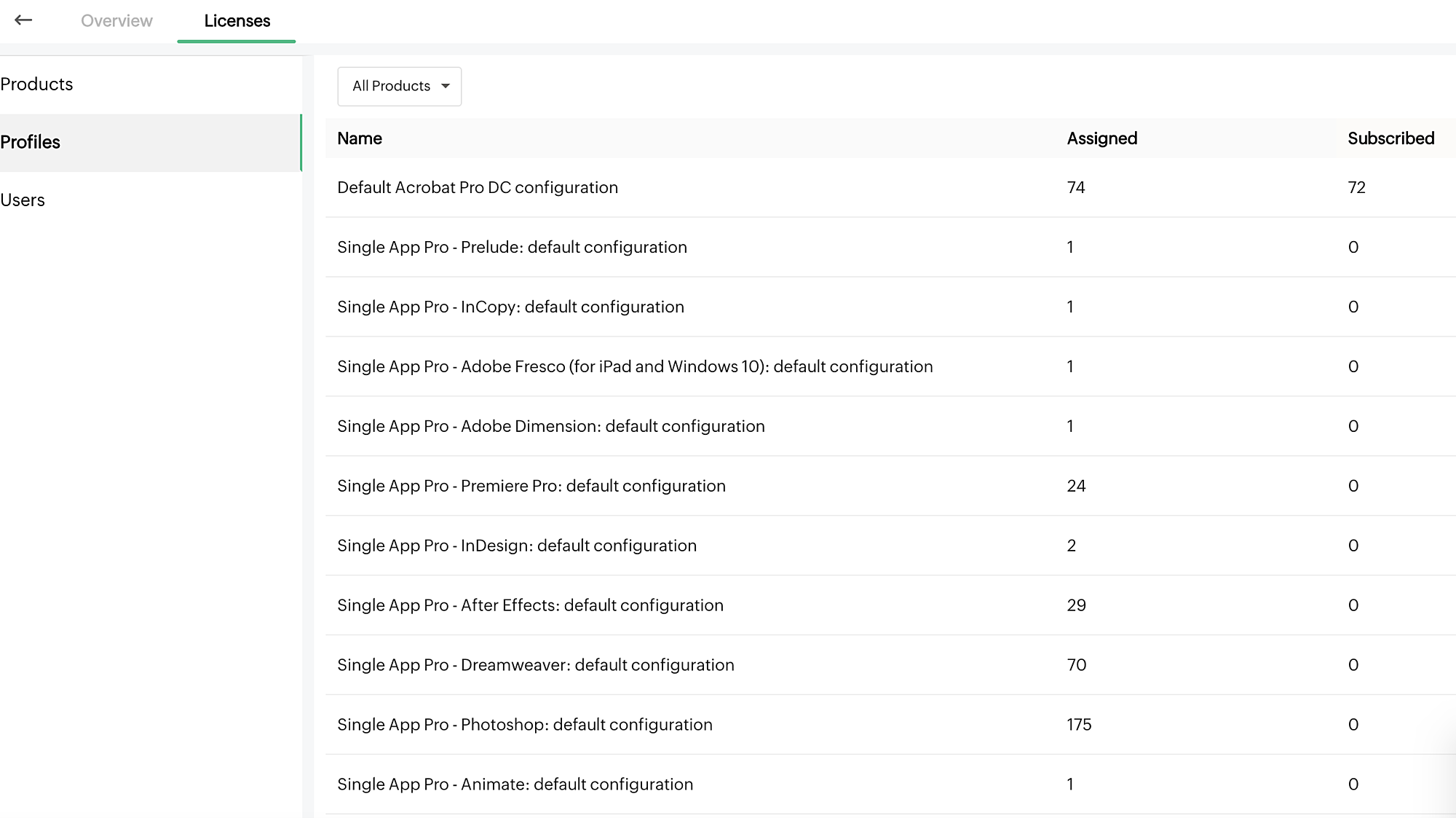
- Click Profiles to the left to get details of available profiles. Choose a particular product from the drop-down if required.
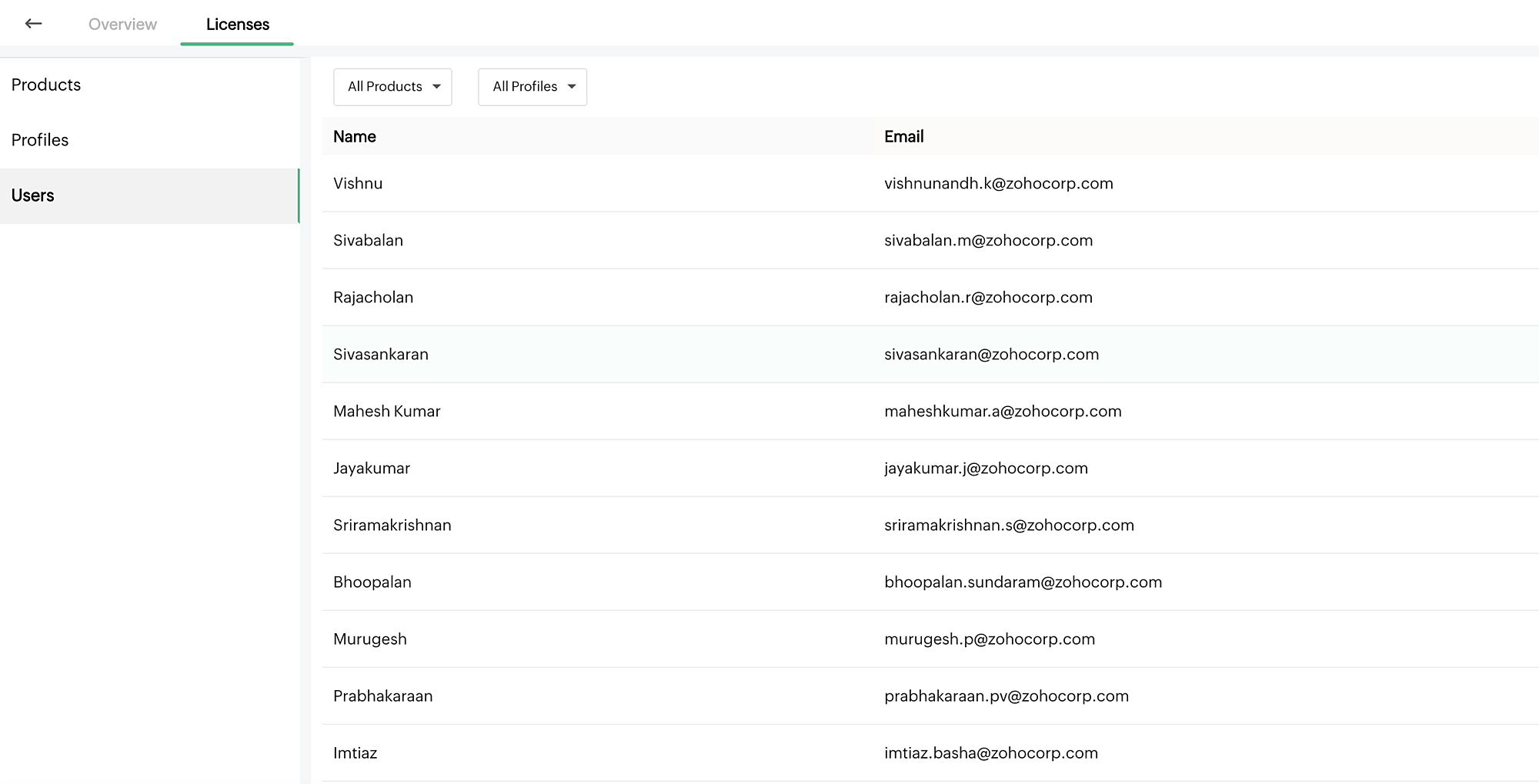
- Users tab provides the list of users and their associated Email addresses. Choose a particular product and/or profile using the two drop-down boxes available if required.
To check Licenses in Microsoft365
- Click the particular Adobe vendor from the list of available vendors.
- Click the particular Microsoft365 vendor from the list of available vendors.
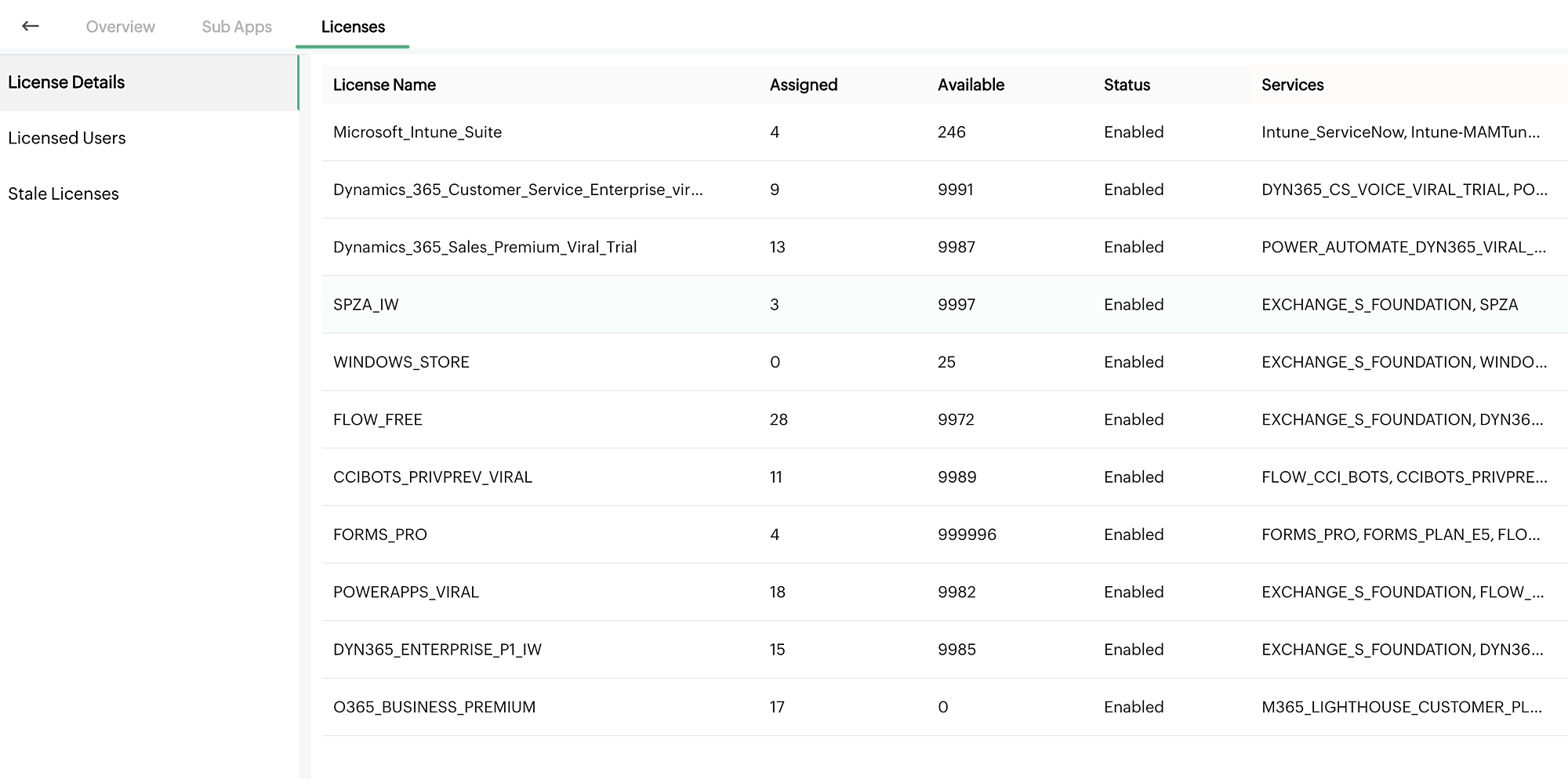
- Licenses tab is available next to Sub Apps in the top right corner.
- Licenses Details provides details of License Name, Assigned, Available, Status, and Services.
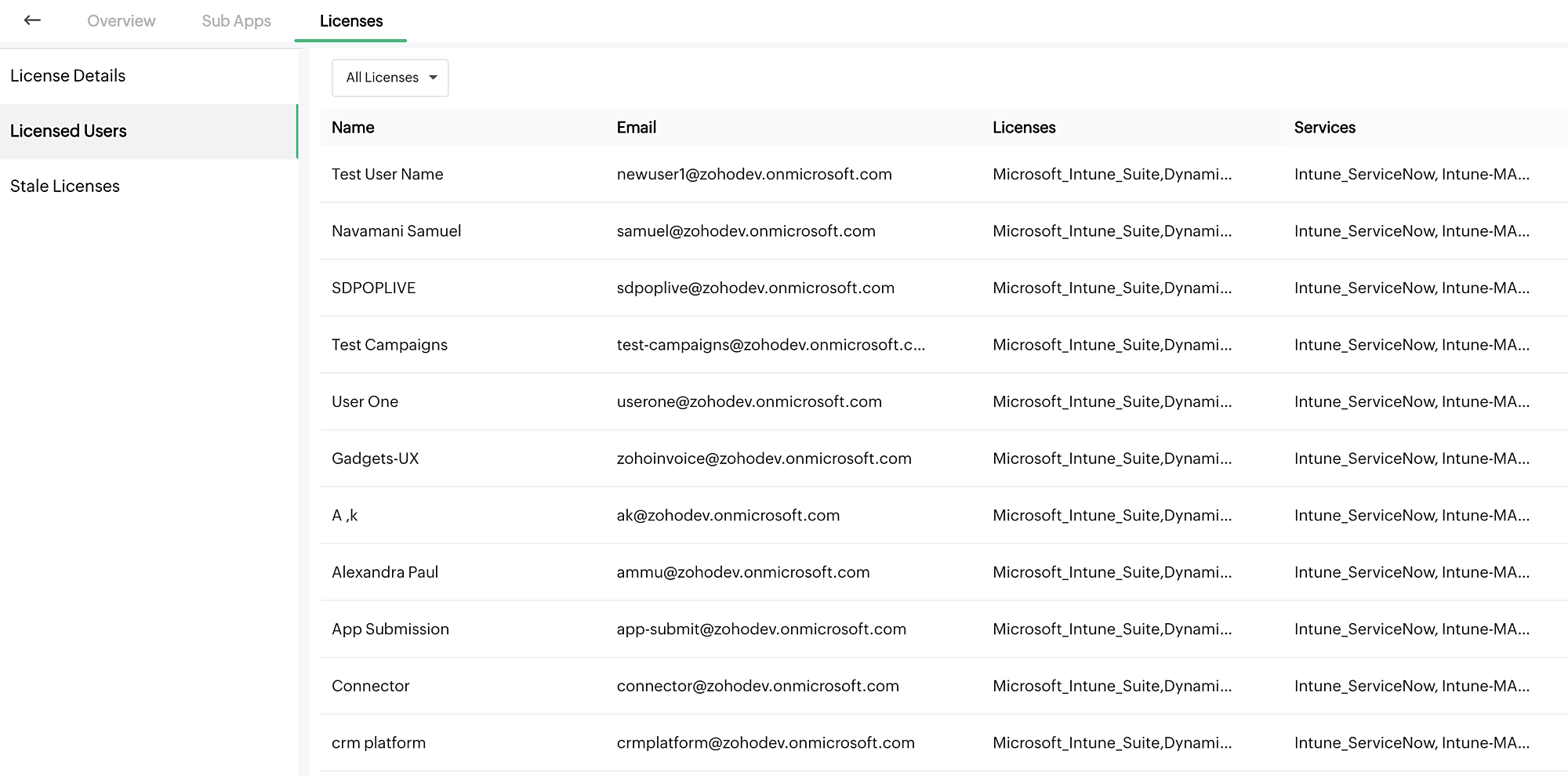
- Licensed Users provides details such as Name, Email, Licenses, and Services. Choose a particular license from the drop-down if required.
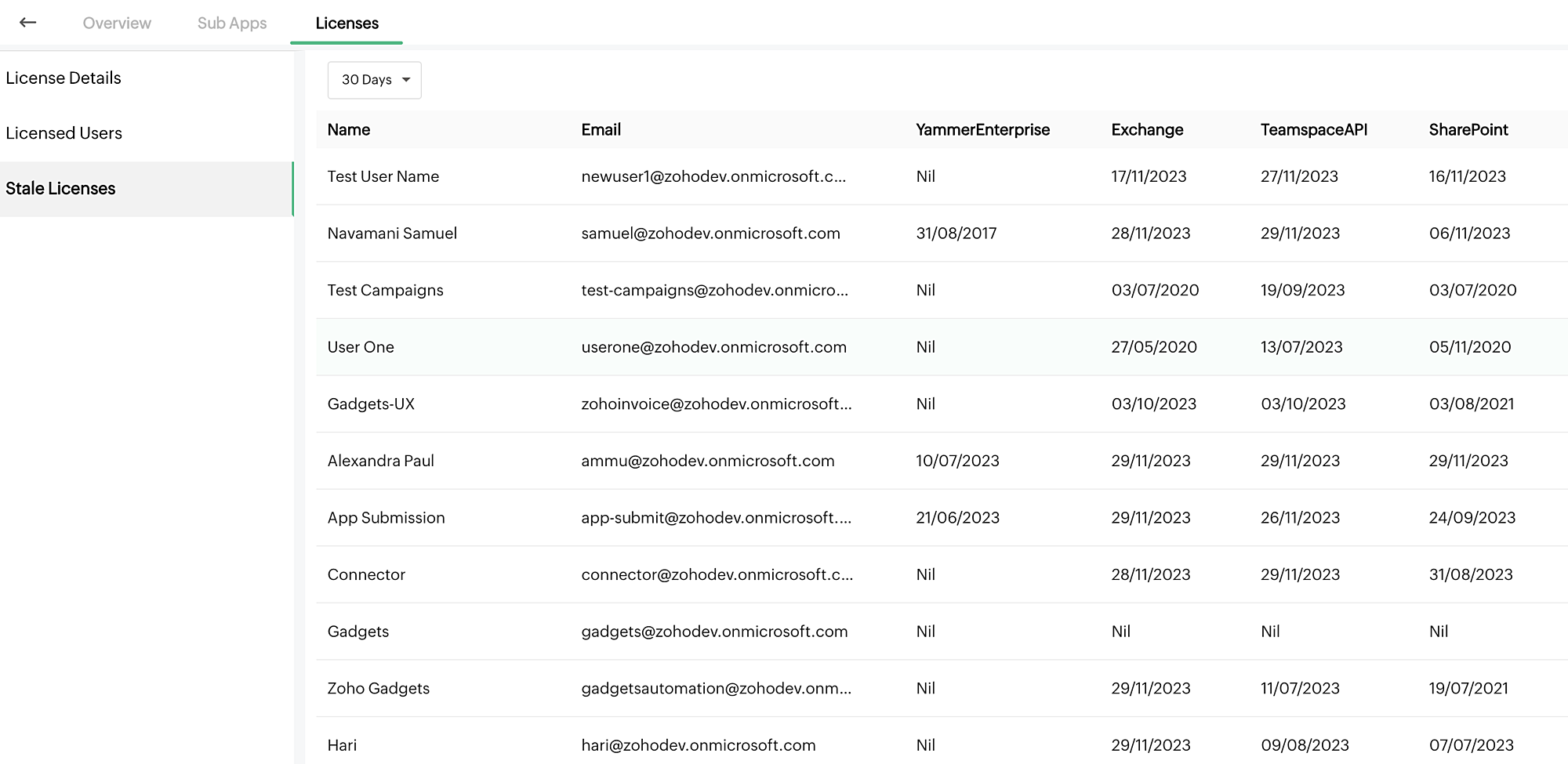
- Stale Licenses provides the details such as Name, Email, last login data of each service based on the pre-defined days from the drop-down. The available days are 30 days, 60 days, 90 days, 120 days, and 365 days. This is used to identify the inactive users.