Azure
Microsoft Azure is a cloud-based service that enables you to meet your organization's needs for enhanced security, reliability, and user productivity.
Required user roles for Microsoft Azure
Application administrator
Microsoft Azure authentication method
The required authentication method is OAuth (OAuth 2.0).
Required account type
Accounts in any organizational directory(Any Microsoft Entra ID tenant - Multitenant)
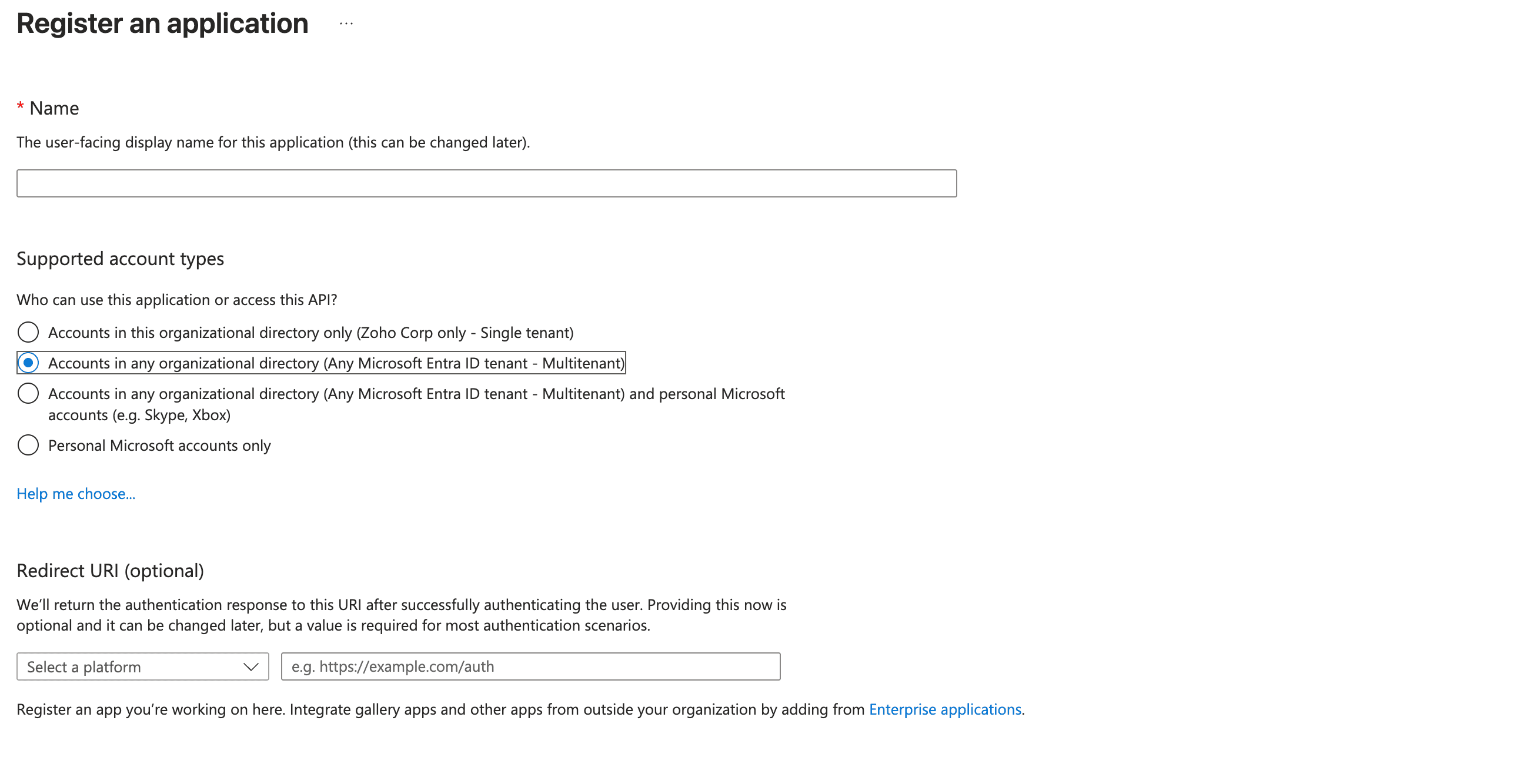
Required Microsoft Azure credentials
The following credentials are required:
- Username
- Password
To manually integrate Microsoft Azure with SaaS Manager Plus
- Click App Integrations available in the left pane and click Microsoft Azure from the applications list.
- Provide the connection name, client ID, and client secret.
- Click Authorize, and you will be redirected to the Microsoft Azure sign in page.
- On the Microsoft Azure sign in page, enter your admin username and password.
- Click Authorize.
To create a client ID and client secret
Visit learn.microsoft.com/en-gb/azure/active-directory/develop/quickstart-register-app
Get the redirect URL from this link
Required Microsoft Azure scopes
graph.microsoft.com/Application.Read.All
graph.microsoft.com/Directory.ReadWrite.All
graph.microsoft.com/Directory.AccessAsUser.All
graph.microsoft.com/User.ReadWrite.All
graph.microsoft.com/Reports.Read.All
graph.microsoft.com/ReportSettings.ReadWrite.All
graph.microsoft.com/Organization.ReadWrite.All
management.azure.com/user_impersonation
Stored Microsoft Azure information
Apps
- Name
- ID
Users
- User ID
- First name
- Last name
- Active date
- Assigned licenses
- App role assignments
Microsoft Azure API endpoints
graph.microsoft.com/v1.0/servicePrincipals
graph.microsoft.com/v1.0/users
graph.microsoft.com/v1.0/subscribedSkus
graph.microsoft.com/v1.0/auditLogs/signIns
NOTE: API access availability varies by vendor plan and subscription tier.