Okta
Okta is an identity and access management platform that helps organizations securely manage user authentication and access to applications. It offers seamless integration with various tools and ensures secure, streamlined login processes across different platforms.
Required minimum permission for Okta
Admin
Okta authentication method
The required authentication method is OAuth (OAuth 2.0).
Required Okta platform credentials
The following credentials are required:
- Domain URL
- API key
- Number of API calls allowed per minute
To manually Integrate Okta with SaaS Manager Plus:
- Click App Integrations available in the left pane and click Okta from the applications list.
- Provide the connection name, instance name, client ID, and client secret.
- Click Authorize, and you will be redirected to the Okta sign in page.
- On the Okta sign in page, enter your admin username and password.
- Click Authorize.
To create client ID and client secret
The following credentials are required:
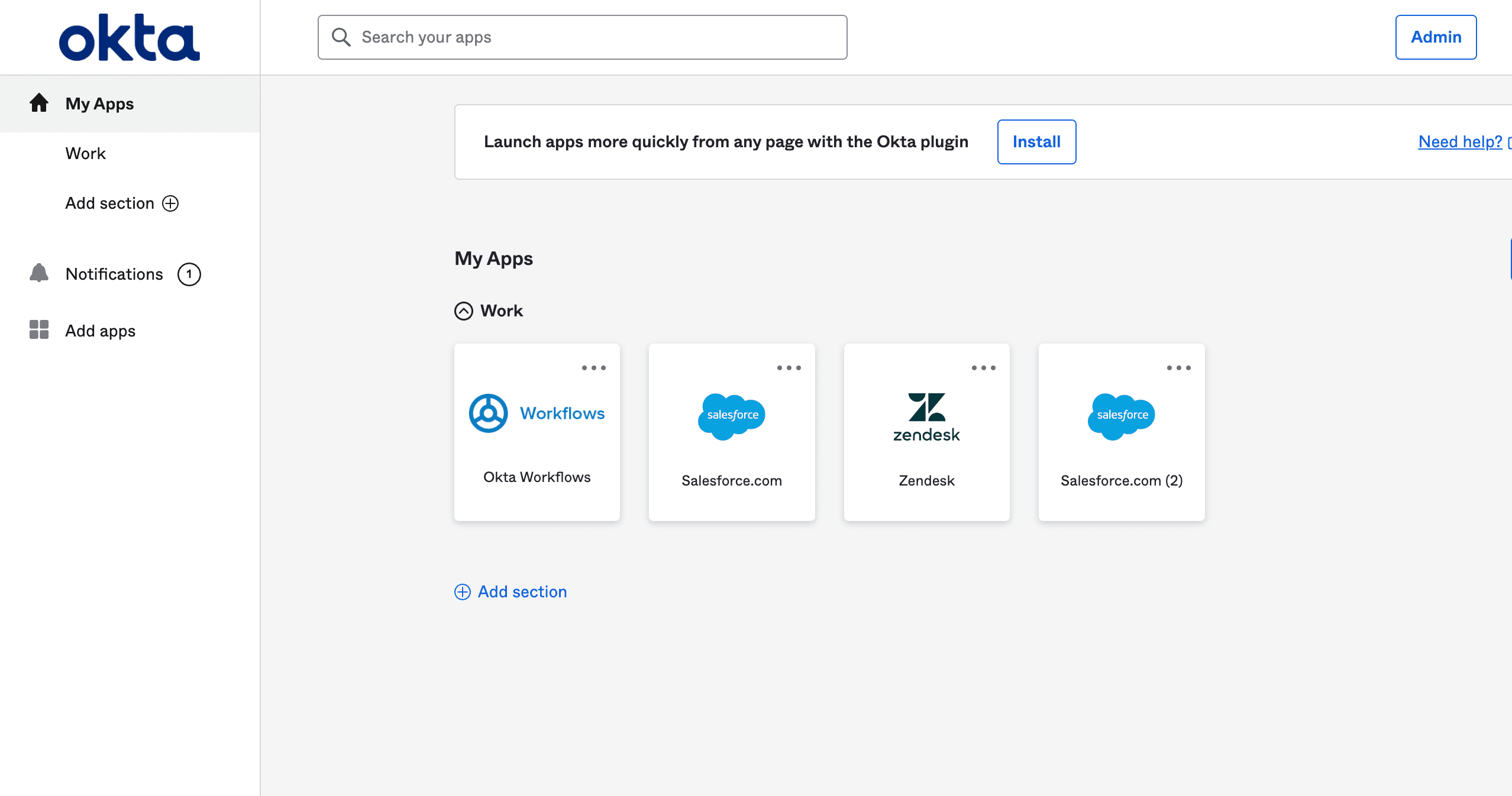
- Sign in to Okta.
- Go to the Admin tab.
-
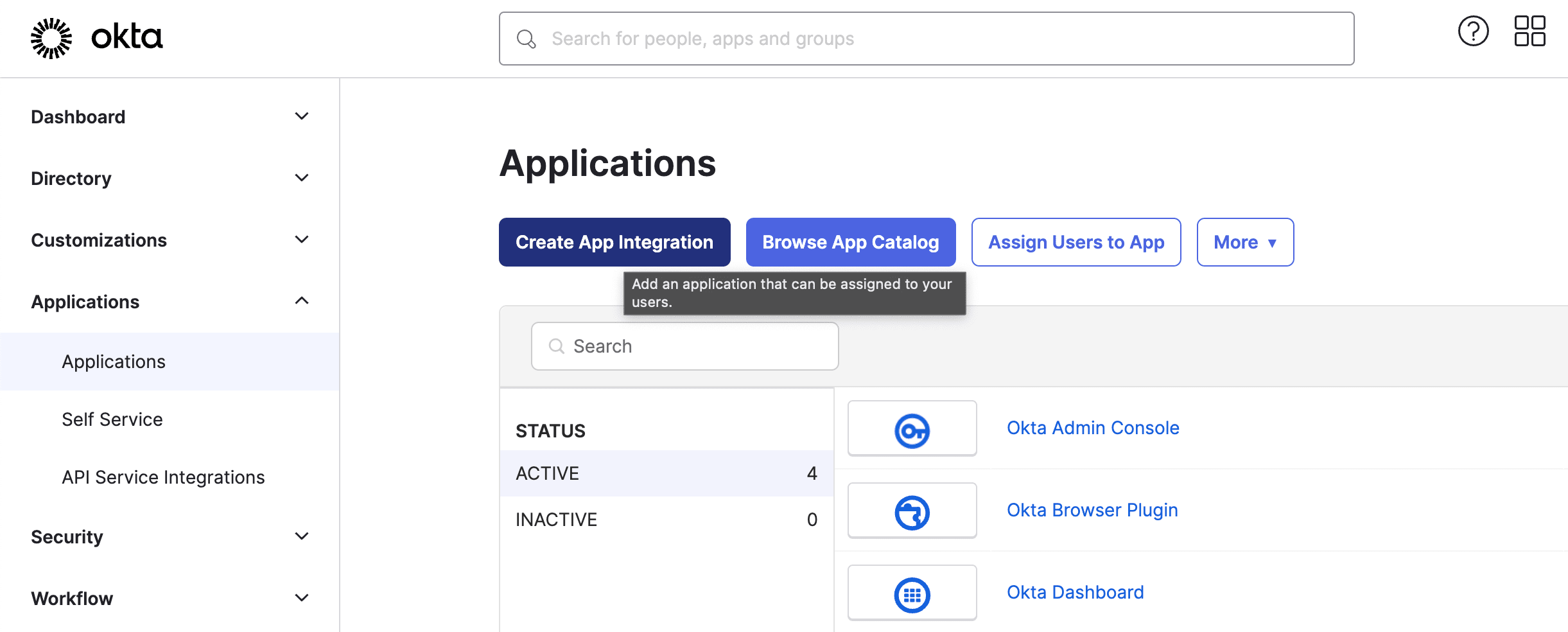
- Click Applications under the Applications tab and click Create App Integration.
-
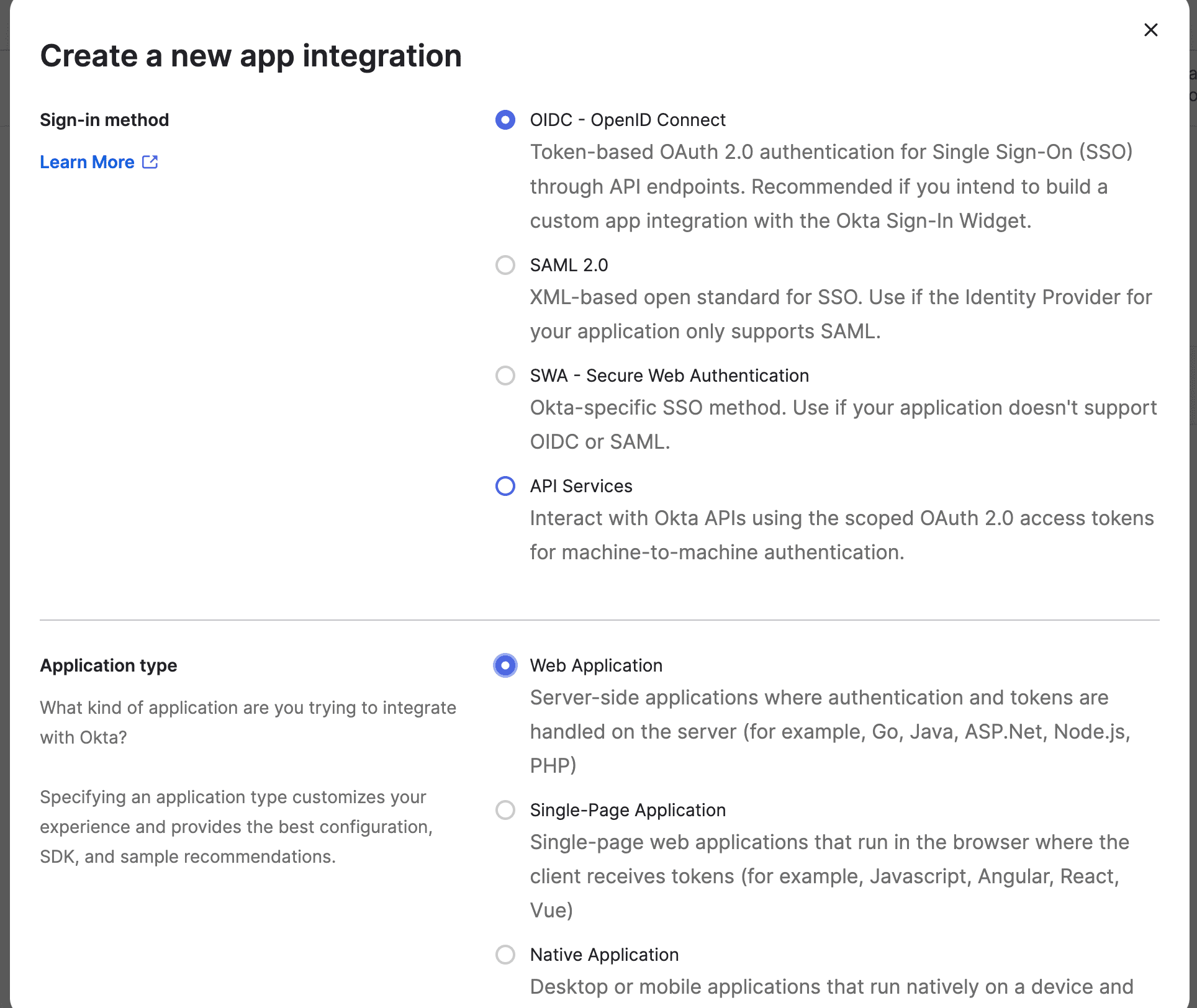
- Choose OIDC - OpenID Connect as the Sign-in method.
- Choose Web Application as the Application type.
-
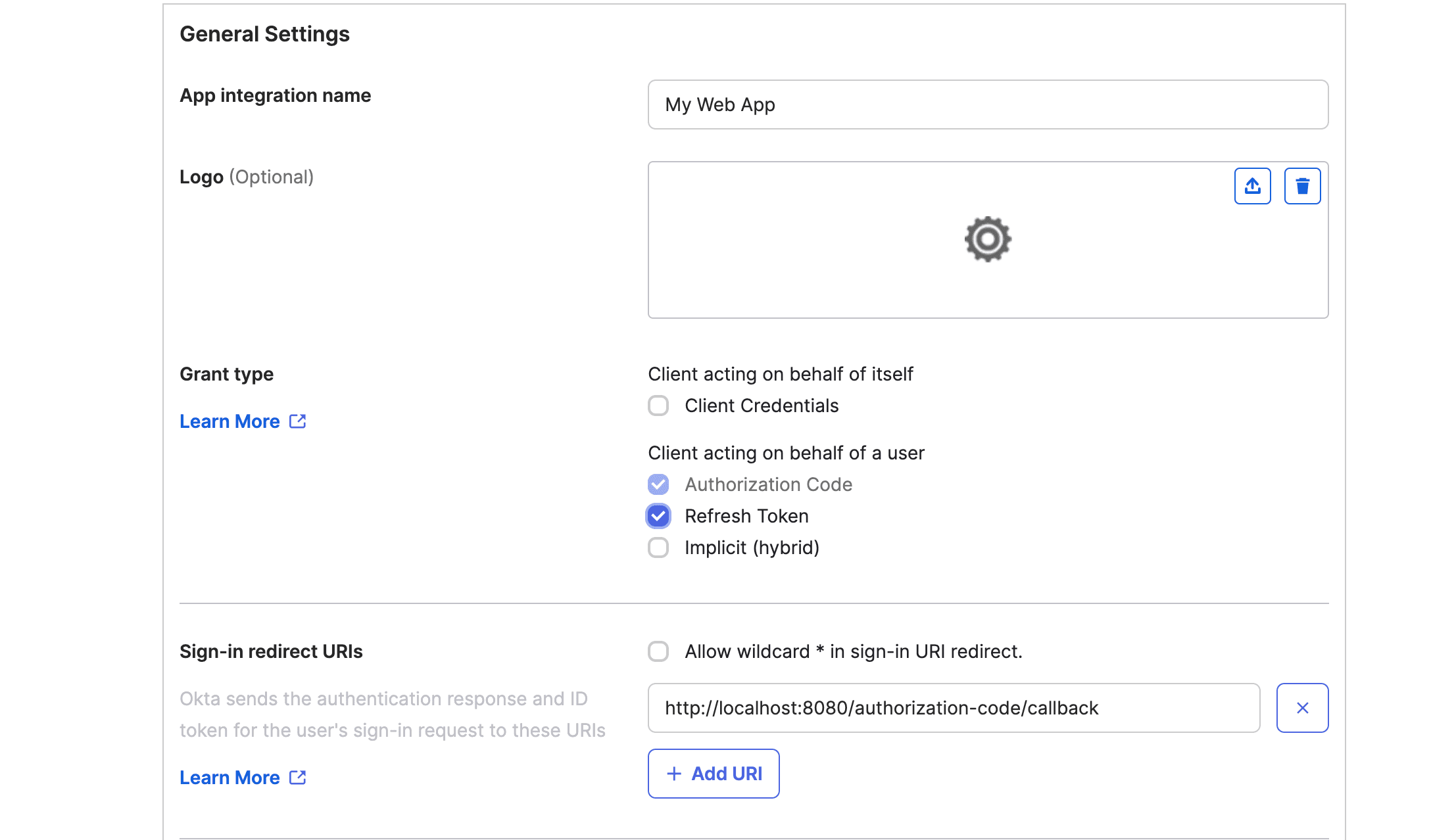
- Now provide a name in the App integration name box.
- Next, under Grant type, check the following boxes: Authorization Code and Refresh Token.
- Get the redirect URL from this
-
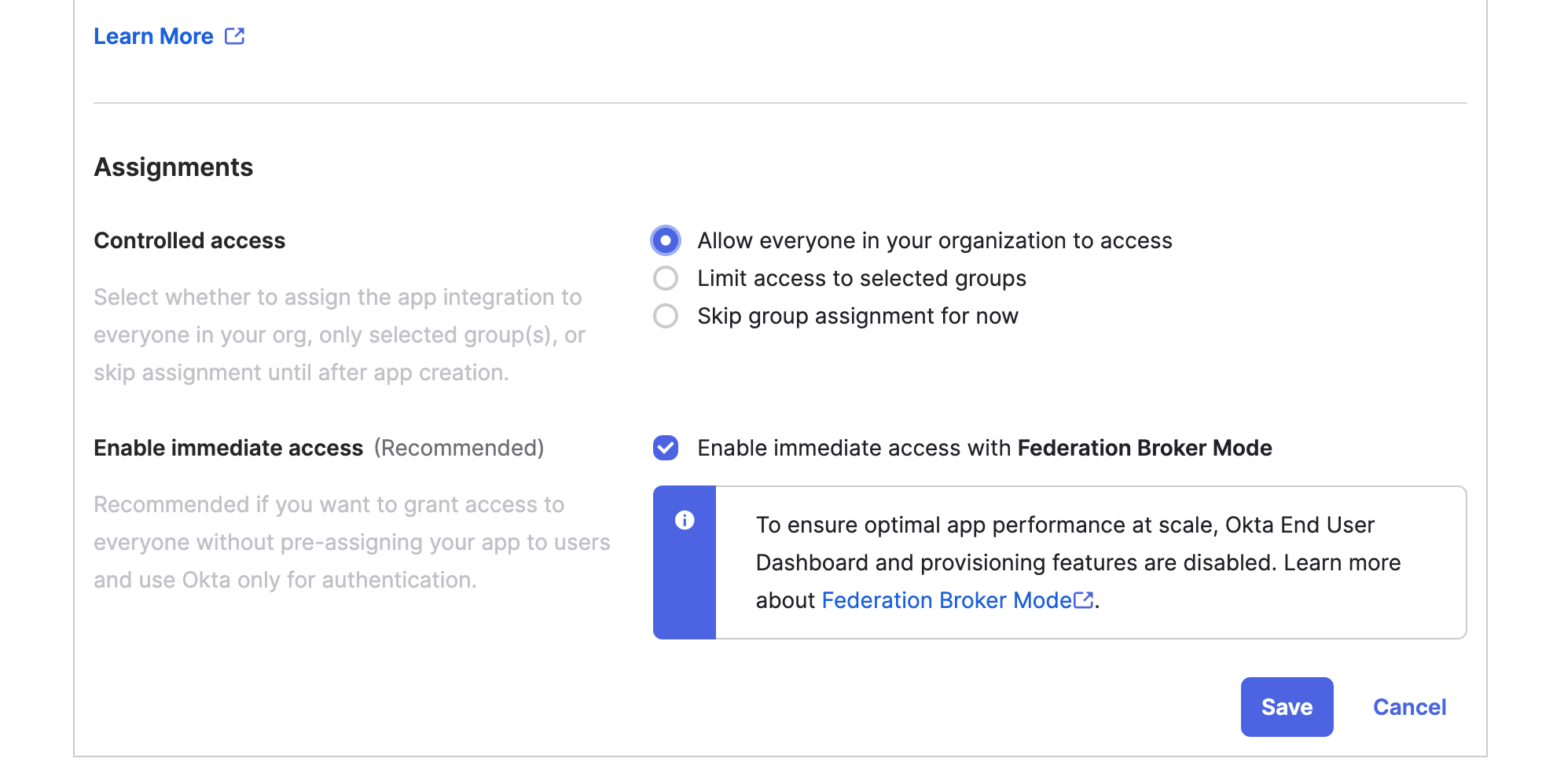
- Next, go to the Assignments section, and under Controlled access, select Allow everyone in your organization to access.
- Click Save.
-
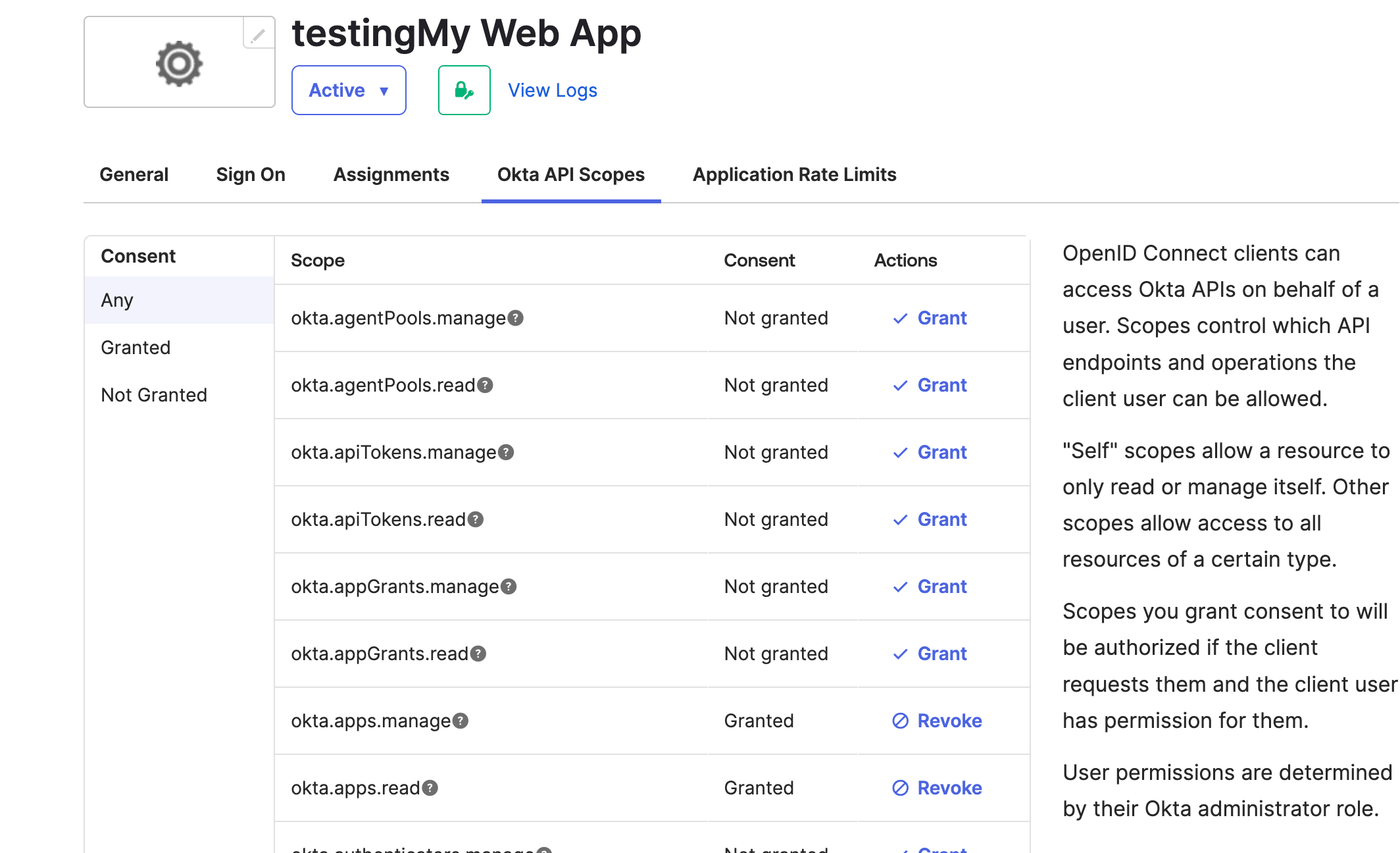
- Now, under Applications, the name provided by you for app integration will be available. Click the integration name and go to Okta API Scopes.
- Grant access to the following scopes:
okta.apps.manage
okta.apps.read
okta.logs.read
okta.reports.read
okta.userTypes.manage
okta.userTypes.read
okta.users.manage
okta.users.read
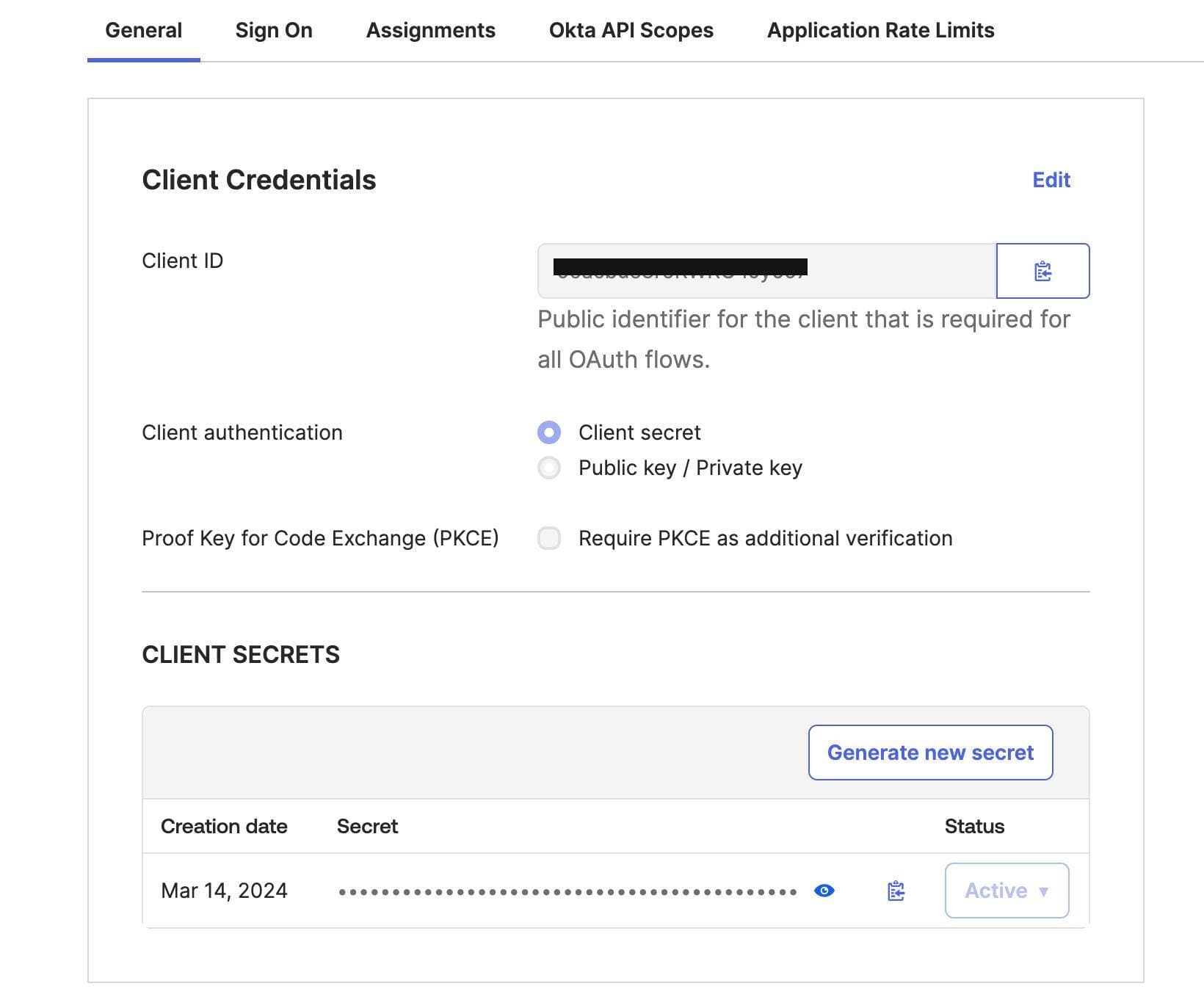
- Get the client ID and client secret from the General tab, and use them for integration with SaaS Manager Plus
- Provide the instance name from the URL in Okta.
- For example, consider trial-12345-admin.okta.com as the URL. In this example, trial-12345 is the instance name.
-
Stored Okta information
- User ID
- First name
- Last name
- Active date
- Assigned licenses
NOTE: API access availability varies by vendor plan and subscription tier.