Anthropic Claude
Anthropic Claude connects SecureAI to your Anthropic organization so that the way your teams have configured Claude can be assessed rather than assumed. Instead of discovering agents, this instance reads the organization itself: its members, its workspaces, its API keys, its rate limits and its usage and cost. SecureAI scores what it finds against a set of weighted checks and returns a risk score with per-finding remediation. It is a posture assessment, so a Claude instance contributes nothing to the agent inventory and consumes no agent licenses.
What an Anthropic Claude instance covers
The Anthropic Claude card sits under Enterprise AI Applications in the application catalogue and offers a single service.
- Risk Assessment, under Risk Assessment, performs risk assessment of the Anthropic organization (members, workspaces, API keys, rate limits, usage and cost).
Because that is the only service, the card carries one capability tag, Risk Assessment, and the service is selected for you. An Anthropic Claude instance does not act as an identity provider and does not feed AI Inventory or the agent report sets.
Prerequisites
Before you add an Anthropic Claude instance, arrange the following on the Anthropic side.
- An Anthropic organization rather than an individual account. The Admin API that SecureAI reads is unavailable to individual accounts. See Admin API.
- A member of that organization holding the admin role, since only an admin can provision the key.
- An Admin API key created in the Claude Console under Settings > Admin keys. The secret is shown once, so copy it into your secrets manager before you leave the page. See Create an Admin API key.
Note: The key SecureAI asks for is the organization-wide Admin API key, not a workspace or personal key. It is the credential that reaches the administrative, usage and cost, rate limit and compliance endpoints the assessment depends on, which is why some findings report Failed to Run when a narrower key is supplied.
Creating an Anthropic Claude instance
- Go to Application Settings and click Manage Applications.
- Click the Anthropic Claude card. The Instance Creation - Anthropic Claude panel opens on the General step.
- In Instance Name, enter a name that identifies the Anthropic organization this instance points at. SecureAI fills the field in for you, and the name has to be unique.
- To record what the instance is for, click Description and type into the box that appears. The description is optional and shows in the instance list.
- Leave Risk Assessment selected under Choose Capabilities.
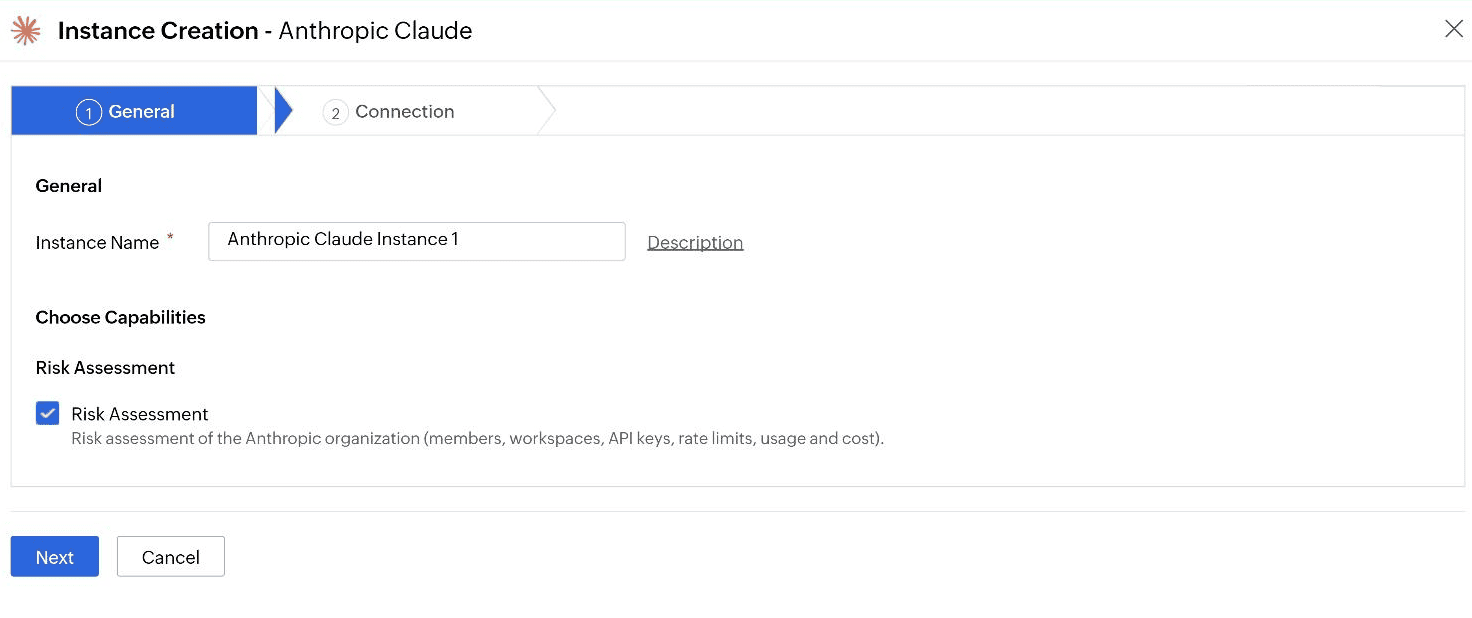
Fig 1: The General step of Instance Creation - Anthropic Claude. - Click Next.
Note: Next saves the instance straight away. It appears in the instance list with the status Not Configured and stays that way until you finish the connection.
Setting up the connection
- Check Connection Name, which SecureAI fills in for you and which you can rename.
- In Admin API Key, paste the Admin API key you created in the Claude Console.
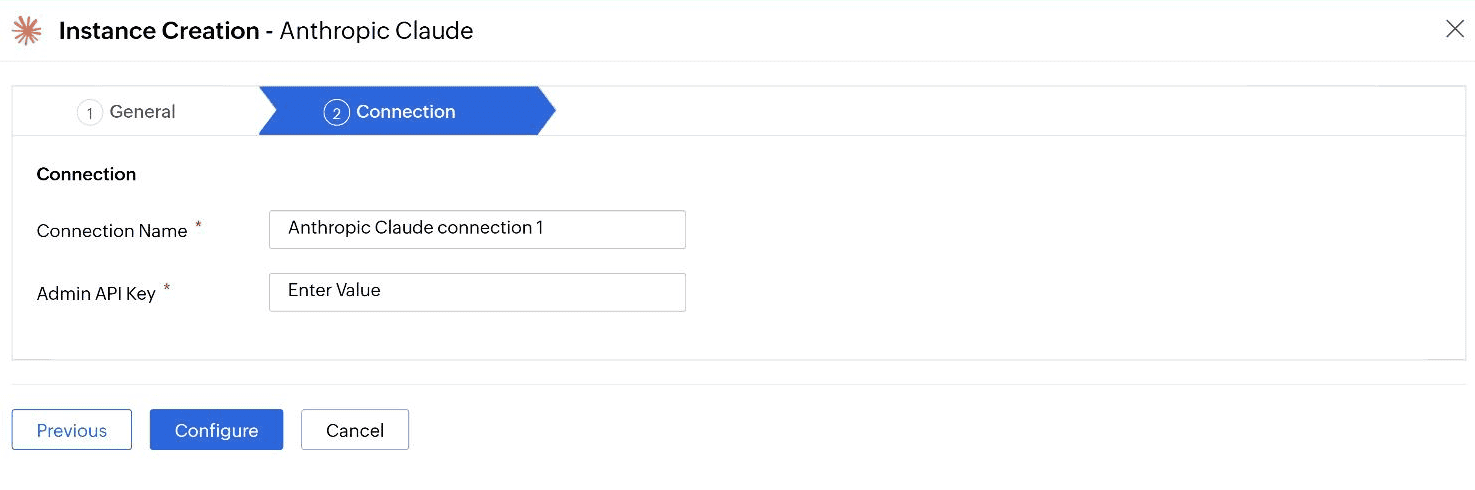
Fig 2: The Connection step of Instance Creation - Anthropic Claude. - Click Configure.
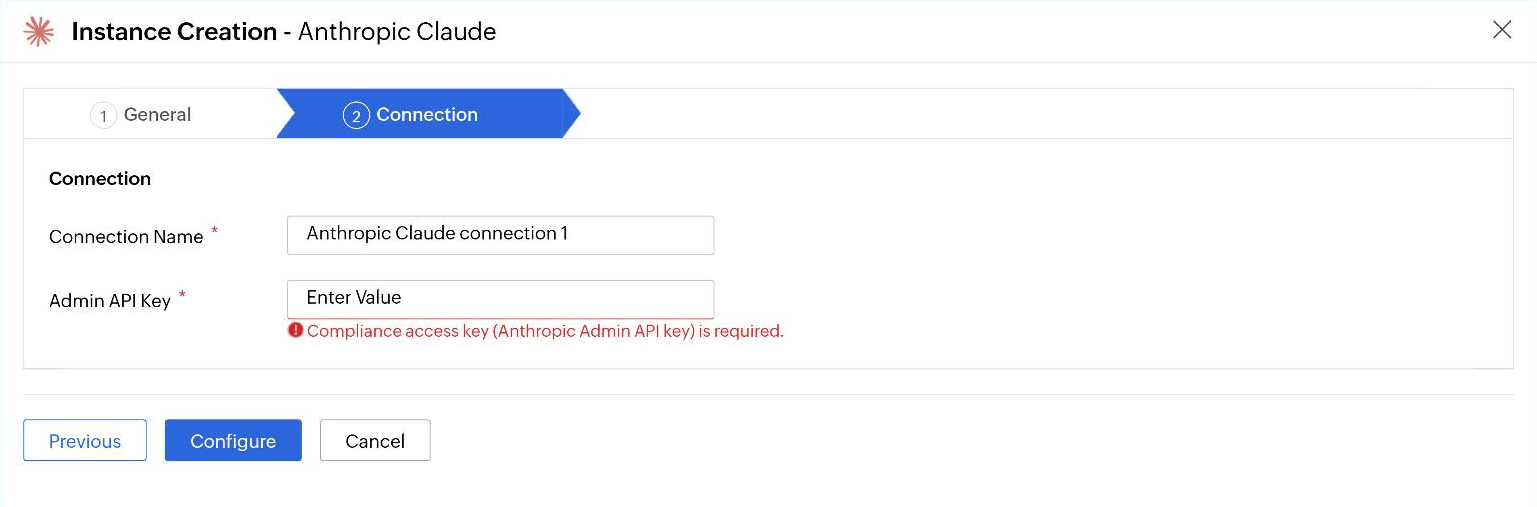
If the key is missing, SecureAI reports Compliance access key (Anthropic Admin API key) is required. against the field.
Reading the risk assessment
Once the connection is in place and an assessment has run, the results appear under Governance > AI Risk Assessment, on the Anthropic Claude tab. Use Select an account to switch between instances when you have more than one, and Export to take the whole assessment away.
The page opens with three summaries.
- Risk Score gives the account a score out of 100 with a band beneath it, such as Low. How is the risk score calculated? sits under the gauge.
- Score Trend plots the score over time, with a Monthly selector.
- Summary explains what AI Security Posture Management assesses and how it scores each account by weighted violation.

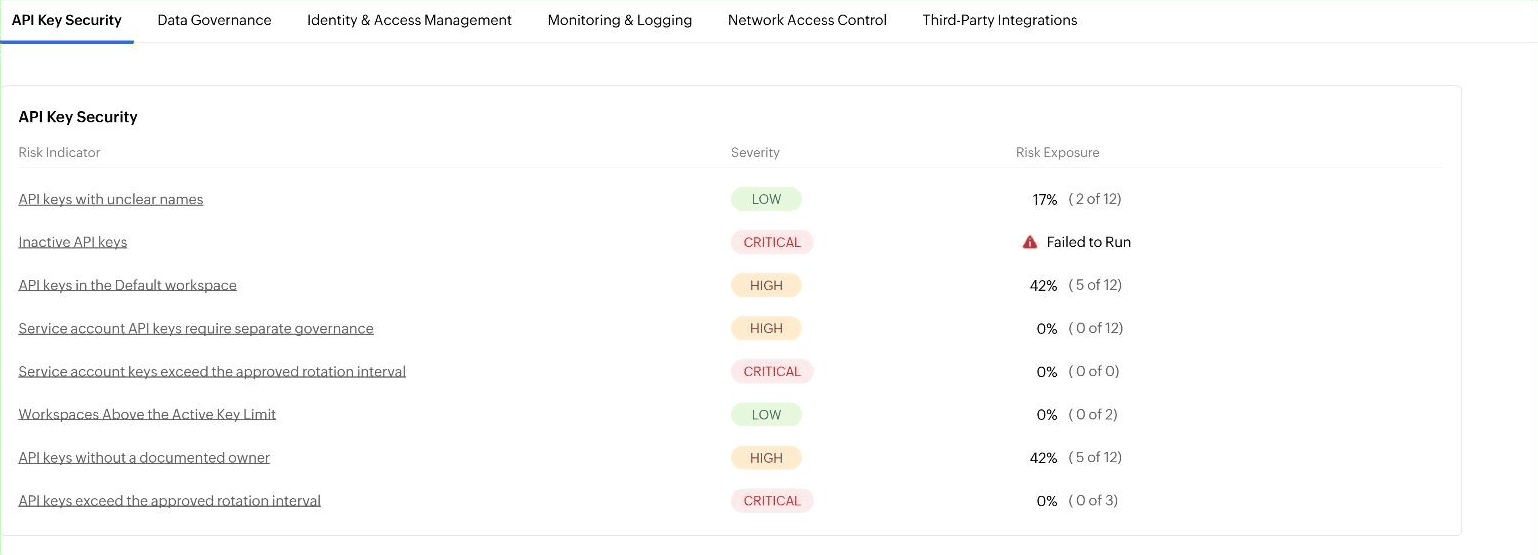
Below the summaries, findings are grouped into six categories, each on its own tab: API Key Security, Data Governance, Identity & Access Management, Monitoring & Logging, Network Access Control, and Third-Party Integrations. Each tab lists its checks as Risk Indicator, Severity and Risk Exposure.
- Severity is Critical, High, Medium or Low.
- Risk Exposure reads as a percentage with the affected count behind it, so 42% ( 5 of 12) means five of twelve keys matched.
- Failed to Run replaces the exposure when SecureAI could not evaluate the check, usually because the key it was given does not reach the endpoint the check needs.
Use Filter By to show only Critical, High, Medium or Low findings, or All.
Working through an indicator
Click a risk indicator to open it. The detail page leads with the exposure percentage and a progress bar, the count as Risk Indicators - n of m, and the category description, then reports Severity, Weight and Status. Weight is the number the finding contributes to the score, and Status is Pass or Fail.
The table underneath names the objects that matched, so you can see exactly which keys, members or workspaces are at issue. Export As takes the list away as CSV, PDF or XLSX, Add or Remove Column changes what is shown, and the left rail moves between indicators without going back.
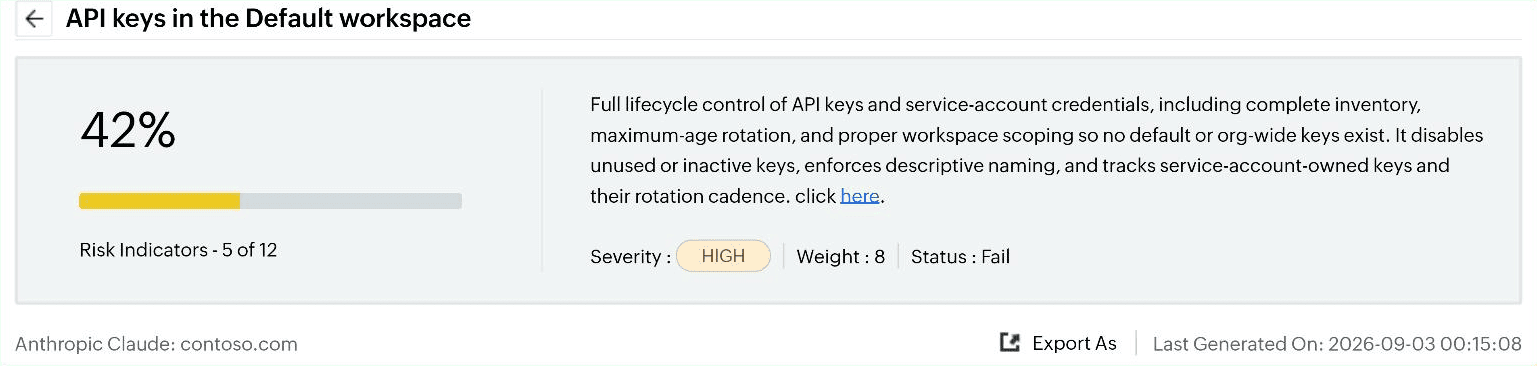
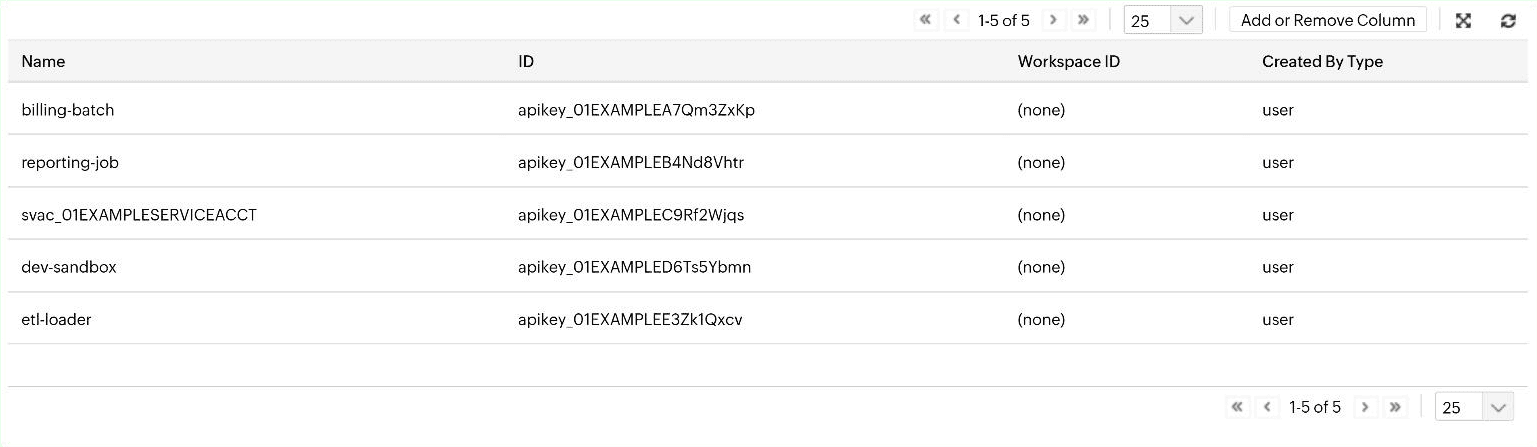
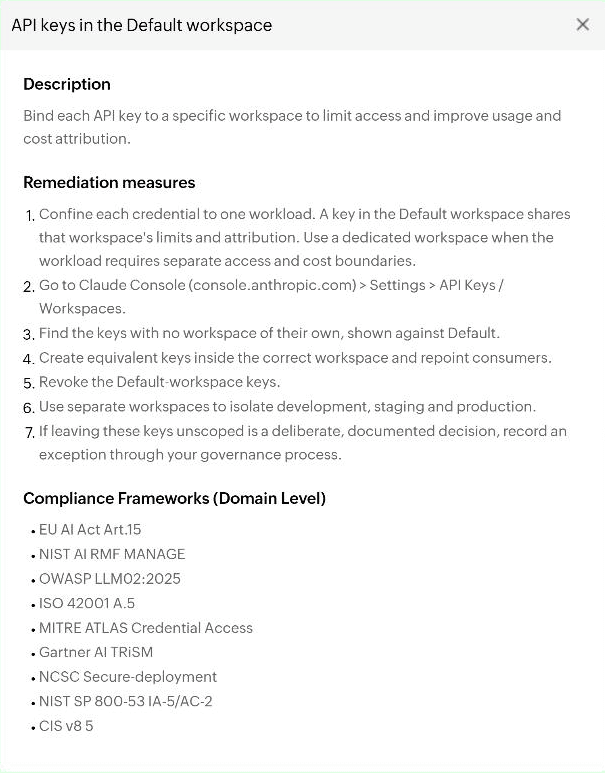
Click here in the category description to open the guidance panel, which carries three sections: Description, saying what the check is for; Remediation measures, giving numbered steps including the Claude Console path to follow; and Compliance Frameworks (Domain Level), mapping the finding to standards such as the EU AI Act, the NIST AI Risk Management Framework, OWASP LLM, ISO 42001, MITRE ATLAS, Gartner AI TRiSM, NCSC guidance, NIST SP 800-53 and CIS.
Keeping the assessment current
The header of the AI Risk Assessment page shows Last Generated On and carries Set Data Sync Time, which is where the assessment schedule lives. Turn on Enable Data Sync Schedule, choose a Schedule Frequency of Daily, Weekly, Monthly or Custom, set the hour and minute under At:, then click Save, or click Cancel to leave the schedule alone.
Note: An Anthropic Claude instance shows no Last Fetch Time and no Fetch Interval in the instance list, and offers no Fetch link. Risk assessment instances are refreshed from Set Data Sync Time instead, not from the instance list.
Managing an Anthropic Claude instance
In the instance list on the Application Settings page, an Anthropic Claude instance reports Risk Assessment under Associated Services and a status of Not Configured until the connection is complete, then Configured.
To change an instance, click the edit icon in Actions. The Edit Instance panel presents the same content as creation, split across a General tab and a Connection tab, with Save to commit.
Note: Admin API Key keeps the stored key masked in Edit Instance. Leave it as it is to keep the existing key, or paste a new key to replace it.
To remove an instance, click the delete icon in Actions, then click Delete to confirm or Cancel to keep it. Deleting an instance permanently removes it along with its connection and every assessment result collected for it, and the action cannot be undone.