Gemini
Gemini is not configured on its own in SecureAI. It arrives through the Google application, as two of the three services a Google instance can provide, and each covers a different half of the job. Gemini Enterprise Agent Platform discovers the agents your teams have deployed and puts them in the inventory. Gemini AI assesses how your Gemini environment is configured and scores its security posture. You can select either on its own or both together, and one Google instance carries whichever you choose.
Note: There is no Gemini card in the application catalogue. If you are looking for one, open the Google card instead. The connection details, prerequisites and instance management are the same as for any Google instance, so see the Google guide for those; this guide covers what the two Gemini services deliver once they are connected.
How Gemini reaches SecureAI
The two services sit in different capability groups on the General step of a Google instance, which is what decides where their data lands.
- Gemini Enterprise Agent Platform, under Governance, is used as a data source to discover and manage agents deployed within your Gemini Enterprise Agent Platform environment. What it finds populates Governance > AI Inventory and the Gemini Enterprise Agent Platform report set.
- Gemini AI, under AI Risk Assessment, is used as a data source to perform risk assessment on agents operating across your Google Gemini environment. What it finds populates the Google Gemini tab of Governance > AI Risk Assessment.
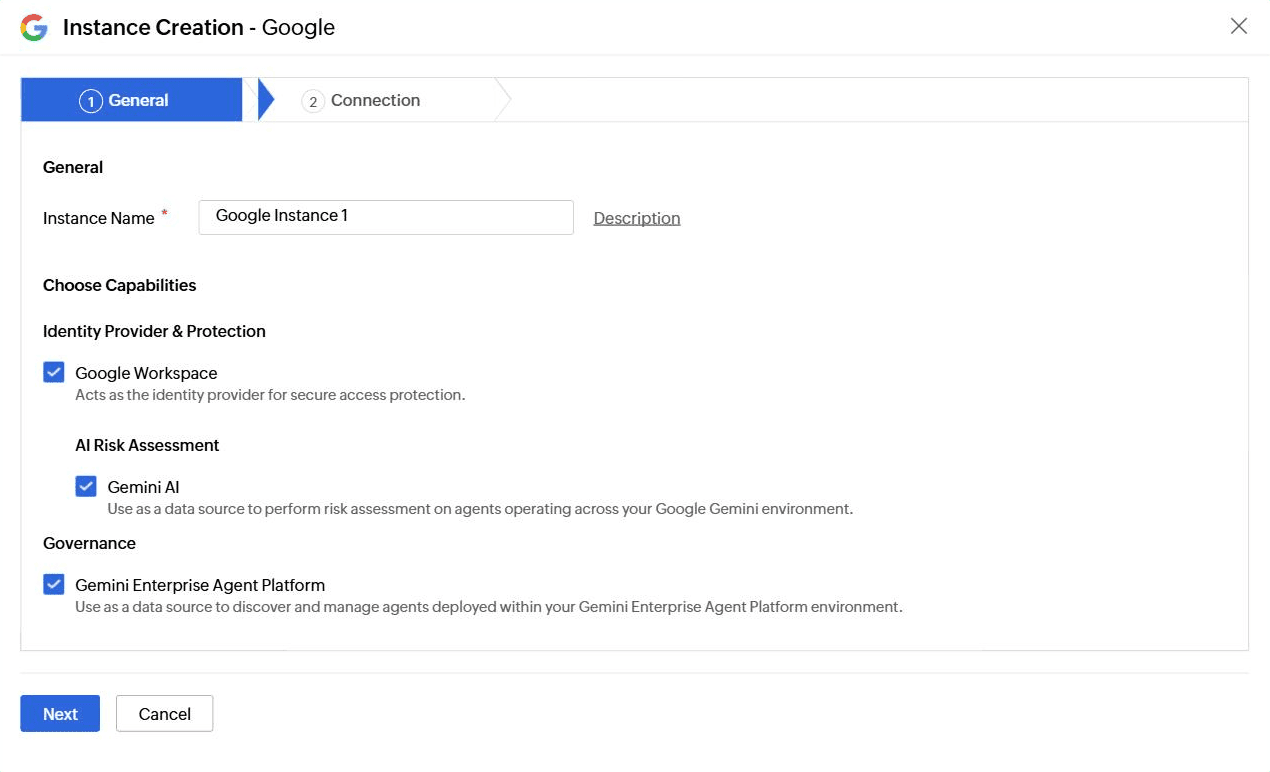
Note: Gemini AI stays unavailable until you select Google Workspace, because the risk assessment reads the Workspace administrative APIs. Gemini Enterprise Agent Platform does not depend on Google Workspace and can be selected on its own.
Note: Under Location on the Connection step, SecureAI reads only the regions you select. An agent deployed in a region you left unselected will not be discovered, so select every region your agents run in.
Gemini agents in the inventory
Once a Google instance with Gemini Enterprise Agent Platform has fetched, its agents appear alongside every other discovered agent.
- Governance > AI Inventory > AI Agents lists each agent with its owner, its instance, its model and its status, and offers View Graph to see what it reaches. Use the Unmanaged Agents and High Privileged Agents tabs to narrow the list.
- Governance > AI Inventory > Models lists the models those agents use, with the provider and the agents behind each one.
- Governance > AI Inventory > MCP Servers lists any MCP servers the agents call, and whether each is protected.
Under Reports, the Gemini Enterprise Agent Platform category carries report sets of its own.
- Agents: All Agents, Recently Created Agents, Recently Modified Agents, Unmanaged Agents, and High Privileged Agents.
- Agent Permission Report: All Agent Identities, All Service Account Agents, Agent IAM Roles, and Agent Denied Policies.
- Agent Capability: All Model Armor Templates.
Note: Every agent discovered through Gemini Enterprise Agent Platform consumes one license. Review what has been consumed under Settings > License Management, where you can also revoke a license from an agent you do not want governed.
The Gemini risk assessment
Once a Google instance with Gemini AI has been assessed, the results appear under Governance > AI Risk Assessment, on the Google Gemini tab. Use Select an account to switch between instances when you have more than one, and Export to take the whole assessment away.
The page opens with a Risk Score out of 100, a Score Trend chart, and a Summary card explaining what AI Security Posture Management assesses.
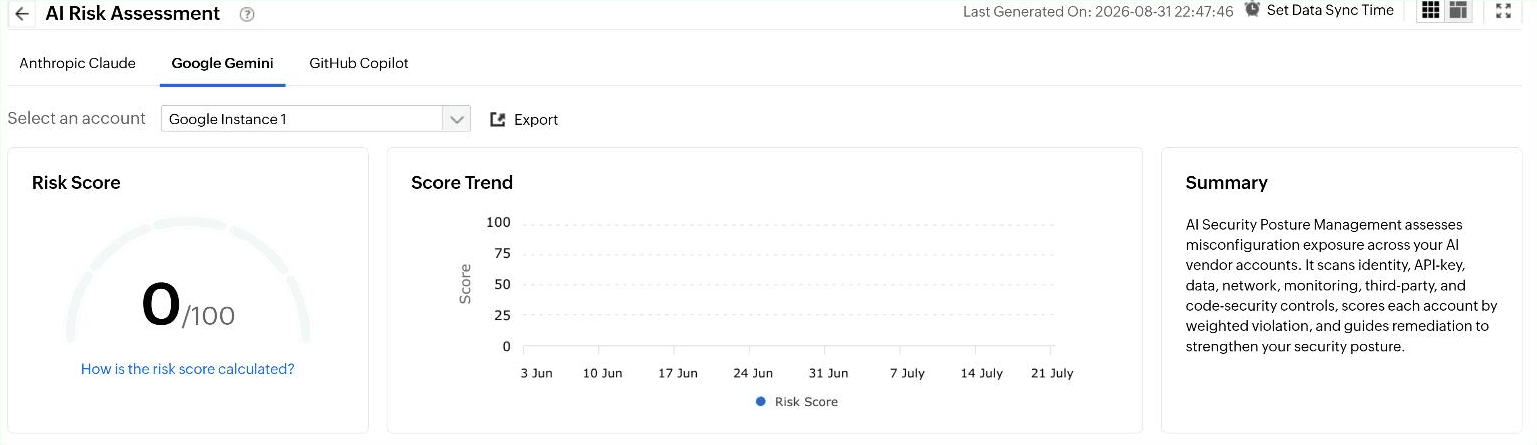
Findings are grouped into five categories, each on its own tab: Data Governance, Identity & Access Management, Monitoring & Logging, Network Access Control, and Third-Party Integrations. What the checks cover is Workspace-shaped rather than key-shaped, which is why Google Gemini has no API Key Security category where Anthropic Claude and Github Copilot do.
- Data Governance covers DLP rule coverage over Gemini inputs and outputs, DLP rule-match monitoring, Gemini data retention in Vault, data-localization change auditing, Google Drive external sharing, and bulk data export monitoring.
- Identity & Access Management covers super admin counts and role assignments, 2-Step Verification enforcement and enrollment changes, Advanced Protection Program enrollment, suspicious login monitoring, admin role change auditing, and whether Gemini access reaches beyond the authorized users and organizational units.
- Monitoring & Logging covers the availability of the Gemini activity log and the admin audit log, out-of-domain email forwarding auditing, leaked-password detection, and Alert Center rules.
- Network Access Control covers unapproved or non-compliant devices.
- Third-Party Integrations covers unapproved third-party apps, OAuth token grant and revoke auditing, and the third-party OAuth app token inventory.
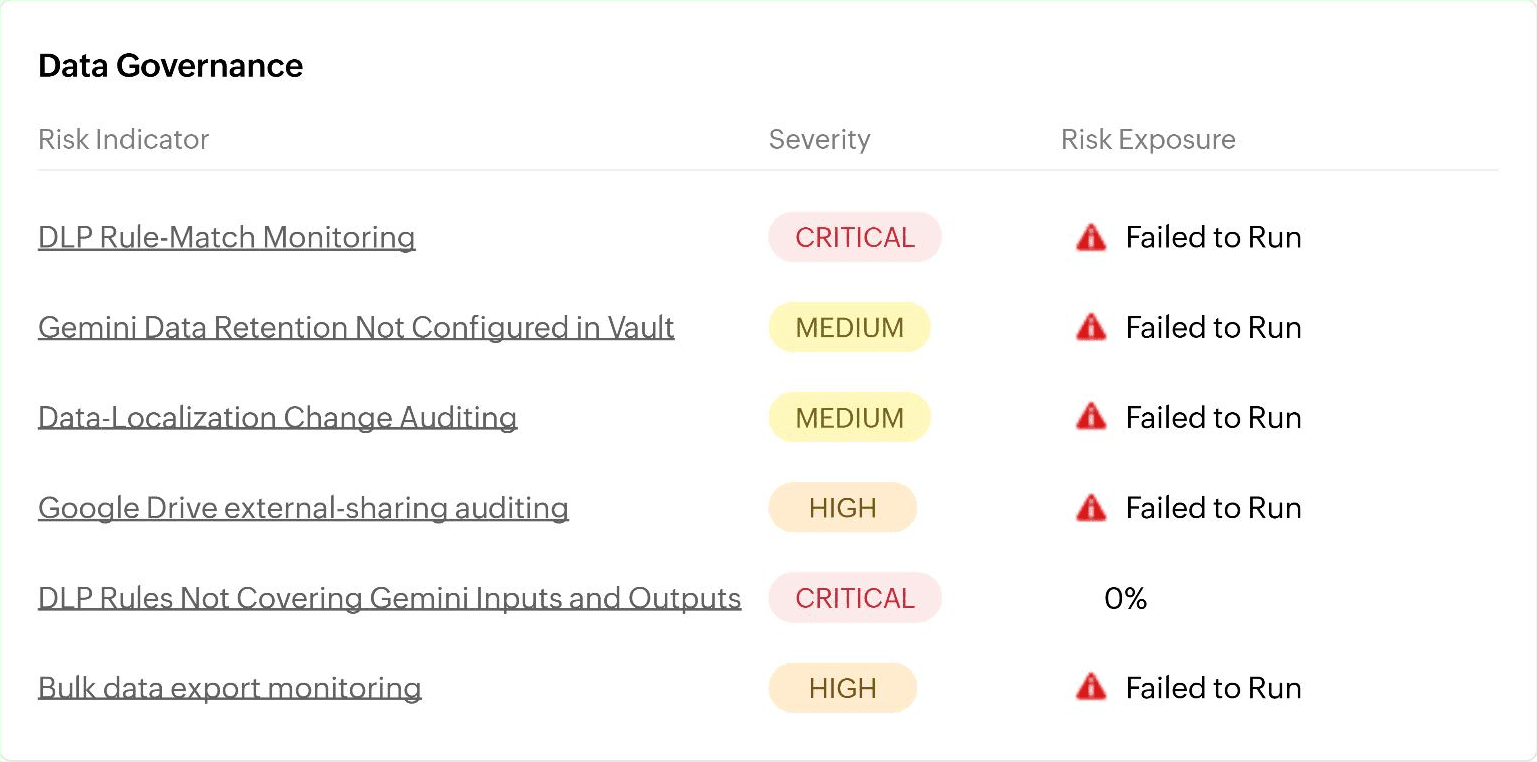
Each tab lists its checks as Risk Indicator, Severity and Risk Exposure. Severity is Critical, High, Medium or Low. Risk Exposure reads as a percentage with the affected count behind it, and Failed to Run replaces it when SecureAI could not evaluate the check. Use Filter By to show only Critical, High, Medium or Low findings, or All.
Note: Most Gemini checks read Google Workspace administrative, reports, alert center and vault APIs. If the service account lacks domain-wide delegation for the scope a check needs, or the customer ID is wrong, that check reports Failed to Run rather than passing or failing.
Click any risk indicator to open it. The detail page reports the exposure, Severity, Weight and Status, lists the objects that matched, and offers Export As for CSV, PDF or XLSX along with Add or Remove Column. Clicking here in the category description opens the guidance panel, which carries a Description, numbered Remediation measures including the Google Admin console path to follow, and Compliance Frameworks (Domain Level) mapping the finding to standards such as the EU AI Act, the NIST AI Risk Management Framework, OWASP LLM, ISO 42001, MITRE ATLAS, Gartner AI TRiSM, NCSC guidance, NIST SP 800-53 and CIS.
Keeping Gemini data current
The two services refresh on different schedules, because they are driven from different places.
- Agent discovery through Gemini Enterprise Agent Platform follows the Google instance. Click Fetch beside the instance in Application Settings to pull now, or edit Fetch Interval to change how often SecureAI re-fetches.
- The risk assessment through Gemini AI follows Set Data Sync Time in the header of the AI Risk Assessment page. Turn on Enable Data Sync Schedule, choose a Schedule Frequency of Daily, Weekly, Monthly or Custom, set the hour and minute under At:, then click Save.
Turning Gemini off
To stop either half without removing the Google instance, click the edit icon beside the instance in Application Settings, clear Gemini Enterprise Agent Platform or Gemini AI on the General tab, then click Save. Clearing a service stops SecureAI collecting for it.
To stop both along with the directory connection, delete the instance instead. Deleting an instance permanently removes it along with every service, connection and discovered configuration under it, and every agent, user, model and tool synced through it, including their reports and dashboard data. The action cannot be undone.