Create an Access Certification Campaign
An Access Certification Campaign is a scheduled attestation of the access held across the AI platforms managed by ManageEngine SecureAI. Creating a campaign defines what's being reviewed, whose access is under review, who's responsible for deciding, and how often the review repeats. Administrators create campaigns to hold standing and privileged access to a regular sign-off, and to leave a record of who approved or withdrew what. Creating a campaign changes nobody's access. Access is granted or withdrawn only when a certifier acts, and those decisions are tracked under Access Review Request.
How a campaign is assembled and run
A campaign can only cover entitlements that SecureAI has already discovered from each configured application instance. An access template can be selected in place of individual entitlements, and both can be selected in the same campaign. What gets reviewed depends on the selections you make while building the campaign. That can be every AI agent SecureAI holds, agents named individually, or the agents a chosen report returns. Because a report applies its own filter criteria, the campaign takes its scope from the report rather than from a fixed list.
Saving a campaign immediately enables it, along with its selections, schedule, and settings. Nothing is sent to the source platform at that point. At each scheduled time the campaign raises access certification requests for the certifier, who has the configured period in which to approve or revoke each entitlement. If no certifier is named, an assigning rule chooses the technicians instead, and the rule's business workflow governs the stages each request passes through. When the period ends, the campaign's default action decides any entitlement the certifier didn't act on—leaving it alone, approving it, or revoking it. Which campaigns a technician sees is governed by their delegated role.
Prerequisites
- Log in as Super Admin, or as a help desk technician assigned a role that includes the Access Certification Campaign permission (found under Access Certification).
- Configure at least one AI platform instance under Application Settings, with the relevant service associated to it.
- Create the technicians who will certify under Delegation, and give each one a delegated role that covers access certification and at least one workflow role.
- If the certifiers are to be chosen by criteria rather than by selecting one technician for the campaign, create the rule under Governance Assigning Rule, or create it while the campaign is being built.
- Only one certifier can be named in a campaign. Splitting a review across several technicians requires an assigning rule.
- Entitlement values cannot be typed in. Each one is selected from what SecureAI has discovered.
- Where the objects are drawn from a report, only one report can be selected.
- The Prevent self certification option is enabled by default when a campaign is created, and applies unless it is cleared.
- A campaign is enabled as soon as it is saved, and runs from the start date given without any further action.
- Changing the certifier choice from Default Certifier to Governance Assigning Rule and back clears the technician already selected.
- Creating a campaign grants no access and revokes none.
Configuration instructions
- Navigate to Governance > Access Certification > Access Certification Campaign.
- Click Create New Campaign.
- In the Campaign Name field, enter a name that identifies the access being certified and the cycle it belongs to.
- In the Priority field, select Normal, High, Medium, or Low.
- Next to the Select Entitlements/Access Templates field, click the add icon.
- Under Entitlements, select the check box for each entitlement to be reviewed.
- Under Access Templates, select the check box for each template to be reviewed.
- Click Save. Where a bundle does not yet exist, click Create Access Template, available in the same panel.
- In the Object Selection Type field, select what is to be reviewed, and complete the fields that appear for that choice.
Selection What it covers What to set All agents Every AI agent that holds the selected entitlements Nothing further. Specific agents A named set of agents Beside Specific agents, click the add icon, select the check box beside each agent, and click Save. Agents are listed with the application and instance they belong to. Reports The agents a report returns In Report Source, select the platform whose report is to be used. Beside Select Reports, click the add icon, select the report in Filter by Report, and click Save. - Click Next.
- Click Default Certifier and select the technician who will answer for the review, or click Governance Assigning Rule and select the rule that is to choose the technicians. Create New Rule builds a rule without leaving the campaign.
- In the Start Date field, set the date for the campaign to begin.
- In the Schedule to Run field, select the day and the time alongside it. If none of these fits the cycle you need, select Custom. In the Start At field, set the time.
- In the Frequency field, select Run Once or select Repeat and set the interval and the days it is to repeat on. Click OK.
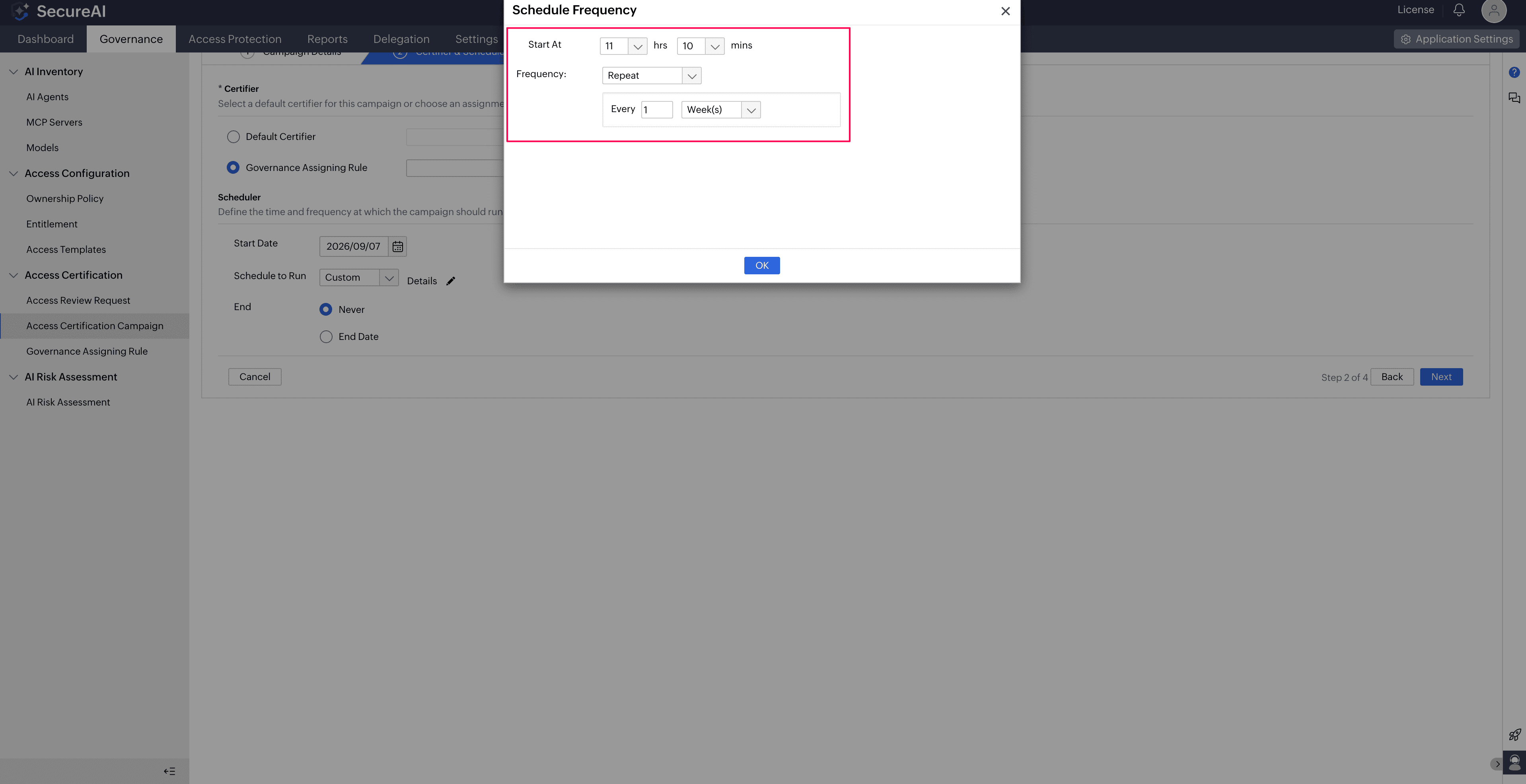
Figure 1. The Schedule Frequency entry with Repeat selected. - Beside End, select Never or End Date and set the campaign's end date.
- Click Next to move to the Settings page.
- Select the configurations that are to apply to every certification request the campaign raises.
Configuration Effect when selected Mandate adding comments on all approval operations A certifier cannot approve access without entering a comment. Mandate adding comments on all revoke operations A certifier cannot revoke access without entering a comment. Prevent self certification A certifier cannot decide on their own access. Allow bulk certifications A certifier can approve or revoke several entitlements in one action. Allow campaign execution only when all the entitlements are approved or revoked A certifier cannot execute a request until every entitlement in it has been decided. - In the Certification Request Expiration field, enter the period the certifier has to complete the review, and select Day(s), Week(s), or Month(s).
- To remind certifiers before the period runs out, enable Send reminder to certifiers.
- In the Notify after field, enter how many days before expiry the reminders are to start.
- In the Notification Frequency field, select Run Once, Daily, Weekly, or Monthly.
- In the Campaign Execution field, select what is to happen to entitlements the certifier has not decided when the period ends.
- Take no action (Recommended) leaves them as they are.
- Approve all confirms them.
- Revoke all withdraws them.
- Click Next and check the summary, which restates the campaign details, the entitlement and object selections, the certifier and schedule, and each setting. Click Back to correct anything. If there are no further changes, click Save to create the access certification campaign.
Tips
- If the same entitlements are certified cycle after cycle, bundle them into an access template and point the campaign at the template, so the scope can be corrected in one place.
- Set the expiration for the certifier's real working cycle. Where the period ends before the review is finished, the default action decides every entitlement the certifier did not reach.
- If no single technician can answer for everything in scope, use an assigning rule instead of a named certifier. Set the rule's criteria so that each request reaches the team that owns the access.
- If the objects are drawn from a report, confirm what that report currently returns before relying on the campaign's scope.
- Each campaign keeps its own run history, which is where to look when a certifier reports that nothing arrived.