Migrating from PostgreSQL to Microsoft SQL Server
ManageEngine SecureAI is bundled with a PostgreSQL database, which holds its configuration, inventory, and governance records. You can move that database, with or without the records already in it, to a Microsoft SQL Server instance. This is a manual migration that you perform on the SecureAI server while SecureAI is stopped. Complete the prerequisite configuration on the Microsoft SQL Server instance before starting the migration.
To confirm which database SecureAI currently runs on and which version it is, navigate to Settings > Security & Storage > Database Settings > Database Configuration.
The following versions of Microsoft SQL Server are supported:
- SQL Server 2022
- SQL Server 2019
- SQL Server 2017
- SQL Server 2016
- SQL Server 2014
- SQL Server 2012 (end of life, Microsoft support withdrawn)
- SQL Server 2008 R2 (end of life, Microsoft support withdrawn)
- SQL Server 2008 (end of life, Microsoft support withdrawn)
- SQL Server 2005 (end of life, Microsoft support withdrawn)
Note: The versions marked as end of life no longer receive security updates from Microsoft. If possible, migrate to a Microsoft-supported version of SQL Server.
Configuring the Microsoft SQL Server instance
Carry out the following on the computer that runs the Microsoft SQL Server instance you are migrating to.
- Open SQL Server Configuration Manager.
- Click SQL Server Services and confirm that SQL Server Browser is running. SecureAI cannot locate the instance while the browser service is stopped.
- Click SQL Server Network Configuration > Protocols for [instance name], and enable TCP/IP.
- Click SQL Native Client Configuration > Client Protocols, and enable TCP/IP.
- Restart the SQL Server service so that the protocol changes take effect.
Granting permissions on the Microsoft SQL Server instance
The account that runs SecureAI needs access to the instance you are migrating to, and rights to create and populate the database there.
If you use SQL Server Authentication, ensure that the SQL Server login you provide during migration already has the permissions required to create and populate the SecureAI database. Then continue to Enabling communication with the Microsoft SQL Server.
Where you intend to connect with Windows authentication, grant the account that runs SecureAI either the sysadmin role or the minimum rights the migration needs, as follows.
- Log in to SQL Server Management Studio with an account that holds the sysadmin role.
- Select the instance you are migrating to, click Security > Logins, and check whether the account that runs SecureAI is listed.
- Where the account is not listed, right-click Logins, click New Login, and create a login for it.
- Right-click the account, click Properties > Server Roles, and check whether it holds the sysadmin role.
- Where it does not hold the role, select sysadmin and click OK.
- To grant the minimum rights instead of the sysadmin role, do the following.
- Right-click the account, click Properties > User Mapping, select db_datareader, db_datawriter, and db_ddladmin, and click OK.
- Right-click the database, click Properties > Permissions, grant Execute to the account, and click OK.
- Right-click the database, click New Query, and run GRANT CONTROL ON CERTIFICATE::[ZOHO_CERT] TO [user], replacing user with the account name. Without this grant, the account cannot use the certificate that protects the stored credentials.
Enabling communication with the Microsoft SQL Server instance
If SecureAI and Microsoft SQL Server run on different computers, install the client components required for the target SQL Server version on the SecureAI server. Use the table below to identify the required command-line utilities, native client, and ODBC driver.
- Install versions of the command-line utilities, native client, and ODBC driver that are compatible with the Microsoft SQL Server version you are migrating to. A mismatched version prevents the migration from completing.
- For SQL Server 2022, install Command Line Utilities 15 or later and ODBC Driver 18. The two links in that row serve the current build of each.
- Microsoft no longer distributes the client components for SQL Server 2005. Obtain them from your own media if you are migrating to that version.
For SQL Server 2014 and above, copy the following two files from the Microsoft SQL Server installation folder to <SecureAI home>\bin. SecureAI uses them to load the existing records into the new database.
- bcp.exe, from <MSSQL installation directory>\Microsoft SQL Server\Client SDK\ODBC\<version>\Tools\Binn\bcp.exe
- bcp.rll, from <MSSQL installation directory>\Microsoft SQL Server\Client SDK\ODBC\<version>\Tools\Binn\Resources\1033\bcp.rll
Opening the UDP and TCP ports
Carry out the following where a firewall is enabled on the computer that runs the Microsoft SQL Server instance. If no firewall is enabled, continue to Moving the database and data.
- Note the UDP port number, which is 1434.
- Open SQL Server Configuration Manager on the computer that runs the instance, click SQL Server Network Configuration > Protocols for [instance name], right-click TCP/IP, click Properties > IP Addresses, and note the value of TCP Port Number under IPALL.
- Open both ports in the firewall settings. The TCP port you open has to be the one entered in Port in the database setup wizard, as described in Moving the database and data.
Moving the database and data
Carry out the following on the SecureAI server. The move takes a few minutes.
- Back up the SecureAI database, so that you can return to the PostgreSQL database if the migration does not complete. Back up the SecureAI database before migration. In SecureAI, navigate to Settings > Security & Storage > Database Settings and configure and run a database backup.
- Stop SecureAI by running <SecureAI home>\bin\shutdown.bat.
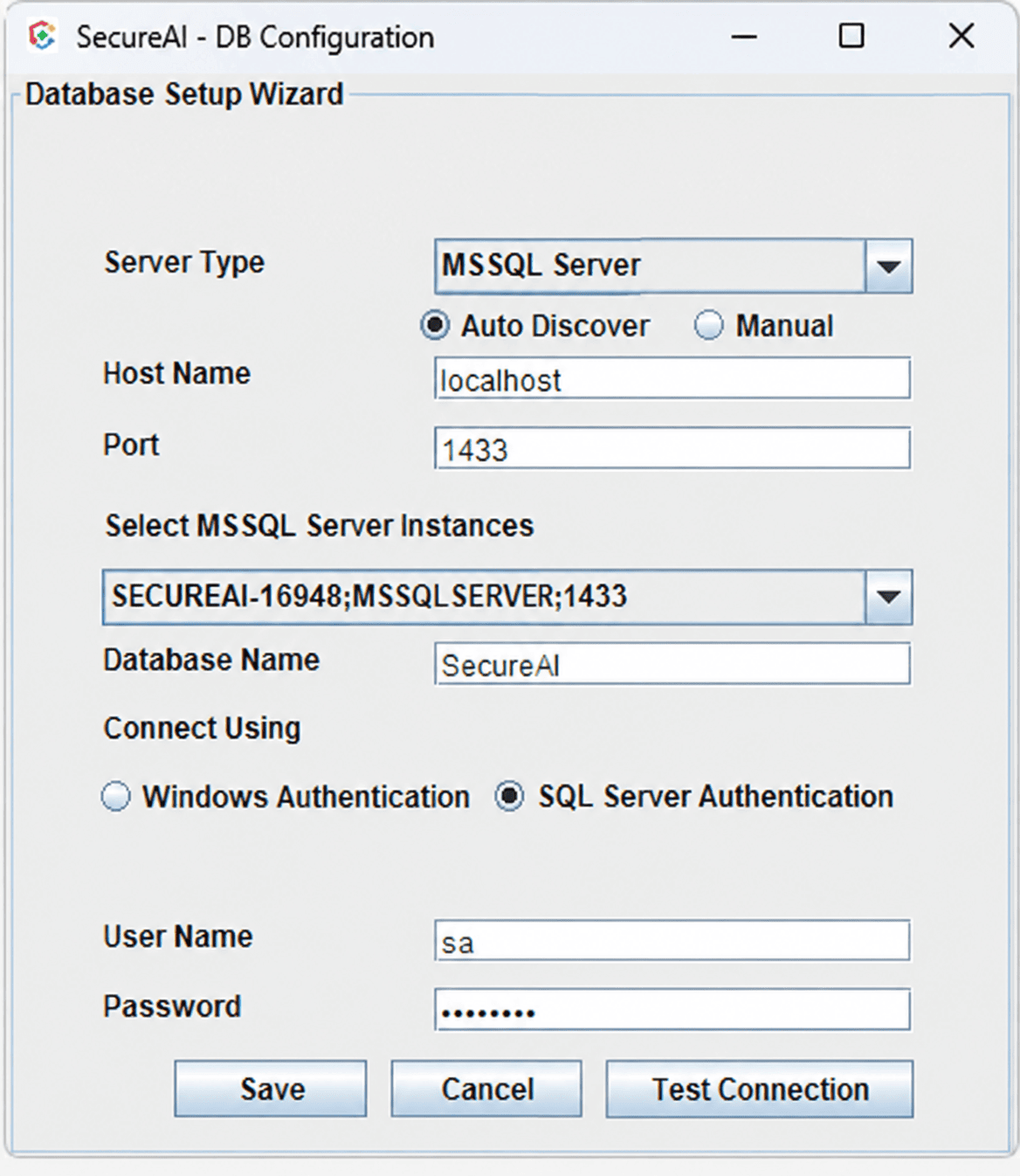
- Run <SecureAI home>\bin\ChangeDB.bat from a Command Prompt. Run the command prompt as the same account that runs SecureAI, because the connection is made with that account's credentials under Windows authentication.
- In Server Type, select MSSQL Server.
- Select how the instance is identified.
- Auto Discover: Select the discovered instance from Select MSSQL Server Instances;
- Manual: Enter the host name, port, and any other manually required instance details. Then continue with Database Name.
- In Host Name, enter the name of the computer that runs the instance.
- In Port, enter the TCP port the instance listens on. The default is 1433.
- In Select MSSQL Server Instances, select the instance you are migrating to. Each entry gives the host name, the instance name, and the port, separated by semicolons.
- In Database Name, enter the name of the database SecureAI is to use on that instance.
- Under Connect Using, select the authentication method.
- Windows Authentication connects with the credentials of the account that is running the utility.
- SQL Server Authentication connects with a login on the instance. Enter the account name in User Name and its password in Password.
- Click Test Connection to confirm that the instance accepts the details you have entered.
- Select Migrate Existing Data to carry the records in the PostgreSQL database over to the new database. Where this is not selected, SecureAI creates a database with default values and the existing records are left behind.
- Click Save.
- Start SecureAI once the utility reports that the change is complete.