Archive Audit Data
Overview
SharePoint Manager Plus enables automatic archiving of audit and IIS log data to optimize storage, maintain performance, and meet compliance requirements. By offloading older, less frequently accessed audit data from the Live Tier to the Archive Tier, the product remains efficient and performant while still retaining a complete history of audit events.
Archiving stages in SharePoint Manager Plus
In SharePoint Manager Plus, data flows through different storage states to balance performance and storage efficiency. The table below describes each term and how data is managed at each stage.
| Storage tier | Data source | Data state | Description | Searchability | Storage usage |
|---|---|---|---|---|---|
| Live Tier | Audit data | Hot data | Recent audit logs that are stored in the database and actively used. | Searchable | Occupies maximum disk space. |
| IIS log data | Hot data | IIS logs collected and stored in the live environment prior to archival. | Searchable | Occupies maximum disk space. | |
| Archive Tier | Audit data (Compressed raw data) | Frozen data | Audit data older than the archive period and stored as compressed raw files. Retained for compliance. | Not searchable | Occupies 80% less disk space than hot data. |
| IIS log data(Compressed indexed data) | Cold data | Older IIS logs moved based on archival interval. Data is compressed and indexed. | Not searchable | Occupies about 50% less disk space than hot data. |
By default, audit data older than 10 days will be archived in SharePoint Manager Plus. You can modify this setting to meet your organization's data retention policies. The archived logs can be re-indexed and made searchable whenever needed.
Data archiving workflow

Figure 1: Flow of audit data archiving in SharePoint Manager Plus.
Audit data archiving process
- The default audit data is stored in PostgreSQL or Microsoft SQL Server.
- A scheduled task runs daily to check if the audit data is older than the configured archive period.
- When audit data becomes older than the archive period, it is moved from the Live Tier into frozen data within the Archive Tier.
- The audit data in the Archive Tier is stored as compressed raw data.
- You can configure a retention period to automate the process of managing audit data. Once this period ends, indexed audit data in the Live Tier is automatically unindexed and pushed back to frozen data as compressed raw files, freeing up disk space.
- When a user needs to view older audit data, the required data is retrieved from the frozen data storage.
- The system extracts the compressed raw files and re-indexes them into the data engine, making the data available again as indexed audit data in the Live Tier and searchable by the user.
IIS logs archiving process
- IIS logs data is stored in the product's data engine.
- IIS logs follow the configured IIS log archival interval.
- Older IIS logs are moved into cold data within the Archive Tier, where they are stored as compressed, indexed data.
- If a user searches for data older than the IIS archive interval, Elasticsearch automatically retrieves the required data from the Archive Tier and moves it to the Live Tier.
- Cold data is periodically checked against the retention days.
- If IIS log data is older than the configured retention period, it is permanently deleted. This action is irreversible
Example: The archive frequency is set to 10 days, and the product is installed on August 26.
The archive process runs everyday, and only data older than 10 days will be archived. When the archive process runs on September 5, it will move the audit data of August 26 to the Archive Tier. Audit logs can be re-indexed at any time for viewing, and a retention period can be configured for indexed data to manage how long it remains searchable. Once the retention period for indexed data expires, it is automatically unindexed and returned to frozen storage, ensuring efficient management without manual intervention.
Configuring archive settings in SharePoint Manager Plus
You can configure archive settings in SharePoint Manager Plus by defining how long audit logs and IIS logs are archived, indexed, and retained.
To archive audit data:
- Log in to SharePoint Manager Plus as an administrator.
- Navigate to Admin > Custom Settings > Archive Audit Data.
- Under the Categories section, select the Audits check box and specify the number of days after which the audit data should be archived.
- In the IIS Log archival interval field, specify the frequency in days at which IIS log data should be archived.
- In the IIS Log retention period field, specify the number of days after which archived IIS logs should be permanently deleted.
- In the Indexed audits retention period field, specify the number of days after which the indexed data should be automatically unindexed.
- Click Save.
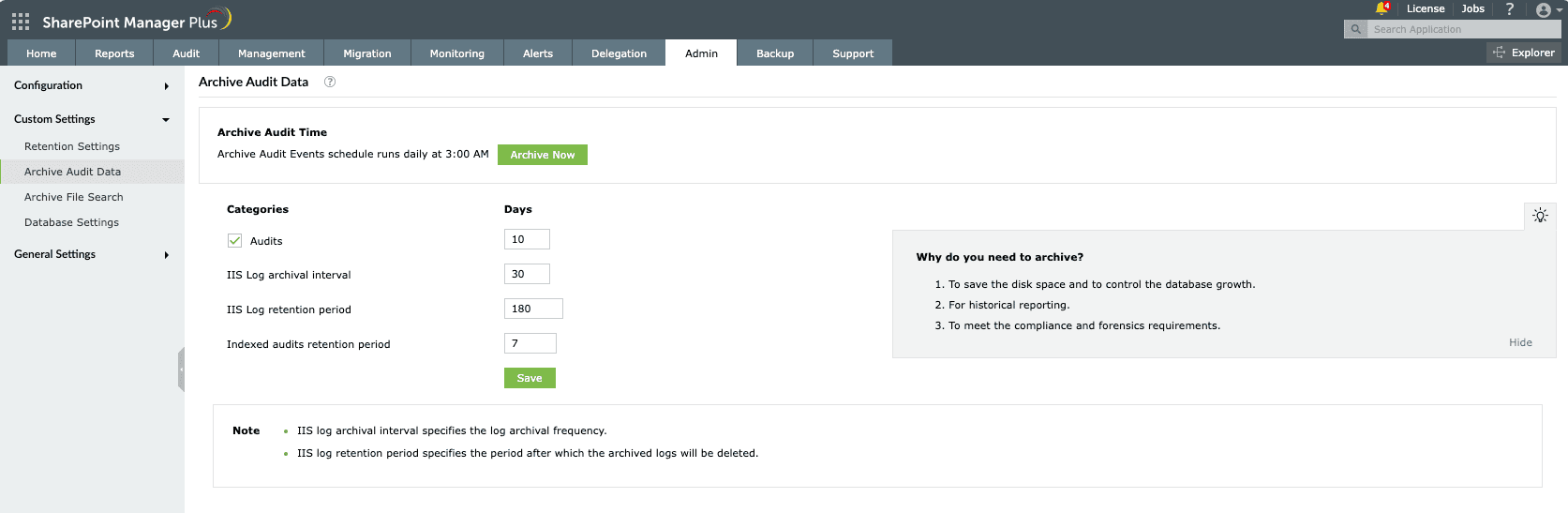
Figure 2: Audit data archiving in SharePoint Manager Plus.