How to create a document library in SharePoint
Last updated on:In this page
A SharePoint document library acts as a secure location where users can store, organize, share, and manage files. Unlike a regular folder, a document library supports advanced features such as versioning, metadata, permissions, auditing, and workflow integration. Creating a document library in SharePoint can be done using the browser UI or PowerShell for both single and bulk creation.
- SharePoint Online
- Windows PowerShell
Method 1: How to create a document library in SharePoint Online
Prerequisites
- You must be a Site Owner or have Full Control permissions on the SharePoint site.
Steps
- Sign in to SharePoint Online.
- Navigate to the site where you want to create the document library.
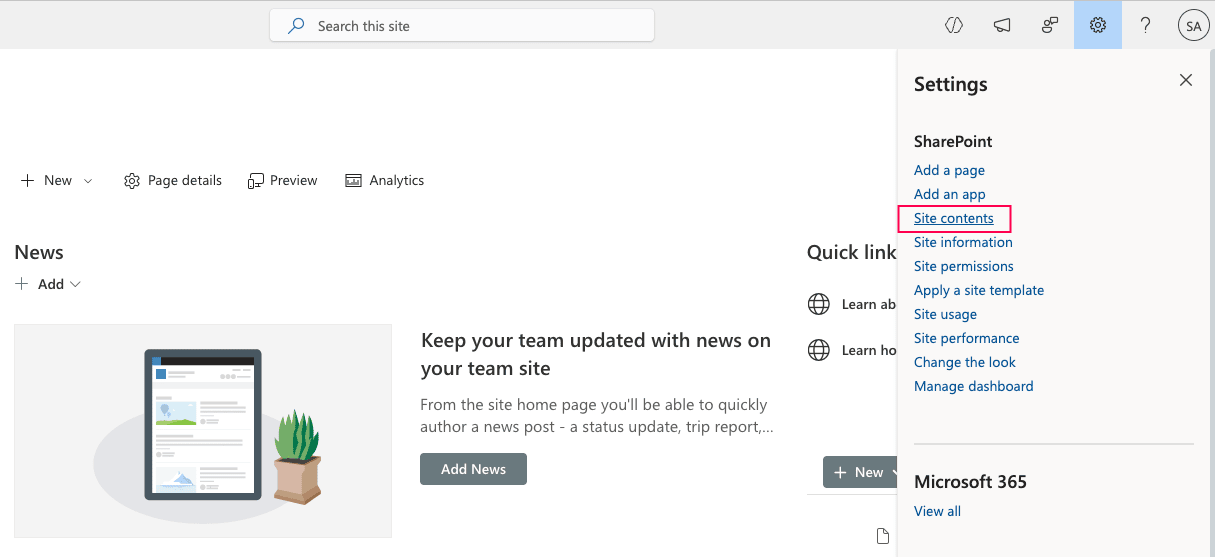
- Click the Settings icon ⚙ in the top-right corner and select Site contents. You can also access the Site contents page from the left-hand navigation menu.
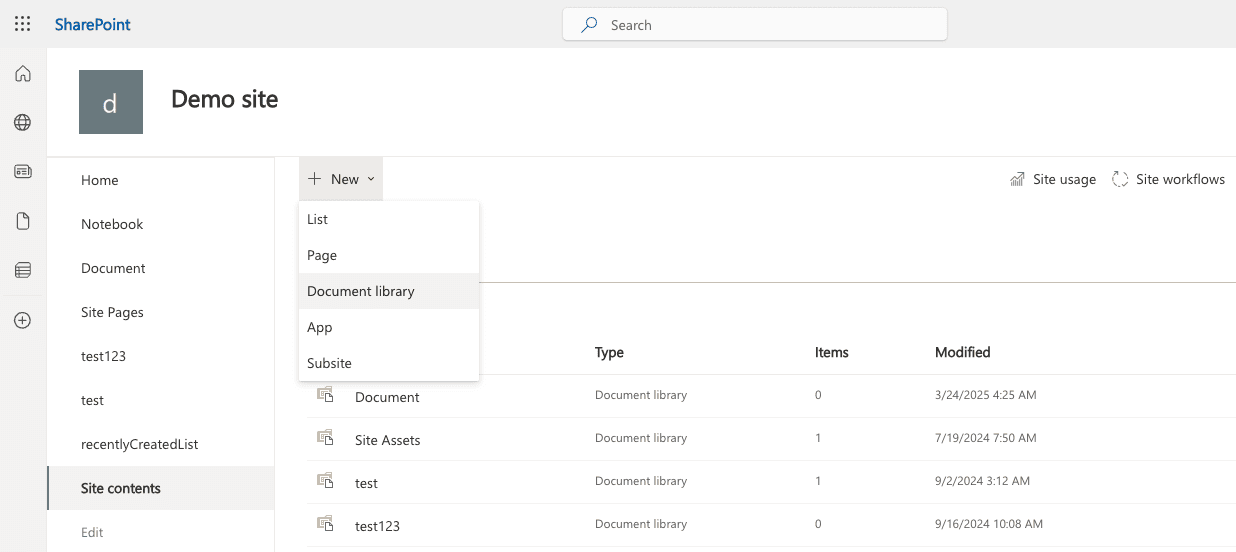
- Click + New > Document library.
- Choose a SharePoint document library template from the available options:
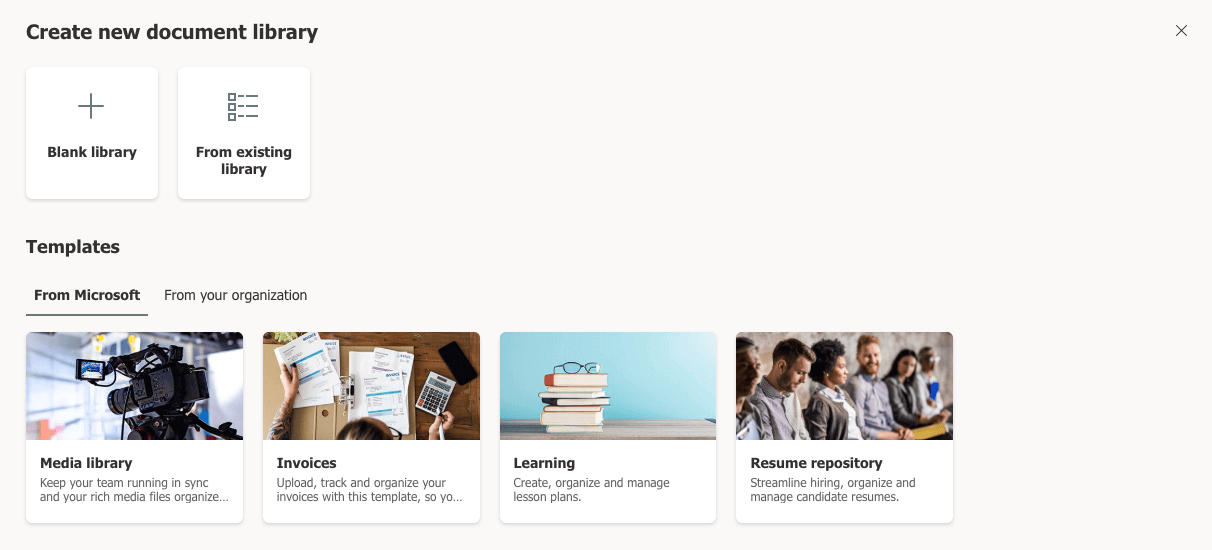
- Blank library: Creates a new document library with default settings.
- From existing library: Uses the configuration (such as columns, views, and settings) of another library as a template.
- Templates: Choose from available templates, such as Media library, Invoices, or Learning.
- Enter a Name and optional Description.
- Click Create.


Limitations to consider
- Library creation must be done site by site.
- There is no bulk creation across multiple sites.
- There is no native reporting on document library permissions or usage.
Method 2: How to create a document library using PowerShell
PowerShell is ideal when you need to create document libraries in bulk or automate SharePoint administration.
Prerequisites
- Before using PowerShell, ensure that:
- You have SharePoint Administrator or Global Administrator rights.
- The PnP.PowerShell module is installed.
- Install and connect to SharePoint Online using the script below.
                                        Install-Module PnP.PowerShell -Scope CurrentUser
                                        Connect-PnPOnline -Url https://tenant.sharepoint.com/sites/ProjectSite -Interactive
Creating a new document library
Use this command to create a single new document library in the connected SharePoint site by specifying the library name and using the document library template.
New-PnPList -Title "Project Documents" -Template DocumentLibrary
Creating multiple document libraries
Use this script to create multiple document libraries at once by looping through a list of library names, which is useful for bulk or automated site setup.
                                $libraries = @("HR Documents", "Finance Documents", "Legal Documents")
                                foreach ($lib in $libraries) {
                                    New-PnPList -Title $lib -Template DocumentLibrary
                                }
Supported parameters
The following parameters can be used while creating document libraries in SharePoint.
| Parameter | Description |
|---|---|
| -Title | Name of the document library |
| -Template | Defines the list template type |
| -Url | Custom library URL |
| -EnableVersioning | Enables version history |
| -EnableContentTypes | Allows content types |
How SharePoint Manager Plus simplifies document library management
After you've created a document library, it's important to manage access and audit changes so you can ensure collaboration is secure, controlled, and aligned with organizational policies. SharePoint Manager Plus simplifies document library management and reporting with a script-free, intuitive GUI.
Document library permissions reporting
Schedule detailed reports to view who has access to which document libraries; identify users with excessive or unique permissions; and export reports in CSV, PDF, XLSX, or HTML formats.
Auditing document library activities
Track changes in your libraries, such as downloads, edits, deletions, or permission changes, with the exact time and location. Maintain audit trails for compliance and investigations.
Manage SharePoint document access
Manage permissions to document libraries and folders to ensure least-privilege access. Quickly add or remove permissions in bulk with CSV imports to save time and eliminate repetitive effort.
Migrate document libraries and files
Easily import files to SharePoint document libraries, copy document libraries from one SharePoint environment to another, and more, without complex PowerShell scripts.
SharePoint document library best practices
Follow these best practices to ensure consistent structure, improved usability, and long-term scalability across your SharePoint environment:
Standardize library templates
Use SharePoint document library library templates to maintain consistency across sites and standardize metadata and structure.
Configure metadata columns early
Define required metadata columns at the time of creation to avoid rework later and maintain structured document organization.
Enable versioning appropriately
Turn on document library version history where collaboration is frequent, and configure version limits to balance traceability and storage usage.
Optimize library navigation
Configure views and navigation settings to ensure users can quickly locate relevant documents without clutter.
Library naming conventions
Give libraries and folders clear, concise names, like HR Policies instead of Documents2. Avoid changing library names later as it affects the URL. Common SharePoint document library examples include HR Policies, Project Documents, Finance Reports, Training Materials, and Legal Contracts—each created to organize files by department or purpose.
Frequently asked questions
Sign in to SharePoint Online, navigate to the relevant site, click Site contents, and select the document library from the list. You can identify it by the SharePoint document library icon , which distinguishes libraries from lists and other site components.
Open the document library, click Upload, and select a file from your device. You can also drag and drop files directly into the library or create a new file using the New button within the library.
To edit a document library name, click the Settings icon ⚙, select Library settings, then choose List name, description and navigation. Update the library name and click Save.
Go to the document library you want to delete, click the Settings icon ⚙, select Library settings, then click Delete this document library under Permissions and Management. Confirm the deletion when prompted.
A document library is a container within a SharePoint site used to store and manage files. A document center is a specialized SharePoint site template designed for large-scale document management, offering features like content organization, routing, and optimized search for high document volumes.
Go to the document library, click New, and select Folder. Enter a name and click Create. The folder will be added inside the library to help organize files.
A SharePoint list stores structured data such as tasks, contacts, or records in rows and columns. A document library is designed specifically to store files and documents, with additional capabilities like versioning and document preview.
A SharePoint document library can store up to 30 million items, including files and folders. However, the list view threshold limits visible items in a single view to 5,000 items unless properly indexed or filtered.

