ManageEngine SharePoint Manager Plus offers a wide range of SharePoint reports as part of its Microsoft 365 reporting capabilities. The Monthly Storage Trends report brings storage use, file counts, and month-over-month changes into one centralized view, helping you move beyond isolated snapshots.
Why you need a monthly storage trends report
Storage planning requires more than knowing how much space a site collection uses today. You also need to understand how quickly that usage is changing and whether current capacity is likely to remain sufficient.
Microsoft provides SharePoint storage and site usage reports that surface tenant usage, site-level storage data, and growth trends. Microsoft Graph also provides APIs for retrieving allocated and consumed SharePoint storage over a reporting period.
However, recurring site-collection analysis still requires you to move between native reporting surfaces, process exported data, or build a separate workflow for monthly comparisons and stakeholder delivery. A monthly storage trends report combines monthly storage use, file counts, and growth calculations in one filterable and schedulable report.
It helps you:
- Compare the trend with the current figure: Determine whether a site collection's storage has remained stable or is growing rapidly instead of assessing its present usage in isolation.
- Separate storage growth from file-count growth: Compare the two trends to identify whether further investigation should focus on file volume, file size, version history, or other storage drivers.
- Support additional-storage decisions: Use historical growth data to estimate future requirements and provide context when requesting more tenant storage.
- Plan storage optimization earlier: Identify site collections with sustained or accelerating growth before they approach assigned storage limits.
- Maintain a repeatable review record: Schedule monthly reports to document how storage and file-count patterns were monitored over time.
What is the Monthly Storage Trends report in SharePoint Manager Plus?
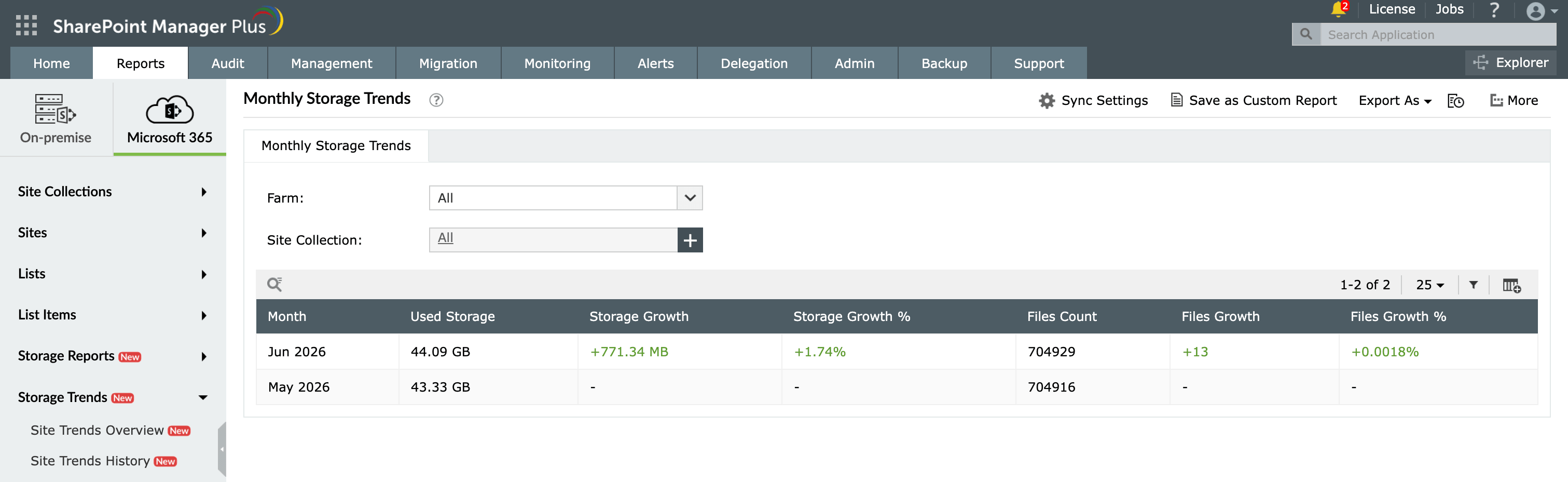
The Monthly Storage Trends report tracks how storage consumption and file counts change across a SharePoint site collection each month. It shows the total storage used, the increase or decrease from the previous month, the percentage change, the total file count, and the absolute and percentage change in file count. By presenting these metrics as a time series, the report helps administrators identify steady growth, sudden spikes, seasonal patterns, and changes in the rate of content accumulation.
What does the Monthly Storage Trends report show?
Using SharePoint Manager Plus, you can filter the Monthly Storage Trends report with the following fields:
- Farm: Select the SharePoint farm or Microsoft 365 tenant from which you want to retrieve monthly storage data.
- Site Collection: Select a site collection to review its month-by-month storage and file-count history.
The report displays the following details for each month in the selected site collection's history:
| Attribute | Description |
|---|---|
| Month | The calendar month associated with the storage and file-count measurements. |
| Used Storage | The total storage consumed by the site collection during the month. |
| Storage Growth | The increase or decrease in storage use compared with the previous month. |
| Storage Growth % | The percentage change in storage use since the previous month. |
| Files Count | The total number of files stored on the site. |
| Files Growth | The increase or decrease in file count compared with the previous month. |
| Files Growth % | The percentage change in file count since the previous month. |
Native SharePoint reporting and PowerShell vs. SharePoint Manager Plus
Native tools provide useful storage visibility, but you still need to combine reporting surfaces or process exported data to create a recurring site-collection view that places monthly storage use, file counts, and percentage changes together. You can automate this analysis using PowerShell and Microsoft Graph. However, a custom workflow may require report retrieval, data storage, month-over-month calculations, scheduling, formatting, and maintenance. With SharePoint Manager Plus, you can get those reporting and delivery capabilities through one interface.
The Monthly Storage Trends report combines the depth of PowerShell with the convenience of a centralized admin center.
| Capability | SharePoint admin center | PowerShell | The SharePoint Manager Plus advantage |
|---|---|---|---|
| Report accessibility | ❌ Manual filtering is required every time | ❌ Script execution is required for every run | ✅ Get one-click access to categorized reports |
| Custom reports | ❌ | ❌ | ✅ Create custom reports by saving granular, attribute-based conditional filters |
| Report exports | ✅ Reports can be exported only in CSV or JSON formats | ✅ Requires additional scripting to format and export data | ✅ Reports can be exported in CSV, HTML, PDF, and XLSX formats |
| Emailing reports to admins | ❌ | ❌ | ✅ Send report emails to stakeholders and admins in preferred formats |
| Automated report generation | ❌ This requires technical scripting or separate complex add-ons | ❌ This requires Task Scheduler or Azure Automation | ✅ Schedule multiple reports that can be generated, filtered, emailed, and exported between defined periods automatically |
Features that enhance the Monthly Storage Trends report
SharePoint Manager Plus provides several tools to help you schedule, distribute, and act on storage-trend insights.
- Automated report generation: Schedule the report to run monthly so trend records remain current without repeated manual retrieval.
- Report export: Download monthly storage trends in CSV, HTML, PDF, or XLSX format for capacity reviews, budget discussions, and governance documentation.
- Storage growth alerts: Configure alerts when storage use or monthly growth crosses a defined threshold, helping administrators investigate rapid growth before site limits are reached.
- Storage optimization reviews: Compare storage trends with activity reports to identify site collections that may need archiving, version-limit changes, or version history cleanup.
- Custom reports: Save selected fields and filters so recurring storage reviews can be accessed quickly.
Reports that complement the Monthly Storage Trends report
If you are managing storage capacity or planning infrastructure decisions in SharePoint, these reports work alongside the Monthly Storage Trends report to give you the full picture.
Site Trends Overview: Pairs each site collection's month-by-month trend with its current utilization, including how much of the allocated storage is already consumed.
Site Trends History: Covers the same metrics as the Overview but across an adjustable historical window, making it the right tool for tracing when a growth spike began or how consumption changed after a cleanup.
Site Storage Growth Trends: Compares storage at two defined points in time to produce a single growth rate per site collection. This is useful for condensing the detailed trend from the Monthly Storage Trends report into a single comparable figure.
Storage by Version reports: Show how much of each site collection's storage is consumed by version history specifically. This is useful for confirming whether version accumulation is the primary driver behind a month-over-month growth pattern.
SharePoint site activity reports: Cross-reference monthly storage trends with page views and active file counts to separate legitimate collaboration growth from content sprawl.
Other features of SharePoint Manager Plus
- SharePoint management: Grant, remove, or copy permissions, and manage group members in bulk without relying on complex scripts, simplifying your SharePoint administration.
- SharePoint reporting: Access over 140 prebuilt and custom reports for SharePoint—including permissions, site usage, content inventory, and security insights—all from a centralized dashboard.
- SharePoint auditing: Maintain a comprehensive, searchable audit trail of all activities across your SharePoint environment, including user actions, permission changes, and content modifications.
- SharePoint alerting: Get real-time alerts on critical events such as permission changes, suspicious user activities, site access anomalies, and policy violations.
- Delegated administration: Empower help desk technicians with granular, role-based access to perform specific SharePoint administrative tasks, without elevating native privileges.
- SharePoint migration: Simplify SharePoint migration by enabling seamless content and permission migration across sites and tenants, with minimal downtime and full visibility into migration progress.