Check in SharePoint documents in bulk, with full control
When several people work from the same document library, checking a file out gives one person exclusive editing rights so no one overwrites their changes. Checking the file back in releases it to the document library, records a version history entry, and makes the update visible to everyone else. The trouble starts when a file stays checked out: locked by a colleague who is on leave, has left the company, or simply forgotten it, leaving access to the file blocked to other members of the team.
Native check-in handles this one file and one library at a time, and releasing a file locked by someone else requires site owner permissions on that specific site. Bulk check-ins usually mean writing PowerShell scripts. Across dozens of libraries and multiple sites, this becomes slow and hard to govern.
SharePoint Manager Plus, a centralized SharePoint management tool, helps administrators check in documents in bulk, force check in files locked by other users, set the version type, and record an audit comment, all from a single console.
Key SharePoint Manager Plus features that simplify document check-ins
Multi-file check-in
Select multiple folders and files in bulk and check them all in through a single task, instead of clearing checkouts one library at a time.

Check-in comments for a clear audit trail
Add a comment that describes what changed, so collaborators and auditors can follow a document's history through its version record.

Major or minor version control
Choose whether each check-in creates a major or minor version, keeping version numbering consistent across the library and aligned with your workflows.
Delegated check-in without elevated privileges
Let technicians run check-in tasks without granting them site collection administrator or other high-level SharePoint rights.

How to check in documents in SharePoint
SharePoint Manager Plus lets you check in a single file or thousands of them in just a few steps:
- Navigate to Management > Document Management > Check-In Documents.
- Use the Select Farm/Tenant drop-down to choose the SharePoint farm or tenant that contains the documents.
- Click + in the Select Folder or Files field and select the checked-out folders or files you want to release.
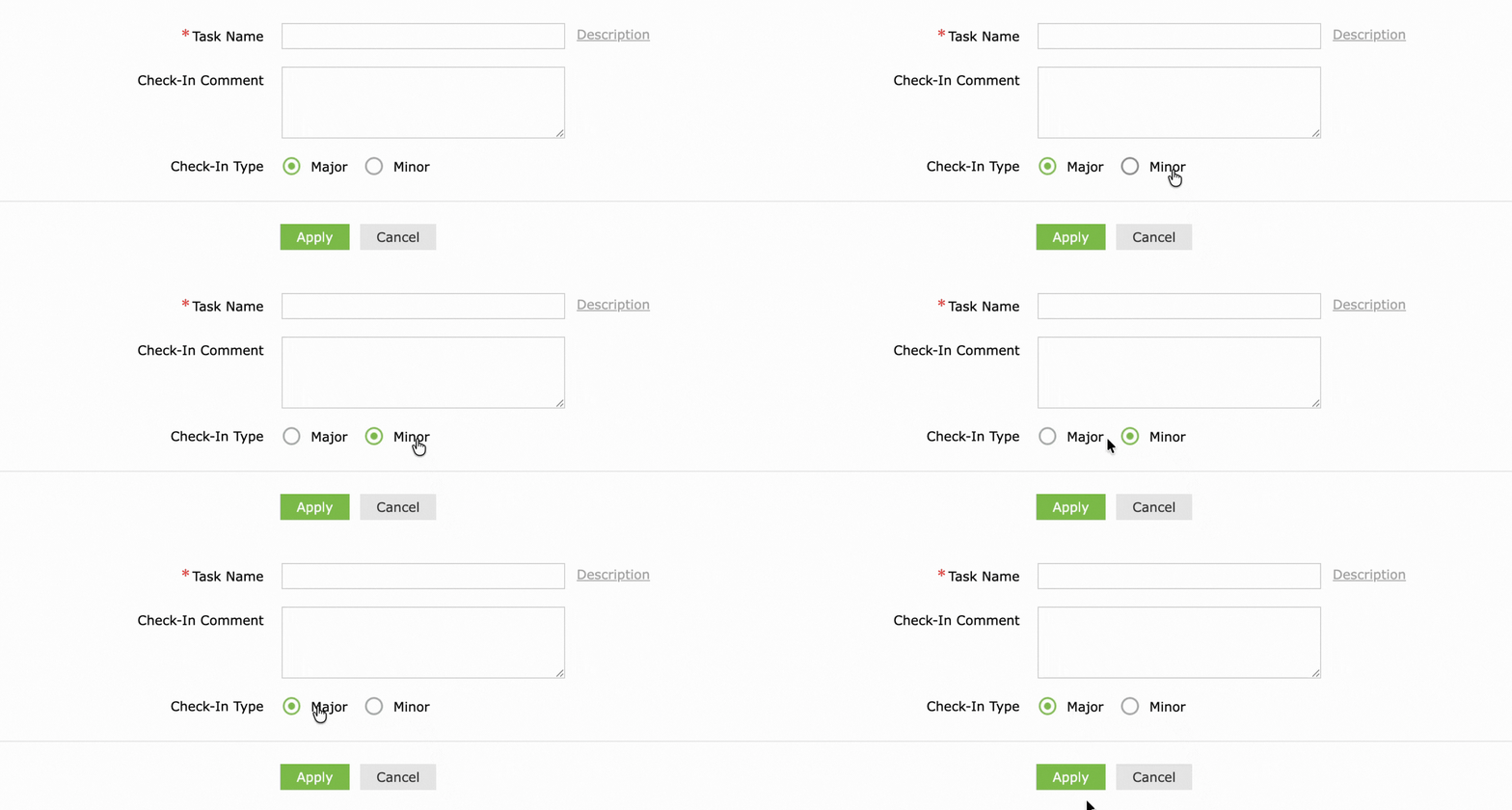
- Enter a Task Name so the operation is easy to identify and track later. Add a description if required.
- Add a Check-In Comment describing what changed. This helps audit trails and team communication.
- Set the Check-In Type to Major or Minor, depending on how the version should be recorded.
- Click Apply.
View a detailed guide on how to check-in documents comparing the browser UI and PowerShell steps.
Common check-in scenarios
Releasing files locked by former or absent employees
When someone leaves or goes on extended leave with files still checked out, administrators can release those documents so the team keeps working without waiting for the original user to return.
Clearing stale checkouts before a deadline
Files that sit checked out for weeks block edits and reviews. A bulk check-in frees them ahead of a delivery, publish date, or approval cycle.
Publishing changes after a bulk edit or migration
Following a large batch of edits or a content migration, check in everything at once so the latest versions become visible and editable for all collaborators.
Standardizing versions before an audit
Check in outstanding documents as major versions so a library presents a clean, current state when it is time for a compliance or governance review.
How SharePoint Manager Plus compares with native check-in
| Capability | SharePoint Manager Plus | Native SharePoint (browser or PowerShell) |
|---|---|---|
| Force check-in of files locked by others | Release files checked out by any user from one console. | Site owner clears one at a time in the browser, or scripts it in PowerShell. |
| Bulk, multi-file check-in | Select multiple folders and files in a single task. | Manual in the browser; code-heavy in PowerShell. |
| Cross-farm and cross-tenant scope | Check in across on-premises farms and Online tenants from one place. | Managed per site or tenant; separate PowerShell modules per environment. |
| Version type control | Set Major or Minor for the whole task. | Chosen per file in the dialog, or set via a script parameter. |
| Check-in comment for audit trail | Apply a shared comment across the task. | Entered per file, in the browser or a script. |
| Delegation | Delegate check-in to technicians without native admin rights. | Requires site owner or admin rights either way. |
| Setup and skill required | Point-and-click; nothing to install or script. | No setup for the browser; PowerShell needs modules and scripting skill. |
Benefits of managing check-ins with SharePoint Manager Plus
- Unblock collaboration quickly: Release locked documents in minutes so teams are never held up by a checkout no one can clear.
- Reduce dependency on site owners:Delegate routine check-in tasks to technicians without handing out site collection or admin permissions across your environment.
- Work across every supported SharePoint environment: Manage check-ins for SharePoint Online and on-premises SharePoint (2019, 2016, 2013, and Subscription Edition).
- Audit every document activity: Generate detailed reports to monitor who checked in and checked out documents and when it happened.
Features that complement Check-In Documents
If you are managing SharePoint document access and collaboration, SharePoint Manager Plus provides several other features that complement the Check-In Documents tool:
- Clear Version History: Trim the versions generated as files are checked in and out, to prevent storage from growing due to active editing.
- Edit Document Metadata: Update column values across the files you check in, so status, owner, or approval fields reflect the latest edit in one bulk task.
- Versioning Settings: Enforce whether check-out is required before editing, and how major/minor versions are created on check-in, consistently across libraries.
- Permission management: Review and adjust who can check out and edit documents in the first place, tightening access after a bulk check-in reveals over-privileged users.
FAQs
Checking in a document returns the exclusive editing rights that were reserved when the file was checked out. It releases the file back to the document library, creates a new entry in the version history, and makes your changes visible and editable to other collaborators. It is the counterpart to co-authoring, where multiple people edit simultaneously without an exclusive lock.
Yes. A site owner can check in a file that another user left checked out, overriding their lock. SharePoint Manager Plus extends this to bulk operations, letting administrators or delegated technicians force check in files locked by other users across multiple libraries and sites at once.
To check out, open the document library, select the file, open the More menu, and choose Check Out. Edit the file, then check it back in from the same More menu by selecting Check In and adding a comment. For detailed steps, check out this guide on how to check-in and check out documents in SharePoint.
Native SharePoint offers limited bulk check-in, usually through the Checked out files view in library settings. Using SharePoint Manager Plus, you can select multiple folders and files in one task, apply a shared check-in comment and version type, and release them all together.