SharePoint Manager Plus centralizes SharePoint storage reporting and administration in one console. Its Storage by Version Age and Storage by Version Count reports help administrators compare version-storage consumption across sites without manually assembling site-level results.
Why you need storage by version reports
File versioning helps users restore earlier document states and supports collaboration, recovery, and audit requirements. However, frequently edited files can accumulate many retained versions over time. Libraries that retain both major and minor versions can accumulate even more saved states, particularly when files are edited repeatedly before publication.
As retained versions grow, they can contribute significantly to site and tenant storage use. Standard storage totals alone do not always make it easy to determine how much of that consumption is associated with version history or which sites should be reviewed first.
Microsoft provides site- and library-level version-storage reports, what-if analysis, version-limit controls, and trimming jobs through SharePoint administration and PowerShell. However, creating a recurring cross-site view still requires administrators to generate multiple reports, consolidate CSV output, and maintain separate automation.
A dedicated storage by version report will give administrators the cross-site version storage visibility that native tools cannot provide.
- Measure threshold-based storage: Compare storage associated with versions older than a selected age or beyond a selected count.
- Prioritize site reviews: Rank sites by version size, percentage used, or affected file count to identify where version history consumption is most significant.
- Estimate cleanup impact: Identify the version storage that falls outside proposed age- or count-based limits before initiating version trimming.
- Identify sites requiring policy reviews: A high percentage of storage in retained versions can indicate that one or more libraries have settings, content patterns, or recovery requirements that differ from the broader organization policy. Review the affected libraries before changing limits or trimming versions.
- Assess storage after policy changes: Compare report results over time to determine whether version-storage consumption changes after automatic or manual limits are introduced.
- Support documented cleanup: Export findings and retain before-and-after evidence for operational, governance, and storage reviews.
What are the Storage by Version reports in SharePoint Manager Plus?
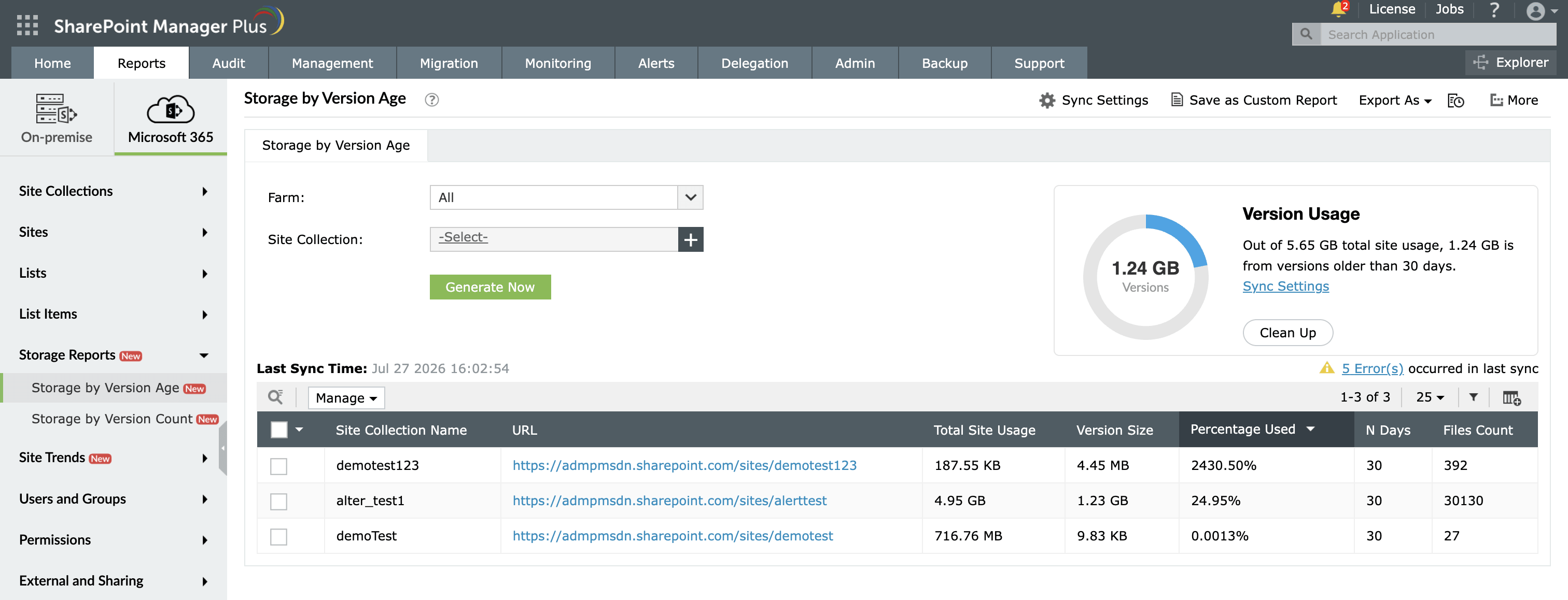
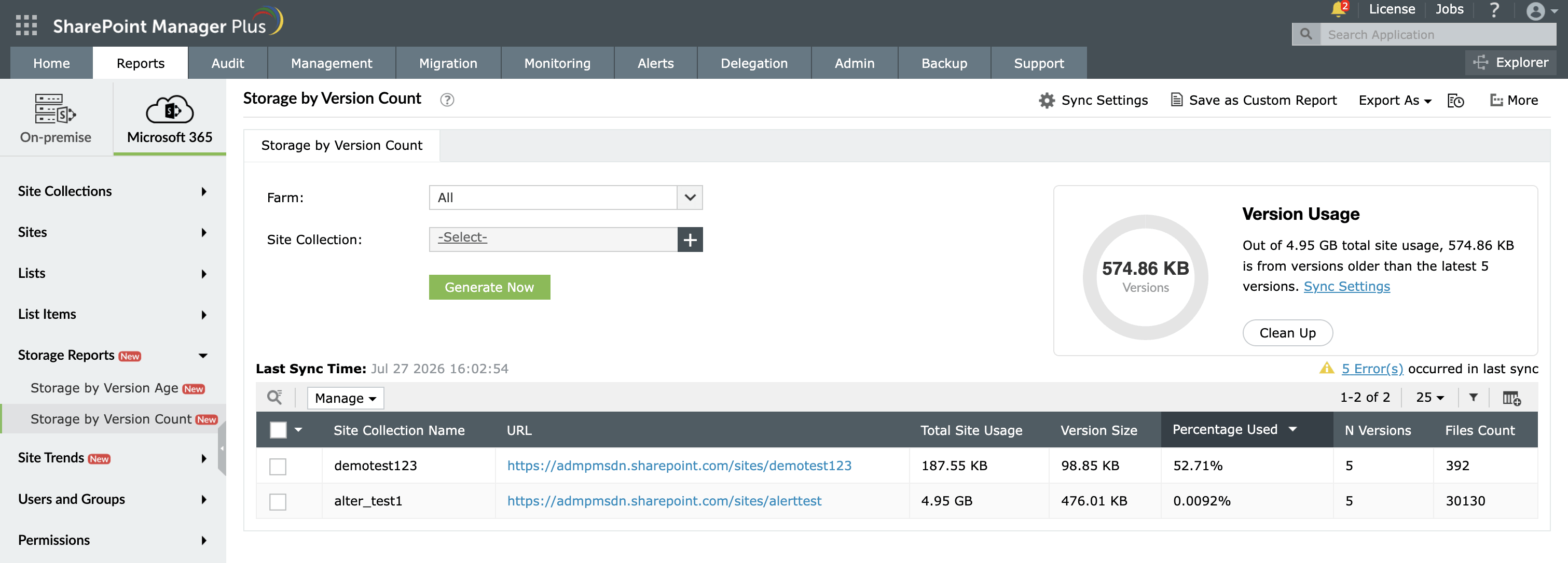
The Storage by Version reports are a pair of purpose-built storage governance reports that isolate and quantify the version history contribution to SharePoint storage consumption across every site collection. Both reports display the same core attributes, including Site Collection Name, URL, Total Site Usage, Version Size, Percentage Used, and Files Count, giving administrators a direct measure of what fraction of each site collection's storage is attributable specifically to file versions rather than active content. The difference between the two reports is the threshold used to scope the version storage they surface.
What do the Storage by Version reports show?
Using SharePoint Manager Plus, you can filter the Storage by Version reports with the following fields:
- Farm: Select the Microsoft 365 tenant from which you want to pull version storage data.
- Site Collection: Narrow the report to a specific site to focus the version storage analysis on a particular team, department, or project environment.
A Version Usage dashboard provides the Clean Up option to help you delete versions older than your specified threshold, directly from the report.
Both Storage by Version reports display the following attributes for every site collection. The N Days and N Versions attributes are unique to their respective reports.
| Attribute | Description |
|---|---|
| Site Collection Name | The name of the site associated with the version-storage result. |
| URL | The web address of the site. |
| Total Site Usage | The total storage consumed by the site at the time of reporting. |
| Version Size | The storage associated with versions that meet the selected threshold. |
| Percentage Used | The percentage of total site usage represented by the reported version size. |
| N Days | The age threshold used by the Storage by Version Age report. |
| N Versions | The count threshold used by the Storage by Version Count report. |
| Files Count | The number of files with versions that meet the selected threshold. |
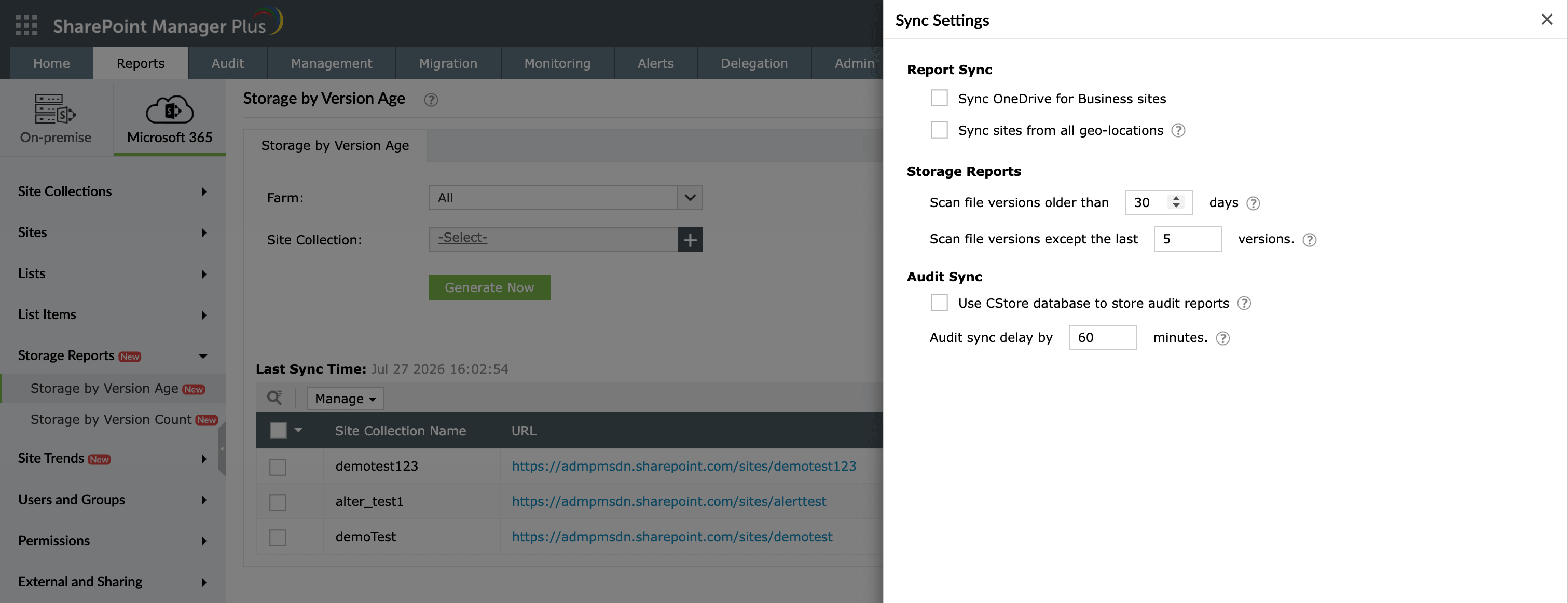
The Sync Settings pane allows you to configure the report to display versions older than a specified number of days, or all versions except the most recent number you choose.
Native SharePoint admin portals and PowerShell vs. SharePoint Manager Plus
Microsoft offers comprehensive version management tools through SharePoint Online PowerShell, including version storage reports at both the site and library level, policy controls, impact analysis, and version-trimming jobs. Admins can use PowerShell to evaluate current settings, test potential limit changes, queue trim jobs, and track overall progress. However, running recurring, tenant-wide comparisons often demands manual report generation, data aggregation, custom calculations, scheduled automation, and tailored output formatting.
To streamline this process, SharePoint Manager Plus centralizes age- and count-based version storage analysis by offering reusable filters, customizable exports, automated scheduling, email alerts, and built-in cleanup capabilities.
With SharePoint Manager Plus, your report combines the depth of PowerShell with the convenience of a centralized admin center.
| Capability | SharePoint admin center | PowerShell | The SharePoint Manager Plus advantage |
|---|---|---|---|
| Report accessibility | ❌ Manual filtering is required every time. | ❌ Script execution is required for every run. | ✅ Get one-click access to categorized reports. |
| Custom reports | ❌ | ❌ | ✅ Create custom reports by saving granular, attribute-based conditional filters. |
| Report exports | ✅ Reports can be exported only in CSV or JSON formats. | ✅ Requires additional scripting to format and export data. | ✅ Reports can be exported in CSV, HTML, PDF, and XLSX formats. |
| Emailing reports to admins | ❌ | ❌ | ✅ Send report emails to stakeholders and admins in preferred formats. |
| Automated report generation | ❌ This requires technical scripting or separate complex add-ons. | ❌ This requires Task Scheduler or Azure Automation. | ✅ Schedule multiple reports that can be generated, filtered, emailed, and exported between defined periods automatically. |
For a more detailed comparison, check out our page on how to check the size of a SharePoint site.
Features that enhance the Storage by Version reports
SharePoint Manager Plus provides several built-in tools to help you act on, schedule, and distribute the version storage insights surfaced by the Storage by Version reports.
- Automated report generation: Schedule reports to run at defined intervals so administrators can review changes in version-storage consumption over time.
- Export reports: Download version storage results in CSV, PDF, HTML, or XLSX format for storage reviews, impact assessments, and cleanup documentation.
- Storage threshold alerts: Notify administrators via mail when reported site storage exceeds a configured threshold.
- Version cleanup: Review threshold-matching versions and initiate cleanup directly from the report.
- Custom reports: Customize the fields and filters in the Storage by Version reports, then save your preferred settings as a custom report for easy access whenever needed.
Reports that complement the Storage by Version reports
The following SharePoint Manager Plus reports provide additional context for storage and version governance reviews.
- Site Trends Overview report: Shows current storage use, configured limits, and activity indicators across sites. Use it to identify high-storage sites before examining their version contribution.
- Site Trends History report: Shows dated storage snapshots. Compare periods before and after version management actions to determine whether overall site storage changed.
- Site Storage Growth Trends report: Compares storage at two selected dates and calculates the change. Use it to assess whether site growth slowed after version settings or cleanup actions were introduced.
- Monthly Storage Trends report: Shows month-by-month storage and file count changes, helping administrators compare version-storage findings with broader site growth patterns.
- SharePoint site activity reports: Provide activity context for sites with high version-storage use. Site owners and governance teams should review business purpose and recovery requirements before trimming versions.
Other features of SharePoint Manager Plus
- SharePoint management: Grant, remove, or copy SharePoint permissions, and manage group members in bulk without relying on complex scripts, simplifying your SharePoint administration.
- SharePoint reporting: Access over 140 prebuilt and custom reports for SharePoint—including permissions, site usage, content inventory, and security insights—all from a centralized dashboard.
- SharePoint auditing: Maintain a comprehensive, searchable audit trail of all activities across your SharePoint environment, including user actions, permission changes, and content modifications.
- SharePoint alerting: Get real-time alerts on critical events such as permission changes, suspicious user activities, site access anomalies, and policy violations.
- Delegated administration: Empower help desk technicians with granular, role-based access to perform specific SharePoint administrative tasks, without elevating native privileges.
- SharePoint migration: Simplify SharePoint migration by enabling seamless content and permission migration across sites and tenants, with minimal downtime and full visibility into migration progress.