
- Overview
- Configuration
Splunk
Gain deeper security insights by integrating ADSelfService Plus with Splunk
Splunk is a platform for searching, monitoring, and analyzing machine-generated big data, typically gathered from various systems, devices, and applications across an organization. Integrating Splunk with ADSelfService Plus enables organizations to gain deeper visibility into user activity and security incidents by forwarding logs from ADSelfService Plus to the Splunk environment for comprehensive analysis and alerting.
Forward ADSelfService Plus logs to the Splunk Server for analysis
Forward logs from ADSelfService Plus to Splunk to gain the ability to analyze user activity within ADSelfService Plus in real time.
Proactive security monitoring
Establish proactive security monitoring through real-time alerts and automated responses for critical security events.
Unified insights from ADSelfService Plus and network logs
Correlate ADSelfService Plus logs with other network logs, offering a unified view of user activities and improving detection of unusual patterns.
Prerequisite:
The first step of the integration process is to generate an HTTP event collector token using the Splunk Enterprise solution:
- Log in to Splunk as an administrator.
- Navigate to Settings → Data Inputs → HTTP Event Collector.
- Click New Token.
- Specify a name for the token and retain the default values for the other fields.
- Click Save, and the authentication token will be generated.
Once the HTTP event collector token is generated:
- Log in to ADSelfService Plus as default Admin.
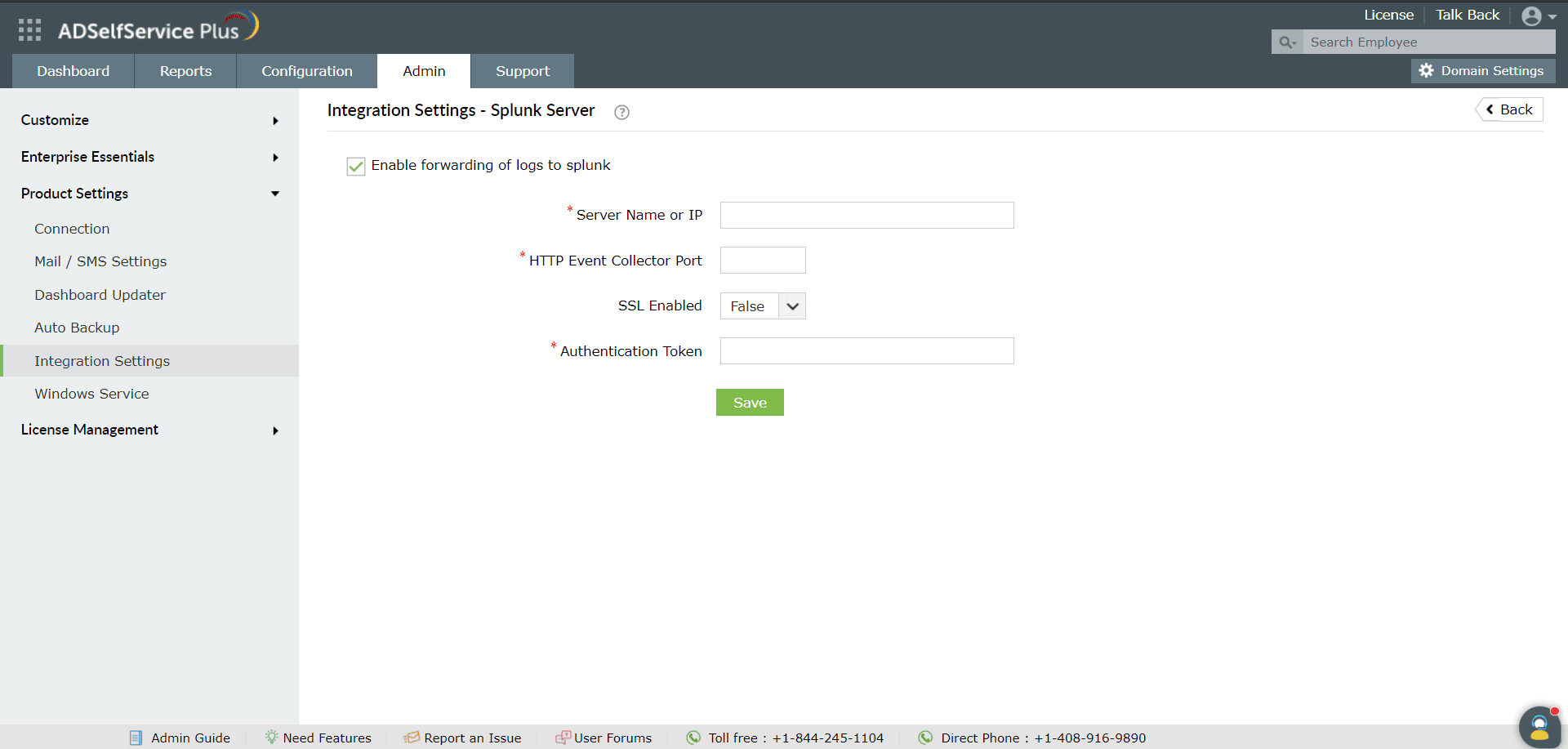
- Navigate to Admin → Product Settings → Integration Settings.
- Click the Splunk Server tile.
- Click Enable forwarding of logs to Splunk
- Enter the details including Splunk Server Name, HTTP Event Collector Port number
- Choose SSL Enabled or not.
- Specify the HTTP Event Collector Token generated for ADSelfService Plus in the Authentication Token field.
- Click Save.