QNAP NAS file monitoring
QNAP Network Attached Storage (NAS) servers are dedicated devices designed for centralised data storage, backup, and file sharing. QNAP NAS offers a reliable and scalable solution for managing large volumes of data. With support for multi-platform file sharing, these devices simplify data access and collaboration across various systems and devices.
Learn how you can configure Log360 Cloud to collect logs from QNAP NAS servers, and generate reports and alerts for critical events.
Note: The following events are audited by Log360 Cloud
- File/folder Creation
- Modification
- Deletion
- Move
- Rename
- Read access
Configuring log settings in QNAP NAS
To setup communication between Log360cloud and QNAP NAS server, follow these steps.
- In the QuLog Center, navigate to Local device > Log Settings > Access Log Settings.
- Under Connection Types, select SMB (Windows) and click Apply.

Note: Syslog forwarding can be enabled manually in Qulog center. Since Log360Cloud doesn't support auto log forwarding in QNAP NAS, follow the below steps to configure log forwarding.
Configuring log forwarding in QNAP NAS
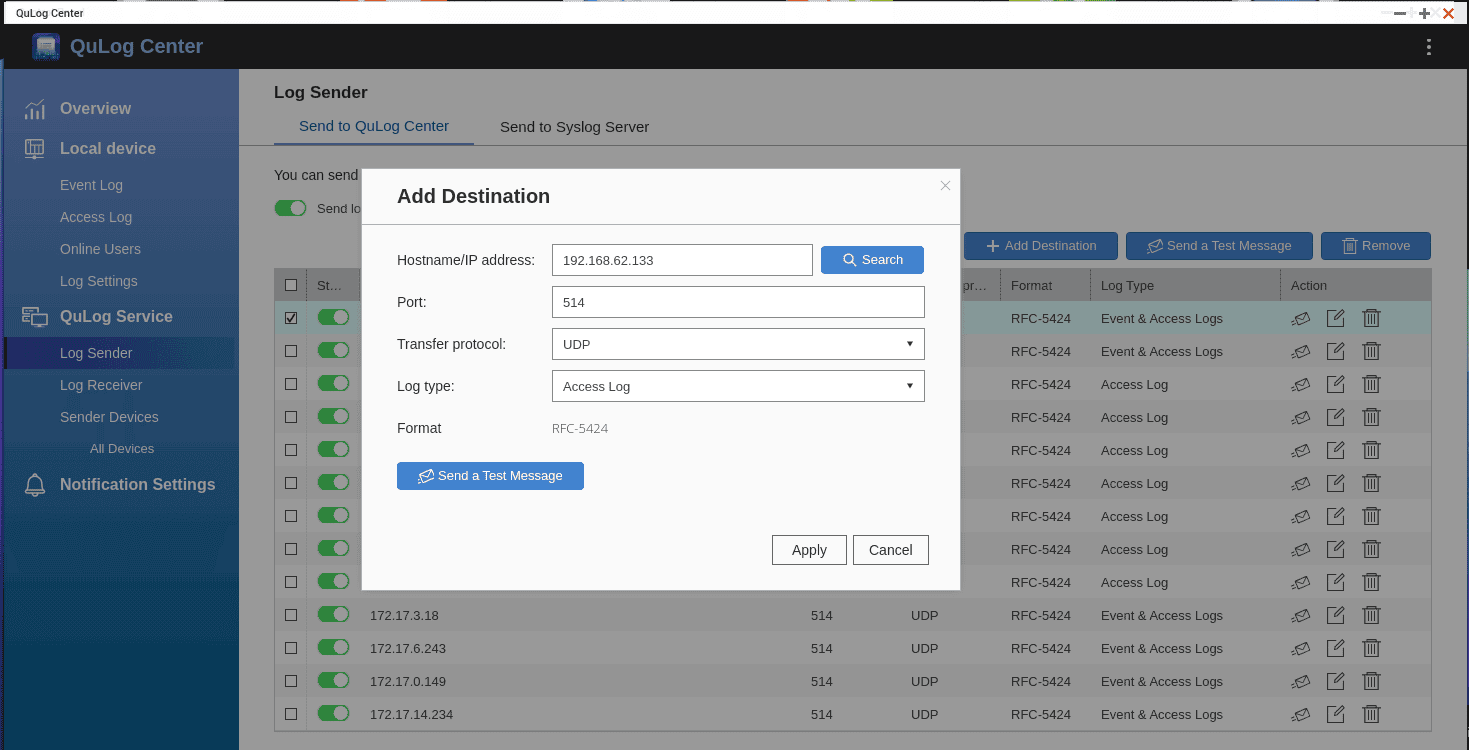
- Navigate to QuLog Service > Log Sender. Enable Send logs to a remote QuLog Center.
- Click Add Destination, and in the resulting pop-up, enter the following details:
- The IP address of the machine where Log360cloud is installed.
- The preferred port number, 514 by default.
- The transfer protocol, UDP.
- Select Access Log as the Log type.
- Click Apply.

Configuring QNAP NAS monitoring in Log360 Cloud
Follow these steps to configure QNAP NAS in Log360 Cloud:
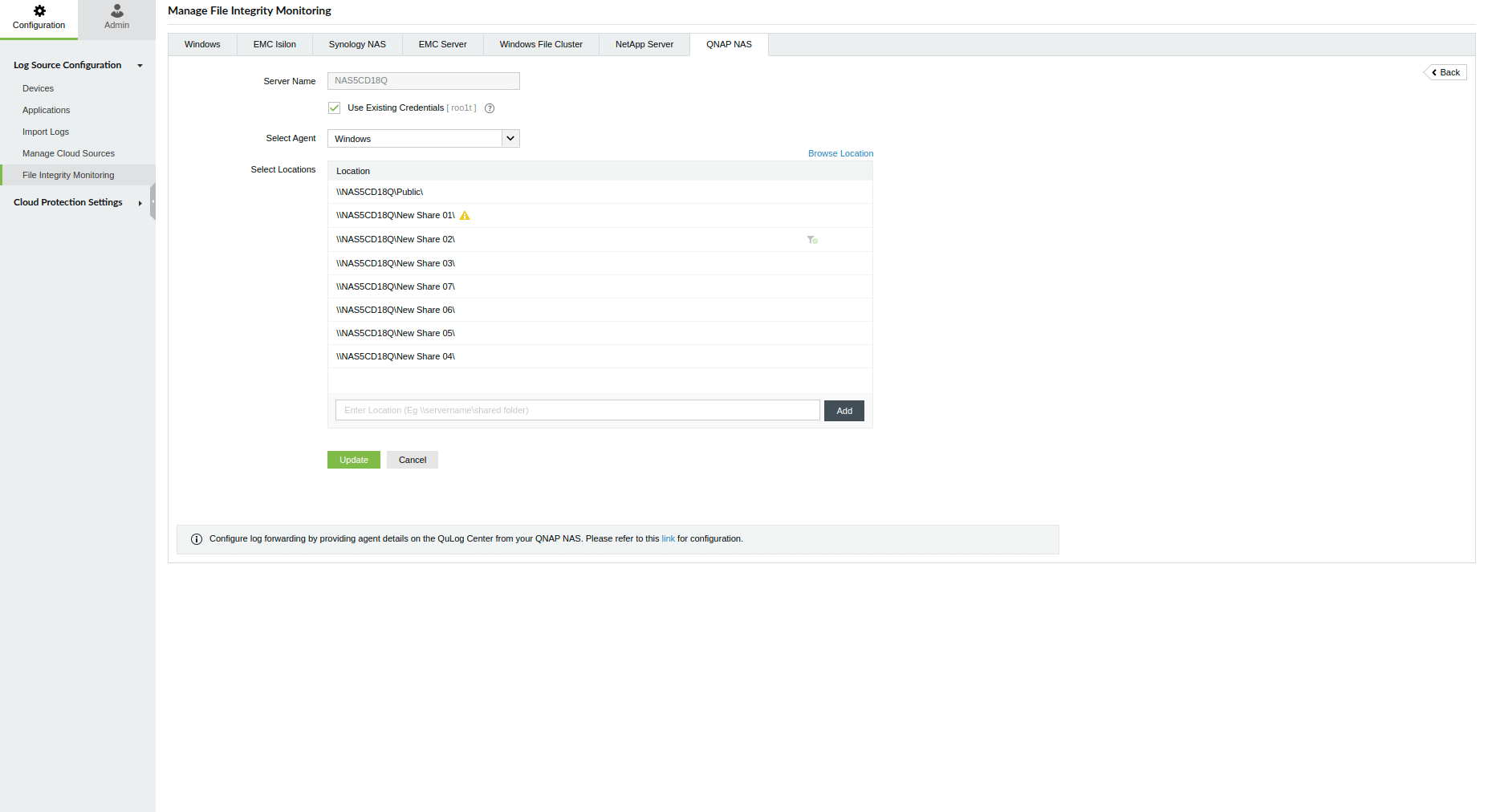
- Navigate to Settings > Configuration > File Integrity Monitoring > QNAP NAS.

- Click Add Device, and enter the name of the QNAP NAS server, along with the correct credentials.

- Select an appropriate agent, and verify the entered credentials.

Note: Update the host file to map the server name to the QnapNAS IP for proper configuration.
- Browse through the directories and choose the specific files and folders you wish to monitor. Alternatively, you can manually enter the path to the files/folders.

- Use the filter to:
- Include/exclude file types.
- Exclude sub-locations within the main location.
- Exclude all sub-locations within the main location.

- Click the Configure button to initiate the configuration process.

Note: If the specified location is removed or unreachable from the agent, a warning icon will appear next to the location. Users can investigate potential issues with the location or choose to remove it from monitoring if it has been deleted on the server.
Troubleshooting
QNAP NAS credential verification - connection timeout issues.
Probable cause:
The connection timeout issue may arise when the server name does not resolve to the server's IP address.
Solution:
To resolve this issue, ensure that a ping to the QNAP NAS server using its server name resolves to the correct IP address. If not, consider appending the DNS suffix in the Advanced TCP/IP settings or adding a host record in the DNS server, mapping the name to the QNAP NAS server's IP address. If there is still difficulty pinging the server, verify the internet connection.
QNAP NAS credential verification - Server location access denied
Probable cause: The provided credentials do not have sufficient privileges to access QNAP Server.
Solution: Update credentials with appropriate privileges to access QNAP Server.
QNAP NAS credential verification - Connection failure due to invalid credentials
Probable cause: The provided credentials are incorrect or don't have required privileges
Solution:
- Update with valid credentials
- Ensure the credentials have administrative or required privileges.
QNAP NAS configuration - Location access denied.
Probable cause: This error may arise due to incorrect credentials or insufficient access to the specified location.
Solution:
To address this, check the credentials you've provided and update the access privileges.
QNAP NAS configuration - Location not reachable.
Probable Cause: The specified location does not exist on the QNAP NAS server.
Solution: Verify that the entered location/path is correct and exists on the QNAP NAS server.
QNAP NAS - logs are not being monitored
If you're not receiving any logs from your QNAP NAS server in Log360 Cloud, follow the steps below to diagnose and resolve the issue:
Step 1: Verify QNAP NAS server syslog configuration
- Go to the QNAP NAS server settings: QuLog Service > Log Sending.
- Ensure that Syslog sending is enabled, and the correct destination IP address and port are configured.
Step 2: Confirm log forwarding by using the ManageEngine free syslog forwarder tool.
Note: Log360 Cloud supports receiving QNAP NAS logs over TCP and UDP. TLS is not supported. Ensure that your QNAP NAS is configured to forward logs using the supported protocols.