General settings
The Settings page in CloudSpend lets you manage key configurations for your account. From here, you can integrate CloudSpend with Site24x7, set how Azure list prices are handled, and customize the way scheduled reports look before they are shared with your team. This page has two sections: Account Settings and Customize Report. Each section is explained below.
Account Settings
You can configure account-level options for CloudSpend under this section.
Integrate with Site24x7
To integrate your CloudSpend account with your Site24x7 monitoring account, follow the below steps:
- Log in to your CloudSpend account.
- Navigate to Admin > General > Settings.
- Select Accounts.
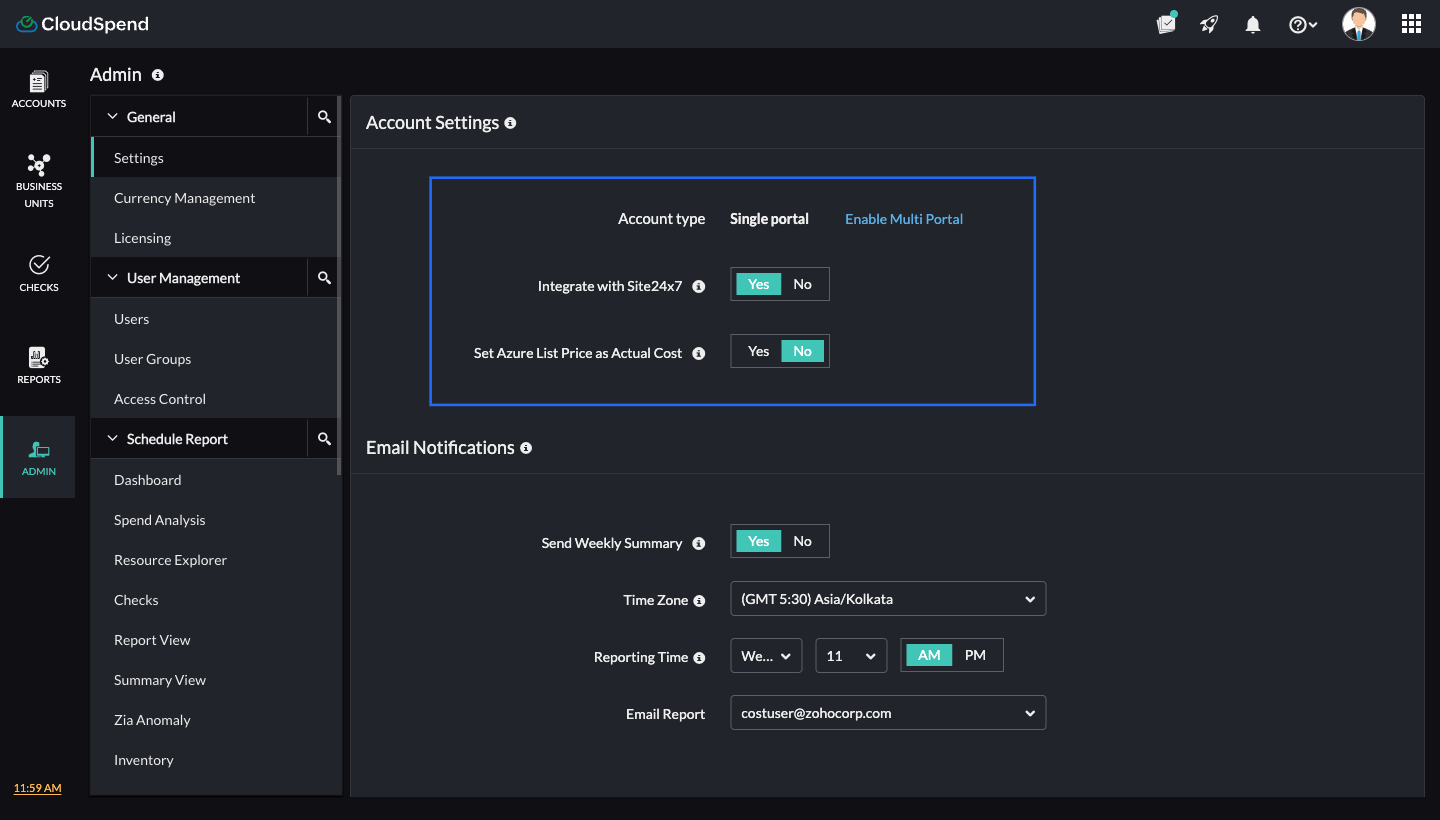
- Toggle the Integrate with Site24x7 option to Yes.
- Click Save.
Set Azure List Price as Actual Cost
Azure list price is the standard pay-as-you-go rate charged by Azure for services, without any discounts, reserved instance pricing, or special agreements applied. When you set the Set Azure List Price as Actual Cost option to Yes, CloudSpend will consider the Azure list price as the Actual Cost for all your Azure accounts.
- All previously calculated costs and forecasts in CloudSpend will be reset.
- CloudSpend billing will continue to happen at the Actual Cost level even when this option is enabled.
To set the Azure list price as the Actual Cost for all your Azure accounts,
- Log in to your CloudSpend account.
- Navigate to Admin > General > Settings > Accounts.
- Toggle the Set Azure List Price as Actual Cost option to Yes.
- Click Save.
Once saved, CloudSpend will display and bill Azure costs at the list price level.
Email Notifications
Configure the Email Notifications section to receive cost and usage updates from CloudSpend by email. You can enable a weekly summary, choose when it is sent, and decide who should get the report. These notifications help you stay updated on cloud costs, usage trends, and related insights.
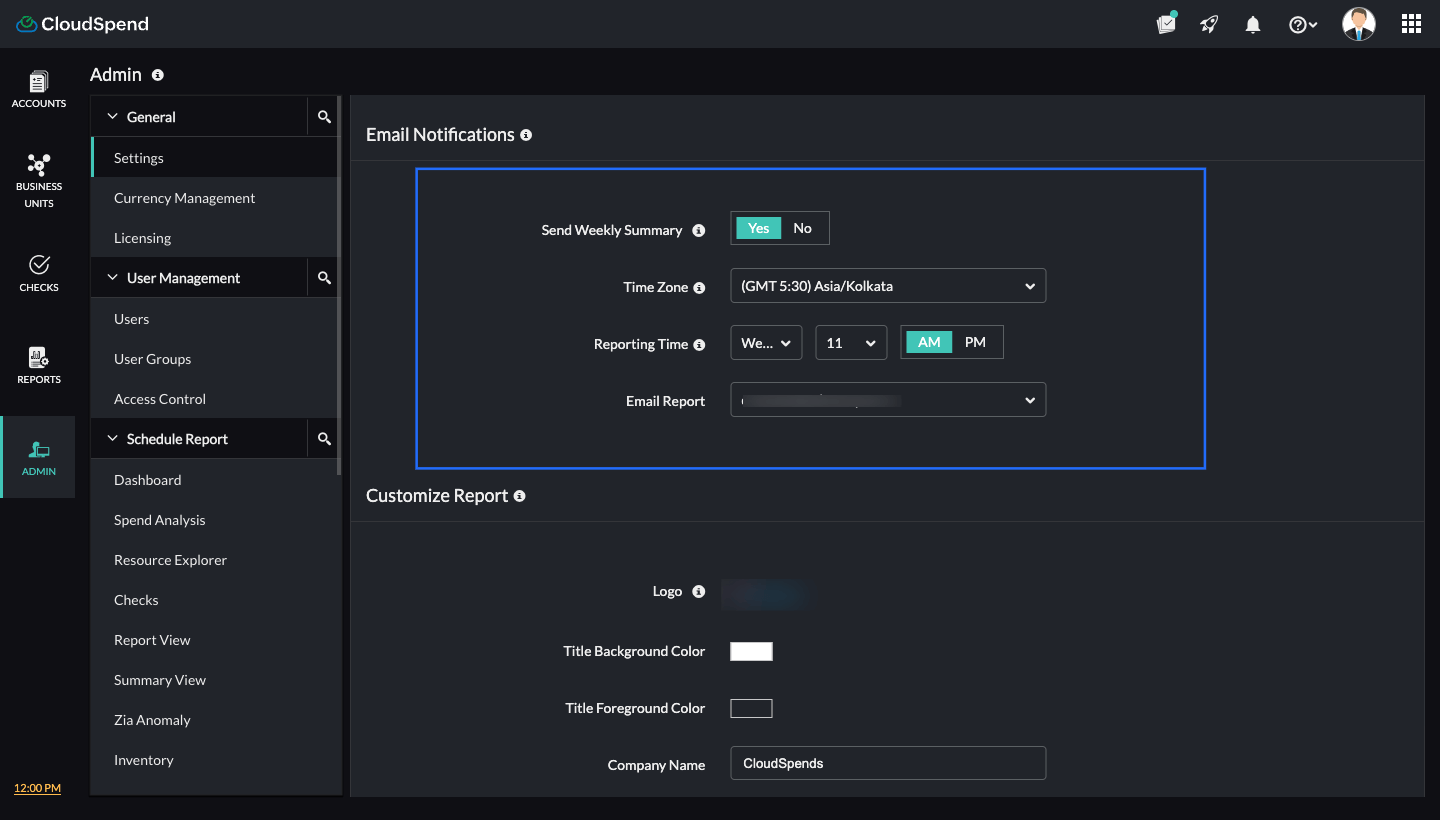
Send Weekly Summary
The Send Weekly Summary section lets you enable a weekly email that gives a simple summary of your cloud costs and usage. When it is turned on, CloudSpend compiles key cost and usage information across areas such as spend summary, recommendations, optimization insights, reservations, and anomalies. The email gives a quick view of these updates so you can track changes and respond to issues without checking the console.
To configure email notification, follow the steps below:
- Log in to your CloudSpend account.
- Navigate to Admin > General > Settings > Report.
- In the Email Notifications section, set the Send Weekly Summary option to Yes to enable weekly emails.
- In the Time Zone field, select the time zone in which you want to receive the email.
- Choose the day and time for sending the summary in the Reporting Time field.
- In the Email Report field, select the email addresses that should receive the summary. You can add multiple recipients.
- Click Save.
Once configured, CloudSpend will send a weekly cost summary email to the selected recipients at the chosen day and time, using the configured time zone.
Customize Report
This section enables you to customize how'd you want your organization to receive CloudSpend reports. You can update the logo, set title colors, define the company name, and select the sender email used when reports are shared.
To customize a report, follow the below steps:
- Log in to your CloudSpend account.
- Navigate to Admin > General > Settings > Report > Customize Report.
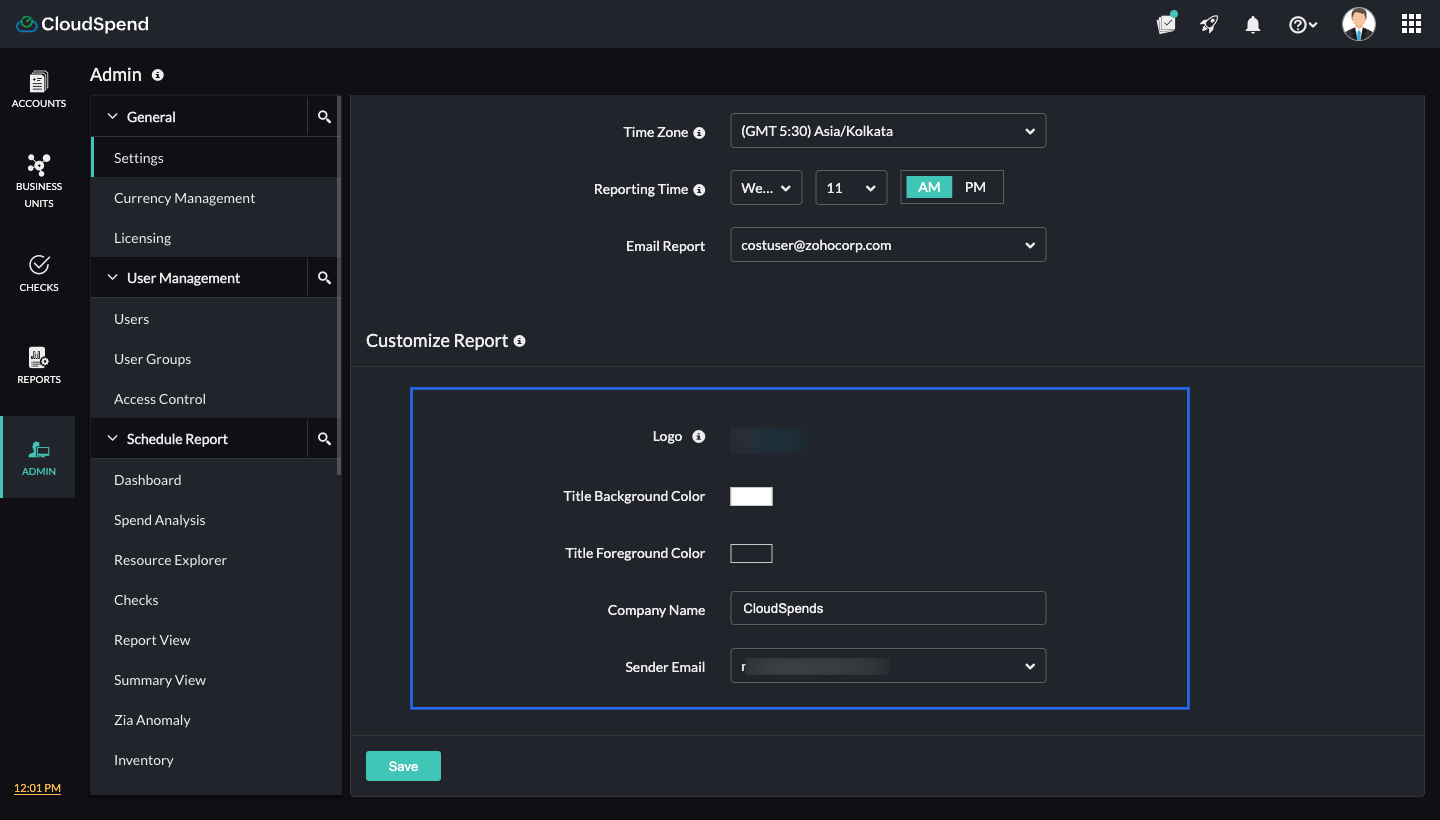
- In the Logo field, upload your company's logo.
- Select a color based on your preference in the Title Background Color field.
- In the Title Foreground Color field select a color based on your preference.
- Enter your company name in the Company Name field.
- Add an email address from which you'd like to receive the report emails in the Sender Email field.
- Click Save.
Access administrative insights through AI
Instead of navigating through multiple admin settings, you can retrieve configuration level information through your AI assistant when Zoho MCP is connected.
Here is what you can pull through the AI:
- User and role insights: Understand how many users are present and their assigned roles.
- Configuration status: Check whether key configurations such as budgets, anomaly checks, and governance policies are set up.
- Currency and billing settings: Retrieve details about billing preferences and configured currencies.
- General setup validation: Identify missing configurations or incomplete setups.
Sample prompt: Do we have all cloud accounts configured and are budgets set up for them?
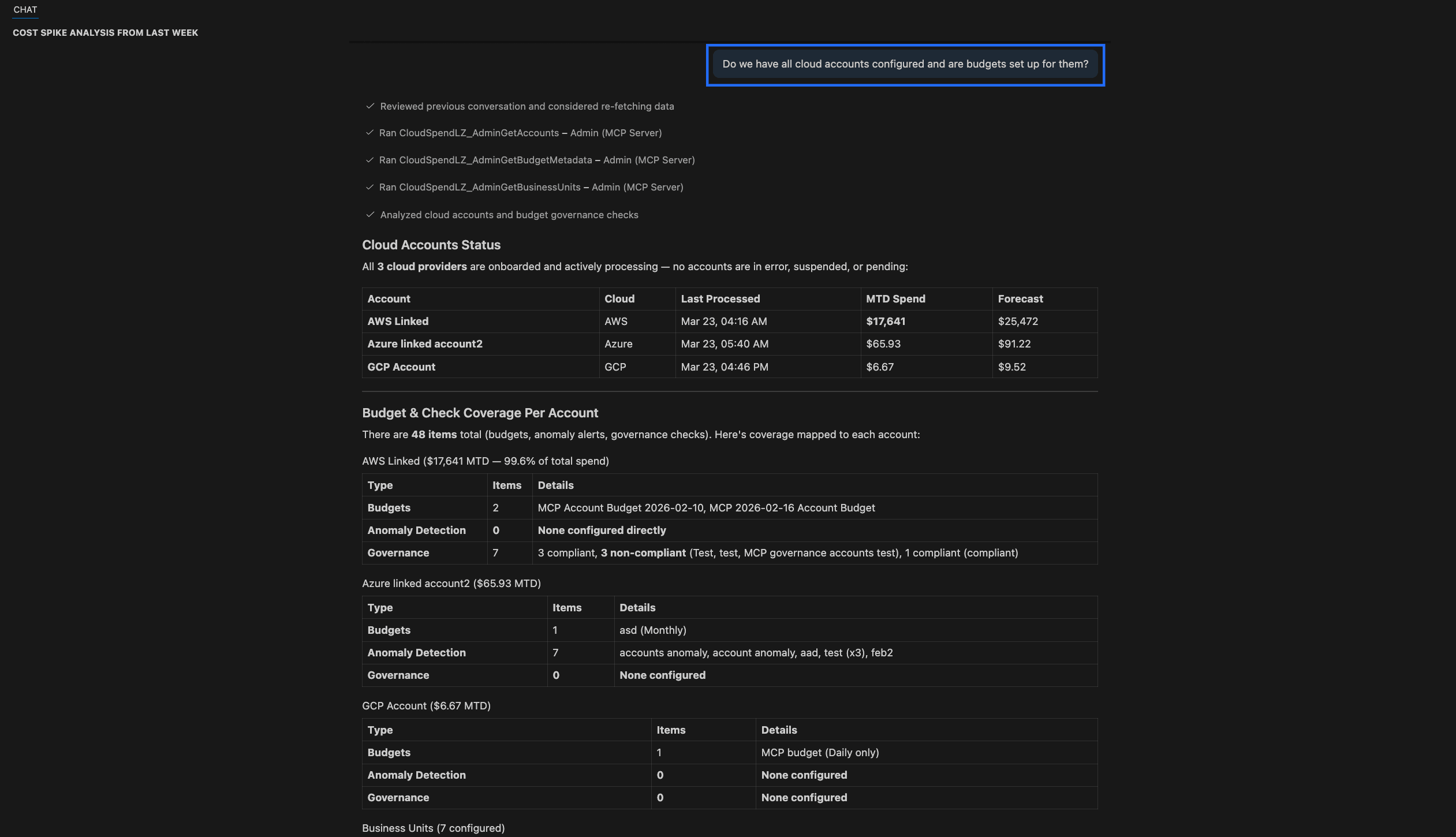
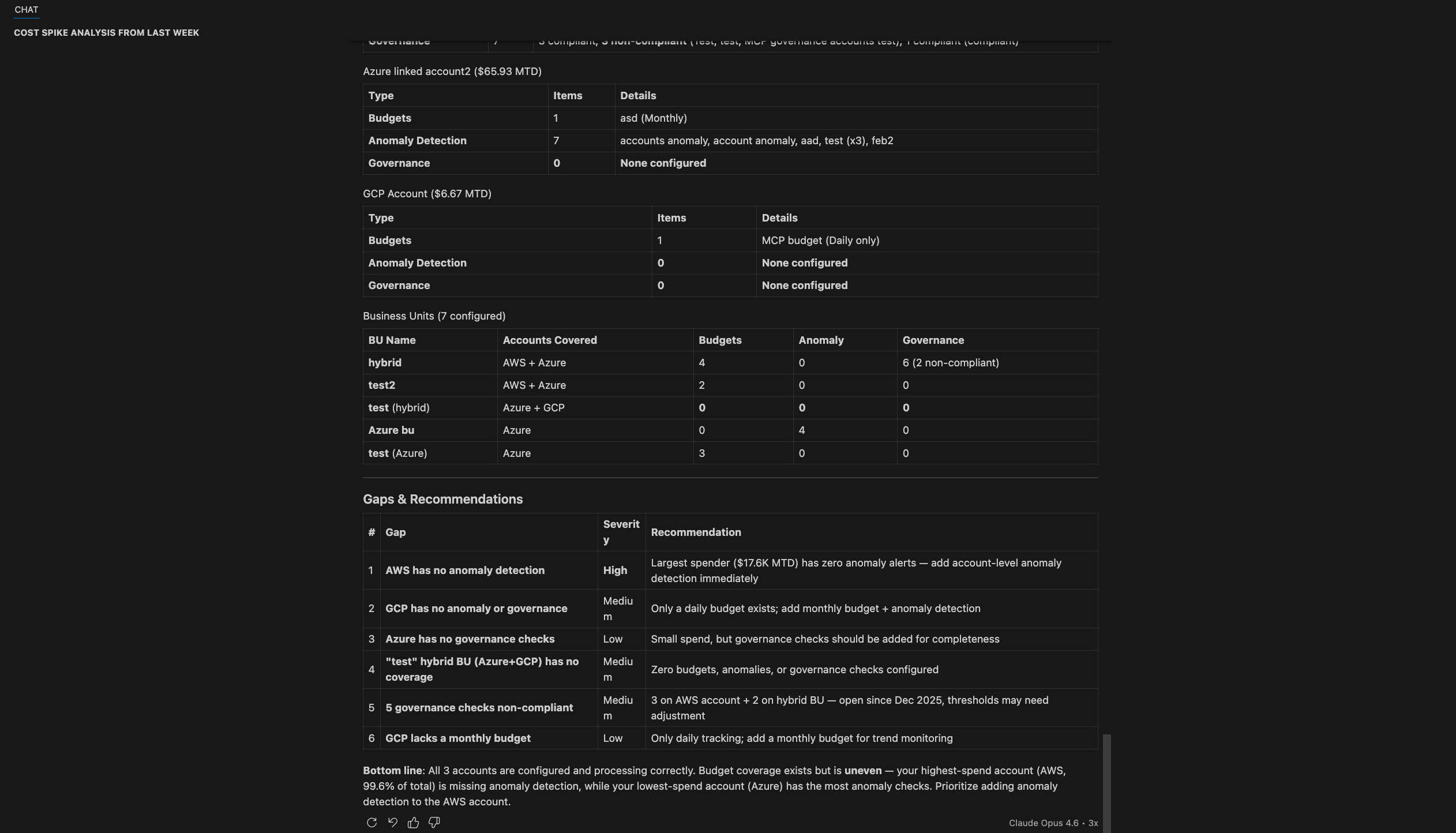
What AI returns: The AI provides an overview of all configured cloud accounts, including their status, last processed time, current spend, and forecasted spend. It confirms whether accounts are actively processing or if any issues exist.
It then summarizes configuration coverage for each account, showing how many budgets, anomaly checks, and governance checks are set up, along with their details. The AI also extends this view to cost centers, indicating how these configurations are distributed across units.
In addition, it highlights gaps in the setup, such as missing anomaly detection, incomplete governance coverage, or limited budget configurations. It concludes with a summary of overall configuration health and includes recommendations to improve coverage and ensure better cost control.
Related articles