Azure Reservations Report
The Azure Reservations Report in CloudSpend gives you a clear view of how effectively your Azure Reservations are being utilized. It helps you understand reservation coverage across services so you can identify underused reservations and adjust your allocation strategy.
This report is especially useful for organizations with changing or unpredictable workloads. It highlights trends like persistent low coverage for specific services, which can guide future reservation planning and help you make better long-term purchasing decisions. By providing visibility into how and where reservations are being consumed, the report supports cost optimization and helps ensure your reserved capacity aligns with actual usage.
- To generate the Azure Reservations report, the registered application must have the Reservations Reader and Billing Account Reader roles. Additionally, for EA accounts, the Enrolment Reader role is also required. Without these roles, the report cannot be generated.
- You can choose Schedule Report to automate sending this report or any related page at regular intervals. The Share option lets you export the report of the current view or share it with others via email.
Benefits of the Azure Reservations Report
The Azure Reservation Report provides you with the following benefits:
- Cost optimization: Gain insights into your reservations' utilization to reduce unnecessary spending related to on-demand resources.
- Understand reservation coverage: Measure how well your reservations align with actual usage across services to reduce unnecessary on-demand spending.
- Utilization insights: Track how efficiently your reservations are being used and adjust future purchases accordingly.
- Enhanced visibility: Obtain crucial metrics about reservations, providing a comprehensive overview of current usage.
Use cases
Here are some examples to help you understand the Azure Reservations Report better.
- Consider a cloud operations team at a mid-sized company running applications across multiple Azure regions that notices some reservations are consistently underutilized. Using the Azure Reservations Report, the team identifies these gaps and reallocates workloads to better use the reserved capacity. This helps avoid waste and reduces reliance on more expensive on-demand instances, improving overall cost efficiency.
- In a large enterprise with several departments and resource groups, the Azure Reservations Report helps track how reservations are consumed across scopes. This visibility supports internal chargeback efforts by showing which teams are using reserved resources and which are not. It also ensures that future reservation purchases are distributed more fairly and helps you to identify uncovered utilizations across services and effectively purchase reservations. Additionally, the Azure Reservations Report tracks expiring reservations, enabling the organization to ensure strategic and timely renewals. This proactive approach results in better cost efficiency, reduces unnecessary spending, and ensures optimal reservation coverage.
Azure Reservations Report dashboard
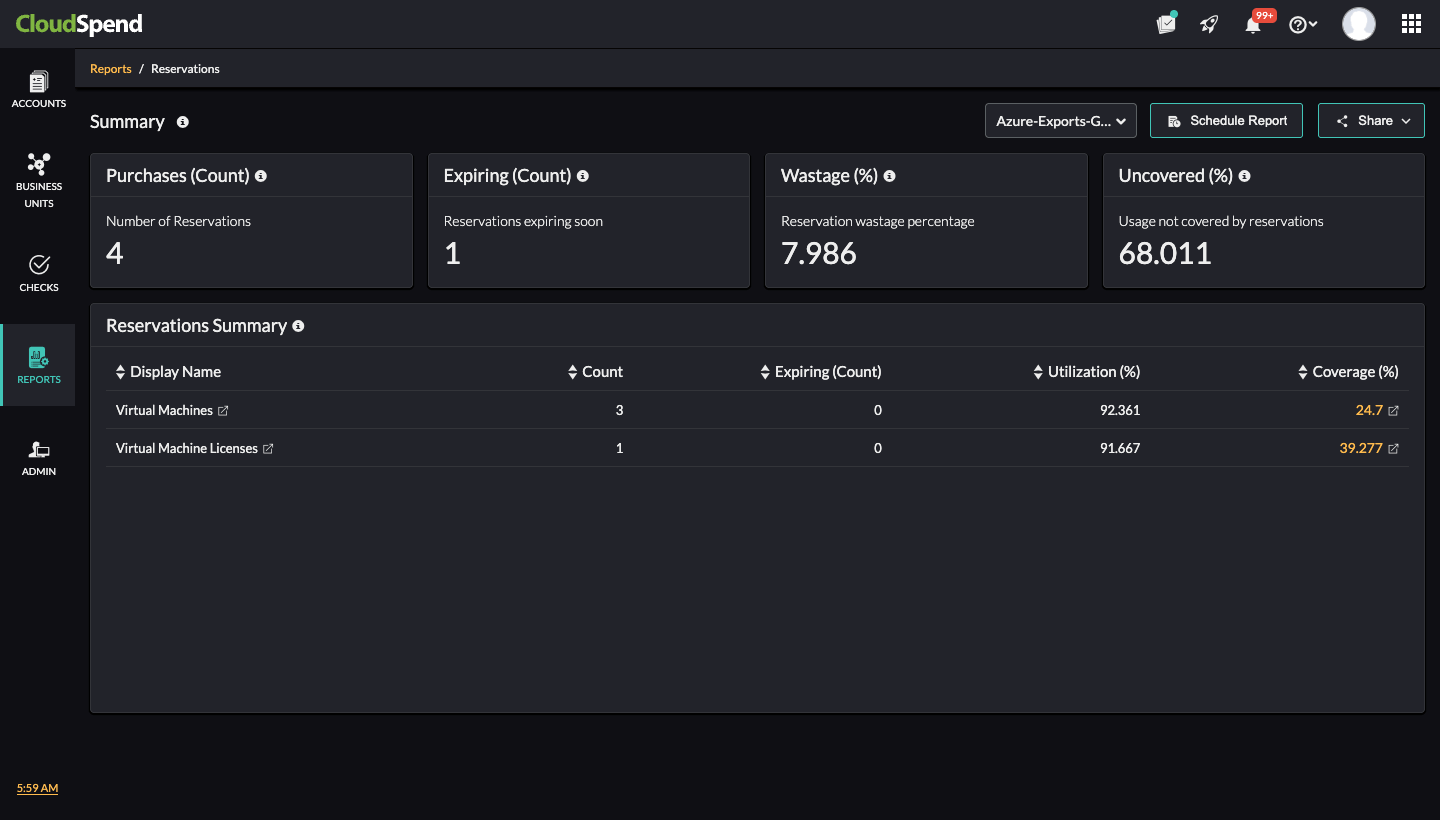
The Azure Reservations Report Summary in CloudSpend gives a consolidated view of your Azure reservations across services. It helps you evaluate how well your reservations are being used, where wastage occurs, and how much of your Azure usage remains uncovered by reservations.
You can view the following details on the Summary page:
- Purchases (Count): Displays the total number of active reservations.
- Expiring (Count): Shows the number of reservations that are nearing expiration in the next 30 days, enabling you to plan renewals in advance.
- Wastage (%): Indicates the percentage of underutilized reservation discounts, helping you identify unused or inefficiently allocated reservations.
- Uncovered (%): Represents the proportion of usage that is not covered by reservations, helping you determine if additional reservations should be purchased.
The Reservations Summary section provides the following details:
- Display Name: Lists the reserved service types. Click the desired name to view the Active Purchases page.
- Count: Displays the number of active reservations per service.
- Expiring (Count): Shows the number of reservations nearing expiration (within 30 days) for each service.
- Utilization (%): Indicates how effectively the reservations are being used.
- Coverage (%): Represents the percentage of total usage covered by reservations, helping you determine if they need to adjust their reservation strategy. Click on the Coverage % link to view the Cost Coverage Analysis page.
Active Purchases
The Active Purchases page displays a list of your currently active Azure reservation purchases. This view helps you track reservation details like start and end dates, duration, billing scope, and the billing entity they’re associated with.
You can use the Active Purchases section to identify when each reservation is set to expire, which helps you avoid gaps in coverage or delays in renewing plans. The report also shows whether a reservation is applied at the subscription level (shared) or within a specific management group, giving you clarity on how reservations are scoped. This visibility lets you audit your reservation strategy and check whether commitments are distributed effectively across services and billing scopes.
Additionally, features like scheduled reports and sharing options enhance collaboration and continuous monitoring, ensuring that reservation strategies align with evolving cloud usage patterns.

The Reservations section lists all active reservation details with the following columns:
- Reservation Name: Unique identifier for the reservation. Clicking the name will redirect to the Cost Utilization Analysis page.
- Billing Scope: The subscription or billing entity tied to the reservation.
- Start Time: Date and time when the reservation began.
- End Time: Date and time when the reservation is scheduled to end.
- Duration: Total reservation duration.
- Scope: Defines whether the reservation is shared across multiple subscriptions or confined to a specific management group.
Cost Utilization Analysis
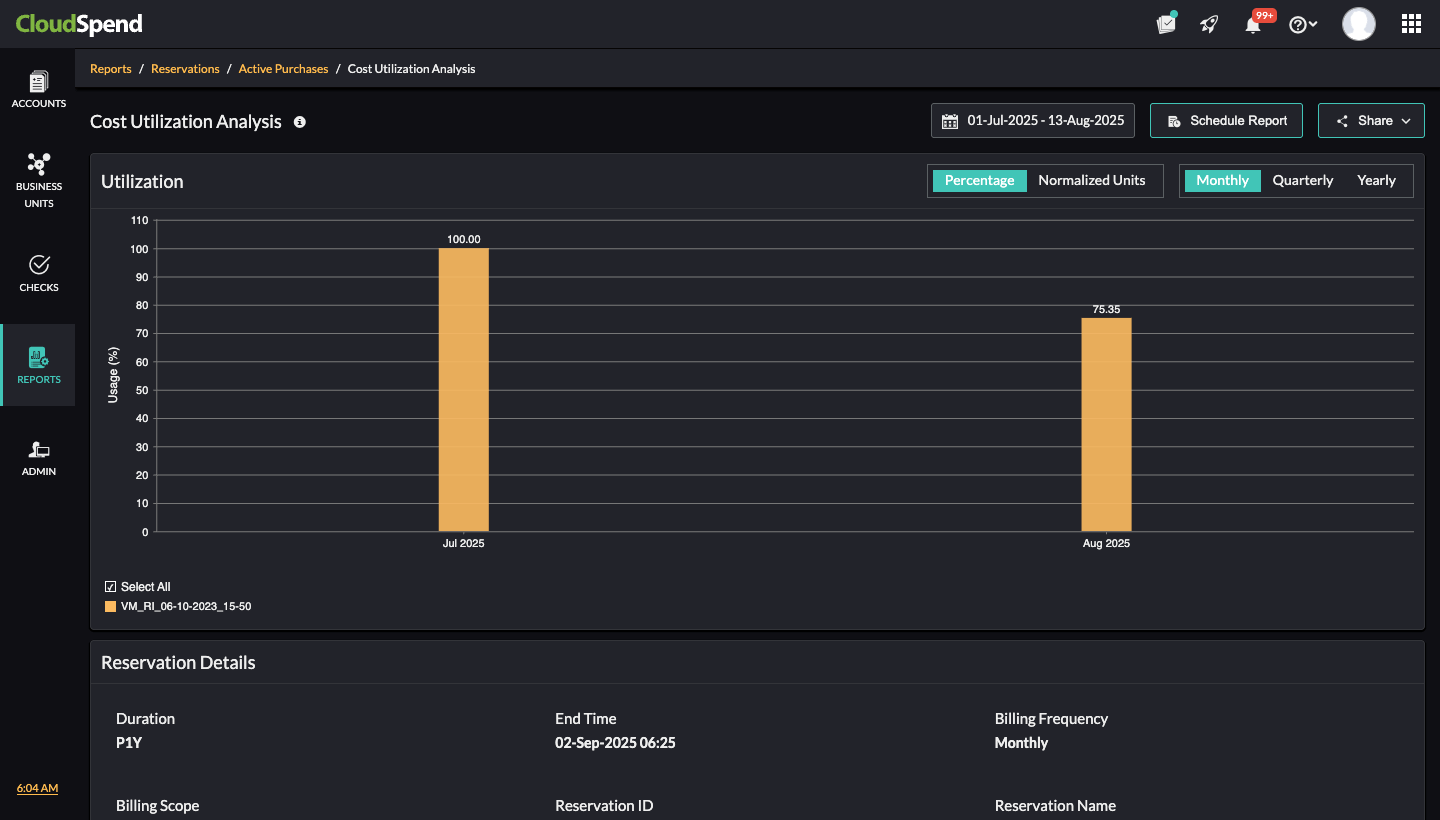
The Cost Utilization Analysis page provides a visual breakdown of how effectively your reservations are being used within a selected time range. With customizable analysis options, you can view data in percentage or normalized units across different time frames (daily, monthly, quarterly, or yearly). The percentage view makes it easier to detect wasted capacity by showing exactly how much of your paid reservation is being consumed. By spotting usage patterns over time, it supports better forecasting for future reservation planning. It provides operational insight into which reservations are being fully used and which ones are going unused.
It also helps improve budget accountability by tying usage data to billing scope, reservation ID, and other key details. This level of visibility supports governance, simplifies chargebacks, and makes it easier to justify costs during audits or reviews. Overall, it enables better financial planning and operational alignment.
Cost Coverage Analysis
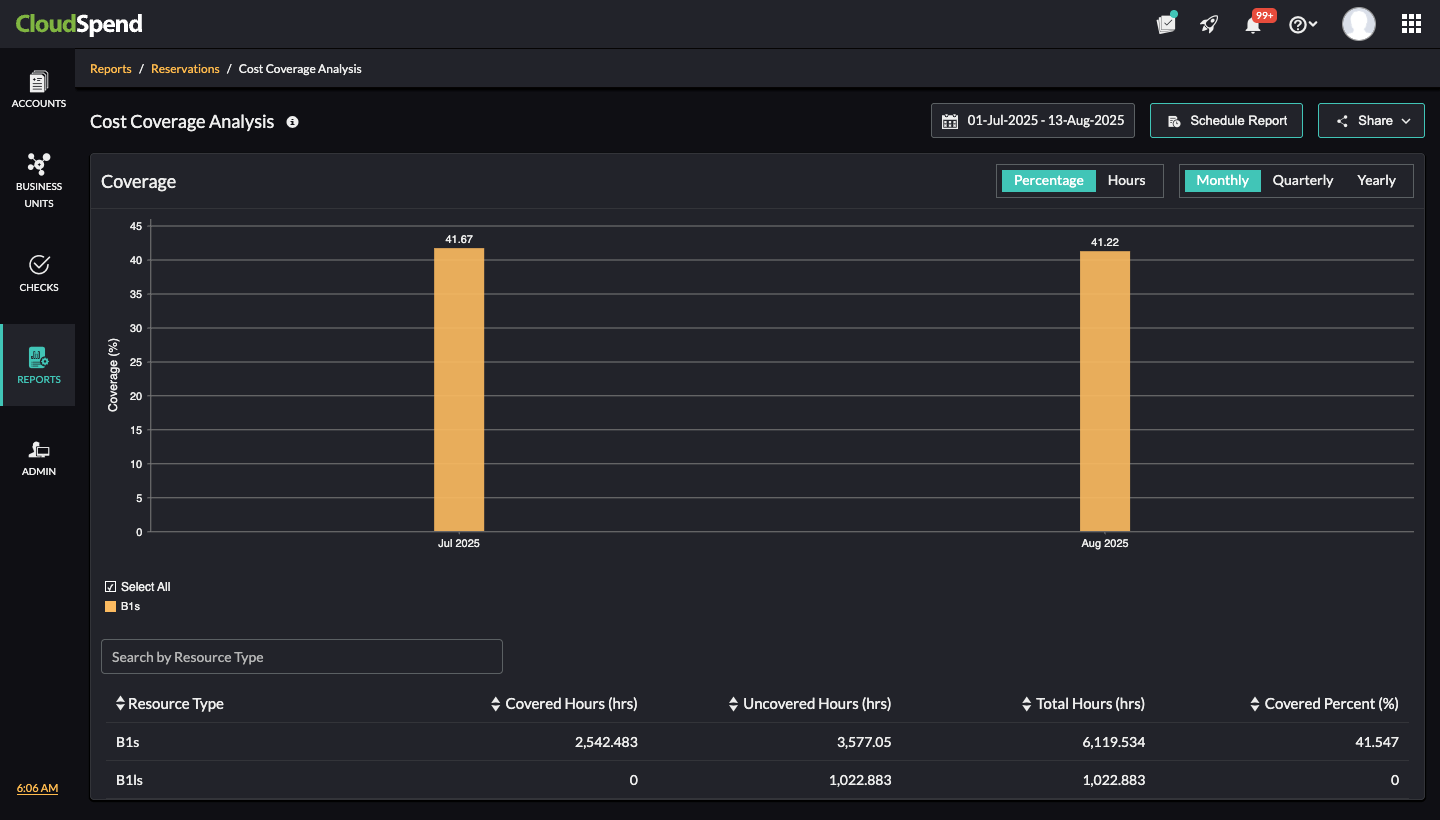
The Cost Coverage Analysis page helps you evaluate how much of your Azure resource usage is covered by reservations and how much is billed for a selected time range. This view is especially useful for understanding gaps in coverage and identifying areas where additional reservations could improve cost efficiency.
By showing coverage as a percentage across a selected time period, the page gives a quick sense of how well your reservations are aligned with actual usage. You can drill down by resource type to see which instances are partially or fully covered, and which ones are incurring additional costs due to a lack of reservation. The page displays key metrics like covered hours, uncovered hours, and total hours used, making it easier to spot inefficiencies.
The bar chart displays the reservation coverage in percentage terms for each month. This indicates what portion of total compute hours was billed under reservations versus on-demand pricing. You can adjust the date range using the calendar control at the top right. Just above the graph, there are options to switch the view between coverage shown in percentage or actual hours. You can also toggle the report granularity to Monthly, Quarterly, or Yearly.
In addition to the graphical view, you can view these details:
- Resource Type: Lists various reservations.
- Covered Hours (hrs): Shows the total hours where reservations were utilized.
- Uncovered Hours (hrs): Displays the number of hours that were not covered by reservations.
- Total Hours (hrs): The sum of covered and uncovered hours.
- Covered Percent (%): Indicates the percentage of total usage that was covered by reservations
Viewing the Azure Reservations Report
To access the Azure Reservation Report:
- Log in to CloudSpend and navigate to Reports.
- Go to Azure > Reservations.
- On the Summary page, select the desired account from the drop-down list at the top.
- Click the desired service from the Reservation Summary section to view the Active Purchases page. To view the Cost Coverage Analysis page, click the desired value from the Coverage % column.
- In the Active Purchases page, click the desired Reservation Name to view the Cost Utilization Analysis page.