Govern
The Govern feature in CloudSpend helps you monitor cloud spending and resource compliance using Budget, Anomaly, and Governance checks. You can configure checks for Accounts, Cost Centers, and Reports to track spending against defined limits, identify unusual spending patterns, and validate resource tagging.
Govern provides two views:
- Checks lets you monitor configured checks and review their current status.
- Profiles lets you create and manage reusable configurations that define the scope and conditions used by your checks.
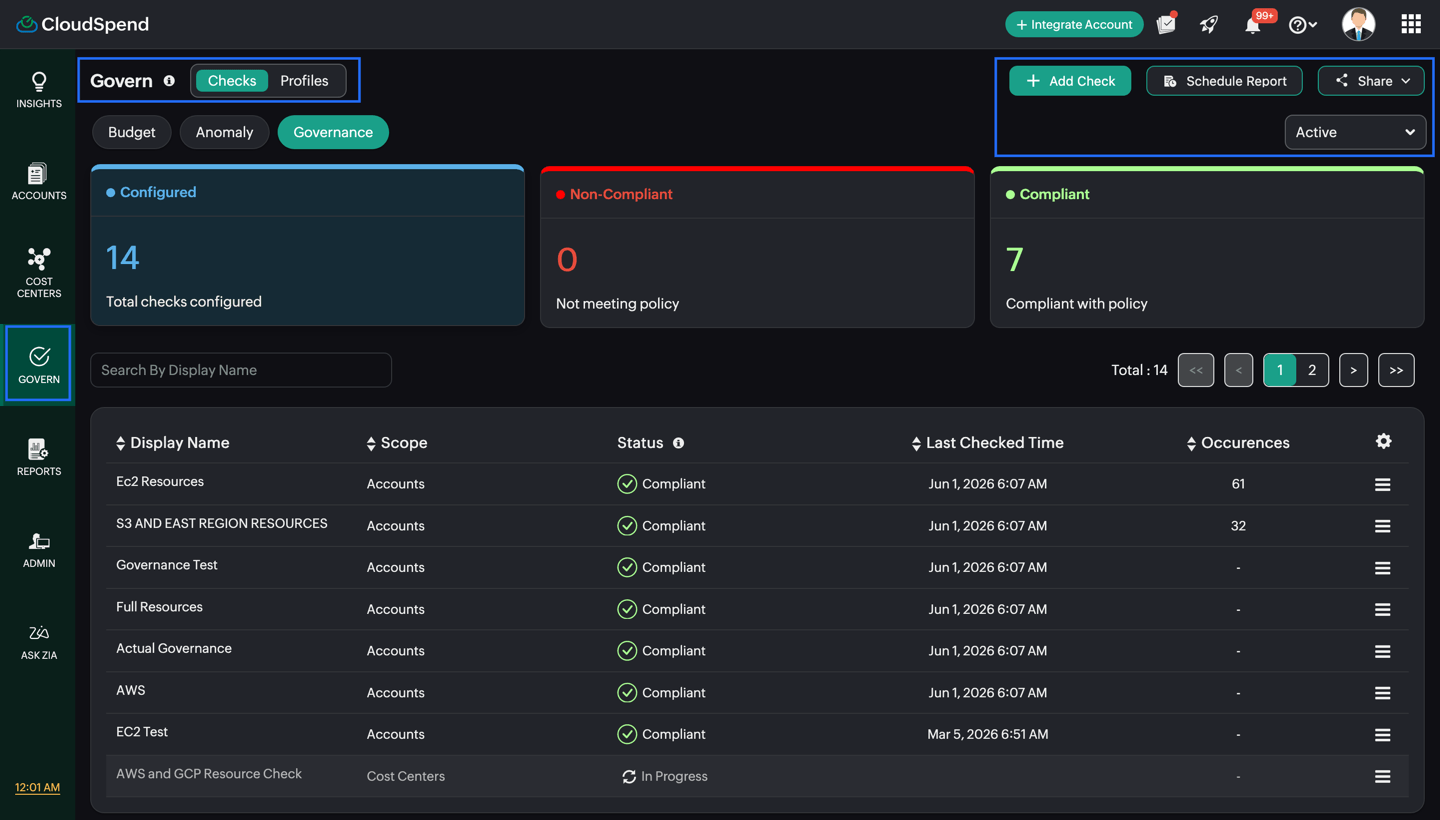
Note: Budget, Anomaly, and Governance are available as check types within the Govern page.
Why use Govern?
Cloud environments can generate unexpected costs, exceed planned budgets, or contain resources that do not meet your tagging standards. Govern helps you monitor these conditions automatically and identify issues that require attention. It offers you the following benefits:
- Monitor cloud spending: Track spending against defined budgets for Accounts, Cost Centers, and Reports.
- Detect unexpected costs: Identify spending that deviates from the expected pattern using Anomaly checks.
- Maintain tagging compliance: Identify resources that do not meet your defined tag conditions using Governance checks.
- Use reusable configurations: Create profiles once and associate them with multiple checks. This helps avoid configuring the same scope repeatedly.
- Track check status: Use the summary and check lists to quickly identify breached budgets, open anomalies, and non-compliant governance checks.
- Take action early: Use budget thresholds, anomaly detection, and governance conditions to identify potential issues before they affect your cloud cost management processes.
- Automate responses: Configure Triggers to initiate IT Automation or third party actions when defined check conditions are met.
- Stay informed with alerts: Configure Alerts and notification settings to notify the right users or user groups when budget, anomaly, or governance conditions require attention.
- Assign responsibility: Use directly responsible individual (DRI) for multi-step budgets to identify the person responsible for taking action when a configured budget step is exceeded.
Use case scenarios
Monitor spending across multiple cloud accounts
If your organization manages multiple AWS, Azure, or GCP accounts, you can configure Budget checks for the accounts you want to monitor. You can also use Cost Centers and Reports to monitor specific areas of your cloud spending.
Detect an unexpected increase in cloud spending
If spending suddenly increases beyond the expected pattern, an Anomaly check can identify the deviation. You can then review the anomaly details and investigate the detected incident.
Alert teams as spending approaches a budget
If different teams need to respond at different spending levels, you can configure a Multi-Step Budget with multiple thresholds. This allows you to track spending as it progresses through each configured step.
Identify resources that do not meet tagging requirements
If your organization uses tags for cost allocation or reporting, you can create a Governance Profile with the required tag conditions. Governance checks can then identify resources that do not meet those conditions.
Reuse the same scope across multiple checks
If you want to monitor the same account using different budget periods or thresholds, create a profile for that account and reuse it across multiple checks. This lets you maintain the scope in one place.
How Govern works
Govern organizes your monitoring configuration into Checks and Profiles.
- Checks determine what CloudSpend evaluates and the conditions under which you receive alerts or identify a compliance issue.
- Profiles define the scope and conditions used by the checks.
You can select Budget, Anomaly, or Governance from either view.
| Check type | What it monitors |
|---|---|
| Budget | Cloud spending against a defined budget for a selected period. |
| Anomaly | Spending that deviates from the expected spending pattern. |
| Governance | Resources that do not meet the configured tag conditions. |
Budget checks can be configured as Single-Step or Multi-Step. A Single-Step budget uses one threshold, while a Multi-Step budget uses multiple thresholds.
View Govern
To access Govern,
- Go to the CloudSpend console.
- In the left navigation pane, select Govern.
- Select Checks or Profiles.
- Select Budget, Anomaly, or Governance.
Checks
The Checks view displays the checks configured for the selected check type. Use this view to monitor their status, review issues, and manage existing checks.
Budget
The Budget check displays the budget checks configured for Accounts, Cost Centers, and Reports. You can switch between Single-Step and Multi-Step budgets.
The summary provides a quick view of the budget status:
- Configured: Total number of configured budget checks.
- Breached: Budgets that have exceeded their defined limits.
- Near Breach: Budgets that are approaching their defined limits.
- In Control: Budgets that are within their defined limits.
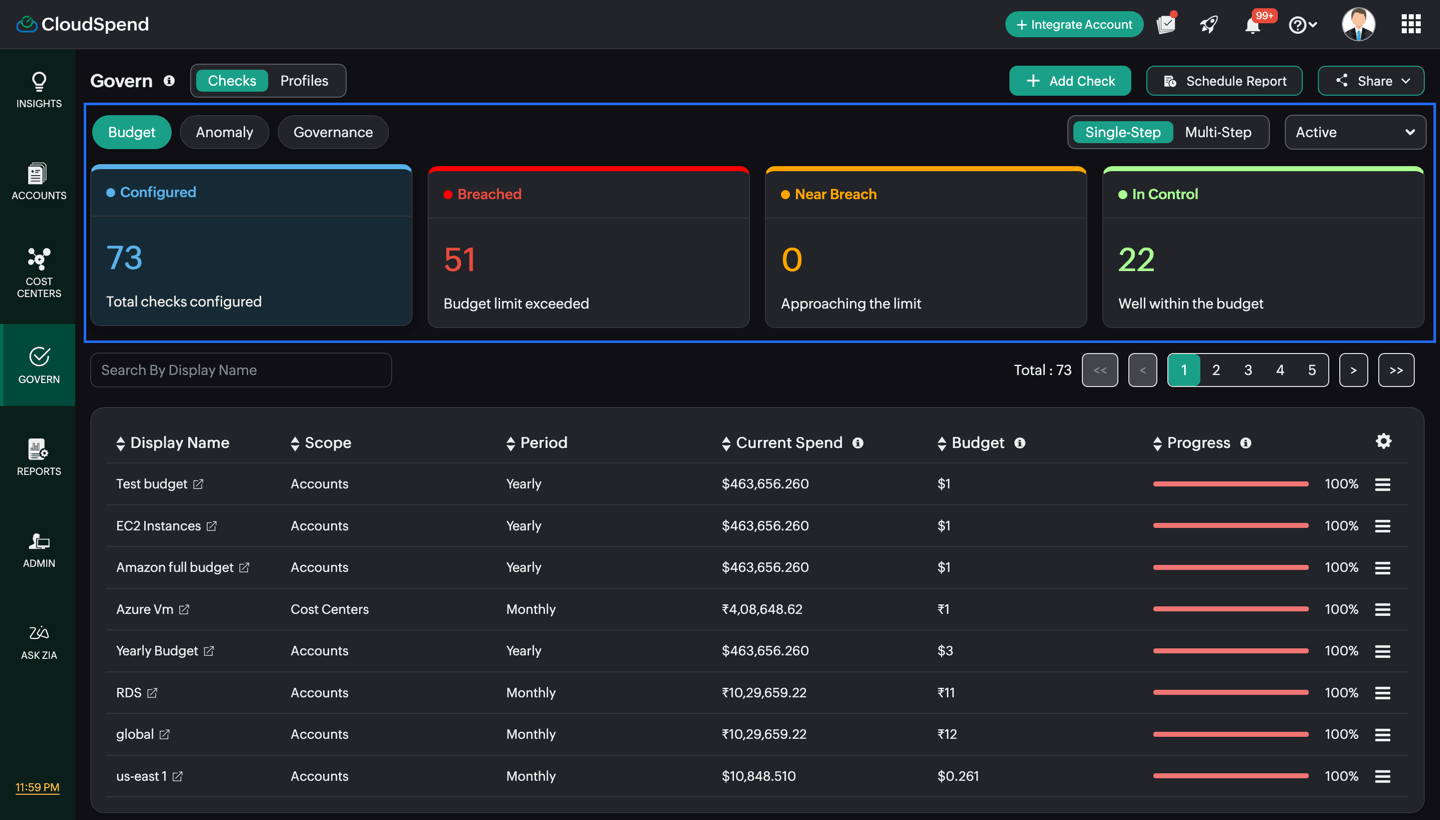
The budget checks list provides information such as the display name, scope, period, current spend, budget, progress, and variance.
For Multi-Step budgets, the list also shows the configured steps, exceeded steps, and DRI information. The DRI identifies the person responsible for reviewing and acting on a budget threshold when the corresponding step is exceeded.
You can configure and set Single-step and Multi-step budget checks for Accounts, Cost Centers, and Reports.
Anomaly
The Anomaly check displays the anomalies detected for your configured checks.
The summary provides the following statuses:
- Configured: Total number of configured anomaly checks.
- Open: Anomalies that are yet to be reviewed.
- Acknowledged: Anomalies that have been reviewed and confirmed.
- False Positive: Anomalies marked as false positives.
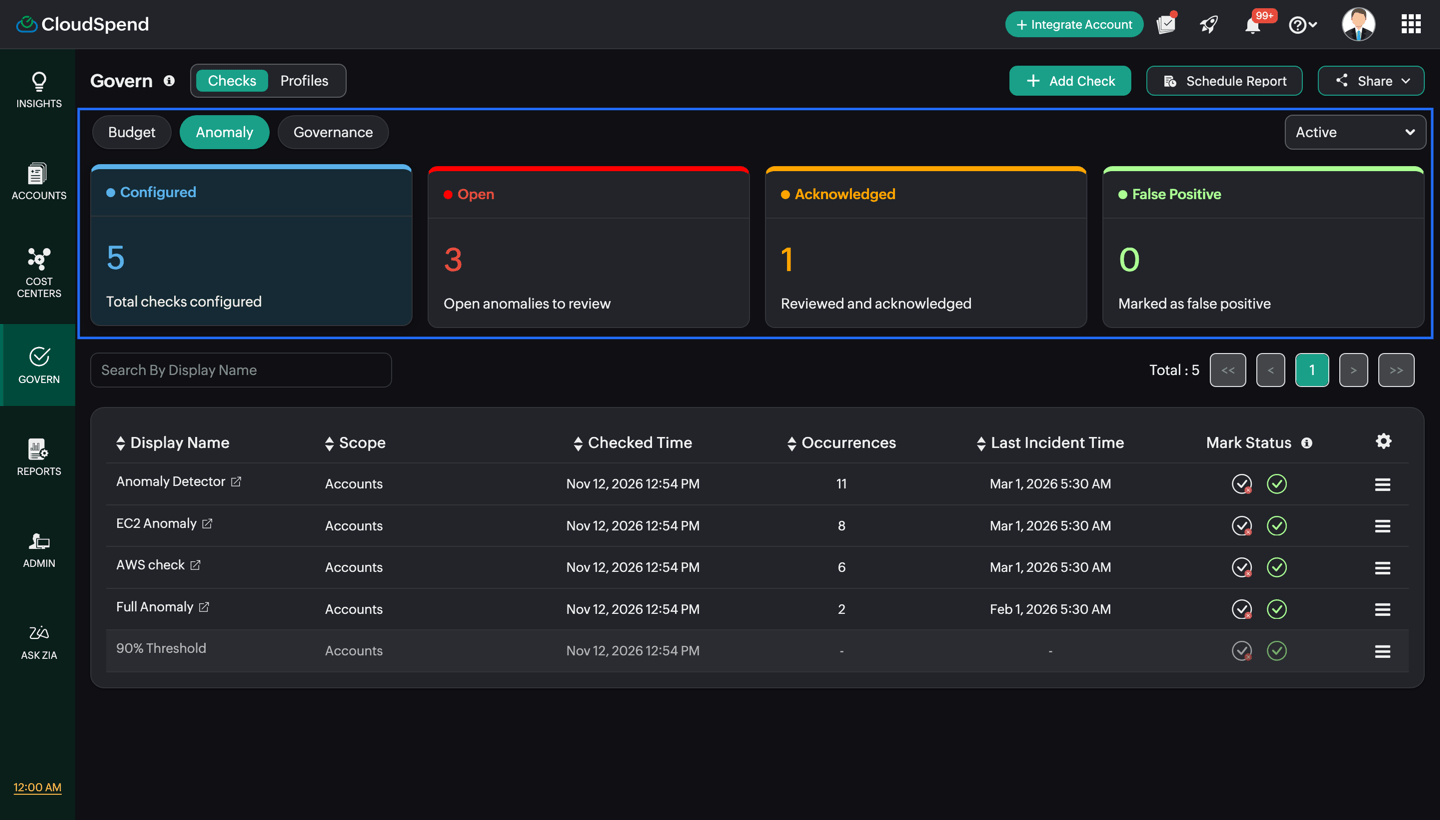
The anomaly list includes the scope, checked time, number of occurrences, and last incident time. You can open an anomaly to view its details and investigate the detected spending deviation.
You can mark an anomaly as Acknowledged or False Positive directly from the list. You can configure anomaly checks for Accounts, Cost Centers, and Reports.
Governance
The Governance check displays the governance checks configured for your Accounts, Cost Centers, and Reports.
The summary provides the following statuses:
- Configured: Total number of configured governance checks.
- Non-Compliant: Checks that do not meet the configured policy.
- Compliant: Checks that meet the configured policy.
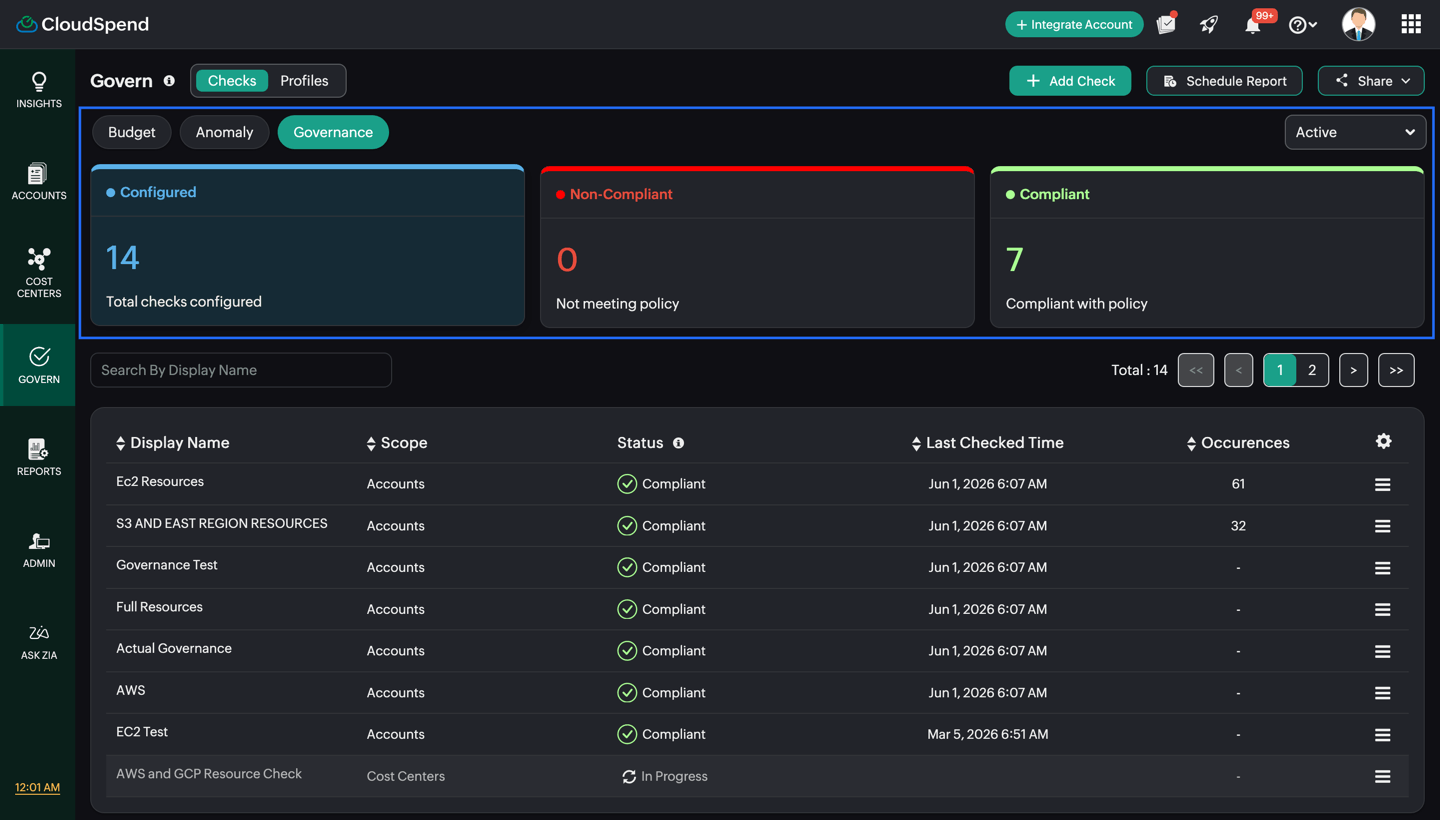
The governance list displays the check status, last checked time, and the count or percentage of non compliant resources. You can configure governance checks for Accounts, Cost Centers, and Reports.
Profiles
A Profile defines the scope and conditions used by a check. Profiles are reusable and can be associated with multiple checks.
To view profiles, select Govern > Profiles, and then select Budget, Anomaly, or Governance.
| Profile | What it defines |
|---|---|
| Budget Profile | The accounts, cost centers, or reports to monitor and the cost information used for the budget. |
| Anomaly Profile | The accounts, cost centers, or reports to monitor and the cost information used for anomaly detection. |
| Governance Profile | The accounts, cost centers, or reports to validate and the tag conditions used to determine compliance. |
Schedule and share reports
You can schedule reports from the Checks view to share the current state of your Budget, Anomaly, and Governance checks with stakeholders.
Click Schedule Report to schedule dashboard or details reports. For Budget checks, you can also schedule reports containing recent alerts and budget related expense information.
Click Share to share the current view as a PDF or email. The Share option is available in both the Checks and Profiles views.
Access Govern insights through AI
When Zoho MCP is connected, you can use your AI assistant to retrieve information about your Govern configuration and status.
You can use AI to query:
- Budget performance: Current spend, budget thresholds, utilization, and budgets that have crossed their limits.
- Anomaly insights: Detected anomalies, additional costs, affected services or accounts, and recurring anomalies.
- Compliance status: Non-compliant resources, violation counts, cost impact, and compliance trends.
For more information, see Zoho MCP Integration.