User Management Lifecycle
Overview
Effective user management is essential for maintaining system security and ensuring appropriate access control. This document outlines the complete lifecycle of user accounts, detailing their creation, management, and role-based access within the system.
This document covers the management of Device Control Plus web console user accounts (technicians and administrators). If you are looking to configure local accounts or domain accounts on managed endpoint machines, refer to the User Management Configuration page.
Prerequisites for User Creation
A configured mail server is essential for user account creation and user account-related notifications, such as password resets, account activation, and security alerts. Proper SMTP settings must be in place to ensure seamless email communication. Refer to the Mail Server Configuration document for detailed setup instructions.
Scope of the User
A scope defines which computers and devices a user can see and manage. You assign a scope when you create or modify a user. Each user has two scope dimensions:
- Computers to be Managed: Controls which endpoint computers the user can see and act on.
- Devices to be Managed: Controls which mobile devices the user can manage (MDM).
A role and a scope are different. The role controls what the user can do, and the scope controls which computers and devices those actions apply to. You must configure both.
Computers to be Managed
You can assign one of the following computer scope types to a user.
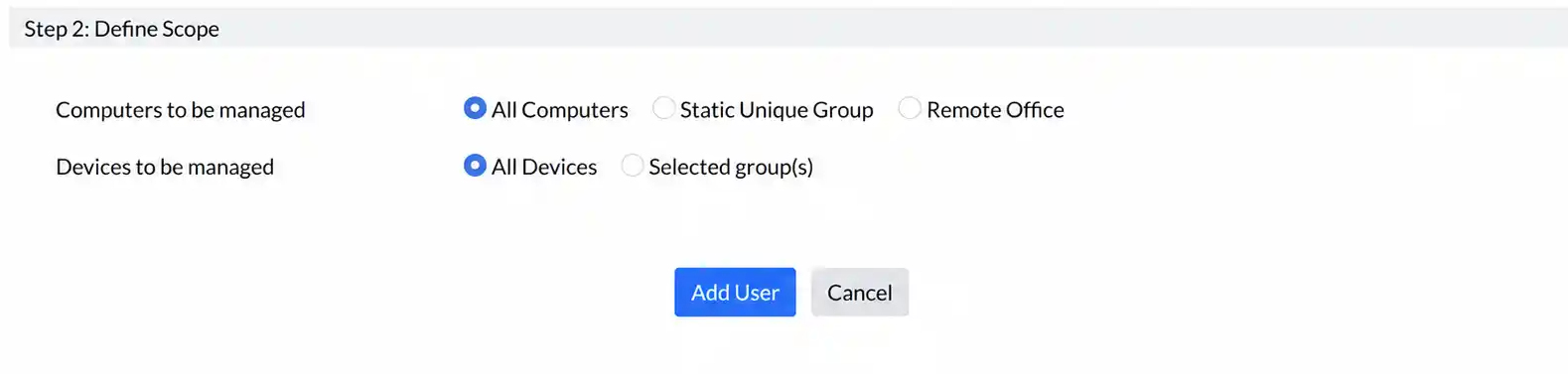
All Computers
The user has access to all computers managed in the Device Control Plus server. This is the broadest scope and is appropriate for administrators and senior technicians who need visibility across the entire environment.
Static Unique Groups
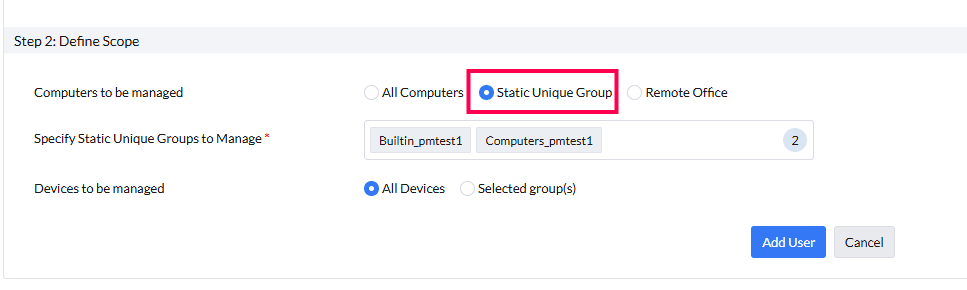
The user has access only to the computers in the custom groups that you designate. Only Static Unique groups are available here. If a custom group is not marked as unique, it does not appear in the scope selection list. For details on creating a Static Unique group, refer to Static Unique Custom Groups.
Static Unique groups are best used when you need to manage devices based on teams, departments, or functions within a location. Examples:
- Static Unique group: Finance Team
- Static Unique group: Product Engineering
- Static Unique group: Customer Support
Remote Office
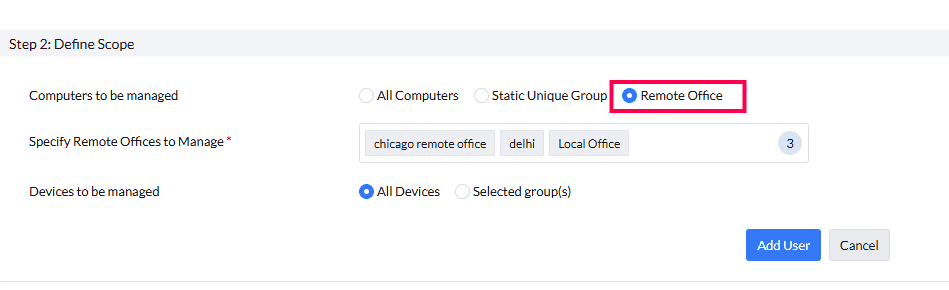
The user has full access to all computers in a designated Remote Office. Remote Offices are ideal when your organization operates across multiple locations or branch offices and you want to delegate management of each location to a local IT team. For details on creating Remote Offices, refer to Managing Computers in WAN. Examples:
- Remote Office: New York, IT Team
- Remote Office: London, Finance Team
- Remote Office: Mumbai, Sales Team
Devices to be Managed
You can control which mobile devices (MDM-enrolled) a user can manage:
- All Devices: The user can manage all mobile devices enrolled in the console.
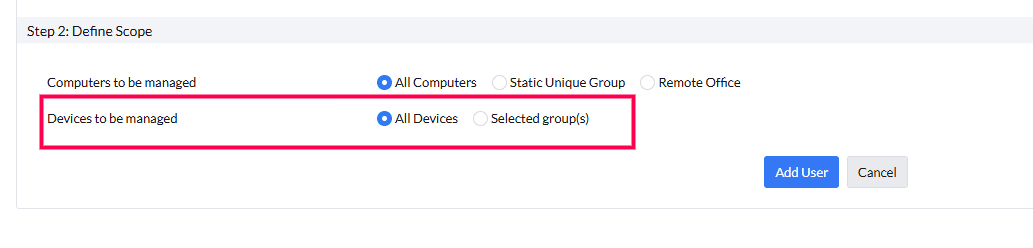
- Device Groups: The user can manage only the devices in the device groups that you designate.
Scope Quick Reference
The following table shows how different combinations of computer scope and device scope affect what each user can manage. The worked scenarios that follow refer to the same users.
| User | Computer Scope | Device Scope | Access Effect |
|---|---|---|---|
| A | All Computers | All Devices | Full access to all computers and all mobile devices in the console. |
| B | Remote Office 1 | All Devices | Can manage all computers in Remote Office 1 and all mobile devices. |
| C | All Remote Offices | Device Group A | Can manage all computers across all Remote Offices, but only devices in Group A. |
| D | Static Unique group: Finance Team | Device Group X | Can manage only computers in the Finance Team group and devices in Group X. |
| E | Remote Office 1 | Device Group Y | Can manage computers in Remote Office 1 and devices in Group Y only. |
| F | Remote Office 1 & Remote Office 2 | Device Group Z | Can manage computers in both Remote Offices, and only devices in Group Z. |
Worked Scenarios
Scenarios A1 to A4 cover computer scope. Scenarios B1 to B3 cover device scope (MDM).
Scenario A1: Scope by Static Unique group
- User D has the scope Static Unique group: Finance Team (10 computers).
- User A has the scope All Computers.
- How it works: User D can push policies only to the 10 computers in the Finance Team group. If a computer is moved out of the group, User D immediately loses access to it, even if it remains in the console. User A is unaffected and continues to see all computers.
Scenario A2: Group membership expands
- The admin adds 5 more computers to the Finance Team group.
- How it works: User D automatically sees and can manage the 5 new computers. No change to User D's scope is needed.
Scenario A3: Scope by Remote Office
- User B has the scope Remote Office 1 (London).
- User A has the scope All Computers.
- How it works: User B can manage all computers currently assigned to the London Remote Office. If a computer is reassigned to the Mumbai Remote Office, User B loses access to it. User A continues to see all computers across all Remote Offices.
Scenario A4: Multiple Remote Offices assigned to one user
- User F has the scope Remote Office 1 (London) and Remote Office 2 (New York).
- How it works: User F can manage computers in both London and New York, but cannot see computers in the Mumbai Remote Office. If a computer moves from London to Mumbai, User F loses access to it. For MDM, User F can manage only the mobile devices in Device Group Z.
Scenario B1: Scope by Device Group
- User A has the scope All Devices.
- User D has the scope Device Group X only.
- How it works: User A can manage every enrolled mobile device. User D can manage only the devices in Group X. A configuration that targets Group Y is not visible to User D. If User D needs to manage Group Y, the admin must update User D's scope.
Scenario B2: Device Group is restructured
- Device Group X is split into Group X1 and Group X2.
- How it works: Unless the admin updates User D's scope to include X1 and X2, User D manages only the devices that remain in the original Group X. User A is unaffected and continues to manage all devices.
Scenario B3: Configuration targets two device groups
- A configuration is created that targets both Device Group X and Device Group Y.
- How it works: User D, who is scoped only to Group X, can see the configuration but may not be able to edit it, because the configuration also applies to Group Y, which is outside User D's scope.
Personalization
The Personalize menu allows users to customize their account settings for a tailored experience. It enables session management, time zone and format settings, language preferences, and password updates for better security and usability.
How to Access Personalization?
- Log in to the web console.
- Click the user profile icon located at the top-right corner, then select Personalize.
Change Session Expiration
- Under the General Settings tab, locate the Session Expiration dropdown and select a duration.
- Go to the Choose Time Zone dropdown and select the appropriate time zone.
- Locate the Choose Time Format dropdown and select the desired date and time format.
- Find the Display Language dropdown and choose your preferred language.
- Click the Save button to apply the changes.
Notifications
The Notification feature allows the Administrator to receive alerts when users perform various operations. To receive these alerts, the Administrator's email address(es) must be configured.
How to Configure Notifications?
- Log in to the Central Server.
- Navigate to the Admin tab.
- Select User under User Administrator.
- On the user page, select Notifications.
- Configure notifications for the events as shown in the image below:
- Administrator's E-mail Address: Enter one or more email addresses.
- Mobile App Notification for Administrator: Use the dropdown labeled Select Administrator(s) to be notified to choose the Administrator who will receive mobile notifications.
- Save the Configuration: Click Save to apply the changes.