
Object filtering for rule fine-tuning
Last updated on:
In this page
Overview
Object filter-based rule fine-tuning for Microsoft 365 enables you to optimize detection rules by applying them only to specific Microsoft 365 objects. This helps reduce false positives, minimize alert fatigue, and improve the accuracy of detections.
Using an intuitive object-filtering interface, you can define filters for users, groups, Administrative Units (AUs), service principals, mailboxes, and roles through a graphical user interface (GUI). These filters dynamically adapt to directory changes, simplify rule deployment, and ensure alerts remain relevant and actionable.
With re-engineered detection capabilities, object filtering allows SOC teams to fine-tune detections to targeted Microsoft 365 objects, reducing unnecessary alerts while maintaining visibility into critical activities.
Feature scope
The Object Filter feature is accessible from the following modules:
Object selection and filtering
Object filtering allows you to scope rule evaluation by selecting relevant Microsoft 365 objects and applying them to specific rule fields. You can configure object filters using the following selection methods.
Object selection methods
1. Direct object selection
- You can select objects directly using Microsoft 365 synchronized data.
- The selection remains static for the chosen objects unless modified manually.
- Suitable for targeting specific users, service principals, mailboxes, or roles.
2. Group- or Administrative Unit (AU) based object selection
- Instead of selecting individual objects, you can assign specific groups or Administrative Units.
- Objects within the selected group or AU are dynamically included based on Microsoft 365 sync data.
- Any membership changes are automatically reflected during rule evaluation.
3. Manual values
- You can define manual values in addition to selecting objects from the tenant.
- Supported values include User Principal Name (UPN), Object ID, App ID, and Display Name.
- The entered values are validated against rule criteria across all tenants.
4. Tenant selection
- You can select a specific tenant for rule evaluation.
- All objects in the selected tenant, both synced and non-synced, are included.
Field-specific object filters
Object filters are applied at the rule-field level. The available filter options depend on the field being configured.
| Field | Description | Available object filter options |
|---|---|---|
| Caller | The entity performing the activity | Users, group-based objects, group-based users, AU-based users, Service Principals |
| Target | The entity on which the activity is performed | Users, group-based objects, group-based users, AU-based users, Service Principals, Application, roles, mailboxes, group-based mailboxes, AU-based mailboxes |
| Resource | The resource involved in the activity | Groups, AU-based groups, applications, roles |
Pre-requisites
- Direct object selection & manual values are accessible to those with Free and Basic plans.
- Group-based object selection and Administrative unit (AU) based selection is accessible to those with a Standard plan subscription or higher tiers.
Architecture
Object filtering for Microsoft 365 is applied during rule evaluation within the detection pipeline. It ensures that detection rules are evaluated only for audit events involving the selected Microsoft 365 objects.
The architecture combines audit log ingestion, object synchronization, and field-level rule evaluation to deliver accurate and scalable rule fine-tuning.
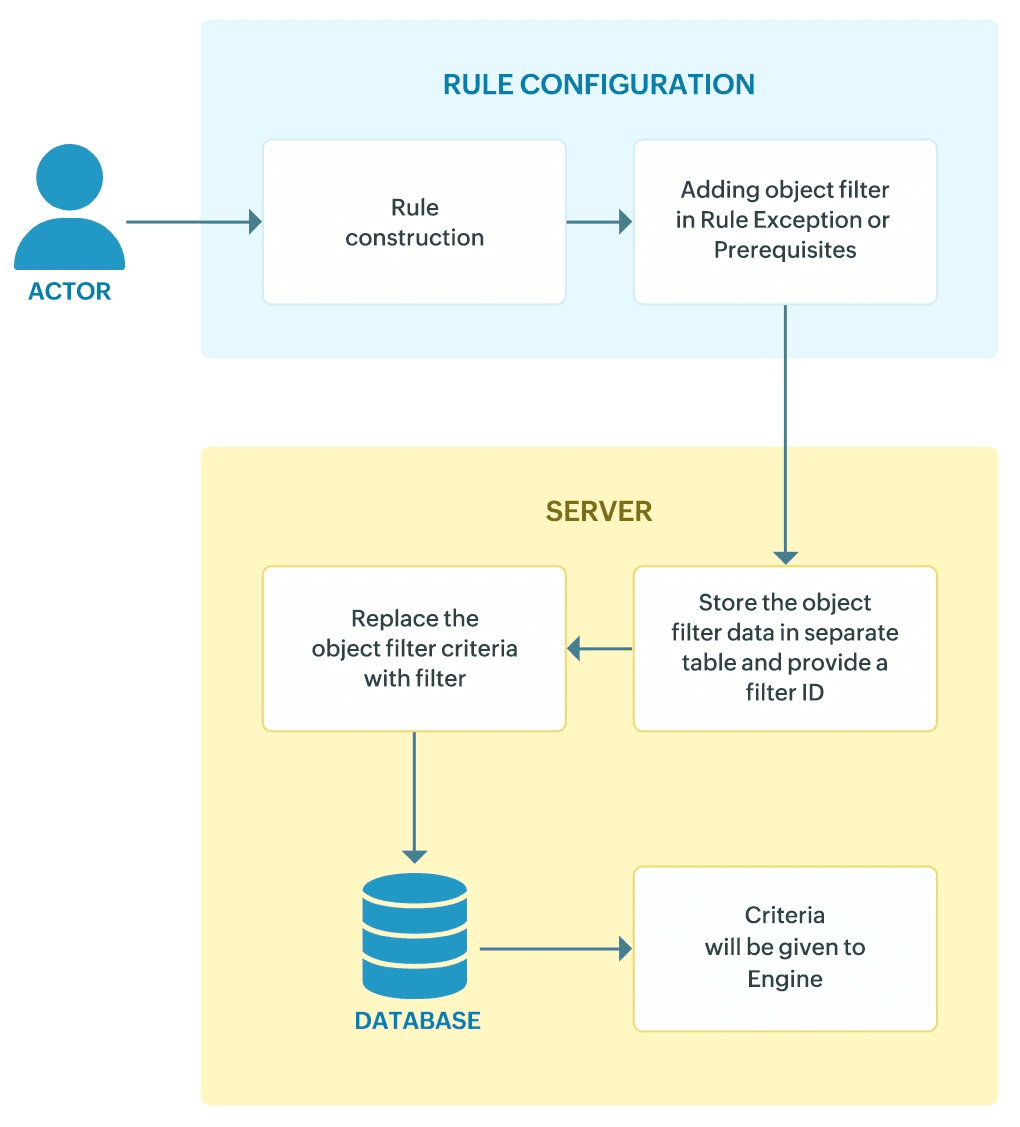
How object filtering works in Microsoft 365
- Microsoft 365 audit logs ingestion
Audit events are collected from configured Microsoft 365 services such as Entra ID, Exchange Online, SharePoint Online, OneDrive, and Microsoft 365 General.
- Object synchronization
Directory objects such as users, groups, Administrative Units (AUs), service principals, mailboxes, applications, and roles are synchronized from Microsoft 365 into the product console.This synchronized data serves as the reference for object matching during rule evaluation.
- Rule configuration with object filters
Admins configure object filters while creating or modifying rules by selecting specific objects or object groups for relevant rule fields.
- Rule evaluation with object filtering
During detection, the rule engine evaluates each audit event against:
- The rule conditions, and
- The configured object filters applied to the Caller, Target, and Resource fields
Events that do not match the object filter criteria are excluded from evaluation.
- Alert generation
Alerts are generated only when an event satisfies both the rule logic and the object filter conditions, ensuring alerts remain precise and actionable.
Dynamic adaptation to directory changes
Object filtering dynamically adapts to M365 directory changes:
- Group- and AU-based selections dynamically include or exclude objects as group or AU-based assignments change.
- New users, service principals, or mailboxes added to selected groups or AUs are automatically considered during rule evaluation after synchronization.
- Rules do not require manual updates when directory changes occur.
Use cases
1. Monitoring privileged role assignments for sensitive identities
Use case
Privileged role assignments in Microsoft Entra ID represent high-risk changes. Applying detection rules across all users and service principals can generate excessive alerts.
With object filtering
Object filters can be applied to the Entra ID Privileged Role Assigned detection rule to monitor only selected users or service principals.
- Caller: User / Service Principal
- Target: User / Service Principal
- Resource: Role
This ensures alerts are generated only for relevant privileged role assignments, reducing false positives while maintaining visibility into critical identity changes.
2. Exception handling for authorized users and service principals
Use case
Authorized administrative users and trusted service principals often perform routine actions that match detection rule conditions. These expected activities can trigger repeated alerts and contribute to alert fatigue.
With object filtering
Object filters can be used to exclude trusted users, service principals, mailboxes, or roles from rule evaluation. By defining exceptions for known and authorized entities, rules continue to detect suspicious activity while suppressing alerts for legitimate operations.
This allows SOC teams to focus on high-risk events without compromising visibility into sensitive Microsoft 365 activities.
Limitations
- Object filtering is supported only for the Equals and Not Equals operators.
- Object filtering is applied based on the most recently synchronized tenant data. If changes occur in Microsoft Entra ID but are not yet synchronized, rule evaluation uses the last synced state.
NOTE To ensure data is updated regularly, configure the object sync schedule based on your requirements (daily, weekly, or monthly).
- For alerts and rules, a maximum of 25 objects per tenant per field can be selected.
Read also
This page explained how object filtering can be used to fine-tune Microsoft 365 detection rules by applying object-based scoping and exceptions. For more information on related detection and rule management features, refer to: