
Creating a playbook
Last updated on:
Overview
This document guides you through the steps to build custom playbooks using predefined logic blocks. These workflows automate security responses, ranging from system actions to AD user operations, helping you mitigate incidents more efficiently.
Creating a custom playbook
Steps to create a playbook
- In the product console, navigate to the Alerts tab. Click on the More tools icon present at the top-right corner of the page as highlighted in the below image.
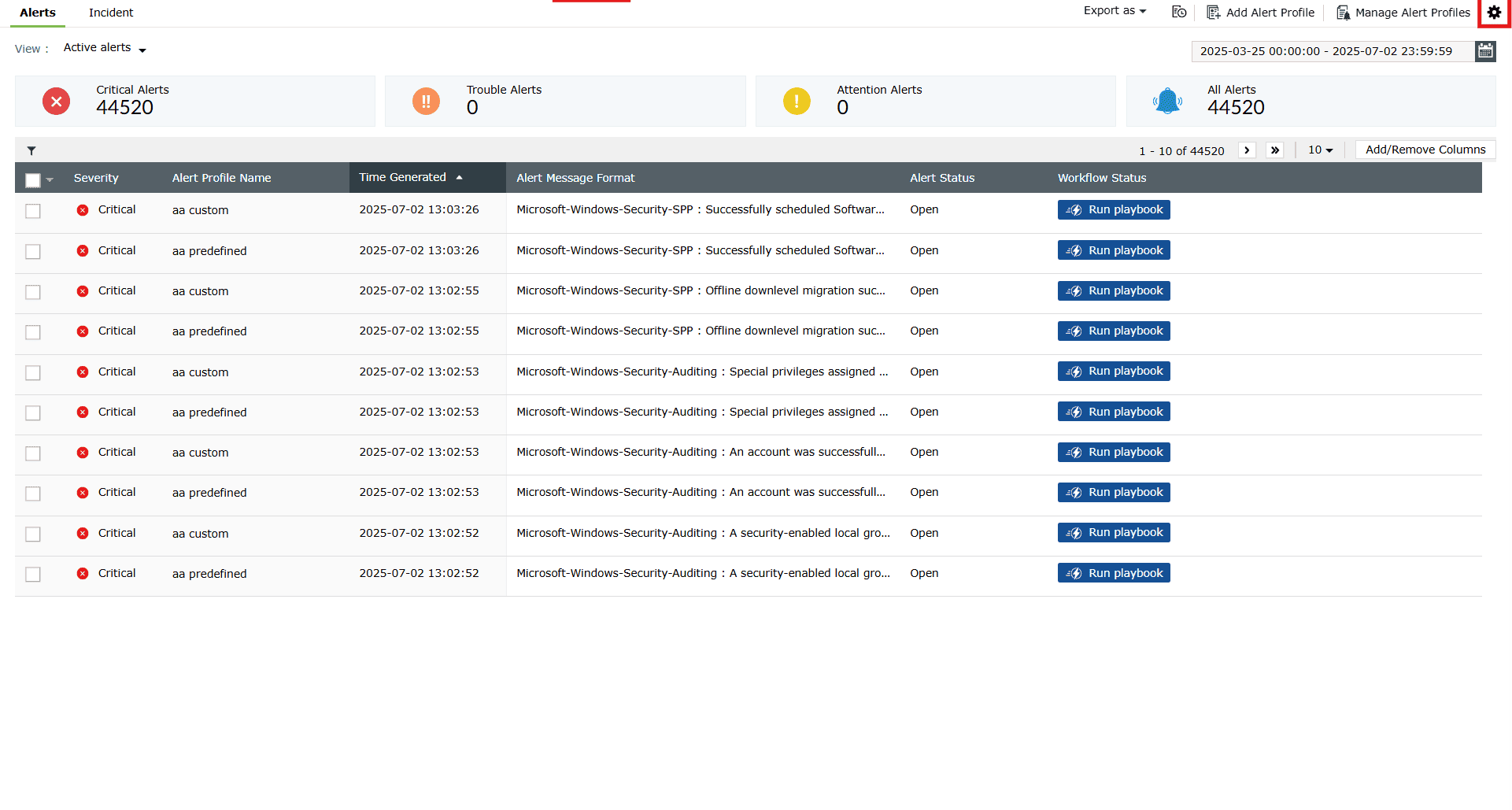
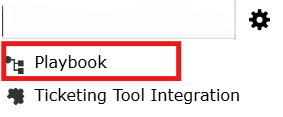
Image 1: More tools icon in the Alerts tab - Click on Playbook to open the Manage Playbook page.
- Click on the +Create Playbook button.
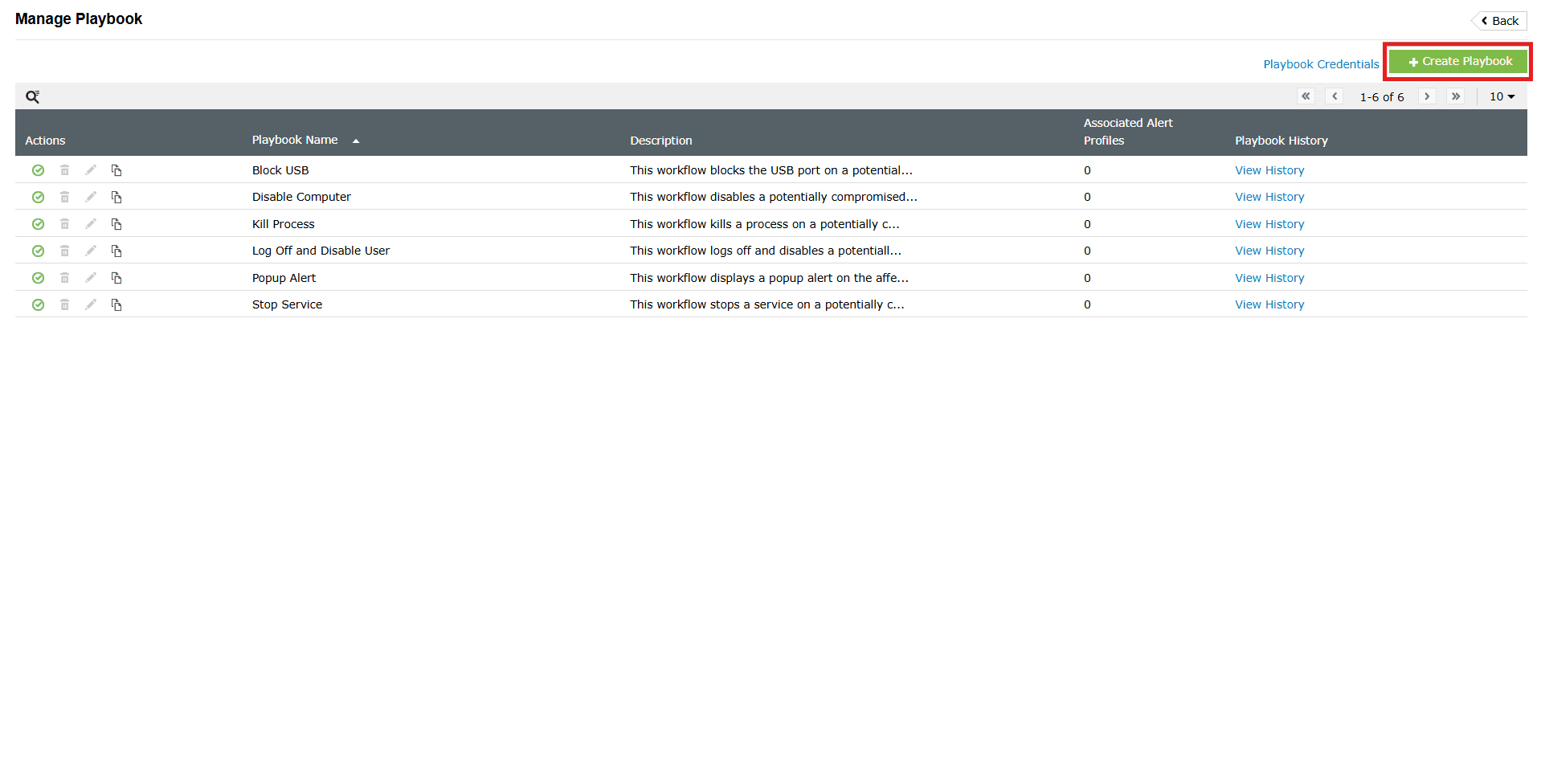
Image 2: Create Playbook button via the Alerts tab - Enter a name for the playbook in the Playbook Name field.
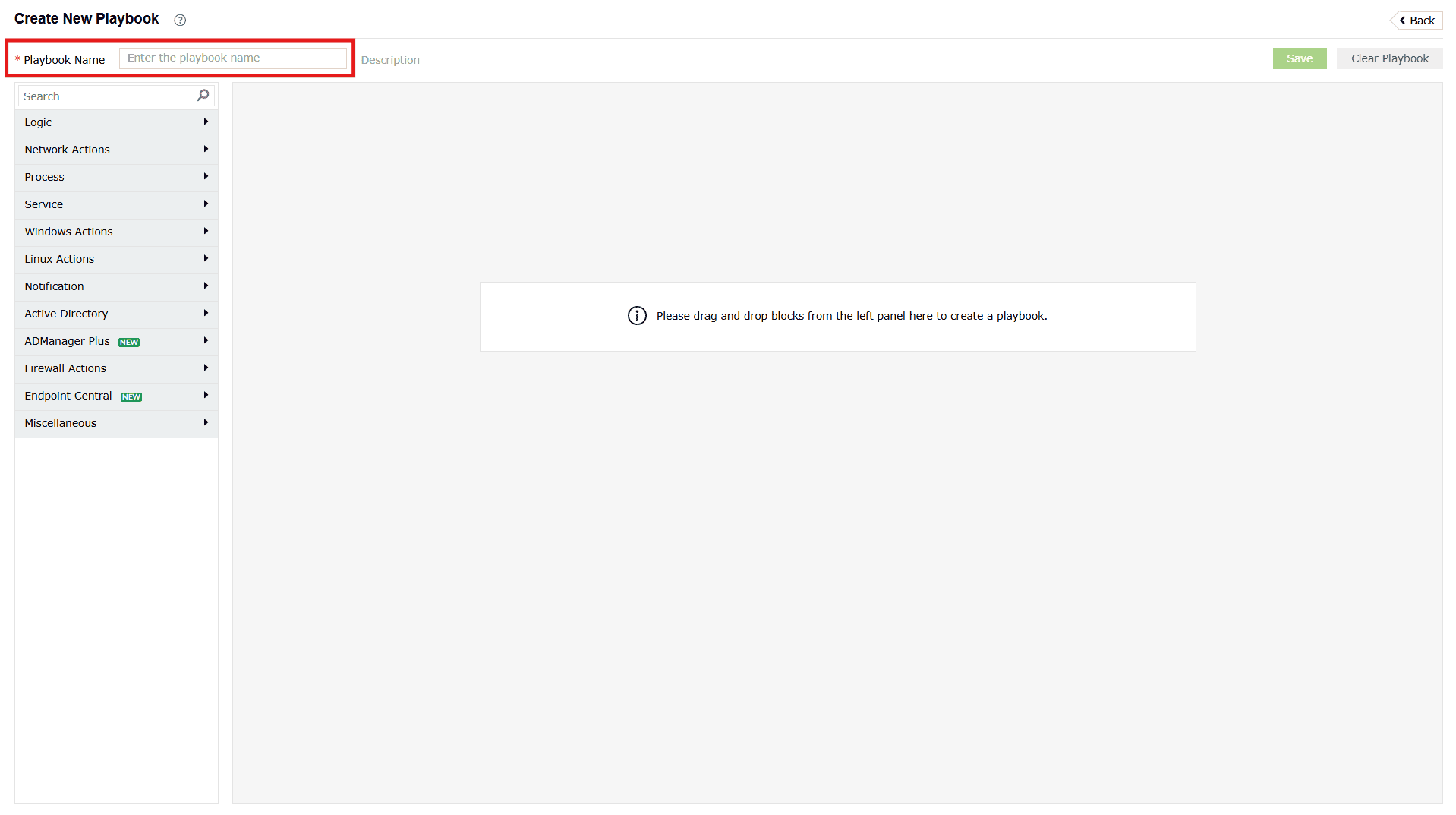
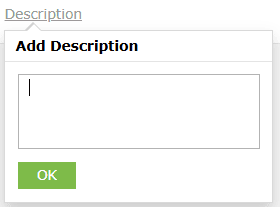
Image 3: Playbook name field during playbook creation - Click on Description (optional) beside the Playbook Name field to enter an appropriate description for the playbook. Click on OK.
- On the left pane, there are components provided for different event categories. Click on the respective drop-down icons in order to expand the actions. Create a playbook by dragging and dropping the playbook blocks from the left pane into the space provided. Ensure that these blocks are logically arranged to execute an event in your infrastructure.
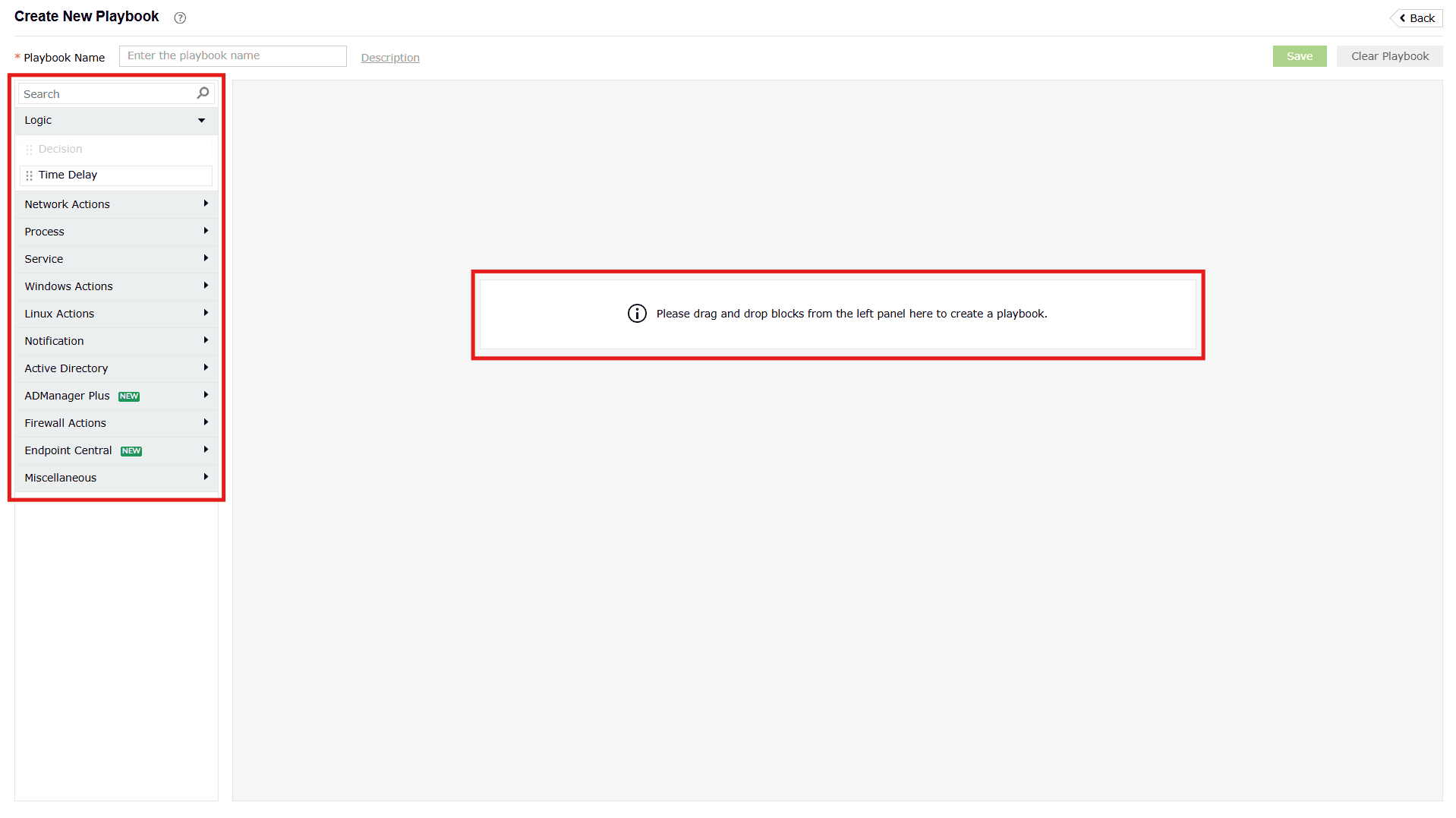
Image 4: Playbook blocks arrangement during playbook creation - The moment you finish the drag and drop action, an Edit pop-up appears with fields to configure that specific playbook block further. The fields to edit the playbook blocks vary from one block to another. After editing as per your requirements, click on OK. You can always come back and edit these blocks by clicking on the edit icon
 visible on the blocks in the drag and drop area.
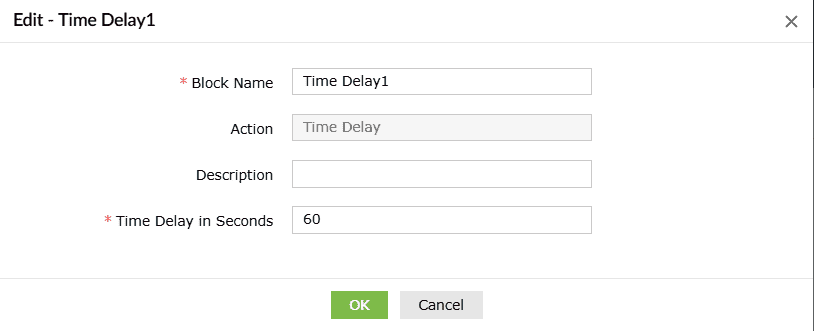
Image 5: Playbook blocks details during playbook creation - You can include multiple blocks in one playbook. Once you are done with the workflow design of your playbook, click on Save.
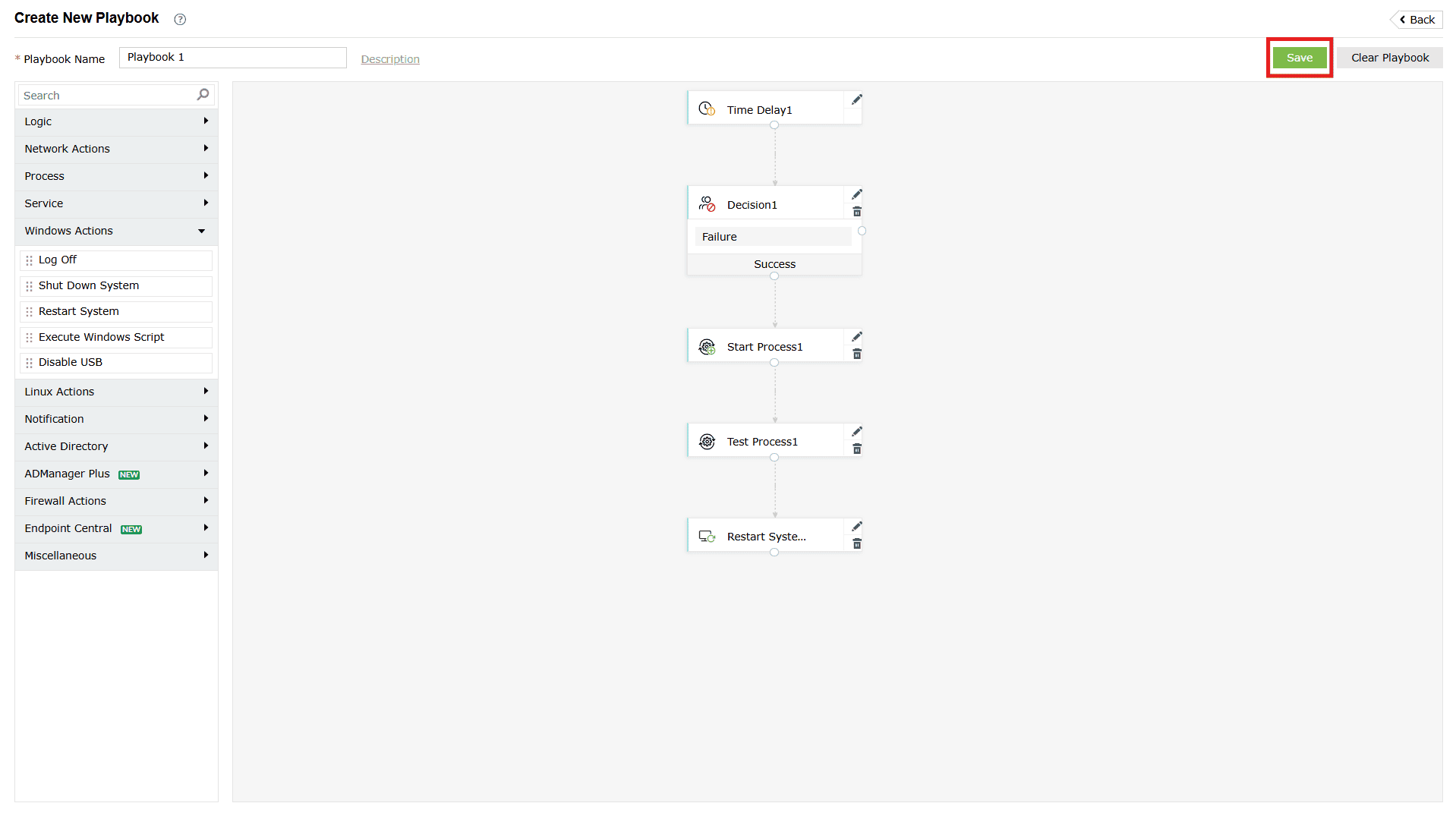
Image 6: Save a playbook after playbook creation - The playbook is saved instantly, and you will be taken back to the Manage Playbook tab with your newly created playbook listed under the playbooks list.
Reset playbook
- In case you wish to reset the configurations set in the playbook creation up until now, click on the Clear Playbook button as highlighted in the below image.
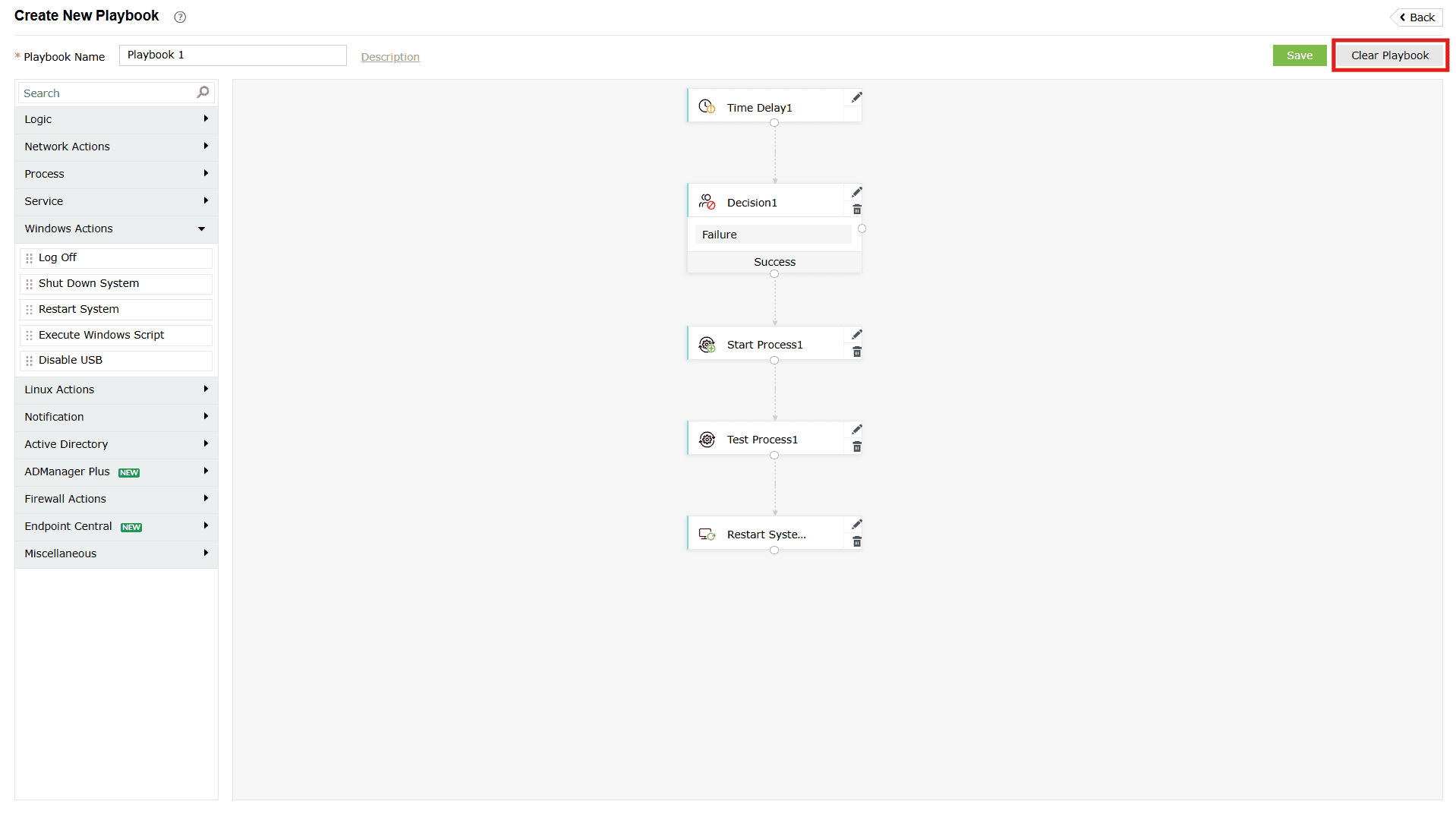
Image 7: Clear playbook option during playbook creation - A Confirm Action pop-up appears. Click on Continue.
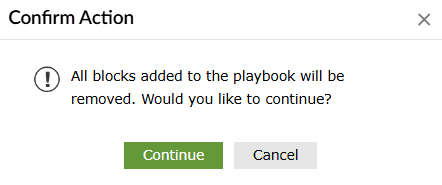
- All the configurations set in the playbook until then are cleared instantly, and you can see that the workspace becomes empty again.
List of playbook blocks
The product contains multiple playbook blocks to help you configure the playbooks to perform the required actions. The logic blocks are categorized under different sections.
The list of playbook blocks and the details to be specified while configuring playbooks using them are given below:
| Component | Logic blocks | Details to be specified |
|---|---|---|
| Logic Actions | Decision Allows you to branch the playbook based on the status of the previous action. | Optional description |
| Time Delay Allows you to introduce a time delay in the execution of the playbook. | The time delay in seconds. | |
| Network actions | Ping Device Allows you to ping a device within your network to check connectivity |
|
| Trace Route Allows you to run a trace route function to a device in your network to identify the path. |
|
|
| Process actions | Test Process Allows you to test whether a process is running on a device. |
|
| Start Process Allows you to start a process on a device |
|
|
| Stop Process Allows you to stop a process on a device. |
|
|
| Service actions | Test Service Allows you to test whether a service is running on a device. |
|
| Start Service Allows you to start a service on a device. |
|
|
| Stop Service Allows you to stop a service on a device. |
|
|
| Windows actions | Log Off Allows you to log off from the currently active session on a device. |
|
| Shut Down System Allows you to shut down a Windows device. |
|
|
| Restart System Allows you to restart a Windows device. |
|
|
| Execute Windows Script Allows you to execute a specified script file on a Windows device. |
|
|
| Disable USB Allows you to disable the USB port on a device. | The name of the device on which you want to disable the USB port. | |
| Linux actions | Shut Down Linux Allows you to shut down a Linux device. |
|
| Restart Linux Allows you to restart a Linux device. |
|
|
| Execute Linux Script Allows you to execute a specified script file on a Linux device. |
|
|
| Notification actions | Send Pop-Up Message Allows you to display a pop-up message on a device. |
|
| Send Email Allows you to send an email message. |
|
|
| Send SMS Allows you to send an SMS message. |
|
|
| Send SNMP Trap Allows you to send SNMP traps to the required destination. |
|
|
| Active Directory actions | Disable User Allows you to disable a user's account. | The name of the user account you want to disable. |
| Delete User Allows you to delete a user account. | The name of the user account you want to delete. | |
| Disable Computer Allows you to disable a computer account. | The name of the computer account you want to disable | |
| Firewall Actions | Cisco ASA Deny Inbound Rule Allows you to add an deny inbound rule. |
|
| Cisco ASA Deny Outbound Rule Allows you to add an deny outbound rule. |
|
|
| Fortigate Deny Access Rule Allows you to add an deny access rule. |
|
|
| PaloAlto Deny Access Rule Allows you to add an deny access rule. |
|
|
| SophosXG Deny Access Rule Allows you to add an deny access rule. |
|
|
| SophosXG Update Deny Access Rule Allows you to update an deny access rule. |
|
|
| Barracuda CloudGen Deny Access Rule Allows you to add an deny access rule. |
|
|
| Miscellaneous actions | Write to File Allows you to write a message to a file |
|
| CSV Lookup Allows you to search for values within a CSV file. |
|
|
| Forward Logs Allows you to forward logs to the required destination. |
|
|
| HTTP Request Allows you to send an HTTP request to a URL. |
|
|
| ADManager Plus actions | Disable User Allows you to disable a user account |
|
| Delete User Allows you to delete a user account |
|
|
| Disable Computer Allows you to disable a computer account. |
|
|
| Reset user password Allows the user to reset their password |
|
|
| Add user to group Allows you to add a user to a particular group |
|
|
| Remove user from group Allows you to remove a user from a particular group |
|
|
| Enable user Allows you to enable a disabled user account |
|
|
| Unlock user Allows you to unlock a locked user account |
|
|
| Update user Allows you to update an attribute of a user |
|
|
| Delete Computer Allows you to delete a computer account |
|
|
| Enable computer Allows you to enable a disabled computer account |
|
|
| Endpoint Central actions | Install Patch Allows you to install a patch on a specific device for a detected vulnerability. |
|
| Approve Patch Allows you to approve patches for the detected vulnerability. | The name of the block Vulnerability identifier will be extracted from alert criteria. |
Read also
This document covered how to create custom playbooks, including workflow components and supported actions. For related capabilities that enhance security orchestration and automation, refer to: