Troubleshooting Tips
- Prerequisites
- Report generation and tenant configuration
- Management task execution
- Monitoring
- Technician Login
- High Availability
- Migration to Elasticsearch
- Elasticsearch data engine
- AD domain configuration
- Backup Errors
Windows Azure Active Directory Module v1 (MSOnline) must be installed.
If Windows Azure Active Directory Module v1 (MSOnline) is not installed, you will not be able to generate a
few Azure reports.
Steps to install MSOnline Module
-
To check if this module is installed, open PowerShell and enter Get-Module -ListAvailable -Name
MSOnline. This will list the module if it is installed. If it is not installed,
- Open PowerShell as Administrator.
- Install the MSOnline module with the below command:
- Install-Module -Name MSOnline -Force
- After installing the module, please restart the application.
- After starting the application, refresh the tenant data.
- Click Tenant Settings found in the top right corner.
- Under Actions,Click on Refresh icon of the tenant.
Windows Azure AD v2 (AzureAD) module must be installed to perform this action.
Windows Azure AD v2 (AzureAD) module must be installed to generate reports and do management actions on Azure
AD. Please follow the below mentioned steps with administrative rights:
- If you had already installed PowerShellGet and nuget package provider, proceed to step (2).
- Install PowerShellGet using this
link
- Install nuget package provider in PowerShell with the following command Install-PackageProvider
-Name Nuget -MinimumVersion 2.8.5.201 -Force;
- Now, use the below command to install Azure AD v2 (AzureAD) module Install-Module -Name AzureAD
-Force
- If the problem still persists, your firewall might be blocking it. Please contact m365managerplus-support@manageengine.com.
Steps to Install latest MSOnline module
-
Uninstall old MSOnline module v1.0:
- In control panel -> Uninstall program, search for Windows Azure Active Directory Module For
Windows PowerShell and choose to uninstall.
-
Install latest MSOnline module using following command,
- Install-Module -Name MSOnline -Force
Azure AD module is incompatible with 32-bit version of the product.
You must be using 32 bit version of M365 Manager Plus. Windows Azure Active Directory Module v2 (AzureAD)
must be installed to manage and generate reports on Azure Active Directory, which is not available in 32 bit
version.
Hence follow the below mentioned steps,
-
Download and install M365 Manager Plus (64-bit)
-
To install Azure Active Directory Module v2 (Azure AD):
- Install PowerShellGet using this
link
- Install nuget package provide in PowerShell with the following command Install-PackageProvider
-Name Nuget -MinimumVersion 2.8.5.201 -Force;
- Now, use the below command to install Azure AD v2 (AzureAD) module Install-Module -Name AzureAD
-Force
- If the problem still persists, your firewall might be blocking it. Please contact
m365managerplus-support@manageengine.com.
MicrosoftTeams module must be installed.
If MicrosoftTeams module is not installed, you will not be able to view any general reports on Skype for
Business.
Note: PowerShell version 5.1 or higher is required to install MicrosoftTeams
PowerShell module.
Steps to download and install MicrosoftTeams Module.
-
To check if the module is installed, open PowerShell and enter Get-module -ListAvailable -Name
MicrosoftTeams. If MicrosoftTeams module is already installed, it will be listed in the
result. If not, run the below PowerShell command in as an administrator,
-
After installing the module, please restart the application.
MicrosoftTeams module is incompatible with 32-bit version of
the product.
You must be using 32 bit version of M365 Manager Plus. MicrosoftTeams, which is required to generate reports
on Skype for Business is not available for 32-bit version.
To resolve this issue,
-
Download and install M365 Manager Plus (64-bit)
-
Follow these steps to install MicrosoftTeams module.
-
After installing the module, please restart the application.
Updating the Microsoft Teams PowerShell module
Microsoft
retired all the earlier versions of the Microsoft Teams PowerShell module from June 15, 2022. Only the
module versions present in the 4.x.x series or later are supported now. Therefore, it is recommended to
update the Microsoft Teams PowerShell module to the latest version available for smooth functioning of the
product.
Follow the steps below to update the Microsoft Teams PowerShell module:
-
Run the PowerShell command below as an administrator on the machine where the product is installed:
-
Once the module has been updated, please restart the product.
-
If the problem persists please contact m365managerplus-support@manageengine.com.
.NET version need to be upgraded to generate this report.
For General Skype reports, Microsoft .NET framework version 4.7.2 or higher is required.
-
To check if Microsoft .NET Framework is installed, open Command Prompt from Run.
-
Enter the following command.
-
If version is below 4.7.2 install Microsoft .NET framework 4.7.2 from here
Internet Connection! Please check your internet connection.
-
The product requires an active internet connection to interact and function as desired. Please make
sure that your internet connection is active and stable.
- To allow the product to interact with Microsoft 365, add these ports
and url’s to your firewall’s allowed to connect to the internet list. Failure to do so will
result in certain features not working as intended.
Database backup failed.
PostgreSQL
The backup fails due to one of the following reasons.
- The backup file size exceeds the available free space.
- Free up some space in the product installation directory and try again.
- User Logon Account does not have Write permission for the backup folder
- Provide the User Logon Account Write permission for
<product_installation_directory>/Patch/backupDB folder.
- The database is down.
- Bundled PostgreSQL users,
- Navigate to <product _installation_directory>\bin folder
- Start Command Prompt as an administrator
- Execute the command startDB.bat to start the database.
- External PostgreSQL users,
- Open Run window using Winkey + R
- Type services.msc
- Locate PostgreSQL service based on version installed.
- Right click and choose Start.
- If the External PostgreSQL is not listed
- Open Command Prompt
- Navigate to <postgres_installation_directory>\bin
- Execute pg_ctl -D "<postgres_installation_directory>\data" start
- Missing pg_dump.exe file in the <product _installation_directory>\pgsql\bin folder.
- Download the file from this page based on the PostgreSQL version you
are on. To find the PostgreSQL version. Run the below command in <product
_installation_directory>\pgsql folder.
If the problem still persists please contact m365managerplus-support@manageengine.com.
MSSQL
The backup fails due to one of the following reasons.
- The backup file size exceeds the available free space.
- Free up some space in the product installation directory and MSSQL Installation directory and try
again.
- User Logon Account does not have Write permission for the backup folder
- Provide the User Logon Account Write permission for
- <product_installation_directory>/Patch/backupDB folder.
- <MSSQL_SERVER_installation_directory>/MSSQL/Backup folder.
- Database Version incompatibility.
- M365 Manager Plus supports MSSQL 2008 and above. Please migrate to a compatible database version.
- The database is down.
- To start your database,
- Ensure that the TCP/IP port is set to static in the SQL Server Configuration Manager.
- Ensure that the SQL Server Browser is Enabled and Running.
- Restart the MSSQL Server.
If the problem still persists please contact m365managerplus-support@manageengine.com.
Elasticsearch has been switched to read-only mode due to low disk space (<1
GB). Please free up some space.
Elasticsearch is a distributed search engine which helps to analyze huge volumes of data in near real-time.
Unlike conventional techniques, Elasticsearch fetches data real quick which results in reduced report generation
time, quicker threat detection, and a lot more. In M365 Manager Plus we use Elasticsearch in the following
modules,
- Reports
- Audit
- Alert
- Content search
Recommended:
It is advised to have at least 1 GB free hard disk space for Elasticsearch to function effectively. If the disk
space runs low, Elasticsearch will be switched to read-only mode, during which the data collected from native
will not be stored in the engine. To enable Write for Elasticsearch,
- Free up space in hard disk to maintain the recommended threshold.
- Restart the product.
.NET version needs to be upgraded to generate this report.
For General Skype reports, Microsoft .NET framework version 4.7.2 or higher is required.
- To check if Microsoft .NET Framework is installed, open Command Prompt from Run.
- Enter the following command
wmic product where "Name like 'Microsoft .Net%'" get Name, Version.
- If the version is below 4.7.2, Download and install Microsoft .NET framework 4.7.2 from here
MicrosoftTeams module is incompatible with 32-bit version of the product.
You must be using 32 bit version of M365 Manager Plus. MicrosoftTeams, which is required to generate reports on
Skype for Business is not available for 32-bit version.
To resolve this issue,
- Download and
install M365 Manager Plus (64-bit)
- Follow these steps to install MicrosoftTeams module.
- After installing the module, please restart the application.
Tenant configuration errors
You will see one of the following conditions if tenant configuration is incomplete.
REST API Access column in Tenant Settings shows Update Permission / Grant Admin Consent / Enable Now.
If the REST API Access column shows Enable Now:
Cause
- The above prompt is shown if you have not granted all the permissions required by M365 Manager Plus while configuring the tenant.
If the REST API Access column shows Update Permissions:
Cause
- The above prompt is shown if M365 Manager Plus needs a few additional permissions for the newly added features to work.
If the REST API Access column shows Grant Admin Consent:
Cause
- The above prompt is shown if admin has not provided consent for the permissions that were provided for the applications.
Solutions
- Click Tenant Settings button on the right-side corner of the product.
- Click on the action required under the REST API Access column. You will be navigated to the Microsoft 365 login page.
- Login as Global Admin and proceed to provide consent.
Note: Follow the steps in this document to grant the required permissions for REST API access.
REST API Access column in Tenant Settings shows 'Update Permissions'
Cause
- The above error will be shown if M365 Manager Plus needs a few additional permissions for the newly
added features to work.
Solution
- Follow the steps in this document
to grant the required permissions for REST API access.
1. Service Account column in Tenant Settings shows 'Configure'.
2. Status column in Tenant Settings shows 'Failed to create a service account' or 'Service account is
not configured'.
Cause
- One of the above errors will be shown if the service account creation could not be completed.
Solution
- Follow the steps below to resolve this issue.
- Create an Microsoft 365
service account with following roles: Exchange Admin, Global Reader, Privileged
Authentication Admin, Privileged Role Admin, Teams Service Admin, and User Admin.
- In M365 Manager Plus, click on the Configure option under the Service Account column.
- Provide the credentials of the service account you had created.
- Click on Update.
Status column in Tenant Settings shows 'Service Account password has expired'.
Cause
- The above error will be shown if the service account password has expired.
Solution
- Reset the service account password from its user profile in the Microsoft 365 admin center, and update
the new password for the service account in the configured tenant.
Status column in Tenant Settings shows 'Azure AD Secret Key is invalid'.
Cause
- The above error will be shown if the Application Secret Key is invalid or has expired.
Solution
- Update the Secret Key in the product's Tenant Settings.
- Check this document to know how to
get your Azure AD Application Secret Key.
To test the connectivity of your Microsoft 365
-
To test the connectivity of your Microsoft 365 environment using PowerShell, follow the steps listed
here.
Dashboard graph empty
-
Make sure that the report corresponding to the graph can be generated without any issue for the
specified number of days.
-
If the report cannot be generated, follow the troubeshooting tips listed based on the cause of error.
-
If the report can be generated but the graph in the dashboard does not mirror the values, contact m365managerplus-support@manageengine.com .
Access Denied
-
Make sure that you have entered the correct user name and password.
-
Check if the user account is blocked. To check if an account is blocked, follow the steps listed here.
-
Check if the required roles are assigned to the service account. Click here to view the list of required roles.
-
Run the Office365Troubleshoot.ps1 script file
- Open PowerShell as the administrator.
- Run the command Set-ExecutionPolicy -ExecutionPolicy RemoteSigned -Force -Scope process.
- Run the below script:
<install-dir>/bin/Office365Troubleshoot.ps1
Note: <install-dir> here refers to the directory in which you have installed the M365
Manager Plus application.
- Enter the username and password of the configured Microsoft 365 account.
- If Exchange session returns a value Error Occurred, the problem is with the configured
account.
- If the problem occurs when you try to configure an Microsoft 365 tenant, try using a
dedicated service account to configure M365 Manager Plus by following the steps listed here.
- If the problem occurs at any other stage, please contact m365managerplus-support@manageengine.com with a screenshot of the
error.
Invalid account
-
Make sure that you have entered the correct user name and password.
-
Run the Office365Troubleshoot.ps1 script file
- Open PowerShell as the administrator.
- Run the command Set-ExecutionPolicy -ExecutionPolicy RemoteSigned -Force -Scope process.
- Run the below script:
<install-dir>/bin/Office365Troubleshoot.ps1
Note: <install-dir> here refers to the directory in which you have installed the M365
Manager Plus application.
- Enter the username and password of the configured Microsoft 365 account.
Password Expired
-
Please check if you can log in to the Microsoft 365
portal with the user account.
-
Reset the account password and try again.
Logon failure
-
Please check if you can log in to the Microsoft 365
portal with the user tenant.
-
Check if the user account is blocked. To check if an tenant is blocked, follow the steps listed here.
Open Session failure/ Connection Error
-
The error occurs when a PSSession can not be opened successfully.
-
Run the Office365Troubleshoot.ps1 script file
- Open PowerShell as the administrator.
- Run the command Set-ExecutionPolicy -ExecutionPolicy RemoteSigned -Force -Scope process.
- Run the below script:
<install-dir>/bin/Office365Troubleshoot.ps1
Note: <install-dir> here refers to the directory in which you have installed the M365
Manager Plus application.
- Enter the username and password of the configured Microsoft 365 account.
- If Exchange session returns a value Error Occurred, the problem is with the configured
account.
- If the problem occurs when you try to configure an Microsoft 365 tenant, try using a
dedicated service account to configure M365 Manager Plus by following the steps listed here.
- If the problem occurs at any other stage, the error may be temporary and try again after
some time. If the issue persists, please contact m365managerplus-support@manageengine.com .
Permission denied
-
Run the Office365Troubleshoot.ps1 script file
- Open PowerShell as the administrator.
- Run the command Set-ExecutionPolicy -ExecutionPolicy RemoteSigned -Force -Scope process.
- Run the below script:
<install-dir>/bin/Office365Troubleshoot.ps1
Note: <install-dir> here refers to the directory in which you have installed the M365
Manager Plus application.
- Enter the username and password of the configured Microsoft 365 account.
- If Exchange session returns a value Error Occurred, the problem is with the configured
account.
- If the problem occurs when you try to configure an Microsoft 365 tenant, try using a
dedicated service account to configure M365 Manager Plus by following the steps listed here.
- If the problem occurs at any other stage, please contact m365managerplus-support@manageengine.com with a screenshot of the
error.
Authentication Error
-
Make sure that you have entered the correct user name and password.
-
MicrosoftTeams module does not support App Password. If the Service Account is MFA-enabled, please
provide the account password.
-
The Microsoft 365 authentication system may be not functioning properly. Please try again after some
time.
Operation Stopped
- MSOnline module might have some compatibility issues.
- To check your module version run the below script:
(Get-Item
C:\Windows\System32\WindowsPowerShell\v1.0\Modules\MSOnline\ Microsoft.Online.Administration.Automation.PSModule.dll).VersionInfo.FileVersion
- If the version is higher than the suggested version, uninstall the module and install the
compatible module using the below command
- Open PowerShell as Administrator.
- Install the MSOnline module with the below command:
- Install-Module -Name MSOnline -Force
- If the version matches, try reinstalling the module.
- Microsoft Online Services Sign-in Assistant may not be ready yet. To restart the service:
- Type services.msc in Run and hit enter.
- Find Microsoft Online Services Sign-in Assistant, right click and select
restart.
- This error may arise due to credentials without proper permission when the product is installed as a
service. To resolve this, try using Domain User account as a Service Logon account. To do this:
- Type services.msc in Run and hit enter.
- Right click ManageEngine M365 Manager Plus and select
Properties.
- Select Log On tab.
- Select This Account and type the valid credentials.
- Click OK.
- Your tenant might not be available in default Azure environment :
- If the problem still persists, run the Office365Troubleshoot.ps1 script file a
- Open PowerShell as the administrator
- Run the command Set-ExecutionPolicy -ExecutionPolicy RemoteSigned -Force -Scope
process.
Run the below script: <installdir>/bin/Office365Troubleshoot.ps1
Note: <install-dir> here refers to the directory in which you have installed the
M365 Manager Plus application.
Unified Audit Log must be enabled to fetch data
The following reports require Unified Audit Log to be enabled:
- Azure Admin Activity
- SharePoint Admin Activity
- All OneDrive activity reports
To enable collection of Unified Audit Log data, follow either of these two steps.
- Enable collection of unified audit log data through Microsoft Microsoft 365 portal.
- Login to Microsoft 365 Portal and navigate to
Security & Compliance Center tab.
- Click Search and investigation menu from the tab in the left and click Audit log
search.
- In the window that appears, click on Start recording user and admin activity.
- In the pop-up that appears, click Turn On.
- Enable collection of unified audit log data through PowerShell
- Run the following cmdlets in PowerShell.
- $UserCredential = Get-Credential;$Session = New-PSSession -ConfigurationName
Microsoft.Exchange -ConnectionUri https://outlook.office365.com/powershell-liveid/ -Credential
$UserCredential -Authentication Basic -AllowRedirection;Import-PSSession
$Session -CommandName Set-AdminAuditLogConfig
- Set-AdminAuditLogConfig -UnifiedAuditLogIngestionEnabled:$True
- Remove-PSSession $Session
Incomplete Audit Reports
To generate audit reports for all operations, follow the steps listed below.
- Open PowerShell as the administrator.
- Run the command Set-ExecutionPolicy -ExecutionPolicy RemoteSigned -Force -Scope process.
- Run the below script:
<install-dir>/bin/Office365Troubleshoot.ps1
Note: <install-dir> here refers to the directory in which you have installed the M365
Manager Plus application.
- Enter the username and password of the configured Microsoft 365 account.
- If Exchange session returns a value Error Occurred, please contact m365managerplus-support@manageengine.com to resolve this issue.
- If the Exchange session returns a success value, follow the steps listed below:
- Run the script provided below to enable auditing for the connected Microsoft 365 tenant.
Set-AdminAuditLogConfig -UnifiedAuditLogIngestionEnabled $true
- Proceed with enabling auditing for the individual mailboxes.
To enable complete auditing for all mailboxes
Get-Mailbox -ResultSize unlimited |Set-Mailbox -AuditEnabled $true -AuditOwner
Create,HardDelete,MailboxLogin,Move,MoveToDeletedItems,SoftDelete,Update -AuditAdmin
Copy,Create,FolderBind,HardDelete,MessageBind,Move,MoveToDeletedItems, SendAs,SendOnBehalf,SoftDelete,Update
-AuditDelegate Create, FolderBind, SendAs, SendOnBehalf, SoftDelete, HardDelete, Update,
Move, MoveToDeletedItems
To enable complete auditing for particular mailboxes
Set-Mailbox -Identity abc@microsoft.com -AuditEnabled $true -AuditOwner
Create,HardDelete,MailboxLogin,Move,MoveToDeletedItems,SoftDelete,Update -AuditAdmin
Copy,Create,FolderBind,HardDelete,MessageBind,Move,MoveToDeletedItems, SendAs,SendOnBehalf,SoftDelete,Update
-AuditDelegate Create, FolderBind, SendAs, SendOnBehalf, SoftDelete, HardDelete, Update,
Move, MoveToDeletedItems
To enable auditing for select operations for all mailboxes
Get-Mailbox -ResultSize unlimited |Set-Mailbox -AuditEnabled $true -AuditOwner
Create,HardDelete,MailboxLogin,Move,MoveToDeletedItems,SoftDelete,Update
-AuditAdmin
Copy,Create,FolderBind,HardDelete,MessageBind,Move,MoveToDeletedItems,SendAs, SendOnBehalf,SoftDelete,Update
-AuditDelegate Create, FolderBind, SendAs, SendOnBehalf, SoftDelete, HardDelete,
Update, Move, MoveToDeletedItems
Identify the operations that you want to be audited from the underlined section and exclude
the rest from the script.
Incomplete User Reports or Mailbox Reports
If any of the generated reports under users or mailboxes section do not contain information for certain
individuals, then follow the steps listed below.
- Check if the user’s information is displayed in the All Users report or Mailbox Users
report.
- If the user’s information is displayed there, the reason for the partial data in the report is that the
specific user is not managed by M365 Manager Plus.
To rectify this, purchase more licenses or reassign
licenses to accommodate the user by following the steps listed below:
- In M365 Manager Plus, select the Tenant Settings option found at the top right corner.
- Click Manage Licenses link at the right-corner of the window.
- Click the Total Number of Users in the Managed Users column. This will open a pop-up.
- Click icon to search for the specified user
- Select the check box against the particular user
- Click OK to save the selection.
Data generation failed. Update REST API permissions in Tenant
Settings.
Cause
- This error occurs when the product fails to fetch data from Azure AD due to insufficient REST API
permissions.
Solution: Update REST API permissions with the following steps.
- Go to Tenant Settings at the top-right corner of the product's home page.
- Click on Update Permissions in the Rest API Access column for the required tenant.
- You will now be redirected to Microsoft 365 login. Enter the credentials of a Global Administrator
account.
- Click on Accept to grant Read Service Health permissions and to update the REST API
permissions successfully.
This Microsoft 365 account has been blocked
-
This account has been blocked by the administrator.
-
Contact your administrator to login to M365 Manager Plus.
The data for this report is currently being generated in the background.
This message indicates that,
-
The data for this report is currently being generated in the background for some other report opted
by you.
-
Or the data is already being generated in the background by some other user.
Note: If the data generation was successful in either of the above mentioned cases, it will be updated
automatically. Hence try switching to any other report and check the required report at a later time.
Please choose the correct Azure environment.
Invalid service account password.
Cause
- This error will be shown if the service account password entered is incorrect or has expired.
- Also, if the service account was configured earlier, using the application password.
Solution
- Create a new password in the Microsoft 365 portal and update it in the product.
- If MFA has not been enabled, reset the service account password in the Microsoft 365 portal and update
the password in the product.
- If MFA has been enabled, bypass MFA for the service account. Follow the steps listed here to bypass MFA.
Invalid Application Secret Value.
Cause
- This error message is shown if the application secret value entered has been deleted or expired.
Solution
- Create a new application secret value and update the same in the product's tenant settings.
Steps :
- Sign in to Azure AD portal using the credentials of a Global Administrator account.
- Select Azure Active Directory from the left pane.
- Select App registrations.
- Select All applications.
- Search for the application name which is configured in the product.
- Select Certificates & secrets.
- Select Client secrets and click New client secret.
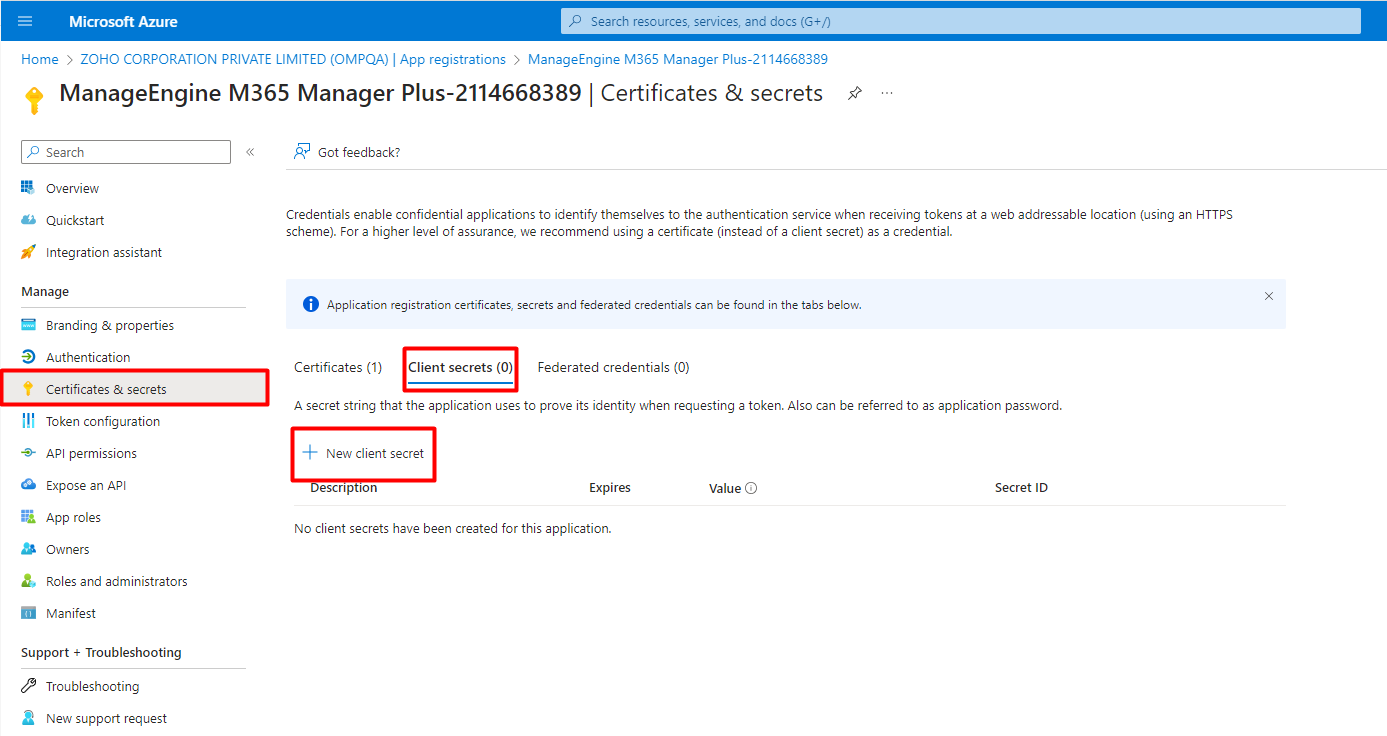
- Enter the appropriate values and Add.
- Now, follow the Steps to modify a Microsoft 365 tenant to update the secret in product.`
Missing Azure AD application.
Cause
- This error message is shown if the Azure AD application is deleted.
Solution
- Configure a new application in the Azure portal. Follow the steps listed here to configure your
application, manually.
Missing Azure AD application scope or
permission.
- Update the necessary permissions in the application.
- You can check and update the permissions by navigating to Tenant Settings > Rest API Access > Update
Permissions.
- If Rest API Access is Enabled, Please follow the steps mentioned here to verify and update the recommended permissions.
Note: A newly configured application might take some time to reflect the change in permissions. Please wait for some time or refresh the tenant by clicking on Tenant Settings and click on Refresh icon under the Actions column of the tenant to be refreshed
If the issue still persists, please contact m365managerplus-support@manageengine.com.
Data collection API is not available in this environment.
- Unable to generate reports that use the /identity/conditionalAccess/ endpoint of data collection API as
it is not supported for national clouds like Azure AD for US Government and Azure AD China.
Tenant does not have a SharePoint Online
license.
- Unable to generate SharePoint Online reports in M365 Manager Plus as your tenant does not have a
SharePoint Online license. Kindly purchase a Microsoft SharePoint Online license and try again.
The Microsoft Graph API required to generate this report is not
supported for your tenant.
- This error occurs when the /reports endpoint of Microsoft Graph API is not supported for national clouds
like Azure AD for US Government. M365 Manager Plus is unable to generate certain
reports that use the /reports endpoint to retrieve information from Azure AD.
User information hashed in reports.
Error: Identifiable user information hashed in M365 Manager Plus reports.
Solution: Due to Microsoft's privacy settings, identifiable user information may appear
hashed in M365 Manager Plus reports. Follow the steps below to show identifiable user information in
reports.
- Login to the Microsoft 365 admin center as a Global Administrator.
- Go to Settings > Org Settings > Services.
- Select Reports from the given list.
- Uncheck Display concealed user, group, and site names in all reports.
- Click Save.
Note: Please note that the changes will automatically reflect in the product only after the
next report sync.
To perform manual sync, go to Product scheduler > DefaultRestAPISync > Run now.
The cache being updated for report generation.
Error: The cache is being updated. Please try generating the report again after a few
minutes.
Cause: Frequently accessed data is updated in the cache for faster report generation. This
message appears due to one of the following reasons:
- You are generating a report for the first time. In this case, the cache will be updated before report
generation.
- We refresh the cache regularly to keep data updated. Your report generation interfered with the cache
update.
Resolution: Wait a few minutes and try again to generate the report.
Cache initialization failed.
The speed of report generation is increased by using the cache memory. While generating reports, cache
initialization might fail if the cache folder does not have the required permissions. Follow these steps to
grant required permissions to the cache folder.
- Shutdown M365 Manager Plus.
- If the product runs as an application: Start → All Programs → M365 Manager Plus → Stop M365
Manager Plus.
- If the product runs as a Windows service: Start → Run →Type "services.msc" → Stop ManageEngine
M365 Manager Plus.
- Go to <product_installation_directory>/bin folder.
- Open Command Prompt as an administrator.
- Run setPermissions.bat.
These steps will grant the required permissions to the cache folder in
<product_installation_directory>/mmp/cache. If the issue persists, please contact m365managerplus-support@manageengine.com.
Enable access to Azure AD applications configured for M365 Manager Plus
ManageEngine M365 Manager Plus uses these applications in Azure AD to fetch data for report generation and other tasks:
- Office 365 SharePoint Online
- Office 365 Management APIs
- Microsoft Graph
Apart from the above mentioned applications, users would have to create an application that needs to be configured to M365 Manager Plus.
When the administrator disables access to these applications, report generation will fail and users will face this error.
To resolve this error, Azure AD application access must be enabled for all users.
Note: Only an administrator or a user with appropriate permissions can enable access.
To enable Azure AD application access:
- Login to Azure
- From the left pane, choose Enterprise Applications.
- From the Application type drop-down, choose All Applications.
- Find and select the application required for M365 Manager Plus.
- Select Properties from the left pane.
- Toggle to Yes next to Enable users to sign-in?
Install the latest MSOnline module
To install the latest MSOnline module:
- Uninstall the old MSOnline module v1.0.
- Go to Control Panel > Uninstall a program.
- Search for Windows Azure Active Directory Module for Windows PowerShell and
uninstall it.
- Now, run the following command in the Command Prompt as an administrator to install latest MSOnline
module in the machine where M365 Manager Plus is installed:
- Install-Module -Name MSOnline -Force
Steps to assign roles to users
- Login to the Azure AD admin center with a Global Admin account.
- Choose Active Directory > Roles and administrators from the left pane.
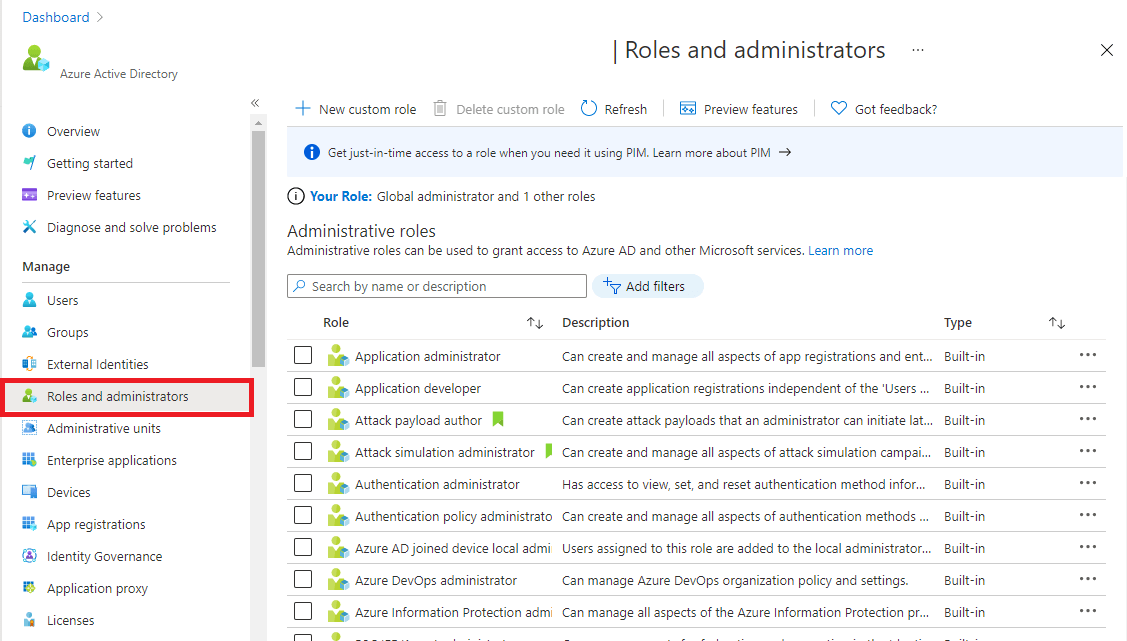
- Search for the required role using the field provided.
- Click on the role to be assigned.
- Choose Add assignment.
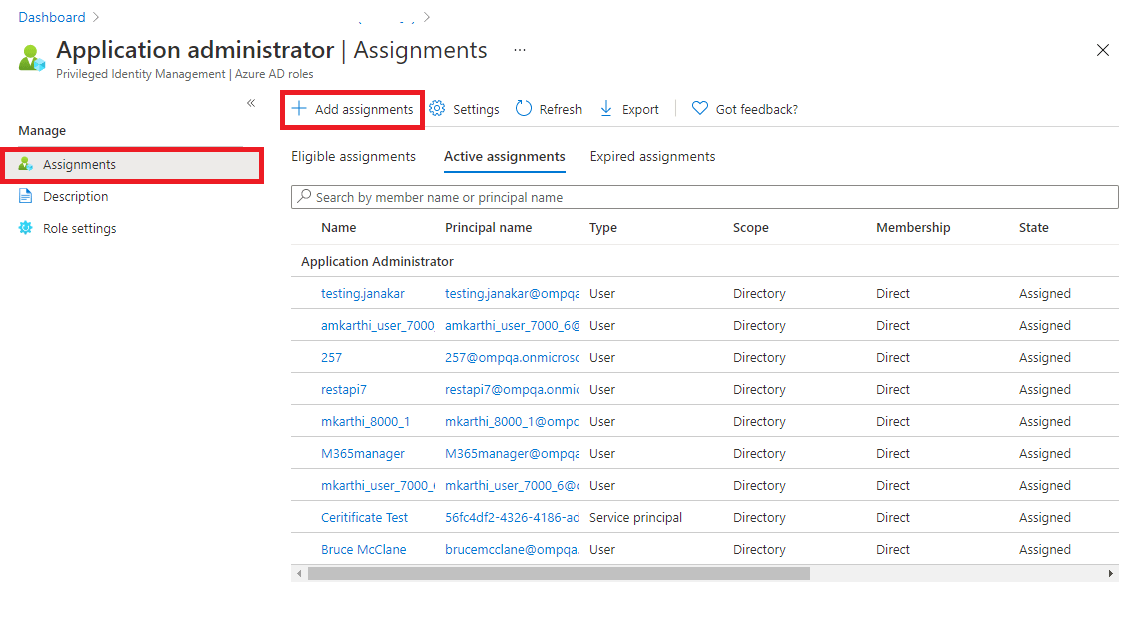
- Select Directory from the Scope type drop-down.
- Under the Select members* section click on the hyperlink provided and select the users to
whom the role must be assigned. Use the search box, if required.
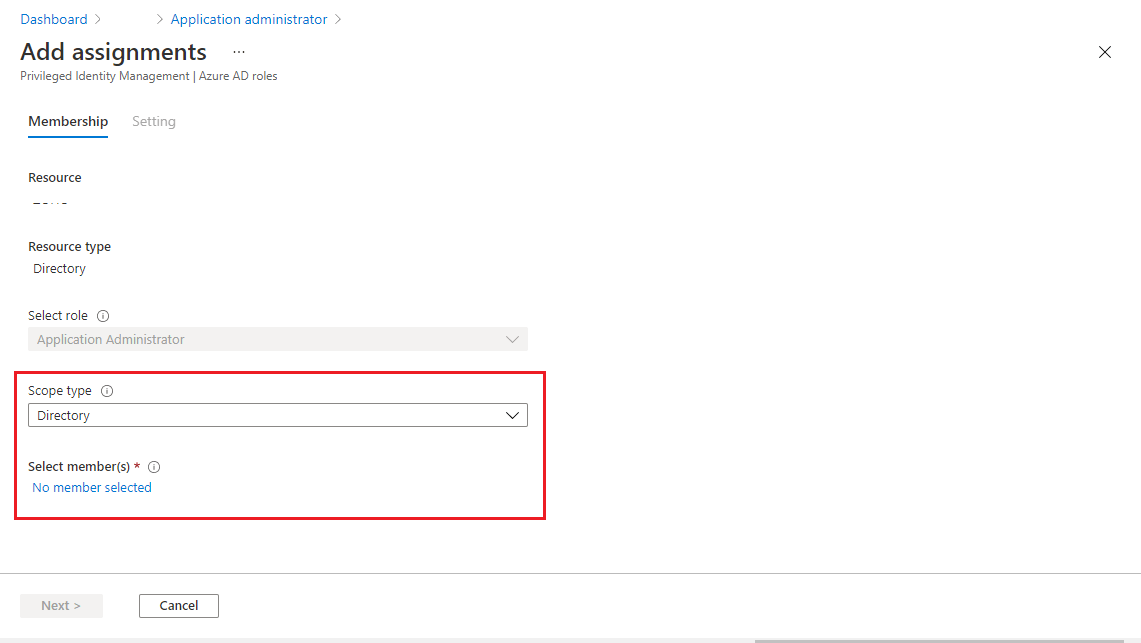
- Click on Next, select Active and Permanently assigned.
- Enter a justification for this setting in the provided text box.
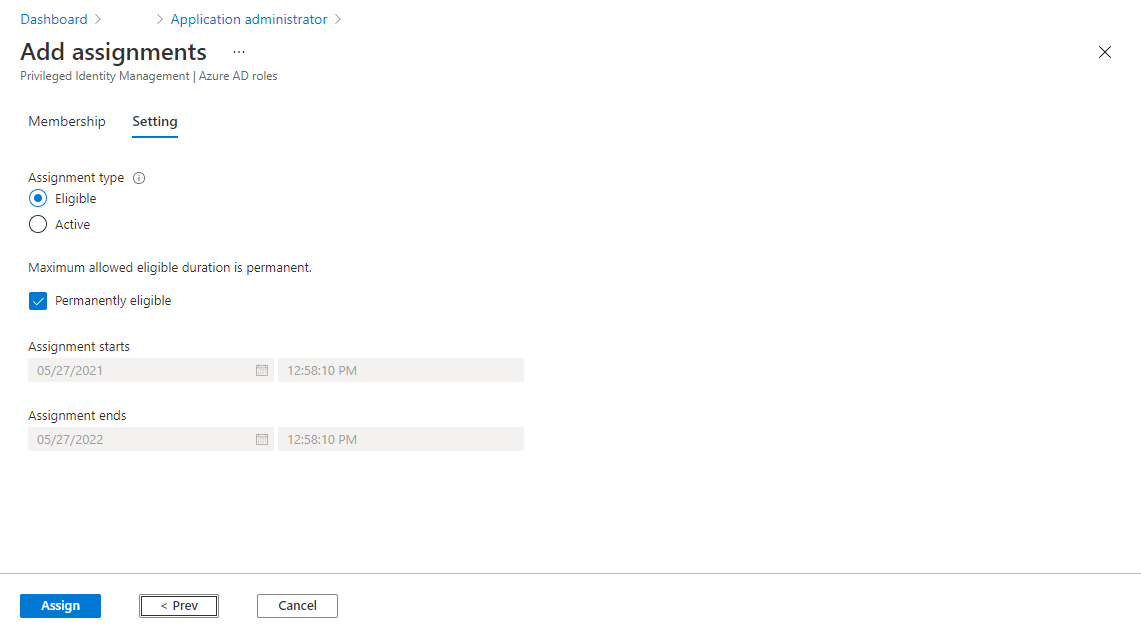
- Click on Assign.
Steps to assign roles to applications
- Login to the Azure AD admin center with a Global Admin account.
- Choose Active Directory > Roles and administrators from the left pane.
- Search for the required role using the field provided.
- Click on the role to be assigned.
- Choose Add assignment.
- Select Directory from the Scope type drop-down.
- Under the Select members* section click on the hyperlink provided and select the
applications to whom the role must be assigned. Use the search box, if required.
- Click on Next, select Active and Permanently assigned.
- Enter a justification for this setting in the provided text box.
- Click on Assign.
Basic authentication is disabled.
If basic authentication is disabled, the user will not be able to run Exchange-related activities through
PowerShell scripting. In such cases, reports or management tasks will fail to execute. To turn on basic
authentication in WinRM, open an elevated Command Prompt and run:
winrm get winrm/config/client/auth
If Basic = true is not found, run the below command:
winrm set winrm/config/client/auth @{Basic="true"}
Or,in elevated PowerShell, run the below command to modify the Windows registry:
Set-ItemProperty -Path
'HKLM:\SOFTWARE\Policies\Microsoft\Windows\WinRM\Client' -Name 'AllowBasic' -Type DWord -Value '1'
For more details, please refer to this document.
Unable to connect Microsoft 365. The Possible causes
are.
Please check your internet connection.
- The product requires an active internet connection to interact and function as desired. Please make sure that your internet connection is active and stable.
- To allow the product to interact with Microsoft 365, add these ports and url’s to your firewall’s allowed to connect to the internet list. Failure to do so will
result in certain features not working as intended.
Enable TLS 1.2
M365 Manager Plus uses .NET framework to connect to Microsoft 365 and collect the required data. Since TLS
1.0 and TLS 1.1 have been deprecated for security reasons, Microsoft 365 fails to connect with clients that
use these two versions. Deprecated TLS versions will be used only if an older .NET version is used or if the
older TLS versions are manually enabled. As older .NET framework won't use the latest protocol (TLS 1.2); a
manual update of the registry is required.
Execute the following PowerShell script in Run as Administrator mode in the machine in which M365 Manager
Plus is installed to enforce TLS 1.2:
If (-Not (Test-Path 'HKLM:\SOFTWARE\WOW6432Node\Microsoft\.NETFramework\v4.0.30319'))
{
New-Item 'HKLM:\SOFTWARE\WOW6432Node\Microsoft\.NETFramework\v4.0.30319' -Force | Out-Null
}
New-ItemProperty -Path 'HKLM:\SOFTWARE\WOW6432Node\Microsoft\.NETFramework\v4.0.30319' -Name
'SystemDefaultTlsVersions' -Value '1' -PropertyType 'DWord' -Force | Out-Null
New-ItemProperty -Path 'HKLM:\SOFTWARE\WOW6432Node\Microsoft\.NETFramework\v4.0.30319' -Name
'SchUsebCrypto' -Value '1' -PropertyType 'DWord' -Force | Out-Null
If (-Not (Test-Path 'HKLM:\SOFTWARE\Microsoft\.NETFramework\v4.0.30319'))
{
New-Item 'HKLM:\SOFTWARE\Microsoft\.NETFramework\v4.0.30319' -Force | Out-Null
}
New-ItemProperty -Path 'HKLM:\SOFTWARE\Microsoft\.NETFramework\v4.0.30319' -Name 'SystemDefaultTlsVersions'
-Value '1' -PropertyType 'DWord' -Force | Out-Null
New-ItemProperty -Path 'HKLM:\SOFTWARE\Microsoft\.NETFramework\v4.0.30319' -Name 'SchUsebCrypto' -Value
'1' -PropertyType 'DWord' -Force | Out-Null
If (-Not (Test-Path 'HKLM:\SYSTEM\CurrentControlSet\Control\SecurityProviders\SCHANNEL\Protocols\TLS
1.2\Server'))
{
New-Item 'HKLM:\SYSTEM\CurrentControlSet\Control\SecurityProviders\SCHANNEL\Protocols\TLS 1.2\Server' -Force
| Out-Null
}
New-ItemProperty -Path 'HKLM:\SYSTEM\CurrentControlSet\Control\SecurityProviders\SCHANNEL\Protocols\TLS
1.2\Server' -Name 'Enabled' -Value '1' -PropertyType 'DWord' -Force | Out-Null
New-ItemProperty -Path 'HKLM:\SYSTEM\CurrentControlSet\Control\SecurityProviders\SCHANNEL\Protocols\TLS
1.2\Server' -Name 'DisabledByDefault' -Value '0' -PropertyType 'DWord' -Force | Out-Null
If (-Not (Test-Path 'HKLM:\SYSTEM\CurrentControlSet\Control\SecurityProviders\SCHANNEL\Protocols\TLS
1.2\Client'))
{
New-Item 'HKLM:\SYSTEM\CurrentControlSet\Control\SecurityProviders\SCHANNEL\Protocols\TLS 1.2\Client' -Force
| Out-Null
}
New-ItemProperty -Path 'HKLM:\SYSTEM\CurrentControlSet\Control\SecurityProviders\SCHANNEL\Protocols\TLS
1.2\Client' -Name 'Enabled' -Value '1' -PropertyType 'DWord' -Force | Out-Null
New-ItemProperty -Path 'HKLM:\SYSTEM\CurrentControlSet\Control\SecurityProviders\SCHANNEL\Protocols\TLS
1.2\Client' -Name 'DisabledByDefault' -Value '0' -PropertyType 'DWord' -Force | Out-Null
Write-Host 'TLS 1.2 has been enabled. You must restart the Windows Server for the changes to take affect.'
-ForegroundColor Green
Other Errors
-
Run the Office365Troubleshoot.ps1 script file
- Open PowerShell as the administrator.
- Run the command Set-ExecutionPolicy -ExecutionPolicy RemoteSigned -Force -Scope process.
- Run the below script:
<install-dir>/bin/Office365Troubleshoot.ps1
Note: <install-dir> here refers to the directory in which you have installed the M365
Manager Plus application.
- Enter the username and password of the configured Microsoft 365 account.
- If Exchange session returns a value Error Occurred, the problem is with the configured
account.
- If the problem occurs when you try to configure an Microsoft 365 tenant, try using a
dedicated service account to configure M365 Manager Plus by following the steps listed here.
- If the problem occurs at any other stage, please contact m365managerplus-support@manageengine.com with a screenshot of the
error.
Certificate used in REST API Application has been expired or not registered or removed from portal
- Case 1: If the certificate's validity period does not match with live (your local time zone), you might receive this error from Microsoft and you won't be able to use the certificate.
- Case 2: If the certificate has been recently uploaded in the Azure portal, you might receive this error while trying to update the same in the product. In this case, try again after a few minutes to check if the issue has been resolved.
If your certificate has expired or not registered or removed from portal, add a new one using the following steps.
- Log in to Azure portal using the Global Administrator account credentials.
- Select Azure Active Directory from the left pane.
- Select App registrations.
- Search for the application using the Client ID.
- Click Certificates & secrets from the left pane.
- Go to Certificates and click Upload certificate. Upload your application certificate that is a .cer file.
- Now click Tenant Settings in M365 Manager Plus and click the Edit icon for your respective tenant.
- In the Modify Microsoft 365 Tenant popup, click the Edit icon for Application Details.
- Under Application Secret and Certificate, add the Application Security ID and upload the Application Certificate that is a .pfx file.
- If the user has an SSL certificate, the same can be used here. Otherwise, click here for the steps to create a self-signed certificate
- Click Update.
- Now, follow the Steps to modify a Microsoft 365 tenant to update the certificate
Note:If the issue still persists, please contact m365managerplus-support@manageengine.com.
Frequent Microsoft credential pop-up
- This can happen if the configured service account password is invalid or the account is blocked.
- Check if MFA is enabled for the account. To bypass MFA for the account, kindly read this.
- Once the above changes are made, close the pop-ups and wait for a few minutes. If the pop-up reappears,
restart the product.
This report needs Azure AD Premium license to collect the required data.
- This message is shown for Inactive Users, Users’ Last Logon or one of the reports under the Azure AD Logon reports category, since they need Azure AD Premium license to gather the sign-in data.
- To resolve this, make sure your tenant has at least one Azure AD Premium license.
Exchange Online service principle is disabled.
This indicates that a subscription within the tenant has lapsed or that the administrator for this tenant has disabled the application, preventing tokens from being issued for it.
Note: Only an administrator or a user with appropriate permissions can enable access.
To enable Exchange Online:
- Log in to Azure AD.
- From the left pane, choose Enterprise Applications.
- From the Application type drop-down, choose All Applications.
- Search for "Office 365 Exchange Online."
- Select Properties from the left pane.
- Toggle to Yes next to the Enable users to sign-in? toggle button.
- Click Save.
Insufficient privilege to perform the operation
-
Appropriate scopes must be assigned to perform this task. Click here to know the required scopes.
-
When REST API is enabled appropriate roles are required for the Azure application to perform
privileged operations like Reset password, Block/Unblock users, Change authentication information,
Delete user, Restore user and Hard delete user.
-
Help Desk Administrator role should be assigned to allow technicians to update details of
non-administrators and other help desk administrators.
-
Privileged Authentication Administrator or Global Administrator role should be assigned to
allow technicians to update details of all users (administrators and non-administrators).
-
Appropriate role must be assigned to perform this task. Click here to know the steps to assign the same.
-
Contact your administrator.
Invalid argument error
Kindly refer the below table and take necessary actions while invalid argument error is thrown when a
management task is performed.
| Operation Title |
Roles required |
Action to be done |
| Microsoft 365 Group Modification |
Security Group Creation and Membership role |
In Exchange Admin Center, please make sure that the service account is part of Organization
Management role group which has Security Group Creation and Membership role. |
Added to delayed task
When a new object is created, it will take some time for it to sync to Azure AD. Any management task that is to be performed on the newly created object will fail as the object will not be found. In this case, M365 Manager Plus will schedule those tasks to be executed after one minute. If that fails, it will be scheduled to be executed five minutes later. A list of these tasks can be found by clicking the Delayed Tasks button on the top-right corner of the Management tab.
This Microsoft 365 account has been blocked
-
This account has been blocked by the administrator.
-
Contact your administrator to login to M365 Manager Plus.
You must change your Microsoft 365 account password before you can login
-
An Administrator has changed the password to your Microsoft 365 account.
-
Login to Microsoft 365 Portal and reset your
password to login to ManageEngine M365 Manager Plus
Rest API authentication required
-
Rest API based authentication must be enabled for MFA-enabled / Federated Help Desk Technician
accounts.
-
Once enabled, users with MFA-enabled / Federated Accounts will be redirected to Microsoft 365 portal
for authentication to access M365 Manager Plus.
-
Click here to enable Rest API
based authentication
An unexpected error occurred
-
The error occurs when a PSSession can not be opened successfully.
-
Make sure that you have entered the correct user name and password.
-
If the problem still persists, contact your administrator.
Access Denied
-
Make sure that you have entered the correct user name and password.
-
If the problem still persists, contact your administrator.
The Redirect URI is not found in the application.
-
In the Redirect URI of the application configured for M365 Manager Plus in Azure AD, add your machine
name or IP address, port number followed by the paths mentioned below. (Eg:
https://testmachine:8365/webclient/GrantAccess, http://localhost:8365/AADAuthCode.do) Know more
- /webclient/VerifyUser
- /webclient/GrantAccess
- /AADAuthCode.do
- /AADAppGrantSuccess.do
- Click Add URI to add the below Redirect URIs in the subsequent rows. Please note that for users
with M365 Manger Plus build 4409 or higher, Redirect URIs (b) and (c) are optional.
- https://identitymanager.manageengine.com/api/public/v1/oauth/redirect
- https://demo.o365managerplus.com/oauth/redirect
- https://manageengine.com/microsoft-365-management-reporting/redirect.html
-
If product is accessed from AD360 or Log360 products with reverse proxy enabled update the endpoints by
providing the above mentioned paths in the Redirect URI fields. The user should include the accessing
URI with the above mentioned paths, like:
- For context based reverse proxy: https://<AD360/Log360 hostname>:<reverse proxy
port>/<reverse proxy context>/webclient/VerifyUser
- For port based reverse proxy : https://<AD360/Log360 hostname>:<reverse proxy
port>/webclient/VerifyUser.
Unable to save the changes. Please try again later.
-
Make sure that the product is running in the standby server.
-
Ensure that firewall is disabled for the port in which the product is installed.
Data engine update failed due to insufficient storage.
-
The storage space of the drive in which the product is installed is insufficient to complete the
migration. When you increase the storage space and restart the product, the migration will restart
automatically.
Product successfully updated. Data engine update failed due to
insufficient storage.
-
The storage space of the drive in which the product is installed is insufficient to complete the
migration. When you increase the storage space and restart the product, the migration will restart
automatically.
Elasticsearch switched to read-only mode.
Please install the correct version of MSOnline module.
Steps to check whether a user account is blocked from logging in:
- Log in to Microsoft 365 portal .
- Navigate to Users --> Active Users.
- In the filters drop-down box, select Sign-in Blocked.
- Check if the user account is blocked from logging in.
Steps to create a dedicated service account:
- Log in to the Microsoft 365 portal .
- Navigate to Users --> Active Users --> Add a User.
- Create a new user by filling the mandatory fields display name and user name.
- In the password section, select Let me create the password and enter a password for the user
account.
- Uncheck the Make this user change their password when they first sign in.
- In the product licenses section, select Create user without product license
- Click Next.
- Under the Roles option, select the Admin center access and choose the required roles. (Exchange Admin is
mandatory). Click here to view the list of
required roles. Click Next
- Click Save.
- Use this account to configure your Microsoft 365 tenant in M365 Manager Plus.
If the problem persists, contact m365managerplus-support@manageengine.com .
When I add my domains manually, the domain controllers (DCs) are not
resolved. Why?
-
This problem occurs when the DNS associated with the machine running M365 Manager Plus does not
contain the necessary information. You need to add the DCs manually.
When I add a DC, I get an error that says "The Servers are not
operational." What does that mean?
This error could be due to any of the following reasons:
- The DC is down.
- The product server is not available.
- A firewall has been enabled, and port 389 is closed.
- The network is busy.
When I add a DC, I get an error that says "Unable to get domain DNS / FLAT
name." What does that mean?
This error could be due to any of the following reasons:
- The specified username or password is invalid.
- An anonymous login (where no username and password are provided) was performed.
- The IP address of the DC is specified instead of its name.
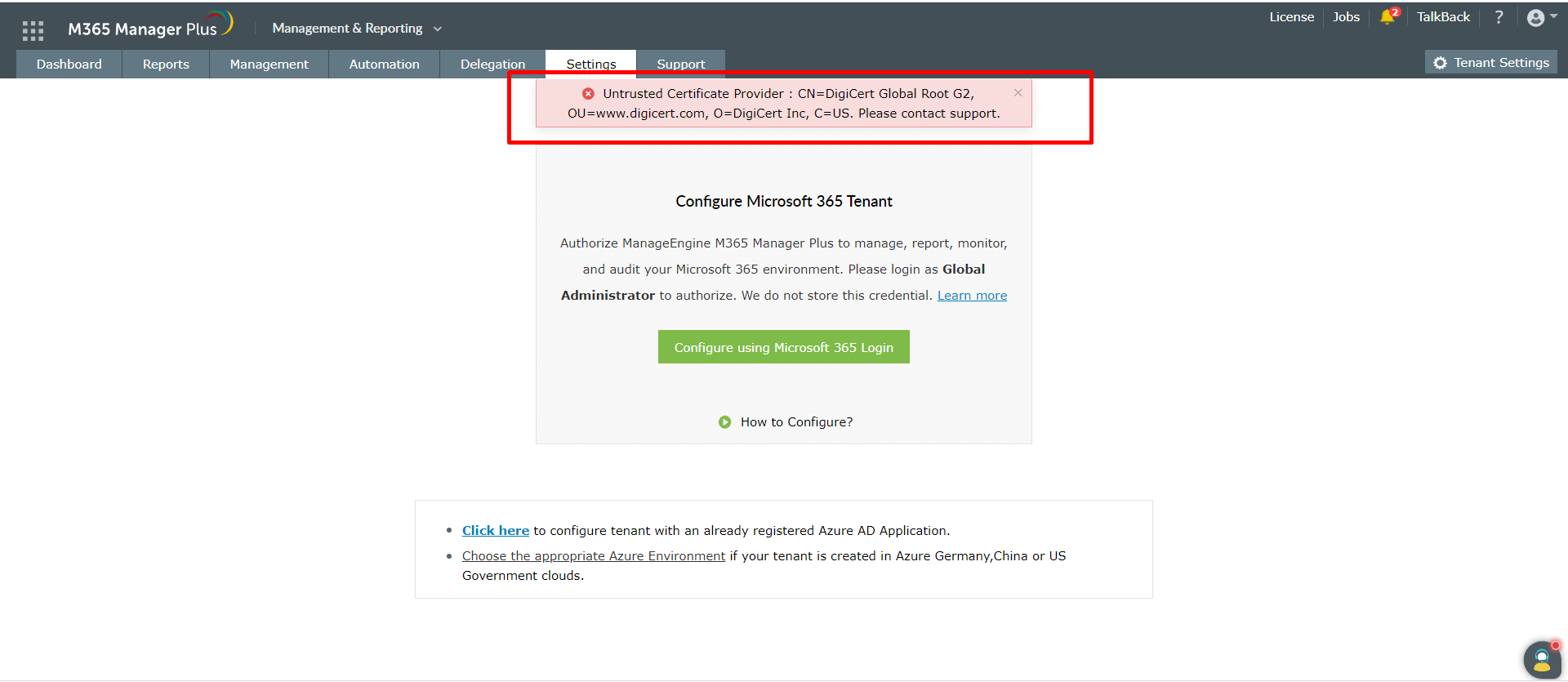
Untrusted certificate provider.
This error occurs when the certificate used for authentication firewall or proxy is not trusted by the product's Java Runtime Environment (JRE). To rectify this condition, the certificates must be added to the JRE's trusted certificate store. To locate and import the certificate, follow these steps. To add the certificate to the trust store:
Follow the steps below to identify the certificate to import in the keystore:
- Note down the value of CN displayed in the error message.
- Open Manage User Certificates tool in the screen that opens.
- Open Run → certmgr.msc. The certificate management tool will open as shown here:
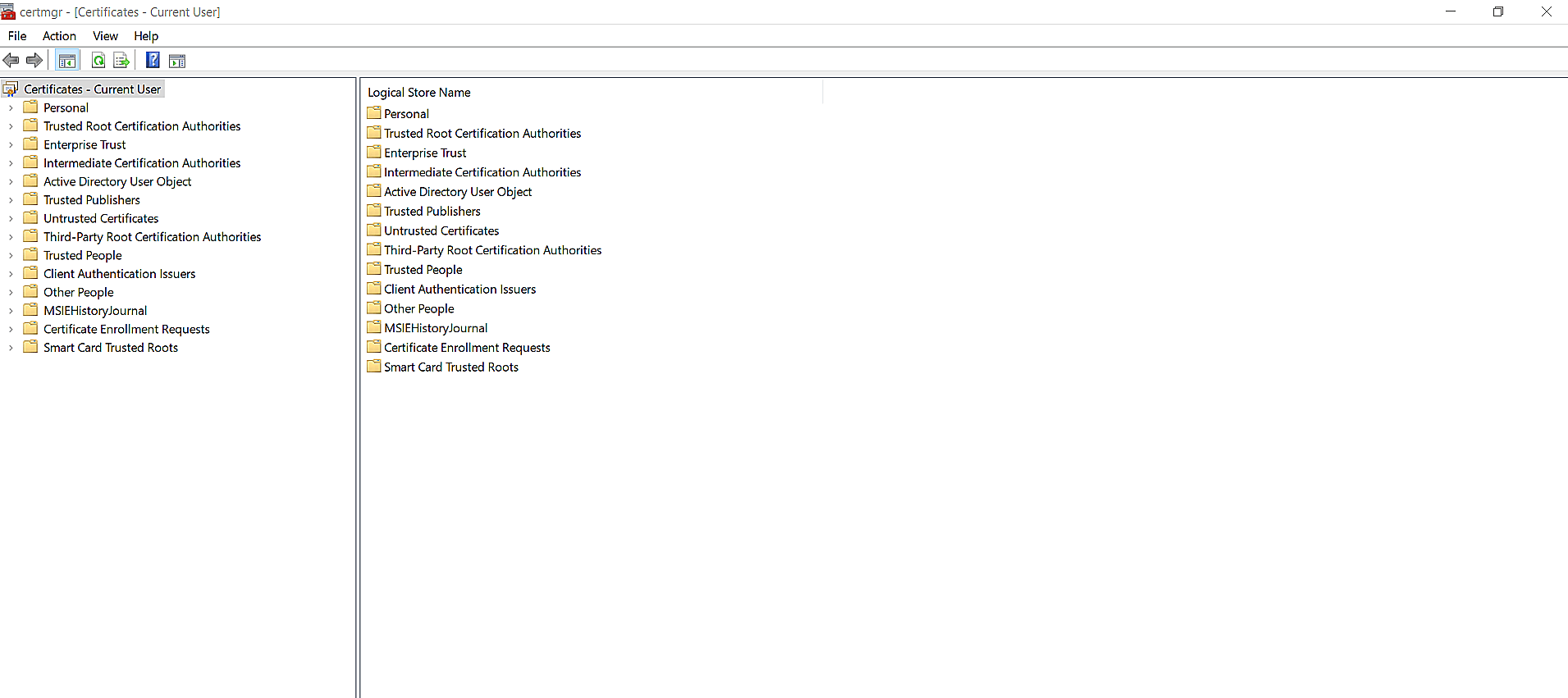
- Navigate to Trusted Root Certification Authorities in the left-pane, and click Certificates. A list of trusted certificates will display.
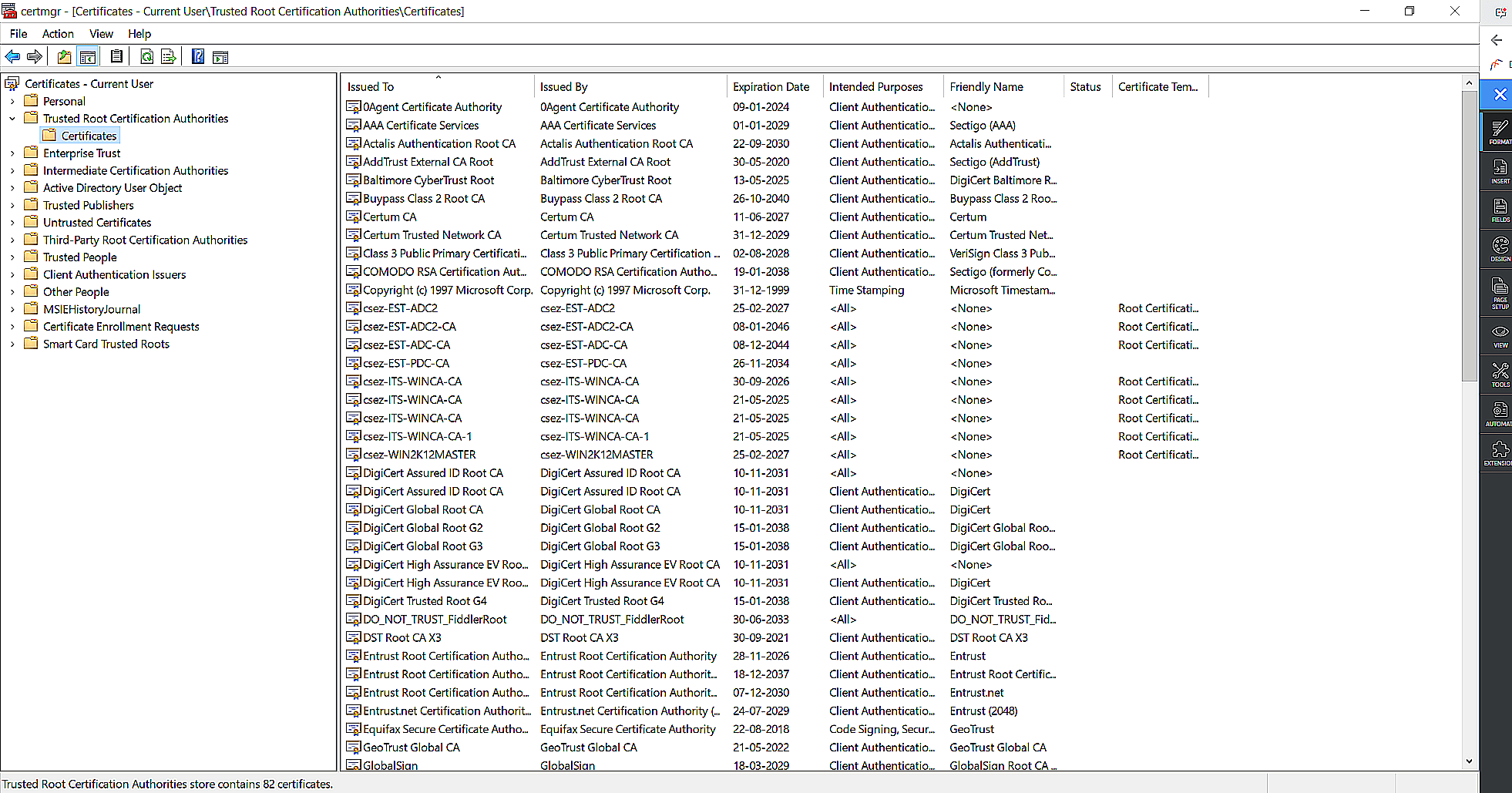
- In the list of certificates, identify the CN noted down in step 1, in the Issued By column.
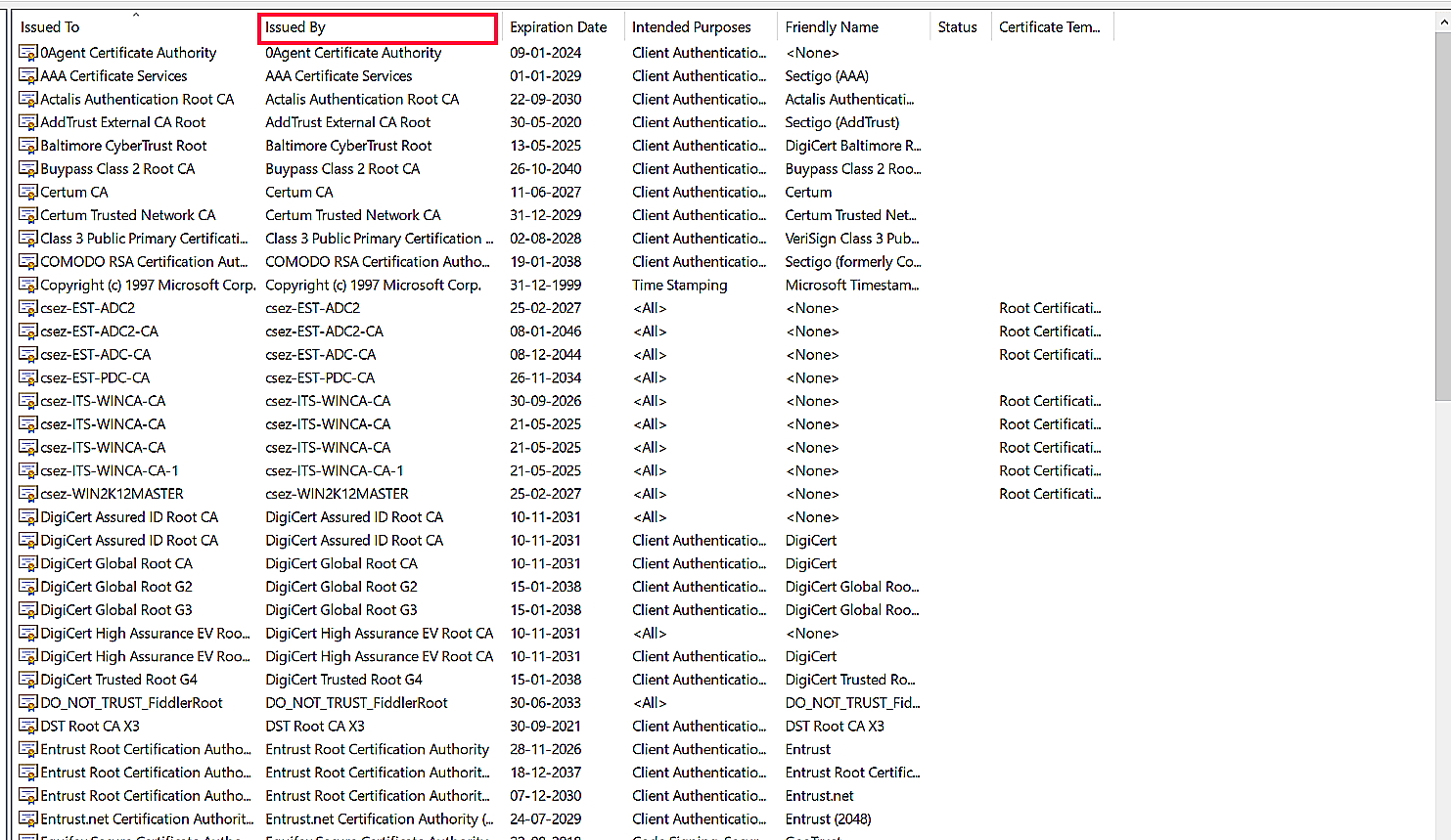
- Once identified, click on the certificate to export.
- A pop-up will open as shown here:
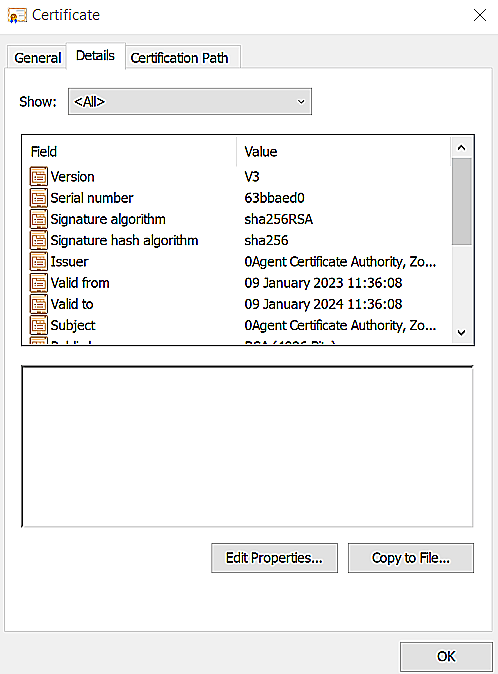
- Navigate to the Details tab.
- Click Copy to File. A Certificate Export Wizard will open.
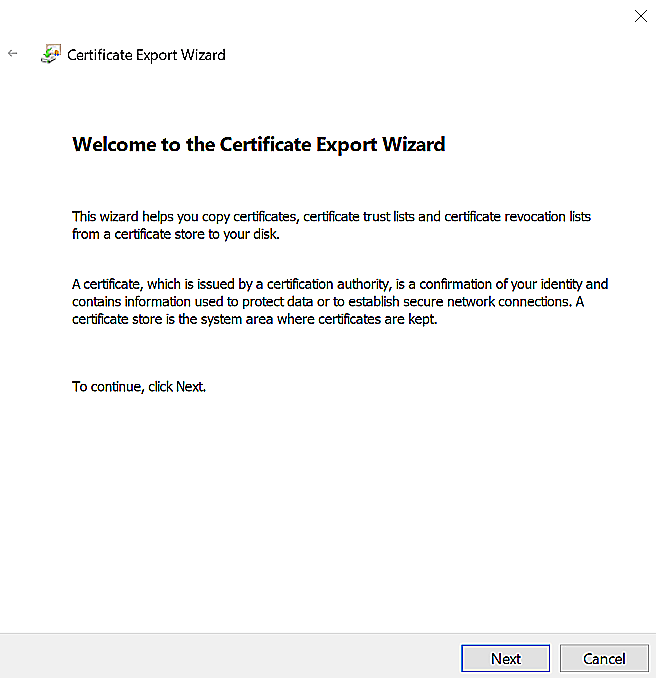
- Click Next.
- Select the certificate format DER encoded binary X.509 (.CER), and click Next.
- Specify the file name and path to export (for example: D:\Trusted Root.cer), and click Next.
- Click Finish. The certificate will be exported to the specified path.
The service account is disabled for remote PowerShell.
If your service account is disabled for remote PowerShell execution, enable it by running the following
command in PowerShell as an administrator:
Set-User -Identity -RemotePowerShellEnabled $true
The remote server returned an error- (401) Unauthorized.
Cause
- Invalid credentials.
- Expired client secret.
- App registration was deleted.
Fix
- Check the credentials of the service account that has been configured.
- Ensure that your client secret has not expired or been deleted.
- Make sure that your app registration exists.
The request failed with HTTP status 403.
Cause This issue occurs when necessary API permissions were not provided for the
application.
Fix
- Log in to the Azure AD portal.
- Click Azure Active Directory from the left pane.
- Choose App registrations from under the Manage section.
- Select the All applications tab.
- Click on the Azure AD application of M365 Manager Plus.
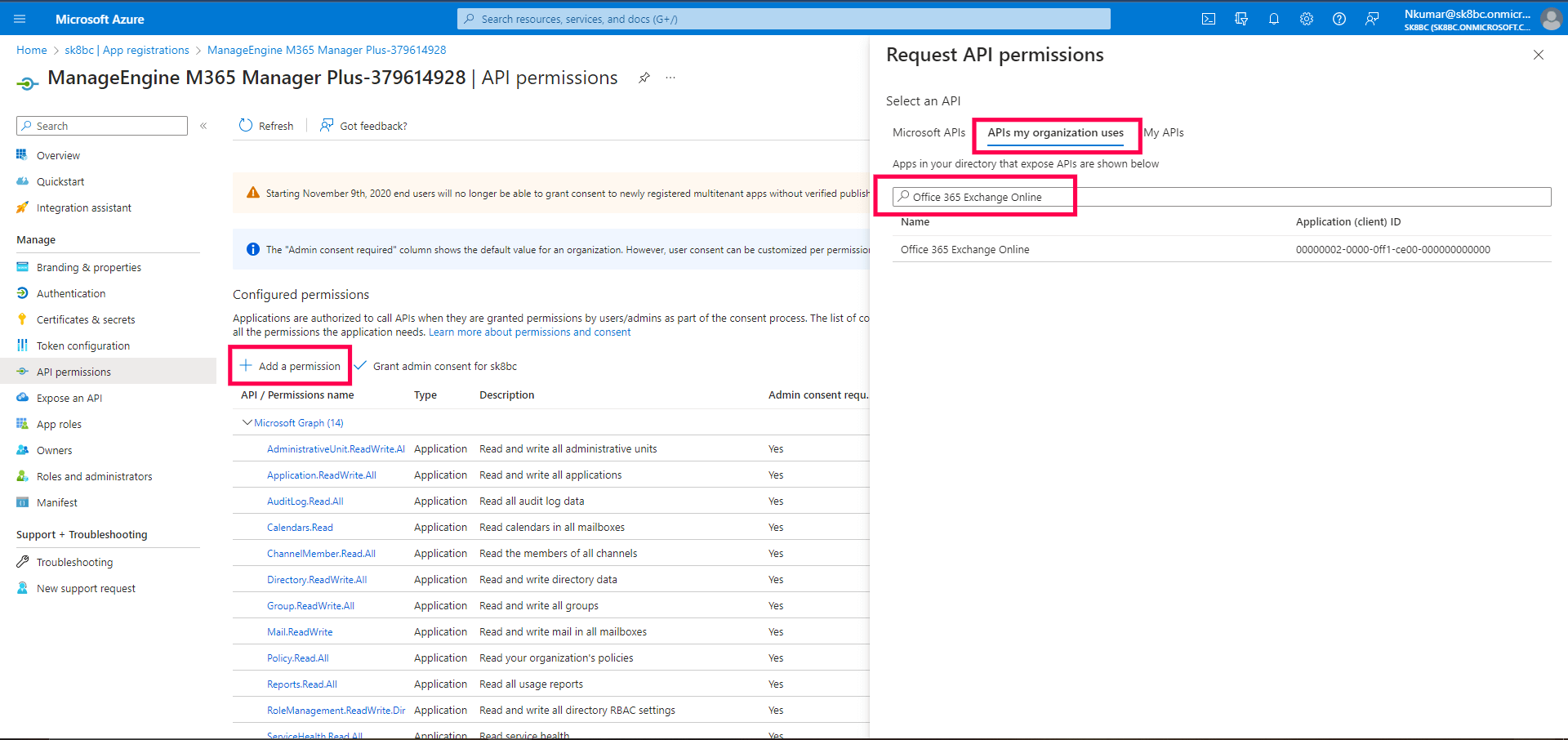
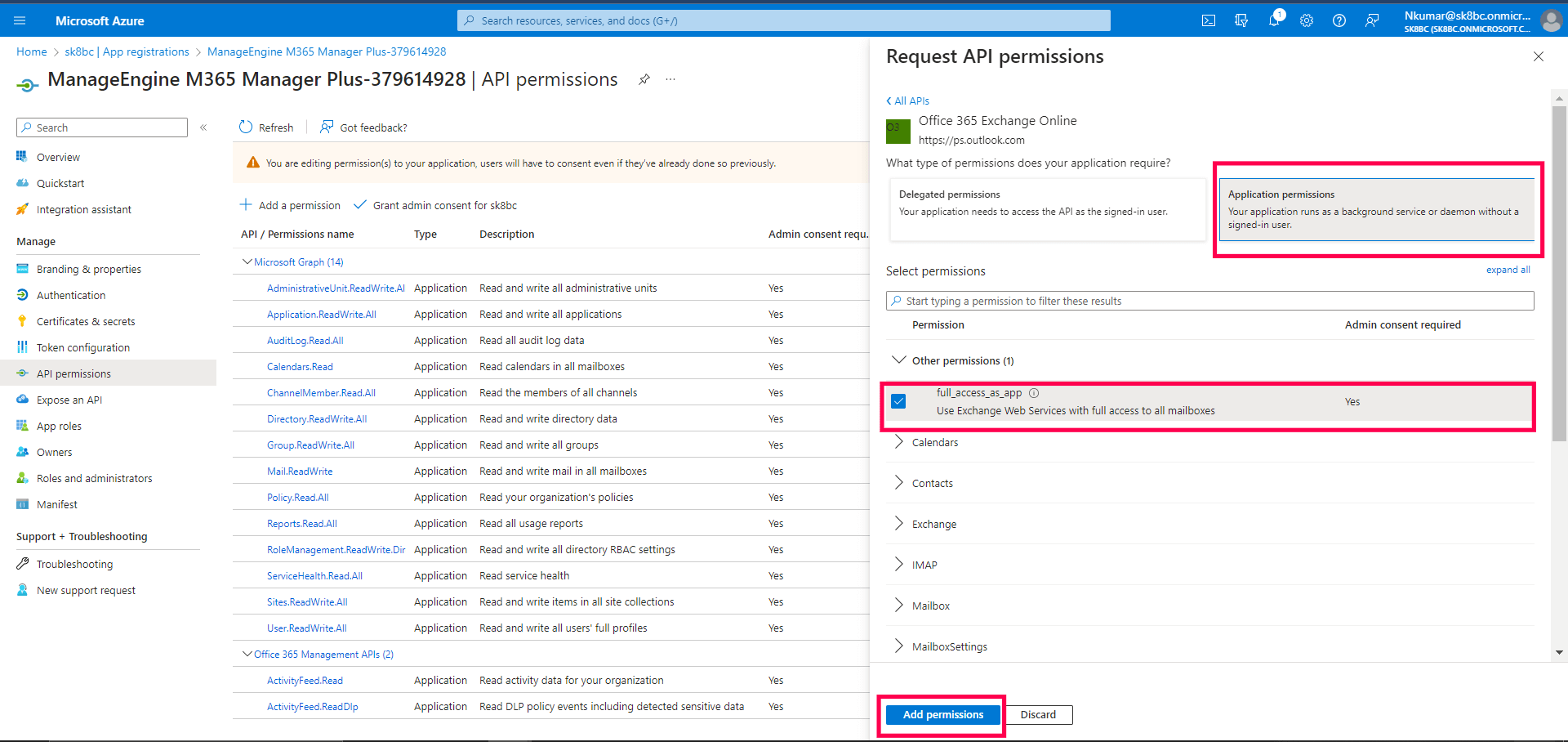
- In the API permissions page, check if admin consent has been granted for the
full_access_as_app permission shown in the image below.

- If the permission doesn't exist, follow the steps below:
Backup is not supported for 32-bit installation of the product.
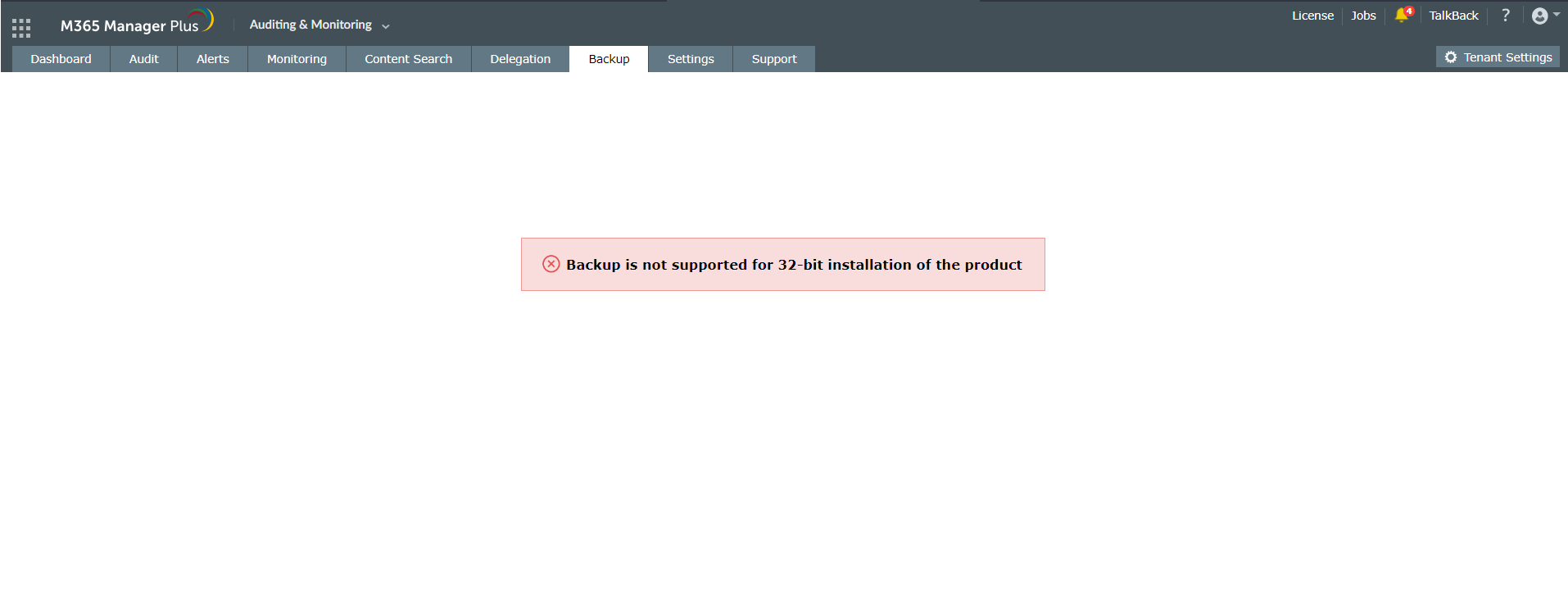
Solution:
If you are using a 32-bit version of M365 Manager Plus, you won't be able to back up data using the add-on.
Install the 64-bit version of the product to enable backup.
Steps to install the 64-bit version of M365 Manager Plus
Note: Take a backup of the M365 Manager Plus database
before installing the 64-bit version to avoid loss of data.
- Uninstall the 32-bit version of M365 Manager Plus.
- Download and install M365 Manager Plus using this link.
- Start the application.
Elasticsearch has stopped.
When the Microsoft 365 technician does not have permission to provide consent for applications:
- Login to Microsoft 365 Azure AD portal.
- Click on Enterprise Applications -> Admin consent requests.
- Select the corresponding user consent and grant approval.
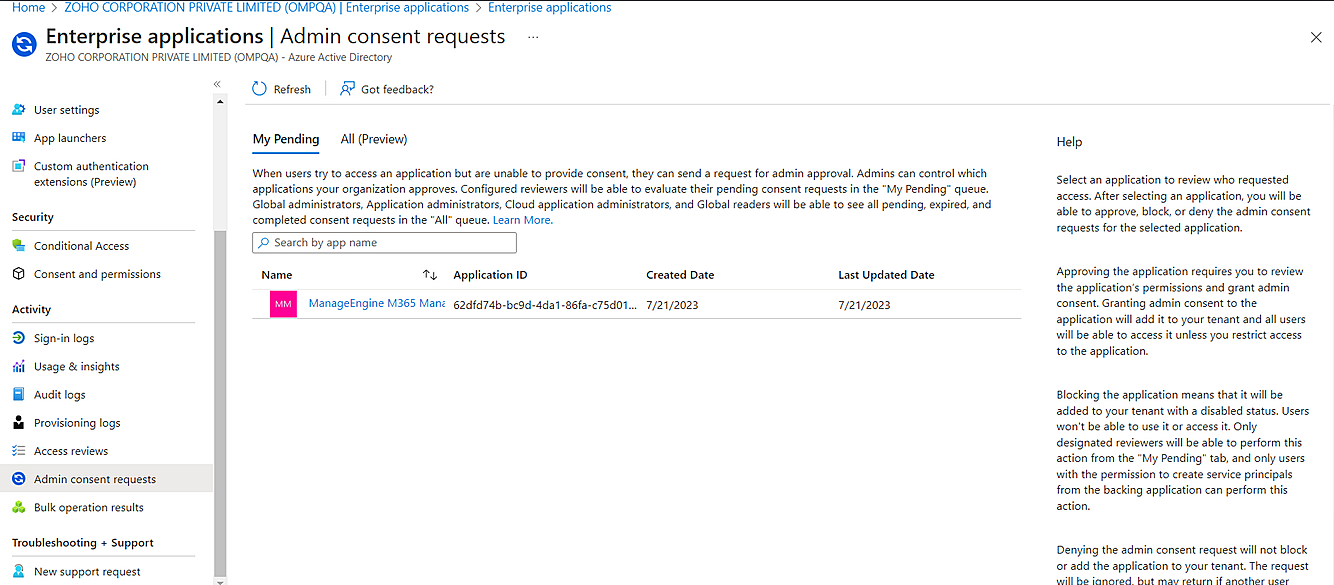
- For a permanent solution, if the consent is not necessary for the application, add the following delegated permission to the application:
- offline_access
- User.Read
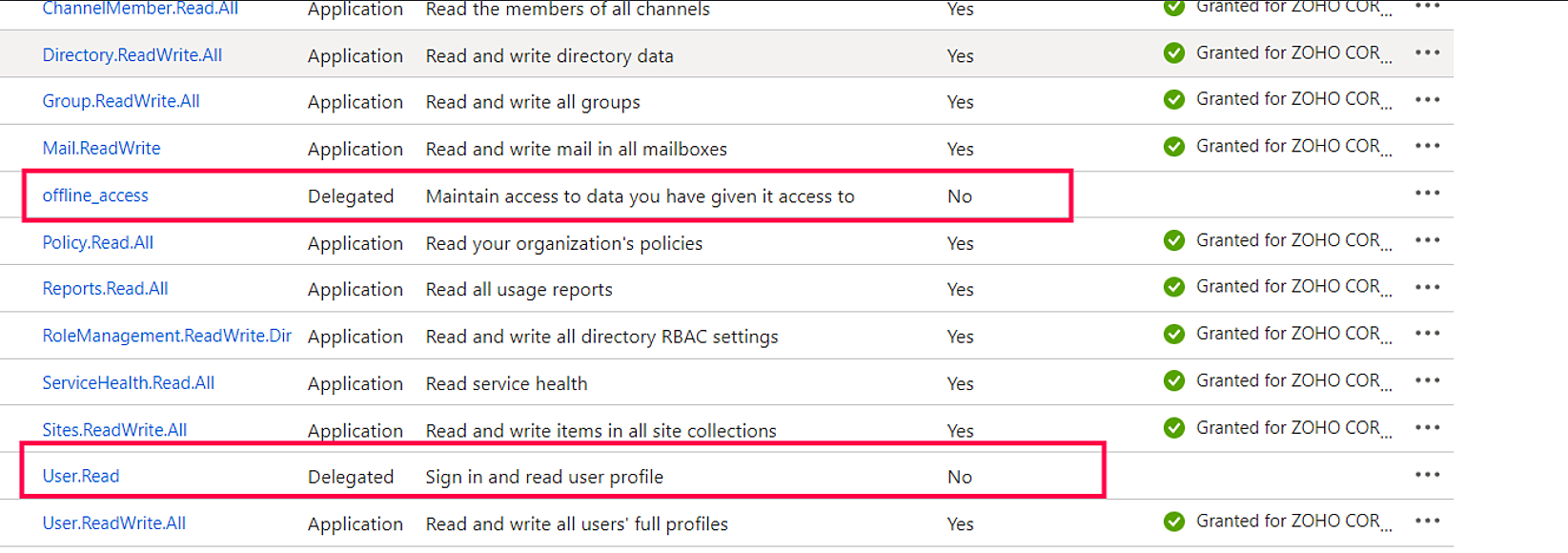
- Once the permissions are added to the application, click Grant admin consent to allow Microsoft 365 technicians to provide consent.
 ADManager Plus
 ADAudit Plus
 ADSelfService Plus
 M365 Manager Plus
 Previous Topic