

How to convert a user mailbox to a shared mailbox in Microsoft 365
Last updated on:In this page
- How to convert a user mailbox to a shared mailbox using the Exchange admin center
- How to convert a Microsoft 365 user mailbox to a shared mailbox using Exchange Online PowerShell
- How to convert a user mailbox to a shared mailbox using M365 Manager Plus
- Monitor your Exchange Online shared mailboxes and more
- Important tips
- Frequently asked questions
This article explains how to convert an Exchange Online user mailbox to a shared mailbox using the Exchange admin center (EAC) and Exchange Online PowerShell. It also shows how to convert multiple user mailboxes to shared mailboxes in Microsoft 365 in just a few clicks using ManageEngine M365 Manager Plus, a dedicated Microsoft 365 administration tool.
- Exchange Online
- Graph PowerShell
- M365 Manager Plus
Method 1: How to convert a user mailbox to a shared mailbox using the Exchange admin center (EAC)
Prerequisites
You must have the Exchange Administrator or Global Administrator role.
Steps
- Log in to EAC and navigate to Recipients > Mailboxes.
- Locate the user mailbox you wish to change. You can use the Filter button to narrow down the list.
- Click the display name of the mailbox to open the details pane.
- On the pane that appears, navigate to the Others tab and click Convert to shared mailbox.
- Click Confirm in the confirmation dialog box.
- Once the successful conversion message appears, you can use the Microsoft 365 admin center to remove the license from the original user account.

Limitations to consider
You will have to perform the same set of steps for every user mailbox you want to convert to a shared mailbox. To convert multiple user mailboxes to shared mailboxes, you can resort to complex Exchange Online PowerShell scripts, or you can try out M365 Manager Plus, which would only take a few clicks with its user-friendly interface.
Method 2: How to convert a Microsoft 365 user mailbox to a shared mailbox using Exchange Online PowerShell (Set-Mailbox)
Before using Exchange Online PowerShell, verify that:
Prerequisites
Before using Exchange Online PowerShell, please verify that:
- The Exchange Administrator role is applied to the account you use to sign in to Exchange Online PowerShell.
- You are connected to the Exchange Online PowerShell module.
- To check if the Exchange Online PowerShell module is installed, use this script:
Get-Module -ListAvailable ExchangeOnlineManagement
- If it does not return a value, you will have to install the module. To install the Exchange Online PowerShell module, execute this script:
Install-Module ExchangeOnlineManagement -Scope CurrentUser
- To connect to Exchange Online PowerShell, run this script:
Connect-ExchangeOnline
- To check if the Exchange Online PowerShell module is installed, use this script:
Convert a user mailbox to a shared mailbox with Set-Mailbox
The Set-Mailbox cmdlet is used to modify mailbox properties in Exchange Online. To convert a user mailbox to a shared mailbox, modify the Type attribute to Shared as shown in the Exchange Online PowerShell cmdlet.
Set-Mailbox -Identity "james@yourdomain.com" -Type Shared
After the conversion is complete, remove the Microsoft 365 license from the user account to avoid unnecessary licensing costs.
A use case for the Set-Mailbox cmdlet
An IT administrator needs to convert multiple user mailboxes to shared mailboxes as a part of their offboarding process, ensuring that users' email data remains accessible to teams without maintaining individual licenses.
You can use the following Exchange Online PowerShell script to convert a filtered list of user mailboxes to shared mailboxes:
$UserMailboxes = Get-Mailbox -RecipientTypeDetails UserMailbox -ResultSize Unlimited |
Where-Object { $_.DisplayName -like "*Sales*" }

foreach ($Mailbox in $UserMailboxes) {
    Set-Mailbox -Identity $Mailbox.ExternalDirectoryObjectId -Type Shared
}
Method 3: How to convert a user mailbox to a shared mailbox using M365 Manager Plus
Steps
- Log in to M365 Manager Plus.
- Navigate to Management > Exchange Online > User Mailbox Management and select Mailbox Conversion.
- From the Convert to drop-down menu, select Shared mailbox.
- Enter the display names of the user mailboxes you want to convert and click Find. Alternatively, upload a CSV containing mailbox details using the CSV Import option.
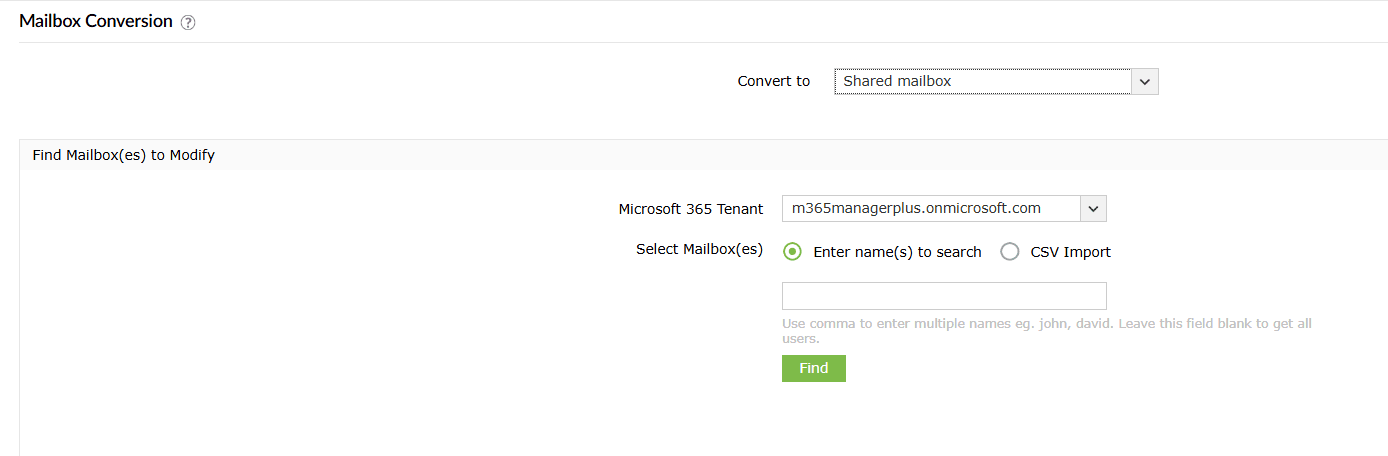
- Review the selected mailboxes and click Apply to complete the conversion.

Monitor your Exchange Online shared mailboxes and more
M365 Manager Plus’ shared mailbox management capabilities help you view, monitor, and control shared mailboxes across your Microsoft 365 environment. The solution simplifies permission audits, highlights inactive mailboxes, and provides proactive alerts.
Shared mailbox management
Easily create and manage shared mailboxes in bulk. Add or remove permissions, convert multiple user mailboxes to shared mailboxes at once, and decide their retention policies and features—all using the intuitive GUI, eliminating the need for complex PowerShell scripts.
Reports on Microsoft 365 shared mailboxes
Generate detailed reports on shared mailboxes, their permissions, mailbox sizes, and any recent activity to stay on top of your Exchange Online environment.
Real-time alerts on access and permission changes
Set up proactive alerts for any changes to shared mailbox permissions. Get notified instantly when permissions are added or removed, enabling you to take immediate action if the changes are unauthorized.
Reclaiming unused shared mailbox licenses
Configure automation policies to automatically remove licenses from shared mailboxes after a set period of inactivity, ensuring you only pay for the resources you need.
Eliminating PowerShell complexity
Run shared mailbox actions in a single click instead of using PowerShell cmdlets like Set-Mailbox. This reduces dependency on scripting and minimizes the chances of configuration errors.
Important tips
Remove licenses after conversion: Shared mailboxes do not require a license unless they exceed 50 GB or use advanced features.
Review mailbox permissions: After conversion, ensure only required users have access with Full Access or Send As permissions to the new shared mailbox.
Disable sign-in: User accounts associated with shared mailboxes should typically have sign-in disabled to prevent misuse. Do not delete the user account associated with the shared mailbox, as this will delete the mailbox itself. Instead, disable the account
Frequently asked questions
Resource mailboxes are typically used for booking rooms or shared equipment.
You can use the Others tab in the Exchange Admin Center or the Set-Mailbox cmdlet in Exchange Online PowerShell to convert user mailboxes to room mailboxes or equipment mailboxes. You can also use M365 Manager Plus' Mailbox Conversion action to convert hundreds of user mailboxes to room or equipment mailboxes without any PowerShell scripting.
Organizations usually convert a user mailbox to a shared mailbox when an employee leaves but their email data must remain accessible to a team. This allows administrators to preserve mailbox data, maintain access for multiple users while reclaiming the Microsoft 365 license assigned to the user.
No. Converting a user mailbox to a shared mailbox does not delete any emails, folders, calendar items, or contacts. All mailbox data remains intact after conversion.
In most cases, yes. If a user is granted Full Access permission to a shared mailbox, it is automatically added to their Outlook profile (depending on Outlook configuration and caching settings).
However, automatic mapping can be disabled when permissions are assigned via PowerShell.