

How to set up litigation holds in Office 365
Last updated on:In this page
- What is a litigation hold in Microsoft 365?
- How to enable litigation holds for Microsoft 365 mailboxes in Exchange Online
- How to enable litigation holds for Microsoft 365 mailboxes using Exchange Online PowerShell
- Why should you configure litigation hold with M365 Manager Plus?
- Track and enable Microsoft 365 litigation holds effortlessly
- Important tips
- Frequently asked questions
Emails are often the first source of evidence in audits, disputes, or legal cases. Without proper safeguards, deleted or modified emails might not be retrievable when needed. A litigation hold (also called a legal hold) in Microsoft 365 (previously Office 365) ensures that mailbox data remains preserved, even if users attempt to delete or edit messages.
This article explains what a litigation hold means, why it is important, and the different ways you can enable a litigation hold in Microsoft 365 using native tools such as the Exchange Admin Center and Exchange Online PowerShell, and how you can do it more efficiently with just a few clicks in ManageEngine M365 Manager Plus.
What is a litigation hold in Microsoft 365?
A litigation hold is a mechanism that preserves all mailbox content, including deleted items and modified versions of messages.
What a legal hold means in Microsoft 365
- When a mail box is placed on a litigation hold, messages cannot be permanently deleted by the user.
- Even if emails are deleted or edited, the original copies are preserved in the users' Recoverable Items folder, which can then be retrieved by admins.
- This ensures your organization complies with regulations and can present authentic data during audits or court cases.
A litigation hold can be applied to any specific user mailboxes, groups of mailboxes, or across the organization provided they have the Exchange Online Plan 2 license, which is included in the Microsoft 365 E3 and E5 license bundles.
- Exchange Online
- Graph PowerShell
- M365 Manager Plus
How to enable litigation holds for Microsoft 365 mailboxes in Exchange Online
Prerequisite:
- The Exchange admin center does not provide a way to export the list of users who are assigned these shared mailbox permissions.
steps
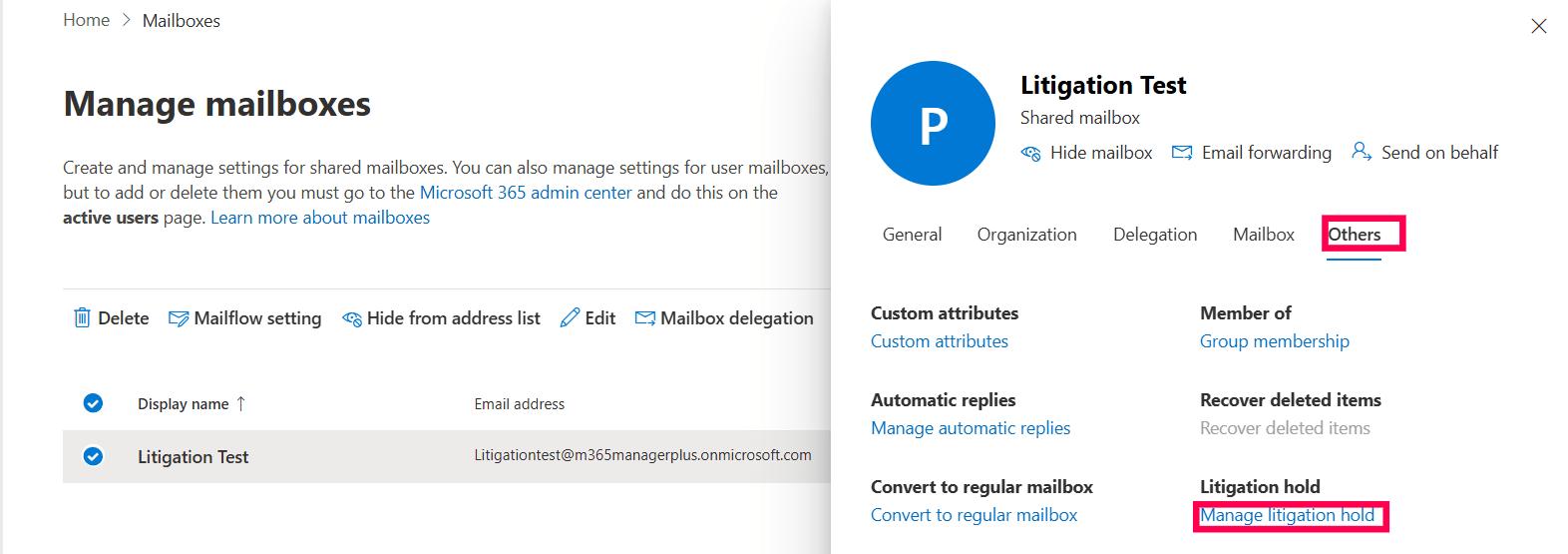
- Log in to the Exchange Admin Center and navigate to Recipients > Mailboxes.
- Click the mailbox you want to apply the litigation hold to.
- In the menu that pops up, select the Others tab and click Manage litigation hold.
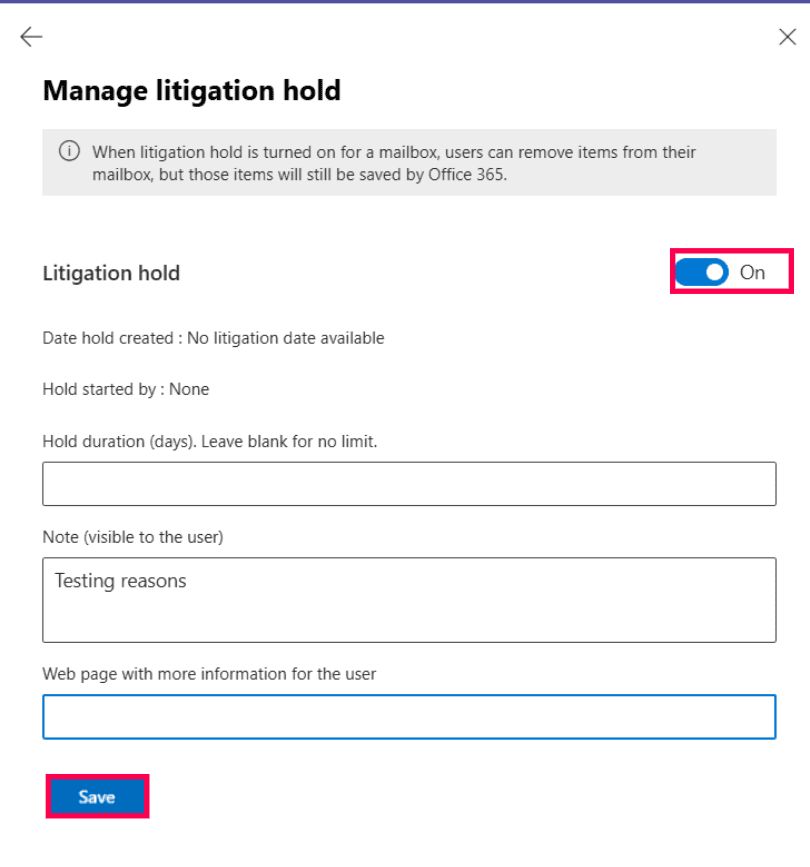
- Toggle on the Litigation Hold field.
- Specify the hold duration, a note explaining the reason for the hold, or a webpage link for more information.
- Click Save when you are done.
Note: You will have to repeat this set of steps for every mailbox you wish to configure a litigation hold for. If you wish to enable a litigation hold for Microsoft 365 mailboxes in bulk, you will have to resort to complex Exchange Online PowerShell scripts or you can try out the user-friendly one-click interface of M365 Manager Plus.
How to enable litigation holds for Microsoft 365 mailboxes using Exchange Online PowerShell
Prerequisites
Before using Exchange Online PowerShell, please verify that the following prerequisites are satisfied.
- The ExchangeOnlineManagement PowerShell module is installed. If not, install it using this script.
- Connect to the Exchange Online module with this script.
- You have the Exchange Administrator role assigned. This role is required to run the Get-InboxRule cmdlet across mailboxes.
Install-Module ExchangeOnlineManagement -Scope CurrentUser

Update-Module ExchangeOnlineManagement
Connect-ExchangeOnline
Using the Set-Mailbox cmdlet to enable litigation holds for Microsoft 365 mailboxes
The Set-Mailbox cmdlet can be used to configure any setting, in this case, litigation holds, for your Exchange Online mailboxes.The syntax for it is given below:
Set-Mailbox -Identity " < UserName > " -LitigationHoldEnabled $ < true or false > -LitigationHoldDuration < number of days >
Note: You can remove "-LitigationHoldDuration < number of days >" if you wish to configure a litigation hold in Microsoft 365 for an indefinite period.
Supported parameters
The following table contains the parameters that can be used along with the cmdlet Get-Mailbox to configure litigation holds on Microsoft 365 mailboxes.
| Parameter | Description |
|---|---|
| Identity | Specifies the mailbox you want to query. You can use the user’s alias, email address, display name, or GUID to identify the mailbox. |
| LitigationHoldEnabled | Indicates whether a litigation hold will be enabled or disabled for a mailbox. True enables the litigation hold for the mailbox; False removes any litigation hold configuration on the mailbox. |
| LitigationHoldDuration | The number of days that items are preserved in the mailbox when a litigation hold is enabled. If left blank (null), the hold is set to be indefinite until manually removed. |
An example use case for the Set-Mailbox cmdlet to enable a litigation hold for all Microsoft 365 mailboxes
Scenario
You received a company-wide directive from the legal team to preserve all employee mailbox data for one year due to an ongoing corporate investigation. Manually enabling a litigation hold for hundreds of users would be time-consuming with the Exchange Admin Center.
This is the cmdlet you will have to run to configure a litigation hold of one year for all of your Exchange Online mailboxes.
Get-Mailbox -ResultSize Unlimited | Set-Mailbox -LitigationHoldEnabled $true -LitigationHoldDuration 365
Why should you configure litigation hold with M365 Manager Plus?
While native admin centers and PowerShell can be used to check and manage litigation hold statuses, they often require repeated manual effort and scripting. This is where ManageEngine's M365 Manager Plus simplifies administration.
M365 Manager Plus is a comprehensive administration and security solution for Microsoft 365.
How to enable a litigation hold for Microsoft 365 mailboxes with M365 Manager Plus
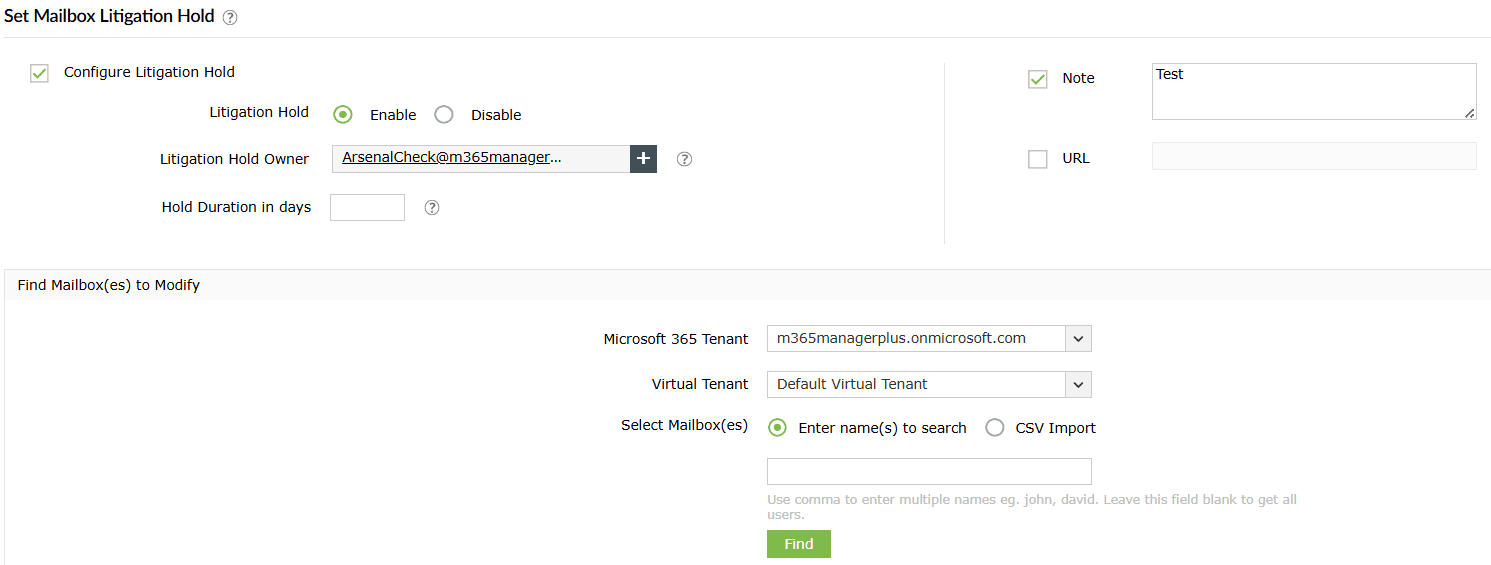
- Log in to M365 Manager Plus and navigate to Management > Mailbox Management and select Set Mailbox Litigation Hold.
- Select your desired Litigation Hold Owner, Hold Duration, Note, and URL.
- Select your desired Microsoft 365 Tenant and type in the usernames you want to apply the litigation hold for.
- Check the mailboxes that you want to enable a litigation hold for, and click Apply.
Track and enable Microsoft 365 litigation holds effortlessly
M365 Manager Plus’ legal hold capabilities help you view, manage, and audit litigation holds, eDiscovery holds, and all of their settings for all mailboxes in your Microsoft 365 environment. It streamlines policy assignment, offers in-depth reporting, and provides real-time monitoring, all through an intuitive web console without the need for complex Microsoft Graph PowerShell scripting.
Bulk enable litigation holds for Microsoft 365 mailboxes
Assign or update litigation holds for multiple mailboxes in one action using CSV imports or intuitive GUI options—removing the need for repetitive, one-by-one updates
Visibility on all mailboxes with holds applied
View archive mailbox status and hold duration alongside your litigation enabled mailboxes, giving you a complete picture of your mailbox data for any of your legal holds.
Real-time alerts on Microsoft 365 mailboxes with litigation hold
Set up instant alerts for changes to the litigation hold status or duration so you can act quickly to prevent accidental or unauthorized modifications.
Eliminate PowerShell complexity
Perform all of your litigation hold activities and follow-ups through a user-friendly web interface, reducing dependency on scripting and minimizing configuration errors.
Important tips
Identify mailboxes that already have a litigation hold enabled to ensure you don't override existing holds on these mailboxes
Keep a track of your Exchange Online mailbox sizes if you are setting up a litigation hold for a long period.
Enable legal holds for Microsoft 365 users and mailboxes as a mandatory part of their off-boarding process for a cleaner Microsoft 365 life cycle management.
Frequently asked questions
Mailbox items preserved under a litigation hold remain in the user’s Recoverable Items folder, which is hidden from normal view. Admins can access and search this data using:
- eDiscovery in Microsoft Purview (formerly Security and Compliance Center)
- Content Search in the Microsoft 365 compliance portal
- Export to PST via eDiscovery case export
A litigation hold preserves all mailbox content. An in-place hold allows conditional holds (by query, date, etc.)
To apply a litigation hold on a mailbox, it needs to have a Exchange Online Plan 2 license assigned to it, which is included in the Microsoft 365 E3 and E5 license bundles.
No. A litigation hold is limited to Exchange Online mailboxes. For Teams, SharePoint, and OneDrive data, use Microsoft Purview retention policies.
It ensures critical emails remain accessible, prevents premature deletion, and supports compliance audits.