Last updated: August 13, 2026
Content Token (VPP) Management
This page explains Content Token (VPP) Management in ManageEngine MDM, covering how to integrate your Apple Business Manager or Apple School Manager account using a VPP token to synchronize apps, manage licenses, and enable automated app distribution. It walks through uploading and renewing tokens, managing multiple tokens for department- or location-specific purchases, and resolving common conflict scenarios such as token reuse in Apple Configurator. Troubleshooting guidance and answers to frequently asked questions are also included.
Apple Content Token(VPP) Management refers to the process of integrating your organization's ABM/ASM account with ManageEngine MDM using a Content Token/VPP (Volume Purchase Program) Token. This token acts as a secure, authenticated bridge between Apple and MDM. It allows you to:
- Synchronize Applications: Discover and import a catalogue of apps you've purchased or assigned in ABM.
- Manage Licenses: Assign, revoke, and track the usage of app licenses across your enrolled devices without using Apple IDs.
- Enable Automated App Distribution: Distribute apps to devices or users seamlessly.
Integrate a New Content Token(VPP) in MDM
Note: Only a MDM user with the "MDM Admin" role and "Application Management Full Control" privileges can perform this action.
- On the MDM Console, navigate to Device Mgmt->App Management->Apple app Management. Select "Configure apps for Business" or "Configure apps for School" as your preference.
- Log in to ABM/ASM with your corporate credentials.
On the ABM portal, click on your Organization name > Settings.
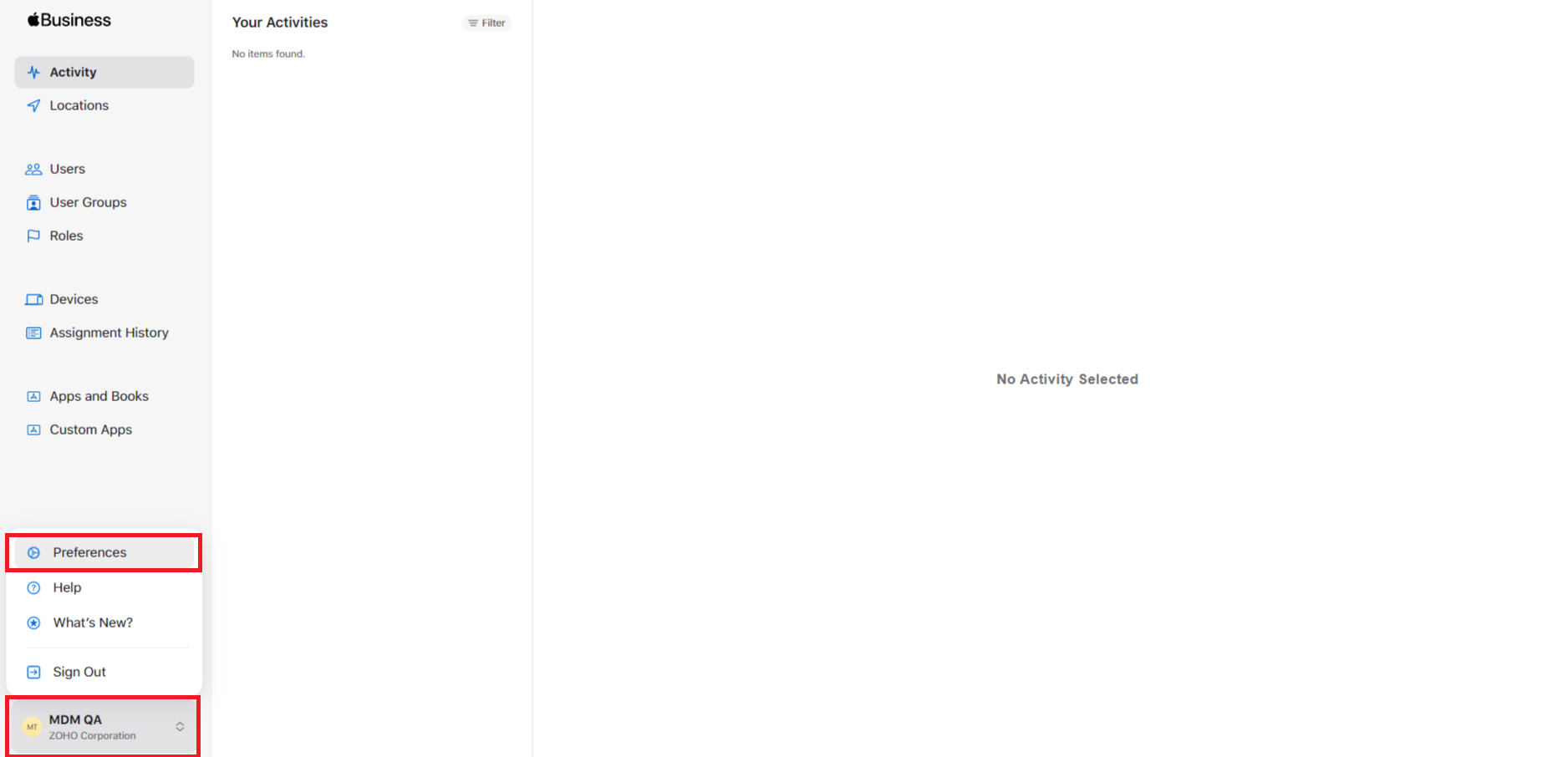
Navigate to Payments and Billing > Apps and Books > Content Tokens, and download the required content token
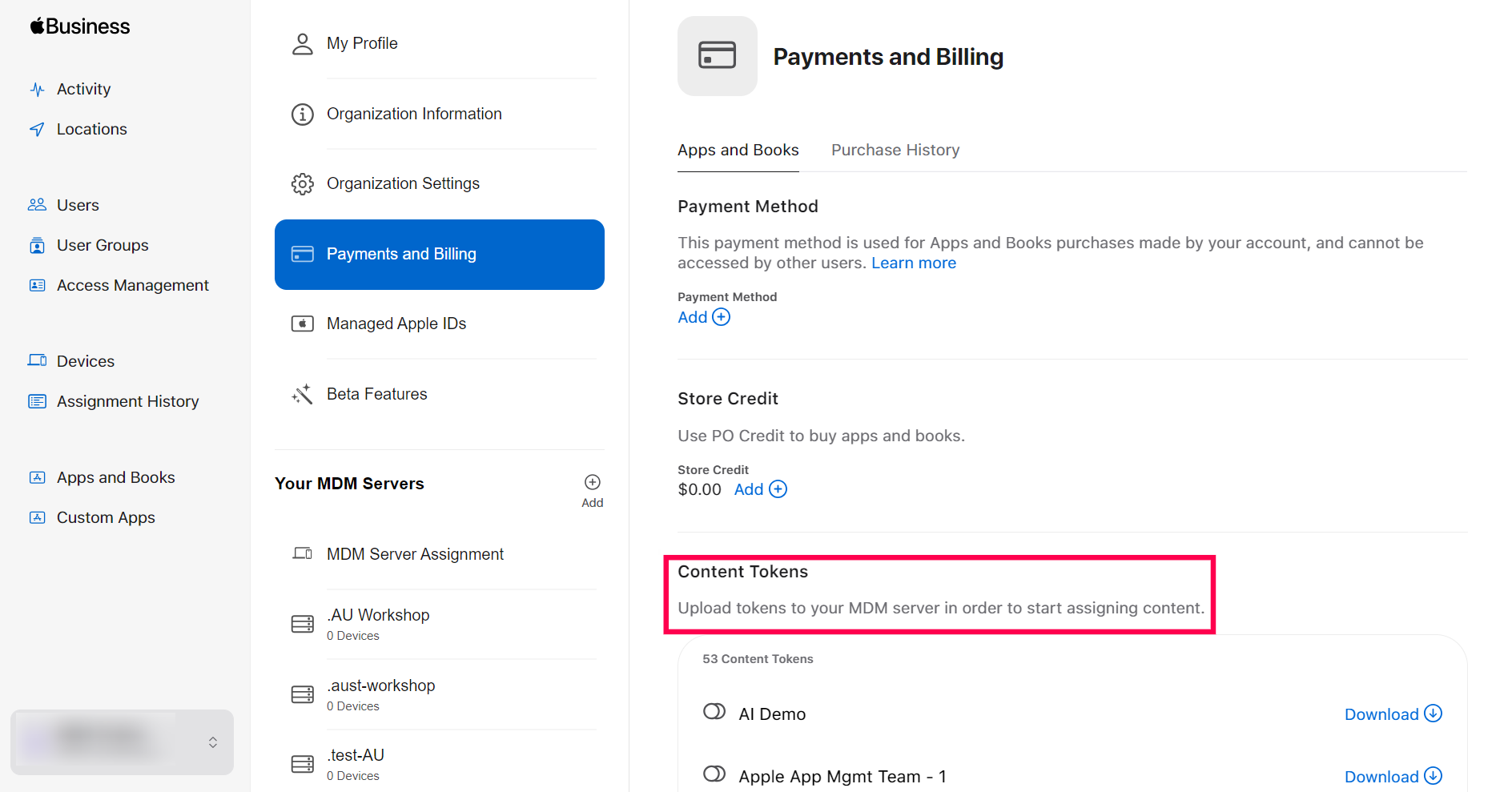
- Click the Download button next to your MDM Content Token entry. If your MDM Content Token is not listed, you may need to add it first.
- Save the downloaded (.vpptoken) file securely.
- Navigate back to the MDM Console and Upload Content Token by browsing to and select the .vpptoken file you downloaded from ABM.
- The Content Token is valid for one year, and we need to renew the Token every year upon expiry. Provide your e-mail address to receive notifications prior to the expiry of the token. Click Upload to complete the process.
- You have successfully created/renewed the content token on the MDM server. You can now distribute apps to the managed devices, assign or revoke licenses as per your requirement.
- Upon successful upload, the MDM will immediately initiate a sync with ABM. The MDM will import all apps and their available license counts associated with this token in ABM.
Note: If this Content/VPP token was previously associated with another MDM server, uploading the new token here will automatically revoke the license to the devices assigned from the previous server. Once the License is revoked, the Apps installed from the previous server will automatically uninstalled after 14 days.
Renew an Expired Content Token
- Each Content token(VPP/Apple Content Token) is valid for one year. When nearing expiration, it is essential that the token is renewed to distribute apps using the content tokens.
- The MDM will display on the console and sends a notification on its expiration status.
- To renew, generate a new token from the same location in ABM (Payments and Billing > Apps and Books > Content Tokens). The old token will be automatically invalid upon generation of the new one.
- To upload the content token on the MDM server, go to Device Management -> App repository ->Apple app management . Choose the required content token and click on Renew Token.
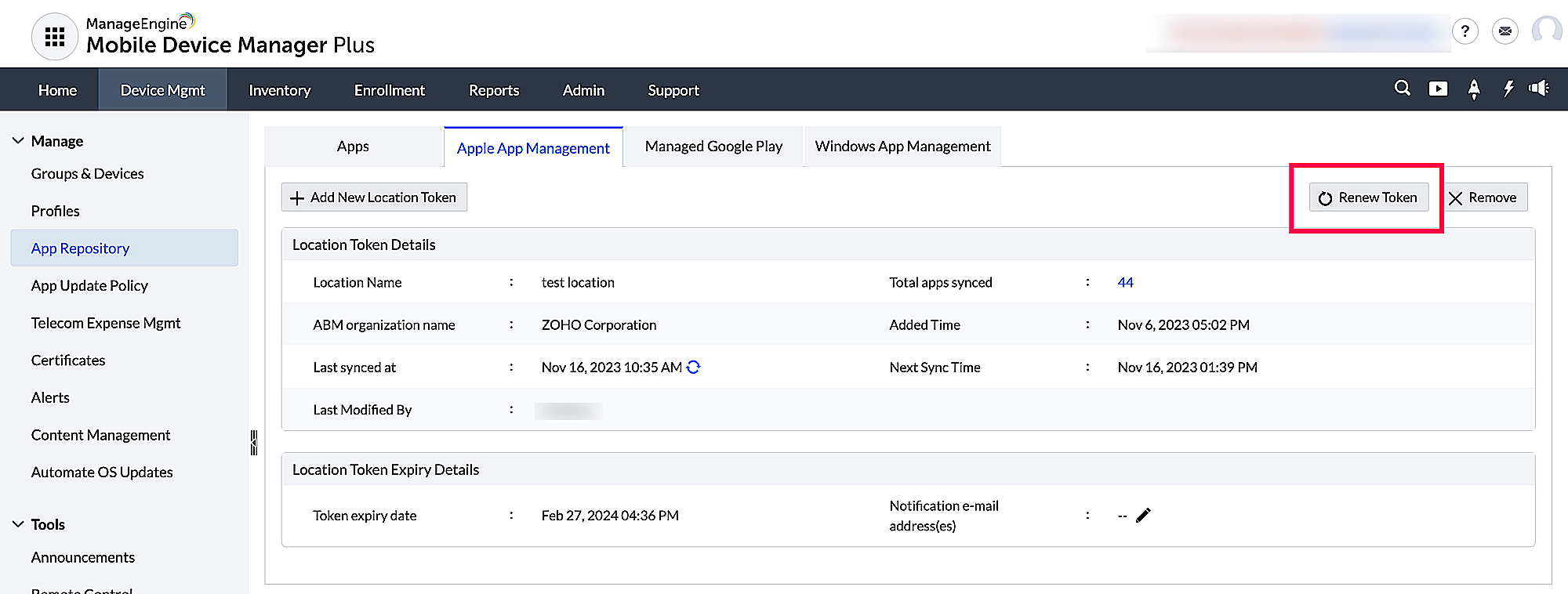
If multiple content tokens are present on the MDM server, click on the token to be renewed, choose Actions and Renew Token.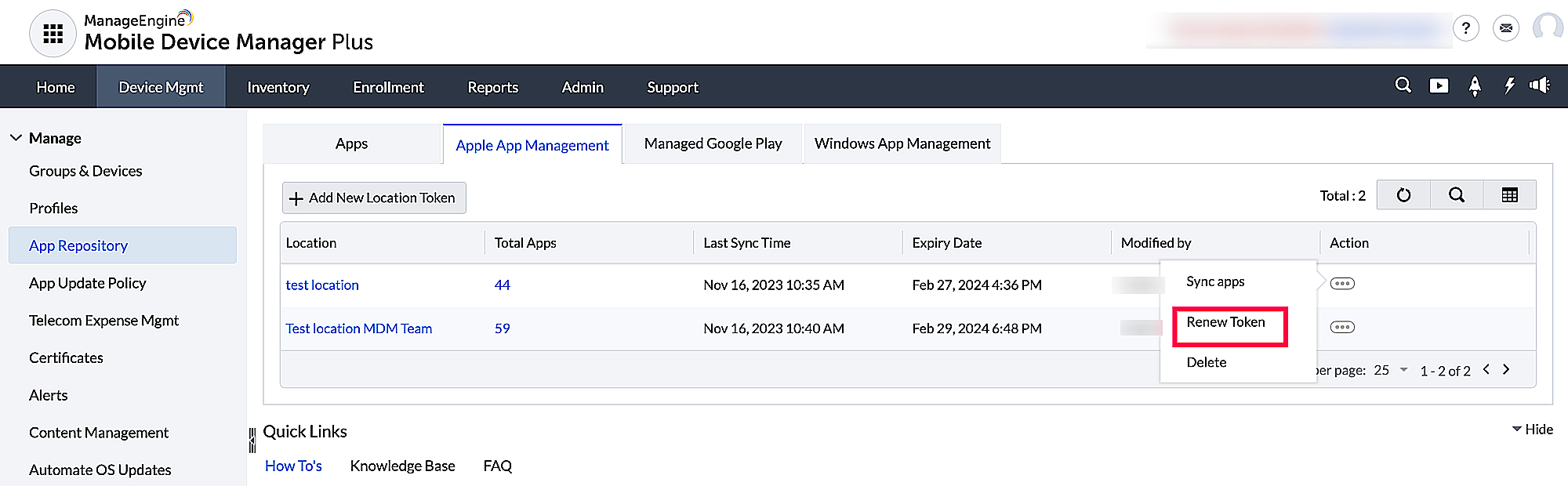
- Upload the new .vpptoken file. The MDM will re-establish the connection and resume syncing app and license information.
Managing multiple content tokens in MDM
You can also upload multiple content tokens on the MDM console to manage department or location specific app purchases. To upload new tokens, navigate to App Repository -> Apple App Management -> Add Content Token -> Upload Token. Once uploaded, MDM will sync the apps added to the content token via ABM.
Note:
1. If you need to add a new location in ABM portal, go to Locations and click on Add a new location. It is recommended to give the location a descriptive name, for easier identification purposes.
2. While distributing apps via Apple Configurator, it is suggested to create and maintain a separate Content/VPP token.
Content Token (VPP) Management Scenarios and Effects
Content Token Used Simultaneously in MDM and Apple Configurator
Scenario:
The same Apple Business Manager (ABM) Content/VPP token is configured for app distribution in both the MDM server and Apple Configurator.
Cause:
A Content/VPP token can be actively used in only one location at a time. Using the same token in both MDM and Apple Configurator results in a conflict during app and license synchronization.
Effect:- The MDM displays a warning indicating that the content token is already in use.
- Licenses will not be available for assignment until the conflict is resolved.
Steps to resolve the conflict:
- Open Apple Configurator on the configured Mac.
- From the top menu bar, navigate to Account.
- Verify the signed-in ABM account and the content token (location) currently in use.
- Select Change Location and choose a different, unused content token.

- Navigate to the MDM Console and perform a manual app sync.
- If a warning appears indicating that the token was previously used in Apple Configurator, acknowledge the message and continue.
- Once the sync completes, the content token will sync successfully and app distribution will resume normally.
Note: When using Apple Configurator for app distribution, it is recommended to maintain a separate Content/VPP token exclusively for Apple Configurator to avoid conflicts.
If your organization uses only one Content Token:
If you do not have multiple content tokens (locations) configured in ABM, you cannot switch to a different token in Apple Configurator. In this case, use one of the following approaches to resolve the conflict:
- Create a new Content Token (Location) in ABM: In the ABM portal, go to Locations and add a new location. This generates a separate content token. Assign this new token to Apple Configurator and keep the original token for MDM.
- Sign out of the ABM account in Apple Configurator: If Apple Configurator is no longer needed for app distribution, open Apple Configurator, navigate to Account, and sign out of the ABM account. This releases the content token so MDM can use it without conflict.
Removing a Content Token (VPP) from MDM
Scenario:If an administrator removes a Content/VPP token from the MDM configuration.
Effect: All apps that were synced into the MDM repository exclusively from that token will be revoked. The MDM will attempt to revoke all licenses assigned from that token and send uninstall commands to all devices that have the app installed.
Note: Only remove a token if you are absolutely sure you no longer need to manage those apps and wish to reclaim all licenses in ABM.
- Managing Duplicate Apps (Multiple Tokens)
Scenario: The same app (e.g., "Creator app") is available from two different Content/VPP tokens uploaded to the same MDM.
Effect:- The app will appear only once in the application repository.
- The MDM will create a combined pool of licenses from all tokens that contain that app.
- When assigning the app, the MDM will automatically consume licenses from any available token.
If the content token is already in use:
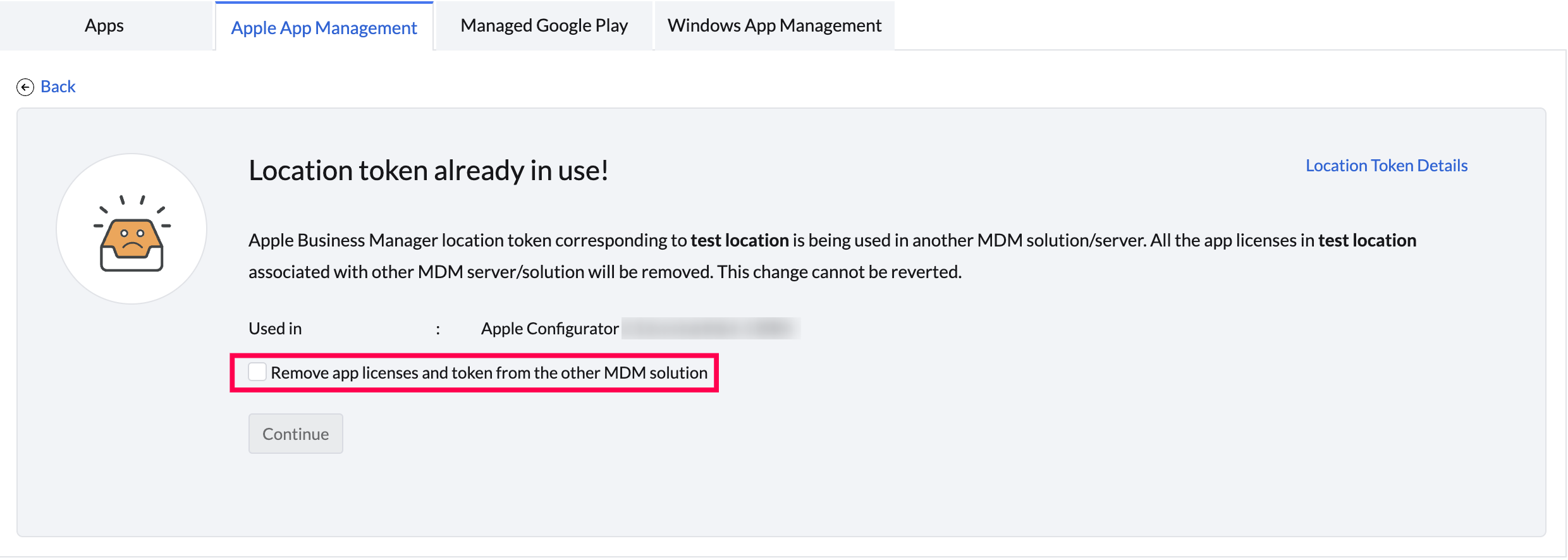
- When the content token is used in another MDM Server: If the same token is uploaded and synced with other MDM Server then a prompt will be shown saying the token had already been used in another MDM Server, checking the box will remove the app licenses linked with other the MDM server too.
- When the Content/VPP token is used in Apple Configurator: If the user signs into the Apple Configurator using the Apple ID and syncs the apps of Content/VPP token then a prompt will be shown saying the token had already been used in another MDM Server. Checking the box will remove associated license from Apple Configurator and sync in the present MDM Server.
- Token Expiry or Revocation
- Expired/Revoked Token: If a token expires or is revoked in ABM, the MDM can no longer sync with Apple for that token.
- Existing Assignments:Apps already installed on devices will continue to function. The installed application is not disabled.
- New Assignments: You cannot assign new licenses for apps from the expired token, or assign any new apps from that token, until a renewed token is uploaded.
Troubleshooting Tips
1. MDM server is not able to contact ABM to sync apps.
Check if vpp.itunes.apple.com is allow listed along with other domains and ports listed here. Ideally, it is recommended to Allowlist *.apple.com for seamless management of Apple devices. Also, verify the availability of the required Apple services.
2. Why does an App Store app remain visible in the ManageEngine repository after its license is moved to an unmanaged location in Apple Business Manager, and how can it be removed?
ManageEngine Mobile Device manager plus does not automatically remove an app from the repository even if its license is moved to a location not managed by the system or if it is no longer assigned to any device. The app will continue to appear in the content token with a zero count until it is manually deleted. To resolve this, you must manually remove the app from the ManageEngine app repository. Additionally, ensure the app is synced from Apple Business Manager and distributed via MDM to install seamlessly on devices.
Frequently asked questions
What is a Content Token (VPP) used for in Mobile Device Manager Plus?
A Content Token (VPP) links your organization's Apple Business Manager or Apple School Manager account to MDM so it can discover purchased apps, assign or revoke licenses without Apple IDs, and distribute apps automatically to enrolled devices.
Who can upload or renew a Content Token on the MDM console?
Only an MDM user with the MDM Admin role and Application Management Full Control privileges can integrate, upload, or renew a Content Token in MDM.
How long is a Content Token (VPP) valid, and how do I renew it?
Each Content Token is valid for one year. To renew it, generate a new token from the same location in ABM (Payments and Billing > Apps and Books > Content Tokens), then upload the new .vpptoken file on the MDM console; the old token is automatically invalidated once the new one is generated.
What happens if the same Content Token is used in both MDM and Apple Configurator?
A Content Token can be actively used in only one location at a time, so using the same token in MDM and Apple Configurator causes a sync conflict and licenses become unavailable for assignment until you switch one of them to a separate, unused token.
What happens to installed apps if a Content Token expires or is removed from MDM?
Apps already installed on devices continue to function even after the token expires, but you cannot assign new licenses or apps from that token until it is renewed. If an admin removes the token from MDM entirely, licenses from that token are revoked and uninstall commands are sent to devices with those apps.
How do I migrate iOS VPP apps from an expired Apple Business Manager (ABM) content token to a new one to ensure automatic deployment without manual intervention?
To resolve issues where iOS apps are failing to deploy automatically due to an expired or incorrect ABM content token, you must migrate the applications to the new token.
- Ensure that all applications previously added under the old content token are added and available within the new content token.
- Redistribute these applications to the respective device groups using the new content token.
- Verify that the applications have successfully switched to utilizing licenses from the new token on both existing and newly enrolled devices.
- Once the migration is validated and confirmed working, you may safely remove the old content token. This process ensures that future deployments use the correct license key automatically.