Last updated: August 13, 2026
Remote Troubleshooting - iOS/iPadOS
This page explains how to use MDM to remotely troubleshoot managed iOS and iPadOS devices. It covers the prerequisites—including iOS 13 or later, ME MDM app version 24.02.01 or later, and Zoho Assist integration—and walks through initiating a remote view session from either the Device Management or Inventory tab. Admins can also chat with device users and transfer files during an active session. The page also includes troubleshooting tips for common errors and FAQs on session limits and supported capabilities.
Certain unforeseen situations like app crashes, bug fixes, and other issues have to be given quick fixes. In organizations, where many devices are managed, it is the vital role of the admin to tackle this efficiently. Devices being in different places, time zones, and under different conditions require maintenance. To resolve such cases, MDM lets you remotely troubleshoot your managed devices. Let us look at how MDM helps us with remote troubleshooting of iOS devices in this document.
Pre-requisites
- Managed devices must be running iOS 13 or later versions.
- The ME MDM app version installed on the device must be 24.02.01 or later.
- Integrate MDM with Zoho Assist, an in-house application to perform remote troubleshooting.
- Ensure *.zoho.com:443 and *.zohoassist.com:443 can be accessed both on the device as well as the server. If you've configured any firewall/proxy or any other third-party filters, ensure these domains are whitelisted. Click this to know the list of domains and this to know the list of ports to be whitelisted.
Initiating a remote session
The following steps explain how you can leverage MDM Remote Control to view the device screen and remotely troubleshoot over-the-air:
- On the MDM console, click on Device Mgmt from the top menu and select Remote Control.
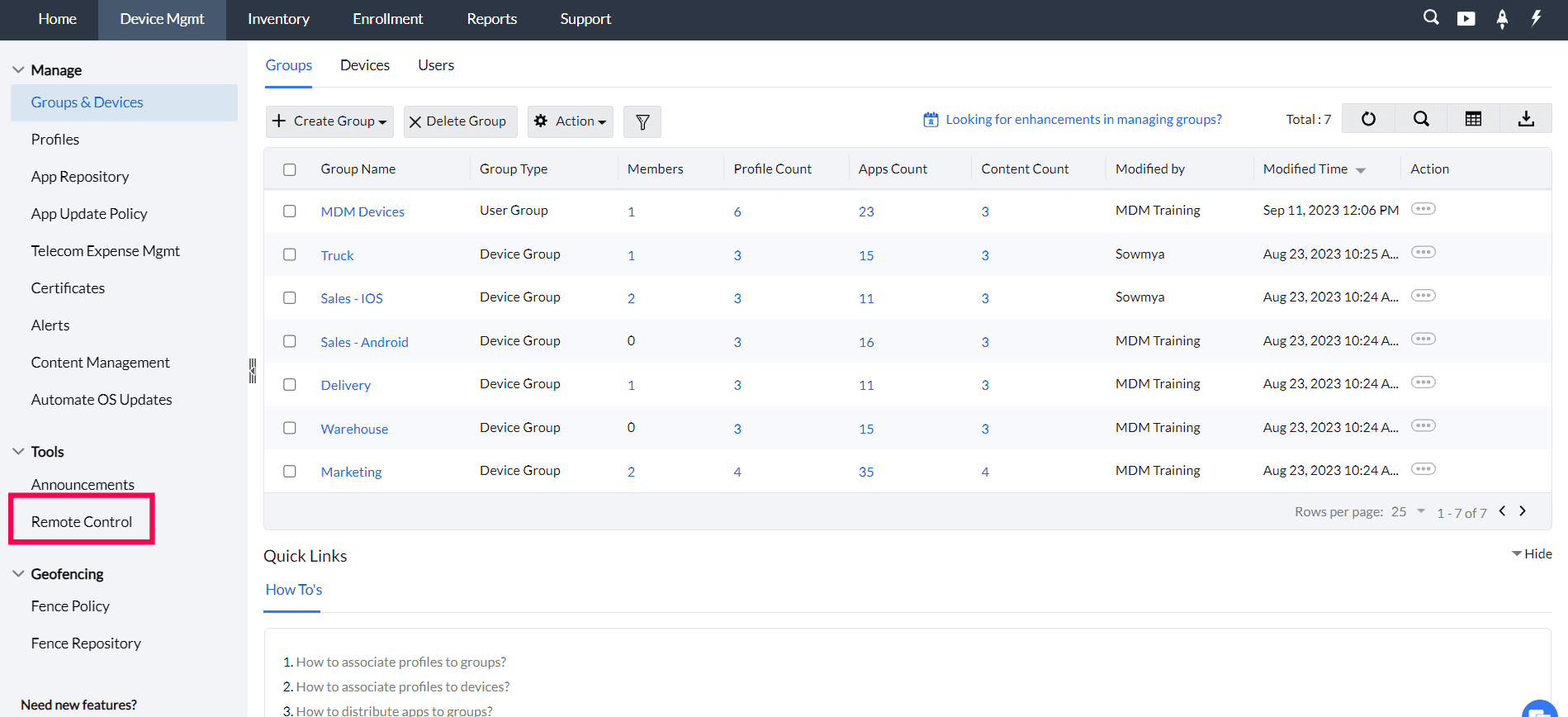
- Now, on identifying the device that is having issues, click on the Remote View button present beside the device.
- The remote session view opens in a new tab or a new window, where the device screen is displayed.
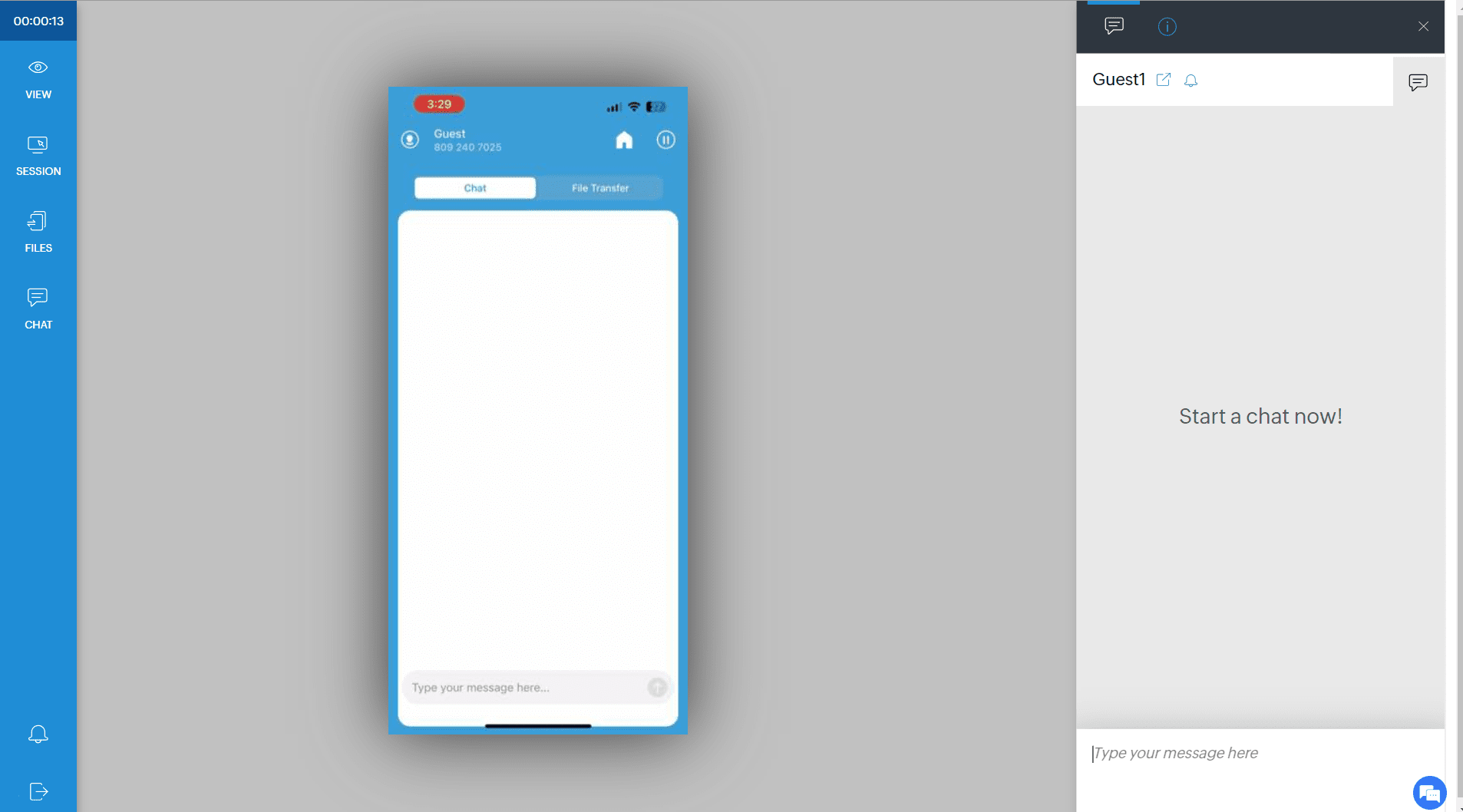
On the device, ensure that the below steps are performed,
- When an admin initiates a remote view session for devices, the user receives a notification in the ME MDM app. Click on Start Session > MEMDM Remote Viewer > Start Broadcast to begin the screen recording. This initiates the remote session for the IT admin.
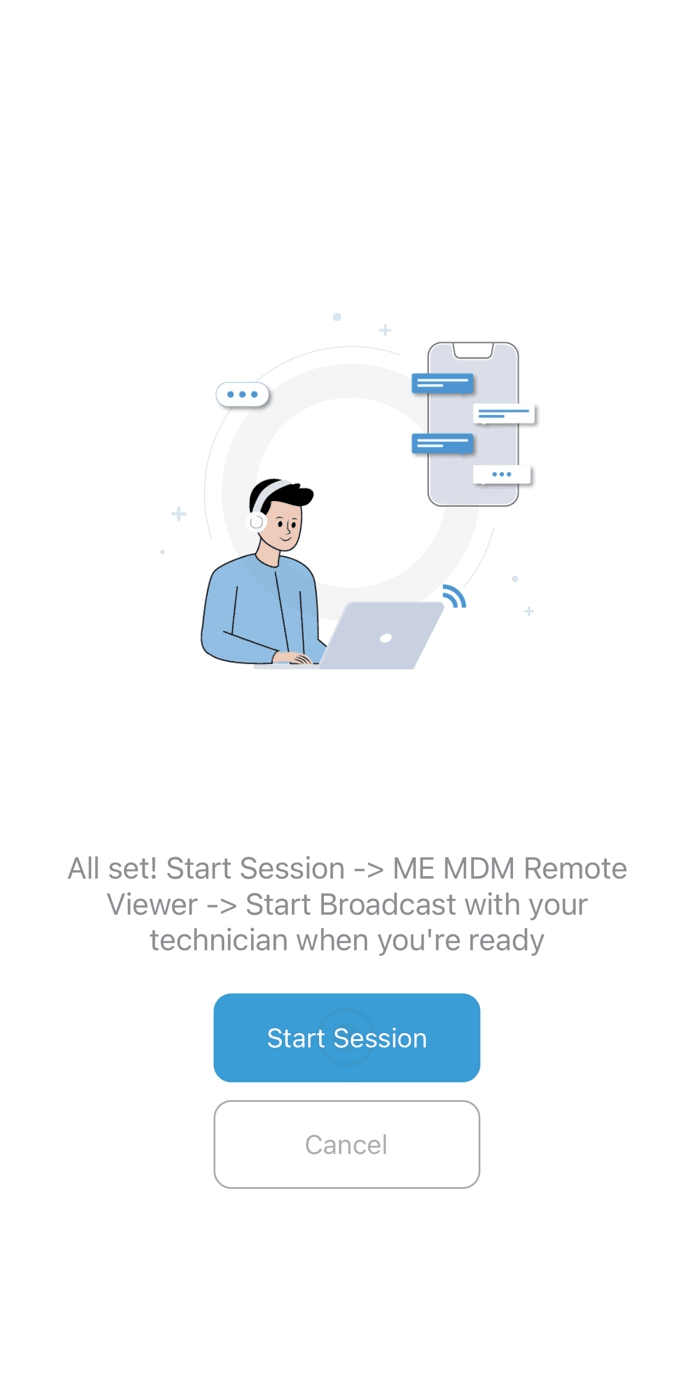
You can also initiate a remote session from the Inventory tab as explained below:
- On the MDM Server, click on the Inventory tab and select the device whose screen is to be viewed for remote troubleshooting.
- Click on the Actions button and select Remote View.
Once the user accepts the remote request, the device screen is displayed, and admins can remotely chat, transfer files during the session.
Remote Chat
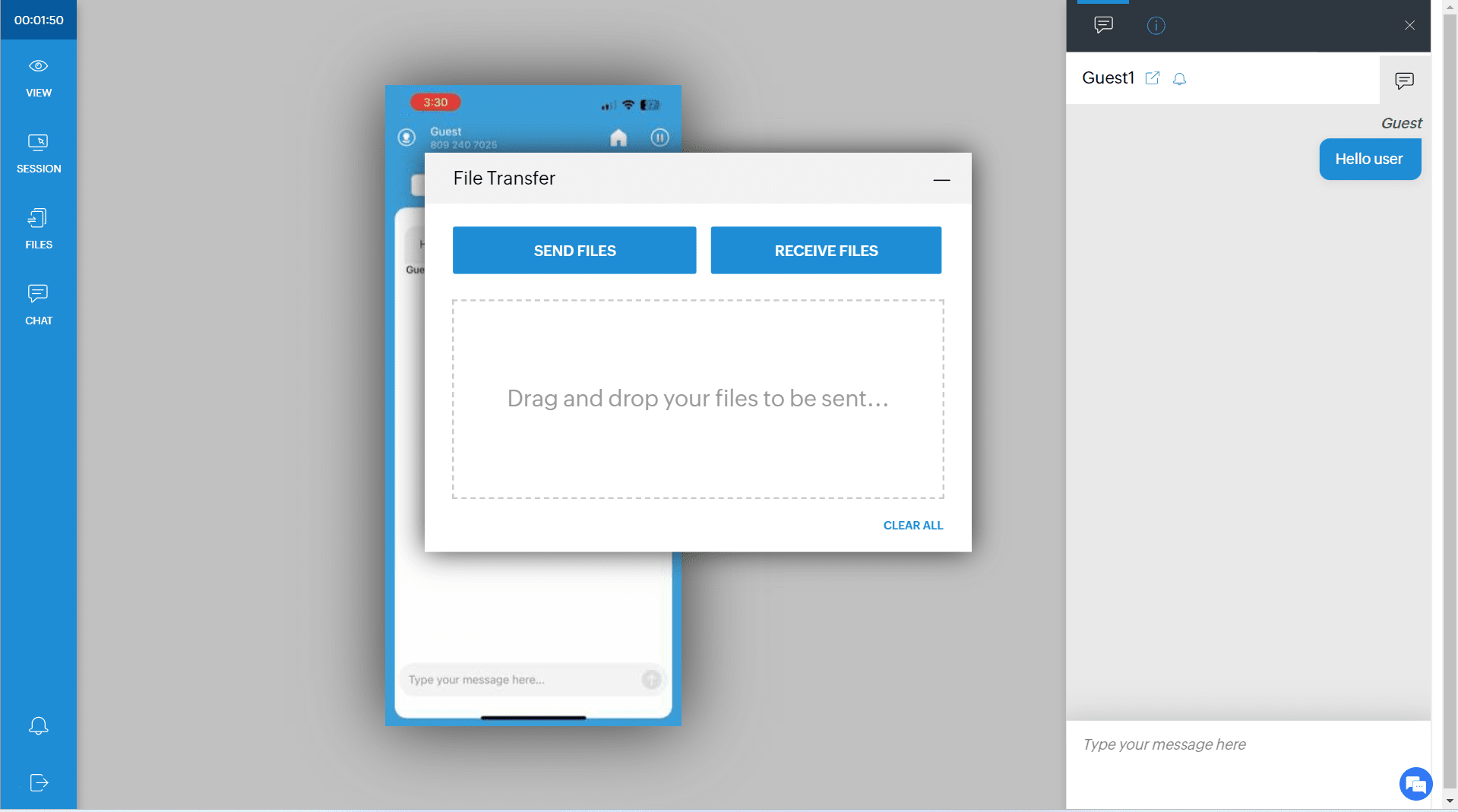
When fixing issues remotely in real-time, IT administrators may need to contact the device user to pass on instructions or understand the problem in greater detail. With the IT administrator already viewing the remote screen, it becomes more taxing to separately contact the device user as well. MDM solves this by allowing the administrator to chat with the device user from the screen view window itself. The IT administrator needs to click on the Chat icon, present on the left of the window, to initiate a chat session with the user, which functions in parallel with the remote session.
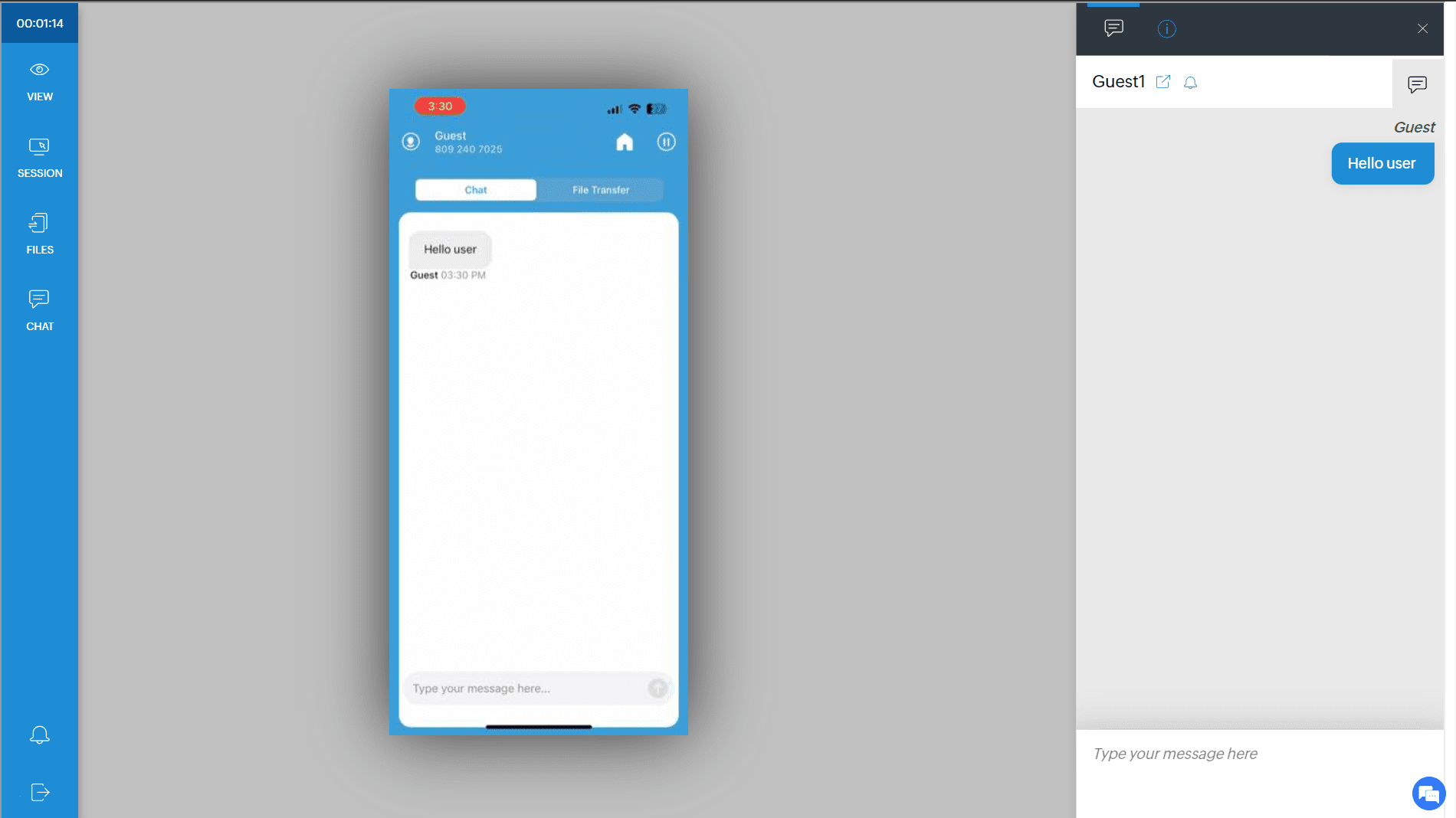
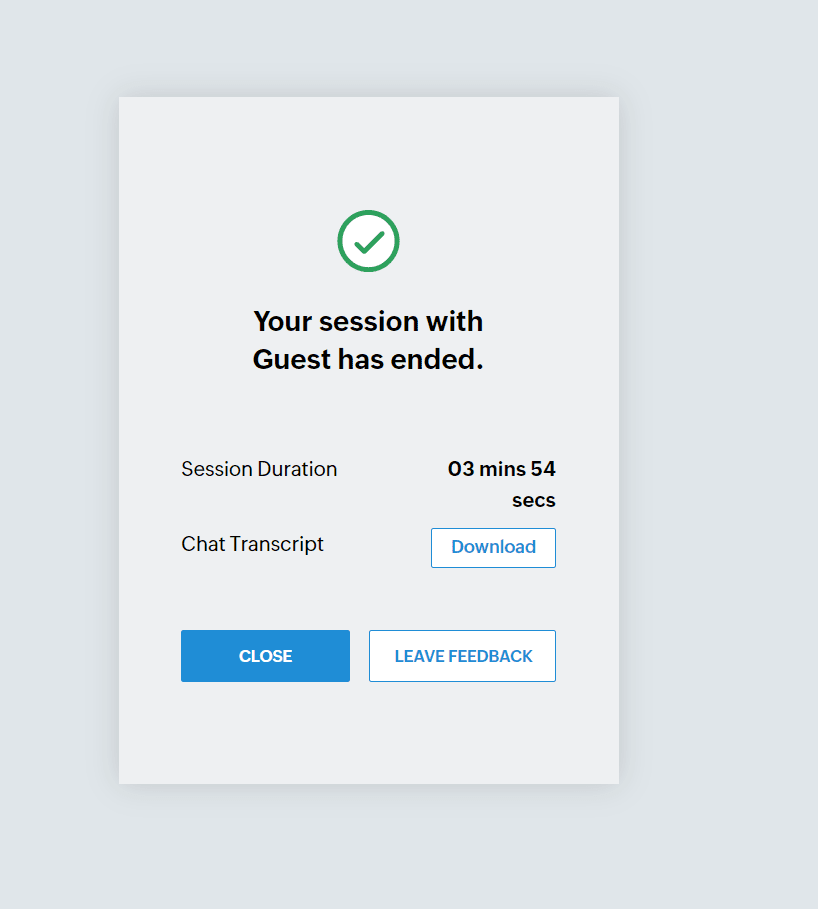
Once the session is completed, you can generate chat transcripts of the session.
File Transfer
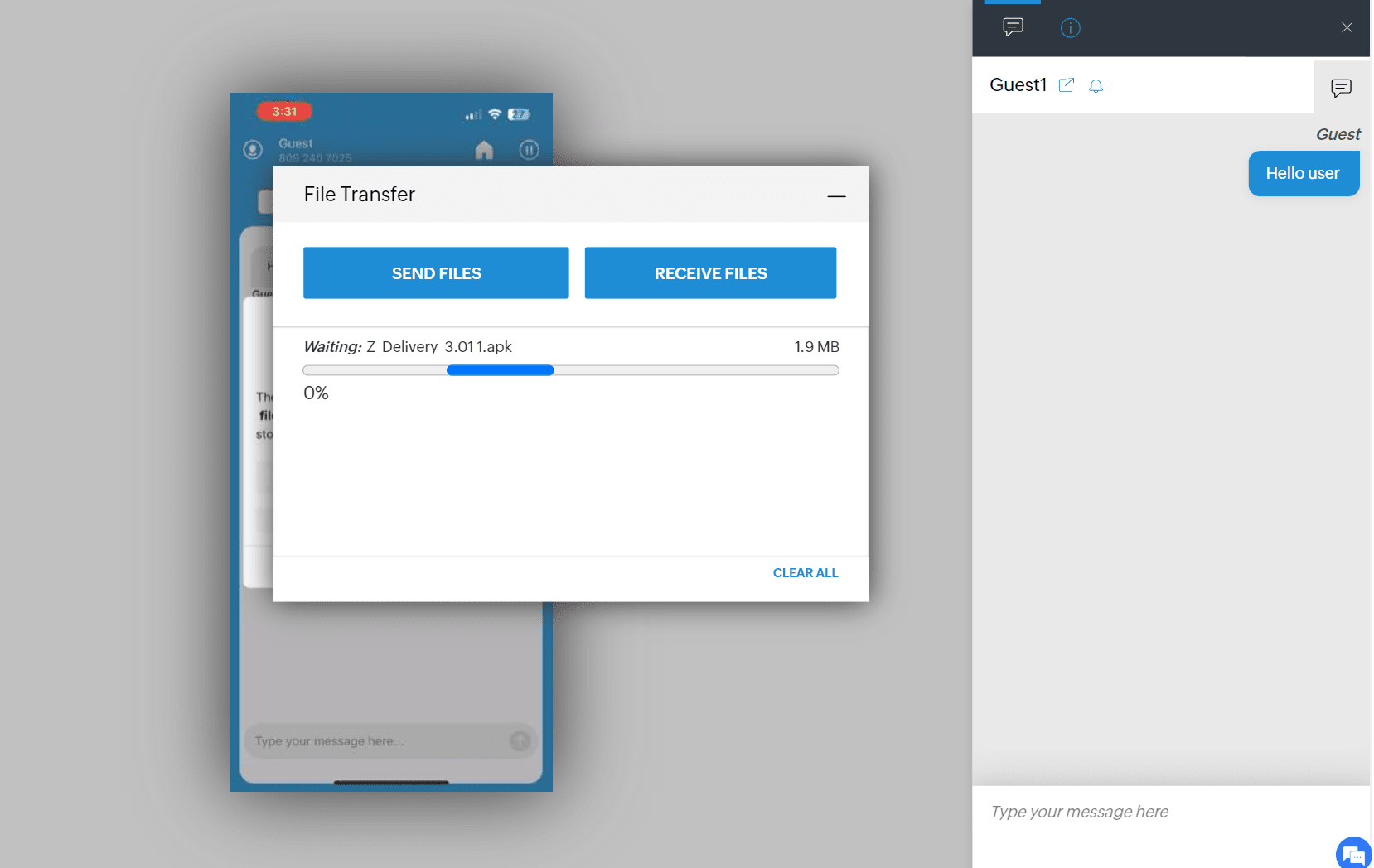
During a remote session, admins can also send files to the device. The files received during the session are stored in File Transfer tab in MEMDM app. Admins can transfer files of all formats.
Troubleshooting tips
Errors faced in a remote session could be due to any of the following reasons:
- Zoho Assist is not integrated with the MDM server.
- Zoho Assist login needs to be reauthenticated.
- The MDM server is not able to reach assist.zoho.com.
For more information on the ports that need to be open, and domains that need to be allowed for remote view to function, refer to this.
Note: Depending on your region, ensure that the URL's are allowed:
- *.zoho.com
- *.zoho.com.au
- *.zoho.com.cn
- *.zoho.eu
- *.zoho.in
- *.zohoassist.com
- *.zohoassist.com.au
- *.zohoassist.com.cn
- *.zohoassist.eu
- *.zohoassist.in
Open the ME MDM app on the device, sync the device and retry initiating a remote session.
Cases where users face remote troubleshooting issues
- If the remote session is initiated from the server, and the user has not accepted the prompt to start the session for more than an hour. Then, the session gets terminated and an error occurs. This happens as the session is valid only for one hour.
- Next, cases when the device locked during the session. During such cases, the device gets logged out of the session, and the admin has to initiate the session once again.
Frequently Asked Questions
1. Can I remotely control an iOS device, or only view it?
For iOS and iPadOS devices, only remote view is supported. Remote control is not available on this platform, and remote view itself is not supported when the device is in Single App Kiosk mode.
2. What are the prerequisites for remote troubleshooting on iOS?
Managed devices must be running iOS 13 or later, the ME MDM app on the device must be version 24.02.01 or later, and MDM must be integrated with Zoho Assist. The required *.zoho.com and *.zohoassist.com domains and ports must also be whitelisted on any firewall or proxy.
3. Why does a remote troubleshooting session end unexpectedly?
A session ends if the device user doesn't accept the session prompt within one hour, since the invitation is only valid for that long. A session also ends if the device gets locked during the session — in either case, the admin must initiate a new remote session.
4. Can I communicate with the device user during a remote troubleshooting session?
Yes. The admin can click the Chat icon in the screen view window to chat with the device user without leaving the session, and can generate a chat transcript once the session ends.
5. Can I send files to a device during a remote session?
Yes. Admins can transfer files of any format to the device during a remote session. The files are stored in the File Transfer tab of the ME MDM app on the device.