

How to enable Location Services for MDM Geotracking?
To locate the device using MDM Geotracking, Location Services must be enabled in the device and the Location Services must be set to 'Always On' for ME MDM app. Follow the steps mentioned below, to enable Location Services:
- Enabling Location Services in iOS devices
- Enabling Location Services in Android devices
- Enabling Location Services in Windows devices
- Enabling Location Services in Mac devices
This configuration is a part of device's privacy settings.
Geotracker for iPhones: Enabling Location Services in iOS devices
Follow the steps mentioned below to enable Geo-tracking on the end users' mobile devices:
Once ME MDM app is installed, open the app and provide the app with permission for Location Services to enable location tracking.
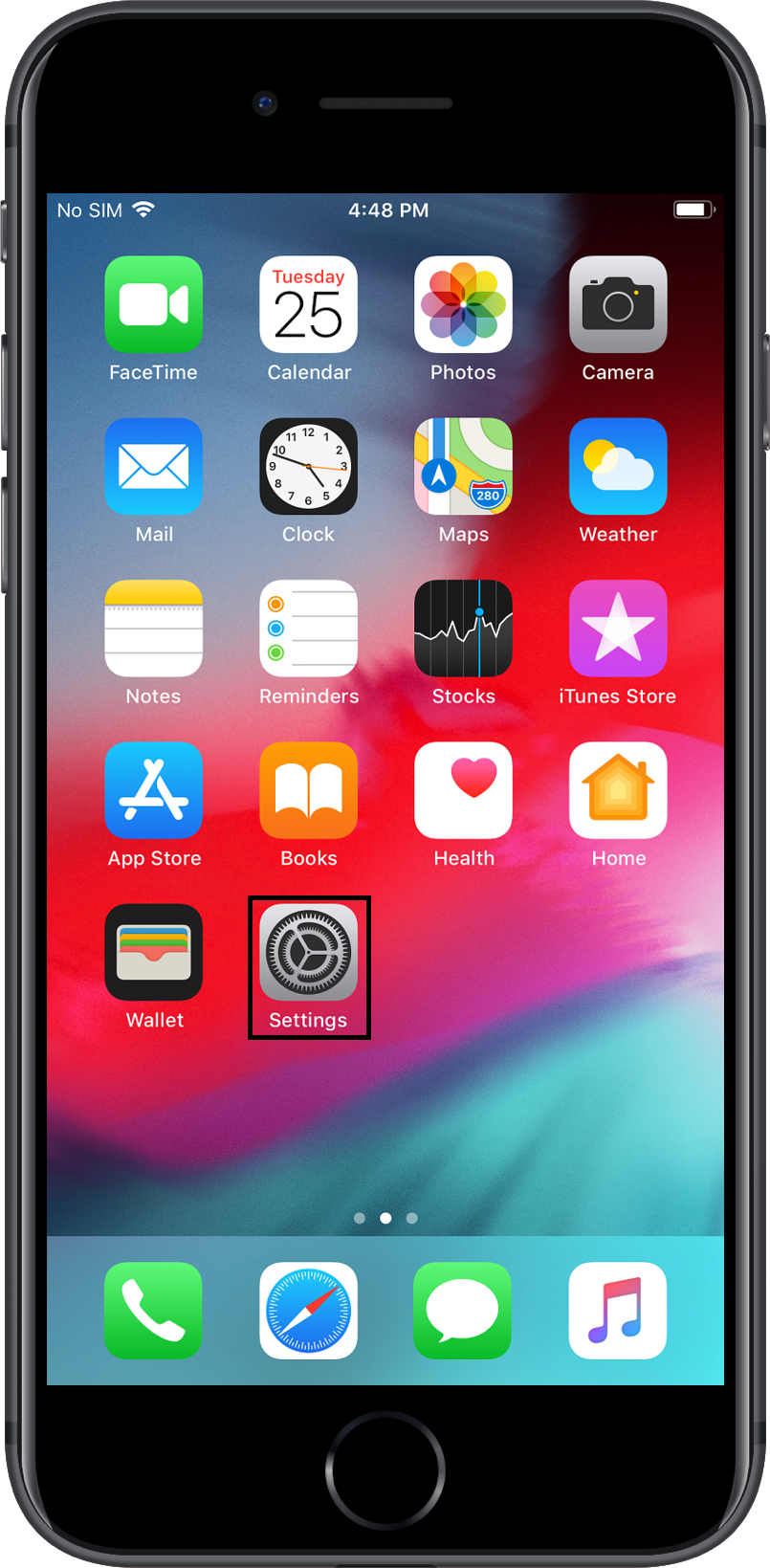
- Select Settings icon on the managed mobile device.
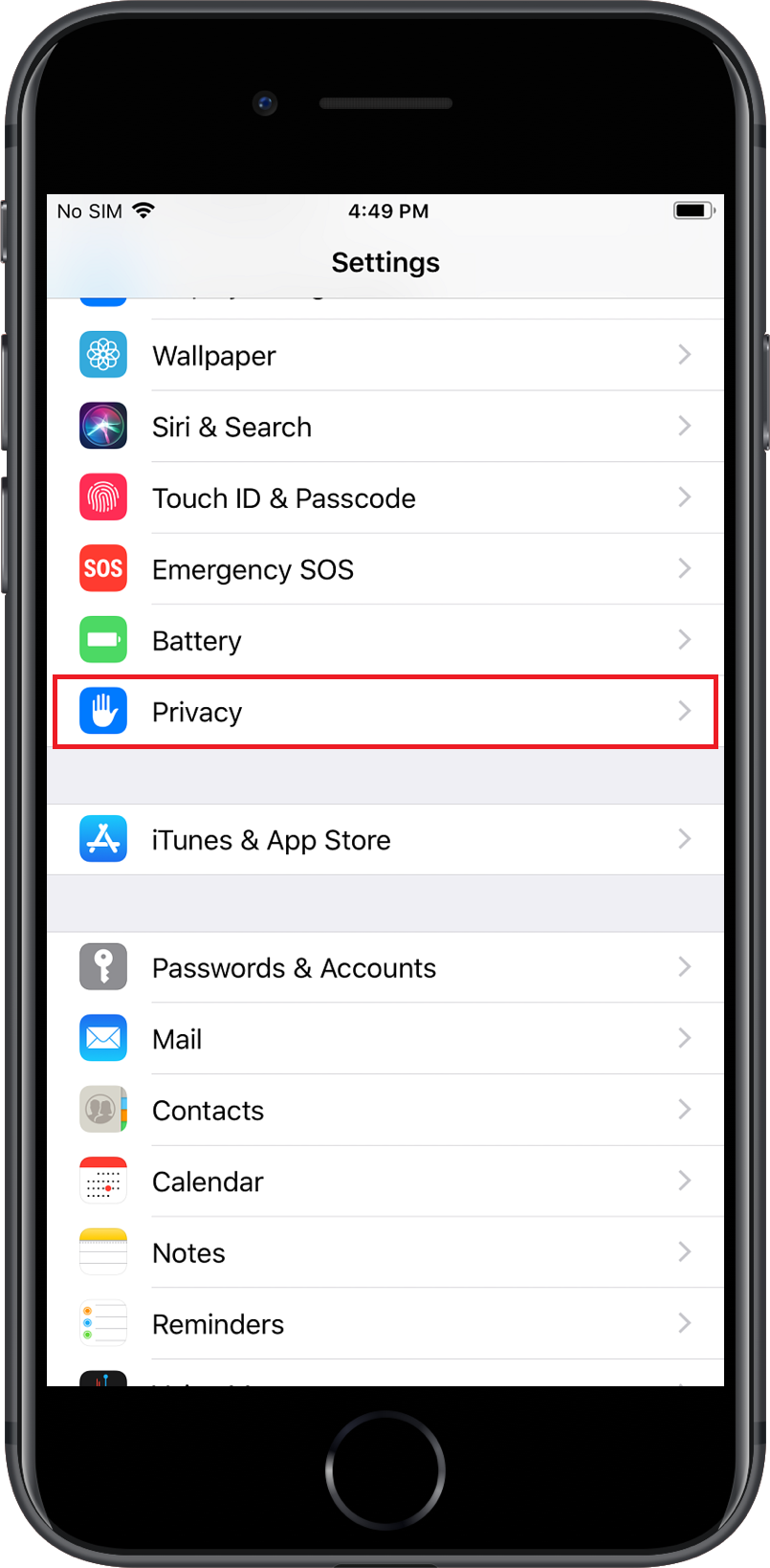
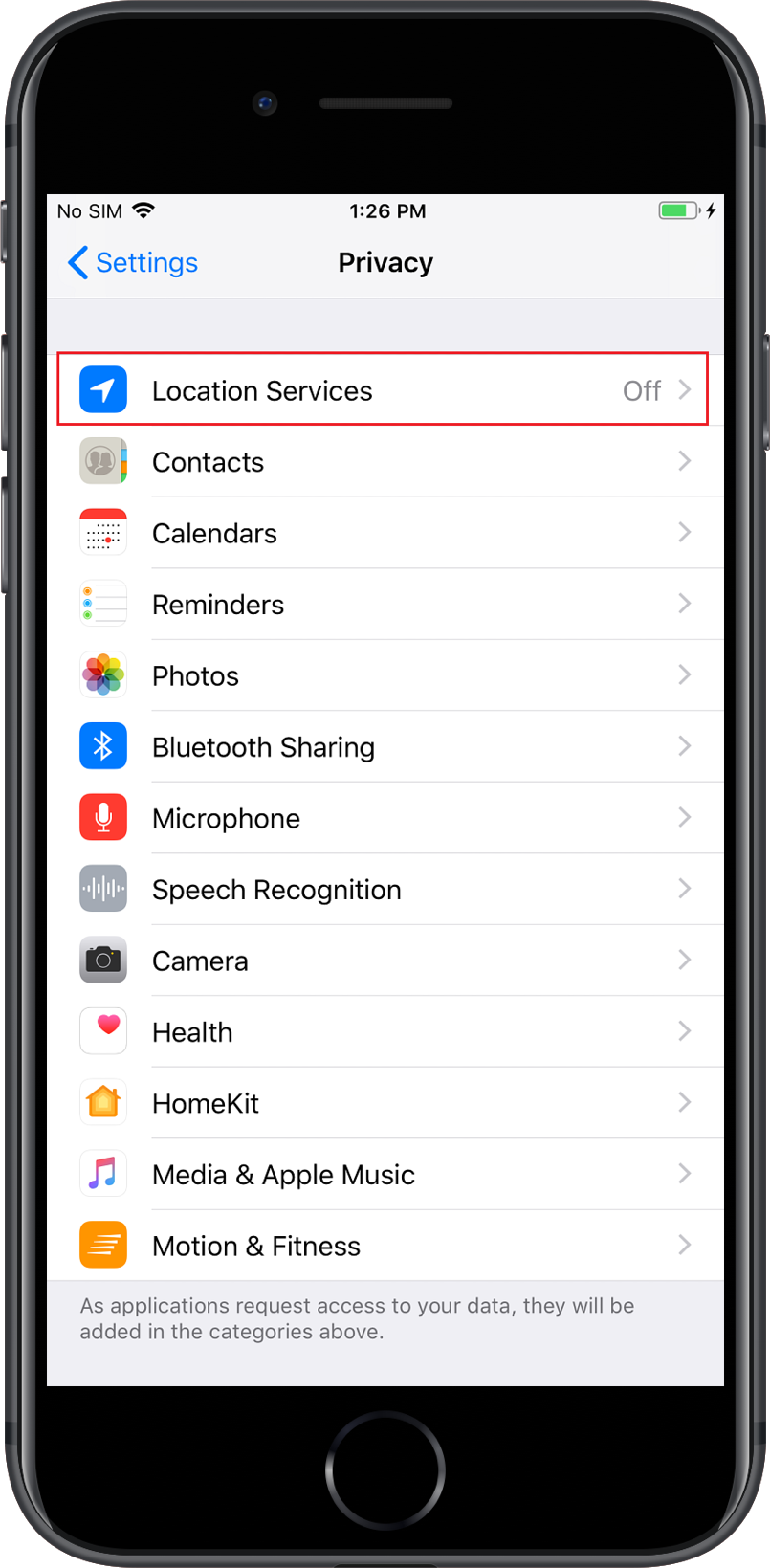
- Select Privacy, go to Location Services and turn it On.
- Allow ME MDM app to access location.
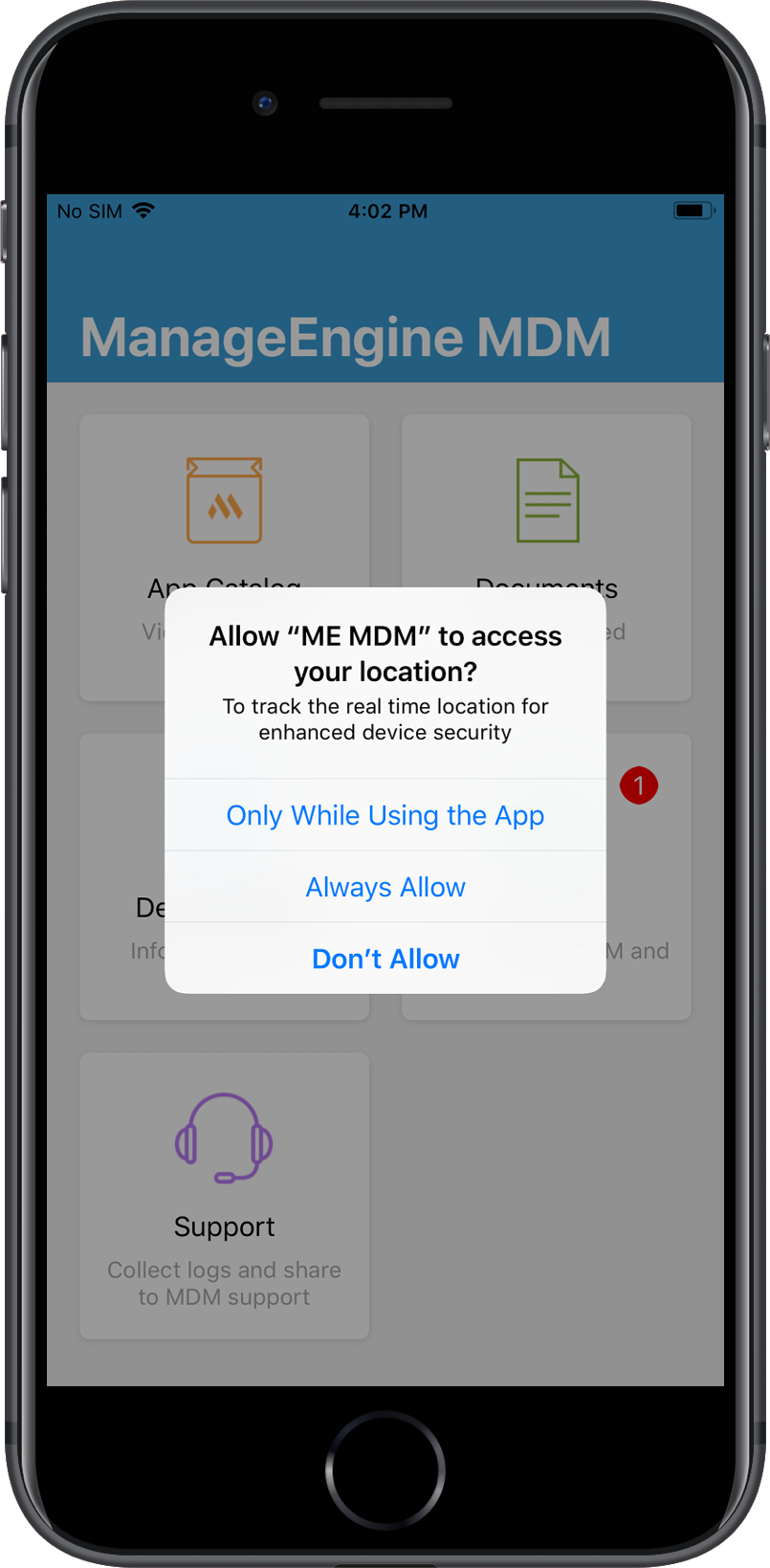
You have successfully enabled Location Services on iOS devices for the geo tracking system. In a few days after setting the Location Services to Always On, Apple might prompt the user to check if the location needs to be enabled at all times for ME MDM app. This notification will appear only once and can be ignored.
On iOS devices, users can allow in-use authorization for ME MDM app to access device's location. This option ensures that ME MDM app or the geo tracking system will access location only when the app is being actively used or is running in the background. In devices runing iOS 13 or above, Apple also provides Allow Once option to allow ME MDM app or a geotracker to temporarily access device's location.
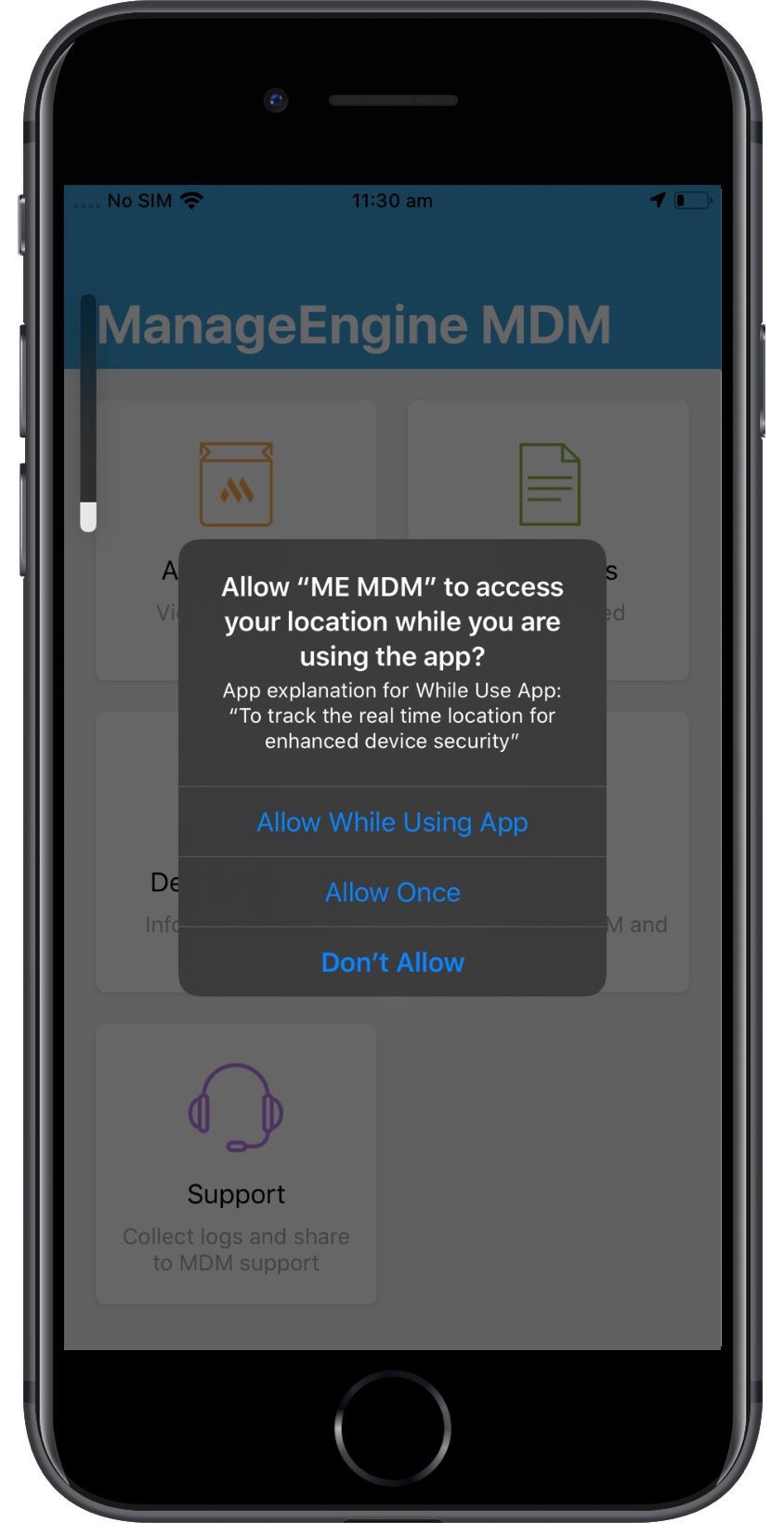
If Allow Once is chosen, the user will be prompted every time the user opens the app. When the user clicks on Allow Once or Allow While in Use, the user will be indicated that MDM is actively using location whenever location services is being accessed by ME MDM in the status bar.
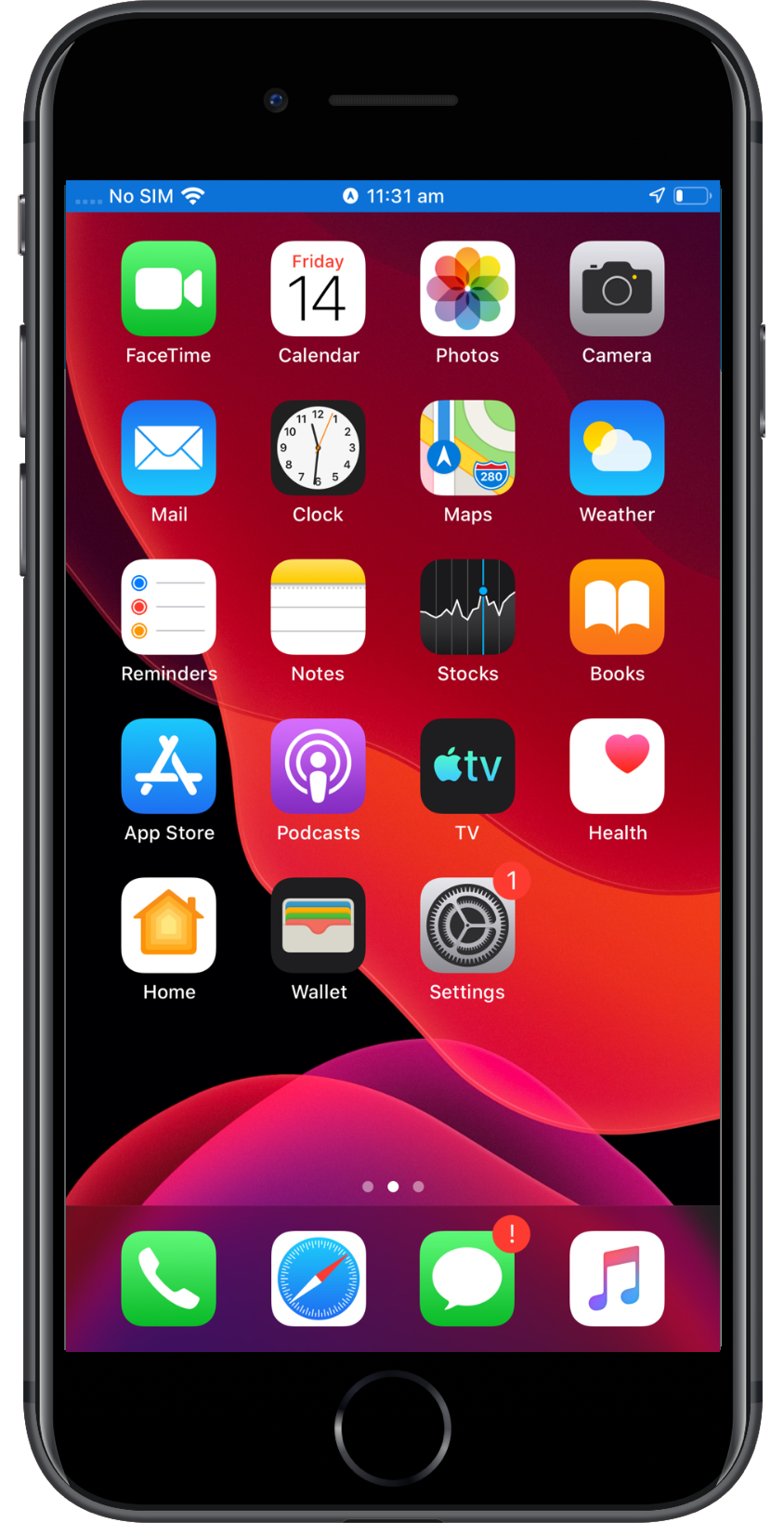
Note: It is recommended to choose Always On for location tracking to receive constant and precise location data of devices.
ME MDM or the Geotracker app fetch the location details only when there is a significant change (at least 500m) in the location of the mobile device. Due to this, the location shown on the MDM server might be the last location rather than the current location in case of iOS devices for certain scenarios. You can get the exact location of device by sending a notification. To enable notifications on devices, you can associate a app notification profile to the device.
Android Geotracker: Enabling Location Services in Android devices
Follow the steps mentioned below to enable to Geo-tracking on the users' mobile devices:
- Open the status bar on the managed device and click on the Location icon.
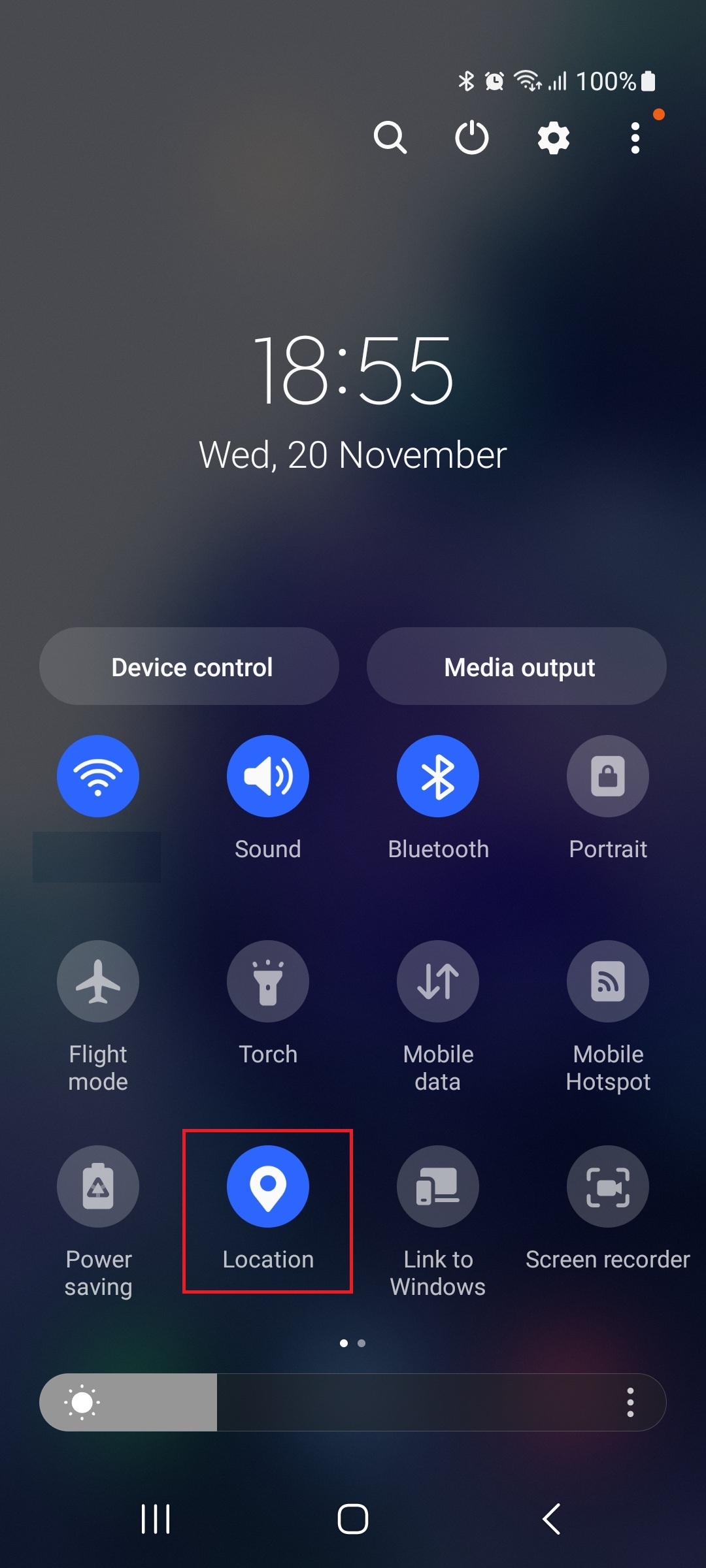
- Navigate to Settings -> apps -> mdm app -> permissions. Select Allow all the time to enable the Location Services for ME MDM.
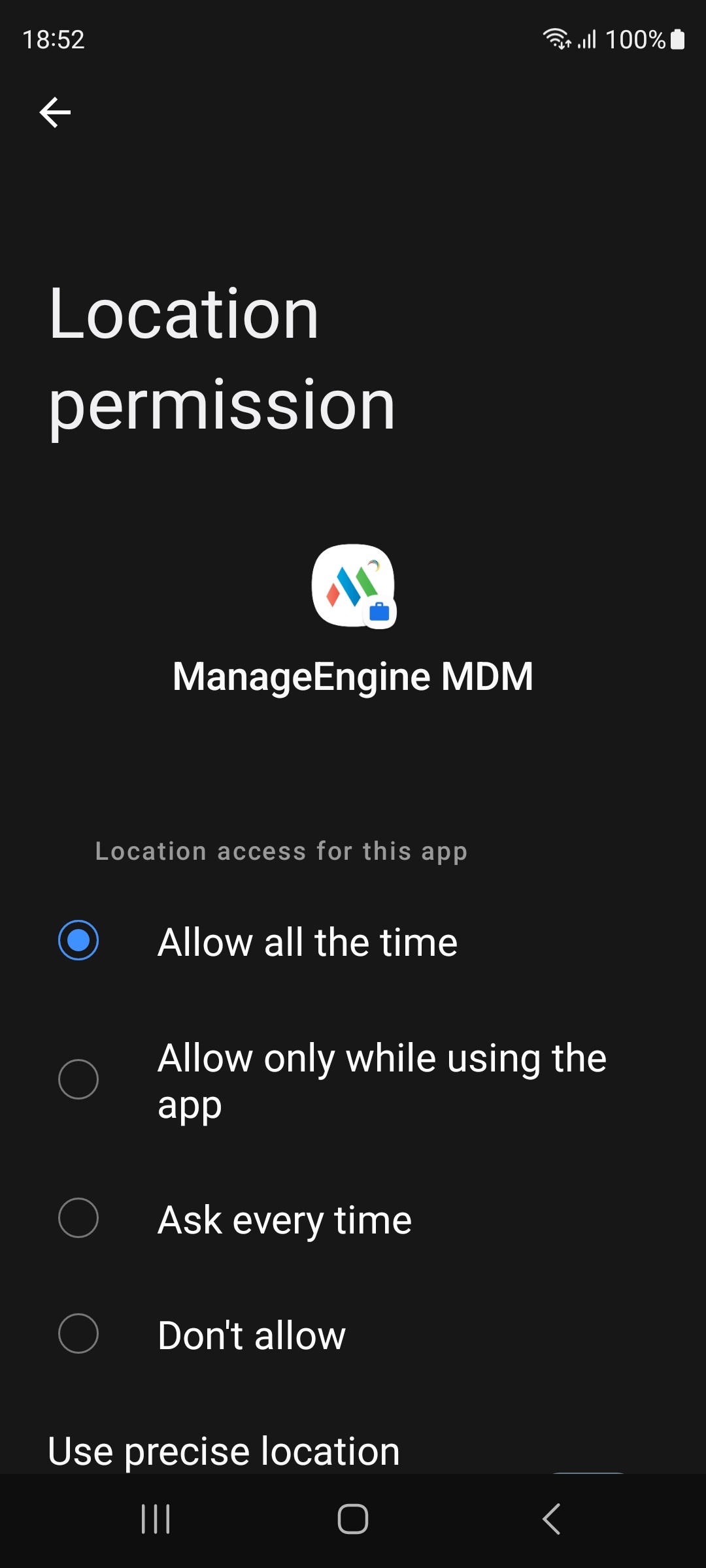
You have successfully enabled location services on Android devices.
For Android devices running OS 6.0 or above, the user has to enable location tracking, under runtime permissions for ME MDM app. To ensure location tracking is always on and is set on high accuracy mode without any user intervention, enroll the device as Device Owner and enable GPS to be Always On, using Restrictions policy.
Enabling Location Services on Windows devices
Pre-Requisites: Ensure Geo-Location is not blocked in MDM Privacy Settings and the location can be found on the Native Maps App.
The navigation is same for Windows phones, laptops/desktops and Surface Pro tablets. Follow the steps mentioned below to enable to Geo-tracking on Windows 10 or above devices:
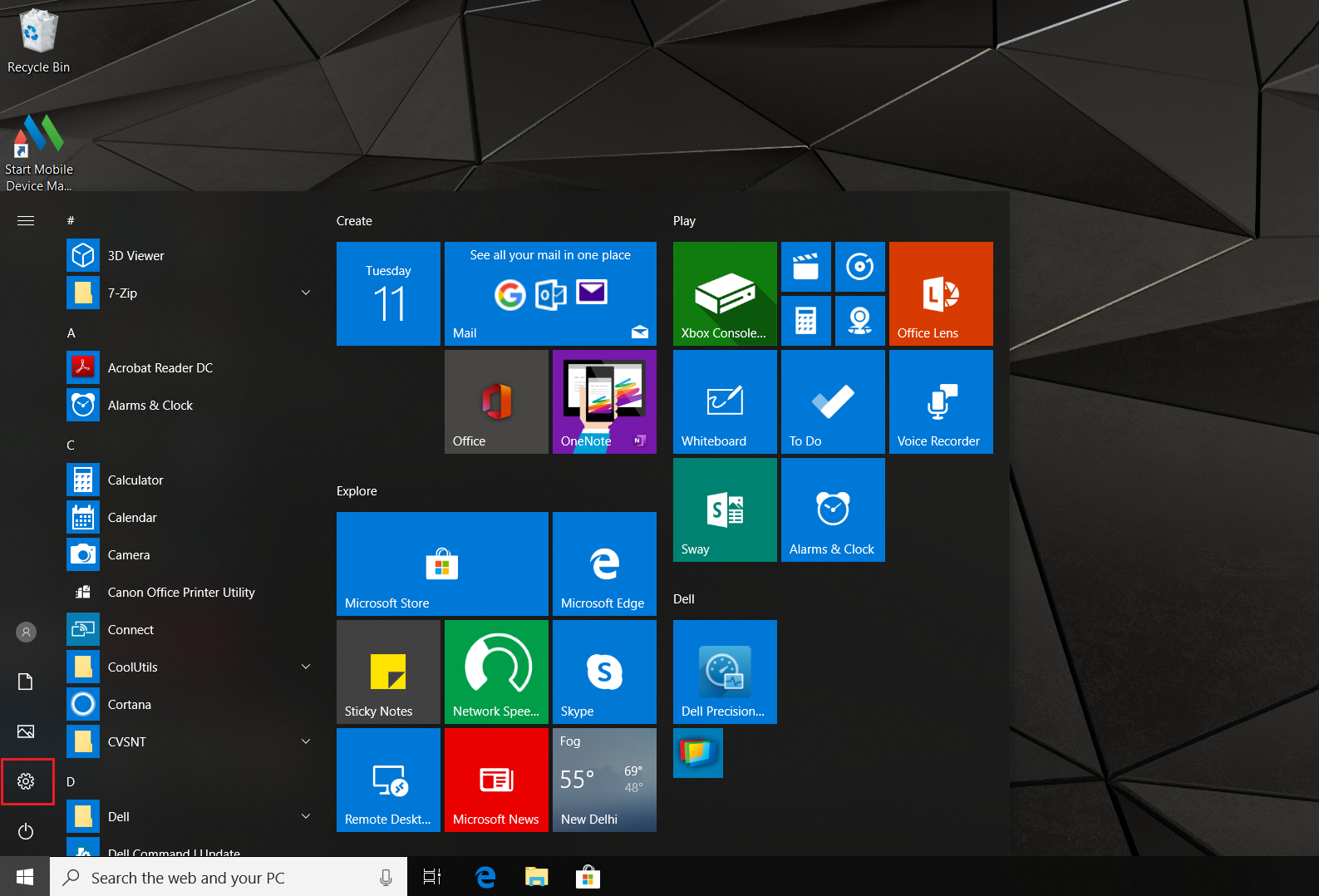
- Select Settingsicon on the managed device.
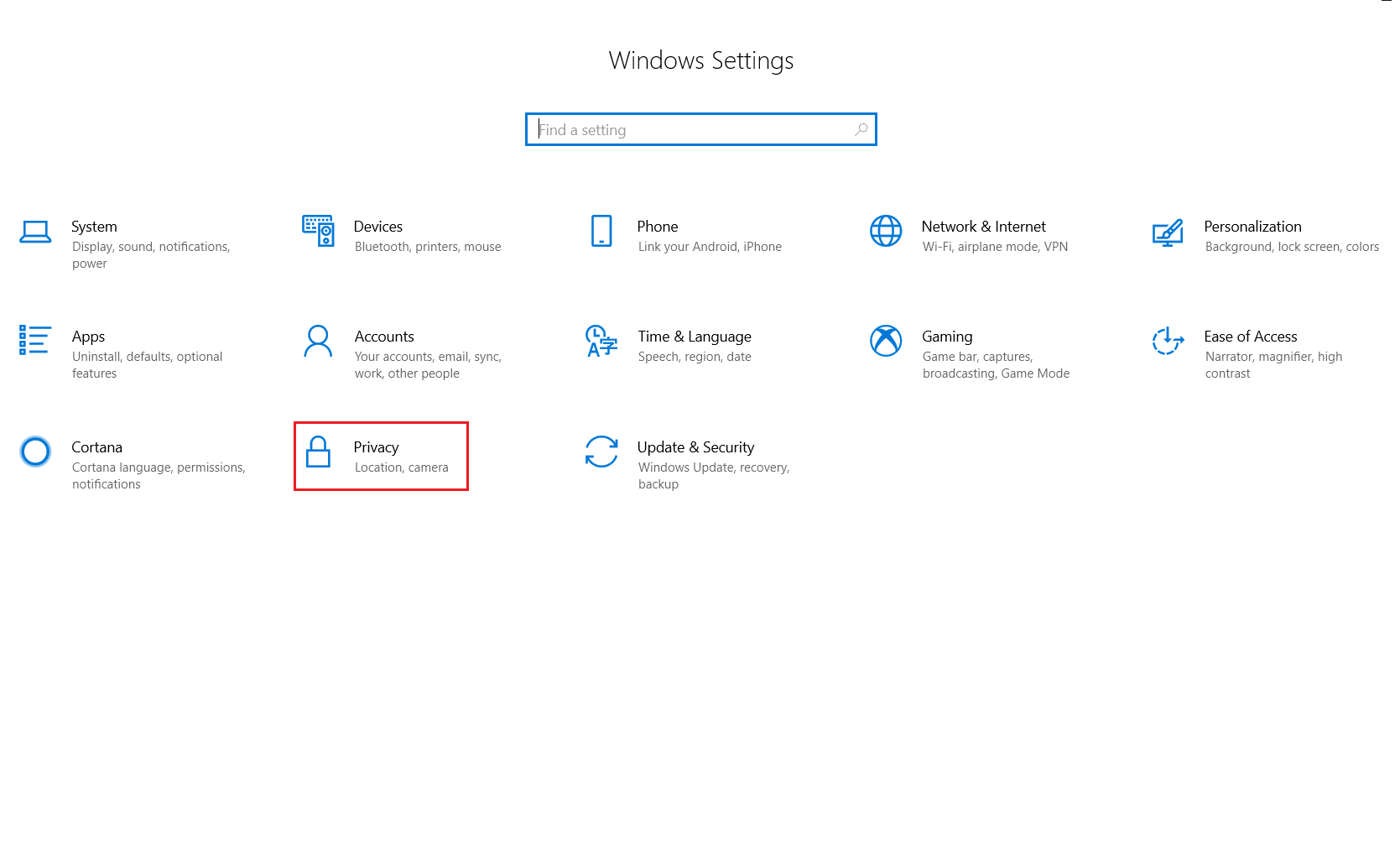
- Select Privacy from the list provided in Settings.
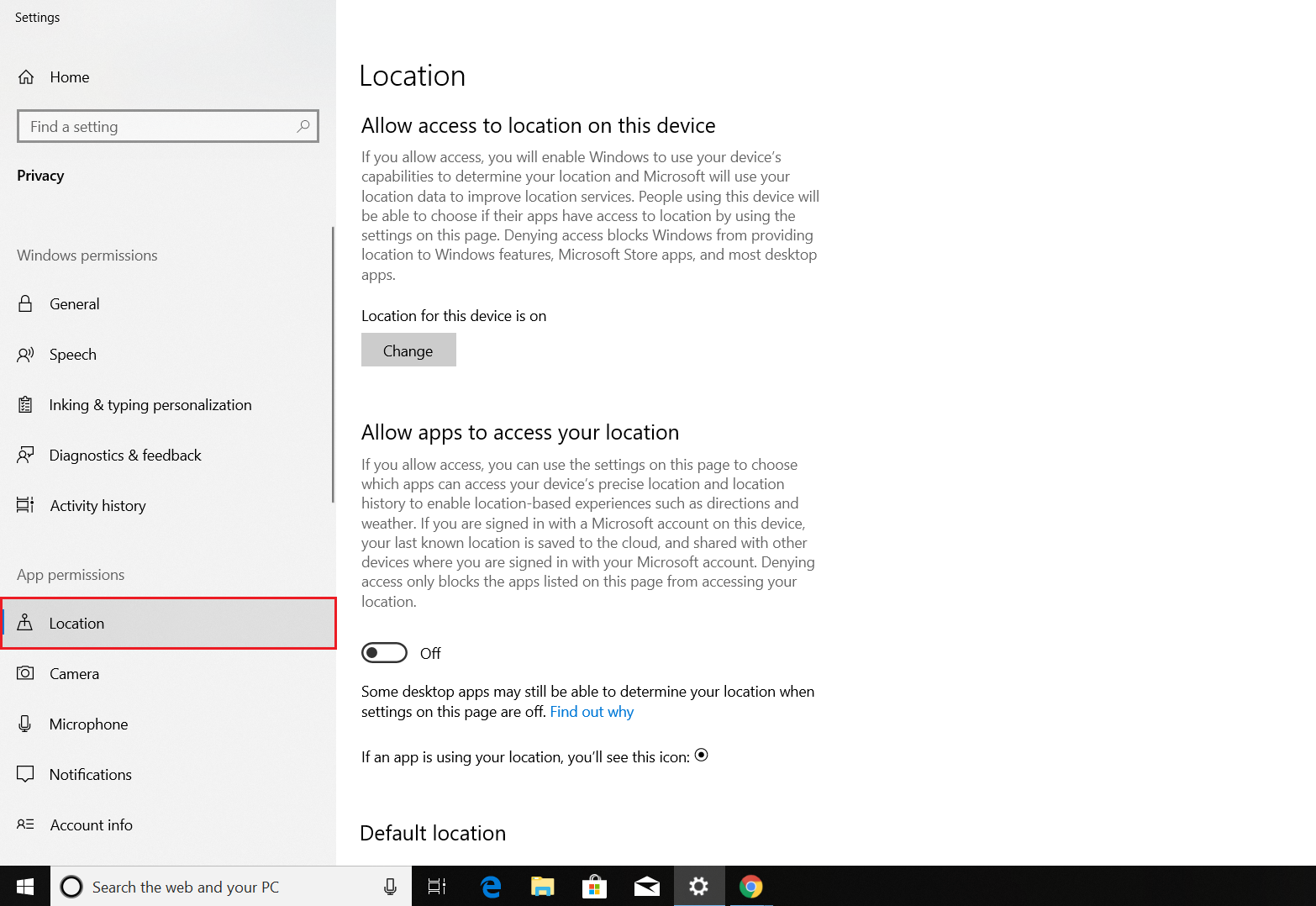
- Select Location from the list provided in Privacy under App permissions.
- Now, select the Location toggle and turn it On.
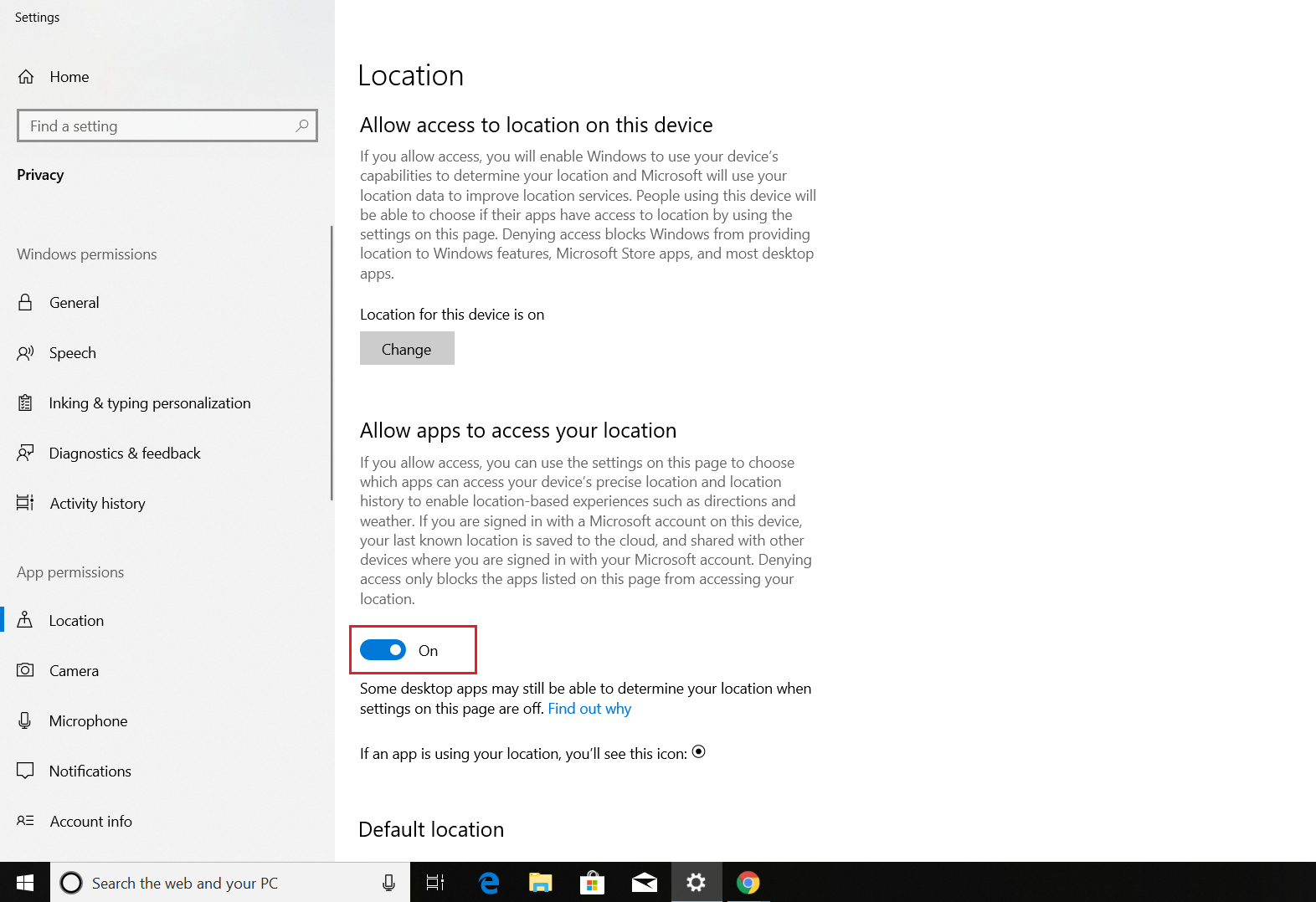
You have successfully enabled location services on your Windows device and can now find the location of the device. Addditionally, You can enable the Location using MDM Restriction Profile.
Note: When the Admin tracks the location, an auto-generated notification will appear on the user's device. This notification cannot be suppressed by MDM policies.
Enabling Location Services on Mac devices
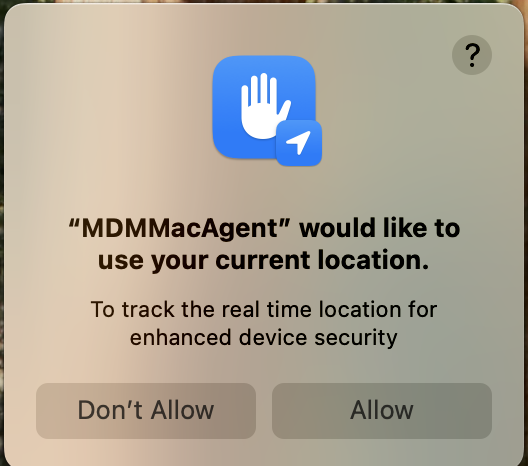
Supported for macOS devices running on versions 10.13.6 and above. When a Mac device is enrolled, a pop-up will appear requesting permission to use the location service. The user must allow the MDMMacAgent to access the location service. If the user selects "Don't Allow," the MDMMacAgent will be unable to use the location service.
NOTE:
1. The ME MDM app cannot be pushed to macOS devices. The Mac agent deployed on the device is used to track the location of the device.
2. The location service on macOS devices cannot be enabled or disabled remotely through Mobile Device Manager Plus (MDMP) or Endpoint Central. The user must manually enable or disable the location service through the device's System Preferences.
3. If location services are disabled in the System Preferences on the macOS device, the user will need to manually enable the service after Geotracking is activated from the MDM
Follow the steps given below to enable Location Services in Mac devices.
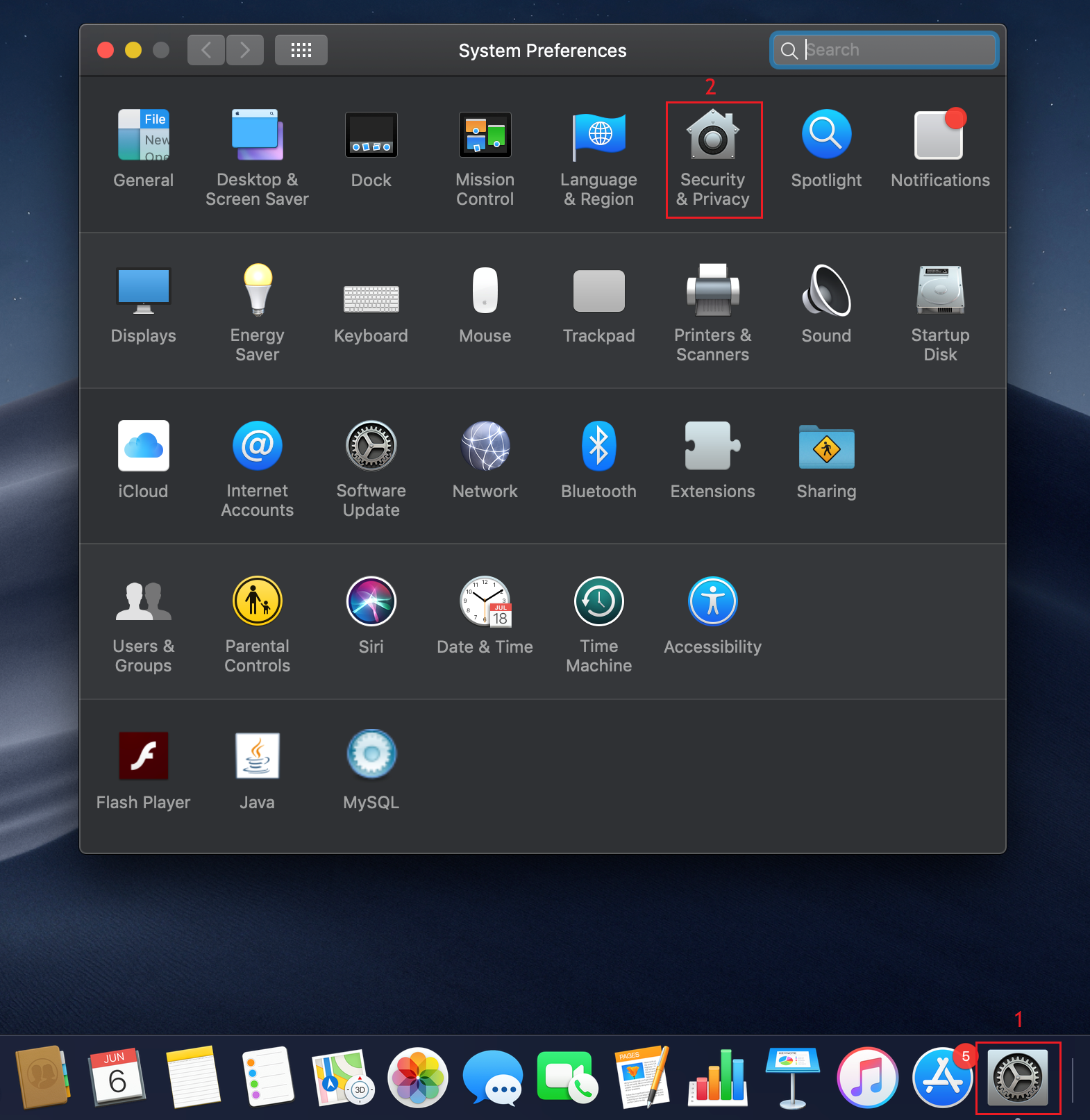
- On the Mac device, go to System Preferences app and click on the Security and Privacy icon from the System Preferences window.
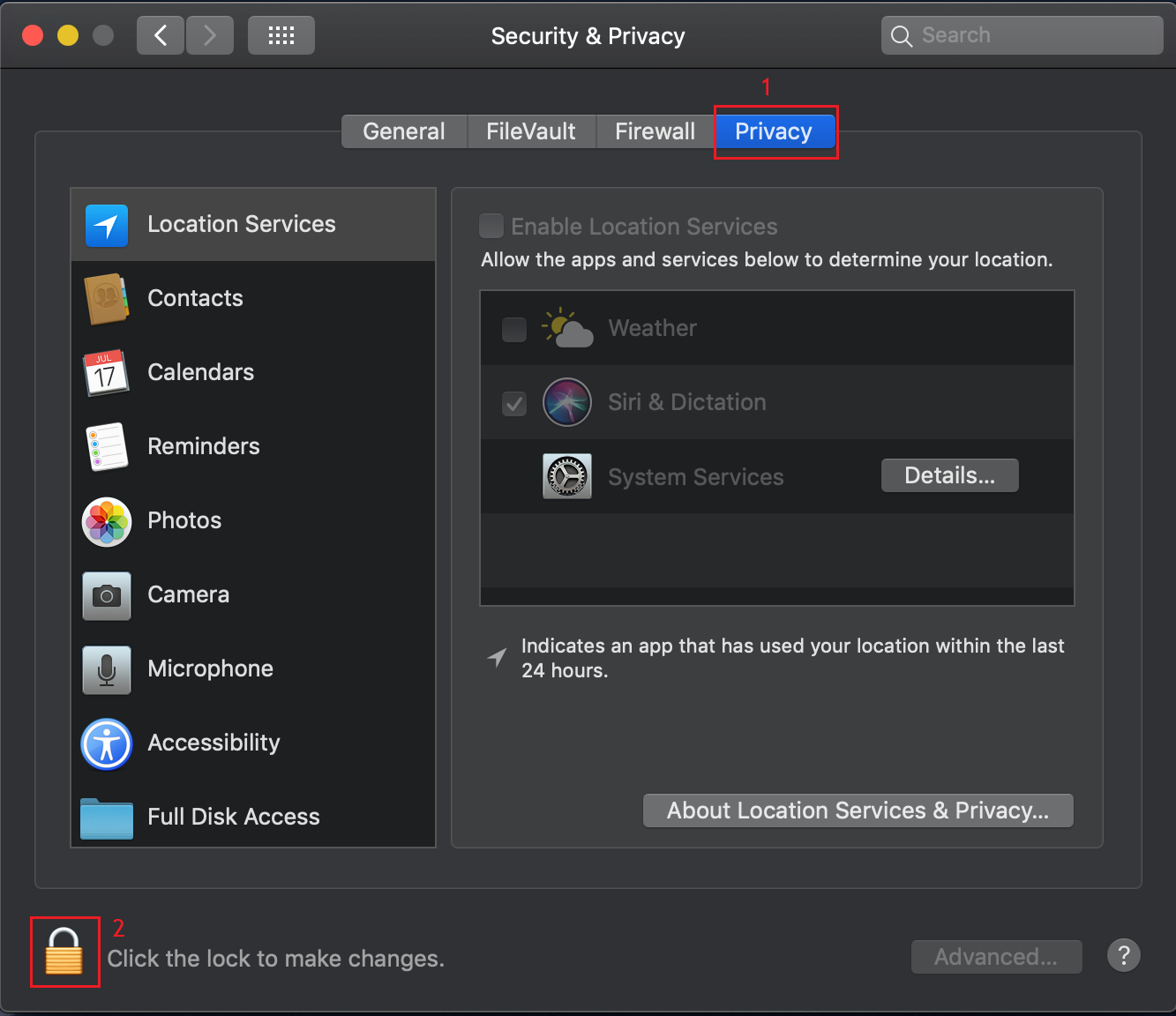
- Click on the Privacy tab. If the padlock on the lower left is locked, click on it to unlock with your admin username and password and choose Unlock.
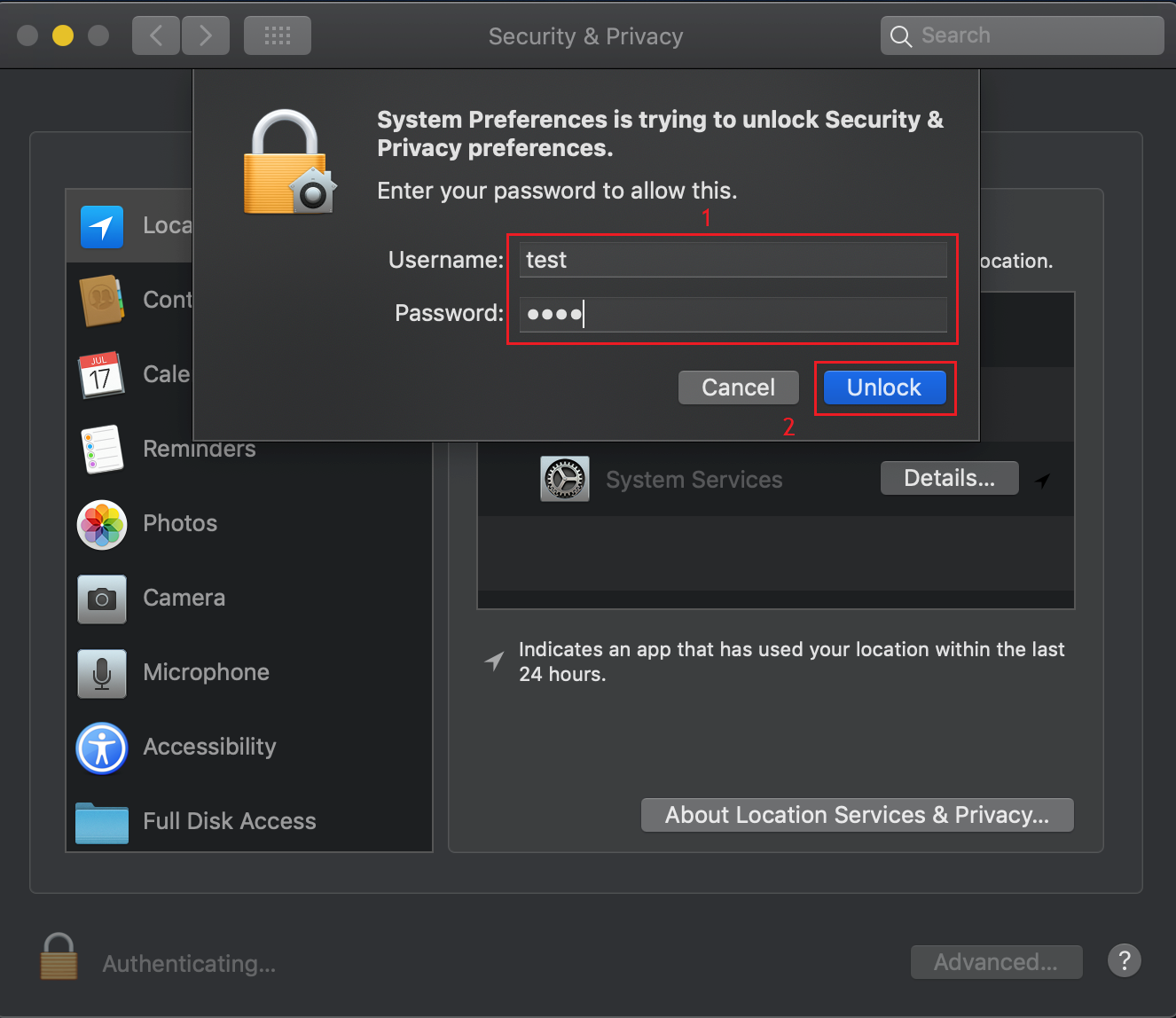
- Check Enable Location Services checkbox and choose the ME MDM app from the options listed.
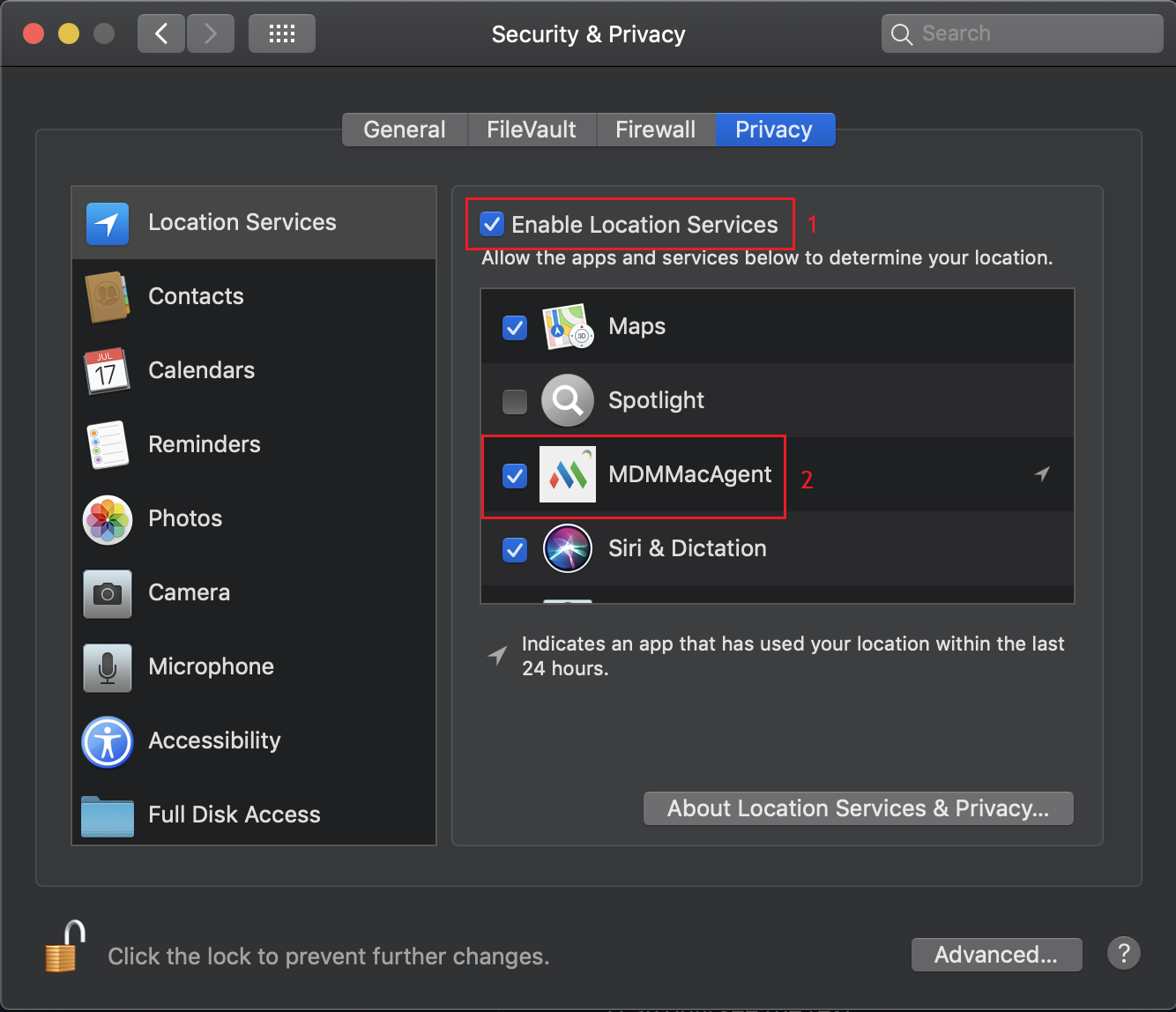
- For latest versions of Mac devices, enable the location services by doing the following:
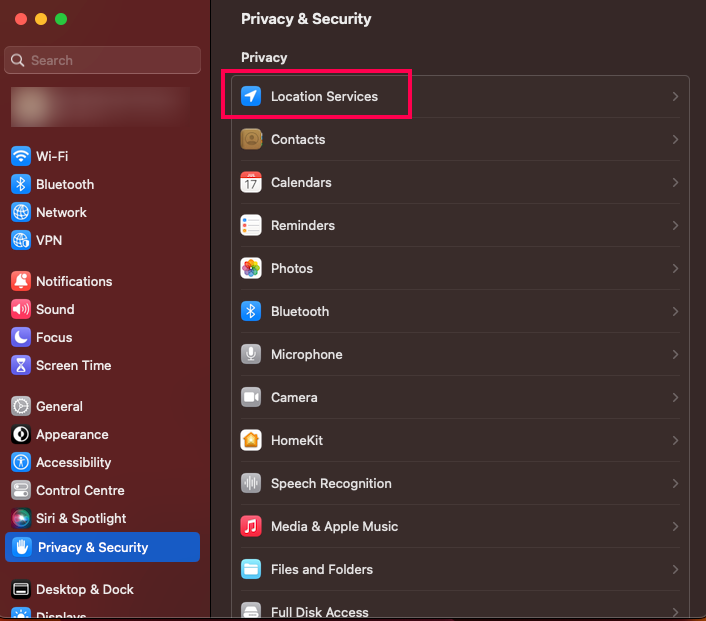
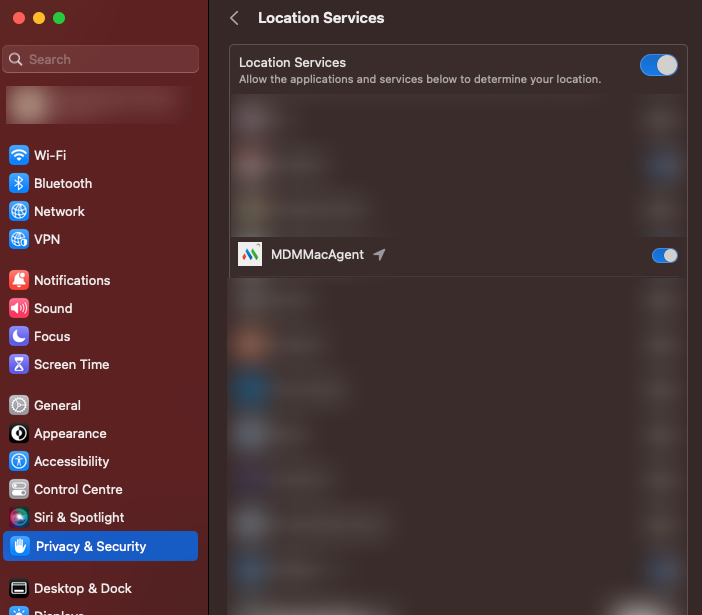
Location Services is successfully enabled on the Mac device. MDMInventory -> Geo-Tracking -> Save location history on moving. Choose between 100 m, 500 m or 1 km and Save.
Managing Location Permission for BYOD Devices on Android 12 and Above
In Android 12 and later versions, the Mobile Device Management (MDM) Plus cannot automatically grant location permission by default for BYOD (Bring Your Own Device) devices. This limitation is specific to Android 12 or above, whereas in Android 11 and below, location permissions can be automatically enabled upon device enrollment.
Impact on Enrollment Process:
When Geo-Tracking is enabled in the MDM console and a BYOD device is enrolled on Android 12 or later, the device will receive a "Device Non-Compliant" notification. This occurs because the MDM app does not have the necessary location permissions.
Steps to Enable the device Location Permission:
To resolve this and ensure the device complies with company policies, the device must manually grant location permission by following these steps:
- Click on the Device Non-Complaint message which will redirect to the App Info page of the ME MDM app.
- Select Permissions and Choose Location.
- Set the location permission to "Allow all the time".
Once location permissions are granted, the device will automatically become compliant.