Last updated: July 24, 2026
Device Access Recovery Key
Generate time-bound, device-specific recovery keys in Mobile Device Manager Plus for emergency access when standard authentication fails or devices are offline; three key types support unlocking devices after passcode lockouts, pausing Kiosk mode, or revoking management profiles.
Description
Mobile Device Manager Plus allows you to generate a recovery key to revoke device management in critical situations. This key serves as a backup access method when standard authentication fails or when the device is unreachable due to network issues.
When to Use a Recovery Key
You may need a recovery key in the following scenarios:
- Unlocking Device: Reset device passcode when a device is locked after multiple failed passcode attempts.
- Pause Kiosk: Temporarily pause Kiosk Mode.
- Revoke Management: Remove MDM profile from the device.
All these three keys can be used when the device is offline.
How to generate a Recovery Key
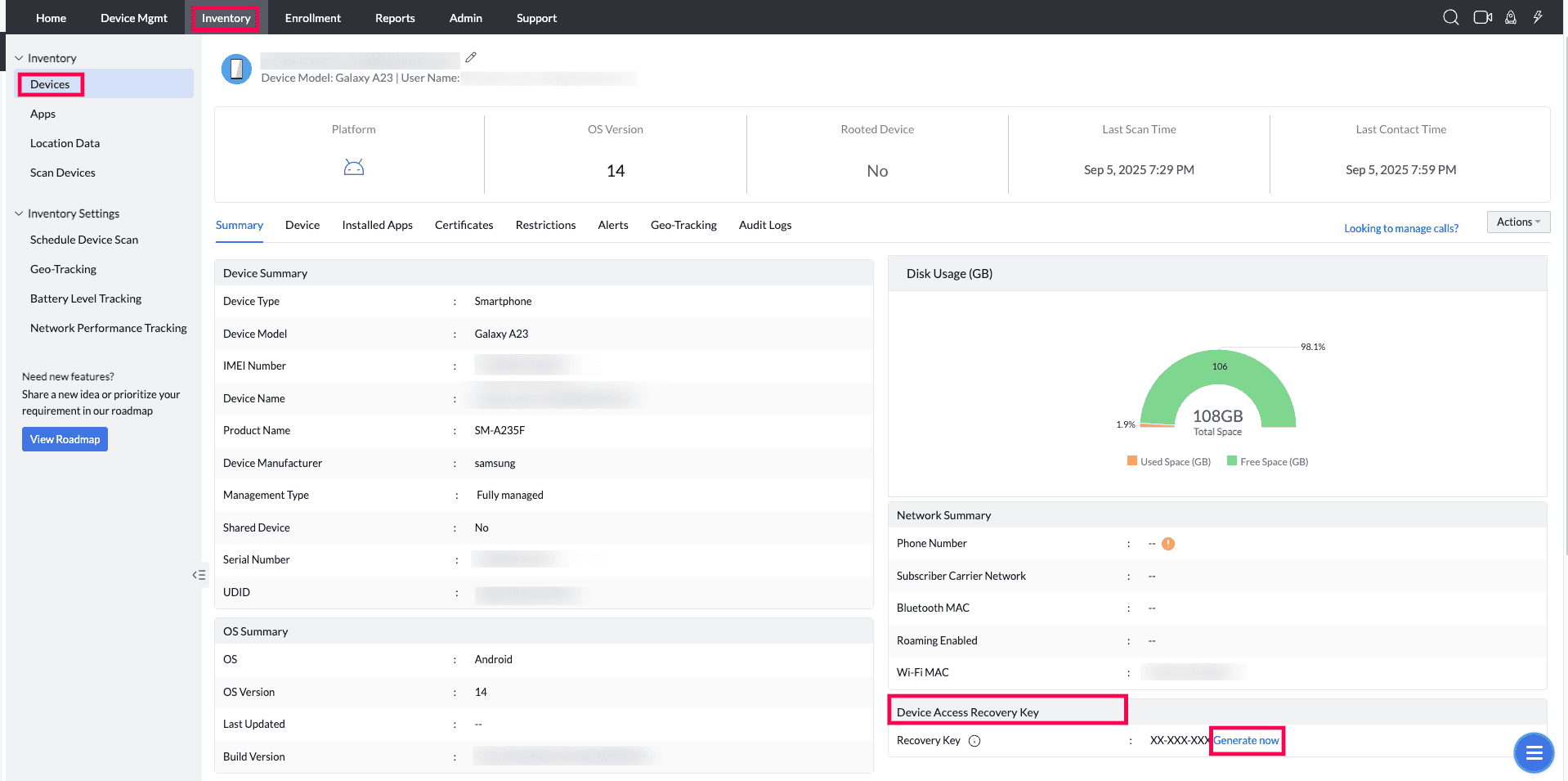
- Log in to your MDM Console, navigate to Inventory > Devices.
- Select the target device and click on the device requiring a recovery key.
- Under Device Access Recovery Key, click Generate Now.
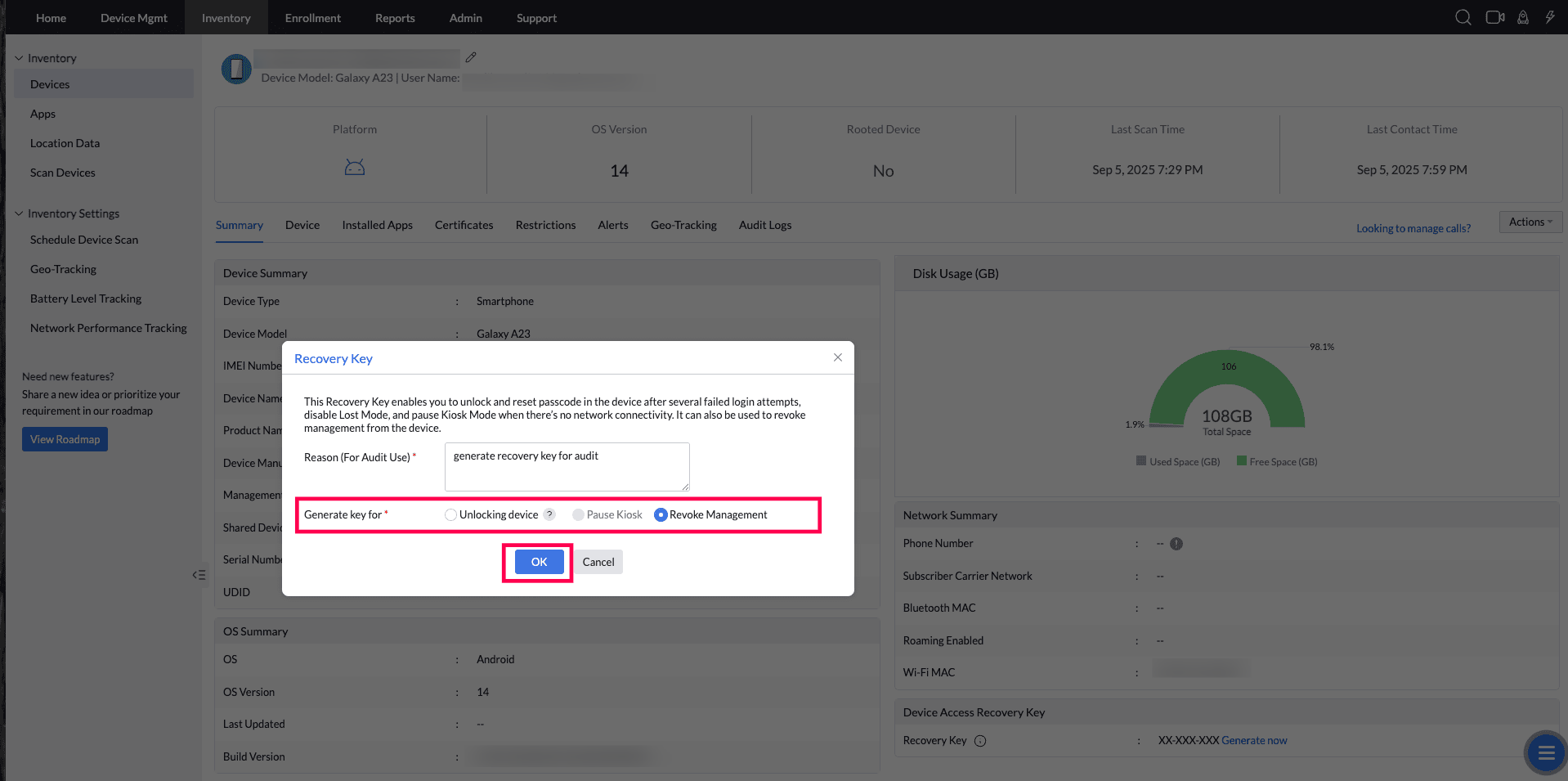
- Enter a reason for generating the key (Example: Unlock device after failed attempts)
- Select the recovery key type:
- Unlocking Device
- Pause Kiosk
- Revoke Management
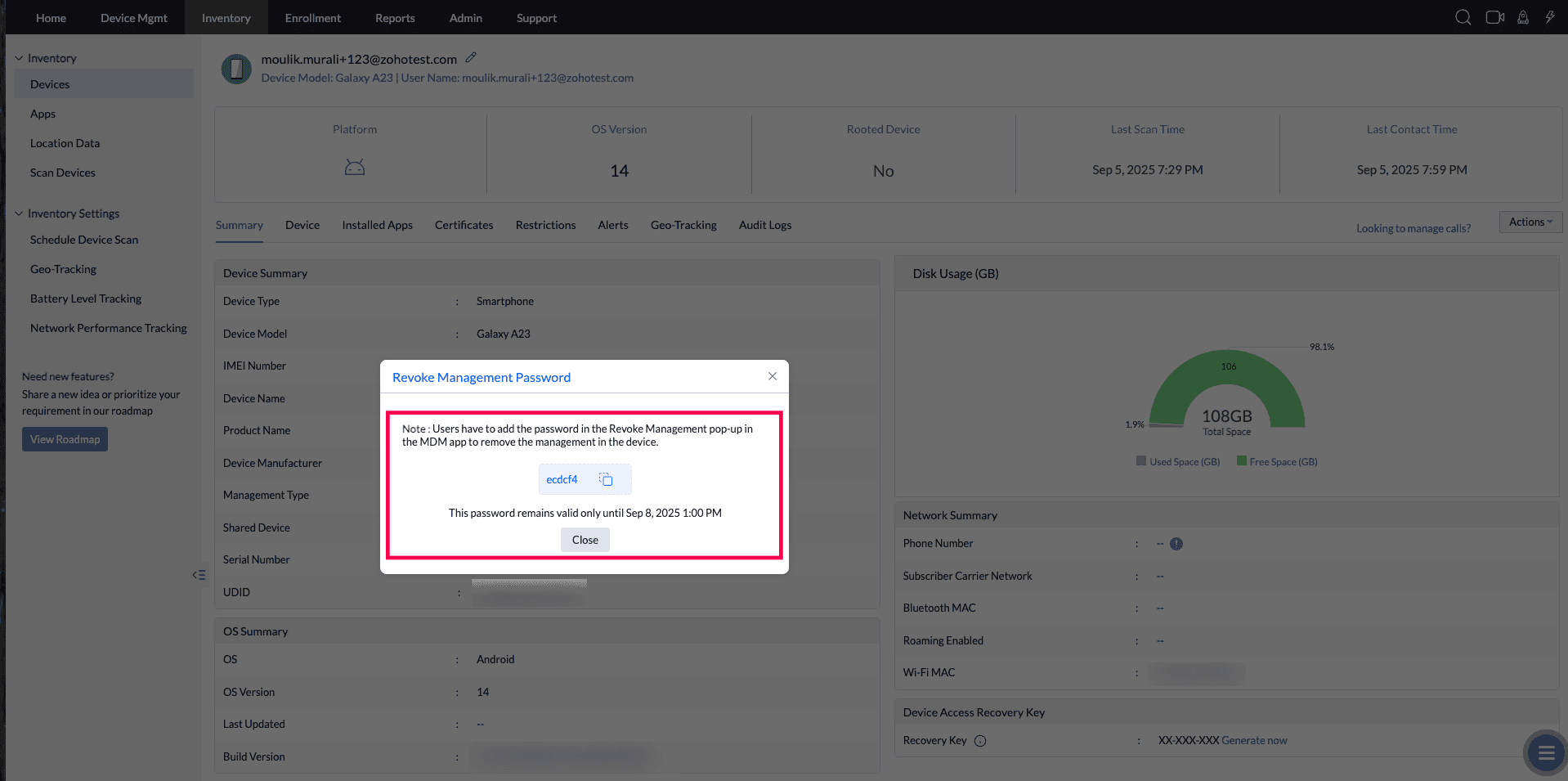
- A unique recovery key will be generated.
- Now share this key securely with the technician to resolve the issue on the device.
Important notes:
- Users with the Administrator role have full access to generate all three types of recovery keys.
- Unlock device and pause kiosk recovery key can be generated only by the user with Inventory Full Access permission.
- Revoke Management key can be generated only by the user with Deprovision- Write access.
- The recovery key is time-bound and secure. Each key is unique to the device and expires after time period.
How to use the recovery key on the device
Follow the below-given steps based on the recovery key type
Unlocking Device:
To unlock your device after too many passcode attempts, enter the recovery key to reset your passcode.
Pause Kiosk:
1. If the Self Service app (previously ME MDM app) is not allowed in the kiosk allowed apps list:
- Press the Home button 4 times consecutively.
- A prompt will appear asking for the kiosk passcode.
- Now enter the Recovery Key generated for pause kiosk.
2. If the Self Service app (previously ME MDM app) is allowed in the kiosk allowed apps list:
- Open the Self Service app (previously ME MDM app).
- Navigate to Settings > Exit Kiosk and enter the Recovery Key.
3. If the Self Service app (previously ME MDM app) is not allowed and the Home button is restricted:
- Long-press Volume Up + Volume Down keys (increasing from 0% to 100% and back) 5 times consecutively
- This will launch the Self Service app (previously ME MDM app).
- Navigate to Settings > Exit Kiosk, and enter the Recovery Key.
Revoke Management:
To enter the 'Revoke Management Recovery Key' on the device, first open the Self Service app (previously ME MDM app) icon and click four times on the top pane where the app name is visible. A Password Prompt dialog box appears where the Recovery Key can be entered.
Frequently asked questions
When would I need to generate a device access recovery key?
Use a recovery key when standard authentication fails or the device is unreachable - for unlocking a device after failed passcode attempts, temporarily pausing Kiosk mode, or revoking management (removing the MDM profile); all three key types work even when the device is offline.
Who is allowed to generate each type of recovery key?
Administrators can generate all three key types; unlock-device and pause-kiosk keys additionally require Inventory Full Access permission, while the Revoke Management key requires Deprovision-Write access, and each generated key is time-bound and expires after a set period.