Key takeaways
- iPad Kiosk Mode (Apple's term: Single App Mode) restricts a supervised iPad to a single app or controlled set of apps, with the Home button, Settings, and other apps disabled.
- Two setup paths exist: Guided Access - built-in, fast, no remote control, fragile at scale - and MDM Single App Mode - remote, tamper-proof, fleet-ready (requires supervision via Apple Business Manager or Apple Configurator).
- Three kiosk types are supported via MDM: Single App, Multi-App, and Autonomous Single App (the app itself enters and exits kiosk mode based on a task).
- Common deployments: POS terminals, restaurant menus, airline and conference check-in counters, classroom iPads, hospital bedside devices, hotel guest devices, donation stations, and digital signage.
- IT admins can exit, switch, or update kiosk profiles remotely from the MDM console - no need to physically touch each iPad.
iPad Kiosk Mode locks an iPad to one app - or a curated set of apps - so the device does exactly what it was put there to do and nothing else. Whether you're running self-checkout counters in a retail store, check-in tablets at a hotel lobby, or shared iPads in a classroom, kiosk mode keeps users on task and keeps your data off-limits.
There are two ways to get there. Guided Access is Apple's built-in option: you set it up on the device itself in under five minutes. It works fine for a single iPad, but it doesn't scale and it's easy to exit accidentally. The other path is MDM Single App Mode - configured remotely through a mobile device management solution like ManageEngine MDM Plus - which is what most IT teams use when managing more than a handful of devices.
This guide covers setup paths, multi-app kiosk, web kiosk, prerequisites, remote management, troubleshooting, and FAQs.
What is iPad Kiosk Mode (Single App Mode)?
iPad Kiosk Mode, Apple's official name for it is Single App Mode, is a supervised device state where an iPad is restricted to one specific app, or in multi-app configurations, to a controlled group of apps. Everything else is locked out: the Home button, Settings, Safari, the App Store, and any other app the user might otherwise reach.
When a device is in Single App Mode, the user can only interact with what you've put in front of them. Hardware buttons like volume controls and the side button can be disabled individually. Screen rotation, auto-lock, and touch input can all be configured or blocked.
With a mobile device management solution like Mobile Device Manager Plus, that also functions as iPad Kiosk software, it is possible to lock down iPadOS devices to Kiosk mode and have them run only the required app(s), control their device settings, and restrict hardware buttons. Furthermore, a large number of iPads can be remotely provisioned into iPad Kiosk Mode with single app or multi-app Kiosk Mode from a central point of control using the iPad Kiosk software.
iPad Kiosk Mode requires the device to be supervised. More on that in the Prerequisites section below. Once supervised, you can push a kiosk profile to one iPad or ten thousand from the same MDM console, and change it any time without touching the device.
The steps in this guide apply to iPadOS 17 and iPadOS 18.
Guided Access vs MDM Kiosk Mode: Which one should you use?
Both Guided Access and MDM Single App Mode lock an iPad to one app, but they work very differently and suit different situations.
| Feature | Guided Access | MDM Single App Mode |
|---|---|---|
| Setup | On the device, manually | Remote, from MDM console |
| Supervision required? | No | Yes (ABM or Apple Configurator) |
| Exit method | Triple-click + passcode, on the device | Remote command from MDM console |
| Scale | One device at a time | Any number of devices simultaneously |
| Tamper resistance | Low - passcode can be forgotten or bypassed | High - only MDM admin can exit |
| App switching | No - single app only | Yes - switch profiles or apps remotely |
| Best for | One-off demos, classrooms, short sessions | Deployed fleets, public-facing kiosks, retail, healthcare |
If you manage more than a few iPads, MDM Single App Mode is the right choice. Guided Access has no remote management capability. If a user exits it or the passcode gets lost, someone has to physically pick up the device. With MDM, you push the fix from your desk.
Types of iPad Kiosk Mode (Single App, Multi-App, Autonomous Single App)
ManageEngine MDM Plus supports three kiosk configurations for iPads:
- Single App Mode. The iPad is locked to one specific app. Everything else - Settings, Safari, the Home screen - is inaccessible. This is the standard setup for POS terminals, check-in kiosks, and information displays where one app covers the entire use case.
- Multi-App Mode. The iPad is locked to a defined set of apps. The home screen is configured by the admin, and users can only see and open the apps in that set. Useful in situations where users need access to a few tools - for example, a frontline worker who needs a messaging app, a task app, and a scanner app, but nothing else.
- Autonomous Single App Mode. The app itself enters and exits kiosk mode based on what's happening in the session. A payment app might lock the device to a transaction screen while a payment is in progress, then release it once the transaction is complete. This mode is configured by the app developer using Apple's Autonomous Single App Mode API.
Prerequisites: Supervising your iPad with ABM or Apple Configurator
iPad Kiosk Mode via MDM requires supervised devices. Supervision is a state that gives an MDM solution a higher level of control over an iPad - without it, Single App Mode and most kiosk-related restrictions simply won't work.
To configure iPad Kiosk Mode using an MDM solution like Mobile Device Manager Plus, ensure the following prerequisites are met: The devices must be supervised. Devices can be supervised by enrolling them using Apple Configurator or Apple Business Manager.
There are two ways to supervise an iPad:
Option 1: Apple Business Manager (ABM)
ABM is the standard path for organizations buying iPads in any volume. Devices purchased through Apple or an authorized reseller can be enrolled in ABM automatically. Once the device powers on and connects to the internet, it enrolls into your MDM automatically - no manual setup, no user intervention. This is what zero-touch deployment looks like in practice. To get started, your organization needs an ABM account (free at business.apple.com), and your MDM solution needs to be connected to it as the MDM server.
Option 2: Apple Configurator 2
If you have iPads that weren't purchased through ABM, or devices you need to supervise manually, Apple Configurator 2 (free on the Mac App Store) handles this over USB. Connect the iPad, prepare it through Configurator, and it comes out supervised and enrolled in MDM.
Note: Apple replaced the legacy Device Enrollment Program (DEP) with Apple Business Manager in 2019. If your documentation or workflows still reference DEP, they're pointing at ABM - it's the same program, updated.
How to Set Up iPad Kiosk Mode Using MDM (Step-by-Step)
To setup iPad Kiosk Mode using an iPad Kiosk software, follow the steps given below:
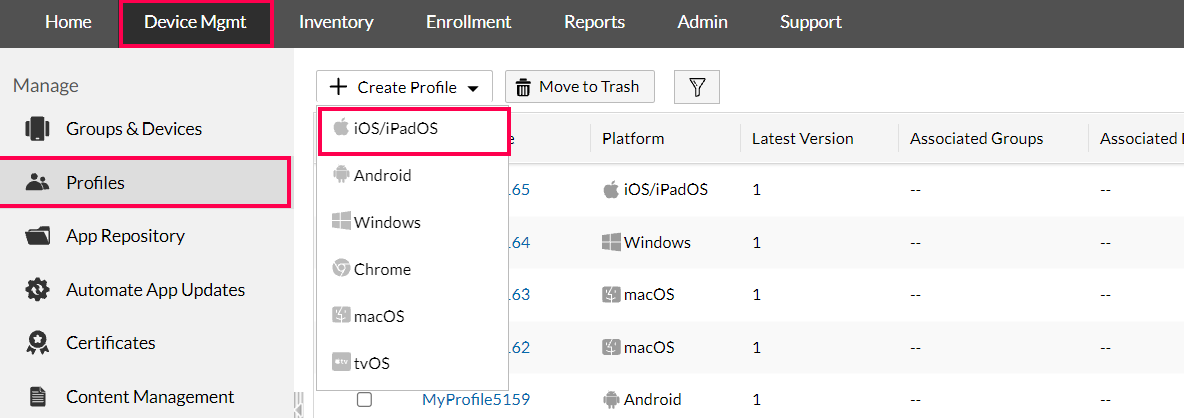
Step 1: On the MDM console, navigate to Device Mgmt - Profiles - Create Profile dropdown and choose iOS/iPadOS.
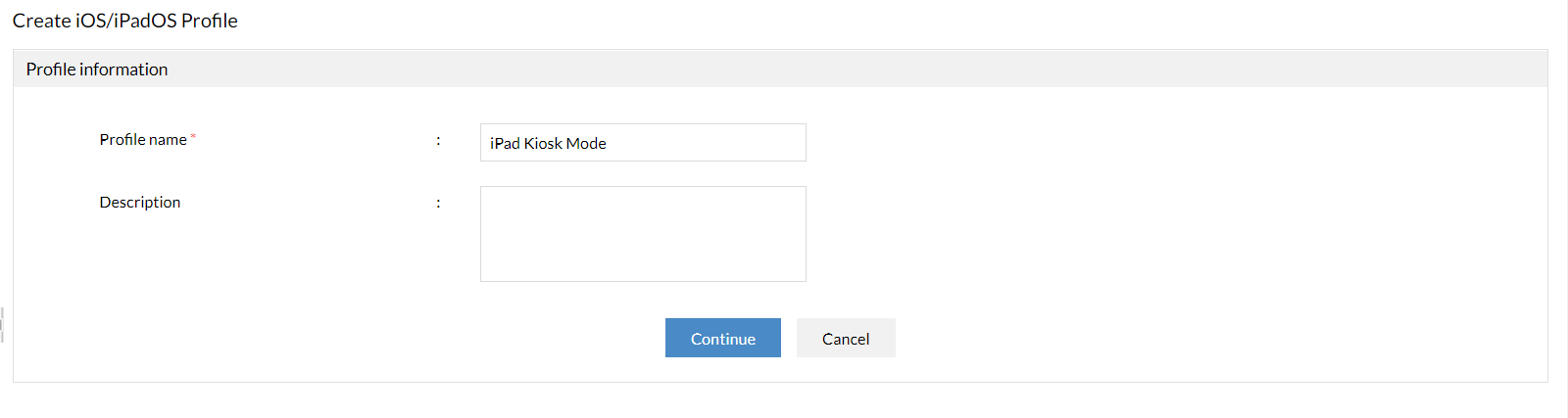
Step 2: Provide a reference name and if required, a description and click on Continue.
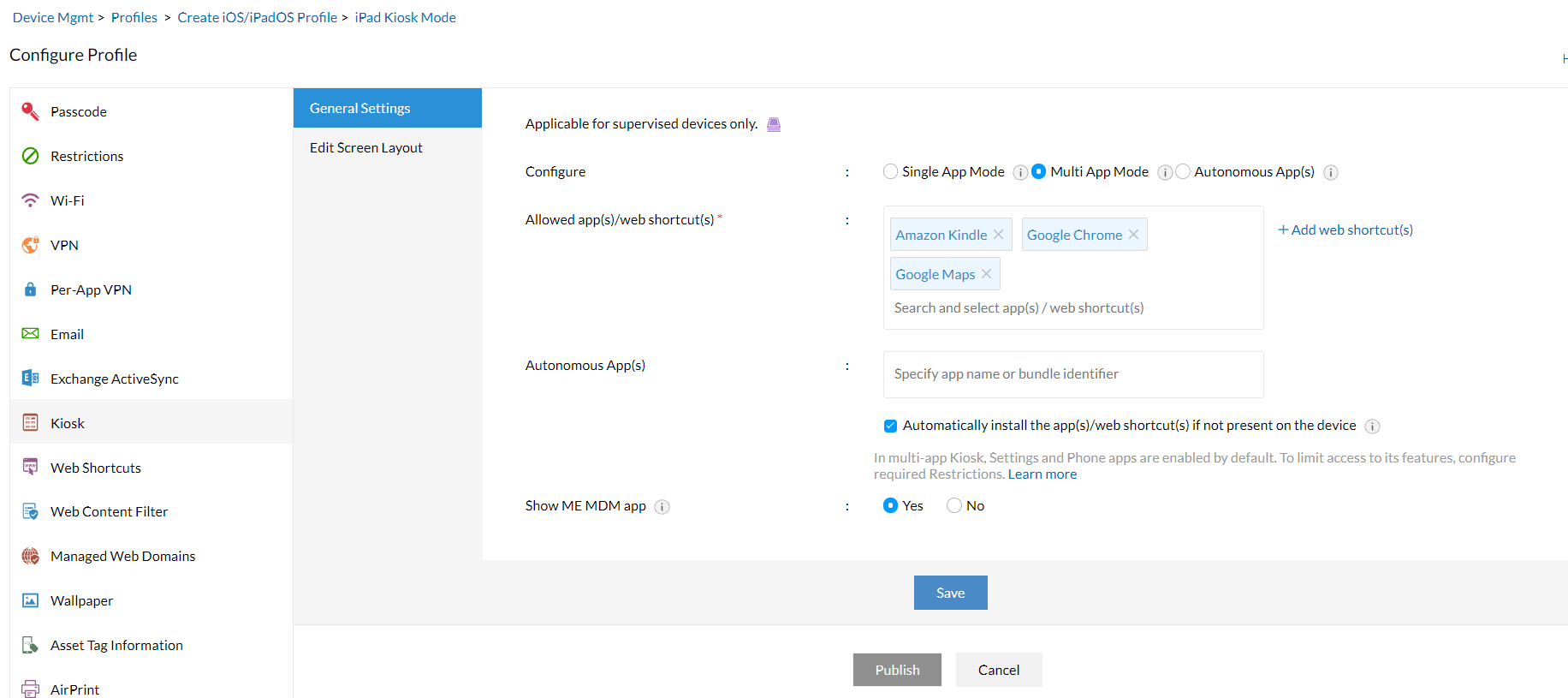
Step 3: Click on Kiosk from the list of policies. Choose the Kiosk type as Single App Mode to provision the device with a single app, or choose Multi App Mode to enable iPad Kiosk Mode with multiple apps, or Autonomous App(s) if you wish to lock the device to single app kiosk mode temporarily. In the next field specify the iPad Kiosk app(s). Configure the device settings and restrict the hardware buttons as required. If Single App Mode has been selected, you'll be able to configure the device settings and restrict the hardware buttons as required under the Settings section.
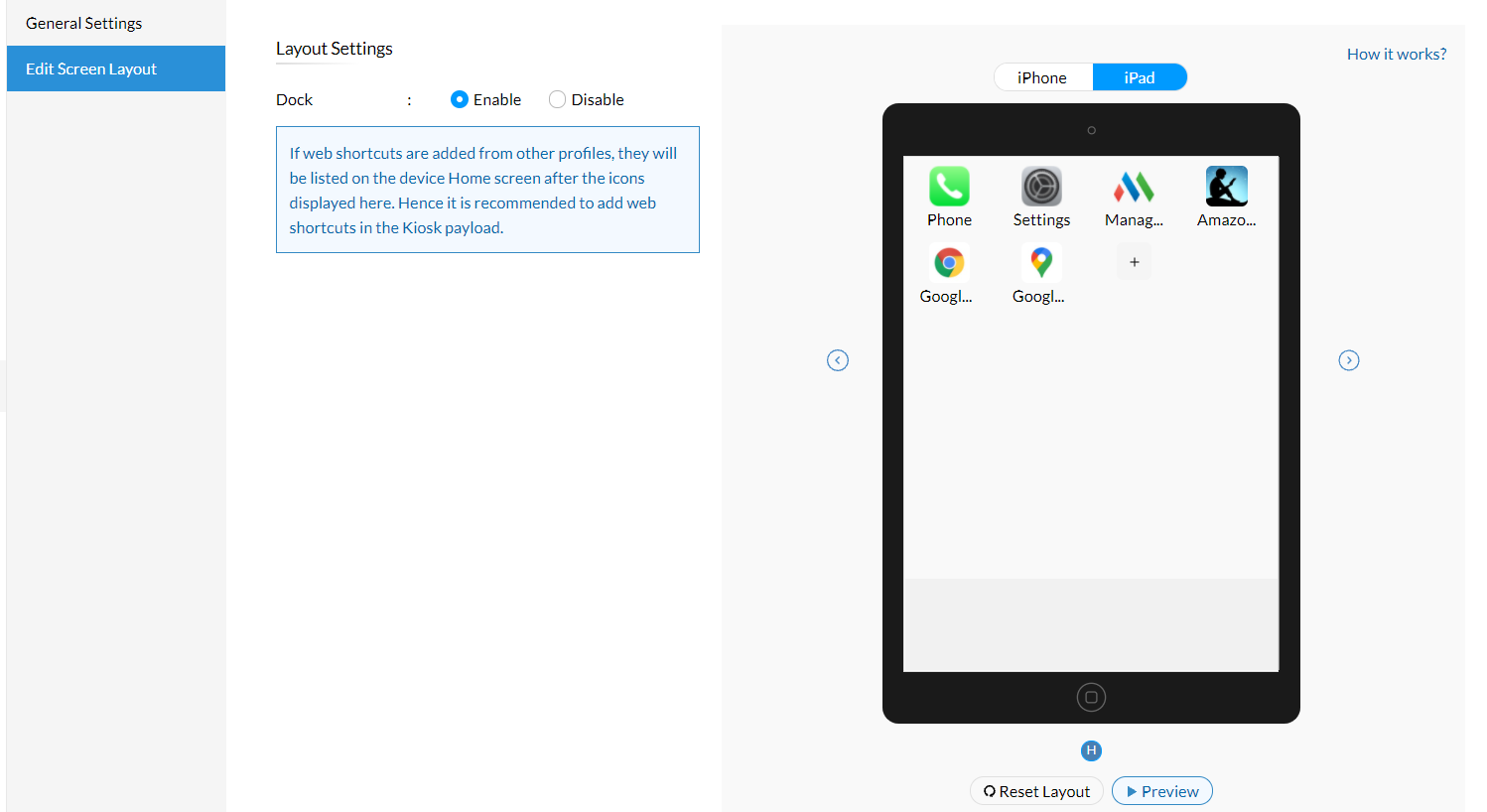
Step 4: Click on Edit Screen Layout and select iPad to configure the device screen layout. In case the iPad is provisioned with a single app, the selected app will open in full screen mode. However, in the case of multi app kiosk mode, the admin will be able to configure the layout of the added apps on the home screen or pin them to the dock for easier access.
Step 5: Click on Save and Publish the profile.
Step 6: Distribute the Kiosk profile to a single device to test it before deploying it to your production environment.
While enabling Kiosk Mode on iPad:
- Ensure the app(s) to be provisioned on the device are available in the App Repository.
- Both Store apps and enterprise apps can be provisioned in iPad Kiosk Mode.
- To silently install the iPad Kiosk app(s) on the devices in Kiosk mode, Store apps need to be purchased from Apple Business Manager. In the case of enterprise apps, the .ipa file has to be uploaded to MDM after which the apps can be silently deployed on the Kiosk devices without requiring an account with Apple Business Manager. This also ensures updates to these apps are managed easily.
- App updates can be tested on specific devices before deployment to the iPads in the production environment, which eliminates productivity and security issues that might arise due to bugs in the updates.
How to Lock an iPad to a Single Website (Web Kiosk)
If your kiosk use case is browser-based - a self-service portal, a booking form, a digital menu - you don't need to lock the iPad to an app. You can lock it to a single URL instead.
There are two ways to do this in ManageEngine MDM Plus:
Option 1: Single App Mode with a managed browser
Push a managed browser app (such as a kiosk browser) to the iPad via MDM, configure the allowed URL in the browser's app configuration, then set that browser as the kiosk app in your Single App Mode profile. The iPad opens directly to your URL and the user can't navigate away.
Option 2: Web Clips (Web Shortcuts)
Web Clips are MDM-pushed shortcuts that open a URL in a full-screen browser view. Add the Web Clip to a Multi-App kiosk profile along with a locked-down browser. Users see only the web shortcut on the home screen and can't access anything outside the URL you've defined.
Either way, combine with restrictions on Safari and the App Store so the user can't bypass the kiosk setup through the browser's address bar or by downloading another app.
How to Manually Set Up iPad Kiosk Mode with Guided Access
Kiosk Mode is a powerful feature that allows IT teams to lock iPads into a specific app or set of apps, ensuring employees only use the device for its intended purpose. This is especially useful in sectors like retail, education, logistics, or frontline services.
To manually enable iPad Kiosk Mode, follow the steps below:
Step 1: Enabling Guided Access
- On the iPad to be provisioned in Kiosk Mode, navigate to Settings - Accessibility - Guided Access.
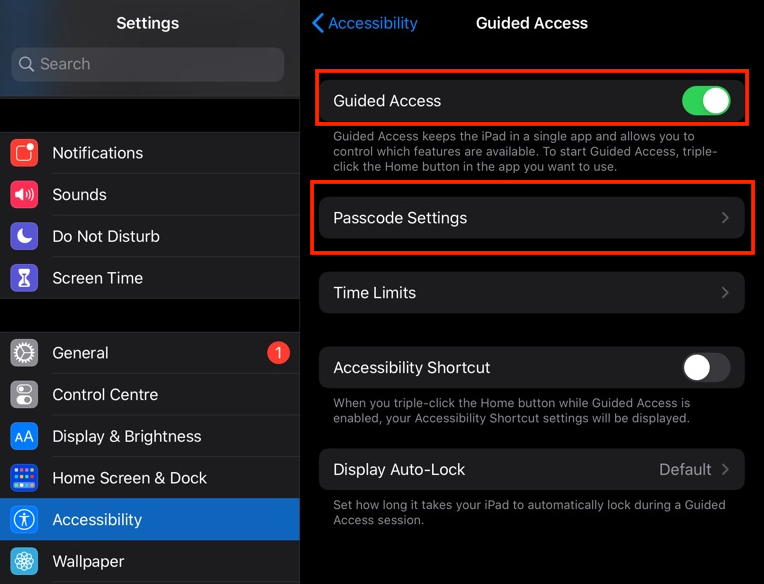
- Enable Guided Access and tap on Passcode Settings to set a passcode to be provided while entering or exiting Guided Access.
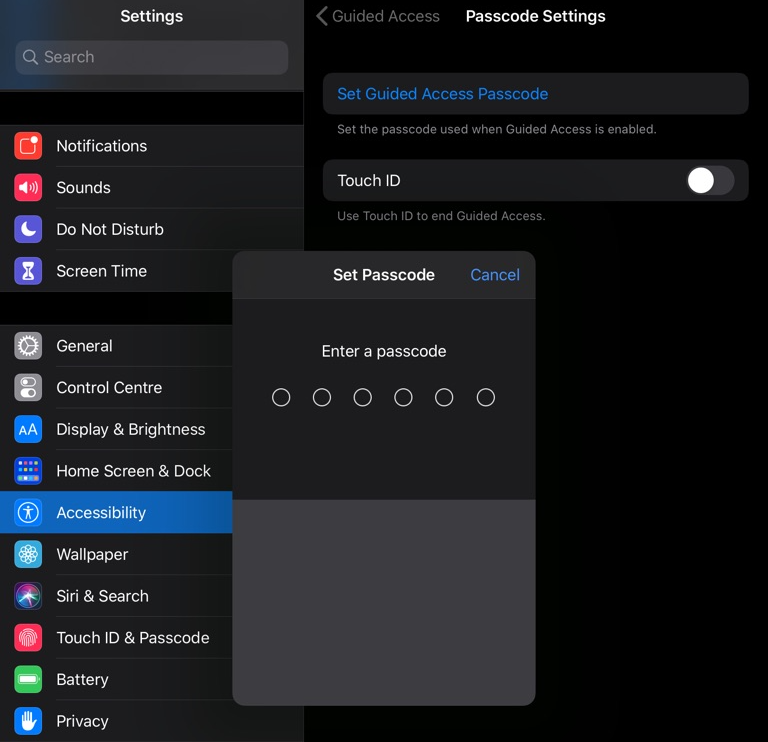
Step 2: Configuring app in Guided Access
- Open the app to be locked into iPad Kiosk Mode using Guided Access.
- Triple click the Home button and select Guided Access.
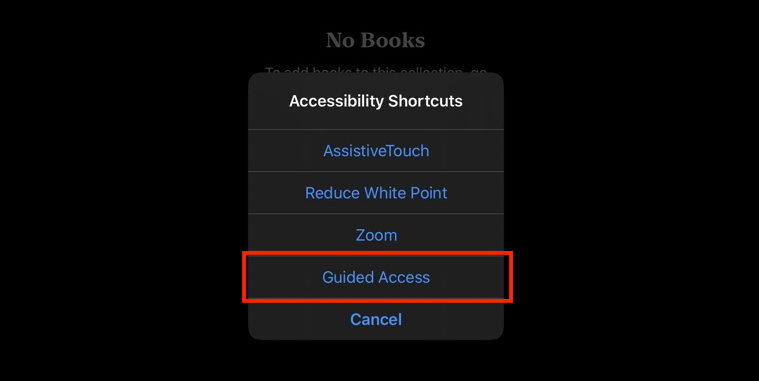
- Select the areas of the screen to be disabled and device functionalities to be disabled. Click on Start to initiate the Guided Access session.
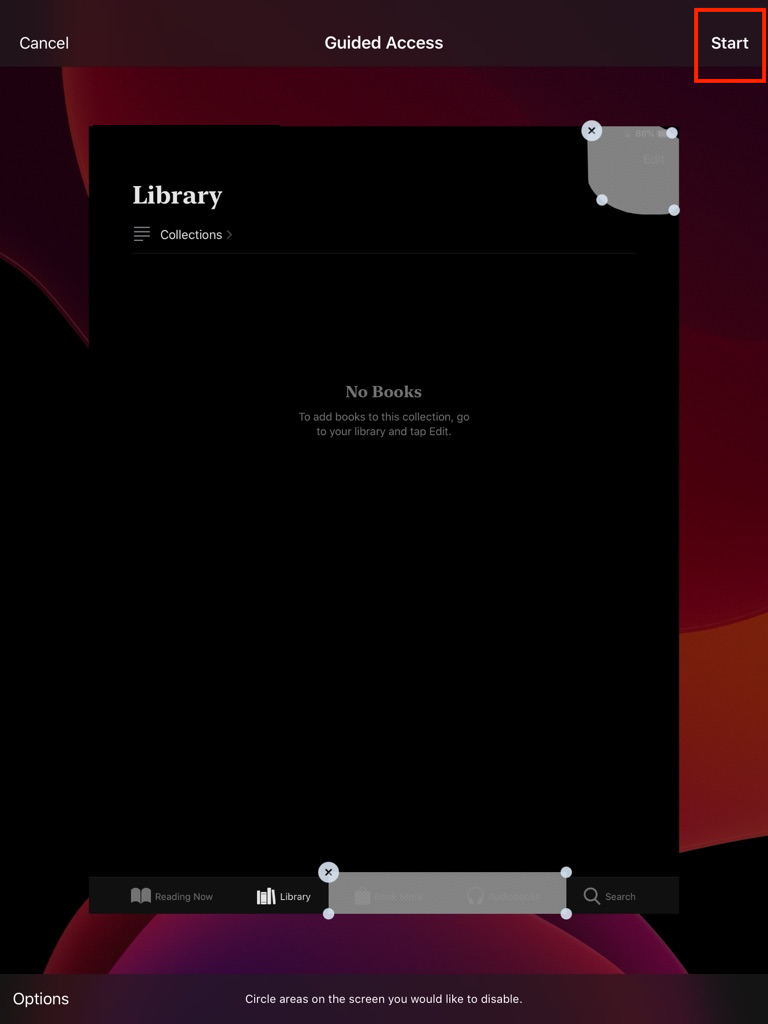
Step 3: Exiting Guided Access Mode
- Triple click on the Home button.
- Enter the Guided Access password or authorize the exit using TouchID or FaceID, if configured.
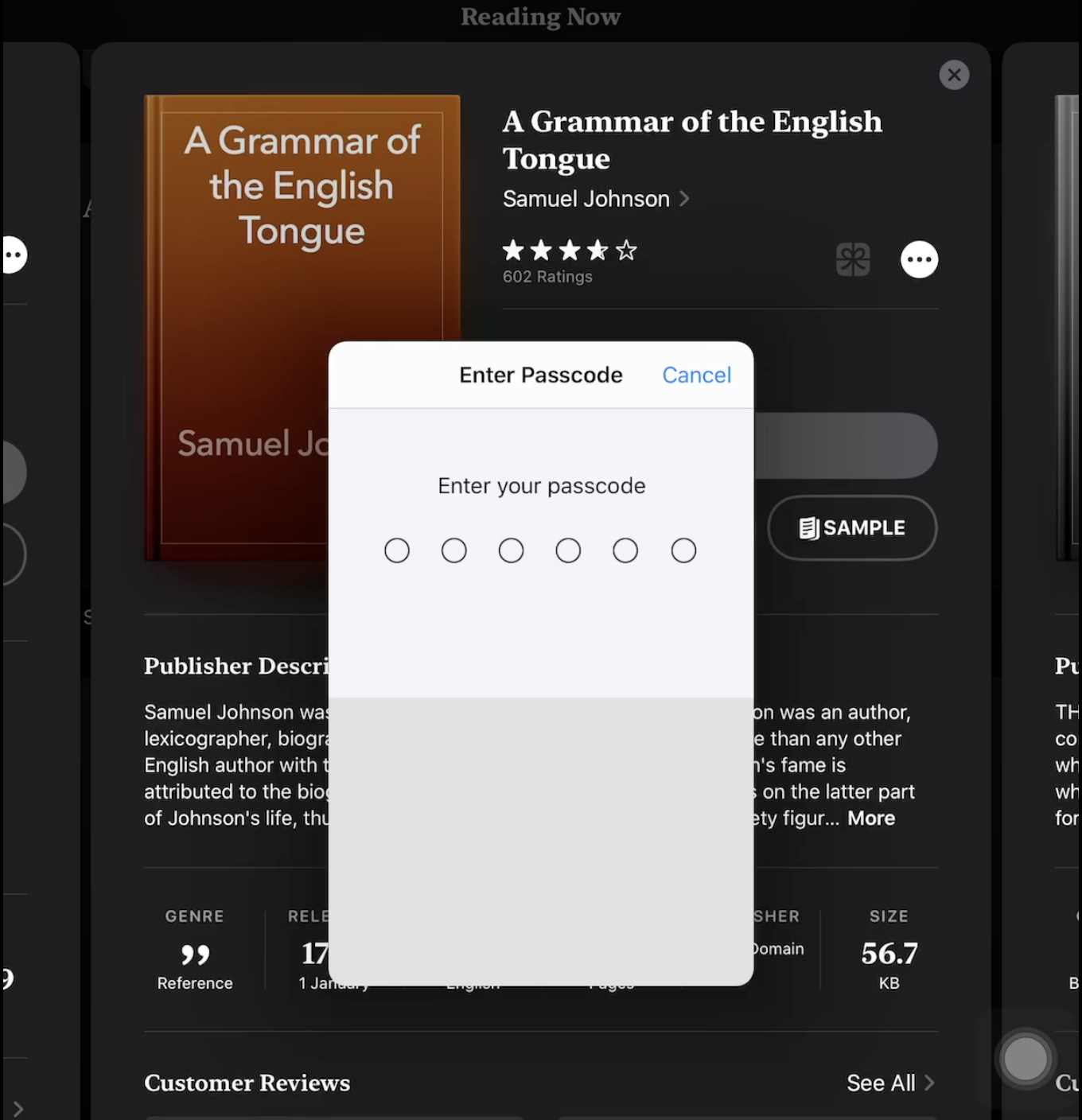
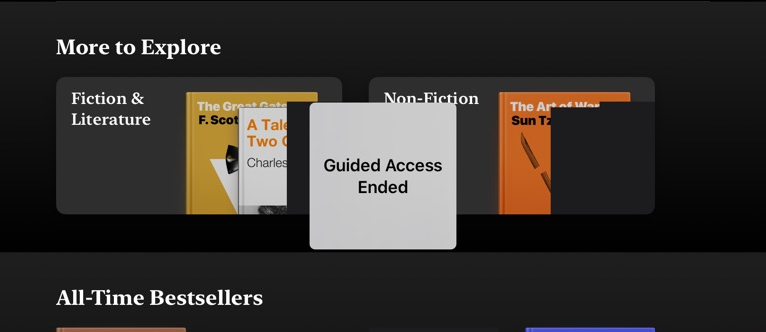
- The Guided Access session will be ended.
How to Exit or Switch iPad Kiosk Mode Remotely
One of the main advantages of MDM-managed kiosk mode over Guided Access is that you never have to physically touch the device to make changes. Here's how the common scenarios work:
- Exiting kiosk mode on a single device. From the MDM console, select the device and remove or deactivate the kiosk profile. The iPad exits kiosk mode immediately and returns to its normal supervised state. No passcode, no physical access needed.
- Switching between kiosk profiles. If you run events, retail promotions, or rotate use cases on your iPads, you can maintain separate kiosk profiles in MDM and switch between them remotely. Remove the active profile and push the new one. The device updates within seconds. This is especially useful for conference check-in iPads that need to switch between different apps or URLs for different events.
- Bulk profile updates across a fleet. When you need to update the kiosk app, change the allowed URLs, or modify any device restrictions across a large number of iPads, you push the updated profile to a device group from the MDM console. All devices in the group receive the update simultaneously. No manual device handling.
- Temporary kiosk exit for maintenance. If a technician needs to access a kiosk iPad for a software update or hardware check, an admin can remotely suspend the kiosk profile, allow the work to be done, and re-enable kiosk mode - all from the MDM console without visiting the device.
iPad Kiosk Mode Use Cases by Industry
iPad kiosks show up in a wide range of environments. Here are the most common deployment scenarios:
- Retail. Self-checkout counters, product catalog browsers, and loyalty program sign-up kiosks. iPads in retail kiosks are locked to the POS or self-service app, with auto-lock and screen rotation configured to keep the experience consistent across shifts.
- Restaurants and Food Service. Digital menu displays, table-side ordering kiosks, and payment terminals. Single App Mode keeps the ordering app front and center and prevents staff from using the device for anything else.
- Airlines and Conference Venues. Passenger check-in counters, boarding pass scanning stations, and event registration kiosks. These environments often require profile switching - the same iPads may be used for different events or flight segments, and MDM makes that switch remotely.
- Healthcare. Patient bedside monitoring, nurse station devices, visitor check-in, and appointment scheduling. Kiosk mode here is as much about compliance and data protection as it is about usability - patients and visitors shouldn't have access to anything beyond the specific application they've been given.
- Education. Schools using Apple School Manager can deploy iPads in exam mode, locking students to a single assessment app for the duration of a test. Outside of exams, multi-app kiosk mode restricts classroom iPads to the specific apps needed for the lesson.
- Hotels and Hospitality. Guest-facing kiosks in lobbies for check-in, concierge services, and local information. These iPads often run a web-based portal, making the web kiosk setup (Single App Mode with a managed browser) the most practical option.
- Donation Stations and Nonprofits. iPads set up as donation kiosks at events or in permanent locations. Single App Mode with a payment app keeps the experience clean and ensures no one accidentally - or intentionally - navigates away from the donation screen.
- Digital Signage. Information displays in corporate lobbies, waiting rooms, and public spaces. Autonomous Single App Mode works well here - the signage app controls when it occupies the full screen and when other functions might be accessible.
Benefits of Using MDM as Your iPad Kiosk Software
Using an iPad Kiosk software/app such as Mobile Device Manager Plus (MDM), that also functions as Apple MDM, to lock down Apple iPads into Kiosk Mode provides additional control and has the following benefits over the built-in Guided Access capabilities:
- iPads can be locked down into iPad Kiosk Mode with multiple apps instead of just a single app.
- Multiple devices can be configured remotely without any user intervention.
- Web resources can be distributed as Web Shortcuts and added to Kiosk Mode.
- Temporarily lock the device into a specific app, preventing users from accessing other apps for a particular duration.
- Automate the installation of the apps not available on the device when provisioned in Kiosk Mode.
- Pre-configure various settings like Auto Lock, Screen Rotation, Volume Buttons etc., while provisioning devices into Kiosk Mode.
- Provide access to basic settings like Wi-Fi and prevent users from modifying other settings on devices.
- With home screen customization, define the apps' position on the home screen and add frequently accessed apps to the Dock, restricting users from rearranging or removing the app icons.
- Bulk enroll and provision iPads as kiosks across multiple locations simultaneously. Whether you're setting up 10 devices in one store or 500 across hotel properties in different cities, the process is the same from the MDM console.
- Manage app updates without disrupting active kiosk sessions. Test updates on a staging device first, then push to production iPads during off-hours - no downtime, no surprises on the floor.
Troubleshooting Common iPad Kiosk Mode Issues
- Notification pop-ups breaking the kiosk experience. App notifications, system alerts, and carrier messages can interrupt a kiosk session by pulling the user out of the locked app. To prevent this, use the Restrictions profile in MDM to disable notifications for all apps except the kiosk app itself, and turn off Allow Notifications in the kiosk profile settings.
- Device offline - kiosk profile not applying. MDM profiles are pushed over Wi-Fi or cellular. If a device is offline when you make changes, it won't receive the updated profile until it reconnects. For iPads in locations with unreliable connectivity, configure MDM to automatically re-push pending profiles when the device comes back online. You can also set the kiosk profile to enforce on startup, so it re-applies if someone restarts the device.
- App update causes kiosk app to crash or disappear. An app update that introduces a bug can take down your entire kiosk fleet if it's pushed without testing. Use MDM's app update testing workflow: push the update to a single test device first, verify it runs correctly in Single App Mode, then deploy to the production group. If an issue makes it to production, you can roll back by pushing the previous version of the enterprise app from MDM.
- Kiosk app not launching on startup. If the iPad restarts - due to a power cut or OS update - and the kiosk app doesn't launch automatically, check that the app is set as the designated app in the Single App Mode profile and that the profile is still active on the device. MDM should automatically re-enforce the kiosk profile after a reboot, but verify the device is still enrolled and connected to MDM.
- Supervised device showing as unsupervised after reset. If an iPad is factory-reset or erased (intentionally or otherwise), it loses its supervised state. If the device was enrolled through Apple Business Manager, supervision is restored automatically when it's set up again and connects to the internet. If it was supervised manually via Apple Configurator, you'll need to re-supervise it through Configurator before re-enrolling in MDM.
Manage iPad Kiosks at Scale with ManageEngine MDM Plus
ManageEngine MDM Plus handles the full kiosk lifecycle for iPad fleets of any size - from initial enrollment through day-to-day management and eventual decommission.
- Bulk enrollment and zero-touch deployment. Connect MDM Plus to Apple Business Manager and iPads enroll automatically the first time they're powered on. No manual setup per device. Define the kiosk profile in MDM and it's pushed to the device as part of the enrollment flow - devices come out of the box kiosk-ready.
- Remote profile management. Switch an iPad between kiosk profiles, update the allowed apps, change the kiosk URL, or exit kiosk mode entirely - all from the MDM console, without touching the device. Profiles can be assigned to individual devices or to groups, making fleet-wide changes a single operation.
- Cross-platform kiosk management. If your organization runs a mix of iPads, Android tablets, Windows devices, or macOS machines as kiosks, MDM Plus manages kiosk mode across all of them from the same console. No separate tool needed for Android kiosk mode or Windows assigned access.
- App lifecycle management. Push new kiosk apps silently, manage updates with a test-before-deploy workflow, and handle App Store licensing through Apple Business Manager - all from MDM Plus. Enterprise apps (.ipa files) can be uploaded directly and deployed without requiring an ABM account.
- Device health monitoring. MDM Plus monitors enrolled devices continuously. Get alerts when a kiosk device goes offline, runs low on storage, or falls out of compliance with your kiosk profile. Run remote commands - lock, wipe, restart - on any device from the console.