Hardware Health Monitoring
Monitor the hardware health of key device parameters such as temperature, voltage, power, fan speed, status of processors, disk arrays, etc., of multiple vendors and configure notification profiles to get alerted if they violate pre-defined thresholds.
Hardware Monitoring Configuration (For version 12.8.707 and above)
- To enable hardware monitoring, go to Settings → Monitoring → Monitor Settings → Hardware and IPMI.
Under Hardware Sensor Metrics, select the Hardware Monitoring with polling interval seconds check box and click Save.
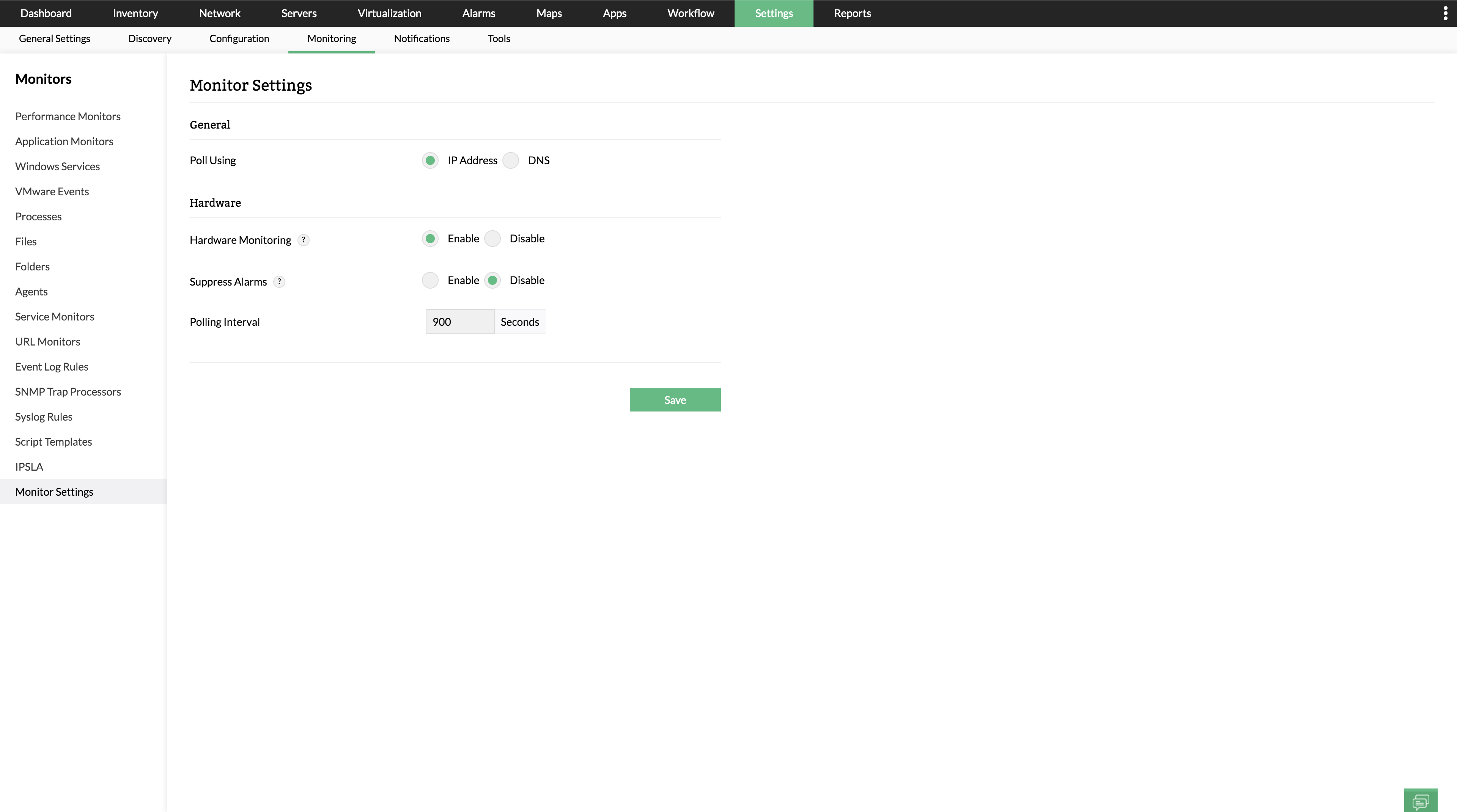
- Check if the hardware sensor alarm for the respective devices have been enabled in OpManager.
To enable/disable the Hardware Sensor Alarms for all devices: Go to Settings → Configuration → Alarm Rules → Default Alarm Rules and enable/disable the Hardware Sensor Alarm rule.
Hardware Monitoring Configuration (For versions below 12.8.707)
- To enable hardware monitoring, go to Settings → Monitoring → Monitor Settings → Hardware and IPMI.
Under the Hardware Sensor Metrics, select the Hardware Monitoring with polling interval seconds check box and click Save.
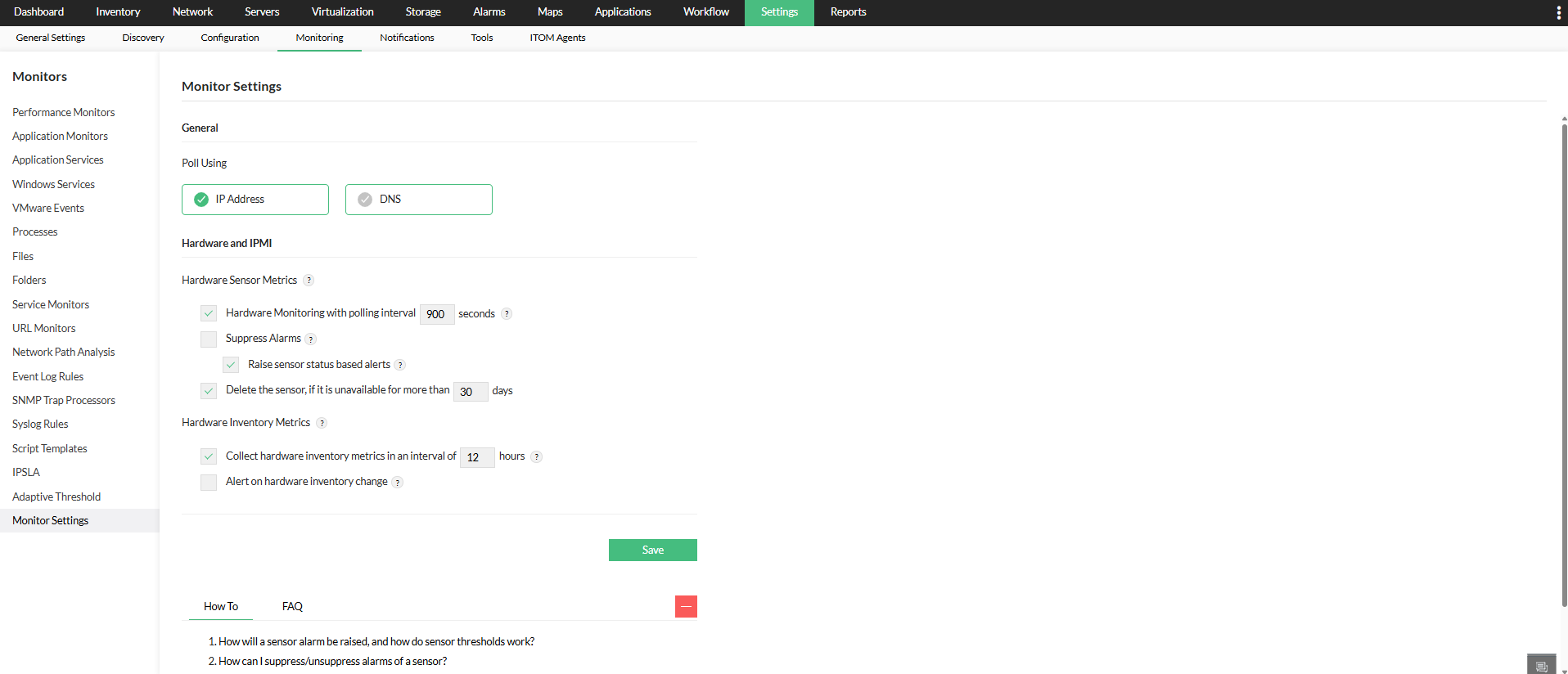
- Check if the hardware alarms for the respective devices have been suppressed in OpManager.
To suppress all the Hardware Alarms for all devices: Go to Settings → Monitoring → Monitor Settings → Hardware and IPMI tab and click on Suppress Alarms under Hardware Sensor Metrics section. - Raise sensor status-based alerts is enabled by default, allowing OpManager to generate OEM hardware sensor health status alerts. OpManager triggers alerts whenever a monitored hardware sensor reports an abnormal status (warning or critical), helping you quickly detect and resolve issues.
- Note: Alarm suppression and monitoring interval changes apply only to newly discovered devices.
Before you start monitoring the hardware of your network device(s), ensure that it satisfies OpManager's prerequisites for hardware monitoring. OpManager's hardware health monitoring allows you to:
- Collect hardware health data
- Generate hardware health reports
- Enable hardware monitoring at device level
- Suppress Hardware alarms at device level
- Customize the hardware health monitoring interval at device level
- Configure Hardware actions at sensor level
- Configure sensor-based alerts and thresholds
Collect hardware health data
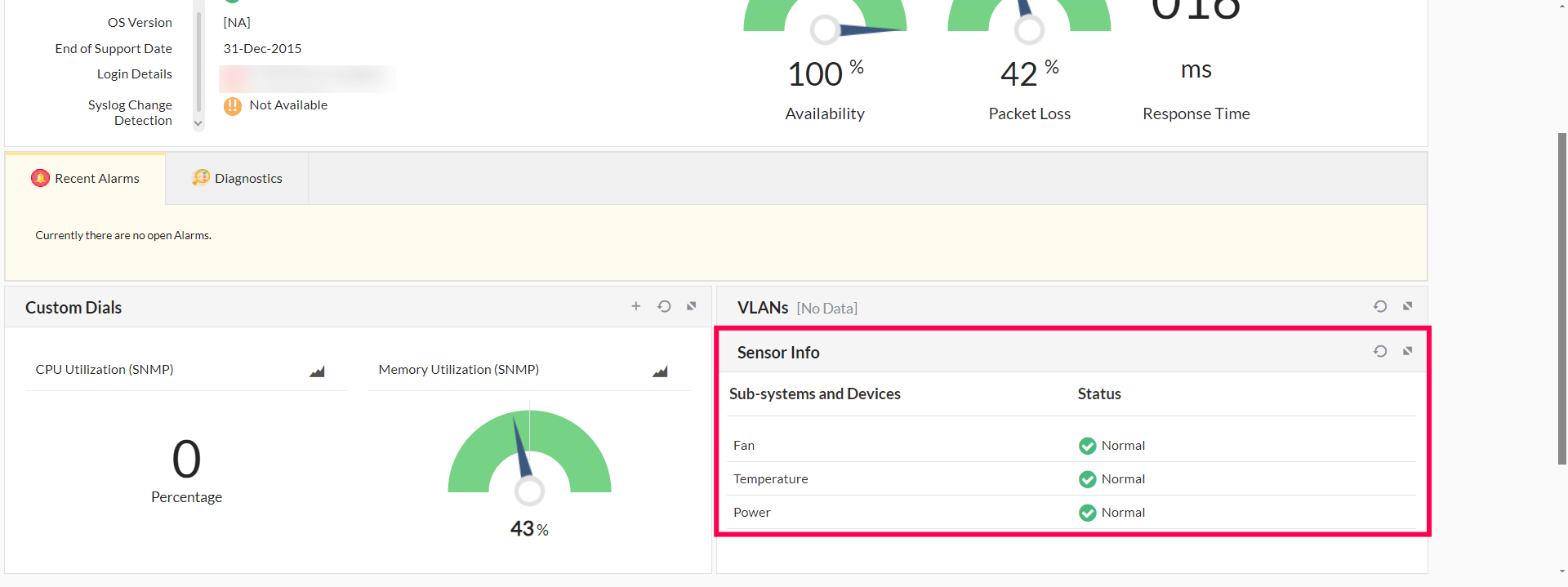
OpManager uses SNMP to monitor and collect the hardware health status of servers, routers and switches. In the case of VMware, the vSphere API is used to collect sensor data. The hardware health monitors are associated automatically whenever you add a device with proper SNMP credential. If you encounter any problem associating the hardware health monitors, then check for the correct SNMP credentials or contact our support team.
Generate hardware health reports
OpManager provides historical reports on the status of hardware health which can be scheduled based on user needs.
Enable hardware monitoring at device level
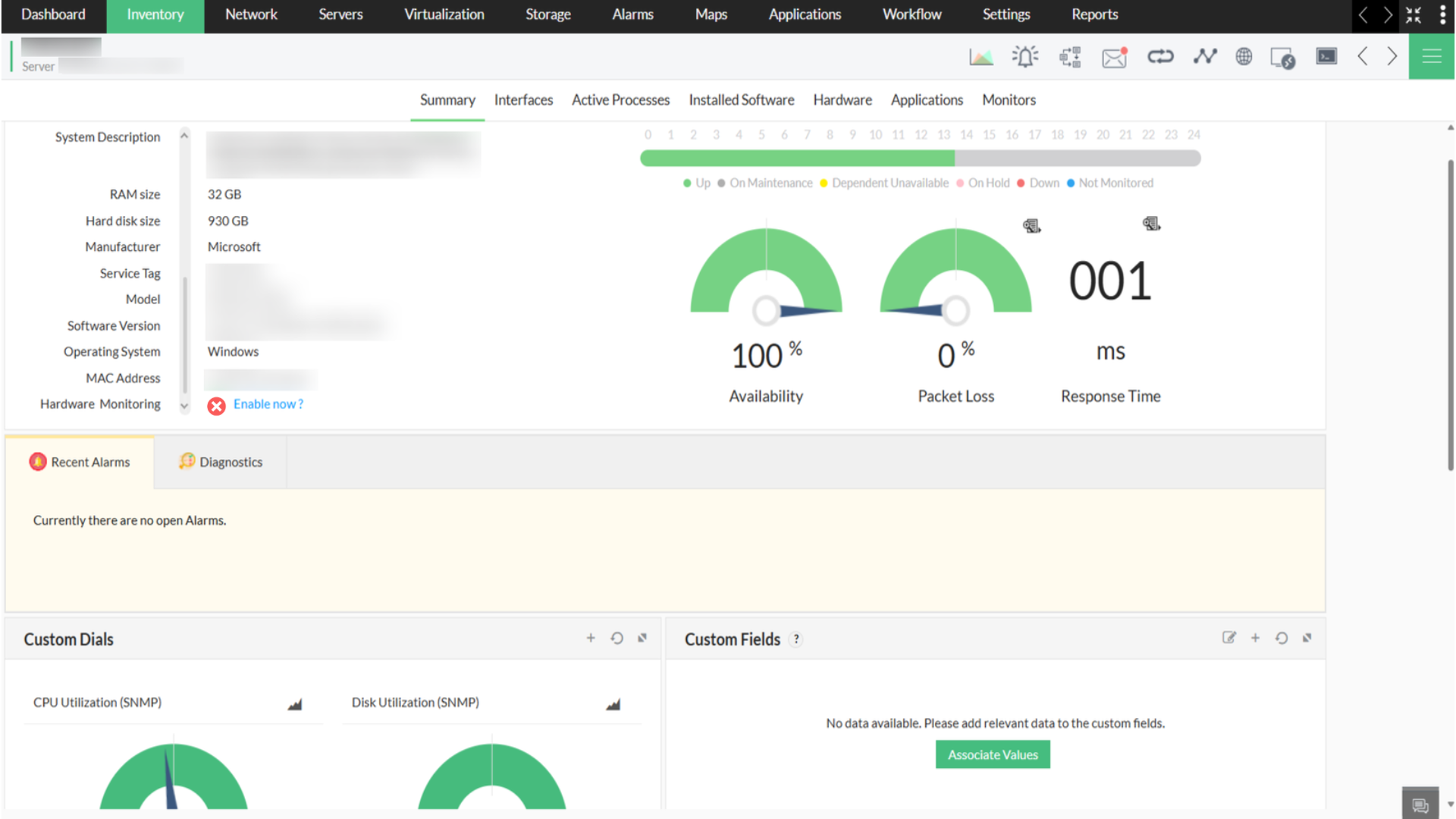
You can also enable hardware monitoring for individual devices from their Device Snapshot page.
Navigate to Inventory → Devices and then select a device to open its snapshot page. Click on the Enable option for Hardware Monitoring under the Summary tab.
Suppress Hardware alarms at device level
OpManager allows you to suppress hardware alarms for individual devices.
For version 12.8.707 and above:
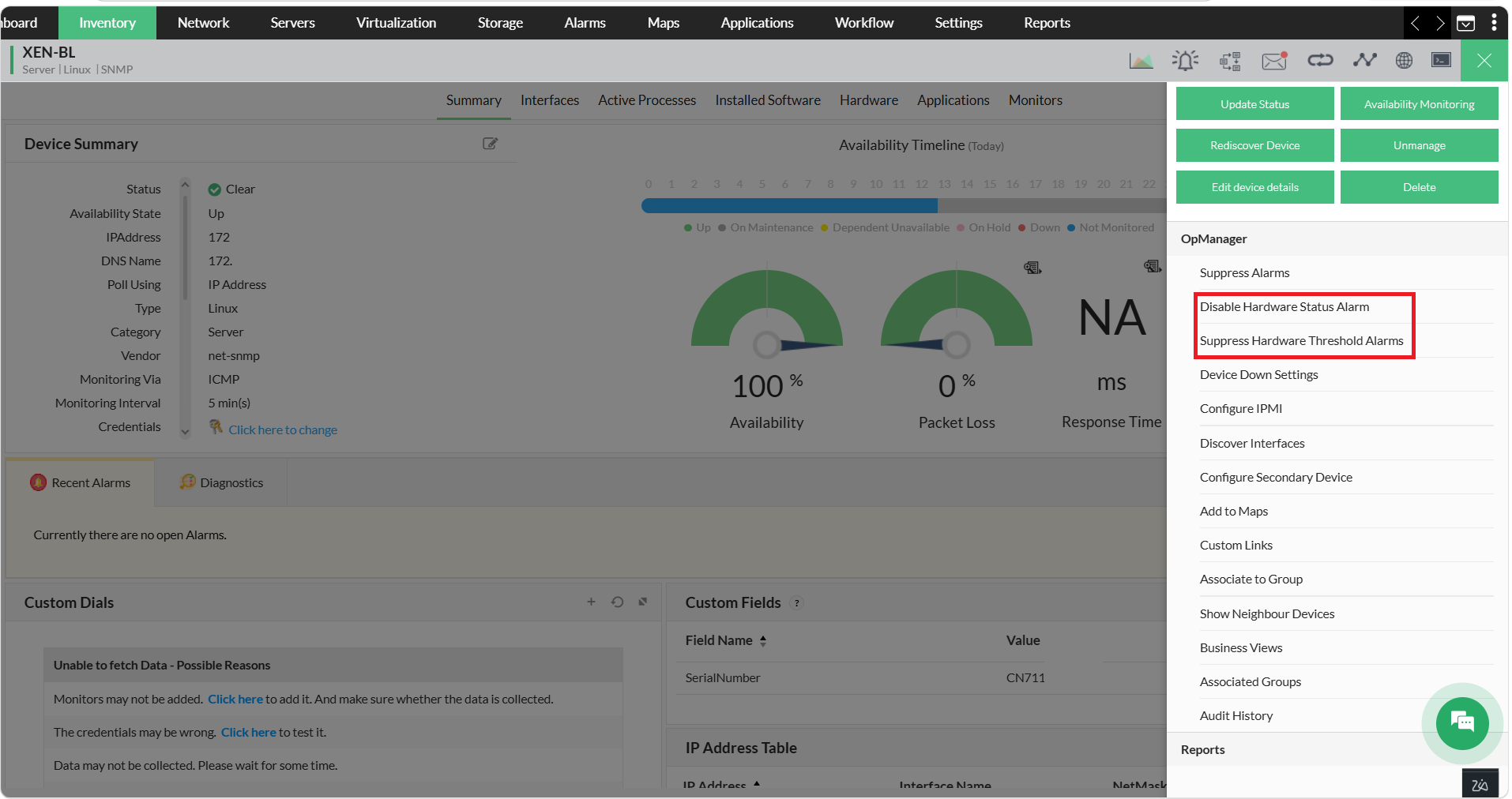
Go to the device snapshot page of the corresponding device, and click on the green menu button at the top right.
Select Enable Hardware Status Alarms, or Suppress Hardware Threshold Alarms to suppress sensor threshold violation alarms for that particular device.
- Hardware Sensor Alarm: Enables or disables alarm generation for any status change in all monitored hardware sensors on the device.
- Hardware Threshold Alarms: Suppresses or unsuppresses alerts triggered by threshold violations while continuing to monitor sensor data.
For versions below 12.8.707:
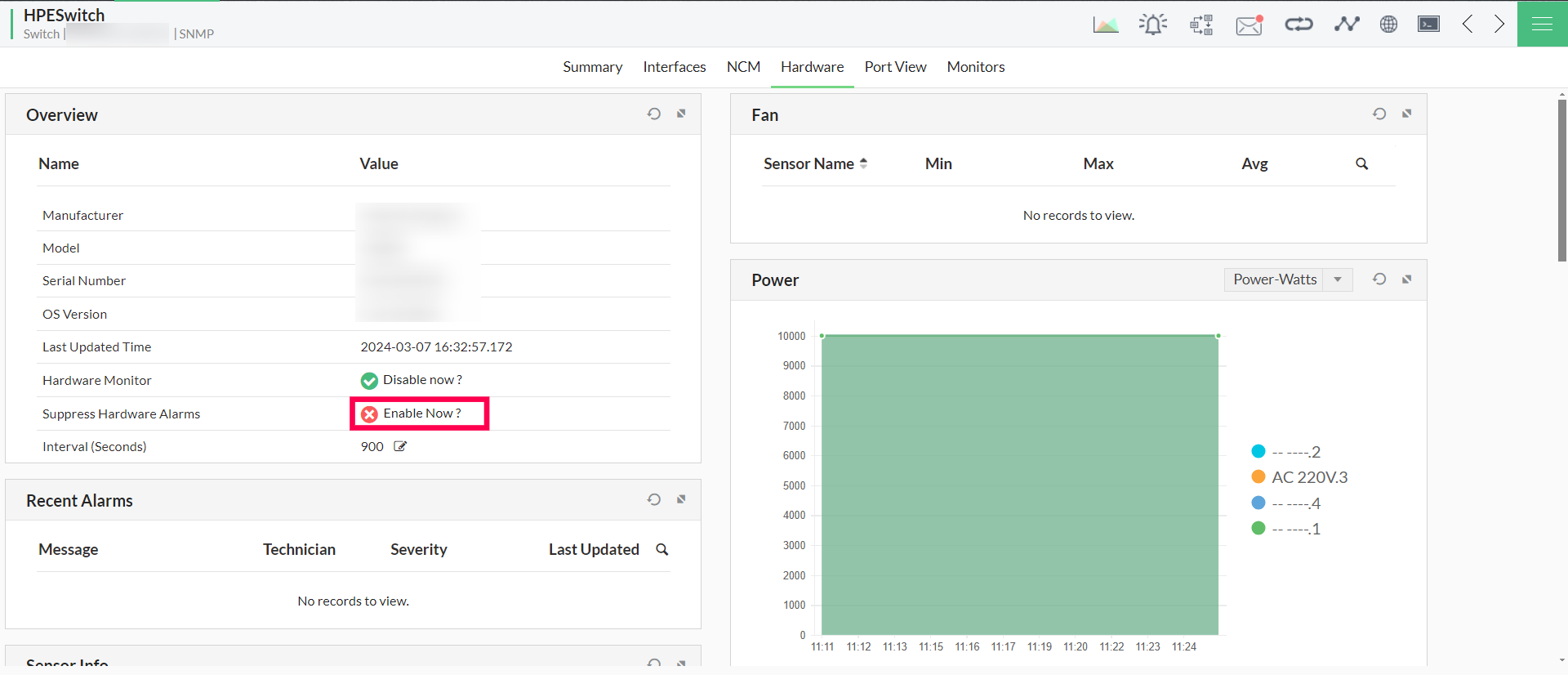
Just go to the Hardware tab in the device snapshot page of the corresponding device, and click on Suppress Hardware Alarms to turn off the hardware alarms for that particular device.
Customize the hardware health monitoring interval at device level
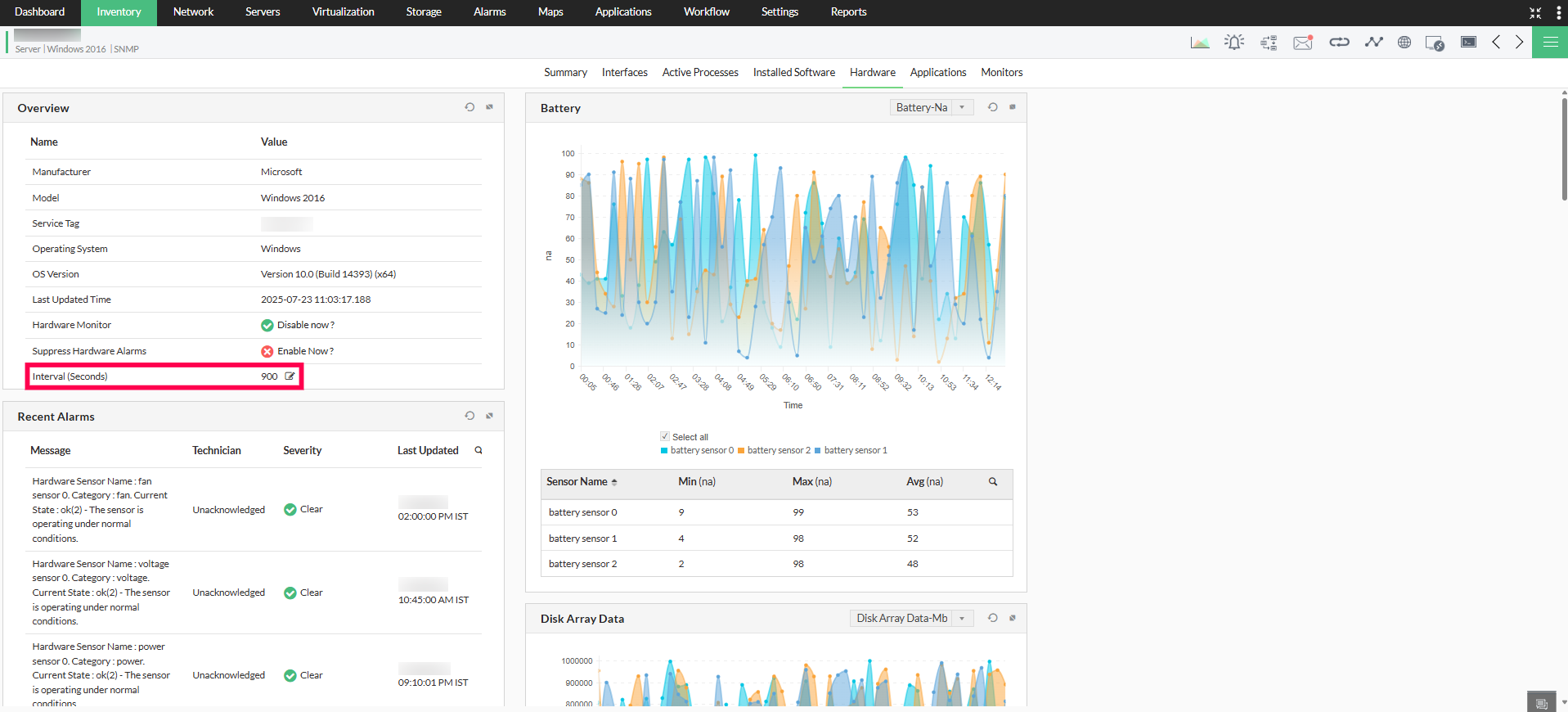
You can customize the hardware health monitoring interval for each device from the corresponding device snapshot page. To change the hardware monitoring interval for a particular device, go to the Hardware tab in the device snapshot page and edit the value for the Interval option.
Configure Hardware actions at sensor level
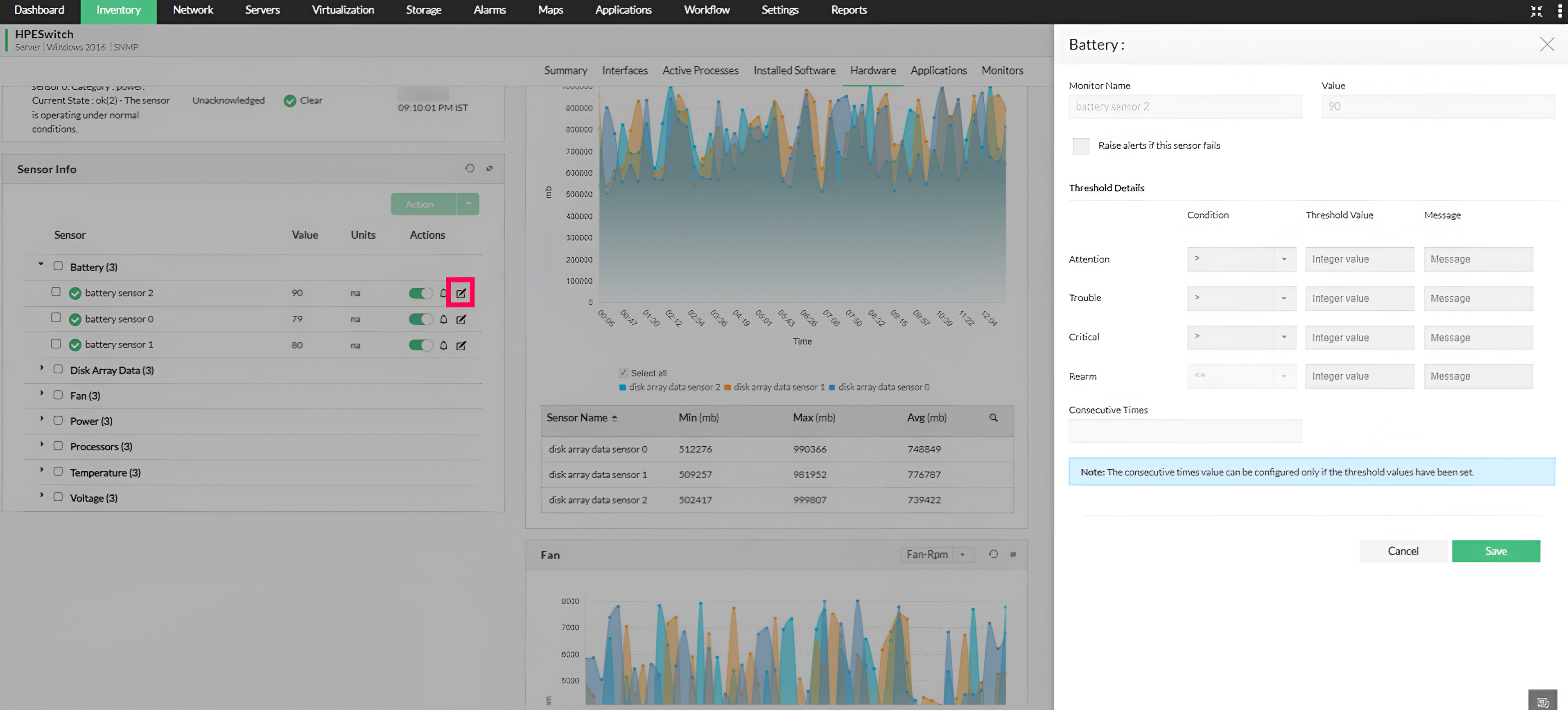
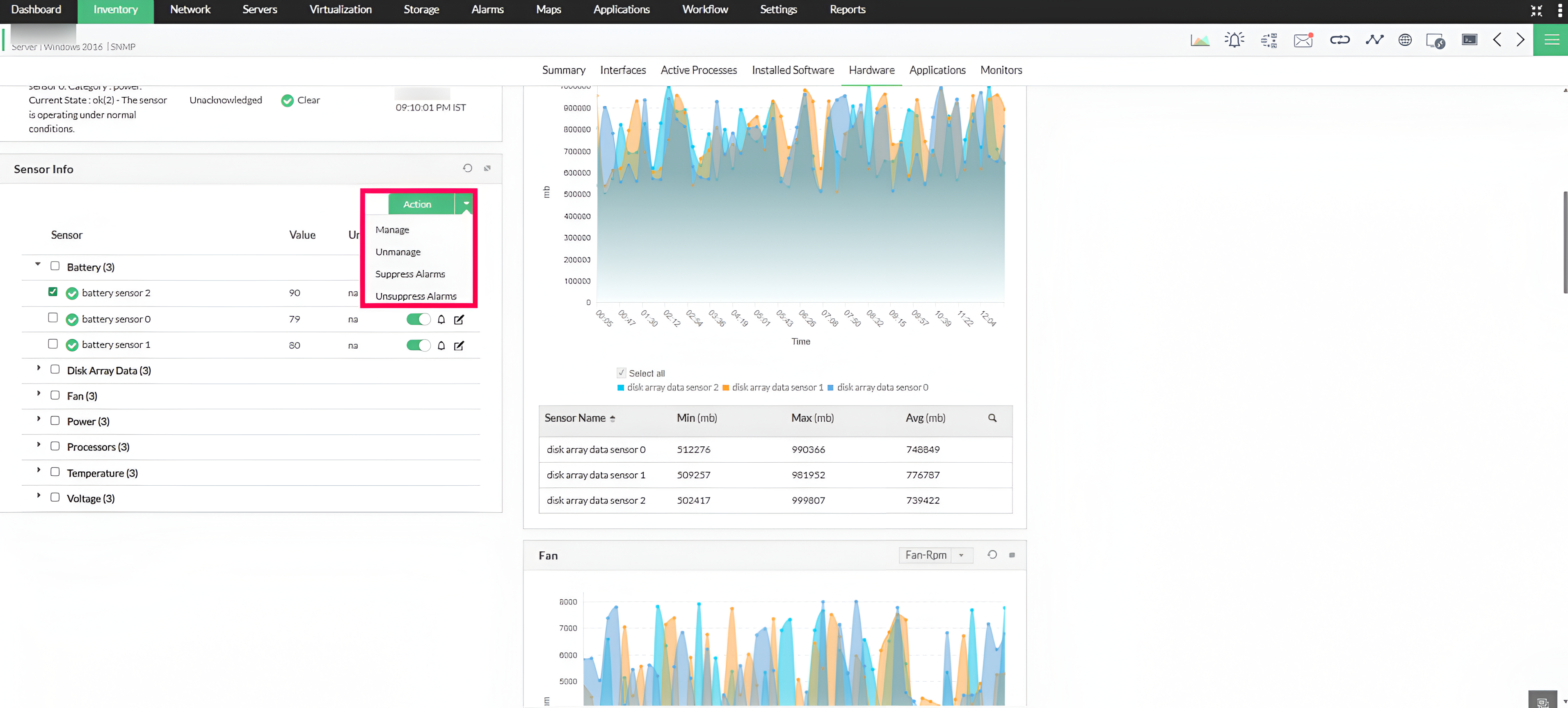
OpManager allows you to suppress hardware alarms, disable sensors, or set thresholds directly at the sensor level. To perform these actions, go to the Hardware tab on the device snapshot page of the target device. In the Hardware Sensor Info widget, select the appropriate action to suppress alarms, disable monitoring, or configure a threshold for a specific sensor.
Sensor-based alerts and threshold configuration
Each hardware sensor supports dedicated sensor failure alerts and configurable threshold alerts.
When a sensor reports a failure, a status-based alert is triggered. This option ("Raise alerts if this sensor fails") is enabled by default and can be managed globally through Monitor Settings for newly discovered devices or configured individually for each sensor. Users can disable this option if it is not required
Threshold-based alerts are generated when the sensor values cross user-defined critical limits. These alerts are configurable, allowing admins to customize the thresholds based on their network requirements.