Microsoft 365 Patch Troubleshooting
Patch update delayed since application is used by another process / Unknown error code : 17006
For current settings navigation, open Threats & Patches → Settings → Office Click-to-Run Settings. The older Patch Manager Plus layout uses the Admin path below. See on-premises or Cloud Microsoft 365 deployment for the applicable workflow.
If the failure occurs while downloading an Office binary or dependency, follow Office Patch Download Failure. Use the complete download remark and failed URL. Application-in-use settings apply to installation; they do not repair a missing download file or HTTP failure.
If Office applications close during deployment, review the installation option in Office Click-to-Run Settings. See Microsoft 365 Patch Deployment for the force-close, do-not-install and user-permission options. Collect the task and agent logs if the behavior does not match the saved setting.
Cause
Office applications (Word, Excel, PowerPoint, etc.,) might have been running on the machine during the patch deployment stage.
Resolution
This can be resolved using multiple workarounds as listed below:
If you're using Patch Manager Plus build version 10.1.2137.1 and later builds,
- Navigate to Admin > Patch Settings > Office Click-to-Run settings.
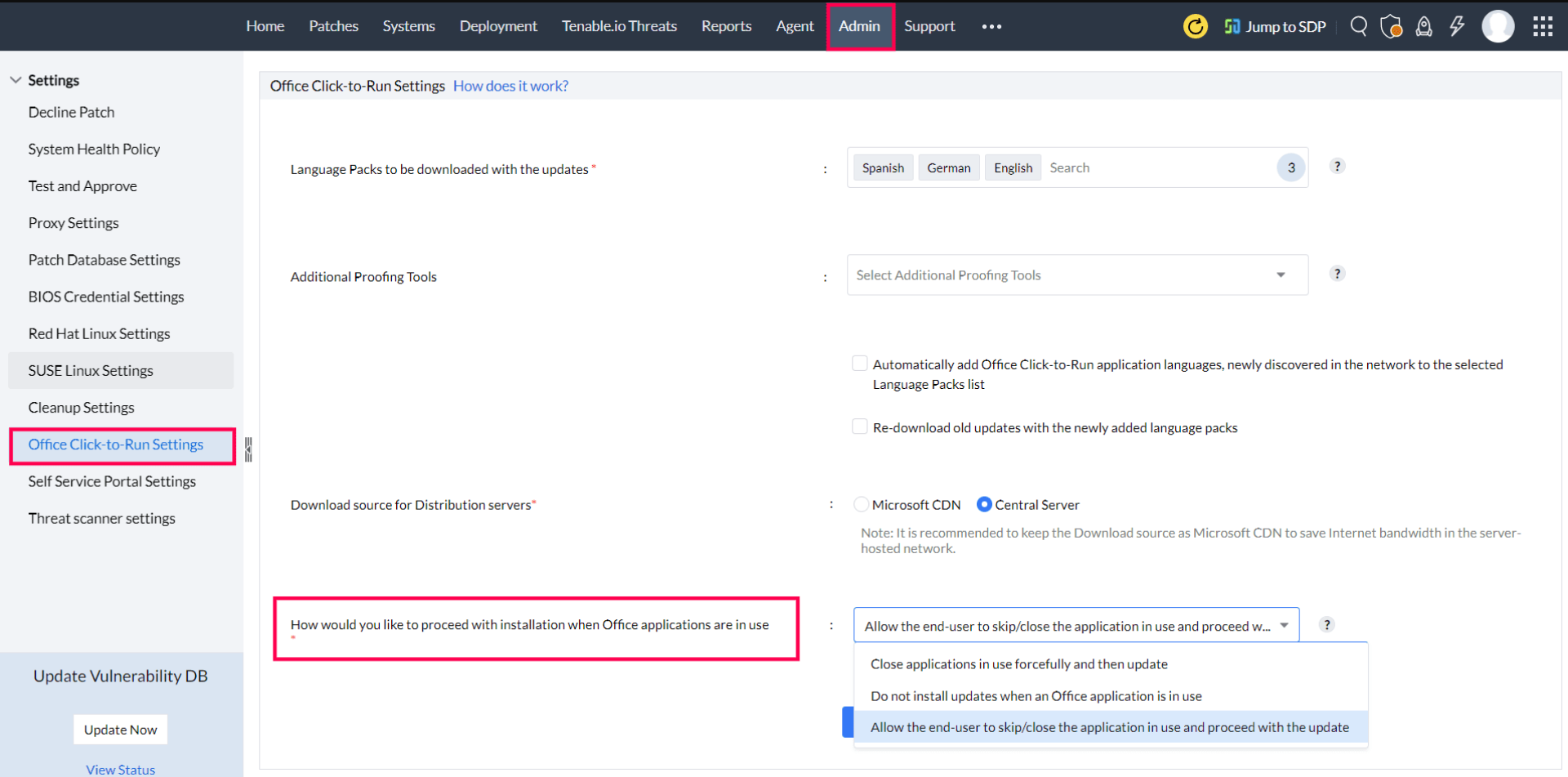
- Choosing the Close applications in use forcefully and then update option will automatically close any running Office applications to proceed with the patch deployment.
- If you select Do not install updates when an Office application is in use and there are any active Office applications running, the patch deployment will be skipped and attempted again in the next refresh cycle.
- If you select Allow the end-user to skip/close the application in use and proceed with the update, the deployment will proceed silently if no Office applications are running on the machine. However, if any Office applications are running, a prompt will appear asking the user to either skip or close the application in use and proceed with the update.
If you're using Patch Manager Plus build version below 10.1.2137.1,
- Deploy the Microsoft 365 patch after closing all the Office application that are currently running on the machine.
- Change the registry key value for alwaysKillApps to 1 (dword). You can find it in the following registry path, HKEY_LOCAL_MACHINE\SOFTWARE\WOW6432Node\AdventNet\DesktopCentral\DCAgent\Patch. If the registry path mentioned is not available in the machine, then create a new registry path or use the patches, available under the Supported patches tab to enable/disable alwayskillapps option.
- Patch 100012 - To enable alwayskillapps option
- Patch 100013 - To disable alwayskillapps option
If alwaysKillApps is set to 1, all the Office applications that are currently running on the machine will be closed during the patch deployment stage, without any popup notification. This might cause data loss if work isn't saved.
- Set notification message for Microsoft 365 patch deployment: Create a separate configuration for Microsoft 365 patch deployment, with the user notification option enabled. You can fill out an appropriate notification message for deployment like the example given below:Since patches can't be deployed to applications when they are in use, users can now either close the application and proceed for deployment or skip the deployment until the next refresh cycle based on the settings enabled by the admin.ExampleYour Administrator has configured an Microsoft 365 update, to be installed on this computer. This will close any Microsoft 365 executables running on your machine without saving any data. So kindly ensure that your data is saved before proceeding with the deployment. The end user can further be given an option to skip deployment as well, refer the link to know more about this.
- (Available only for on-premises versions 10.1.2137.1 and later builds)
Unknown error code : 17002
Cause
- Your computer's Antivirus software or Firewall might be blocking Office installation.
- Pre-existing version of an Office suite might be blocking the installation.
- Your system might have an Incomplete\partial\failed repair\installation\change\removal of a previous Office Installation.
- Office suite might be preventing the installation of a newer version.
- The language packs and proofing tools of the Office application installed in the machine are not selected in Office Click-to-Run settings. (Applicable for DC agent build versions greater than 10.1.2137.1)
Resolution
- Avoid using Microsoft 365 applications at the time of deployment.
- Repair Microsoft 365 application and then retry deployment.
- If the issue persists, uninstall and then re-install the Microsoft 365 application.
- If the issue still persists, contact vendor for the resolution to this error code.
- Select all the language packs and proofing tools installed in the machine, in Office Click-to-Run settings.
Unknown error code : 17003
Cause
Another installation is in progress.
Resolution
- Check if setup.exe or clicktorun.exe is running in the task manager. If yes, kill it and retry the deployment again.
- Avoid using Microsoft 365 applications at the time of deployment.
Unknown error code: 30035
Cause
- Microsoft Office system file might be corrupted.
- Previous installations might not have been removed properly.
- Windows Firewall might not be allowing network access.
- You might have downloaded a partial setup.
Resolution
- Repair your Microsoft 365 application and then retry deployment.
- If the issue persists, uninstall and then re-install the Microsoft 365 application.
- If the issue still persists, contact the vendor for the resolution to this error code.
Configure Language Packs
In the current interface, open Threats & Patches → Settings → Office Click-to-Run Settings. The older Patch Manager Plus layout uses Admin → Patch Settings → Office Click-to-Run Settings. Use an account with permission to change patch settings.
Cause
Office Click-to-Run settings do not include the Language Packs and Proofing Tools required for the Office application installed on the machine.
Resolution
- Navigate to Admin > Patch Settings > Office Click-to-Run settings.
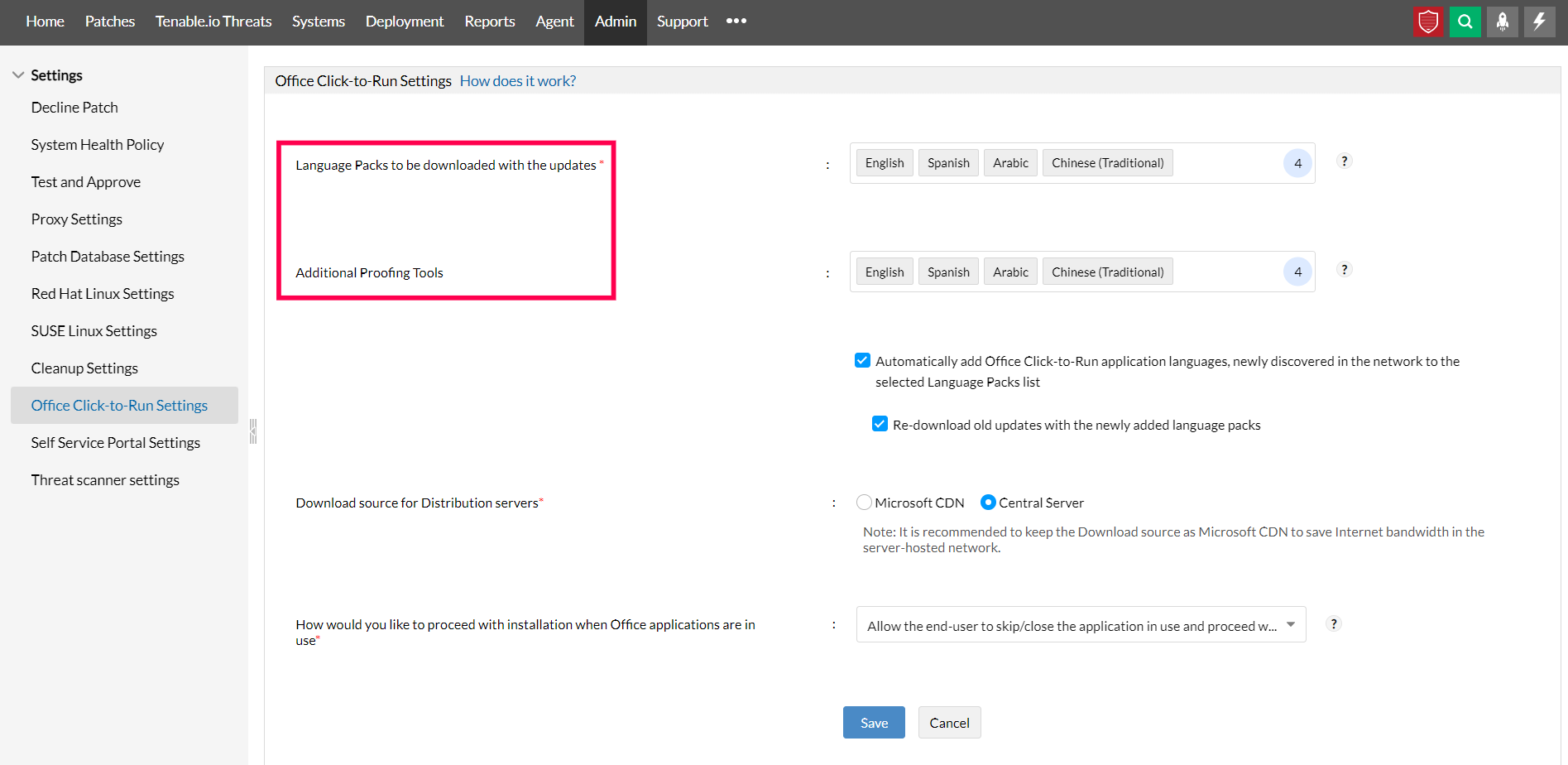
- Select all the Language Packs to be downloaded with the updates and Additional Proofing Tools of the Office application installed in the machine.
- Click on Save.
- Then re-download the patch and deploy to the target machines.
Office updates postponed by users / Office updates postponed due to no response to notification
In the current interface, open Threats & Patches → Settings → Office Click-to-Run Settings to review postponement controls. The older layout uses the Admin path below. Use an account with permission to change patch settings.
Cause
The updates cannot be deployed while Office applications are in use. A prompt offers the choice to skip deployment or kill the application in use to proceed with deployment. If there's no response to the prompt in 5 minutes, the deployment will automatically be postponed. Hence, the error occurs if the prompt is ignored or the deployment is skipped.
Resolution
- The deployment will be initiated only after the user opts to proceed with deployment by closing the application in use.
- Admins can restrict the user permission to skip the deployment by navigating to Admin> Patch Settings> Office Click-to-Run Settings.
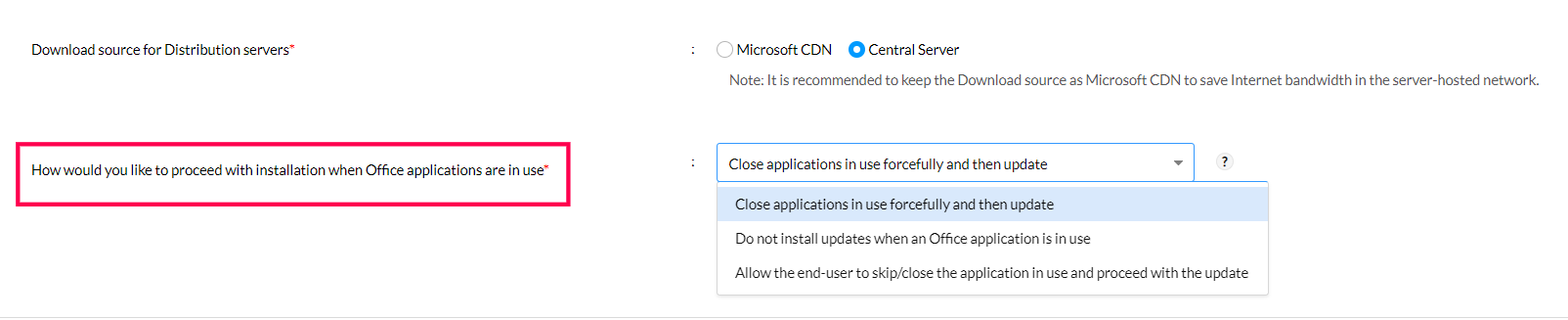
- From the above options, you can choose Close applications in use forcefully and then update.
- Selecting this option will immediately force close the running applications and proceed with deployment, ensuring that users cannot skip the process.
In case if this problem continues, kindly contact patchmanagerplus-support@manageengine.com.