Exporting Resource Groups Passwords
PAM360 offers three secure methods to export all passwords within a specific resource group for offline access:
- Plain Text Export: Export passwords in a readable spreadsheet (.xlsx) format.
- Encrypted HTML Export: Export passwords into a secure, encrypted HTML (.html) file for offline access.
- Scheduled Export: Set up a recurring task to automatically export resource group passwords as encrypted HTML files at defined intervals.
These options allow you to securely export and store the resources, accounts, and passwords from selected resource groups. This guide walks you through the following procedures:
- Exporting Resource Groups Passwords in Plain Text
- Exporting Resource Groups Passwords as Encrypted HTML
- Creating a Scheduled Export Task
1. Exporting Resource Groups Passwords in Plain Text
PAM360 users with the administrative privileges can export passwords of selected resource groups in plain text (.xlsx format). To do this:
- Navigate to Groups tab and select the required resource groups.
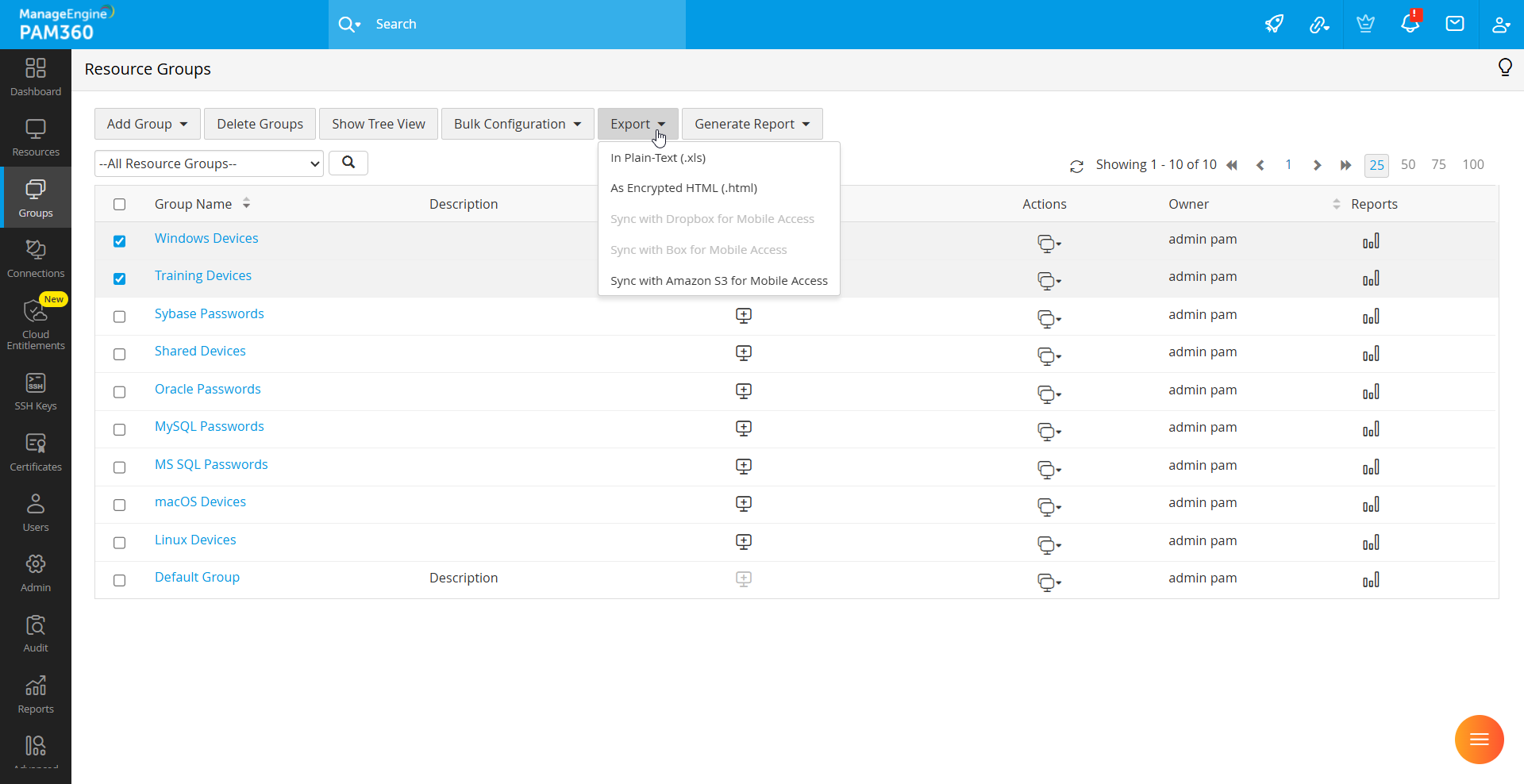
- Click the Export button in the top pane and choose In Plain Text (.xlsx) from the dropdown menu.
- The selected resources will be exported to a spreadsheet. Save this file in a secure location.
2. Exporting Resource Groups Passwords as Encrypted HTML
To ensure secure offline access, PAM360 allows passwords from selected resource groups to be exported as encrypted HTML files. Follow these steps:
- Go to Groups tab and select the desired resource groups.
- Click the Export button and choose As Encrypted HTML (.html) from the dropdown.
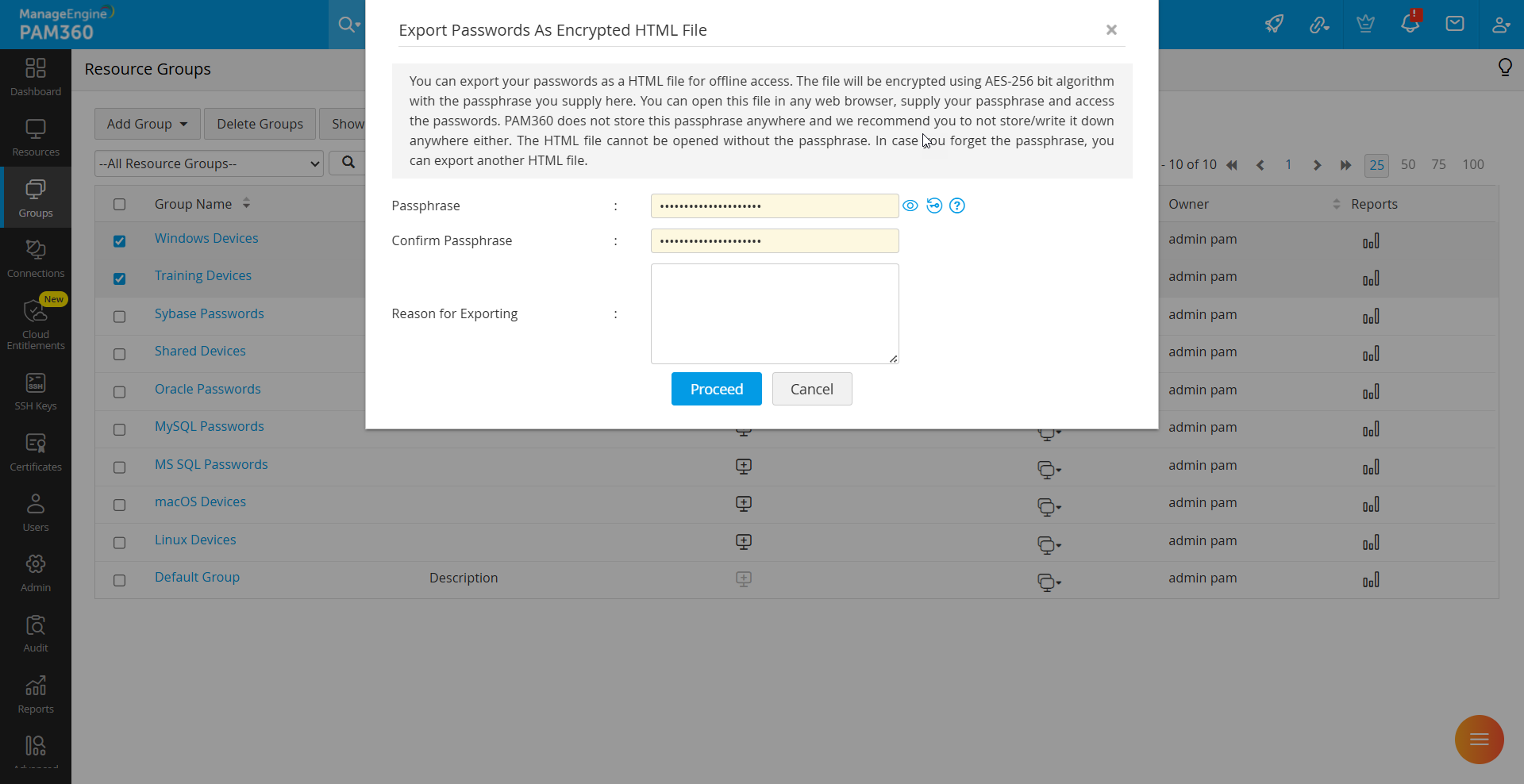
- In the pop-up form that appears, enter a Passphrase that adheres to the password policy enforced by your administrator, confirm the passphrase and provide a reason for exporting the passwords.
Caution
The passphrase is not stored anywhere in PAM360 and and we strongly recommend you not to store or write it down anywhere either. If forgotten, the contents of the HTML file cannot be accessed. However, you can regenerate the export with a new passphrase.
- The resource group passwords will be exported as a .html file. Save the file in a secure location.
3. Creating a Scheduled Export Task
To automate the export process, follow these steps:
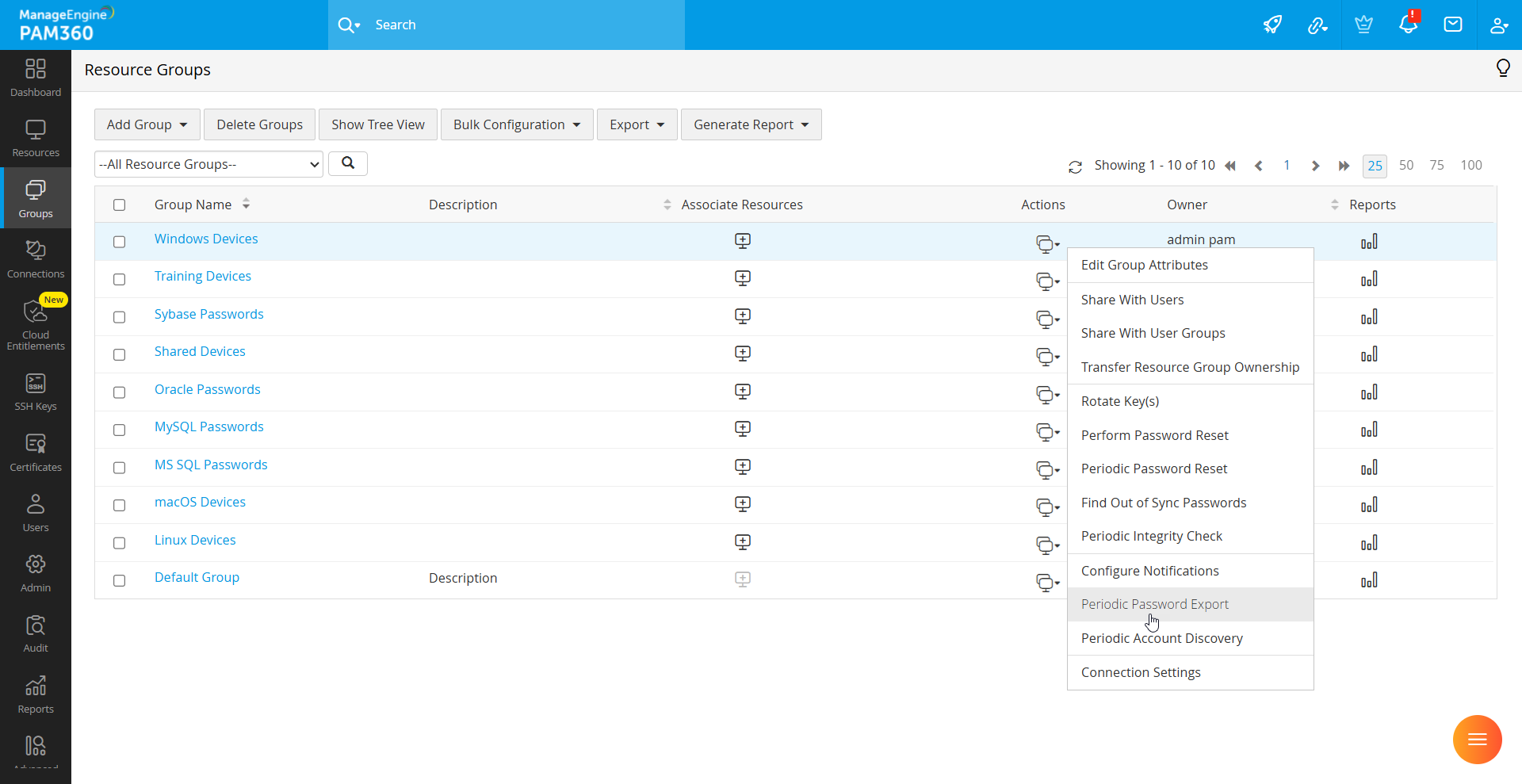
- Navigate to Groups tab, click the Actions icon against the required resource group and select Periodic Password Export from the dropdown list.
- In the pop-up form that appears:
- Enter a passphrase that complies with the group’s password policy. This will be used for encrypting (AES 256) the HTML file for offline access. Open this file in any web browser, supply the same passphrase to access the contents.
- Choose a destination path where the encrypted HTML file will be saved. This should be a location with write access for PAM360. By default, files are stored under `PAM360-Installation-Directory/Backup/EncryptedFiles`
- Specify how many export files to retain. By default, the system keeps the latest 10 files; older files are deleted automatically.
- Configure the schedule period: Once - For one-time exports, Days - For recurring daily exports, Monthly - For recurring monthly exports, and Never - To disable the schedule.
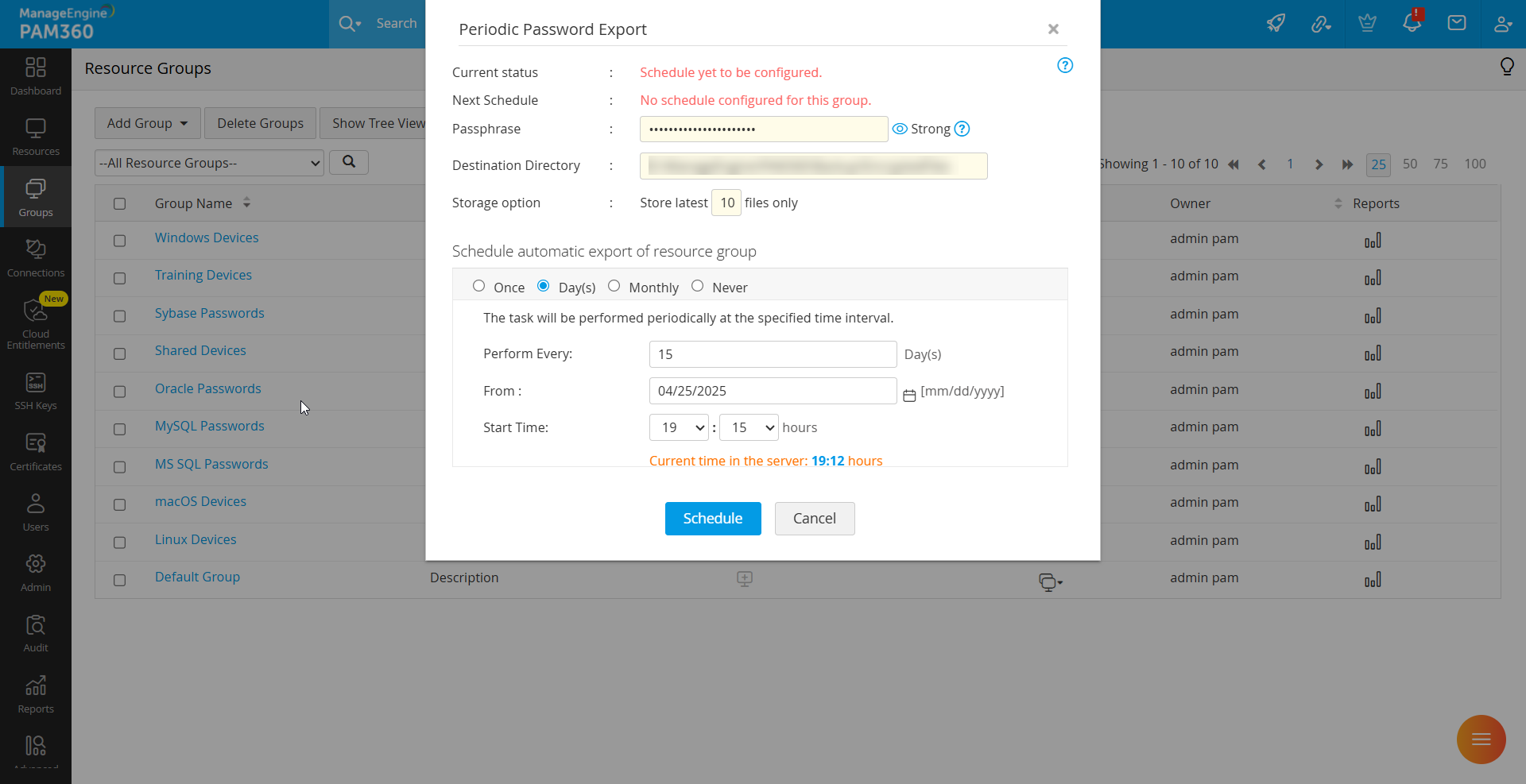
- Provide the necessary scheduling details and click Schedule.
The system will now periodically export the passwords from the selected resource group as encrypted HTML files based on the schedule you defined.