Integrating ManageEngine PAM360 with SIEM tools
PAM360 integrates with SIEM tools that help in gathering and processing audit logs for various events in real time and send them as syslog messages to external log management systems. Specific events for which notifications are to be raised can be tailored from the Audit tab. This document discusses the process of integrating PAM360 with various SIEM tools. The following are the SIEM tools that can be currently integrated with PAM360 to collect syslogs:
- Splunk
- ManageEngine EventLog Analyzer
- Sumo Logic
- Microsoft Sentinel
- QRadar
Apart from the above SIEM tools, you can set up any other log management tool to collect audit logs. You can have multiple log management tools configured concurrently.
At the end of this document, you will have learned the following topics in detail:
- How does the Integration Work?
- Format of Syslog Messages Sent from PAM360
- Integrating an SIEM Tool and Configuring Syslog Collection
1. How does the Integration Work?
Once the details of the collector host, such as the host name, port, and message format, are provided and the integration is enabled, PAM360 generates syslog messages compliant with the selected syslog standard and forwards them to the configured host and port using the chosen protocol (TCP, UDP, or TLS). By default, the facility name is set to AUTH, but you can modify it to any unassigned facility name available in the list.
Additional Details
If you choose TLS as the communication protocol for transferring syslog messages to the collection host, import the SSL certificate of the SIEM server into the PAM360 certificate store to establish a secure, encrypted connection between the PAM360 server and the collection host. For detailed instructions, refer to FAQ question 11 under Certificates.
- Splunk: Click here for information on how to view the syslog data sent from PAM360 in Splunk.
- ManageEngine EventLog Analyzer: Once the collector host is added in PAM360, the PAM360 server will be added as a device in EventLog Analyzer automatically. Refer to this section for the configuration steps.
- Sumo Logic: Click here to read more about Sumo Logic's collectors.
- Microsoft Sentinel: Click here to learn how to configure Microsoft Sentinel with PAM360 in detail.
- QRadar: Click here to learn how to configure QRadar to receive and process syslog messages from sources like PAM360.
Caution
Integration with QRadar is supported from PAM360 builds 8300 and above only.
2. Format of Syslog Messages Sent from PAM360
PAM360 generates distinct syslog message formats for resource audit and user audit events. Each syslog message begins with an identifier that specifies the type of audit event, followed by the username and the IP address from which the operation was performed. The message further includes details such as the operation type, timestamp, status, and the PAM360 server name where the action occurred, along with the resource and account name involved. A notable difference between the syslog messages for MSP and Non-MSP is that the MSP format includes the ORG_NAME in the message.
Additional Details
- From PAM360 build 8300 and above, in addition to RFC 3164, the following syslog standards are supported:
- RFC_5424
- CEF
- LEEF
- The structure of the syslog messages sent by PAM360 to external log receivers for resource and user audit events varies depending on the selected syslog format.
3. Integrating an SIEM Tool and Configuring Syslog Collection
Follow the below steps to integrate any SIEM tool with PAM360 and configure syslog collection:
- Navigate to Admin >> Integrations >> SIEM.
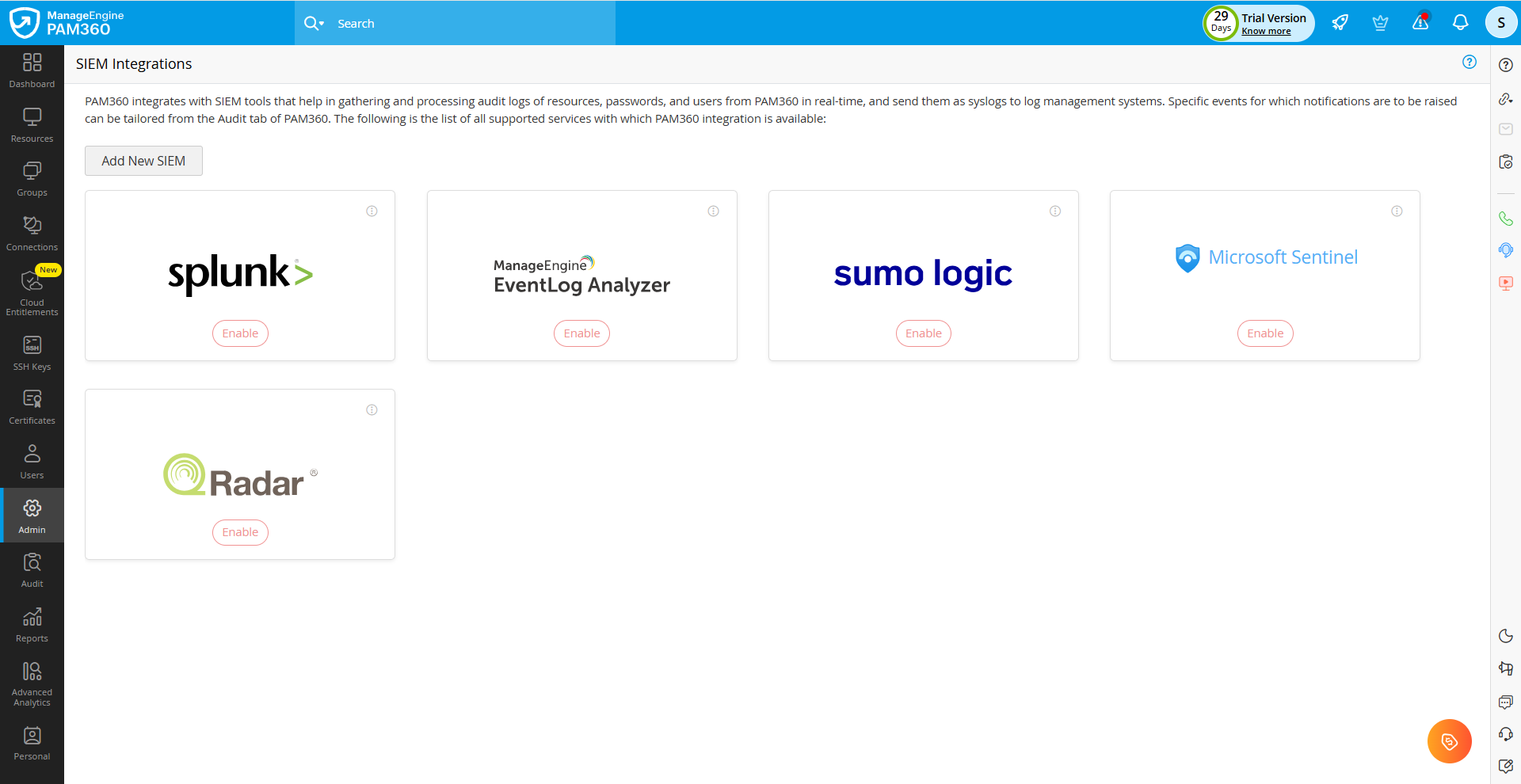
- In the SIEM Integrations page that appears, you will see the SIEM tool blocks with the following options. These options remain the same for any SIEM tool you want to integrate with PAM360.
- Enable: You will see this option if the integration is disabled. Click this button to enter the required details of the SIEM tool and enable integration.
- Edit: You will see this option if the integration is enabled. Click this button to update the SIEM tool details, such as the collector name, port, protocol, and facility name.
- Disable: You will see this option if the integration is enabled. Click this button to disable the integration.
- Click Enable under the SIEM tool of your choice.
- From PAM360 builds 8300 and above, If you do not have any of the listed tools, click the Add New SIEM button and enter the following details in the page that appears:
- Application Name: Enter the name of the syslog collector to which PAM360 should send the syslog messages. This helps you identify the integration easily.
- Collector Name: Enter the hostname of the server where the syslog service is running.
- Port: Specify the port number at which the syslog collector listens. The default port number is 514 for UDP.
- Protocol: Select the desired transport protocol to send the syslog messages to the syslog collector from the given options.
- Syslog Standard: Select the desired syslog message format in which PAM360 should send the syslog messages to the syslog collector for the configured audit events.
- Facility Name: Specify the syslog facility to categorize the messages. This helps the SIEM tool organize and filter logs correctly (e.g., Local0, Local1, etc.).
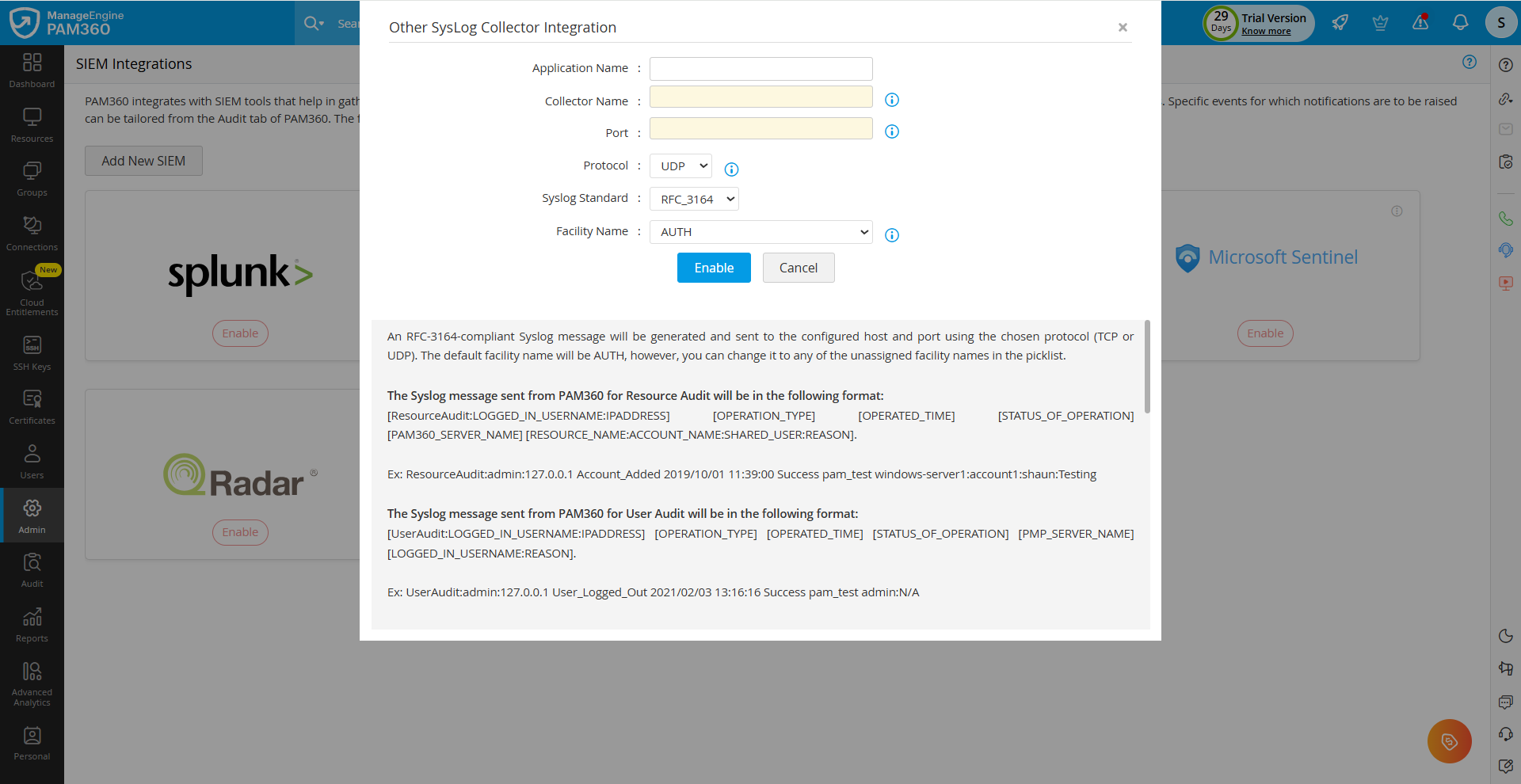
- In PAM360 builds prior to 8300, If you do not have any of the listed tools, click the Enable button under Others and enter the required details, including Collector Name, Port, Protocol, and Facility Name.
- After entering the required details, click the Enable button. You have successfully integrated the SIEM tool of your choice with PAM360.
3.1 Customizing the Syslog Event Notifications in PAM360
After enabling the SIEM integration and configuring the settings, you can customize the events for which syslog messages should be generated.
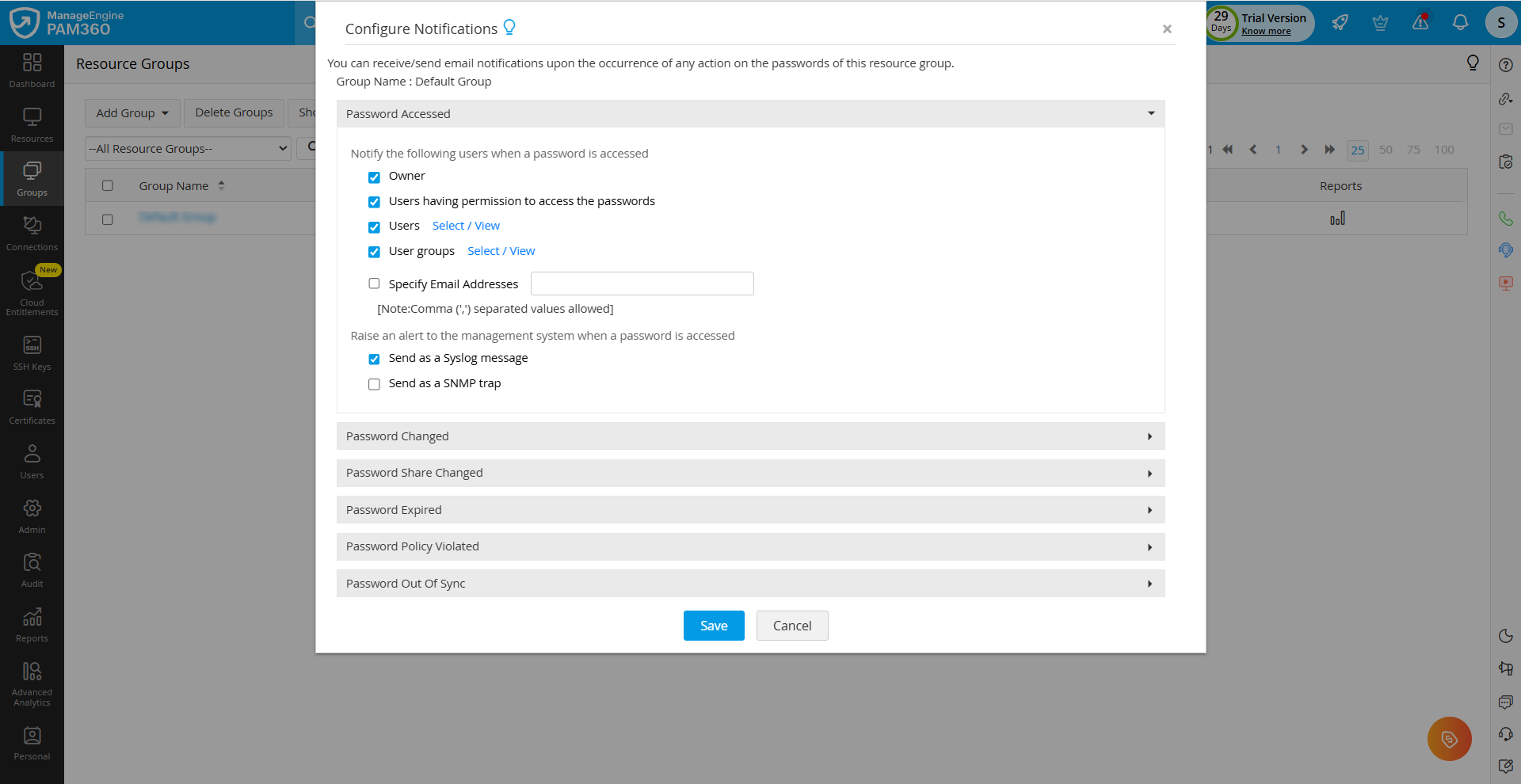
- Password-Related Events: To generate syslog messages for password-related events, navigate to Groups >> Actions (of desired group) >> Configure Notifications, and select Send as a Syslog message for the required password actions.
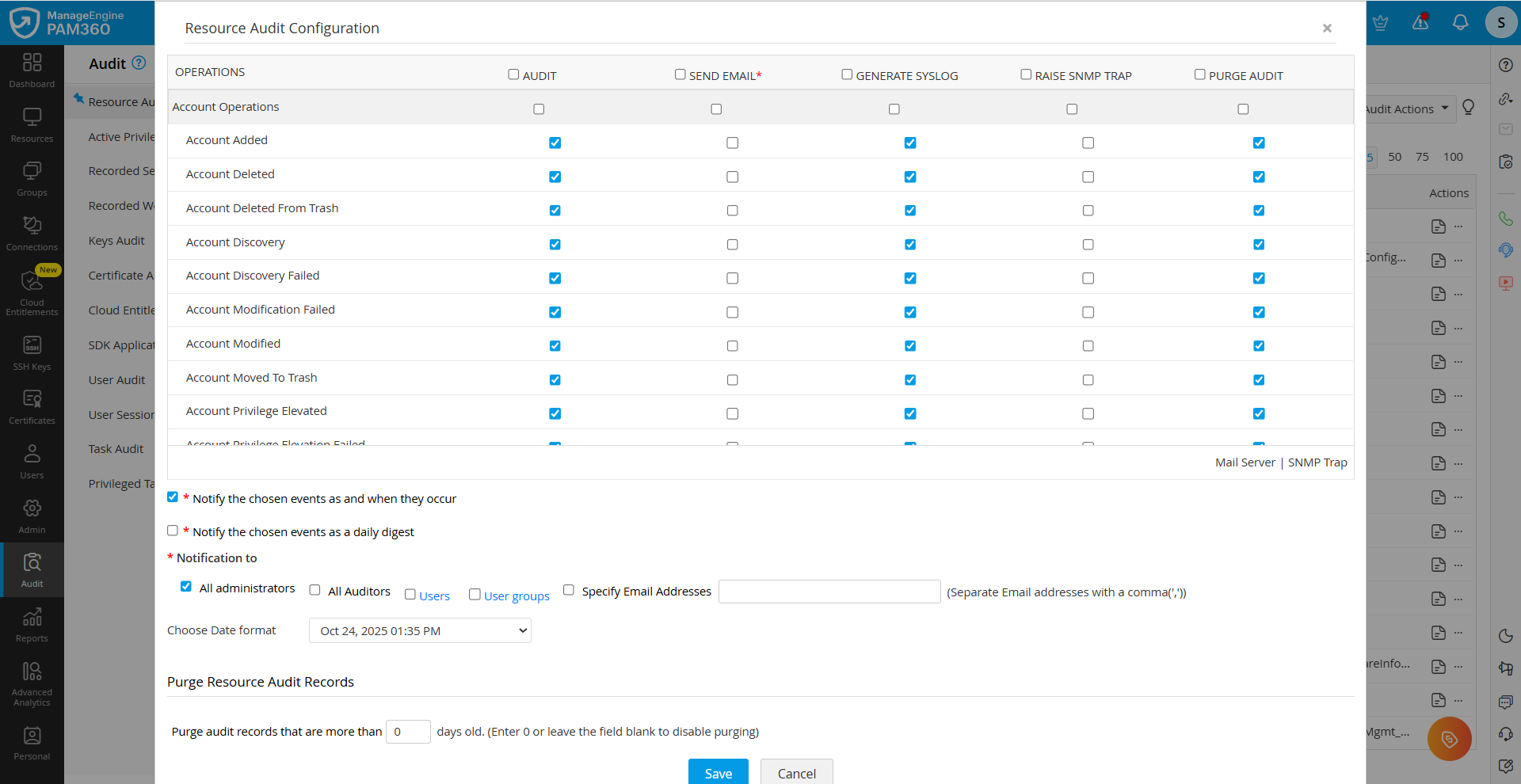
- Account Operations: You can generate syslog messages for various operations performed within PAM360. This applies to both resource audit and user audit events:
- Resource Audit - Navigate to Audit >> Resource Audit >> Audit Actions >> Configure Resource Audit.
- User Audit - Navigate to Audit >> User Audit >> Audit Actions >> Configure User Audit.
On the Audit Configuration window, the Generate Syslog option is enabled for all operations by default. Uncheck any operations that do not need to be recorded as syslog messages.