PAM360 User Account Settings
Additional Detail
The procedure covered in this document is applicable from PAM360 builds 8300 and above only. For user account settings in builds preceding 8300, please refer to this help document.
Personalization in PAM360 empowers users to modify the PAM360 web application interface to suit individual preferences and working styles. In large environments where multiple users rely on the same platform, these options enhance comfort, improve usability, and support greater efficiency in daily tasks. A PAM360 user can customize their PAM360 web interface by accessing the My Profile section to manage how they interact with PAM360 on a day-to-day basis. Additionally, the right menu provides quick access to essential functions that further streamline usability.
This document details the customization options available for the end-users accessible from the My Profile section and the right menu, allowing them to manage their account preferences effectively.
1. Customization Options
PAM360 offers various customization options from the My Profile section. To access the My Profile section, click the Profile icon in the top-right corner of the screen. A sliding window opens from the right side, where you can view the logged-in account details, such as the username, role, and last login time at the top.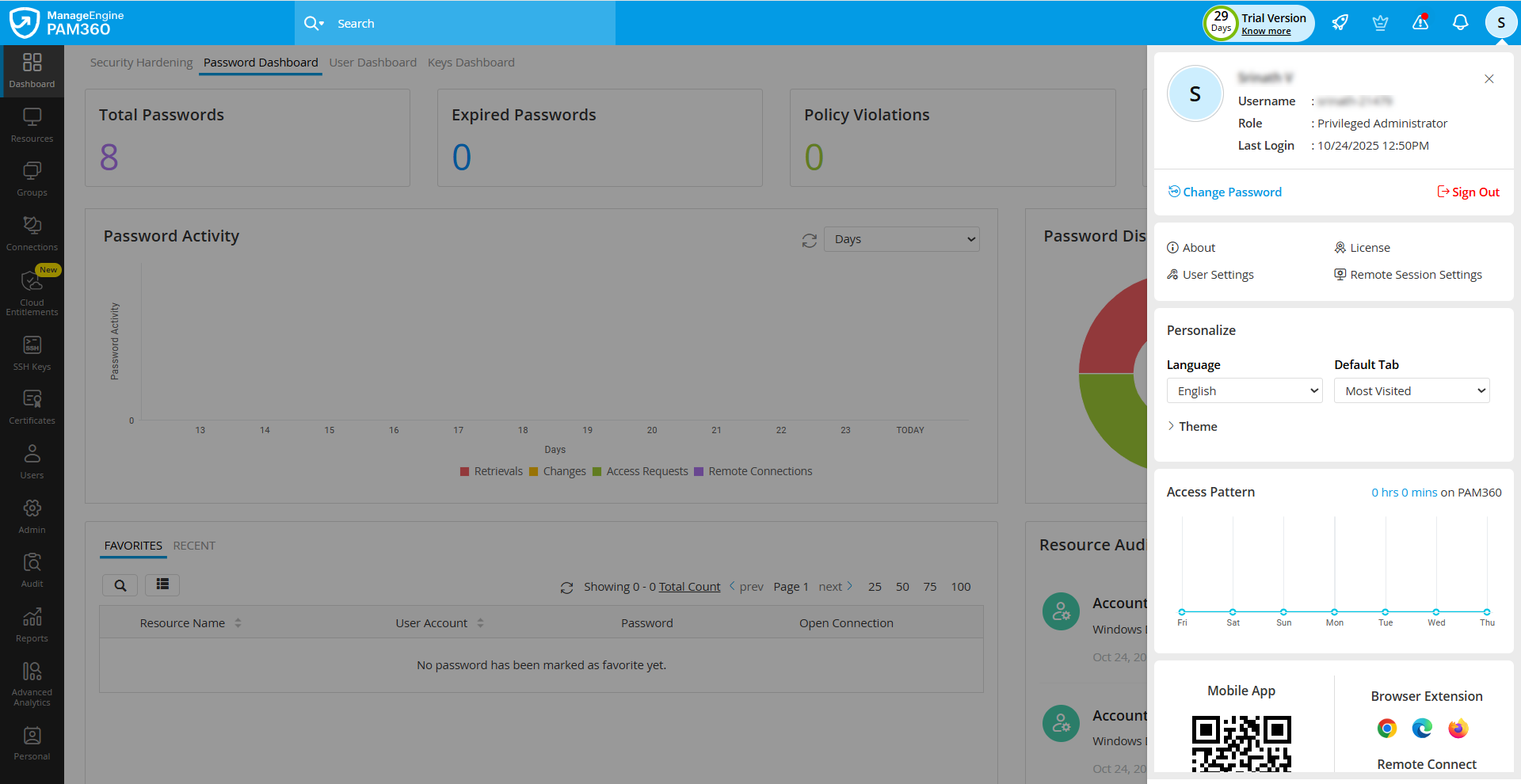
From the My Profile section you can perform the following actions:
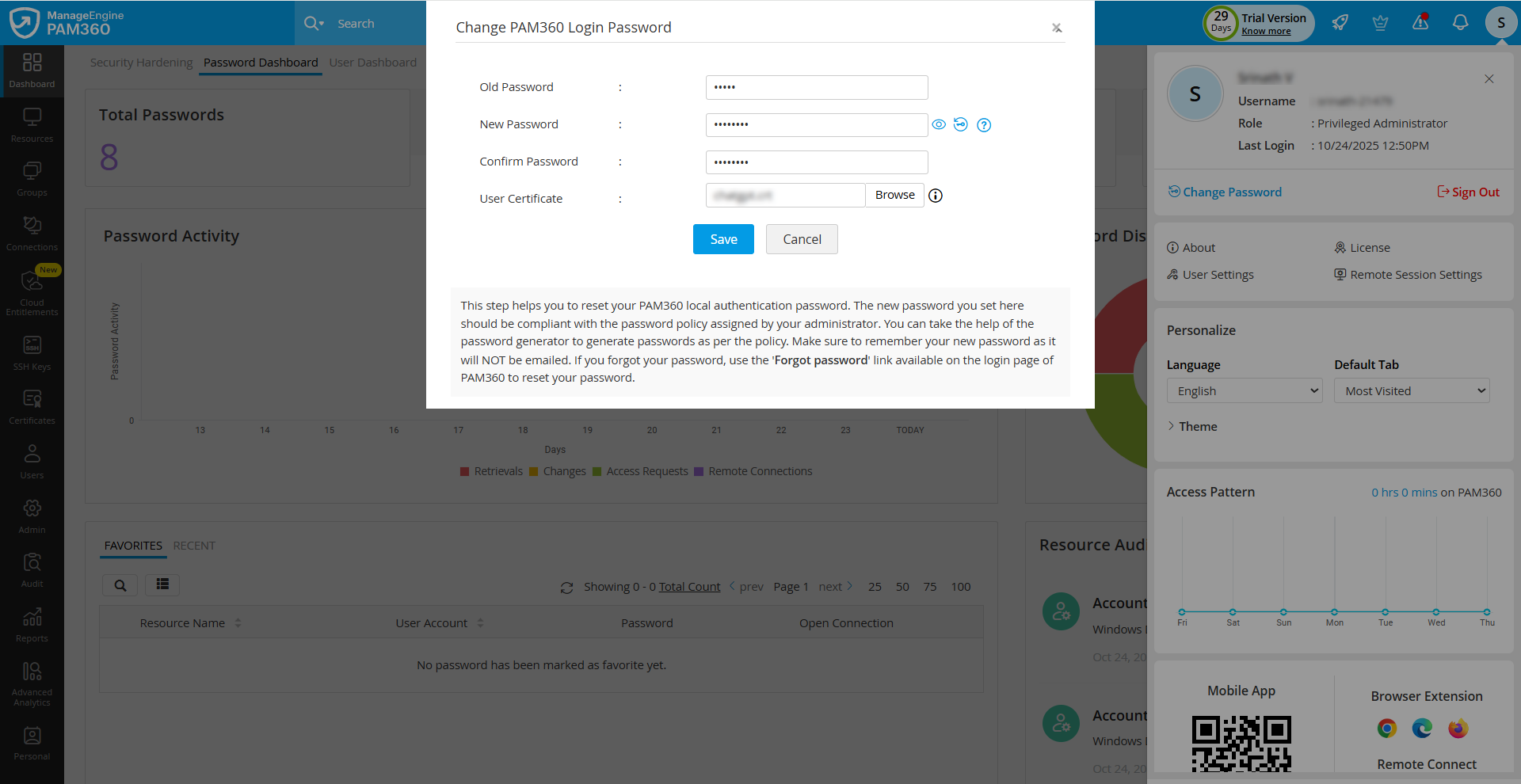
- Change Password - Click the Change Password button to modify your local authentication password. In the Change PAM360 Login Password window that appears, enter the old and new passwords in the respective fields and click the Save button.
- Sign Out - Click on the Sign Out button to exit the PAM360 interface securely. It is important to sign out after your session to protect your account and sensitive information, especially when accessing PAM360 from shared or public devices.
- User Settings - Click the User Settings option to open a dialog box that displays the REST and Application access associated with your user account within PAM360. Here, you can disable the REST API/SDK access and re-enable it when required, as well as regenerate your authentication token if you suspect the existing token may be compromised.
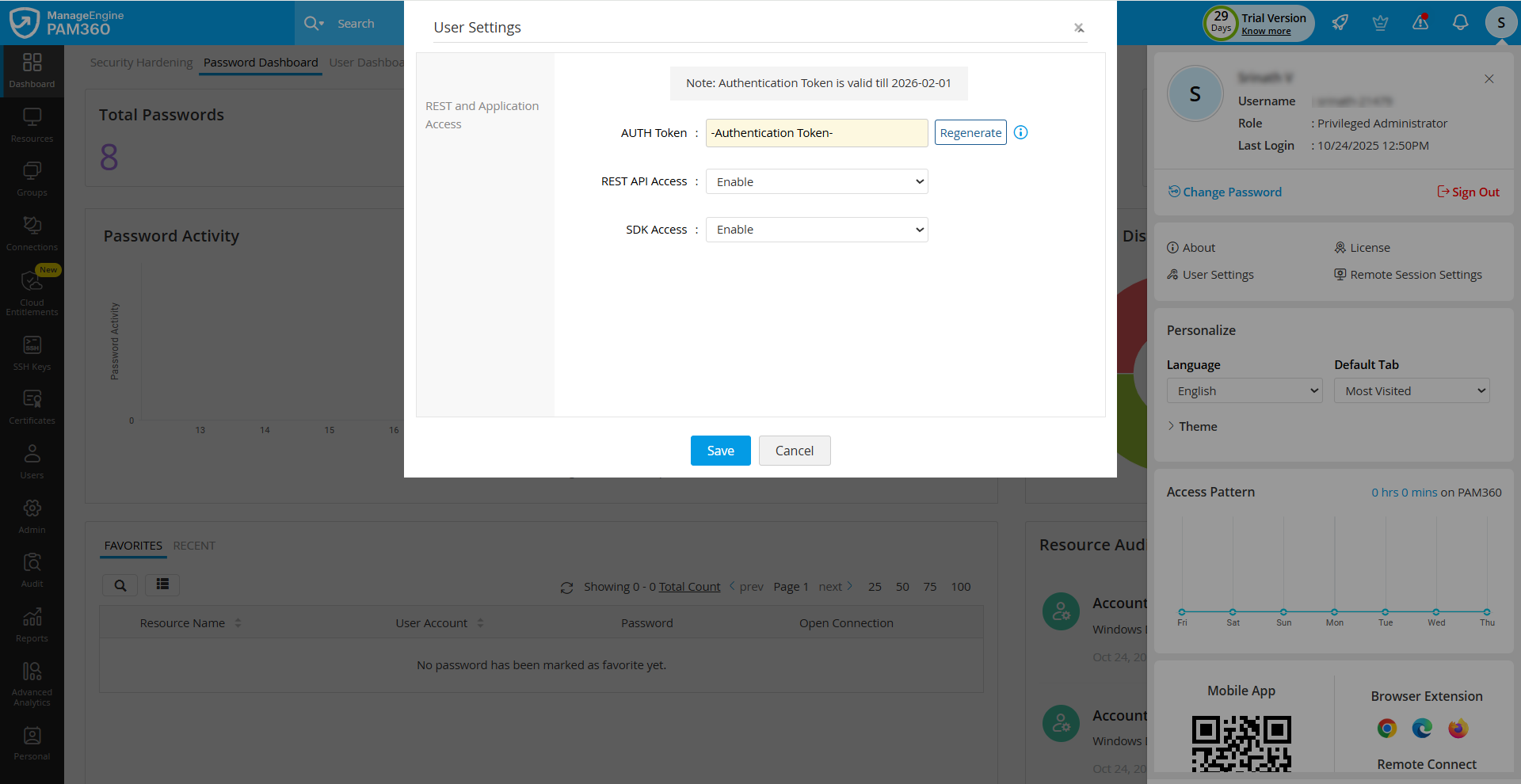
- The user settings option is only visible to users with REST and Application access in PAM360.
- For a newly created user account, it is mandatory to regenerate the authentication token before using the PAM360 APIs. This can be done directly from this interface or through the dedicated API.
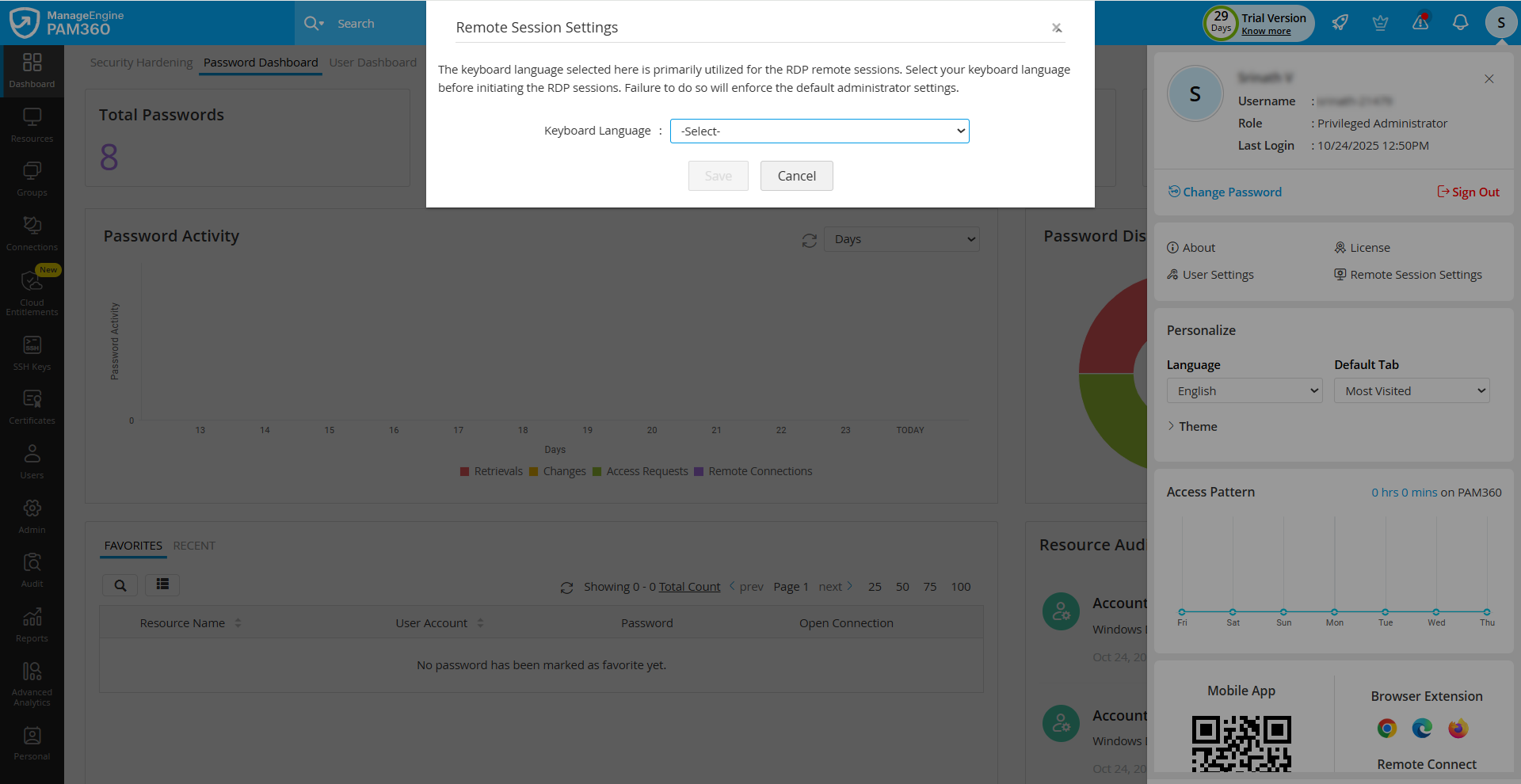
- Remote Session Settings - Click the Remote Session Settings button to modify the keyboard language preference for remote sessions. In the dialog box that opens, select the preferred keyboard language from the drop-down field and click the Save button. The selected keyboard language will apply to all the RDP sessions initiated via the PAM360 interface.
- Export Settings - To protect all the exported files across PAM360, administrators can either set a single password, which will be uniformly used for all export operations, or allow the users to set their passwords for the files they export. Click the Export Settings button to know the global encryption password set by the administrators or to set your password for further exports.
- Personalize - PAM360 allows users to personalize the user interface of their accounts. You can select a convenient language, and choose a theme of your choice for your PAM360 web interface. To personalize your PAM360 account:
- Language - Select your preferred language from the Language drop-down menu.
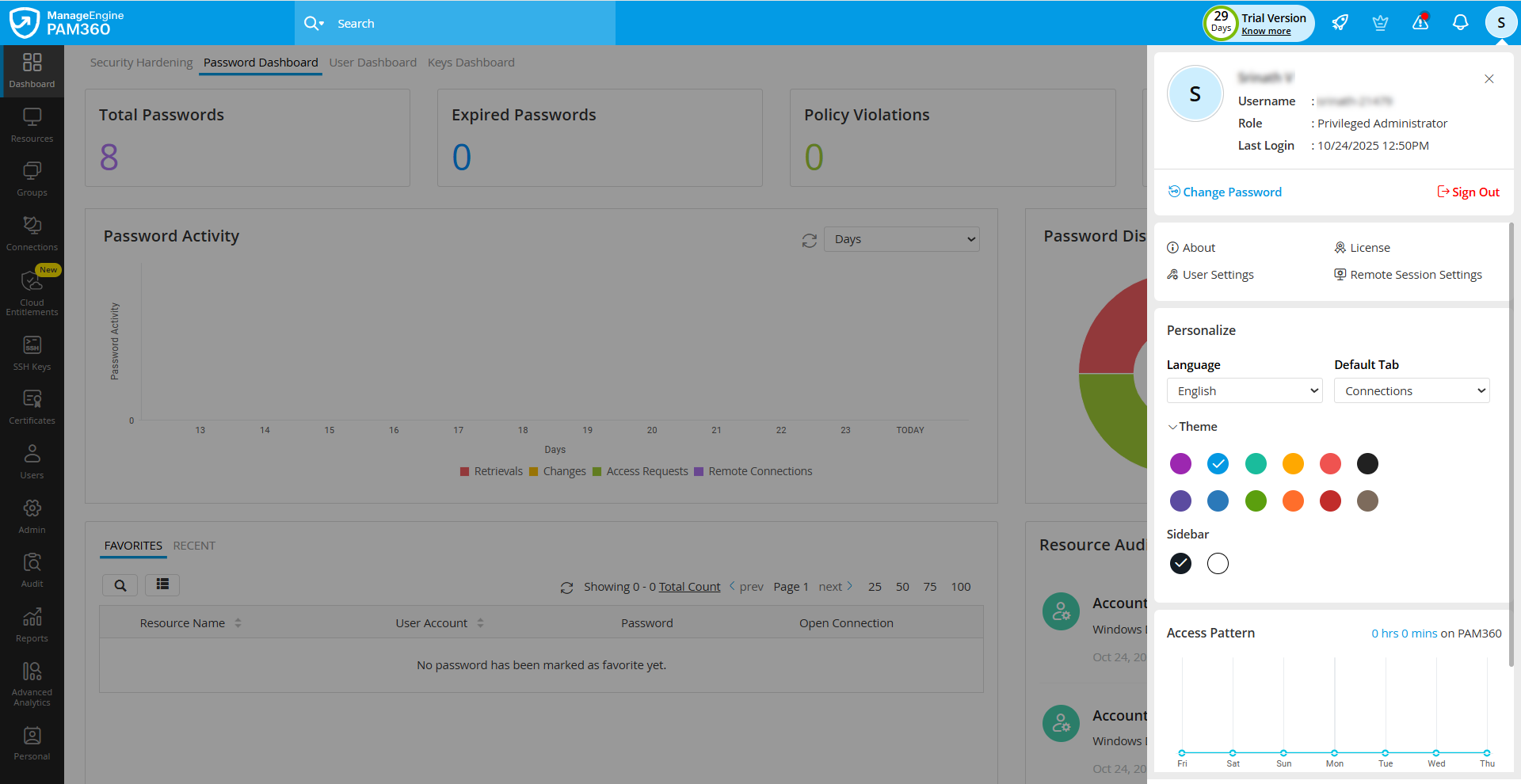
- Default Tab - Select your preferred default tab to display on the home screen each time you log in to PAM360.
- Theme - Click the Theme button within the Personalize section to change the Application and Sidebar themes. PAM360 will apply the selected theme throughout your web interface instantly.
- My Access Pattern - Here you can view your access pattern for the last 7 days and the total time spent on PAM360 each day.
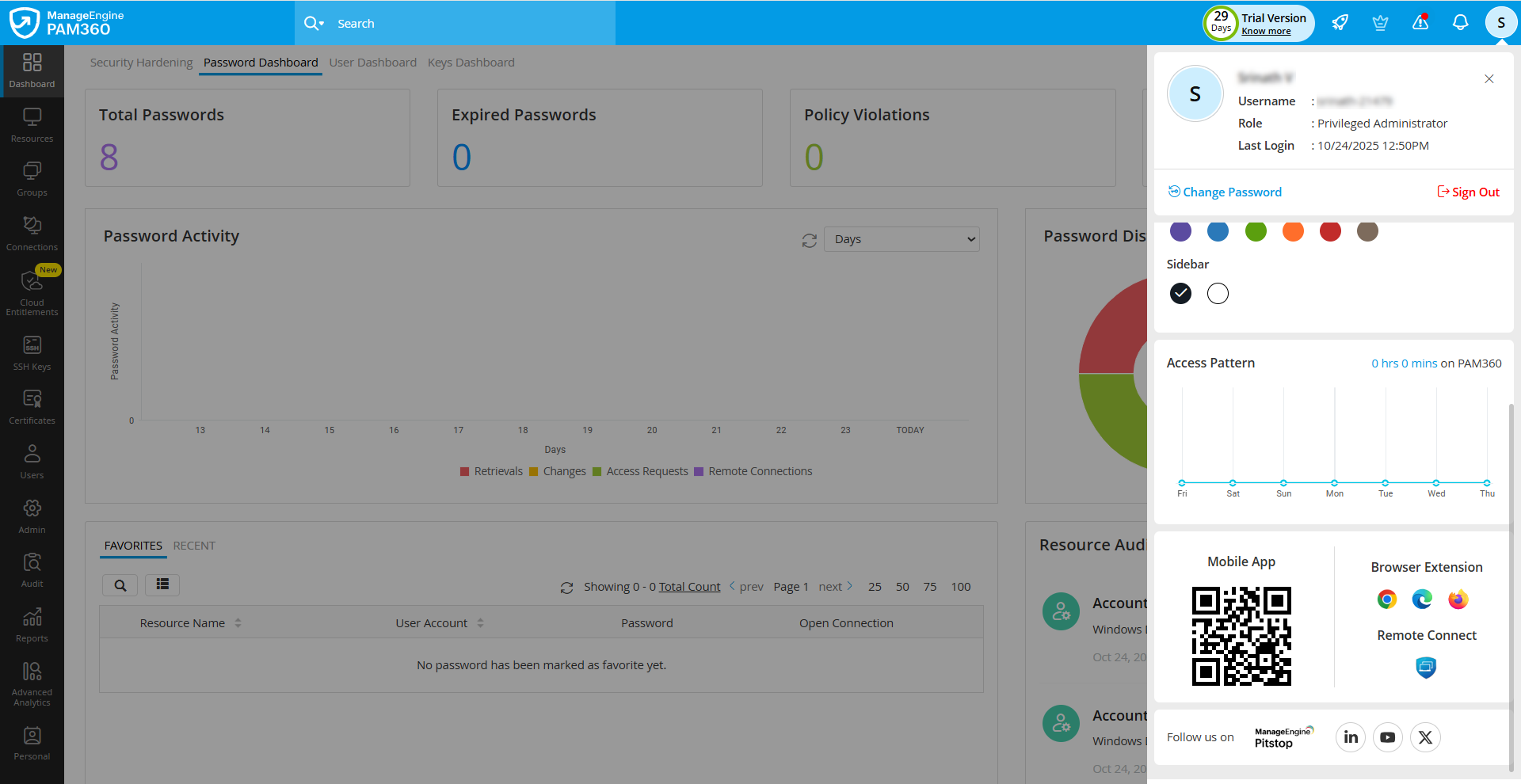
- Mobile Application - Scan the QR code to download the PAM360 mobile application.
- Browser Extensions - Click on the desired browser icon in this section to add the PAM360 browser extension to your browser.
- Remote Connect - Click on this icon to download the PAM360 Remote Connect application.
Additional Detail
The mobile application, browser extension, and remote connect sections are displayed only to the users enabled with mobile and extension access.
Additional Detail
If your IT administrator has implemented a password policy for your organization, the new password should comply with these guidelines. The Generate Password option can be used to create a password that aligns with your organization's policies. Always remember your new password, as it will not be sent via email. If you forget your password, use the Forgot Password link on the PAM360 login page to initiate the reset process. If this link is unavailable, please contact your administrator.
Additional Details
Additional Detail
The keyboard language configured will only apply to the remote sessions initiated after configuration.
Additionally, on the top and right panes, you will find the following options:
- Messages - Click the Messages icon to view broadcasted messages. All messages sent by administrators are displayed here.
- Clear Clipboard - Click the Clear Clipboard icon to remove all copied information such as passwords, account or resource details, and sample codes from the clipboard. This ensures that sensitive data is not left accessible.
- Night Mode - By default, the PAM360 web interface uses Light Mode. Click the Night Mode button in the right menu to switch to dark mode.
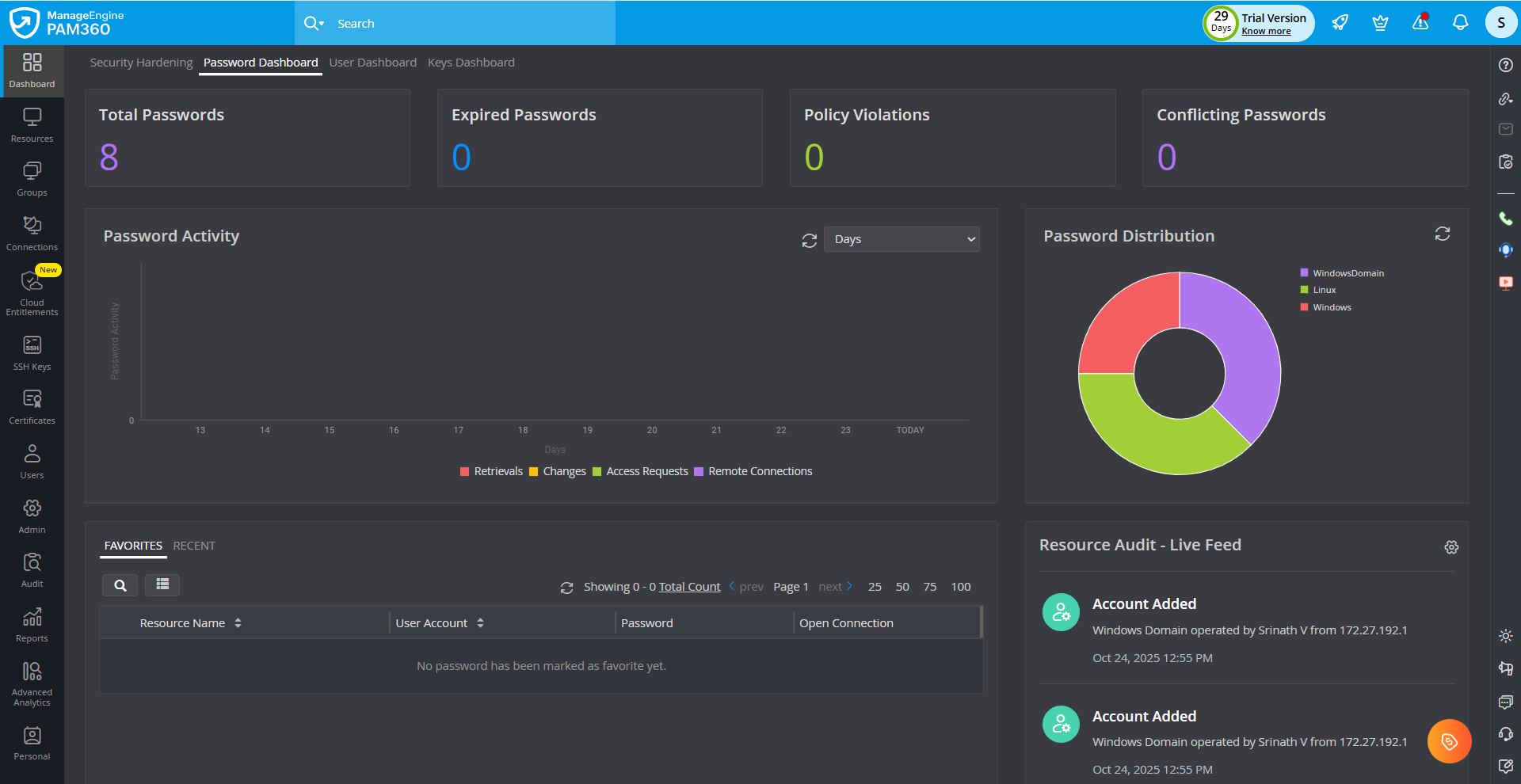
- Product Announcements - Click this icon to view recent product updates, including details of new features and enhancements introduced in each version.
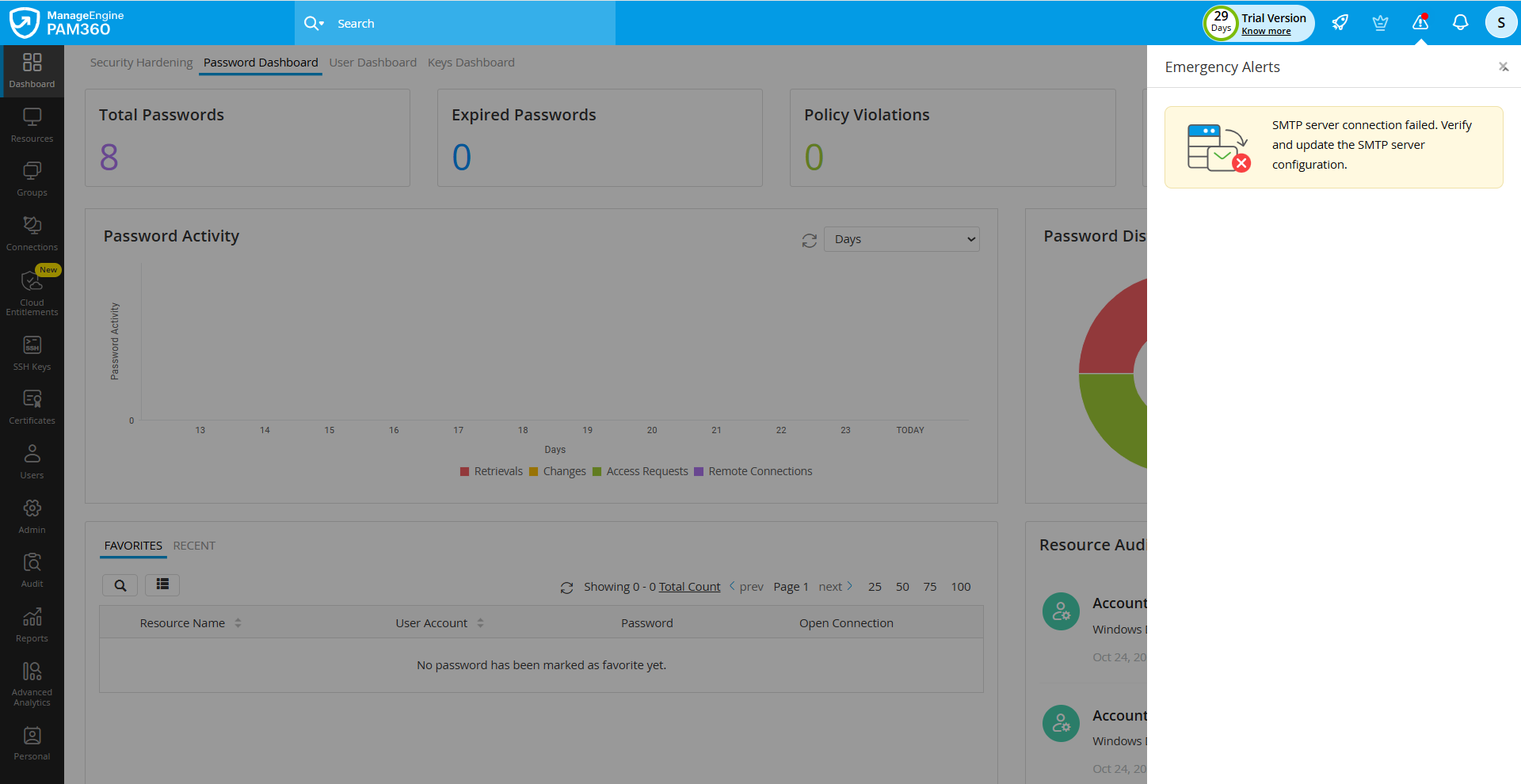
- Emergency Alerts - Click this icon to view critical product-related alerts and recommended security practices that require immediate attention. This section includes notifications about license expiry, mail server connection issues, and configurations related to TFA and session recording storage.
Additional Detail
The Product Announcements and Emergency Alerts options are visible only to users with administrator privileges.
2. Accessibility Controls
PAM360 provides a comprehensive set of accessibility controls to ensure a smooth and inclusive user experience for individuals with diverse needs. These controls can be customized based on motor, vision, interaction, and mobility requirements. To access the accessibility controls, click on the Accessibility Controls icon on the right pane. In the slider that expands, enable or configure the required options under the following categories: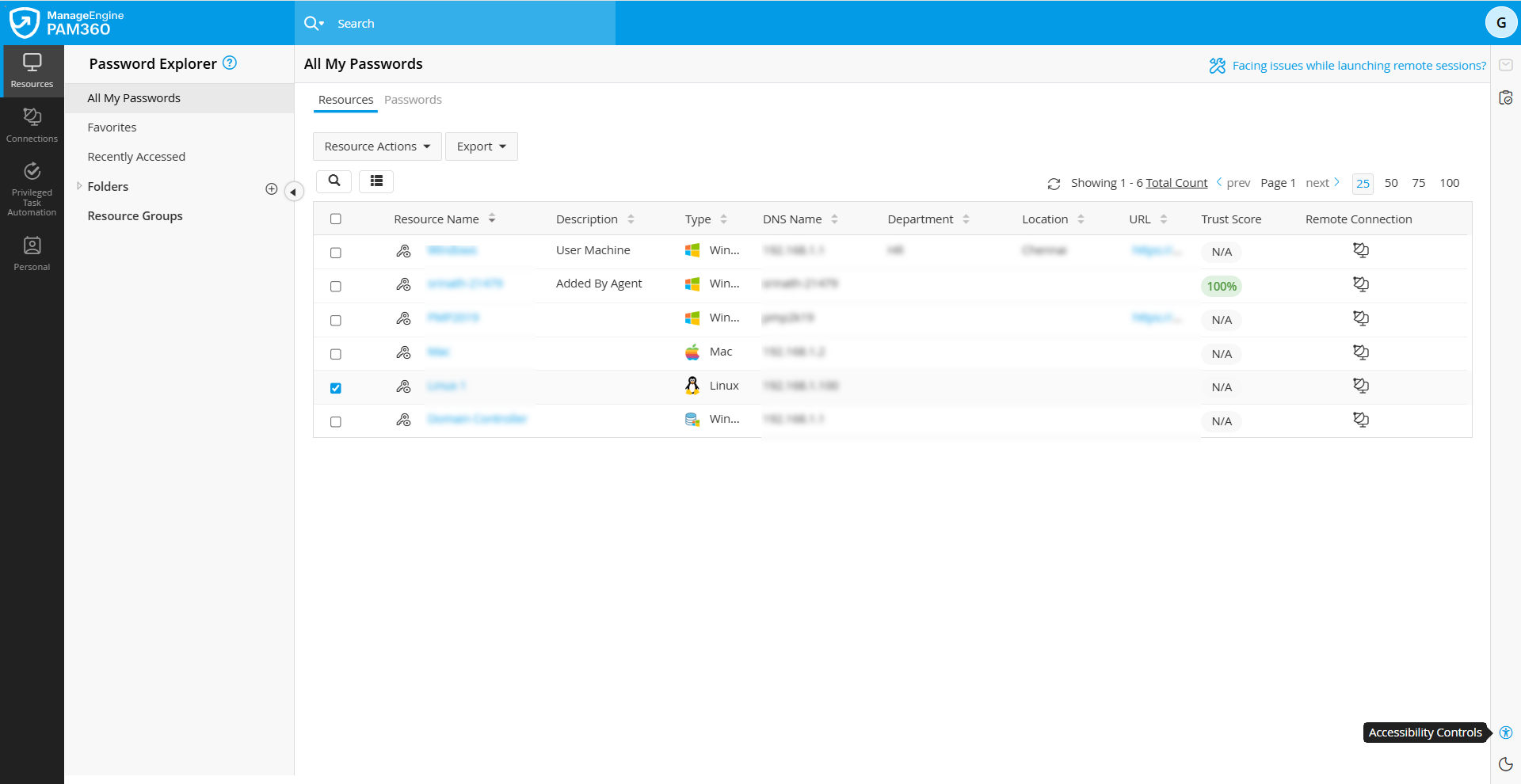
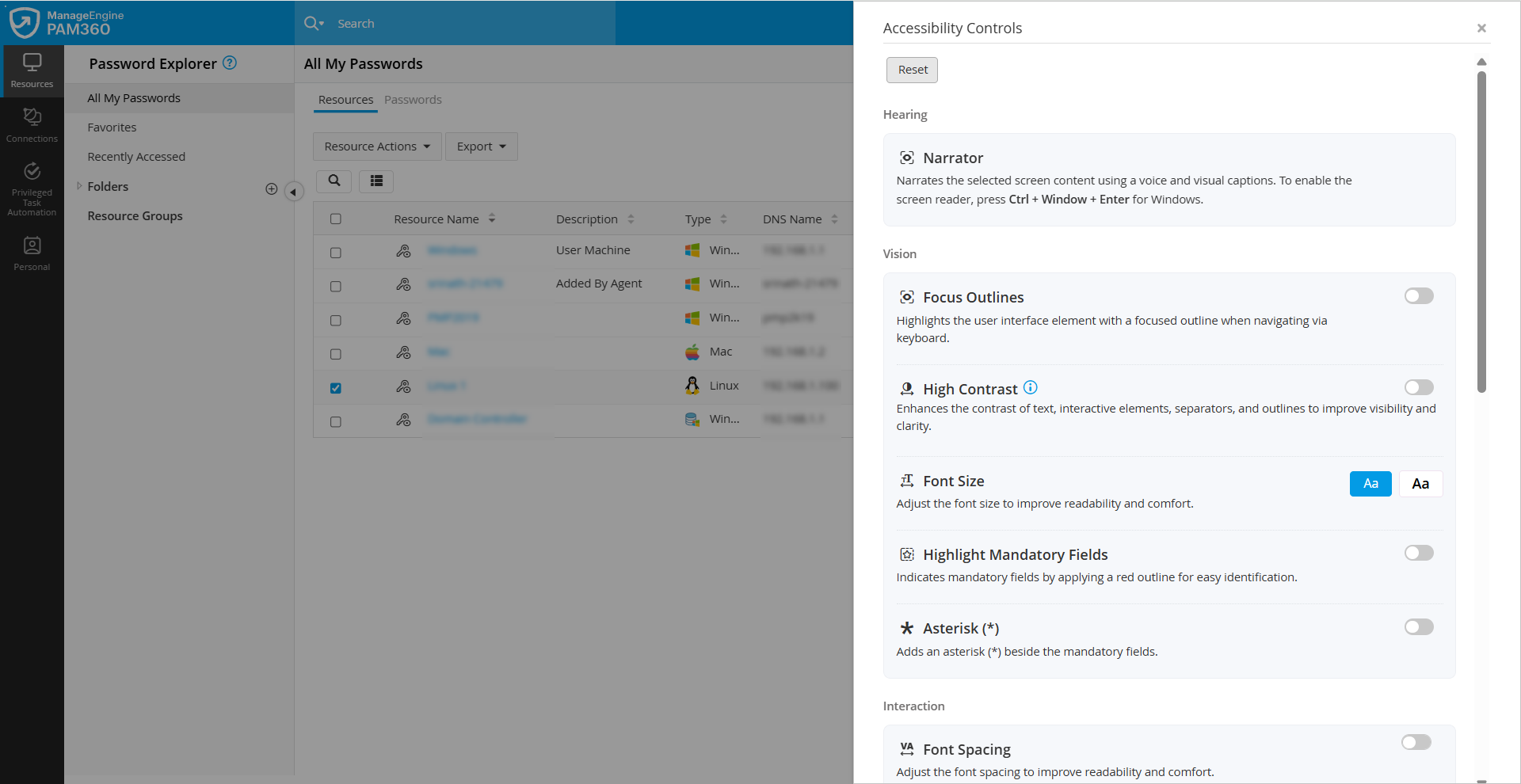
- Hearing
- Narrator: Narrates the selected screen content with voice output and visual captions. To enable the screen reader, press Ctrl + Window + Enter for Windows, Command + F5 for Mac, and Super + Alt + S for Linux.
- Vision
- Focus Outlines: Highlights the user interface interactive element with a focused outline while navigating with the keyboard.
- High Contrast: Improves visibility by enhancing the contrast of text, interactive elements, separators, and outlines.
- Font Size: Adjust the font size for improved readability and comfort.
- Highlight Mandatory Fields: Indicates mandatory fields by applying a red outline for easy identification.
- * Asterisk: Adds an asterisk (*) next to mandatory fields for easy recognition
- Interaction
- Font Spacing: Adjust the font spacing for better readability and comfort.
- Focus Mask: Hides the surrounding areas to reduce distractions and emphasize the hover or focus area.
- Underline Links: Adds underlines to hyperlinks to improve visibility.
- Strike-through Disabled Buttons: Marks disabled buttons with a strike-through to show they are inactive.
- Mobility
- Cursor Style: Customize the cursor’s style and size for easier tracking.
- Enlarge Clickables: Enlarges the size of checkboxes, buttons, and other interactive elements to make clicking actions easier.
Once accessibility controls are enabled, the following shortcut keys help you navigate PAM360 efficiently:
- Skip to Main Content (Ctrl + M): Directly jumps to the main content, bypassing navigation elements.
- Primary Click (Ctrl + K): Activates the selected button, checkbox, or toggle.
- Close / Cancel (Ctrl + Q): Closes form, dialogs, or pop-ups.
- Search (Ctrl + /): Opens the search box to perform a global search.
- Skip Menu (Escape key): Skips the main menu to quickly navigate across sections.