Setting up Two-Factor Authentication - RADIUS Authenticator
PAM360 supports integration with RADIUS servers and any RADIUS-compliant Two-Factor Authentication (TFA) systems, such as Vasco Digipass, to provide an additional layer of security for user authentication. By leveraging RADIUS-based authentication, users are required to validate their identity through a second factor, unlike single authentication. The setup process involves configuring the essential details of your RADIUS server and enabling it as the second factor of authentication in PAM360. Once configured, users will need to authenticate through the RADIUS system after successfully entering their primary credentials.
1. Integrating RADIUS Server with PAM360
To integrate a RADIUS server with PAM360, install and configure the RADIUS server on your resource by creating authentication details such as the username and passcode in a .conf file. Once the RADIUS server is set up, navigate to PAM360's web interface, enable the RADIUS Authenticator under Two-Factor Authentication Settings, and provide the required configuration details as follows:
- Server Name/IP Address - Enter the host name or IP address of the host where RADIUS server is running.
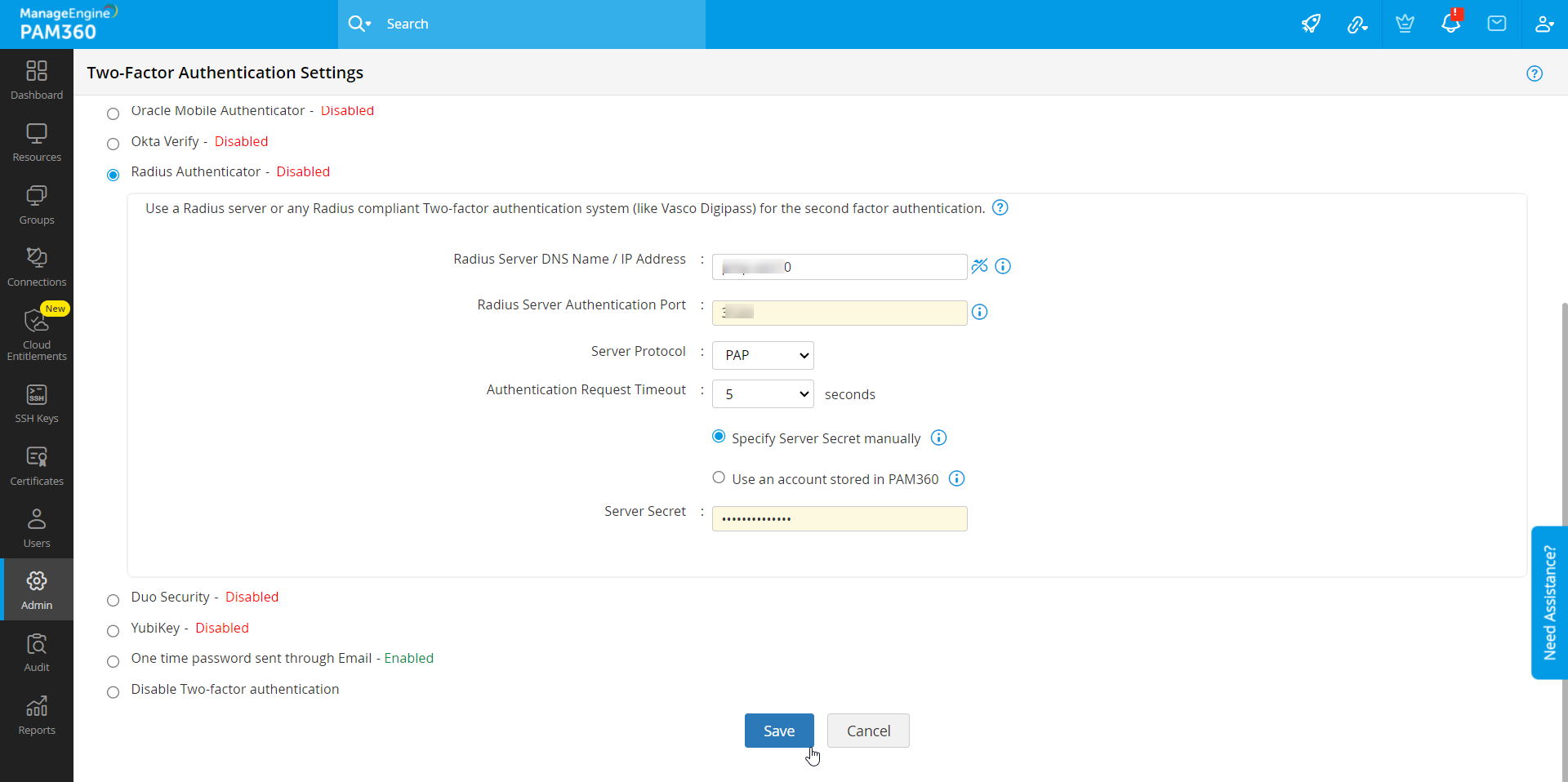
- Server Authentication Port - Enter the port used for RADIUS server authentication. By default, RADIUS has been assigned the UDP port 1812 for RADIUS Authentication.
- Server Protocol - Select the protocol that is used to authenticate users. Choose from four protocols - Password Authentication Protocol (PAP), Challenge-Handshake Authentication Protocol (CHAP), Microsoft Challenge-Handshake Authentication Protocol (MSCHAP), Version 2 of Microsoft Challenge-Handshake Authentication Protocol (MSCHAP2).
- Authentication Request Timeout - Select the timeout required for the authentication period. Then, select either Specify Server Secret manually or Use an account stored in PAM360 for establishing the connection between PAM360 and the RADIUS server.
- Server Secret - You have the option to enter the RADIUS server secret either manually in the text box or you can direct PAM360 to use the secret already stored in the product. In that case, you need to select the resource name and account name from the dropdown. The second option - storing the RADIUS password in PAM360 and selecting it from dropdown is the recommended approach.
Finally, enforce the RADIUS TFA for users to complete the integration. Refer here for detailed instructions.
2. Connecting to the PAM360 Web Interface with RADIUS Authenticator as TFA
The users for whom TFA is enabled, will have to authenticate twice successively. As explained above, the first level of authentication will be through the usual authentication i.e. the users have to authenticate through PAM360's local authentication or AD/Entra ID/LDAP authentication.
Perform the following steps to connect to the PAM360 web interface after enabling RADIUS Authenticator:
- On the PAM360 login page, proceed with the first level of authentication and click Login.
- Now, you will be prompted to enter the RADIUS code.
- Enter the code for the user (specified in the .conf file) you are trying to login and complete the second factor authentication and log in to PAM360.
Caution
If you have configured High Availability, whenever you enable TFA or when you change the TFA service type, you need to restart the PAM360 secondary server once for it to take effect.