Removing the Configured Secondary Server Model
This document provides a comprehensive step-by-step process to remove the Secondary Server model configuration in PAM360. Follow each section carefully based on the type of database you are using (PostgreSQL or MS SQL) to complete the process smoothly and safely.
1. Prerequisites
- Stop the PAM360 service and exit the tray icon.
- Shut down both the primary and secondary PAM360 services if they are currently running.
- If you are using PostgreSQL as the database, ensure that the Postgres process is not running in the task manager.
- If you are using MSSQL as the database, ensure that the OpenJDK/Zulu platform process is not running in the task manager.
- Perform a backup of the entire PAM360 installation folder to safeguard settings and data in case of any issues. Additionally, back up the PAM360 database. For MS SQL databases, use SQL Server Management Studio for the database backup.
2. Steps for Removing the Secondary Server Model with PostgreSQL Database
- Navigate to Admin >> Business Continuity >> High Availability in PAM360.
- Click the edit icon next to the listed secondary server, and in the pop-up that appears, update the Secondary Server Name to PMPHOST.
- Navigate to the <PAM360-Installation-Directory>/conf folder and delete the file pmp_rr.
- Navigate to the <PAM360-Installation-Directory>/pgsql/bin folder and remove files Primary.conf and HAPrimary.conf.
- Navigate to the <PAM360-Installation-Directory>/pgsql/data folder, locate the file pg_hba.conf, and open it with administrator privileges in WordPad or Notepad++.
- In the opened file, find the line that contains details of the secondary server (IP address or hostname) and delete the entire line
- Save the changes, close the file, and restart the PAM360 service.
3. Steps for Removing the Secondary Server Model with MSSQL Database
Open Microsoft SQL Server Management Studio. To stop replication, delete the subscriptions and publications related to PAM360 replication data and disable publishing and distribution by following these steps:
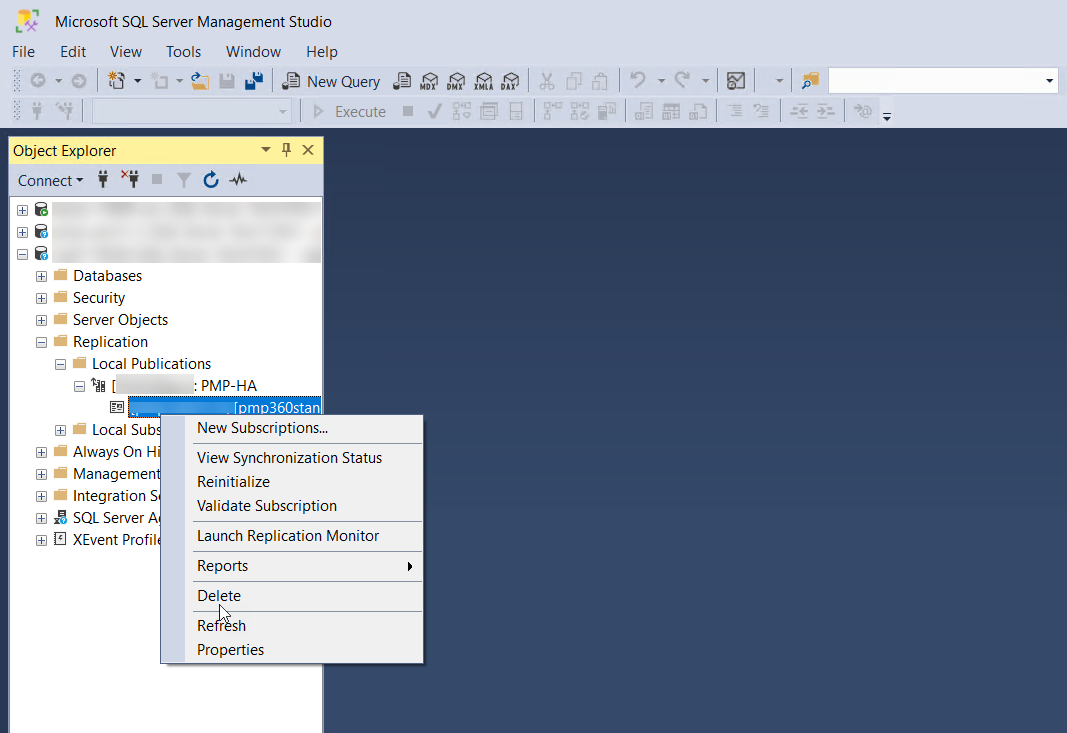
- Deleting Subscription: Go to Replication >> Local Publications and locate the entry <Name of PAM360 database:PAM360-HA>. In this directory, find the file named <PAM360 server name>.<Name of PAM360 database>. Right-click the file and select Delete.
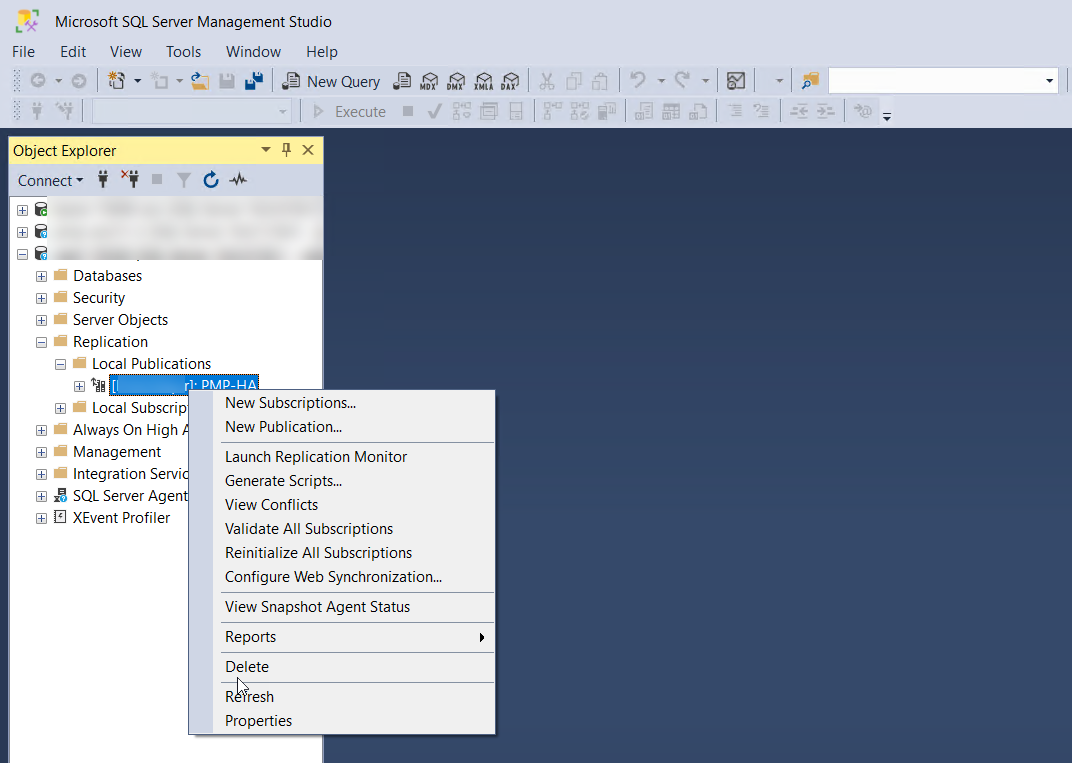
- Deleting Publication: Within Replication >> Local Publications >> <Name of PAM360 database:PAM360-HA>, right-click on the folder <Name of PAM360 database:PAM360-HA> and select Delete.
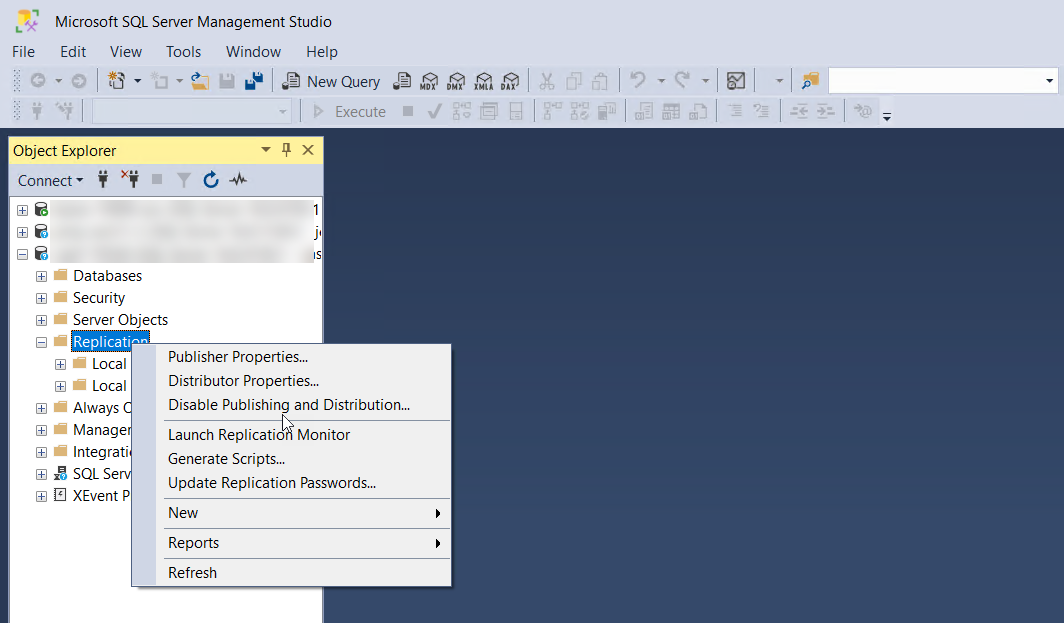
- Disabling Publishing and Distribution: Right-click the Replication folder, and select Disable Publishing and Distribution.
Follow these instructions thoroughly to successfully remove the Secondary Server configuration based on your database type.
Top