Migrating from an existing PostgreSQL/Microsoft SQL database to an external database (Azure, AWS, or external PostgreSQL database)
Note Supported for external PostgreSQL versions 14 and 15.
- Stop ADManager Plus.
- Invoke <ADManager Plus installation folder>\bin\ChangeDB.bat in the Command Prompt. Make sure that the same user running the Command Prompt is running ADManager Plus.
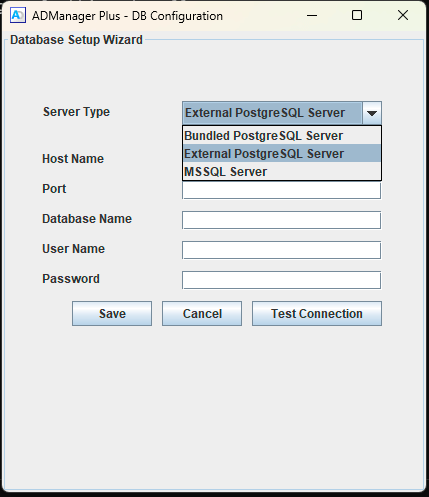
- In the Database Setup Wizard pop-up that appears, select External PostgreSQL Server as the Server Type.
- Enter the required details such as Host Name, Database Name, User Name, and Password.
- For cloud instance databases, ensure that the database has already been created before initiating migration.
- Click Test Connection and check if the connection is established successfully.
- Click Save.
Note If you are adding Azure PostgreSQL, follow the steps here to enable the extensions.
Steps to enable extensions in Azure
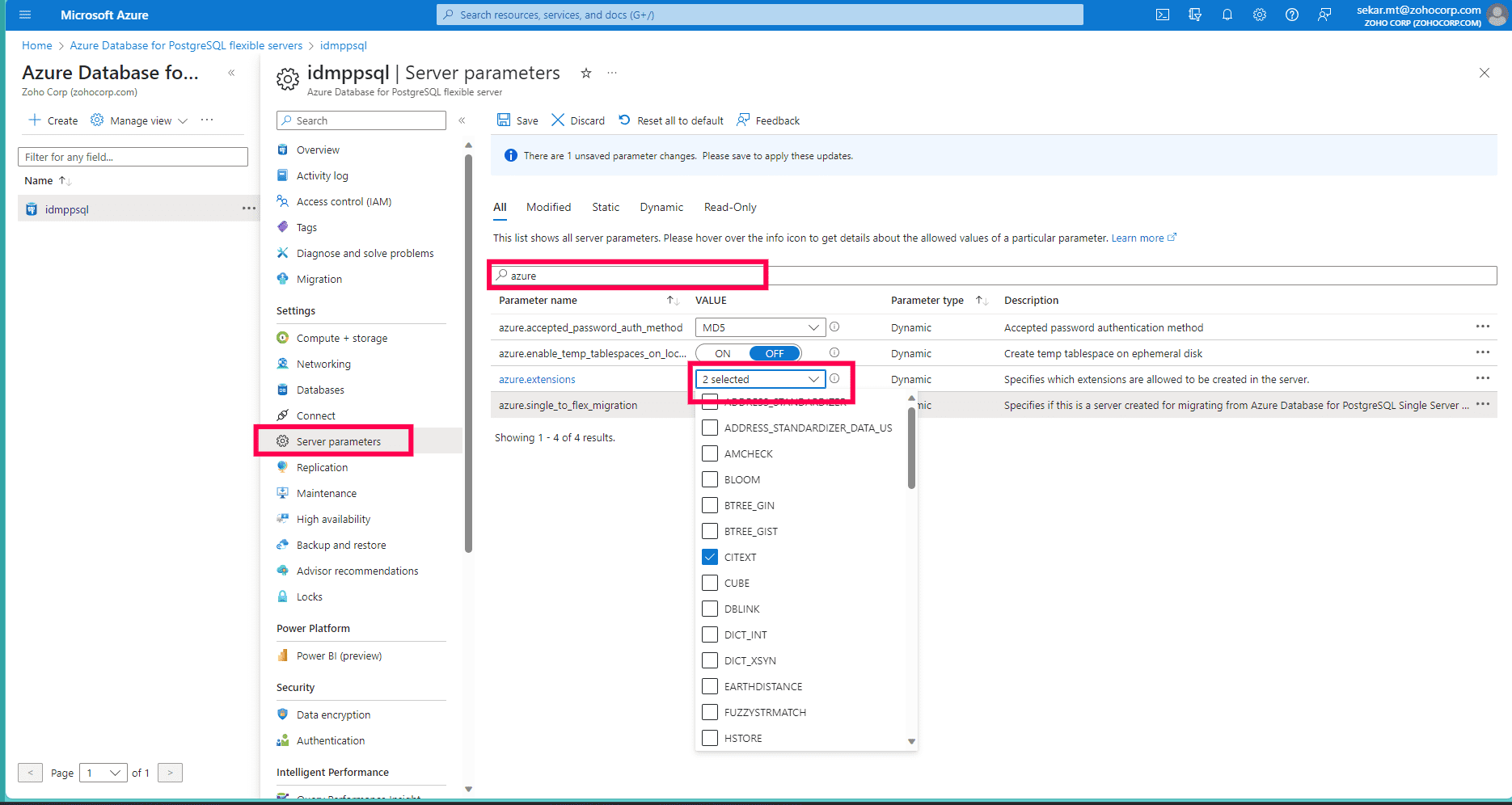
For Azure PostgreSQL, you need to enable the mandatory extensions in the Azure database. Follow the steps below to enable them.
- Open the Azure portal and navigate to the Azure Database for PostgreSQL flexible servers.
- On the sidebar, click Server Parameters.
- Search for the azure.extensions parameter.
- From the drop-down, select the CITEXT and PGCRYPTO extensions.