Upgrade FSO Agent
Applications Manager allows you to upgrade the FSO (Full-stack Observability) Agent directly from the Applications Manager console. Applications Manager will send the upgrade request to the FSO Agent. The agent will then download and apply the update automatically.
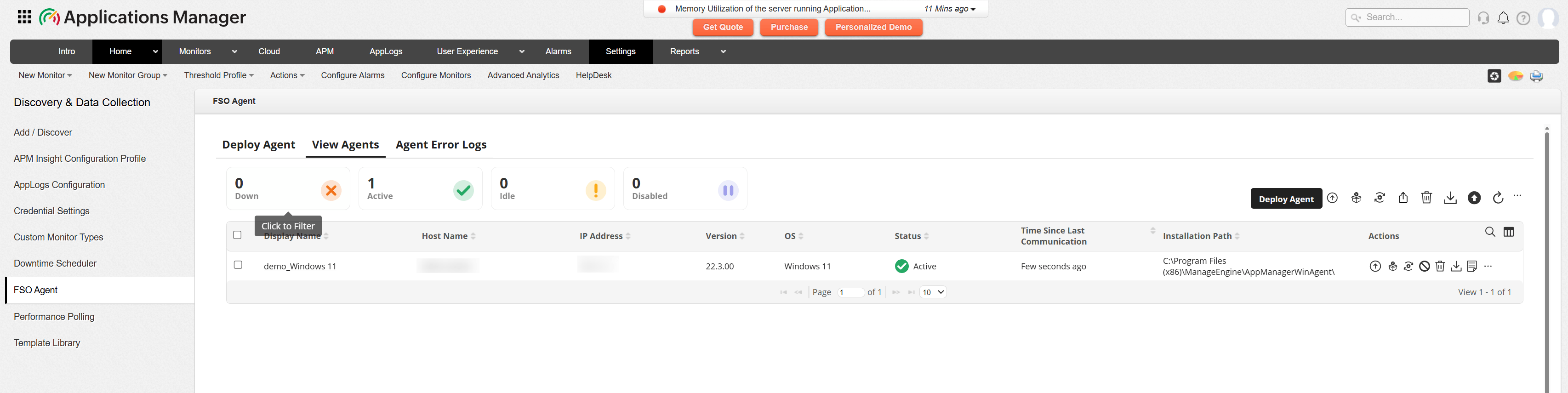
Follow the steps below to upgrade the FSO Agent in Applications Manager:
- Step 1: Download and extract the agent package
- Step 2: Initiate the Agent Upgrade
- Step 3: Verify the Upgrade
Step 1: Download and extract the agent package
- Navigate to the Settings → FSO Agent → View Agents page in Applications Manager.
- In the Actions column corresponding to the agent you want to upgrade, click the Upgrade icon.
- A prerequisite pop-up message will appear instructing you to download the latest agent package and place it in the Applications Manager-installed directory.
- Download the latest FSO Agent (ApplicationsManager_FSO_Agent.zip) package from the agent download page.
- Place the downloaded zip file in the <Applications Manager Home>/working/resources directory and extract the package.
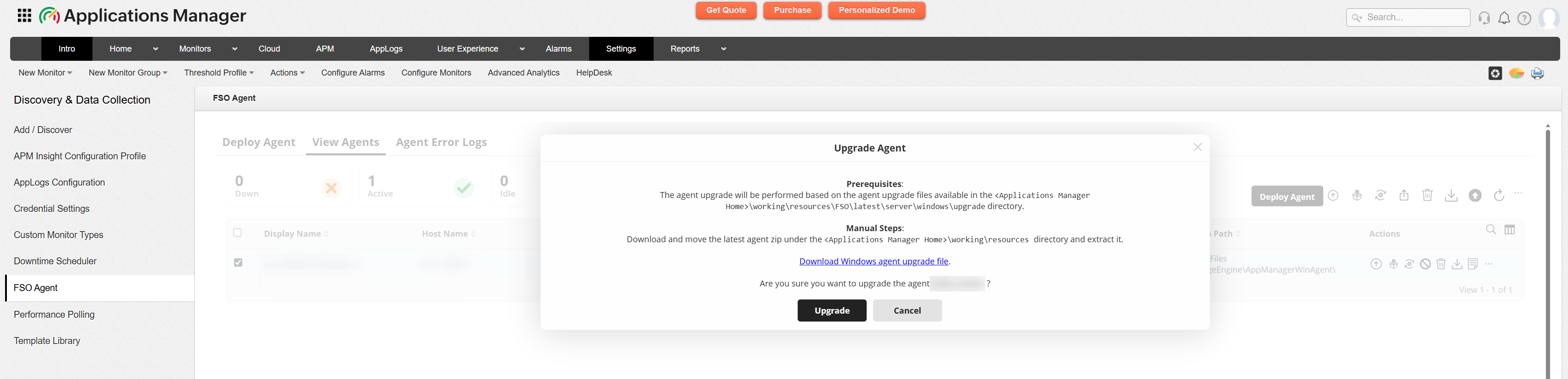
Step 2: Initiate the Agent Upgrade
The FSO agent upgrade can be performed using the following methods:
Global upgrade
Allows you to upgrade the overall FSO agent, including servers, application logs (AppLogs), and Auto profiler, by clicking on the FSO Upgrade button located at the top right corner of the table, under Settings → FSO Agent → View Agents tab.
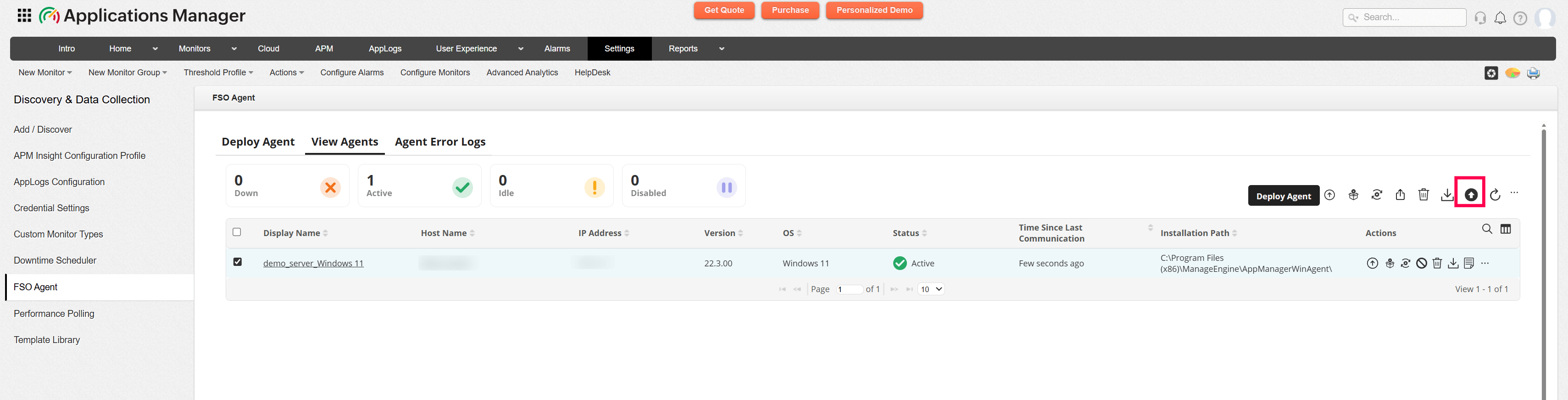
- Navigate to Settings → FSO Agent.
- Click the FSO Upgrade button available at the top right corner of the table to initiate the agent upgrade process.
- A confirmation message “Agent upgrade action initiated” will be displayed.
Sub-agent upgrade
Allows you to upgrade the required sub-agent modules alone in the FSO agent. This can be performed by navigating to the Sub-agents option and clicking on Upgrade for the required modules to be updated. For server sub-agent upgrade, clicking on the Upgrade option located adjacent to the respective agent hosts will initiate the upgrade process.
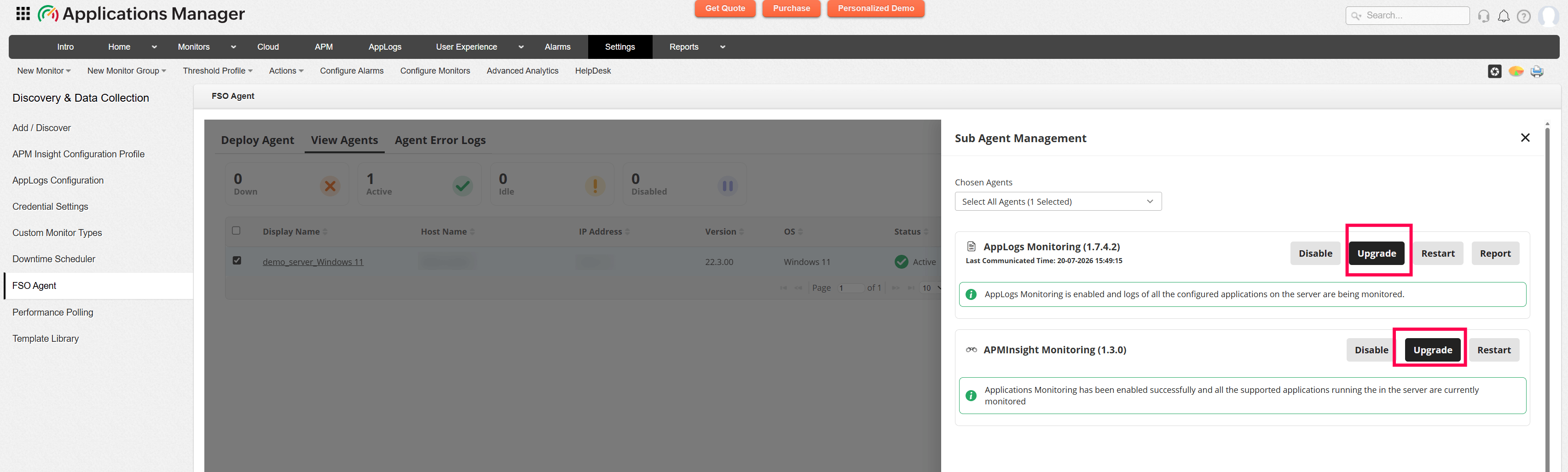
- Click on the three dots of the respective server in the Actions column.
- Click on the Upgrade button to initiate the sub-agent upgrade.
Step 3: Verify the Upgrade
Once FSO agent upgrade is completed, verify whether the Agent Version displayed on the View Agents page matches the newly upgraded version.
Note:
- Refer to the FSO Agent Release History page to select the appropriate agent version for upgrade.
- Ensure that the latest agent package is downloaded and extracted in the correct directory before initiating the upgrade.
- The upgrade process may take a few minutes depending on the agent connectivity and system resources.
- The agent must be running and reachable from the Applications Manager server for the upgrade to complete successfully.