How to configure SAML authentication settings in Central Server for Auth0 SSO?
Description
This document will walk you through the steps required to configure SAML Authentication settings in Central Server for Auth0. Please visit this site to know about Central Server cloud integration with Auth0 SSO.
Installation Steps
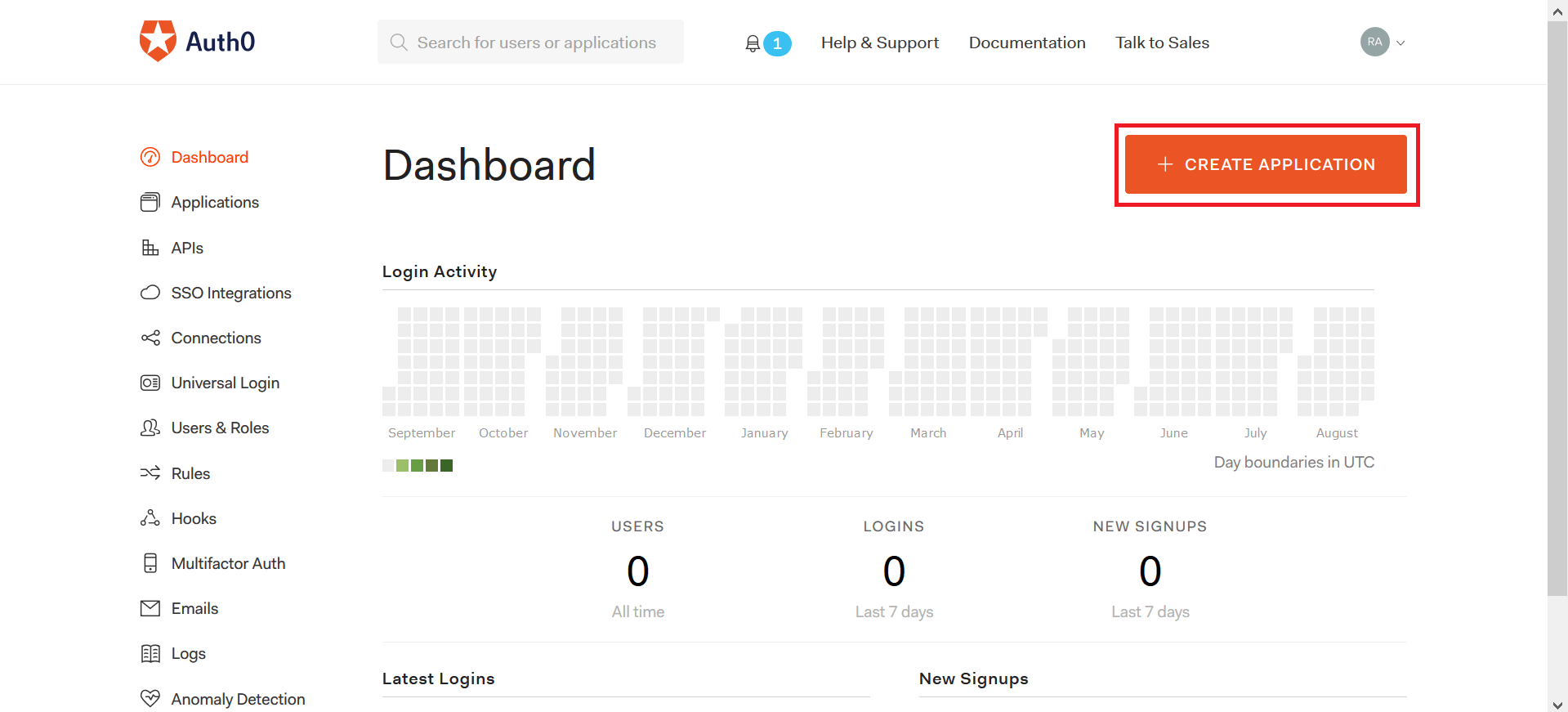
- Go to https://auth0.com. Login to your account. Click on Create Application.
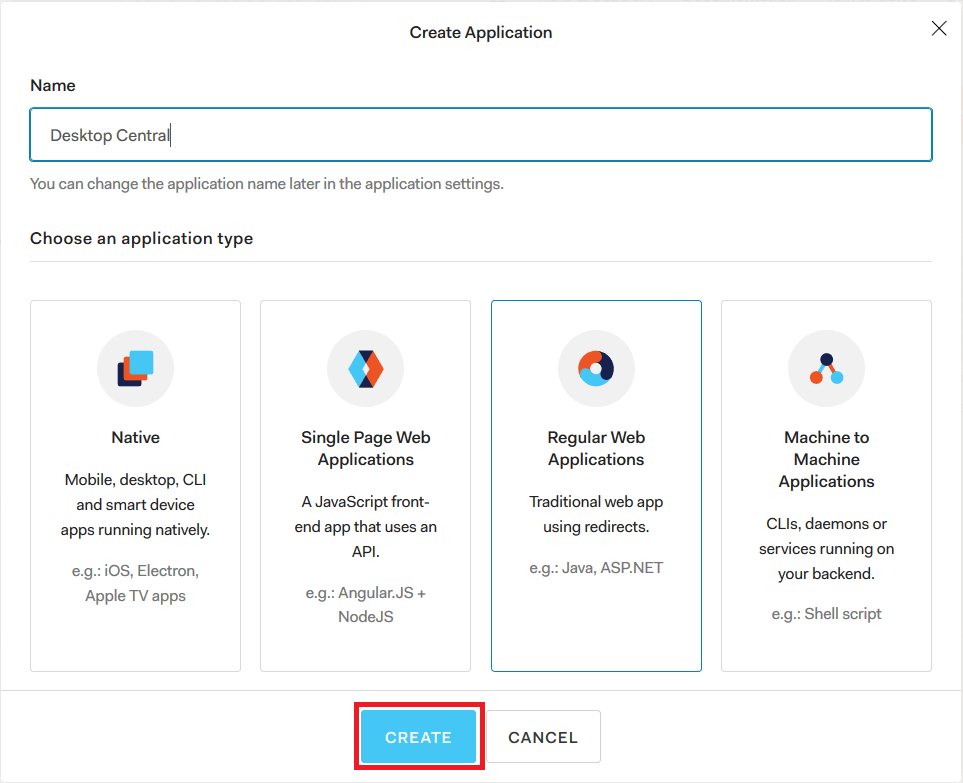
- Type Central Server as application's name. Select the application type as Regular Web Applications. After that, click on Create.
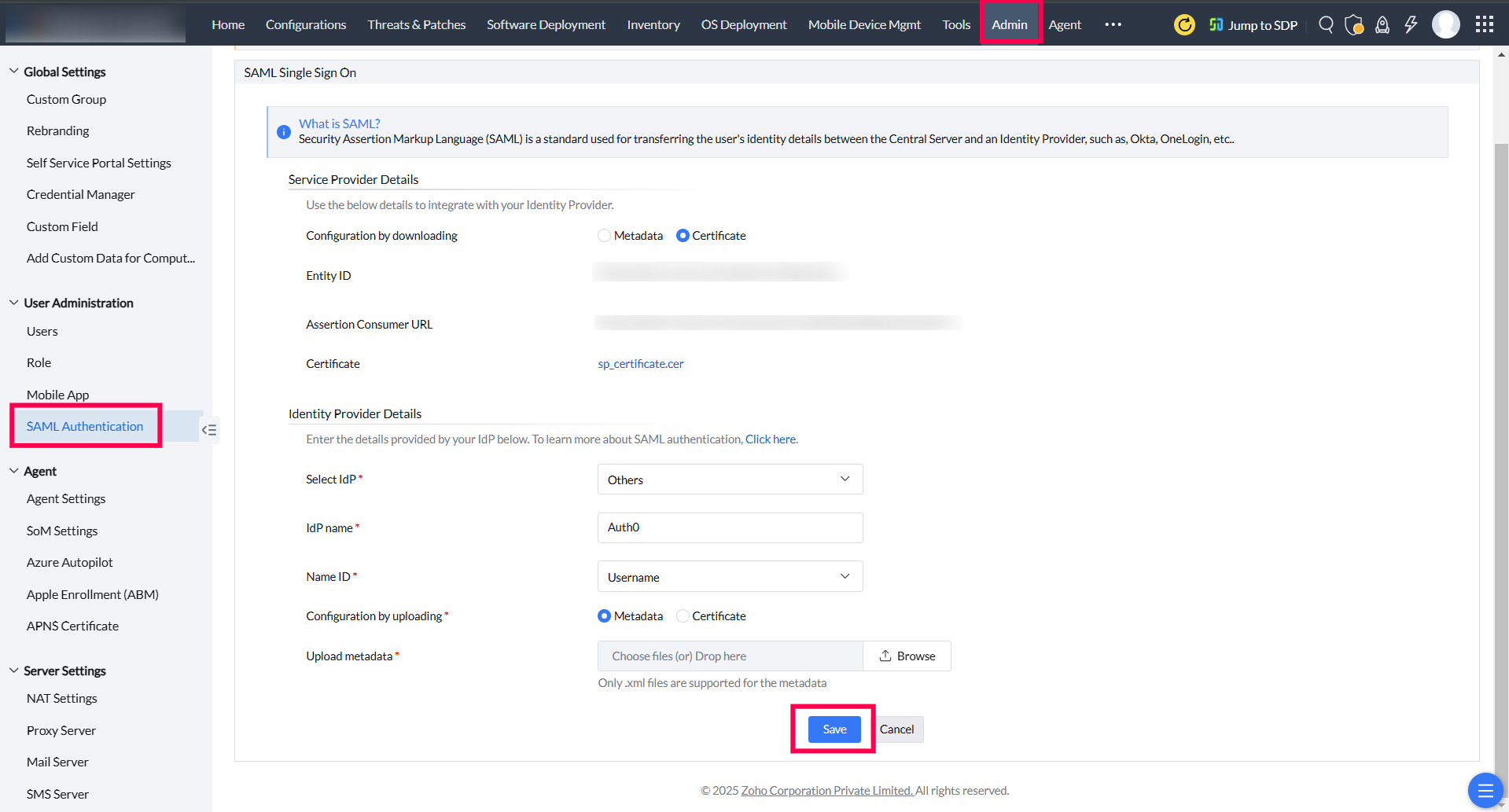
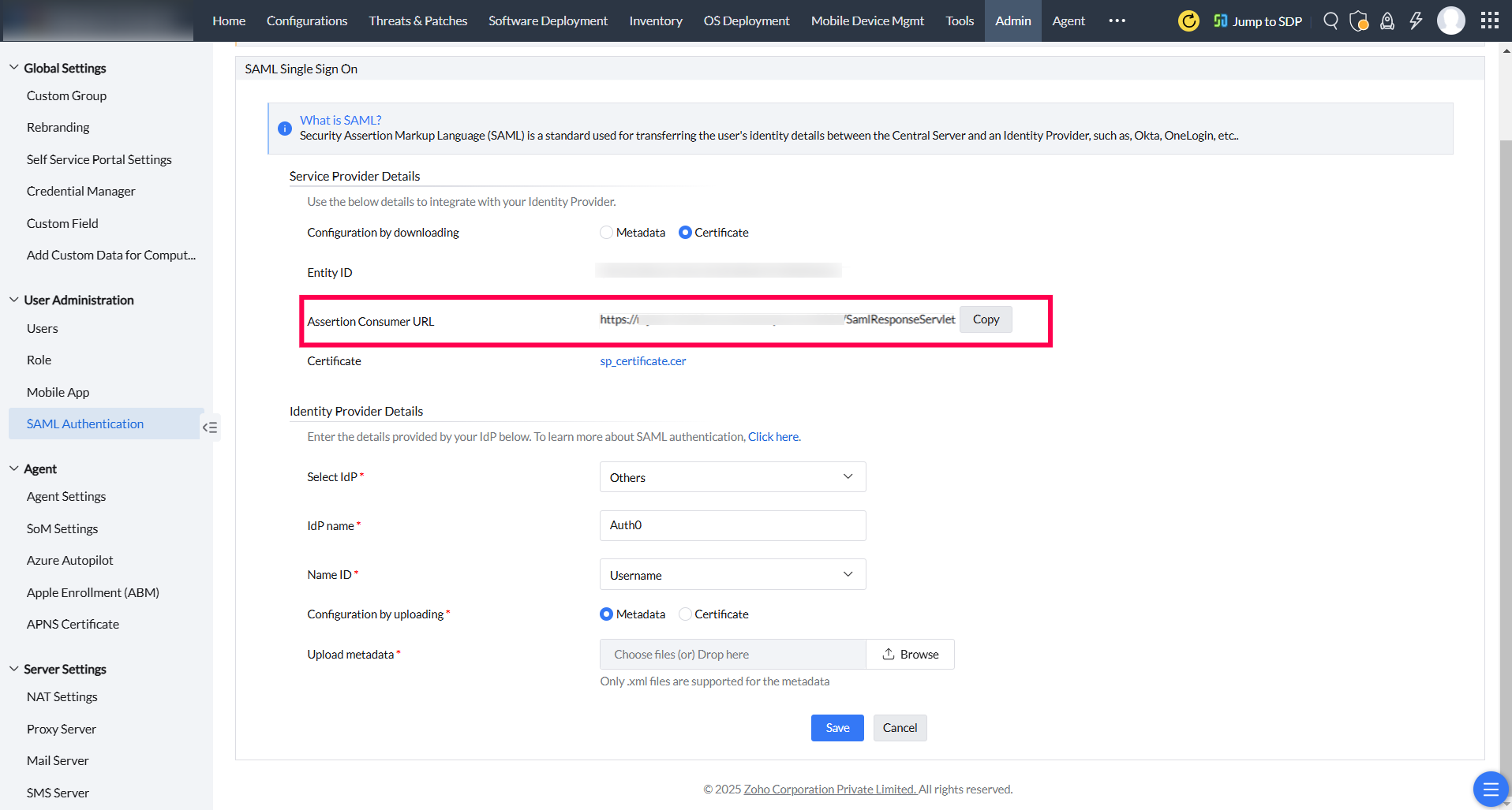
- Open Central Server web console. Navigate to Admin tab, click on SAML Authentication. Choose configuration by downloading as Certificate. Copy the Assertion Consumer URL.
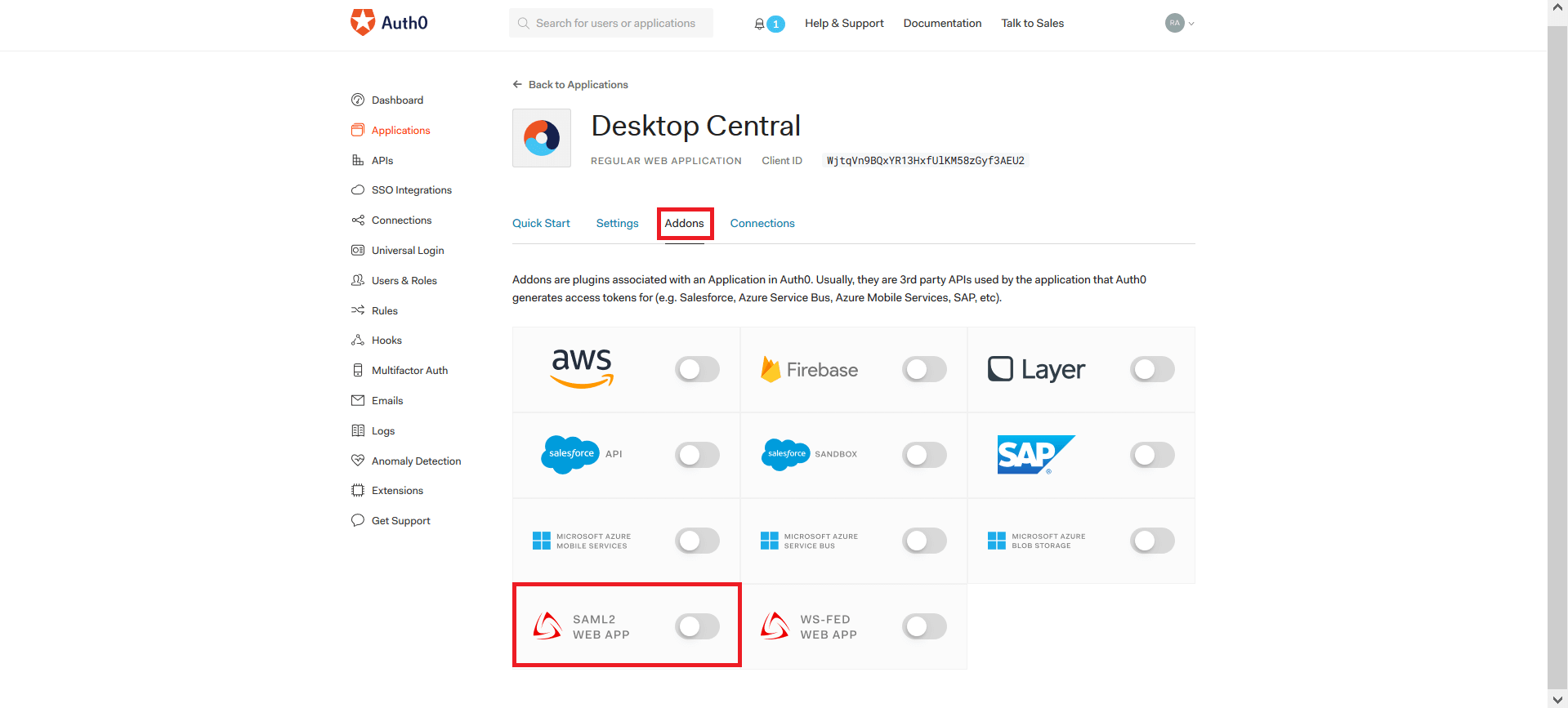
- In the Auth0 page, navigate to Addons tab. Enable SAML2 WEB APP option.
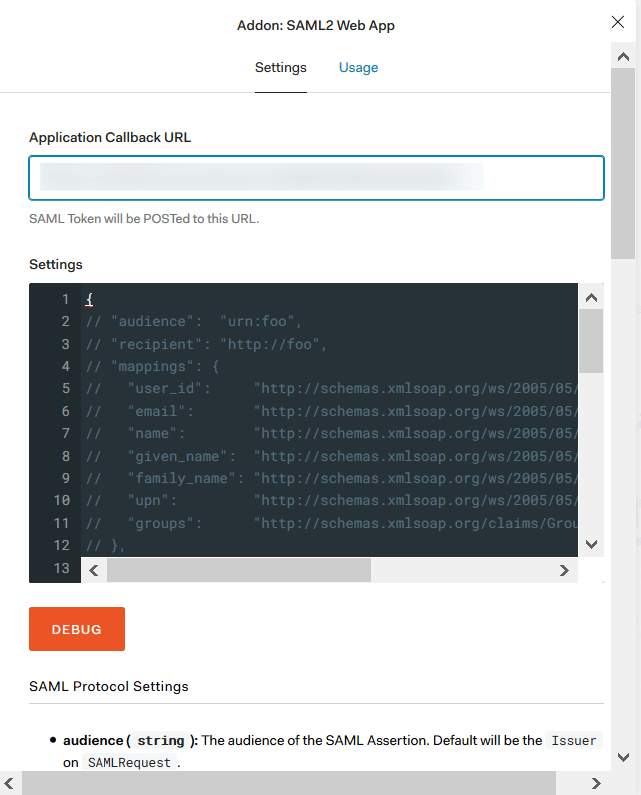
- Paste the Assertion Consumer URL, that you had earlier copied against Application Callback URL.
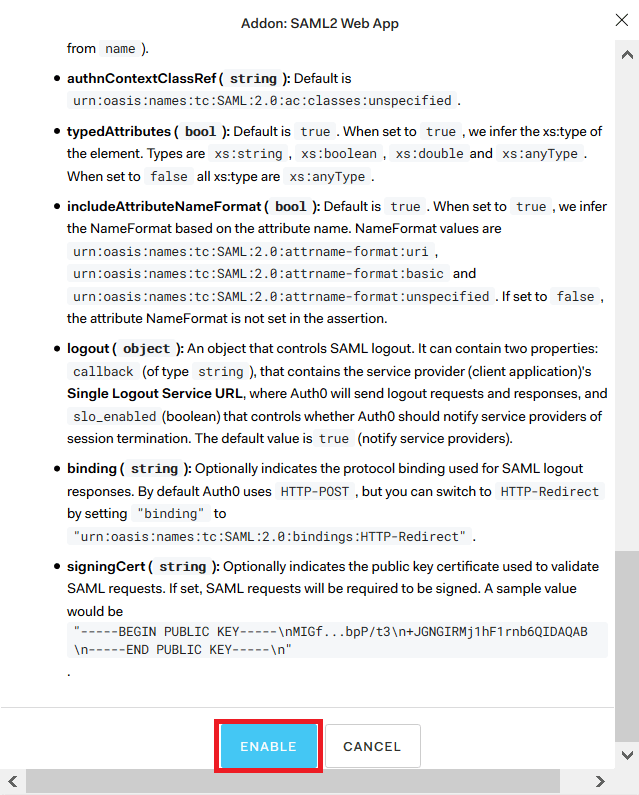
- Scroll down and click on ENABLE.
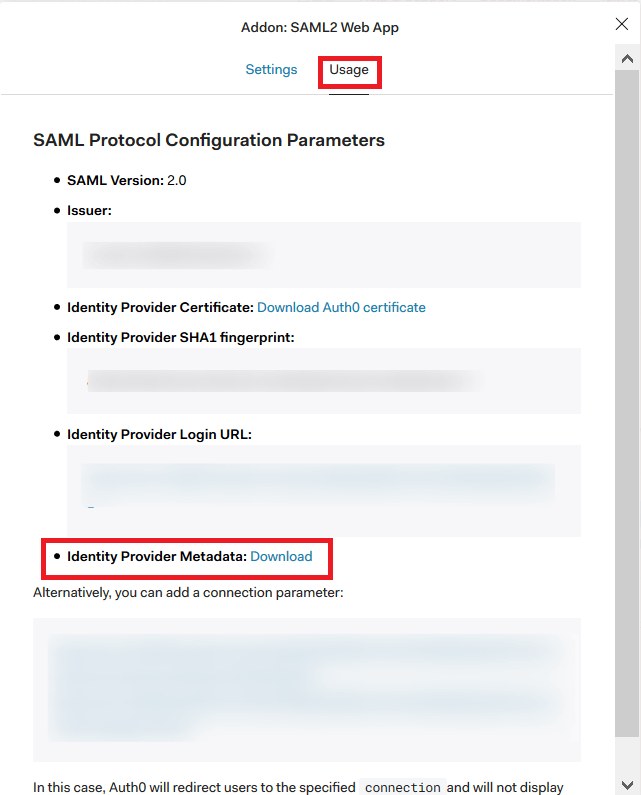
- Go to the Usage tab. Download the Identity Provider Metadata.
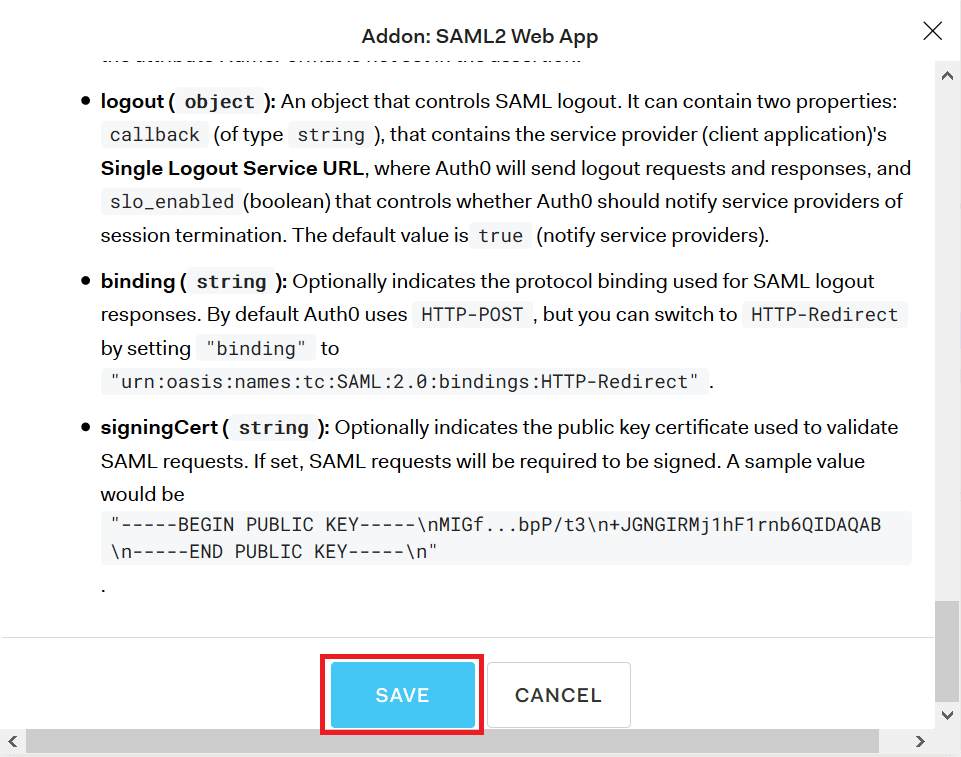
- Go to Settings again, scroll down and click on SAVE.
- In Central Server, choose Others against Select IdP. Fill in IdP name as Auth0. Select Username as Name ID. After that, choose Metadata against Configuration by uploading. Now, browse and upload the Metadata file. Click on Save.
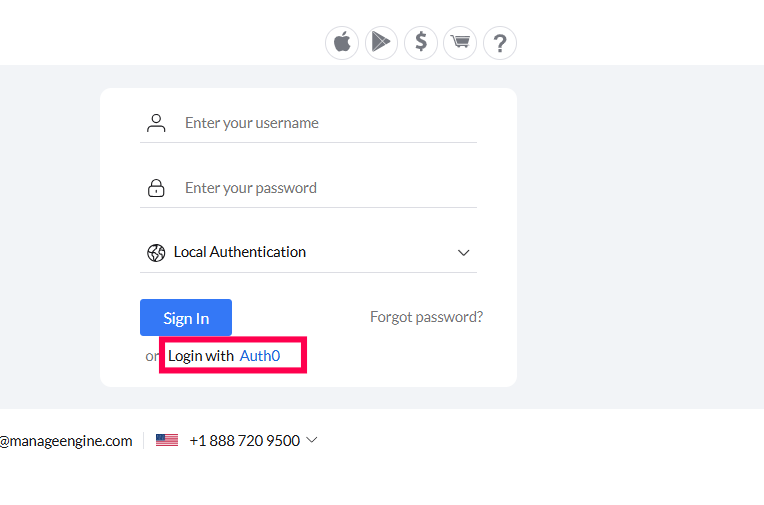
- In Central Server's login page, choose Login with Auth0.
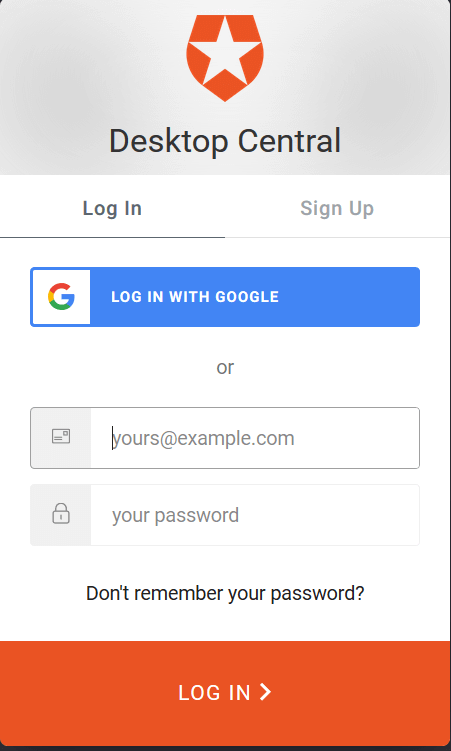
- Enter Username and password.