How to deploy Microsoft Visio 2024?
This document provides you the steps required to deploy Microsoft Visio 2024 to multiple computers using Endpoint Central.
Table of contents
Prerequisites
System Requirements
Before you deploy the software application, ensure that the computers to which you deploy Microsoft Visio 2024, meets the system requirements prescribed by Microsoft. Refer to the article for more details.
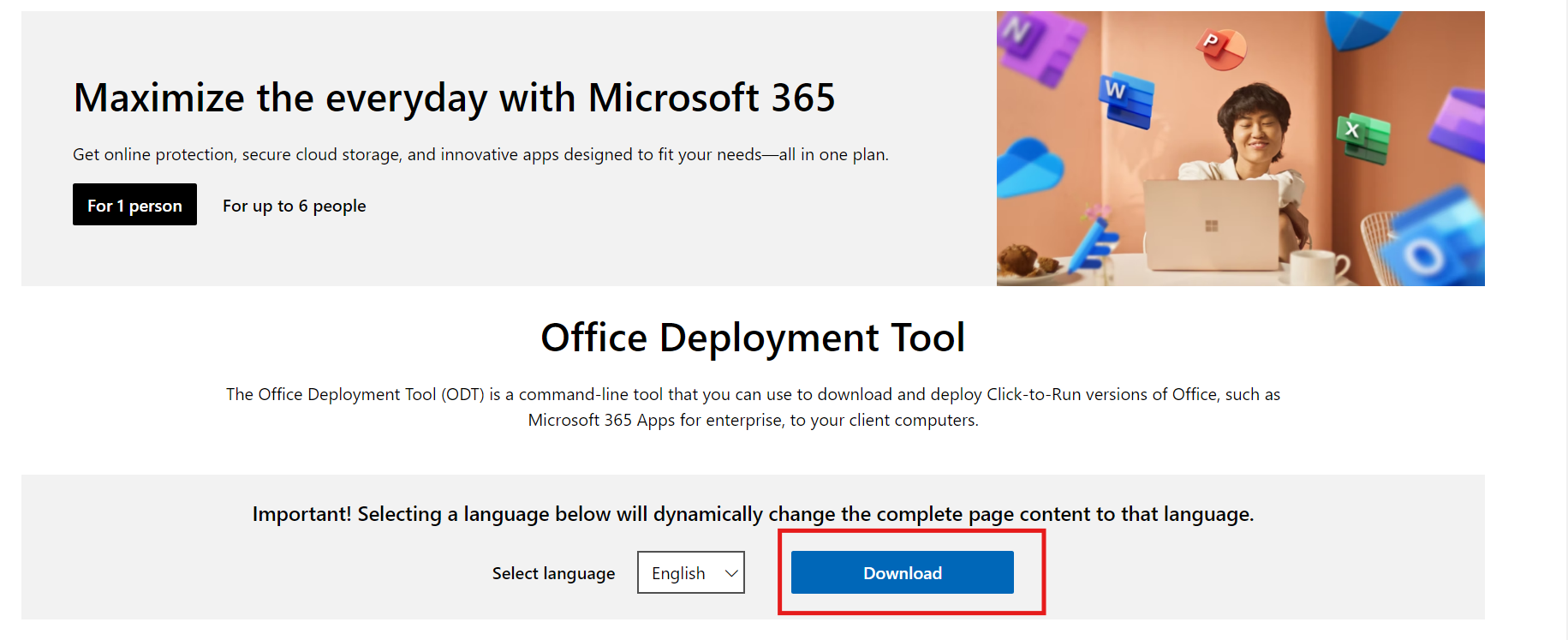
Download the Tool
Download Office Deployment Tool from the Microsoft website and store in the Network Share. Network share is recommended only if you wanted to deploy the software to computers within the network. If you wanted to deploy Microsoft Office to computers located in a remote location, you can use HTTP upload.
Note: The network share should have read permissions to Everyone group and should be accessible from all the computers to which you are trying to install.
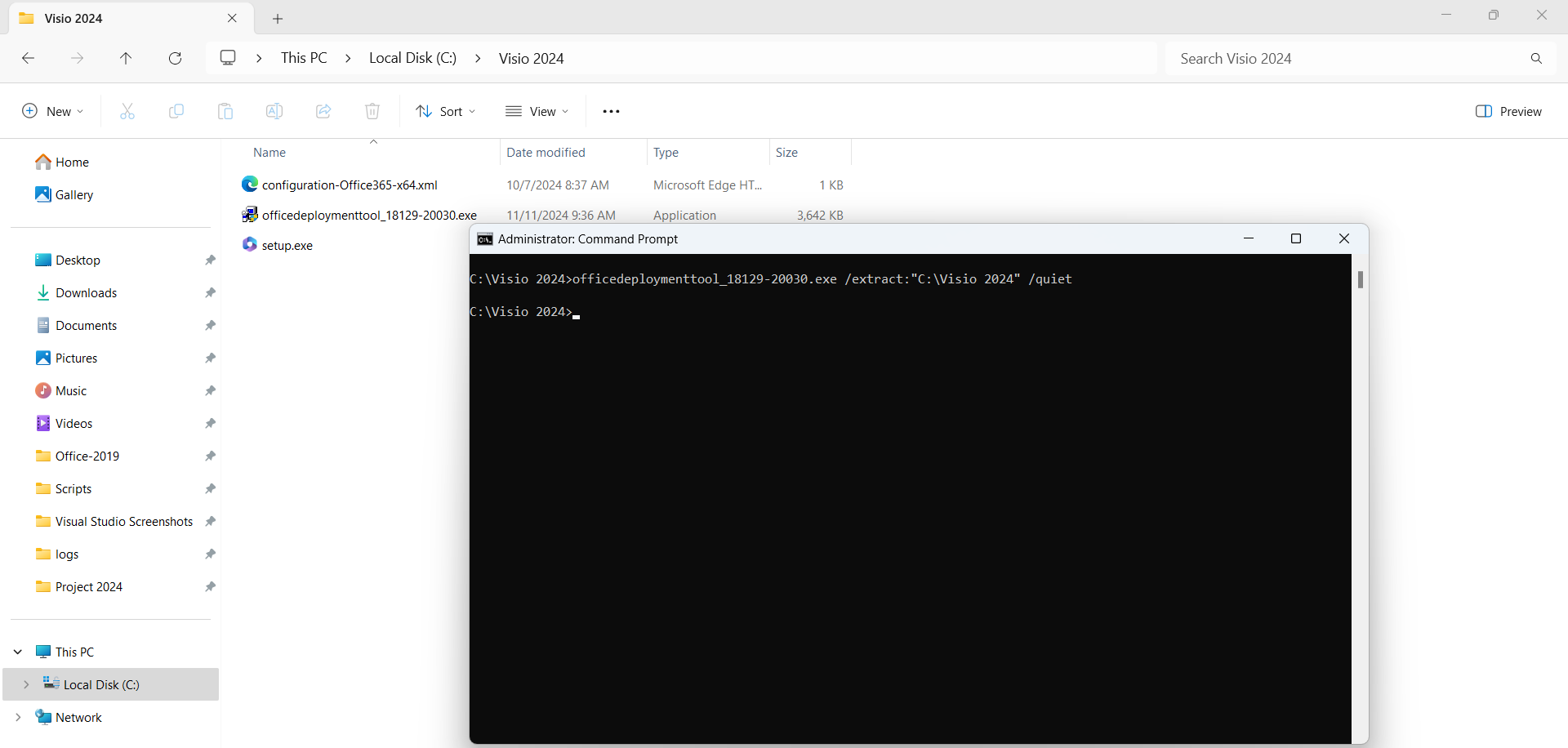
Extract the contents of the EXE
- Double-click on the office deployment tool executable (.exe) to extract the ODT files.
To extract the downloaded package via command line, open command prompt and run the following command -
<File Path>\<officedeploymenttool.exe> /extract:"<File Path>\Destination Folder" /quiet
Note:
Ensure that you enter the correct office deployment executable file name and the file path at the command prompt before extracting the package. You can know the file name by viewing the details, before downloading the package from the website.
Create a Customized XML
Note: Kindly ensure that the edited Configuration XML file matches the file name specified in the given command.
- You can use this link to create a customized xml file according to your requirement.
- Export the configuration xml file and paste it in the folder, where the setup.exe is present.
Sample configuration for Microsoft Visio 2024
<Configuration>
<Add OfficeClientEdition="64" Channel="PerpetualVL2024">
<Product ID="VisioPro2024Volume">
<Language ID="en-us" />
</Product>
</Add>
<Display Level="None" AcceptEULA="TRUE" />
</Configuration>
Download the Package
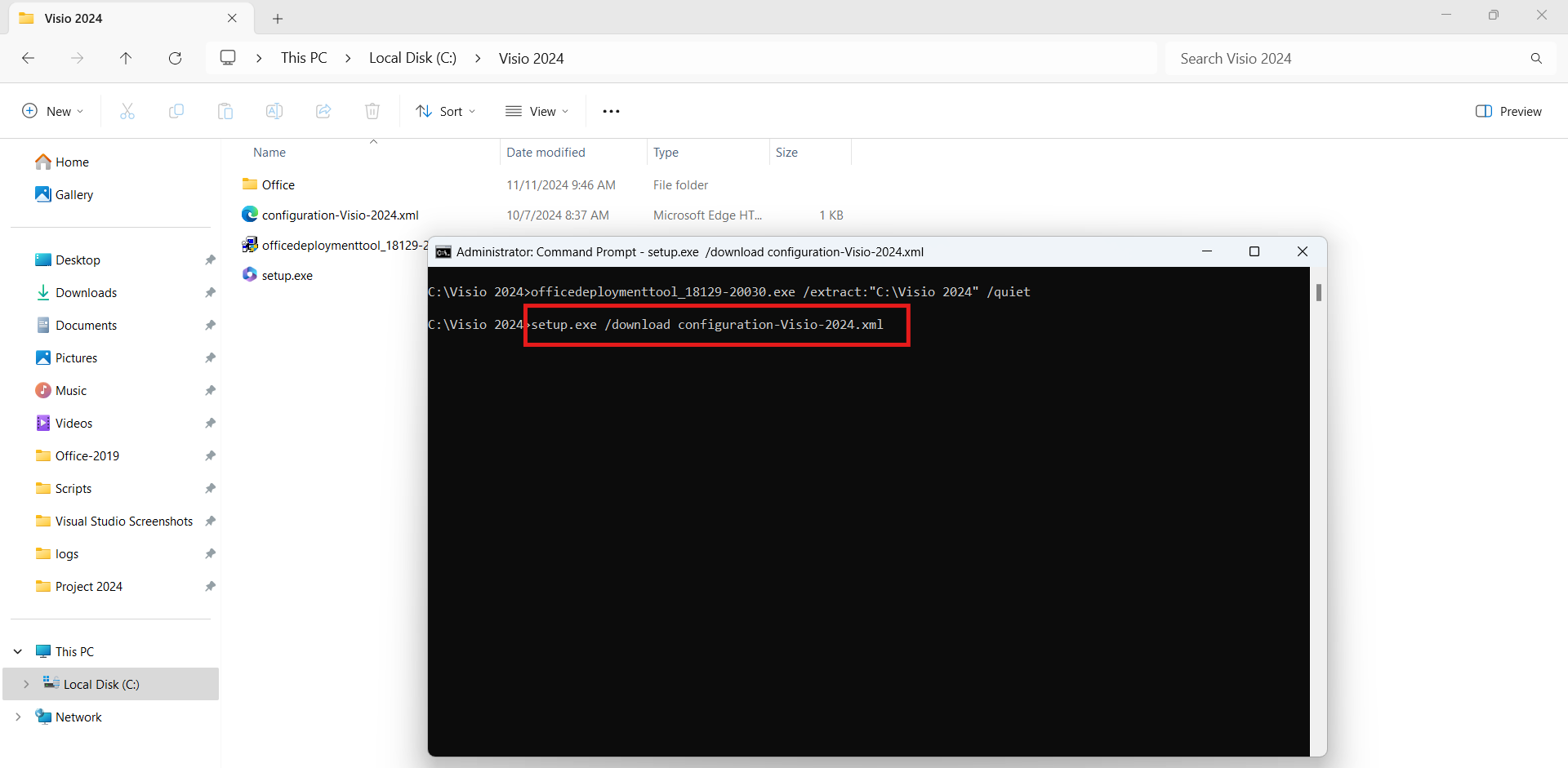
To download the complete package by using the customized xml, open command prompt and navigate to the location where the setup files are present and execute the command below as mentioned in the image.
setup.exe /download <config.xml>
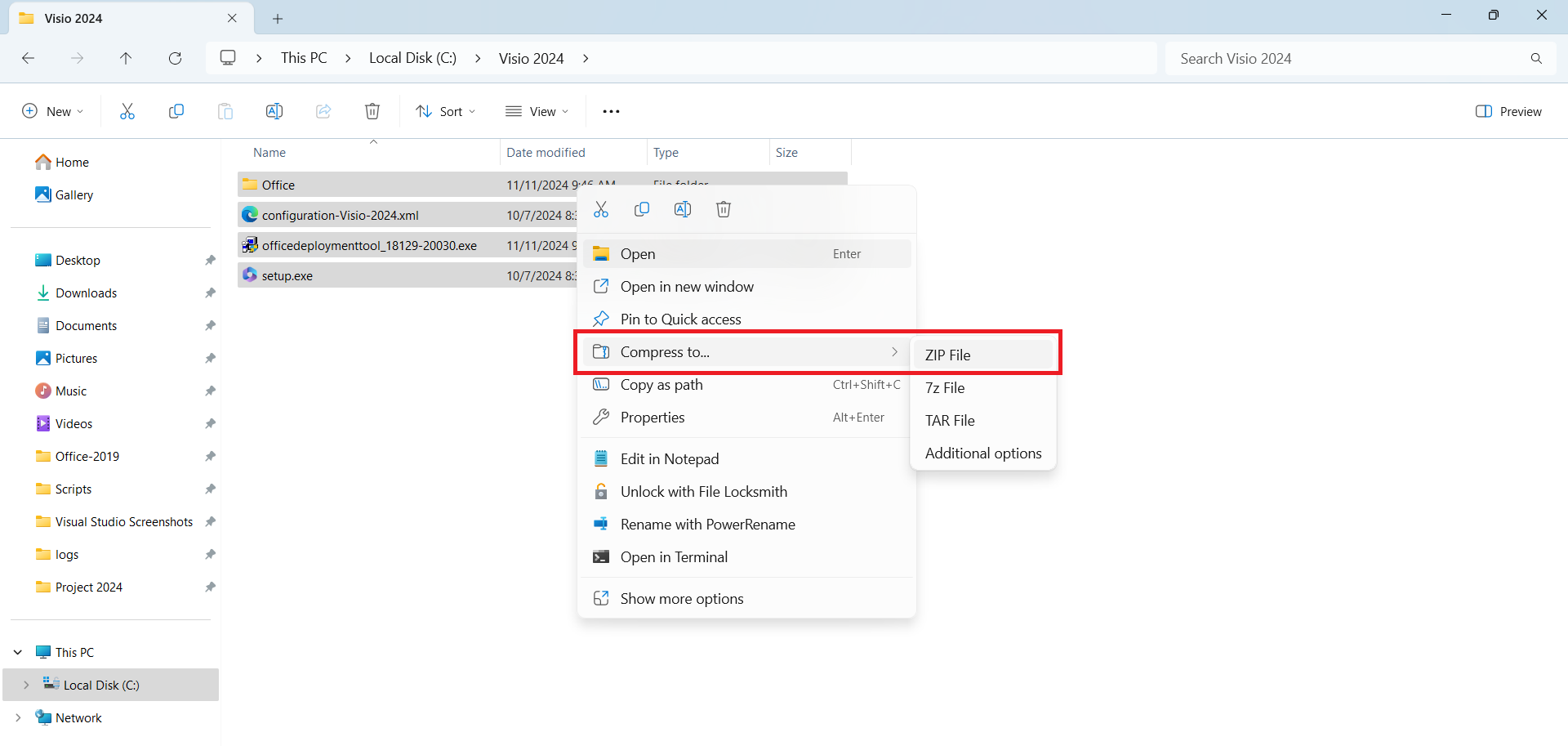
After downloading the package, you can deploy it through Endpoint Central. If you are planning to deploy via HTTP, zip the office folder that was downloaded in the above step, appropriate customised xml file and the setup file as shown in the below image. Add the zipped folder in the HTTP path.
Adding the software package in Endpoint Central
- Click the Software Deployment tab.
- Under Packages, Click Add Package.
- Specify a name for the application.
- Select the package type as EXE/APPX/MSIEXEC/MSU.
- Choose Network Share Path/HTTP Path based on your requirement. If it is Network Share, read permissions to Everyone group should be given to the share folder and it should be accessible from all the computers to which you are trying to install. If HTTP path, locate the zipped folder you have created.
Once you have located your installable, provide installation command accordingly by referring the table below:
Content
Share Path / CD
Http
Installation Command "<Share Path>\setup.exe" /configure "Share Path\configuration.xml"
setup.exe /configure <configurationfilename>.xml
Example "\\computer_name\DCSWRepository\Visio2024\setup.exe" /configure "\\computer_name\DCSWRepository\Visio2024\configuration-Visio-2024.xml"
setup.exe /configure configuration-Visio-2024.xml
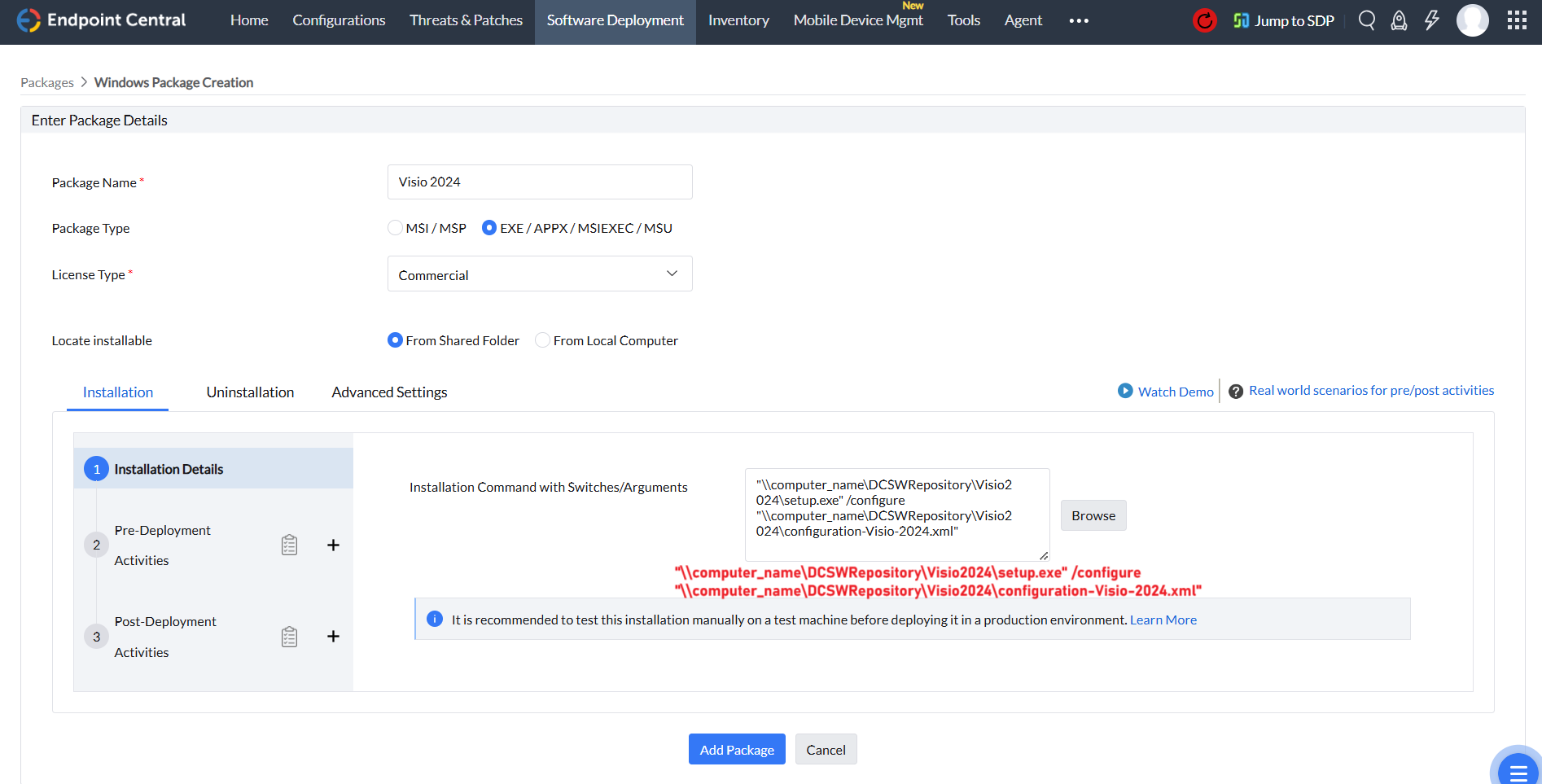
Network Share Path Deployment
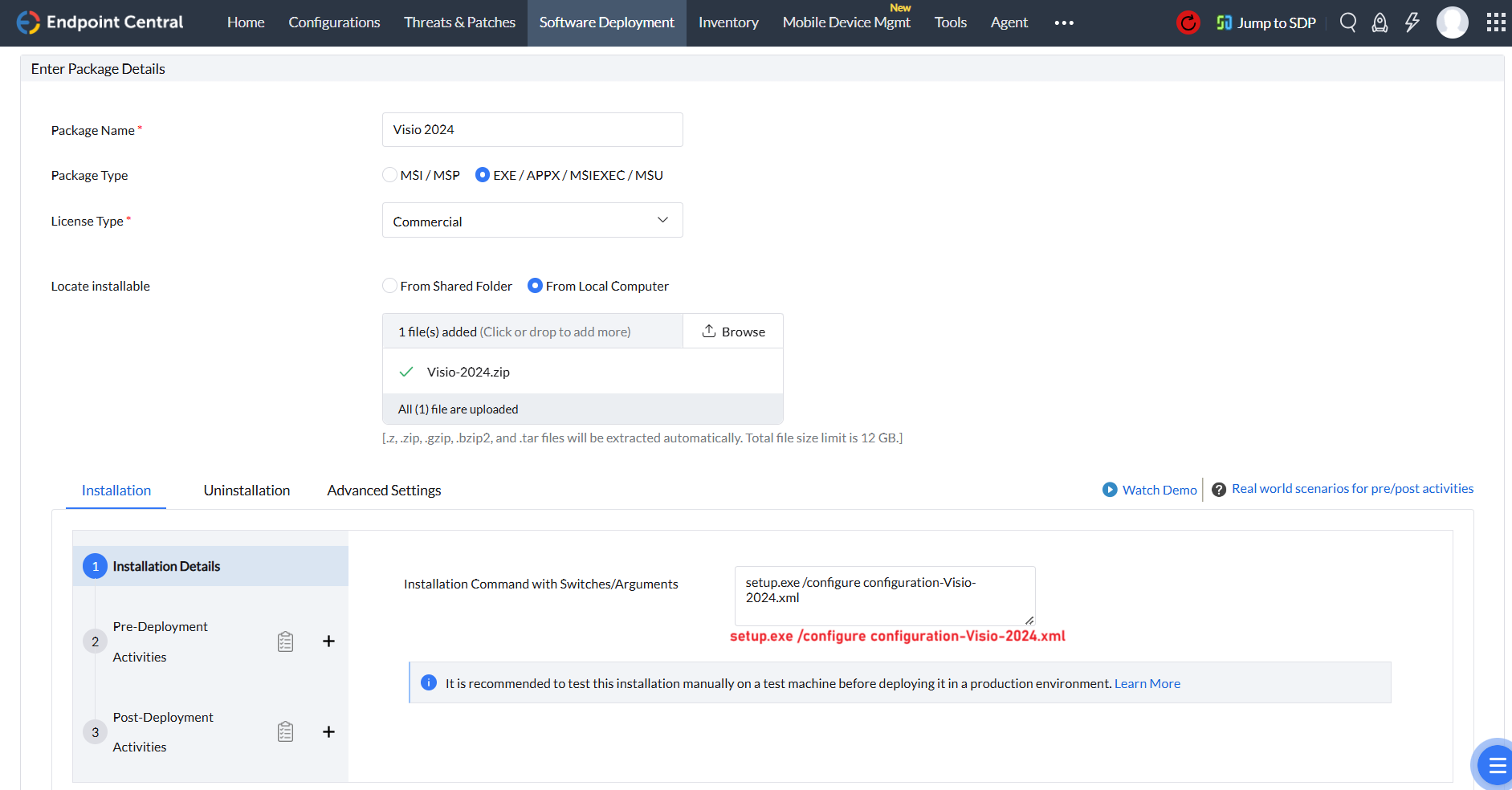
HTTP Path Deployment
- Click Add Package
Deploy to target computers
- Select the package that you have added.
- Click Install/Uninstall Software.
- Enter a Name and Description for the configuration.
- Define the Package Settings.
- Choose the Operation Type as Install.
- Choose the Package Name from the drop down.
- Configure Install/Uninstall OptionsInstall As
- System User: The software will be applied at the system level, utilizing the SYSTEM user account.
- Run as User: The software will be deployed to the target machine with the credentials we select. We recommend choosing the Domain Admin credentials to avoid access level issues.
- Configure the Deployment Settings.
- Define the target computers.
- Configure the Scheduler Settings, if required.
- Click Deploy/Deploy Immediately to deploy your configuration.
You have successfully deployed Microsoft Visio 2024 uisng Endpoint Central.