Browser Policies Association & Deployment
Push your configured browser security policies out to the computers and groups that need them.
Walkthrough
Watch: deploying browser policies
A quick look at associating and deploying browser security policies.
Setup
Deploying policies
Once policies are configured, deploy them to the custom groups or computers that must receive them.
Associating and deploying a policy
If an Endpoint Central agent-managed computer is absent from Browsers, check its Browser Security entitlement and applicable Endpoint Security scope. In the selected-computer add-on workflow, open Admin → Global Settings → Endpoint Security → Manage and review the computer.
Check the Browser Security component state and last contact. Base-agent installation alone does not establish an installed Browser component or inclusion in Browser managed views. After processing scope/component changes, refresh and verify the view. Enrollment does not prove policy enforcement.
- In the Endpoint Central console, go to Browsers → Manage → Groups & Computers.
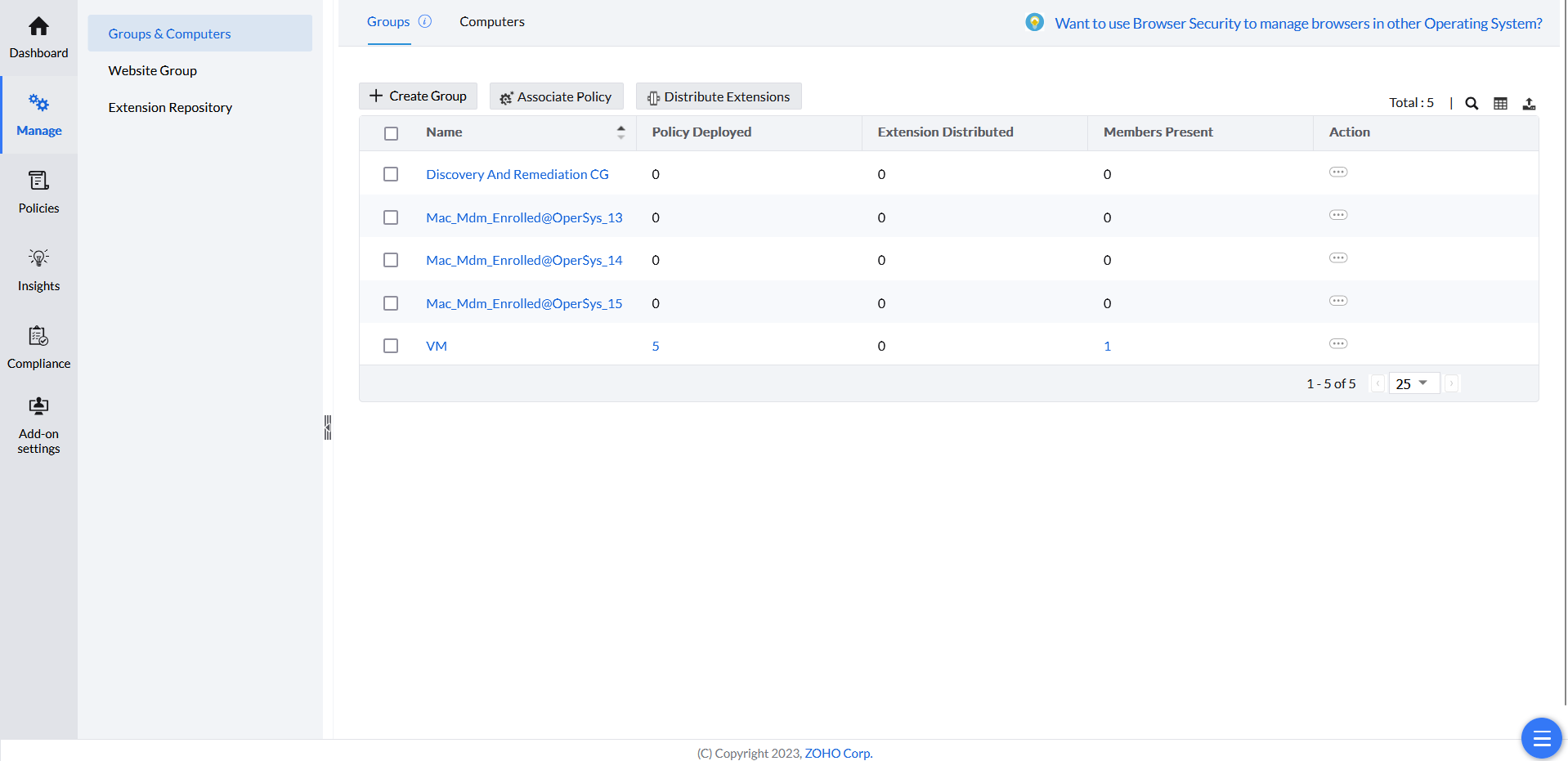
Selecting custom groups to associate. - Select the custom groups to associate the policy with. To associate individual computers instead, go to Computers and select the desired devices.

Selecting individual computers to associate. In the computer/group deployment dialog, select computer groups or individual computers. A user-based group does not automatically select that user's computers in this dialog. Review the target scope supported by the selected policy and workflow. A computer exclusion is not a per-user exception for a shared computer.
- Click Associate Policy.
- Choose the saved policies to deploy. Filter policies using the options in the left pane; configured policies appear under Available Policies, and the policies you've chosen appear under Selected Policies.
Exclude computers from deployment
In the deployment dialog, use Exclude Computers from Selected Groups / Computers where available. Select computers or groups to exclude from the chosen targets, then complete deployment. Review the excluded entries before confirming.
A deployment exclusion changes the target computers. It differs from a website or file-type exclusion inside a policy. Submit changes to an existing deployment and check the affected computers’ status and remarks. An offline computer cannot confirm removal or a new policy until it communicates and processes the change.
Once you've added the desired policies to the groups or computers, click Deploy.

Group membership and deployment updates
Keep group membership changes separate from policy-content changes. A group change must be processed before it affects the policy targets. Verify the computer's current group membership, Browser Security managed state and deployment exclusions. Then check the policy's per-computer status.
For a policy-content change, save and publish the new version and use the update workflow where required. A group edit, a scan, and publication are separate operations. Their completion does not prove that an offline computer has received or enforced the new configuration.
Read update and execution status
| Indicator | Meaning |
|---|---|
| Execution Status | Reported result for an associated collection: Yet To Apply, Notification, Success, Failed, Not Applicable, Incomplete or In Progress. |
| Yet to update computers | Managed computers whose associated collection differs from the most recently published collection. This is not the Failed or Yet To Apply total. |
| Update Policy | Requests the published update through a confirmation workflow. Verify per-computer results afterward. |
A computer can have a successful result for an older policy version and still need the latest published update. Compare the same policy and scope. If results remain inconsistent, provide the summary, computer status, timestamps and policy version to support.
Monitor deployment
Open the policy’s Deployed Computers view. Review the computer, execution time, last contact, status and remarks. Policy Deployment InProgress does not confirm browser enforcement. After success, test the required behavior in the selected browser.
- Confirm the computer, supported platform/browser, published policy version and target/exclusion scope.
- Check the latest agent contact and complete deployment remark. Online status alone does not prove this command completed.
- For extension-dependent controls, verify the extension on the affected browser profile.
- If progress stops, provide policy version, timestamps, remarks and sanitized agent diagnostics to support.
Remove a policy association
Open the policy’s deployed-computer list, select the intended computer and use the removal action. Confirm it, then review removal status and remarks. For a group deployment, also review the group association so the computer is not still targeted through it.
An offline computer can retain the previous configuration until it receives and processes the removal command.
Permanent deletion after revocation
Policy Revoked InProgress means that removal has not yet been confirmed. Permanent deletion can fail with Profile(s) are not safe to be deleted while the policy retains an association with a managed computer.
- Review the policy's deployed computers and group associations.
- Check the affected computer's last contact, removal status and complete remark.
- Wait for removal confirmation, then retry the normal permanent-deletion action.
- If revocation remains pending, send the policy and computer details, timestamps and removal remarks to support.
Do not treat moving a policy to Trash or submitting a removal request as confirmed endpoint cleanup.