Zia Agent Studio
ManageEngine Endpoint Central integrates with Zia Agent Studio, Zoho's AI-powered platform for building intelligent automation agents. With this integration, IT administrators can create purpose-built agents that interact with Endpoint Central's capabilities — such as patch management, device inventory, software deployment, and mobile device management — using natural language instructions. These agents can autonomously respond to endpoint queries, execute management tasks, and streamline routine IT operations, significantly reducing manual effort and accelerating resolution times across your endpoint infrastructure.
Steps to create agents
Create a Zia Agents account.
Navigate to Agent Studio in the left navigation panel and select the desired agent creation mode. To create an agent manually, select Create from Scratch and fill in the required details. To leverage AI assistance, select Create with Zia AI.
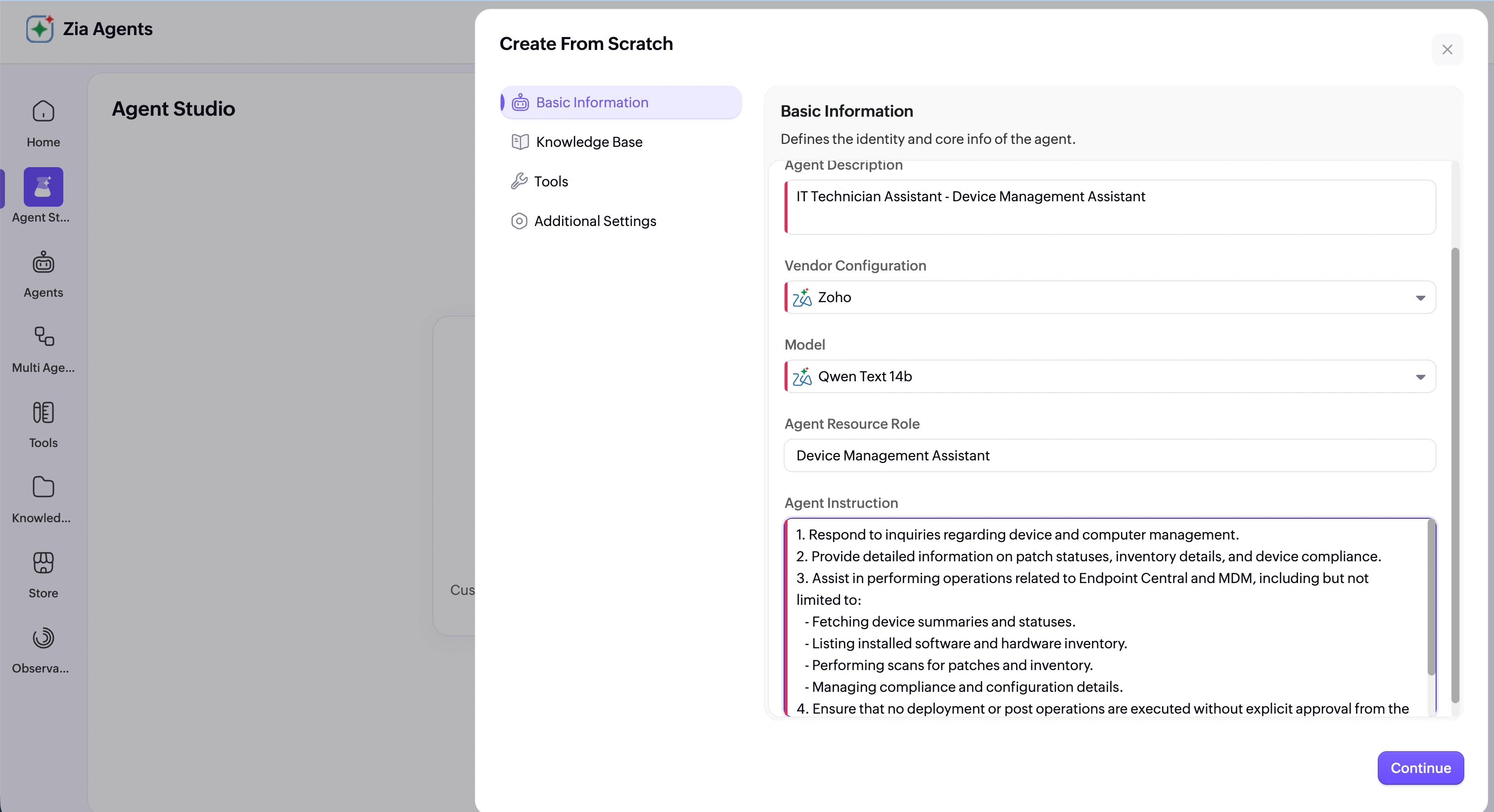
Enter the agent name and description on the Basic Information page.
Select the appropriate vendor configuration and model based on your requirements.
Provide instructions that define the role and behavior of the agent.
Select the required documents from the available knowledge bases. To upload new documents, navigate to Knowledge Base directly from the left navigation panel.
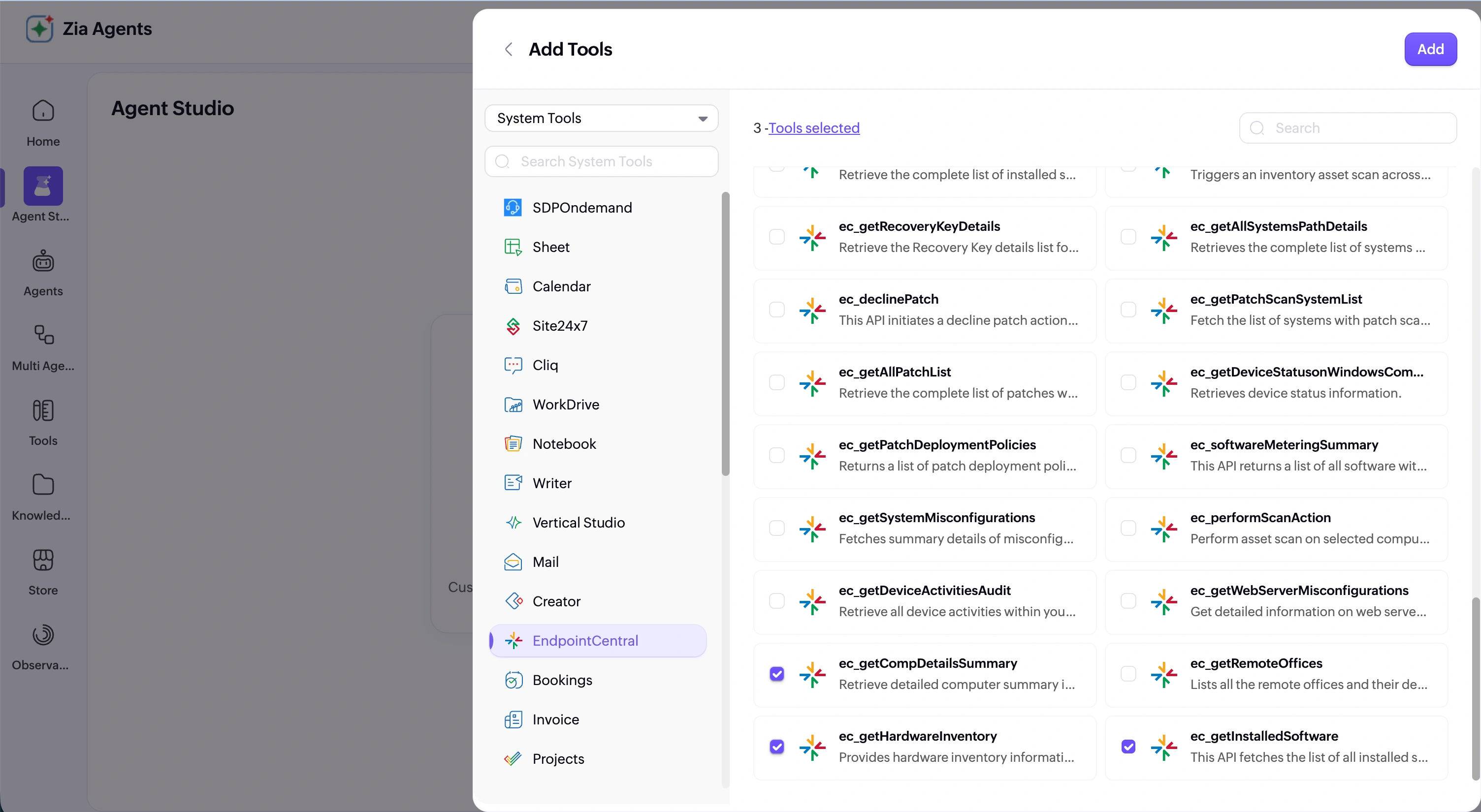
In the Tools section, click Add Tools, search for Endpoint Central or MDM, and select the tools you want the agent to access.
Go to Additional Settings and configure guardrails if applicable.
Click Create to complete the agent setup.
Example: Creating an IT Technician Assistant agent
The following example demonstrates the creation of an IT Tech Assistant — an agent designed to respond to device-related queries.
Navigate to Agent Studio and select Create from Scratch.
Enter the agent name as IT Technician Assistant and provide a relevant description.
Set the vendor configuration to Zoho and select the Qwen model.
Set the agent role as Device Management Assistant.
Enter the following agent instructions:
- Respond to inquiries regarding device and computer management.
- Provide detailed information on patch statuses, inventory details, and device compliance.
- Assist in performing operations related to Endpoint Central and MDM, including but not limited to:
- Fetching device summaries and statuses.
- Listing installed software and hardware inventory.
- Performing scans for patches and inventory.
- Managing compliance and configuration details.
- Ensure that no deployment or post operations are executed without explicit approval from the IT Technician.
- Log all interactions and actions taken for audit purposes.
Navigate to the Tools section and add the SOM, Inventory, and Patch Management APIs.
Click Create to complete the agent setup.
Once created, use the Test Agent option to verify the agent's functionality.
FAQ
What data centers are supported?
Zia Agents is available in the following data centers:
US (United States)
EU (Europe)
IN (India)
AU (Australia)
CA (Canada)
JP (Japan)
CN (China)