×![]()
×
×![]()
×
×
Device Control Trusted Devices
Create lists of approved peripheral devices that can securely access and handle sensitive organizational data.
Setup
Create a trusted devices list
Name the list, describe its purpose, and choose how you want to add approved hardware.
Start the list
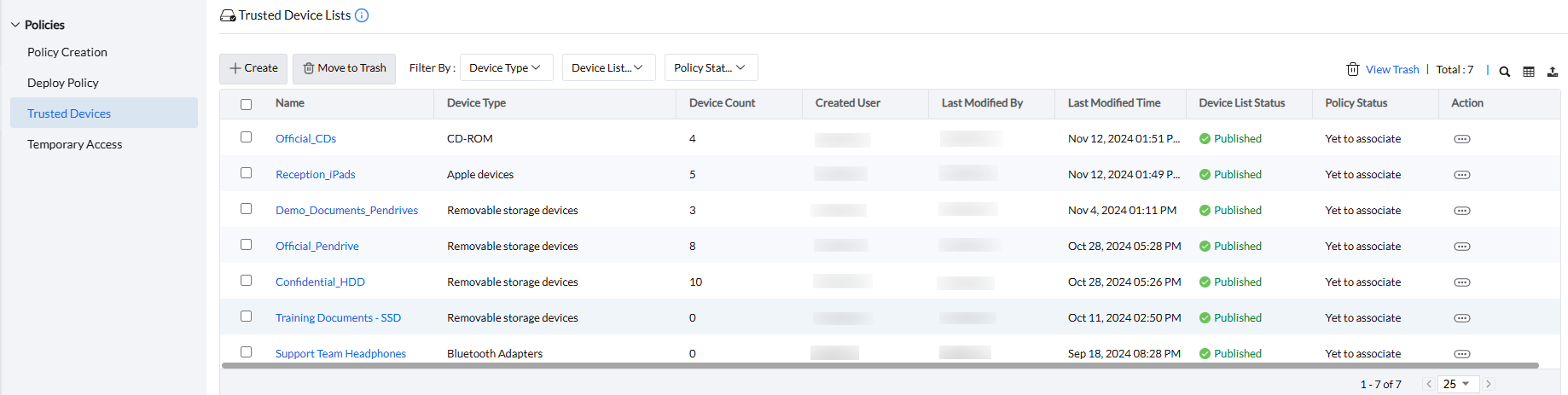
- Navigate to Policies → Trusted Devices → Create.
- Enter the Policy name for the device list.
- Optionally add a Description that explains the list's purpose.

You can populate the list in three ways:
- Add Existing Devices already recognized on the network.
- Add New Devices by identifier or device path.
- Import from CSV to add devices in bulk.
Existing
Add recognized devices
Select peripherals that Device Control Plus has already discovered on the network.
Add an existing device
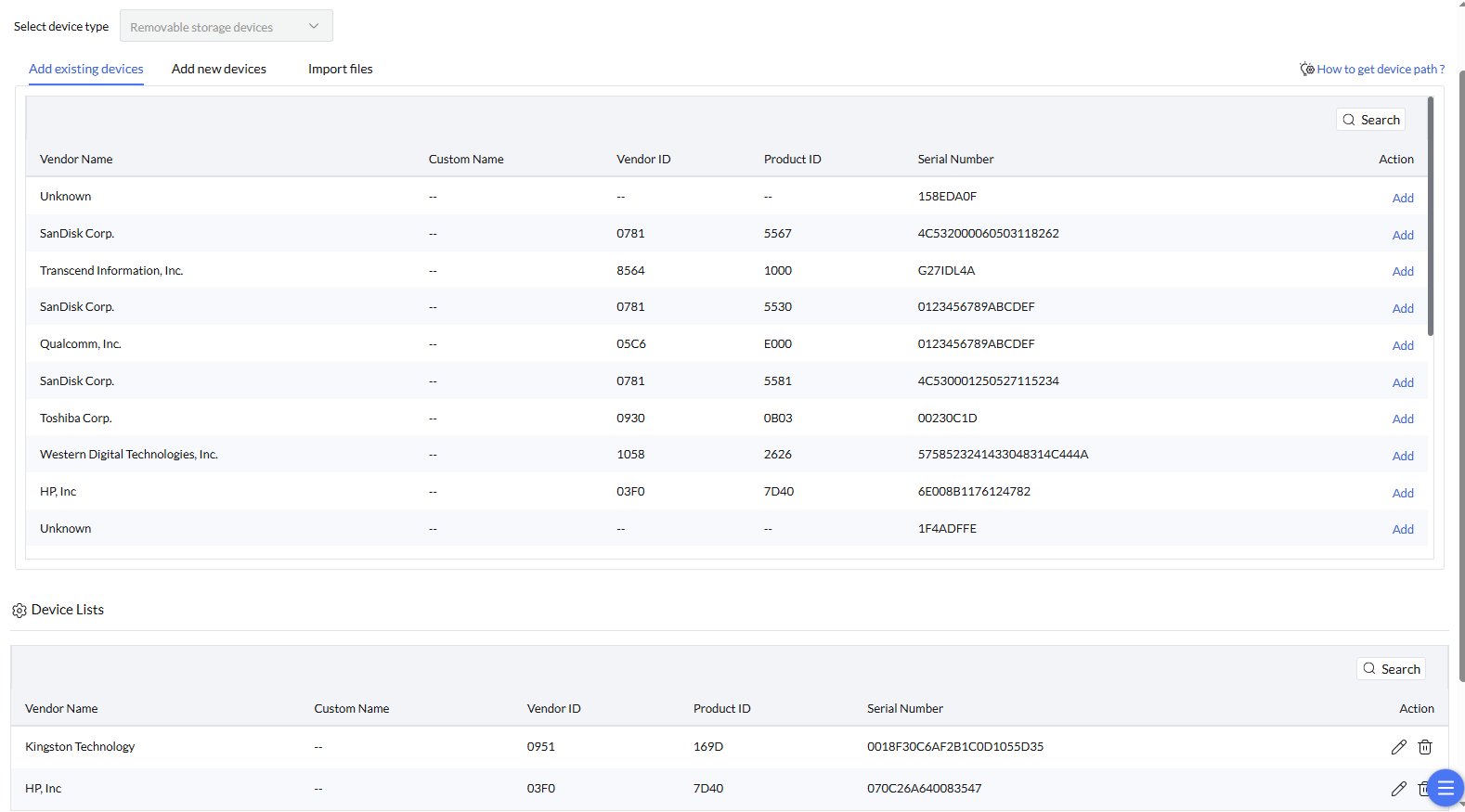
- Select the device type.
- Find the recognized device and select Add to include it in the list.
- Select Save to store the trusted devices list.
New
Add devices that are not yet recognized
Identify new hardware with vendor and product details or with its device paths.
Add a new device
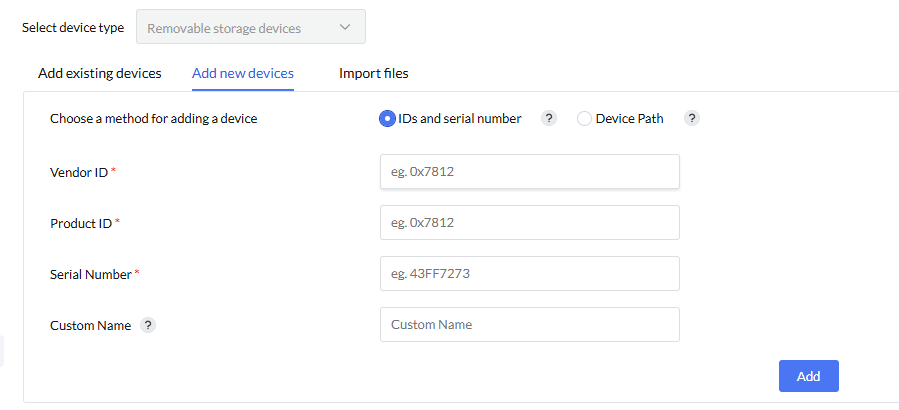
- Select the device type.
- Choose to add the device with IDs and Serial Number or with a Device Path.
- For IDs and Serial Number, enter the Vendor ID, Product ID, and Serial Number.
- For Device Path, enter the Parent device instance path and device instance path.
- Enter a custom name for the new device.
- Select Add, then select Save.
See how to find device paths, IDs, and serial numbers.
Patterns
Trust similar devices with wildcards
Use a shared serial-number pattern instead of defining each matching device separately.
Add a wildcard pattern
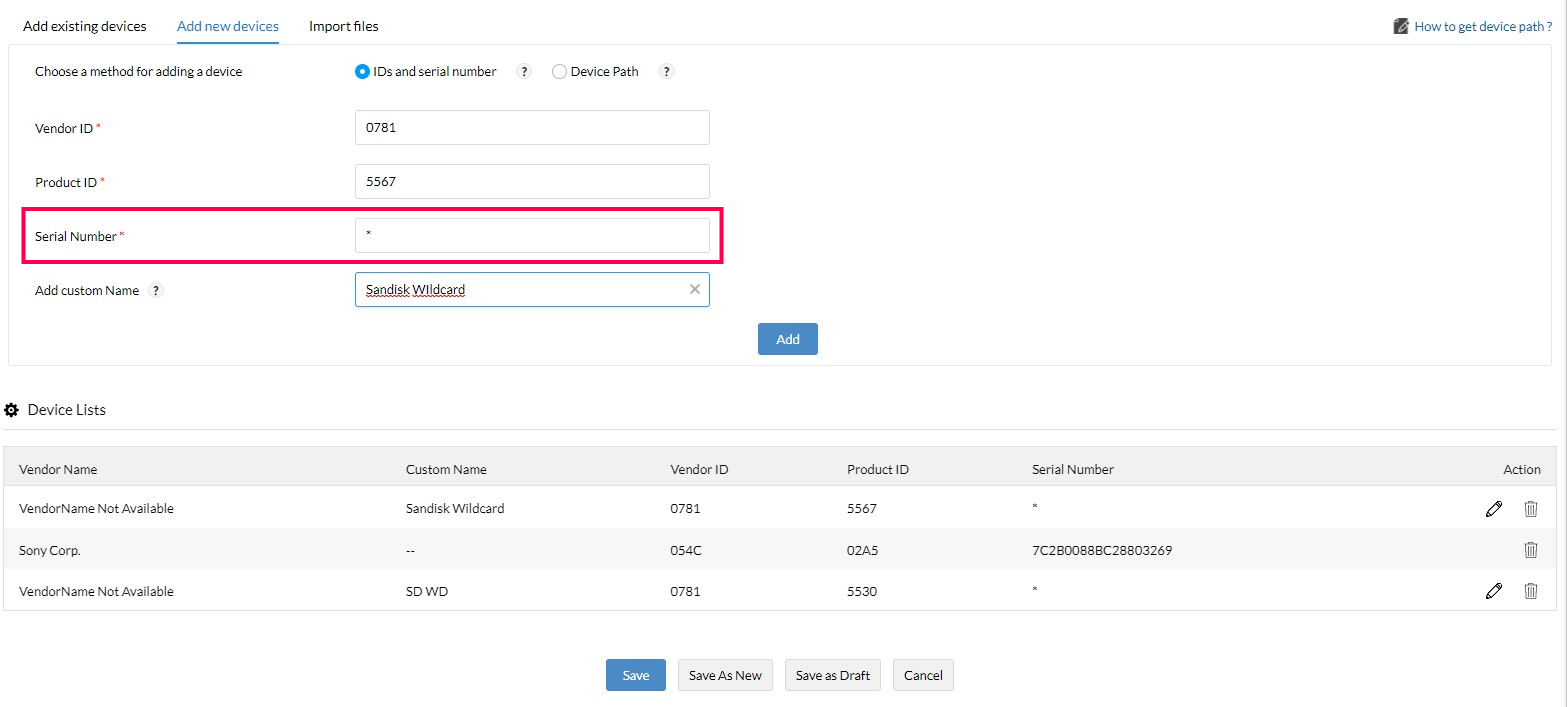
- Navigate to Policies → Trusted Devices → Create New → Add New Devices.
- Choose the IDs and Serial Number method.
- Enter the Product ID and Vendor ID, specify the serial-number wildcard with a question mark (?) or asterisk (*), and select Add.
Note
Use ? to replace one variable character.
Use * to replace more than one variable character.
Import
Import trusted devices from CSV
Upload a prepared CSV file when you need to add multiple trusted devices together.
Upload the device file
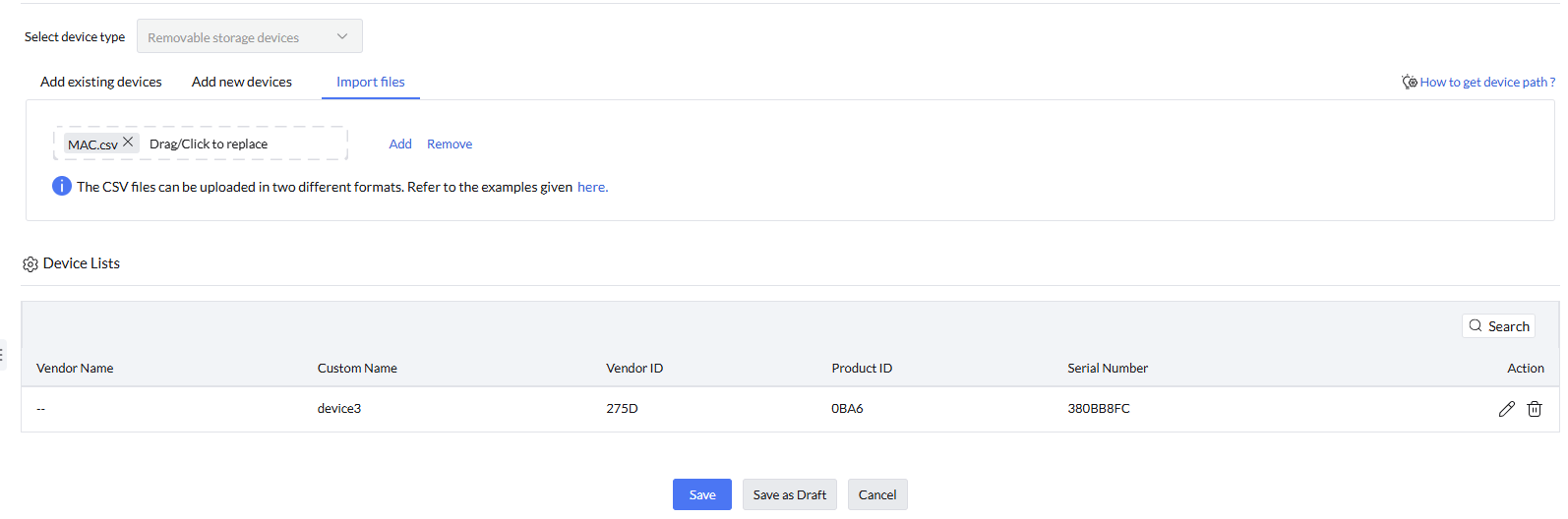
- Select the device type.
- Select the CSV file containing the trusted-device data, then select Add.
- After the devices are added, select Save to store the changes.
Note
CSV uploads support two formats. Review the CSV format examples before preparing the file.