Manage macOS Updates Using Declarative Device Management
Use Declarative Device Management (DDM) to deploy and enforce macOS updates on enrolled devices. First, configure the DDM enforcement schedule in a macOS Patch Deployment Policy. When an applicable OS update is deployed through Manual Deployment, Automate Patch Deployment (APD), or Test and Approve, Endpoint Central automatically uses the policy's DDM schedule if the target Mac meets the DDM prerequisites.
Overview
DDM is part of Apple's device management protocol. It allows a device management service to declare the required state of a device. The device then applies the declaration independently and reports status changes without waiting for individual management commands.
A declarative OS update deploys the specified macOS version to the device according to the configured enforcement deadline. After the deployment task sends the declaration, the Mac downloads and prepares the update, informs the user, and reports its installation status to Endpoint Central.
For more information about DDM, see Declarative Device Management in Endpoint Central MDM and Install and enforce software updates for Apple devices.
Prerequisites
- The Mac must run macOS 14 or later.
- Apple MDM must be configured, and the Mac must be enrolled in MDM.
- The target update must be applicable to the Mac.
Configure the DDM Deployment Schedule
- Navigate to Threats & Patches → Deployment → Deployment Policies.
- Click Create Policy and select Mac.
- Enter a policy name and an optional description.
- Locate Update macOS via Declarative Device Management.
- Under Enforce updates after, specify the grace period in days.
- Select the days of the week when enforcement can begin.
- Specify the enforcement activation time in HH:mm format.
- Click Save.

For other macOS policy settings, see macOS Patch Deployment Policy.
Deploy macOS Updates Using DDM
Use Manual Deployment, Test and Approve, or Automate Patch Deployment (APD) to deploy the macOS update with the DDM schedule configured in the selected macOS deployment policy. In Manual Deployment, you can optionally override the policy setting by selecting Enforce closure or restart after and specifying the exact date and time.
How Enforcement Timing Is Calculated
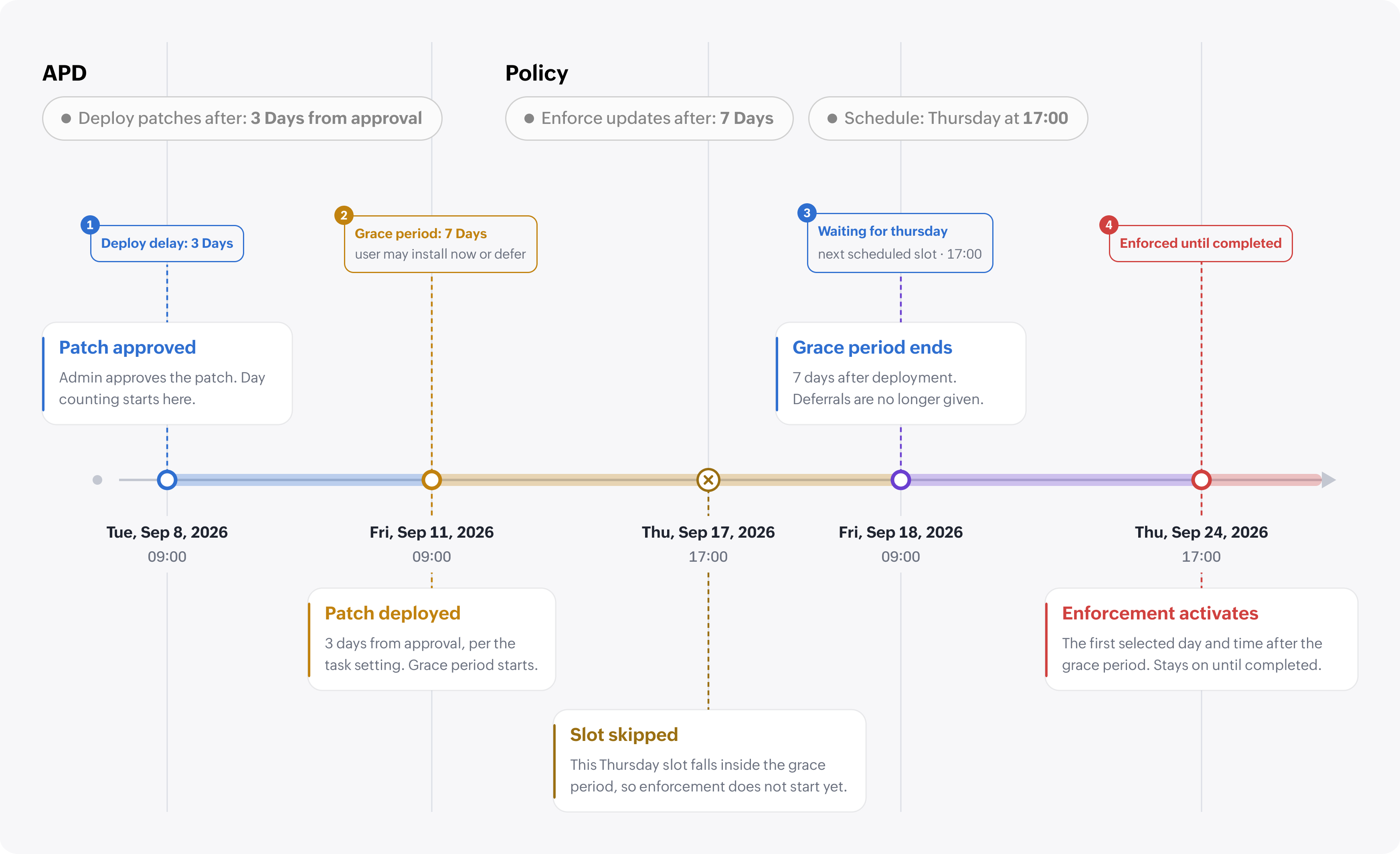
The grace period starts on the deployment start day and determines how many days users have before an update is enforced. Enforcement begins after the grace period ends and remains in effect until the update is completed.
After the configured number of days has elapsed, DDM enforcement begins on the next selected enforcement day at the configured activation time.
The deployment start day is determined as follows:
- Manual Deployment: The configured Install After date is used as the deployment start day. If Install After is not configured, the deployment creation date is used.
- Automate Patch Deployment: The deployment start day is calculated by applying the delay configured under Deploy patches after to the selected reference: Days from release uses the vendor release date, while Days from approval uses the patch approval date.
- Test and Approve: The deployment start day is calculated by applying the delay configured under Deploy patches after to the vendor release date.
End-User Experience and Client Notifications
Once the update is deployed, the enforcement date and time are applied according to each Mac's local time zone. Users can install the update before the deadline from the notification or from System Settings → General → Software Update.
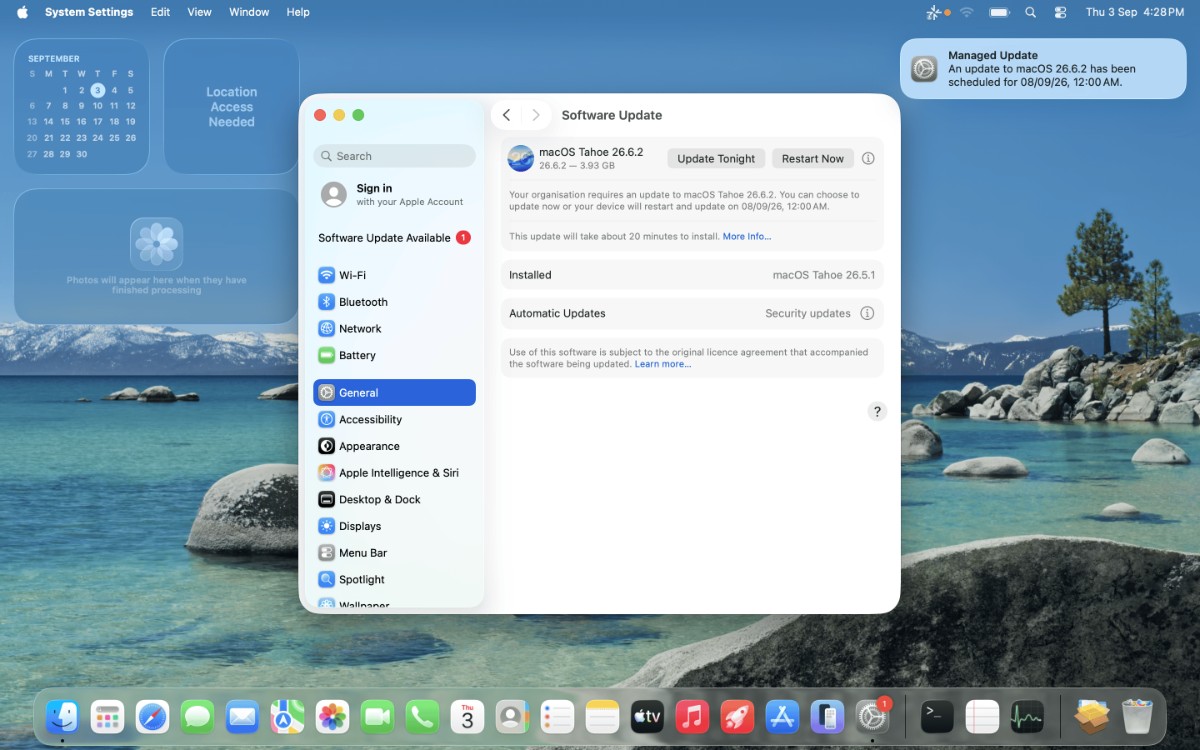
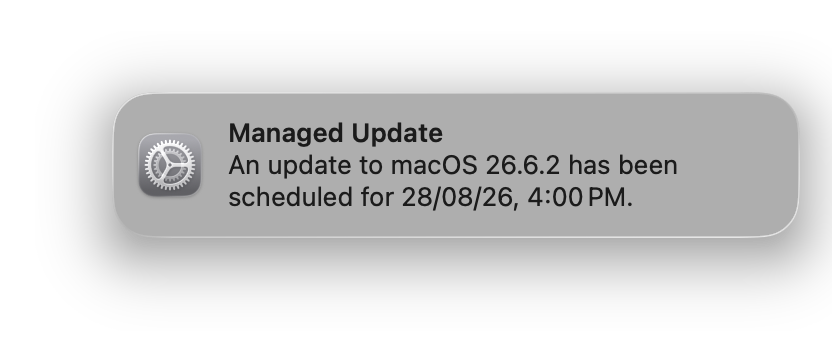
Users will see the following notification when the declaration is successfully sent to the device. Additionally, this notification will appear every hour when the device is within 24 hours of the enforced due date.
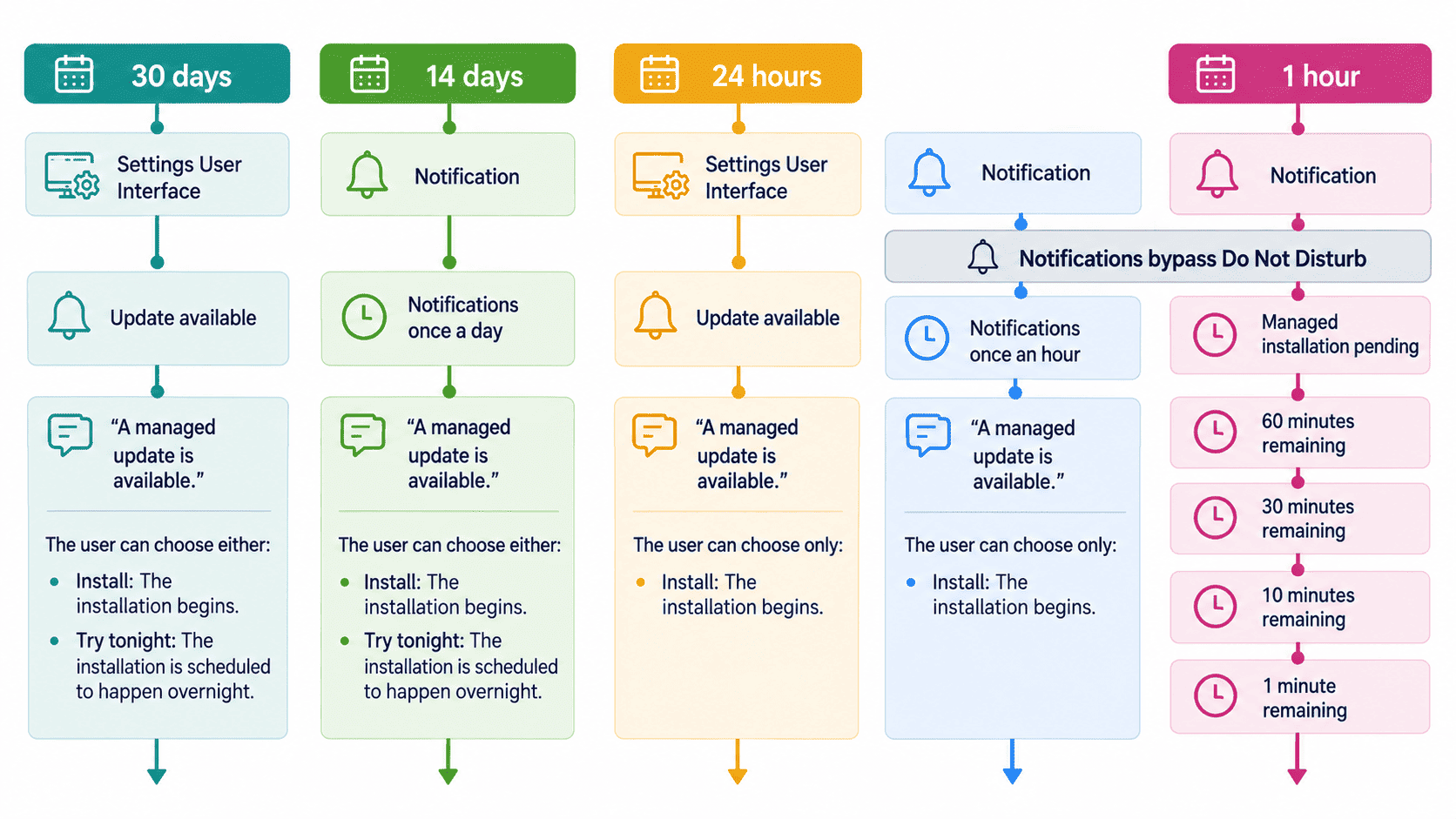
Notification and Enforcement Sequence
- The deployment task sends the update declaration to an eligible Mac.
- macOS downloads and prepares the update, displays the deadline in System Settings, and notifies the user.
- During the final 24 hours before enforcement, macOS displays the update notification every hour and allows it to bypass Do Not Disturb.
- If the user does not install the update before the deadline, macOS enforces it and restarts the Mac when required.
- The Mac reports the update state and result to Endpoint Central.
Verify the Declaration in System Settings
On the Mac, open System Settings → General → Software Update and confirm that the declared update and its enforcement deadline are displayed.
Past-Due Update Enforcement
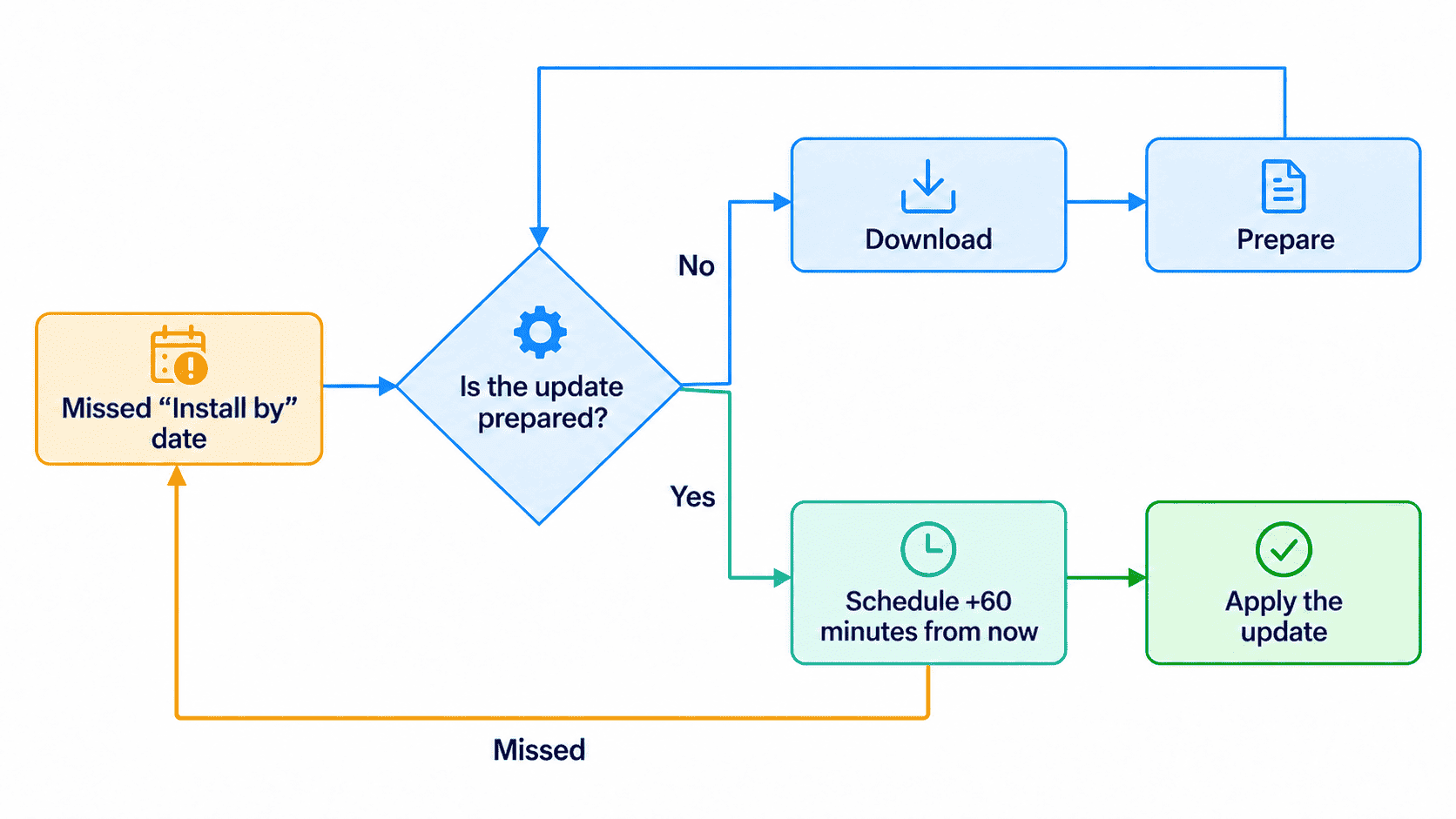
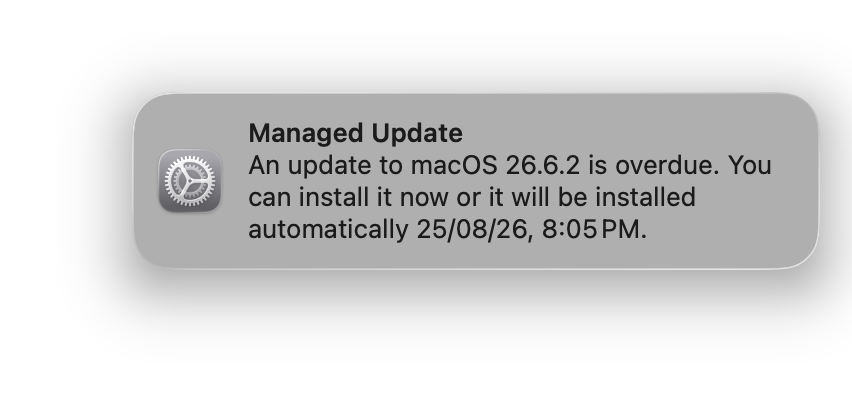
An update becomes past due when the Mac does not reach the declared state by the enforcement deadline because it is powered off, offline, has insufficient battery charge or storage, or cannot satisfy another installation requirement. When the Mac becomes eligible, macOS resumes the process, posts an overdue notification, and attempts installation within the next hour. The user can install it during that hour; otherwise, macOS enforces the update and restarts the Mac after one hour. If the attempt is interrupted, this process repeats the next time the Mac is powered on and connected to the internet.
Install Tonight Behavior
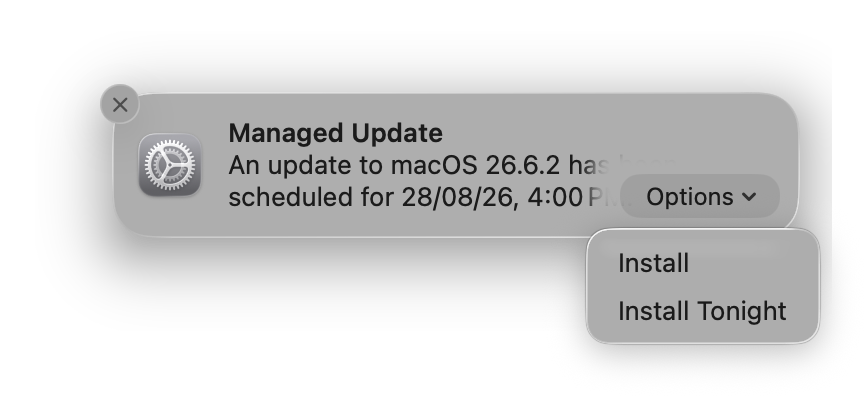
Install Tonight is a user-initiated installation choice shown by macOS. When the user selects it, macOS schedules the update for that night instead of waiting for the DDM enforcement time. Therefore, an update installed through Install Tonight can be completed before the enforcement date configured in the deployment policy.
This behavior does not indicate premature DDM enforcement. The installation was initiated through the option selected by the user.
Monitor DDM Deployment Status
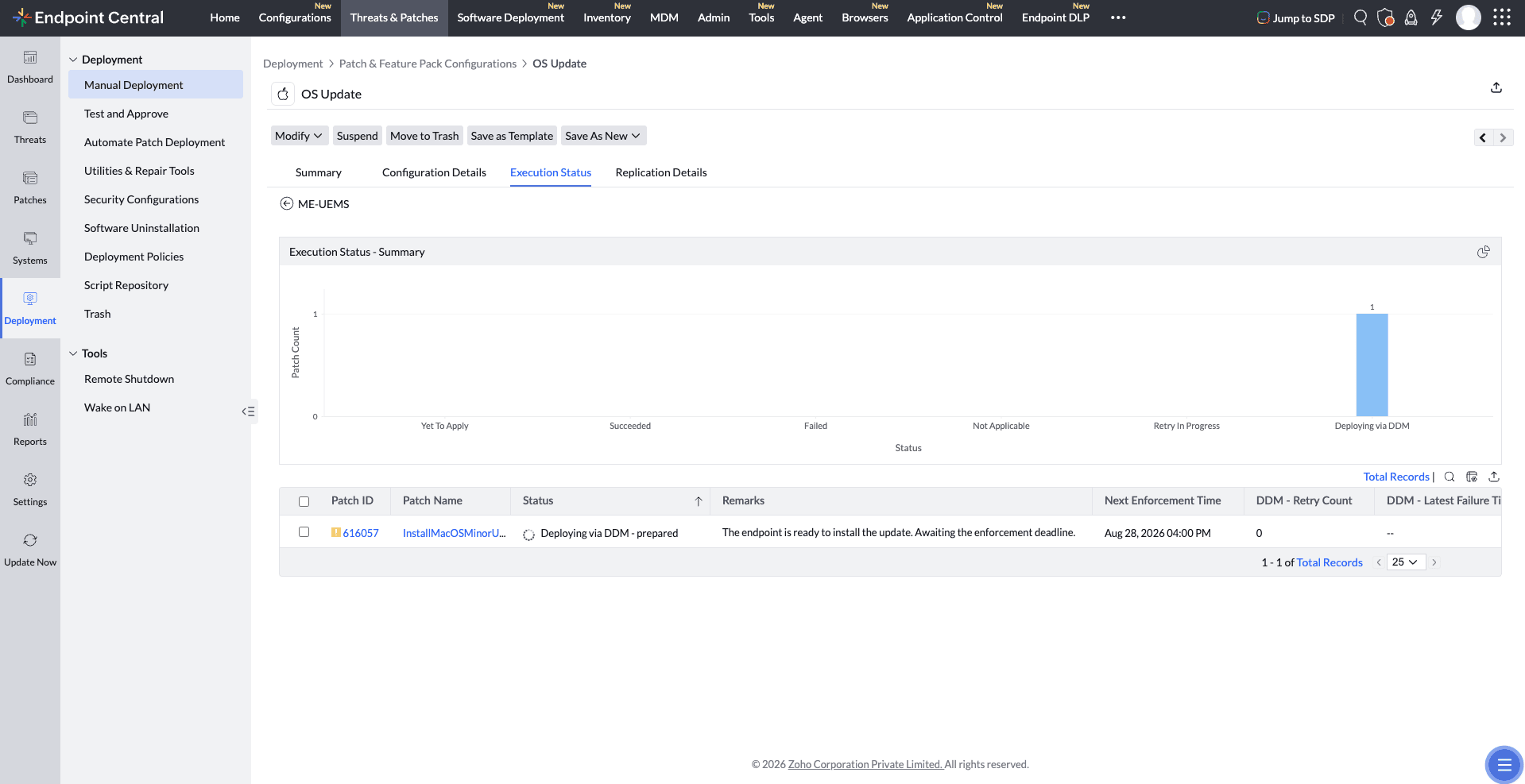
Open the detailed view of a Manual Deployment, Automate Patch Deployment, or Test and Approve deployment to monitor updates deployed using DDM. During the deployment, the Deployment Status is displayed as Deploying via DDM. The DDM status and remarks indicate the current phase reported by the Mac.
| Device-reported state | Meaning |
|---|---|
| Waiting | The update has been scheduled. |
| Downloading | The update is downloading on the Mac. |
| Prepared | The update is prepared on the Mac. |
| Installing | The update is being installed. |
| Failure | The update failed, and another attempt is pending. |
| Success | The Mac installed the update successfully. |
Review Enforcement and Failure Details
| Field | Description |
|---|---|
| Next Enforcement Time | The next time at which the declared update is scheduled to be enforced. |
| DDM - Last Failure Time | The time of the latest reported update failure. |
| DDM - Retry Count | The number of failed installation attempts reported for the update. |
| DDM - Execution During | Indicates how the DDM update execution was initiated: system-settings, install-tonight, auto-update, notification, setup-assistant, command-line, mdm, or declaration. |
If another OS update has a higher priority, the remarks indicate that the current update remains pending while the higher-priority update is processed.