Import SSL Certificates
Table of Contents
Every enterprise has the necessity to encrypt the data which traverses the internet. Enterprises have gone a step ahead over just using secured methods of communication to transmit corporate data, by acquiring specific third party certificates like SSL. These third party certificates ensures that the corporate data is encrypted in such a way, that only the recipient who owns the certificate can decrypt it. Central Server supports using SSL certificates that comes in different file types such as PFX, CER, CRT. Adding these certificates will secure the communication between the Central server, managed computers and mobile devices.
Note: This certificate is valid for a specified term. If the certificate expires, then the communication between the agent and the server will no longer be secure. You will not be able to manage any mobile devices, till you renew the certificates and upload it in the EndpointCentral server. The ongoing communication between the agents and the server won't be interfered with when you upload a third-party SSL certificate. Trusted third-party certificate providers have preinstalled root certificates on operating systems. These root certificates will be used by the agent machine to establish secure connection with the server once you import the third-party certificate. As a result, the existing communication will continue uninterrupted and be secured further using the third-party certificate.
Create CSR and Key Files
For Central Server version 11.1.2242.01 and above,
- It is recommended to take a backup of your existing server.key and server.csr files before initiating this process. These files will be overwritten during this process.
- Navigate to <Server_Installed_Directory>/nginx/conf for server.key file.
- Navigate to <Server_Installed_Directory>/bin for server.csr file.(if any generated before)
- Navigate to <Server_Installed_Directory>/bin in command prompt with admin privileges and execute generateCSR.bat file.
- generateCSR.bat executes two operations:
- Creating the .csr and .key files
- Decrypting .key files
- Enter 1 to proceed with .csr and .key file generation.
- Enter the country code by referring to this document
Note Re-run the batch file if you entered the wrong country code.
For Central Server version below 11.1.2242.01,
- Navigate to server installation directory and access \apache\bin, create a file named opensslsan.conf, and copy the following code into the file:
- Now, in the code, enter the two letter Country Code next to countryName. Check the two letter country code of your country here
- Next, enter the full name of your state or province next to stateOrProvinceName.
- Next to localityName, enter the name of your locality. Specify the name of your organization, next to organizationName.
- Enter the name of your website or domain beside commonName.
- Enter the Subject Alternative Name (SAN) of your website next to DNS entries.
- Execute the openssl command to generate server.csr and private.key.
- To verify the details, use openssl verification command.
Do not delete private.key file under any circumstances.
Submit the CSR to a Certificate Authority (CA) to Obtain a CA Signed Certificate
- Submit created server.csr to CAs. Check their documentation / website for details on submitting CSRs and this will involve a cost to be paid to the CA
- This process usually takes a few days time and you will be returned your signed SSL certificate and the CA's chain/intermediate certificate as .cer files
- Save these files and rename your signed SSL certificate file to server.crt
- The validity of the certificate should be less than 397 days.
- Only RSA keys are supported in Central server.
Upload the 3rd party Certificates to Central Server
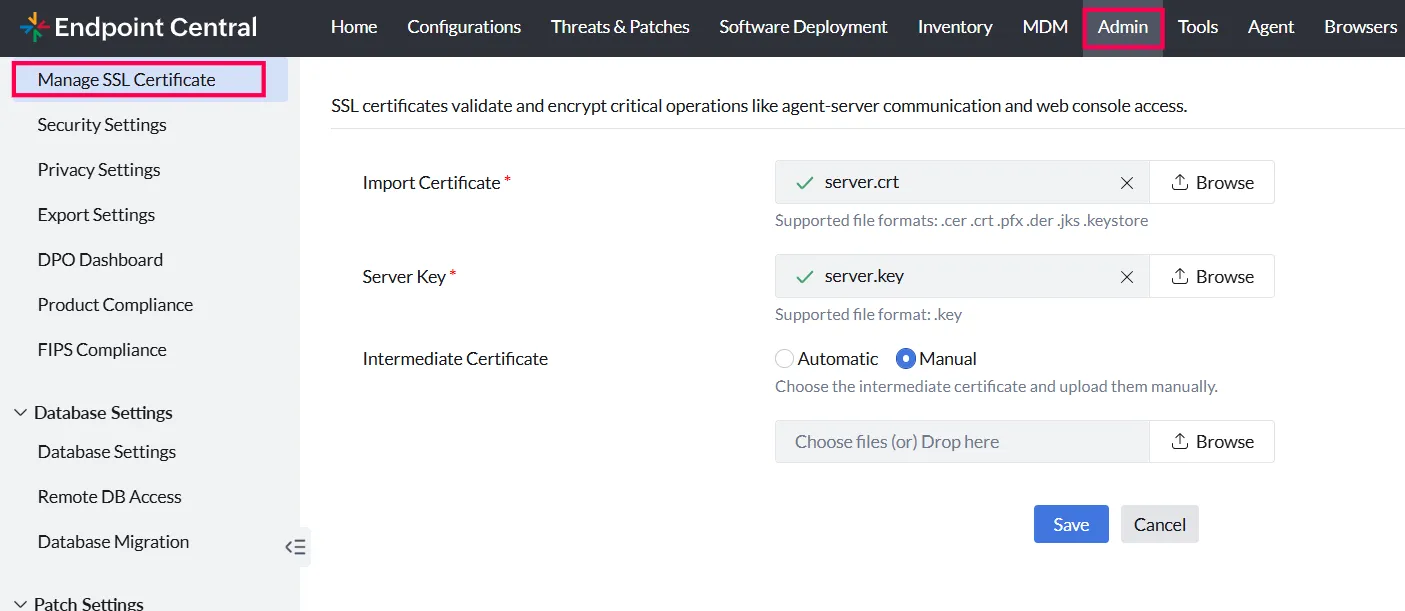
- Click Admin tab on the product console
- Under Security Settings, click Manage SSL Certificates
- Browse to upload the certificate that you have received from the vendor (CA).
- Click Save to import the certificate.
You need to restart the Endpoint Central server service after importing the certificate for the web server to load the newly imported certificate.
You have successfully imported the third party certificates to the Central server. These certificates will be used only when "HTTPS" mode is enabled for communication.
Click Admin tab and choose Server Settings, to enable https mode under General Settings. You can now see that the communication between the server and the agents is secure.
Ensure that the pfx file or .cert file should match the NAT address specified in the Endpoint Central server. If Central Server and ServiceDesk Plus server are installed in the same computer, then the same pfx file will work. In the above listed case, if ServiceDesk Plus server is moved to a different computer, then the pfx needs to be modified to specify the appropriate host name.
Importing Enterprise SSL Certificate
While importing an enterprise SSL certificate, it is mandatory that the root certificate of the uploaded SSL is present in the trusted store of all managed endpoints. This is required to maintain secure communication between the MDM server and devices.
During the import process, two options are provided:
- Proceed to Import
- Distribute Root Certificate (Recommended)
Case 1: Proceed to Import
When Proceed to Import is selected, the SSL certificate is imported immediately to the server without waiting for root certificate distribution.
This option should be used only when the administrator is confident that the root certificate already exists in the trusted store of all devices.
- Certificate is activated instantly on the server
- Root certificate is not distributed automatically
- Devices that do not trust the root certificate may lose MDM communication
- Such devices will need to be re-enrolled manually
Note: This option is generally not recommended for live environments with active managed devices.
Case 2: Distribute Root Certificate (Recommended)
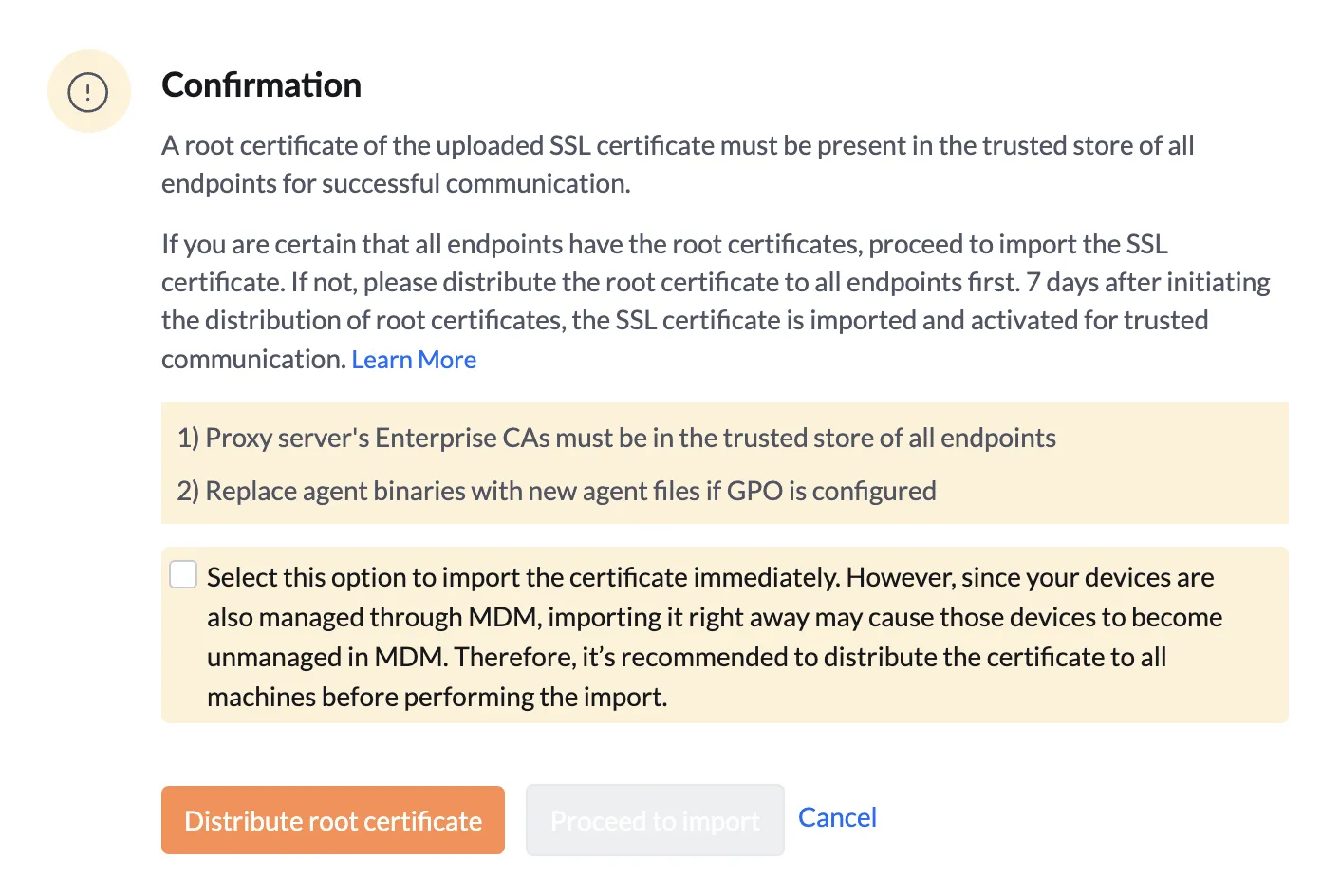
When Distribute Root Certificate is selected, the system first initiates the distribution of the root certificate to all managed endpoints before importing the SSL certificate.
A 7-day distribution period is provided to allow devices enough time to receive and trust the root certificate.
- Root certificate is pushed to all managed devices
- Devices install the certificate into their trusted store
- SSL certificate is not imported immediately
Tracking Certificate Distribution Status
The "View Details" option provides visibility into the certificate distribution status across all devices.
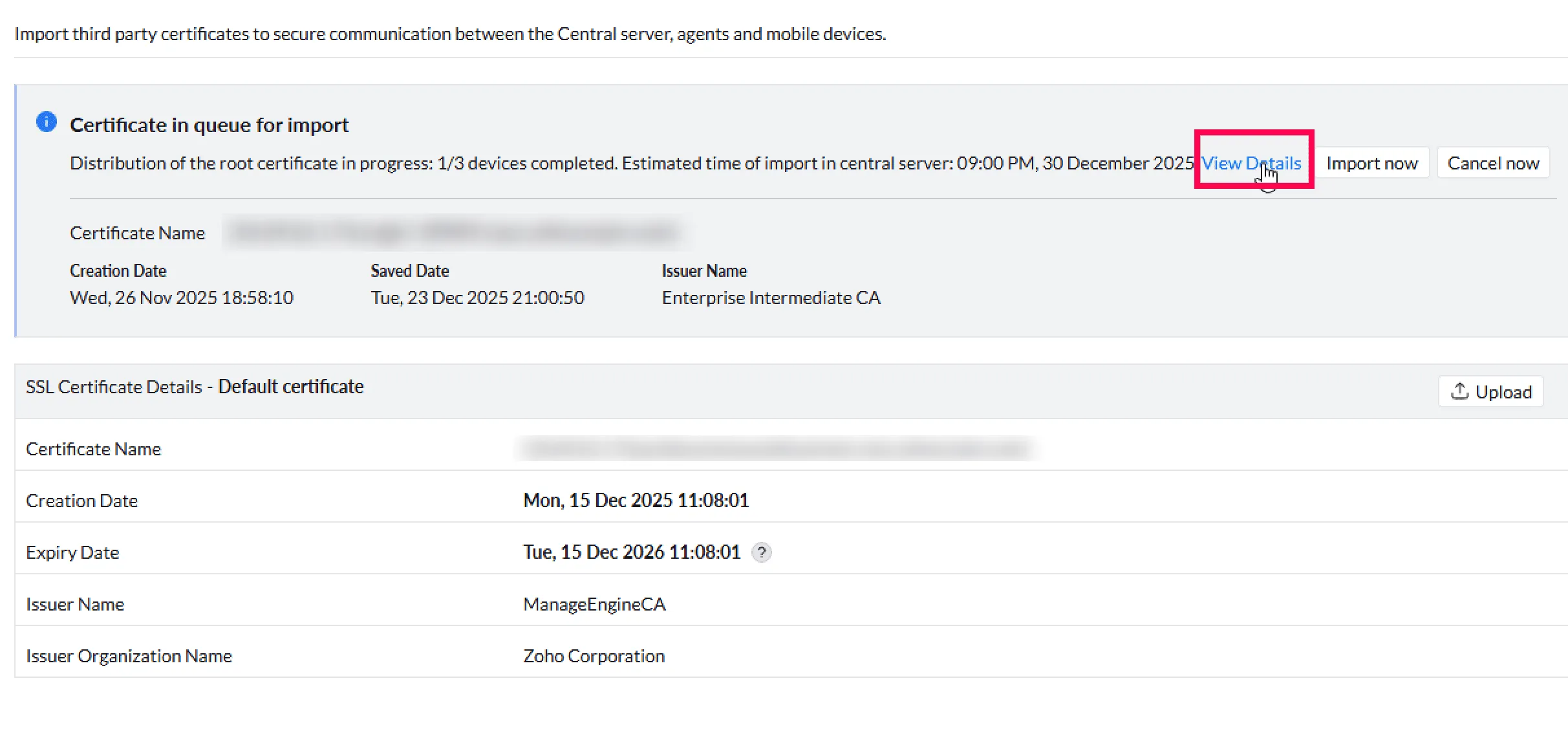
- All enrolled devices and their current certificate status are displayed.
- Devices with failed distribution attempts can be clearly identified.
Retry Behaviour
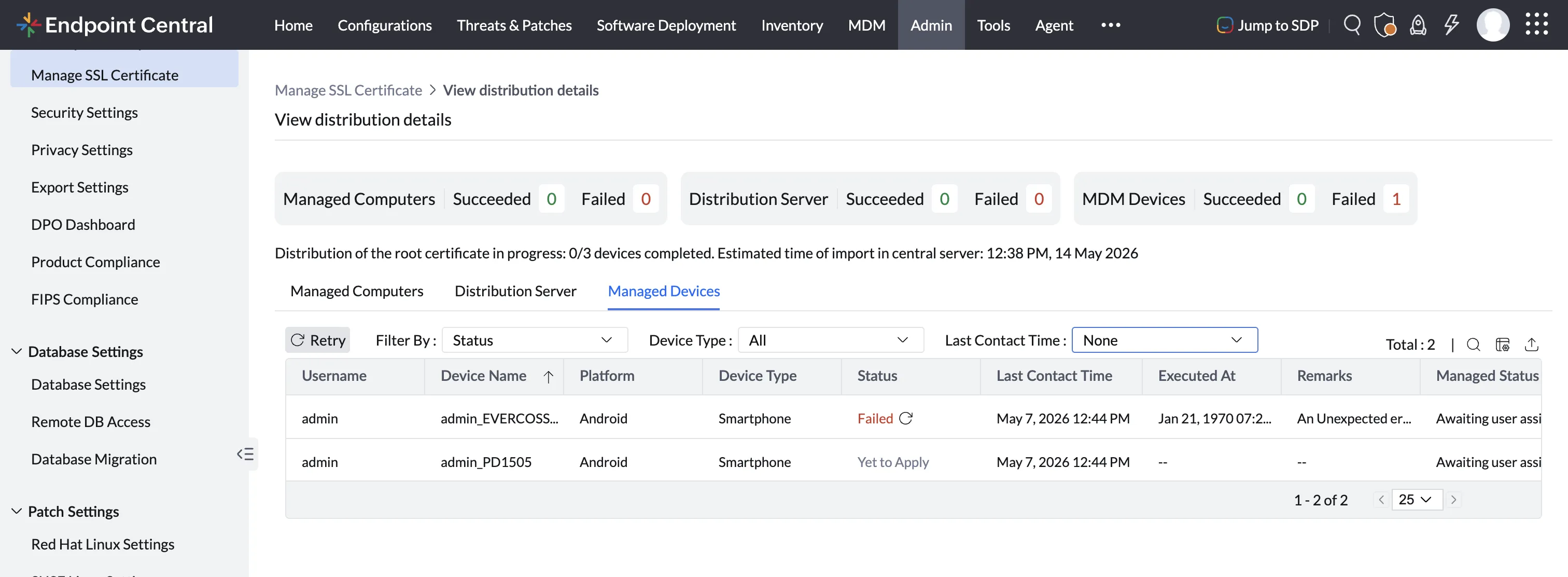
Kindly note that retry option is applicable for MDM Server Certificates
- Individual devices — retry for a single specific device
- Multiple devices (bulk retry) — retry for all failed devices at once
Import Timeline
On the 7th day, the SSL certificate will be imported only if the following conditions are met:
- Certificate distribution is successful
- The existing SSL certificate has expired
If these conditions are not met, the system extends the import timeline. The extension can continue by default for up to 21 days, ensuring devices have enough time to complete certificate installation.
Manual Extension Option
- The option appears from the 6th day
- When used, it extends the import time by one additional week
- This helps customers who need more time for device connectivity or distribution
Email Notifications
- Day 6 — before