How to deploy CrowdStrike Falcon Sensor agent on macOS devices using Endpoint Central?
This document will guide you through the steps involved in deploying CrowdStrike Falcon Sensor agent on macOS computers using Endpoint Central's Software Deployment feature.
Table of Contents
Prerequisites
Mac devices must be enrolled in MDM because configuration profiles, an MDM payload which is used to manage settings and permissions, can only be deployed to enrolled devices. This is essential for remotely installing the CrowdStrike Falcon Sensor agent and applying the necessary permissions, including PPPC(Privacy Preferences Policy Control), Web Content Filter, and System Extension configurations.
Before you install the CrowdStrike Falcon Sensor agent on macOS devices, deploying PPPC, Web Content Filter and System Extensions configurations is essential. You can deploy them as a single configuration as a Custom Configuration Profile
If your Mac is not enrolled, refer to this link to complete the MDM enrollment process
Note: Kindly ensure that these configurations are successfully deployed on the end machines before deploying the CrowdStrike Falcon Sensor agent.
Custom Configuration Profile
Follow the steps below steps to deploy the Custom Configuration Profile. This profile includes the necessary permissions for macOS, such as PPPC, System Extensions, Network/Web Content Filters.
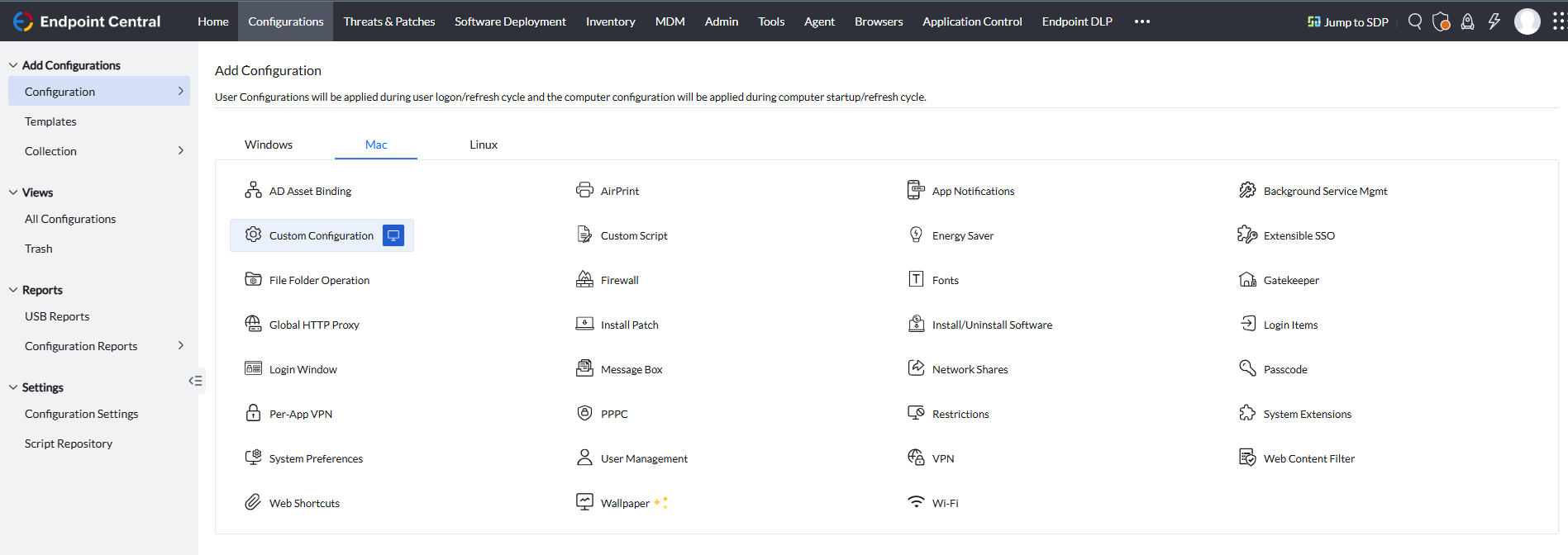
In the Endpoint Central console navigate to Configurations > Configuration > Mac > Custom Configurations Computer Configurations.
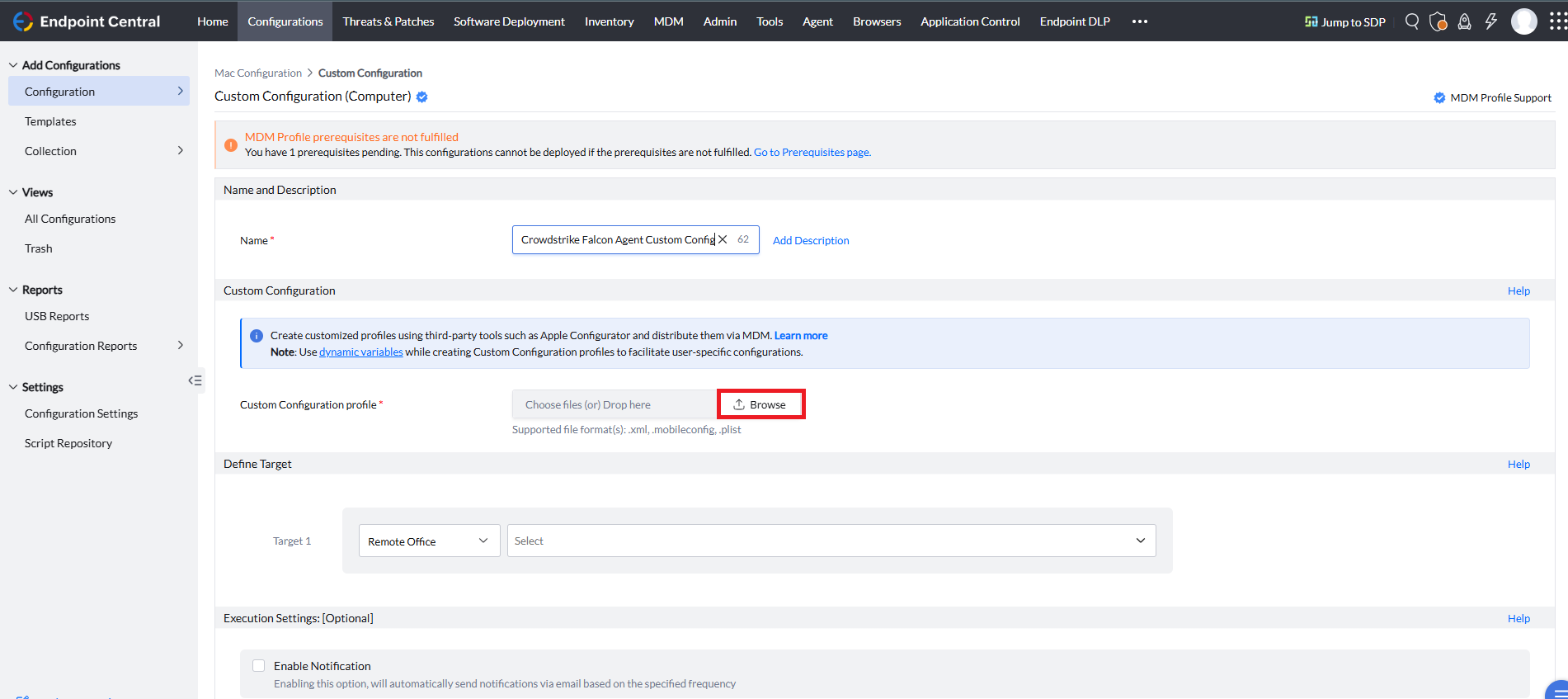
- Specify a Name and Description for the configuration.
- Download the custom configuration profile in the .mobileconfig format and upload this file in the Custom Configuration profile field using the Browse option.
- Define the Target computers to which you are deploying the CrowdStrike Falcon Sensor agent.
- Enable the Execution Settings if required.
- Click Deploy/Deploy Immediately to deploy your configuration.
Manual Package Creation for CrowdStrike Falcon Sensor agent
Follow the below steps to create the manual package:

In the Endpoint Central Console, navigate to Software Deployment tab > Package Creation > Packages > Add Package > Mac.
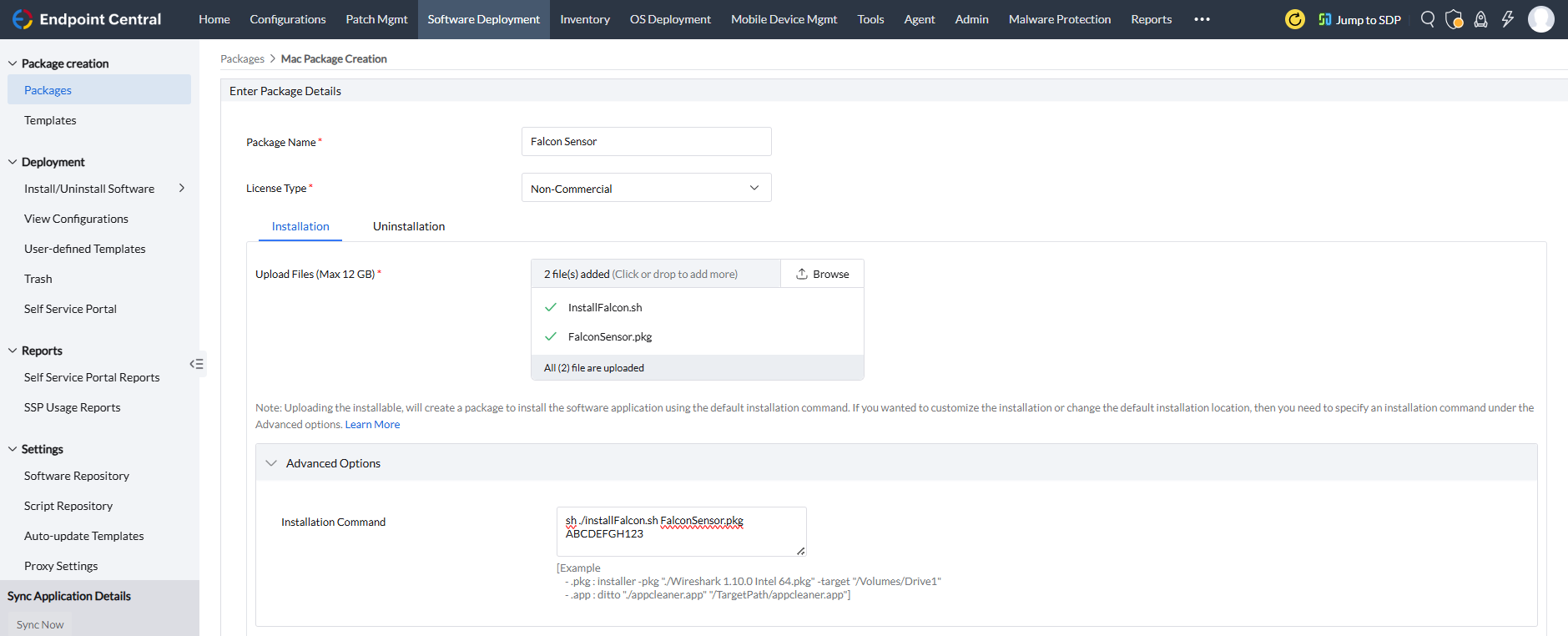
- Enter a name for your package in the Package Name field.
- Provide appropriate license type for the software under License Type.
- Under Installation, download and upload the CrowdStrike Falcon Sensor installer package the InstallFalcon.sh script
Under the Advanced Options, provide the below commands in the Installation Command field. Replace the package file name with your downloaded file name and substitute your Falcon license key accordingly.
sh ./InstallFalcon.sh [pkg filename] [falcon license key]
For example,
sh ./InstallFalcon.sh FalconSensor.pkg ABCDEFGH123
- Click Add Package to create your package.
- You can view the created package under Packages.
Deploy CrowdStrike Falcon Sensor agent to Target Computers
- Under Packages, select the package created and click on Install/Uninstall Software > Mac > Computer Configuration
- Configure the Deployment Policies, as per your requirement.
- Define the Target computers to which you are deploying CrowdStrike Falcon Sensor agent application.
- Configure Execution Settings, as per your requirement.
- Select Enable notifications and Scheduler settings as per your requirements.
- Click Deploy/Deploy Immediately to deploy the CrowdStrike Falcon Sensor agent application.
CrowdStrike Falcon Sensor Agent Uninstallation
When Maintenance Protection Is Disabled
Run the below command in Terminal or create a Custom Script configuration using the provided command and deploy to the targets to uninstall the Crowdstrike Falson Sensor:
sudo /Applications/Falcon.app/Contents/Resources/falconctl uninstall
When Maintenance Protection Is Enabled
- Log in to the CrowdStrike console and retrieve the maintenance token.
After retrieving the maintainance token run the below command in Terminal
sudo /Applications/Falcon.app/Contents/Resources/falconctl uninstall --maintenance-token
- Enter the maintenance token when prompted
You have successfully uninstalled the CrowdStrike Falcon Sensor agent