# Secure Communication of mobile users using Secure Gateway Server | ManageEngine
## How to secure communication of mobile/roaming users using Secure Gateway Server?
This document explains the steps involved in securing the communication of roaming users using Secure Gateway Server. Secure Gateway Server can be used when roaming agents (on the mobile devices and desktops) access the server through the internet. It prevents the exposure of the server directly to the internet by serving as an intermediate server between the product server and roaming agents. This ensures that the product server is secure from risks and threats of vulnerable attacks.
For a step by step demonstration video on how to configure secure gateway server, click [here](https://www.manageengine.com/products/desktop-central/secure-communication-of-mobile-users-using-forwarding-server.html#video).
**Note:**
- The Secure Gateway Server should be installed on a different machine than the one where the Central Server, Distribution Server, or Failover Server is installed. However, it can be installed on the same machine as the agent.
- To use the Secure Gateway Server beyond the trial period, you must enable the Secure Gateway Server add-on in your existing product license. Ensure that this add-on is purchased and applied in the Central Server to continue securing communication for roaming users.
## Table of contents
- [How Secure Gateway works](https://www.manageengine.com/products/desktop-central/secure-communication-of-mobile-users-using-forwarding-server.html#working)
- [Software requirements for Secure Gateway Server](https://www.manageengine.com/products/desktop-central/secure-communication-of-mobile-users-using-forwarding-server.html#softwarereq)
- [Hardware requirements for Secure Gateway Server](https://www.manageengine.com/products/desktop-central/secure-communication-of-mobile-users-using-forwarding-server.html#forwardingserverreq)
- [Steps to Modify Central Server Settings](https://www.manageengine.com/products/desktop-central/secure-communication-of-mobile-users-using-forwarding-server.html#nat)
- [Steps to Install and configure Secure Gateway](https://www.manageengine.com/products/desktop-central/secure-communication-of-mobile-users-using-forwarding-server.html#install)
- [Infrastructure recommendations](https://www.manageengine.com/products/desktop-central/secure-communication-of-mobile-users-using-forwarding-server.html#infra)
- [When to reconfigure SGS?](https://www.manageengine.com/products/desktop-central/secure-communication-of-mobile-users-using-forwarding-server.html#reconfigure)
## How Secure Gateway works?
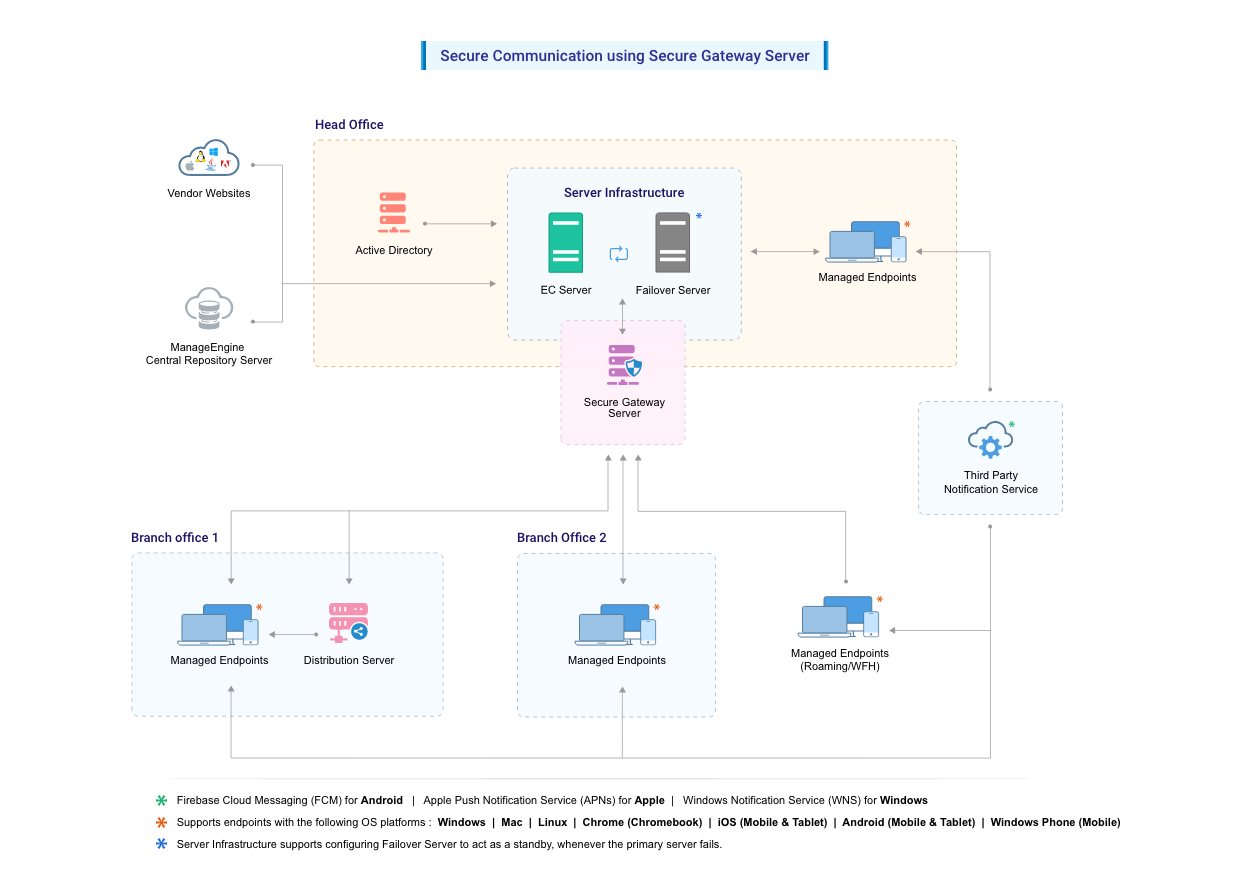
Secure Gateway Server is a component that will be exposed to the internet. The Secure Gateway Server acts as an intermediate server between the managed roaming agents and the central server. All communications from the roaming agents will be navigated through the Secure Gateway. When the agent tries to contact the central server, Secure Gateway server receives all the communications and redirects to the central server.
[](https://www.manageengine.com/products/desktop-central/images/secure-gateway-communication-mobile.png)
**Note:** Map your Secure Gateway's public IP address and product server's private IP address to a common FQDN in your respective DNS. For example, if your FQDN is "product.server.com", map this to both your Secure Gateway and central server IP address. By this mapping, the WAN agents of roaming users will access the central server via Secure Gateway (using internet) and the agents within the LAN network will directly reach central server, hence leading to quicker resolution. Accessing webconsole/management console will be restricted when accessed through Internet for security purposes when SGS is installed.
## Software requirements for Secure Gateway Server
You can install Secure Gateway Server on any of these Windows operating system versions:
- Windows 10
- Windows 11
- Windows Server 2016
- Windows Server 2019
- Windows Server 2022
- Windows Server 2025
## Hardware requirements for Secure Gateway Server
The hardware requirements for Secure Gateway Server include the following:
### 1 to 5000 computers
| Server | Parameter | Requirement |
|---|---|---|
| Secure Gateway Server | Processor information | **Physical Machine:** Intel Core i3 (2 core/4 thread) 2.9 Ghz 3 MB cache
**Virtual Machine:** 4 virtual processors 2.9 GHz 3 MB cache |
| Secure Gateway Server | RAM size | 4 GB |
| Secure Gateway Server | Hard disk space | 40 GB* |
| Network requirement | Network card speed | Minimum 1 GBPS Network Interface Card (NIC) |
| Network requirement | Bandwidth | Minimum 1 MBPS (T1 connection) |
\* May increase dynamically according to the frequency of scanning
### 5001 to 9000 computers
| Server | Parameter | Requirement |
|---|---|---|
| Secure Gateway Server | Processor information | **Physical Machine:** Intel Core i5 (4 core/8 thread) 2.3 GHz
**Virtual Machine:** 8 virtual processors 2.3 GHz |
| Secure Gateway Server | RAM size | 4 GB |
| Secure Gateway Server | Hard disk space | 80 GB* |
| Network requirement | Network card speed | Minimum 1 GBPS Network Interface Card (NIC) |
| Network requirement | Bandwidth | Minimum 1 MBPS (T1 connection) |
\* May increase dynamically according to the frequency of scanning
### 9001 to 15000 computers
| Server | Parameter | Requirement |
|---|---|---|
| Secure Gateway Server | Processor information | **Physical Machine:** Intel Core i7 (6 core/12 thread) 3.2 GHz
**Virtual Machine:** 12 virtual processors 3.2 GHz |
| Secure Gateway Server | RAM size | 4 GB |
| Secure Gateway Server | Hard disk space | 120 GB* |
| Network requirement | Network card speed | Minimum 1 GBPS Network Interface Card (NIC) |
| Network requirement | Bandwidth | Minimum 1 MBPS (T1 connection) |
\* May increase dynamically according to the frequency of scanning
### 15001 to 18000 computers
| Server | Parameter | Requirement |
|---|---|---|
| Secure Gateway Server | Processor information | **Physical Machine:** Intel Xeon E5 (8 core/16 thread) 2.6 GHz
**Virtual Machine:** 16 virtual processors 2.6 GHz |
| Secure Gateway Server | RAM size | 8 GB |
| Secure Gateway Server | Hard disk space | 150 GB* |
| Network requirement | Network card speed | Minimum 1 GBPS Network Interface Card (NIC) |
| Network requirement | Bandwidth | Minimum 1 MBPS (T1 connection) |
\* May increase dynamically according to the frequency of scanning
### 18001 to 25000 computers
| Server | Parameter | Requirement |
|---|---|---|
| Secure Gateway Server | Processor information | **Physical Machine:** Intel Xeon E5 (12 core/24 thread) 2.7 GHz
**Virtual Machine:** 24 virtual processors 2.7 GHz |
| Secure Gateway Server | RAM size | 8 GB |
| Secure Gateway Server | Hard disk space | 200 GB* |
| Network requirement | Network card speed | Minimum 1 GBPS Network Interface Card (NIC) |
| Network requirement | Bandwidth | Minimum 1 MBPS (T1 connection) |
\* May increase dynamically according to the frequency of scanning
### Above 25000 computers
For managing more than 25000 computers, contact Support at [endpointcentral-support@manageengine.com](mailto:endpointcentral-support@manageengine.com). We will customize Secure gateway server setup based on your network.
To introduce Secure Gateway based communication to Central Server, follow the steps given below:
- Steps to Modify Central Server Settings
- Steps to Install and configure Secure Gateway
- Infrastructure recommendations
## Steps to Modify Central Server Settings
1. Enable secured communication (HTTPS) under DS/WAN agent to Central server communication.
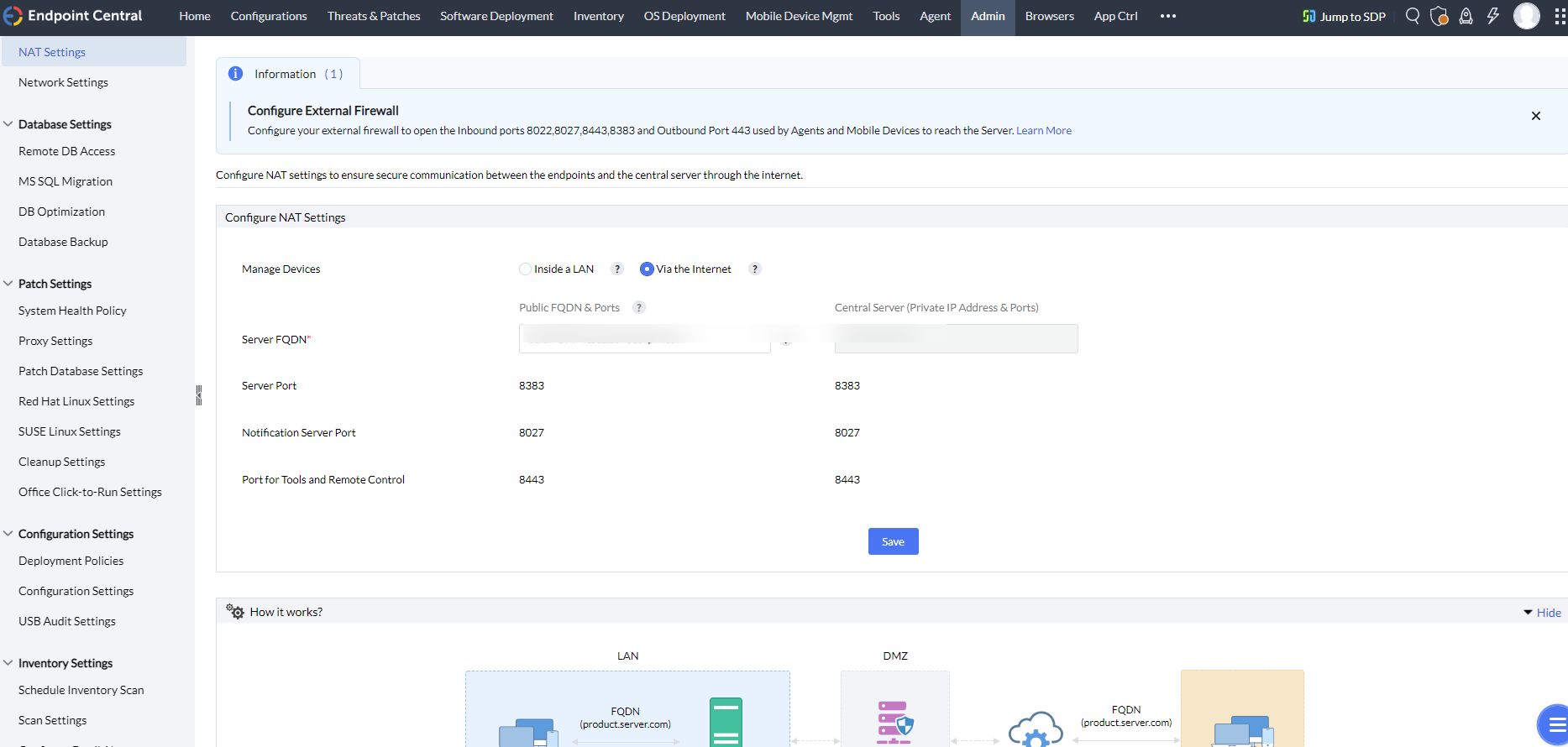
2. Configure NAT settings using the Secure Gateway's public FQDN/IP address.
- On the product console, click on *Admin tab > Server Settings > NAT Settings*
- Choose to **Manage Devices Via the Internet**
- Add the FQDN of the Secure Gateway Server against the Public FQDN under NAT settings as shown below
[](https://www.manageengine.com/products/desktop-central/images/sgs-server-nat.png)
## Steps to Install and configure Secure Gateway (Before the build no:11.4.2528.1)
- [Download](https://www.manageengine.com/products/desktop-central/forwarding-server-download.html) and install Secure Gateway on a machine in Demilitarized zone.
- Enter the following details under **Setting up the Secure Gateway** window, which will open after the installation process.
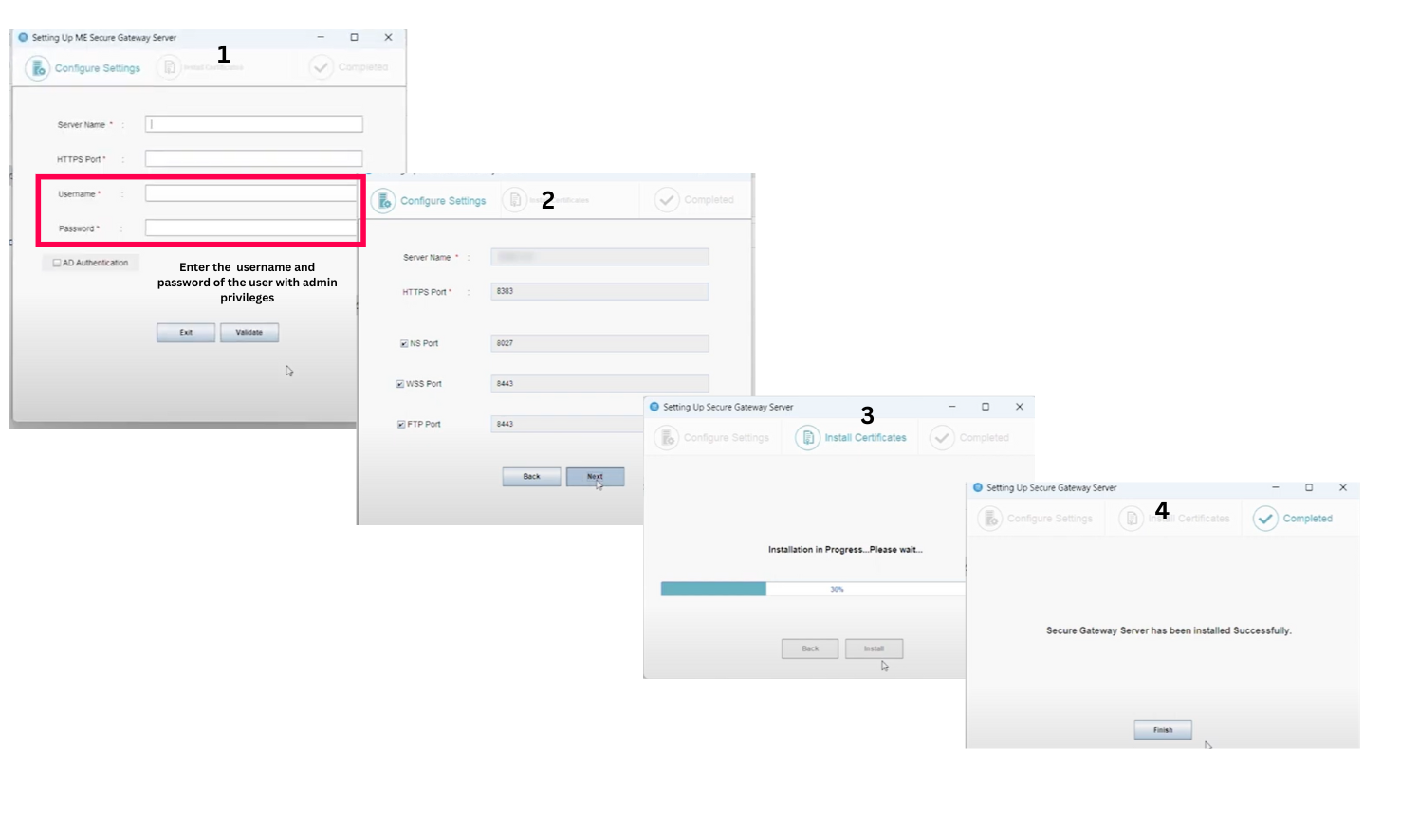
- Central Server Name: Specify the FQDN/DNS/IP address of the Central server or specify virtual IP address if Failover server is used.
- Central Server Https Port: Specify the port number that the mobile devices use to contact the Central server (eg: 8383). It is recommended to use the same port 8383 (HTTPS) for Central Server in secured mode.
- Notification Server port: 8027 (to perform on-demand operations), this will be pre-filled automatically
- Web Socket Port: 8443 (HTTPS), this will be pre-filled automatically.
- Username & Password: Enter Central Server user's credentials with administrative privilege.
## Steps to Configure Secure Gateway Server (After the build no:11.4.2528.1)
- Download and install Secure Gateway on a machine in a Demilitarized zone.
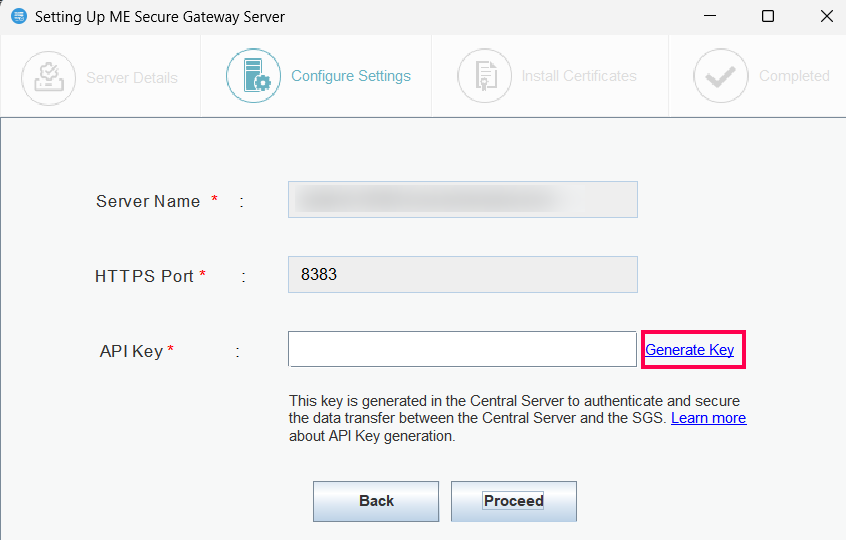
- Enter the following details under **the Setting up the Secure Gateway** window, which will open after the installation process.
- Central Server Name: Specify the FQDN/DNS/IP address of the Central server or specify virtual IP address if Failover server is used.
- Central Server Https Port: Specify the port number that the mobile devices use to contact the Central server (e.g., 8833). It is recommended to use the same port 8383 (HTTPS) for Central Server in secured mode.
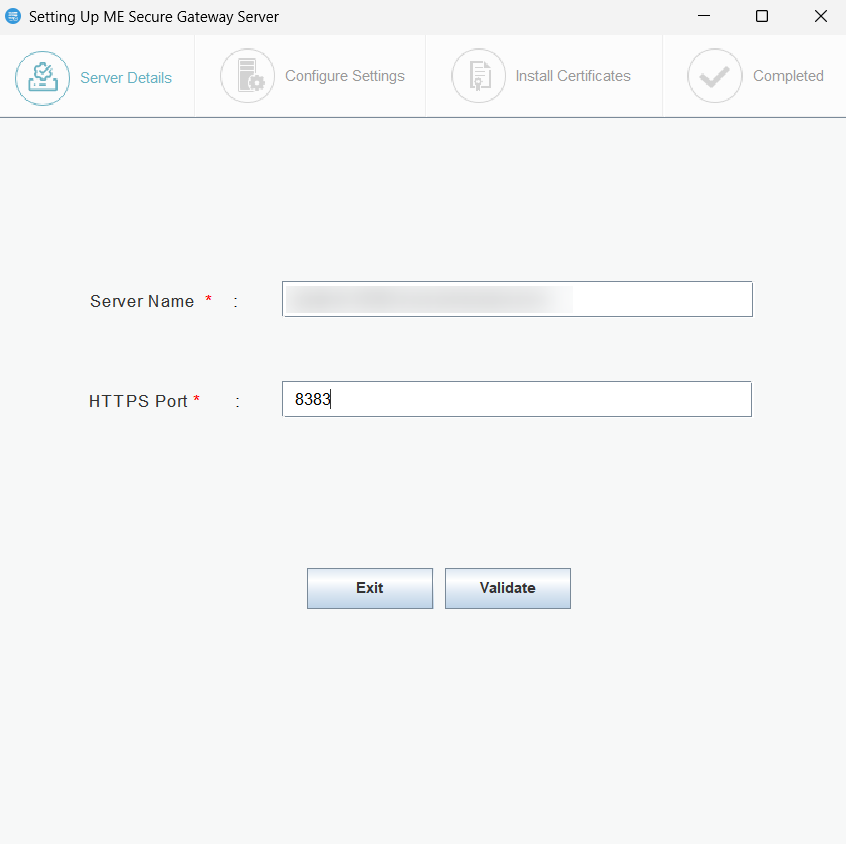
- Click the Generate Key link to initiate the key creation process.
### Steps to Generate an SGS API Key
- Open API Key Generation Page. Upon successful authentication, you'll be redirected to the API Key Generation page.
- Select Secure Gateway Server. From the available options, choose the relevant Secure Gateway Server.
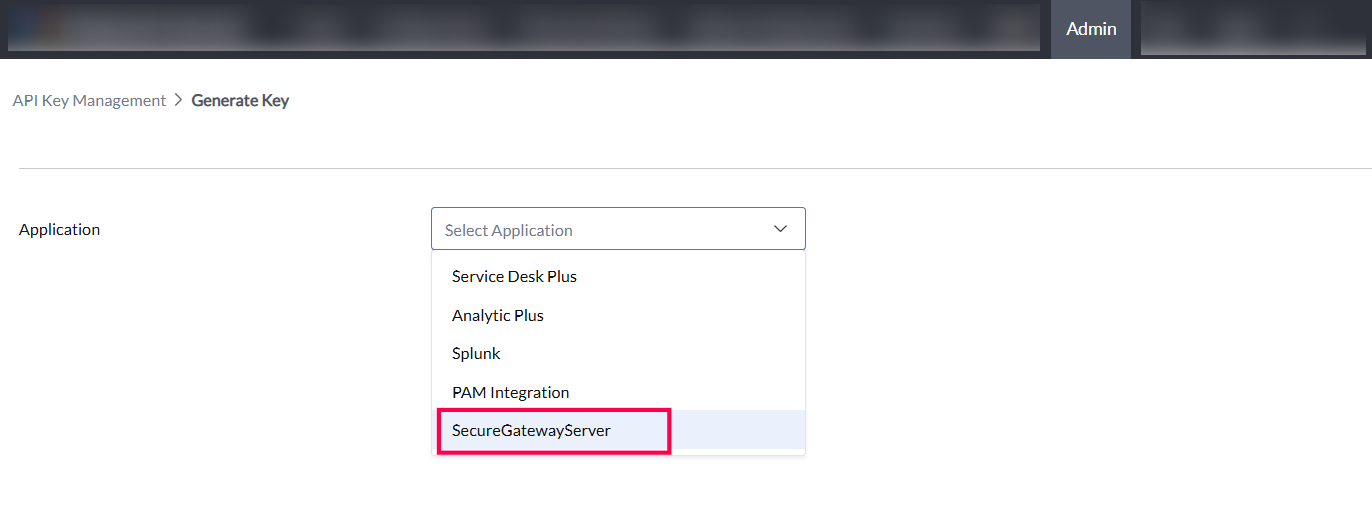
- Set Expiry Date and Time. Specify the desired expiry date and time for the API key's validity.
- Generate API Key. Click the option to generate the API Key. The key will be created with the specified validity period.
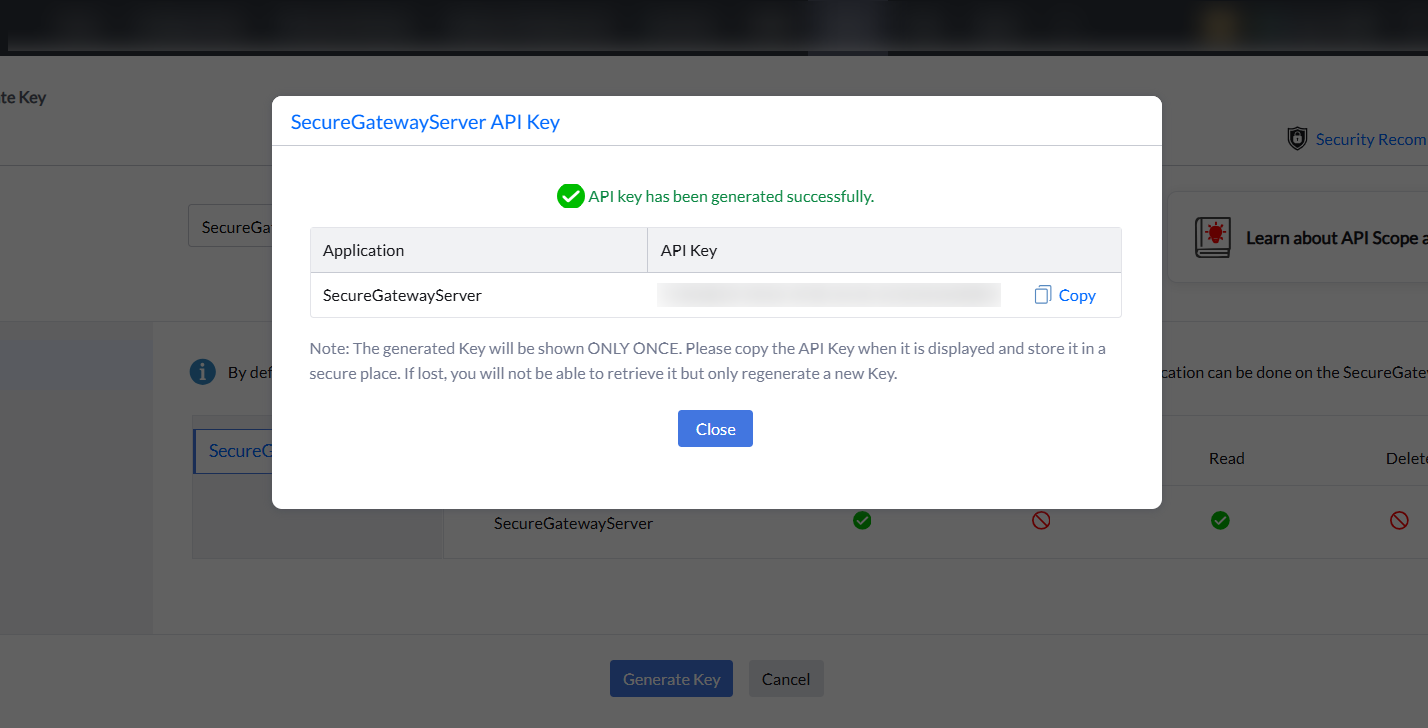
- Copy the API key in the installation Wizard.
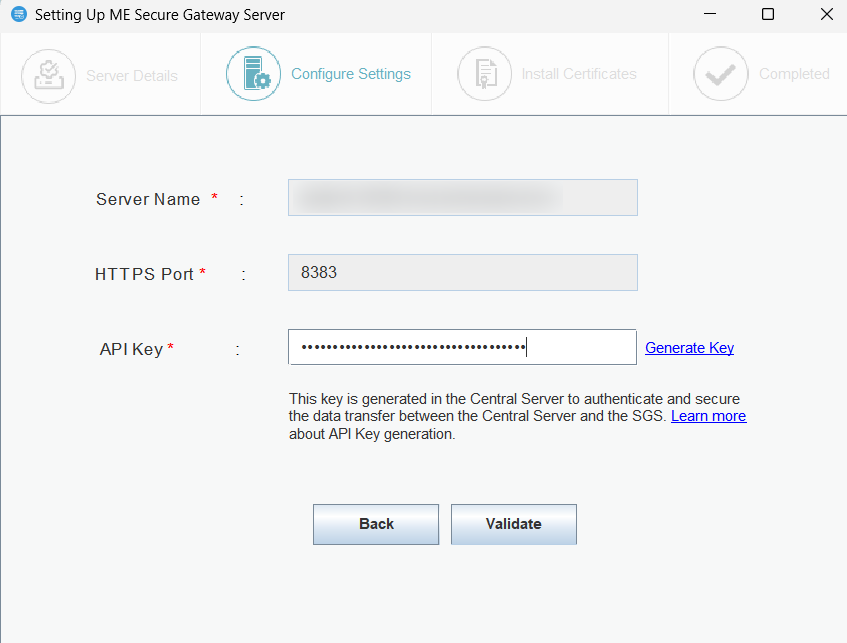
- Notification Server port: 8027 (to perform on-demand operations), this will be pre-filled automatically.
- Web Socket Port: 8443 (HTTPS), this will be pre-filled automatically and click Next.
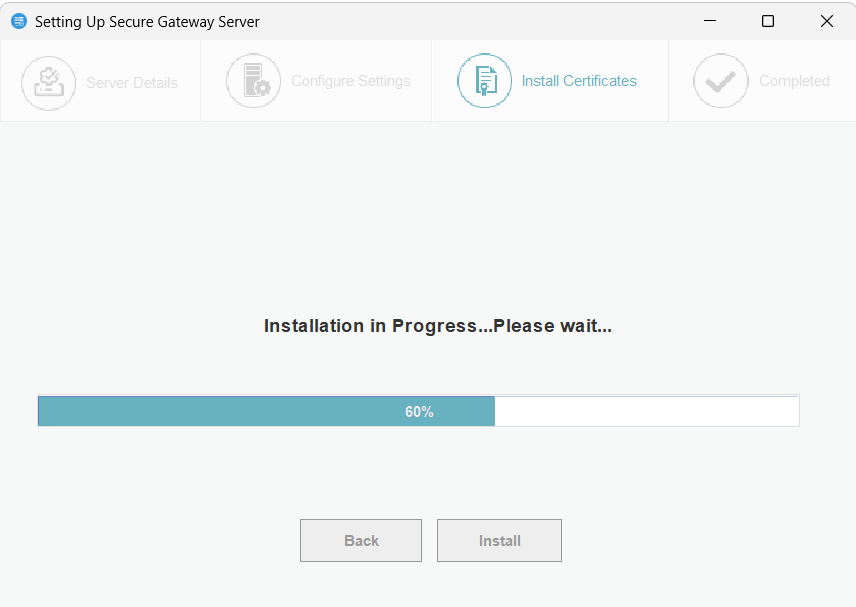
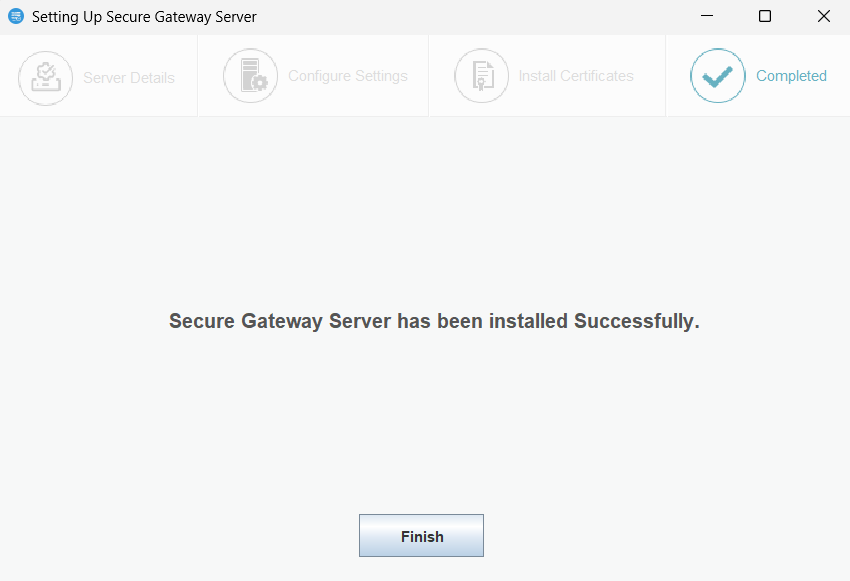
- Secure Gateway Server will be installed successfully.
## Infrastructure recommendations
Ensure that you follow the steps given below:
1. Secure Gateway's public IP address with the port 8383 (https) should be provided to the Central server for accessibility verification.
2. Using a public IP address is recommended for configuring non-AD machines.
3. Configure Secure Gateway in such a way, that it should be reachable via public IP/FQDN address configured in NAT settings. You can also configure the Edge Device/Router in such a way that all the requests that are sent to the Public IP/FQDN address gets redirected to the Secure Gateway.
4. It is mandatory to use HTTPS communication.
Ensure that the following ports are open on the firewall to allow the WAN agents to communicate with the Secure Gateway.
| Port | Type | Purpose | Connection |
|---|---|---|---|
| 8383 | HTTPS | For communication between the WAN agent/Distribution Server and the Central server using Secure Gateway. | Inbound to Server |
| 8027 | TCP | To perform on-demand operations | Inbound to Server |
| 8443 | HTTPS | Web socket port used for remote control, chat, system manager etc. | Inbound to Server |
You have now secured communication between Central server, WAN agents and roaming users.
## When to reconfigure SGS?
1. When importing an SSL certificate, if the root certificate is modified, SGS needs to be reconfigured.
2. When SGS is upgraded, you need to reconfigure SGS.
3. If Admin credentials used to configure the SGS are modified, SGS needs to be reconfigured. (Before the build no:11.4.2528.1)
4. The API key expires. (After the build no:11.4.2528.1)
5. The user role linked to the API key is modified or deleted. (After the build no:11.4.2528.1)
To reconfigure the secure gateway server, follow the link for [steps to reconfigure secure gateway server](https://www.manageengine.com/products/desktop-central/reconfigure-secure-gateway-server.html).
## Check this video for a step by step demonstration on how to configure the secure gateway server.