Step-by-Step Guide: Installing and Setting Up the Summary and Probe Servers
You can set up the Summary Server in your network using the installation file provided via email. If you don't have the file, you can request it by filling out this form!
Note:
- It is crucial to start the installation with the Summary Server, followed by the Probe Server on a separate machine.
- Deviating from this order may disrupt the installation process.
Table of contents
How the Setup Works
- Summary Server: Typically installed at the headquarters, where the IT admin, CISO, or IT decision-maker oversees the Central IT team. The Summary Server functions as the main dashboard for managing the organization's endpoints.
- Probe Server: Installed in regional offices and managed by the regional IT team. The Probe Server ensures scalability by managing numerous endpoints across various departments or divisions. Multiple Probe Servers send endpoint data to the Summary Server, which consolidates it for a comprehensive view of the network.
Summary and Probe Server Port Details
Ports Used by Summary Server
The Summary Server will communicate with the Probe Server through port 8383 by default.
| Port | Purpose | Type | Connection |
|---|---|---|---|
| 8383 | For accessing Web console | HTTPS | In bound to server |
| 8443 | For Sharing Remote Desktops, System Manager, Chat and File Transfer. | HTTPS/UDP | In bound to server |
Ports Used by Probe Server
The Probe Server will communicate with the Summary Server through port 8383 by default. To know more about the ports used by Probe Server, please visit this page
Prerequisites for Summary Server and Probe Server Installation
Please ensure that communication is allowed between the Summary Server and Probe Server host machines before proceeding with the installation.
Steps to ensure bidirectional communication between the two servers:
- Get hostnames of Summary Server and Probe Server hosted machines by entering the hostname command from command prompt
Ensure that Summary Server's port (default: 8383) is reachable from the machine where Probe Server is to be hosted, with the following command in powershell -
Powershell Command
tnc <summary_server_hostname> -port <portnumber>Ensure that the Probe Server is reachable from the machine where Summary Server is hosted, with the following command in powershell -
Powershell Command
tnc <probe_server_hostname>
Installation Demo Video
Watch this video for a step-by-step guide on installing and setting up the Summary and Probe servers.
Steps for Summary Server Installation
- Launch the installation file via the InstallShield Wizard.
- Accept the Endpoint Central license agreement.
- Select Summary Server as the server type.
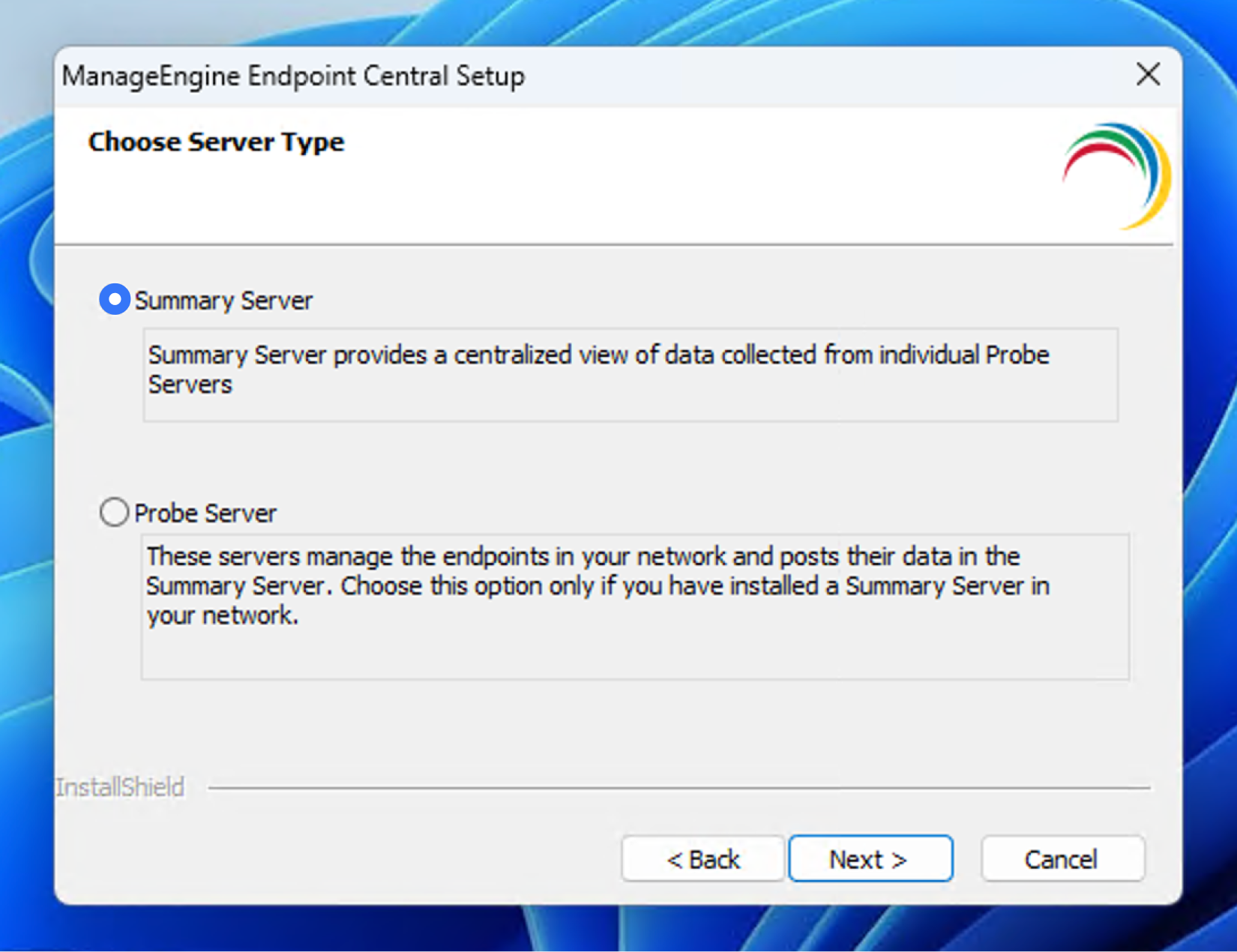
- Choose the destination folder and set the port for the Summary Server (default port: 8383, can be changed).
- Click Finish to complete the installation.
Steps for Probe Server Installation:
Important: Log in to the Summary Server web console on the machine where you plan to install the Probe Server, then follow these steps:
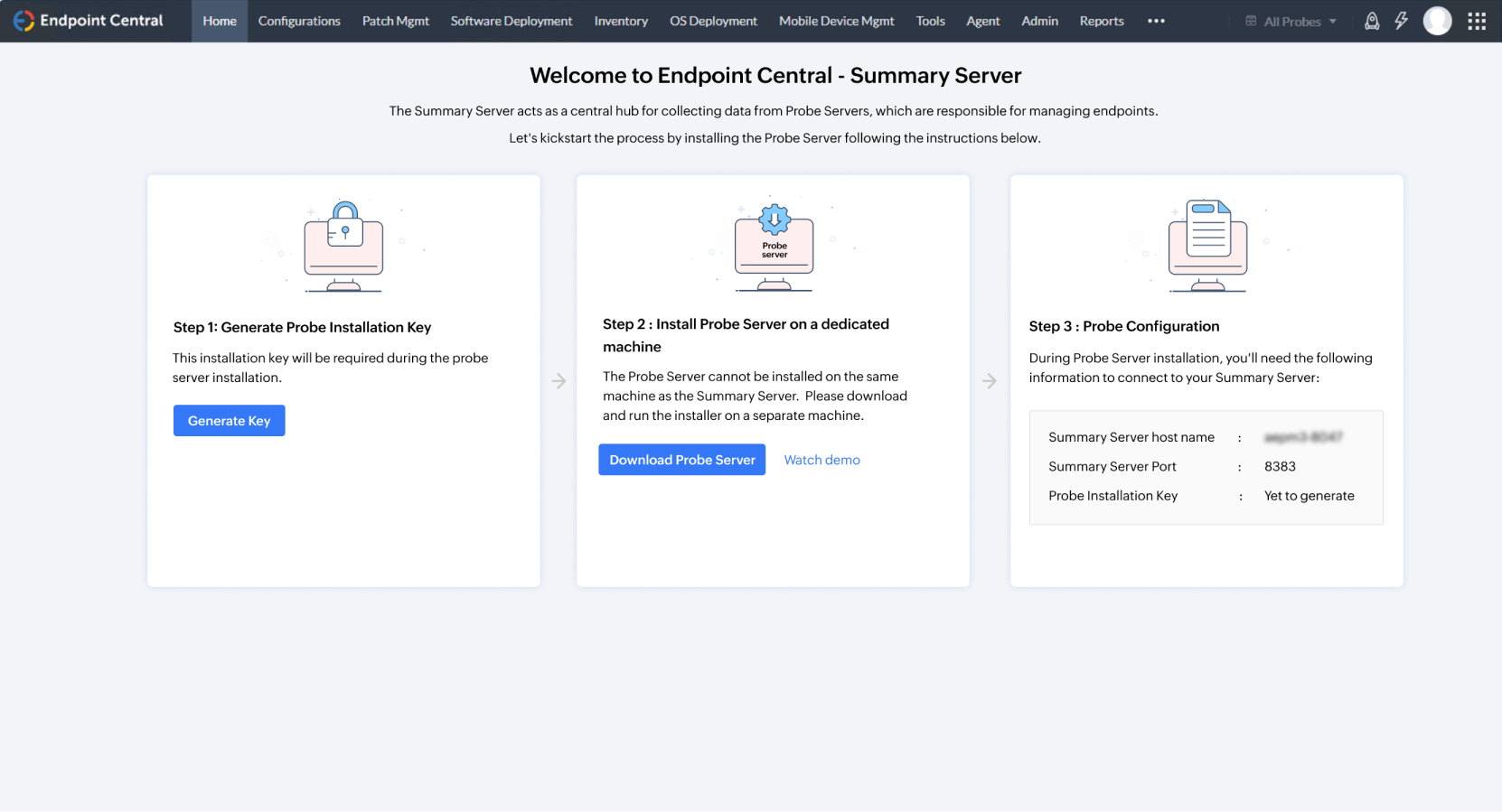
Step 1: Generate the Probe Installation Key
- Click on Generate Key in Step 1 of the web console.
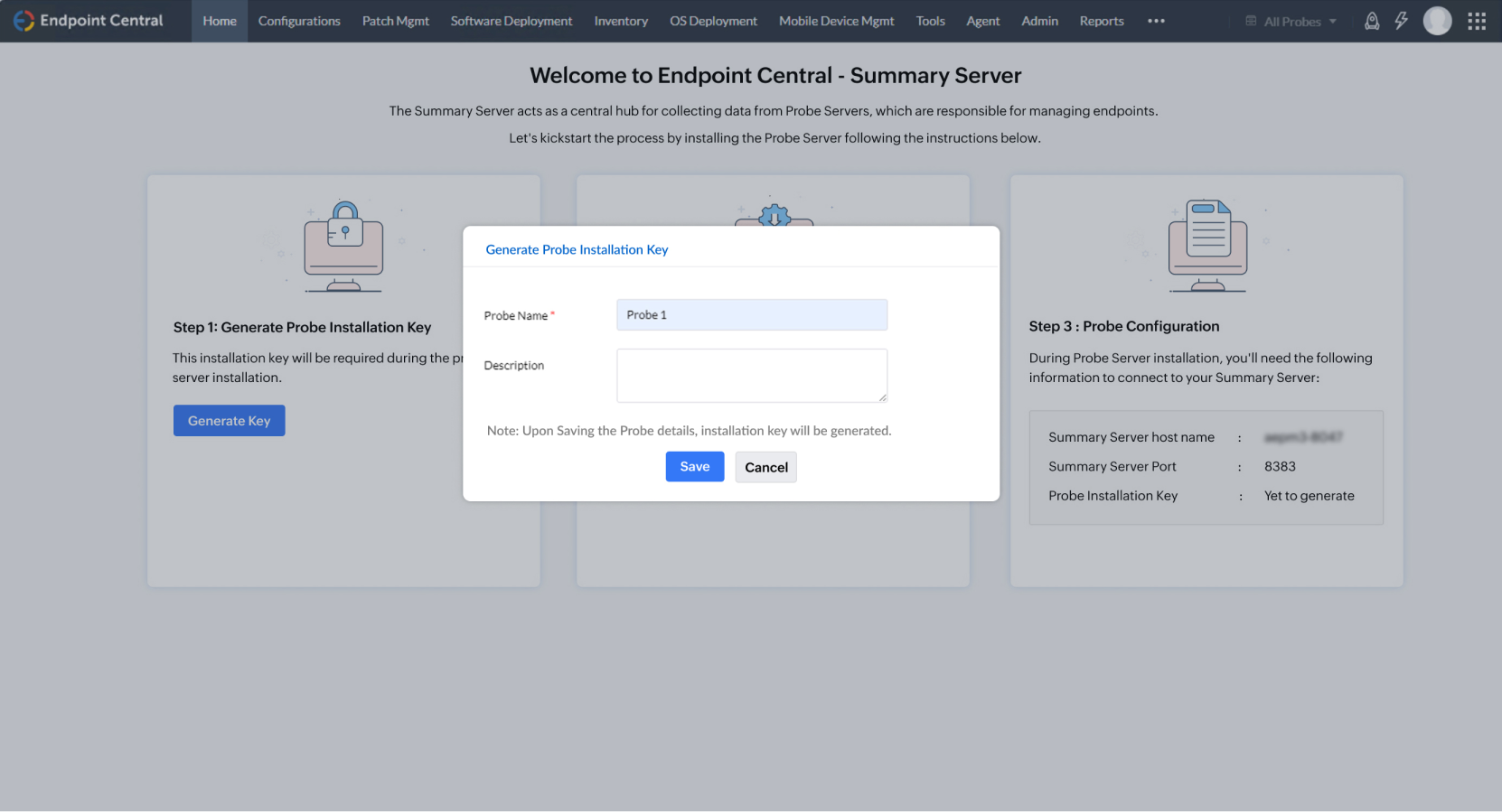
- Enter the Probe Name and description, then click Save. The key will be generated.
Step 2: Download the Probe Installer
- Download the Probe installer file in Step 2 and begin the installation.
- Accept the Endpoint Central license agreement.
- Select Probe Server as the server type (since the Summary Server is already installed).
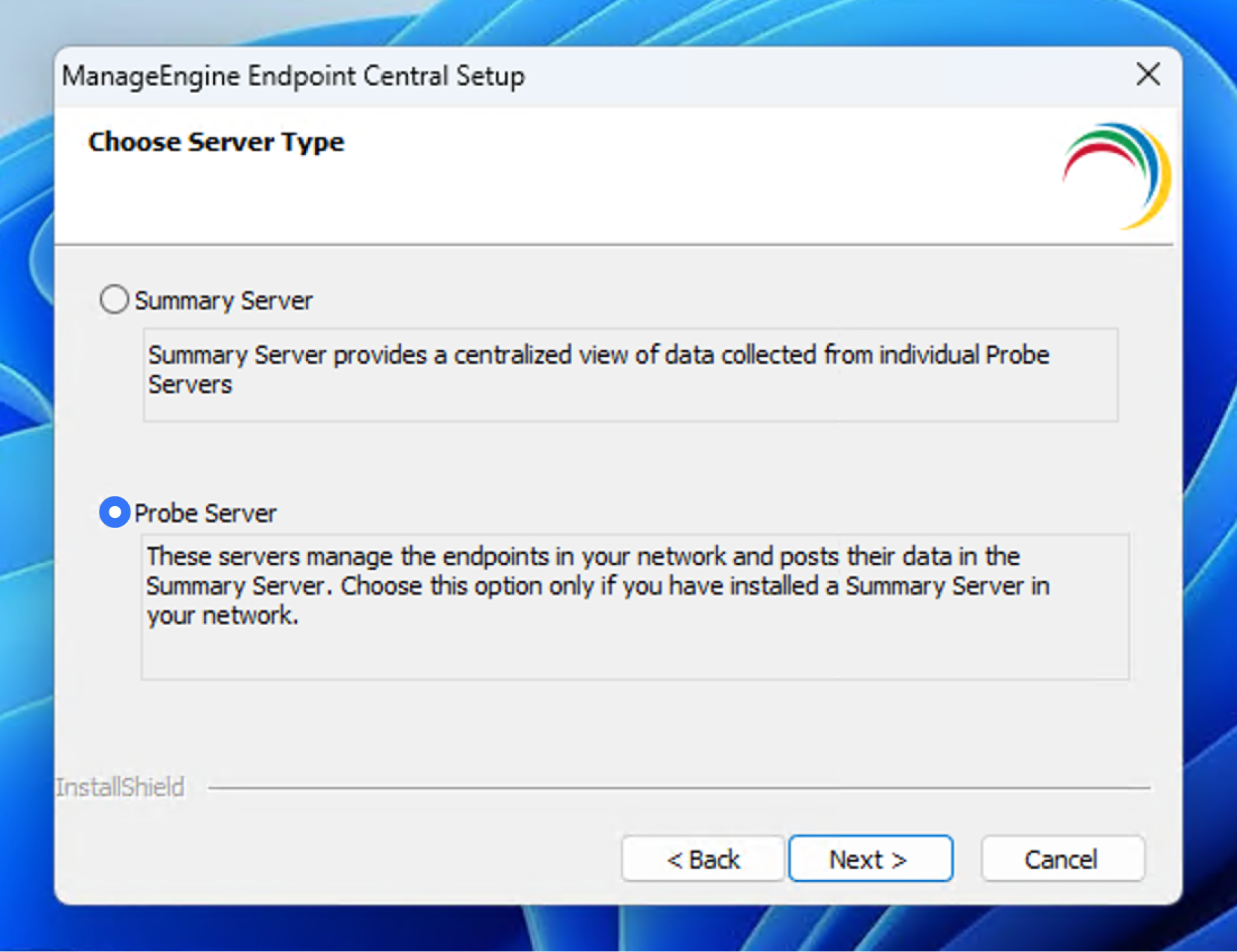
- Choose the destination folder and set the port for the Probe Server (default port: 8383, can be changed).
Step 3: Enter the Summary Server Details
- During installation, enter the Summary Server details available in Step 3 of the Summary Server web console.
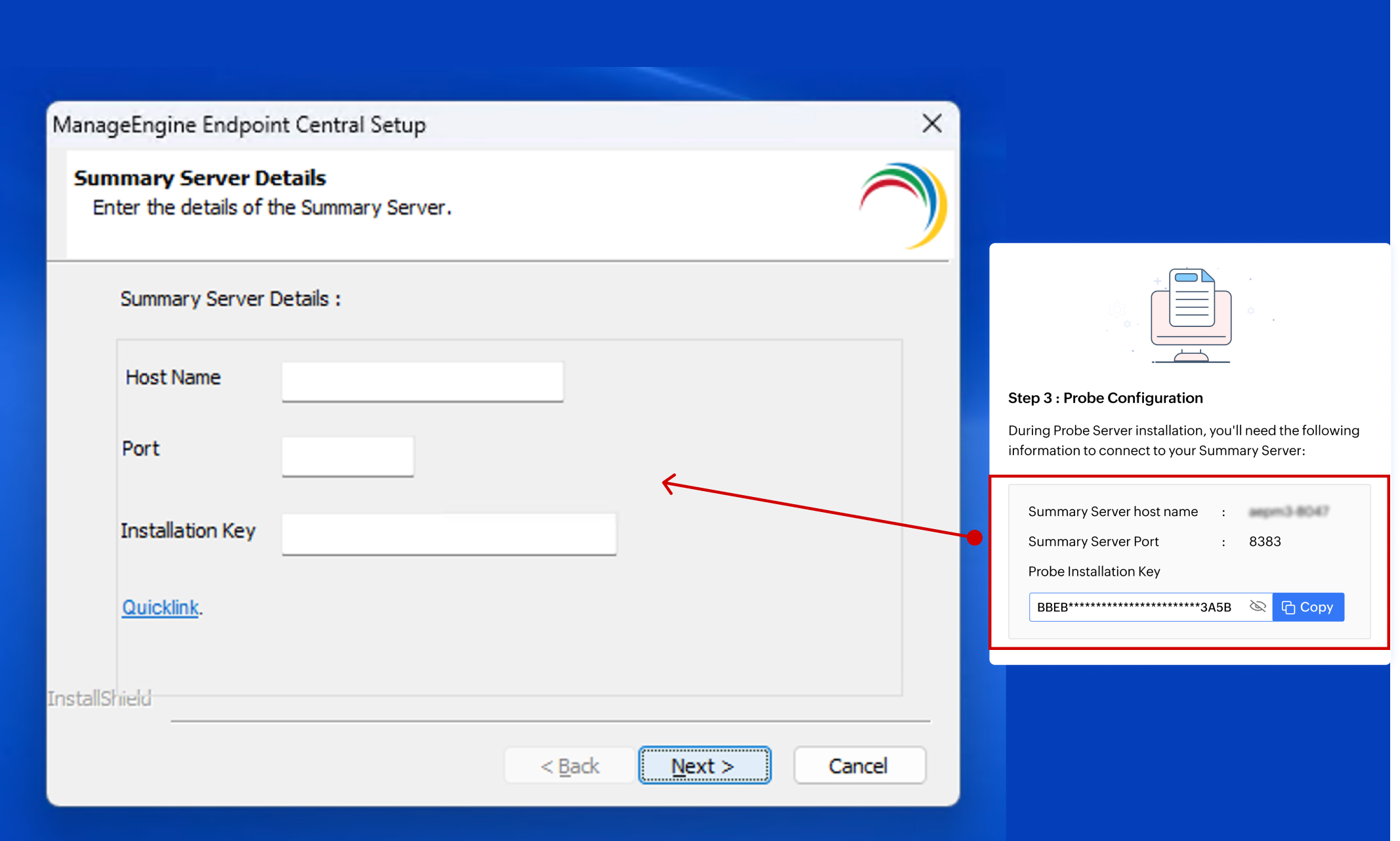
- Click Finish to complete the installation.
Once the Probe Server is successfully installed, access the Summary Server web console and refresh the page to see the updated Probe details.
To know more about upgrading the summary server, click here